
Smarter by Design.Simpler for Business
Bot Protection
What Is Bot Protection?
Bot Protection is the tab where the current content of the live counting and block tables of the Bot Protection Policies policies assigned to a vService with the AGS access control enabled is listed and cleared. It is not a recorded log; it shows how the policy counts the clients and whom it blocks with the state at the moment it is displayed.
A policy can keep two types of table. The policies with the Requests and Auth failures triggers keep a counting table per scope key (e.g. the client IP address) and monitor how close the client comes to the threshold. The policies with the Block action keep a block table (in the Static and Bot Score triggers only this table is found); the client that is triggered stays in this table for the Block Duration duration. The screen combines the two tables in a single list: the counting rows are of the Counter type and the block rows of the Block type.
The screen answers the question "which client has reached the limit, who is blocked right now?" and makes it possible for a client that is blocked by mistake to be released before the duration expires or for its counter to be reset.
Live
Instant Table
The content of the counting and block tables at the moment they are displayed
At Most 2
Table per Policy
The counting table (Requests · Auth failures) and the block table (Block)
Bot: <name>
Policy Selector
Every policy that keeps a table is a separate entry in the selector
Counter · Block
Row Type
When the two tables are combined the Type column and its filter are added
3/300
Status
The closeness of the counter to the threshold; in a block the end time
100K / 1K
Table Capacity
The counting table keeps 100,000 and the block table 1,000 keys
Reset Counters
Resets the Counter
The existing block is preserved; Remove Blocks deletes the block and the counter together
Manual
Refresh
The list is not refreshed by itself; the current state is taken with Refresh
Accessing Bot Protection
- Left Monitor Panel is opened.
- AGS-Enabled vServices is selected from the category tabs at the top left.
- The vServices defined on TR7 with AGS access control enabled are listed.
- The vService to be monitored is clicked; the screen opens with the Dashboard tab that carries the vService's name.
- On the screen that opens, the Bot Protection tab is clicked.
The visibility condition of the tab
The tab is displayed only if at least one bot protection policy that keeps a table is assigned to the vService. The policies whose trigger is Requests or Auth failures and the policies whose action is Block keep a table. The Static and Bot Score policies whose action is other than Block do not keep a table and are not listed in the selector.
Among the built-in profiles Standard Rate Limiting, Strict Rate Limiting and Rate Limiting with TR7 CAPTCHA keep a table; Static TR7 CAPTCHA Protection, Bot Score CAPTCHA Challenge and Bot Score Deny do not. When a new vService is opened with its default policies, only the Bot: Standard Rate Limiting entry is found in the tab.
Since the tables are read from the traffic engine of the vService, the list cannot be fetched while the vService is not running. The screen is opened with monitoring authorization in the Load Balancer area; the fetching and the clearing of the tables require the Load Balancer modify authorization.
Bot Protection Listing Screen
When the Bot Protection tab is opened, the tables of the first policy in the selector are listed. The list is fetched when the screen is opened and when another policy is selected in the selector; it is not refreshed by itself.
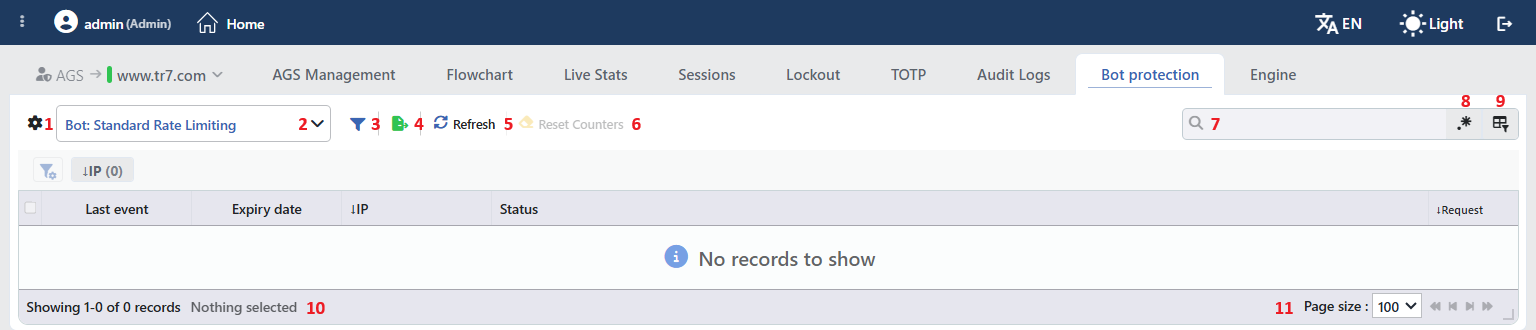 Bot Protection Listing Screen
The table opens with the following columns by default:
| Column | Description |
|---|---|
| Last Event | In a counting row the moment at which the key was last monitored (for Requests the last request, for Auth failures the last failed verification); in a block row the moment at which the block was last applied or renewed. |
| Expiry Date | The moment at which the record will fall out of the table; in a block row the moment at which the block will be removed. |
| ↓IP (the scope key) | The key value in the counting scope of the policy. In the IP Address scope the client IP address is shown with the country flag in the column titled ↓IP; when it is hovered over the reputation summary of the address is displayed, and when it is clicked the IP information window titled <ip> details is opened. In the IP + User Agent scope there is additionally a User-Agent column, and in the Composite scope a separate column for every component. In the Global scope and in the Static policies there is no key column. |
| Type | The type of the row: Counter in dark orange, Block in red. (Only if the policy keeps both a counting and a block table) |
| Status | The state of the row (the table below); in the block rows in red, in the counting rows in dark orange. |
| ↓Request / ✗Sign-in | The counter of the policy, in the count/threshold form. In the Requests trigger the request rate in the Trigger Window Duration window is written with the ↓Request title, and in the Auth failures trigger the number of failed verifications with the ✗Sign-in title. In a block row -. Even if a Policy Condition is defined, the counter counts the requests that do not match the condition as well; the condition only limits the triggering. |
The following column is hidden by default and is added from the column selector:
| Column | Description |
|---|---|
| Source | The name of the device that fetched the record. |
The ↓ prefix shows that the value is read from the request coming from the client. In the Requests policies the Block rows take place at the beginning of the list, and the Counter rows are ordered from the largest to the smallest according to the request rate. In the Auth failures policies the list is not ordered according to the counter; the ordering is made from the column title.
The Columns According to the Policy Type
| Policy | Key column | Type | Counter column | Row types |
|---|---|---|---|---|
| Requests + an action other than Block | According to the scope | None | ↓Request | Counter |
| Requests + Block | According to the scope | Present | ↓Request | Counter, Block |
| Auth failures + an action other than Block | According to the scope | None | ✗Sign-in | Counter |
| Auth failures + Block | According to the scope | Present | ✗Sign-in | Counter, Block |
| Bot Score + Block | According to the scope | None | None | Block |
| Static + Block | None | None | None | Block |
Status
| Row type | Format | Meaning |
|---|---|---|
| Counter | 3/300 requests | In the Requests trigger the request rate in the window and the Request Threshold value of the policy. |
| Counter | 2/5 failures | In the Auth failures trigger the number of failed verifications and the Failed Auth Threshold value of the policy. |
| Block | Blocked until 14.09.2026 15:20:00 | The date and time at which the block of the client will be removed. |
When the threshold cannot be read, only the number is written in the counting row, and when the remaining duration cannot be read in the block row, only Blocked is written.
The items in the toolbar are arranged from left to right in the following order; the last two items (Page Information and Page Size) are located in the information strip below the table.
Columns
Which columns are shown in the table is selected. In the same panel, columns are reordered by dragging and alignment is selected per column; the row height is fitted to the page with the Fit rows to the page button, and the column layout is reset to default with the Reset button. The layout is stored per user.
Policy Selector
The policy whose tables will be displayed is selected. The entries are in the Bot: <policy name> form and follow the order of the Bot Protection Policies list in the AGS settings of the vService; the names of the built-in profiles are written in the interface language. The selector is displayed when there is a single entry as well. When the screen is opened the first entry is selected and the selection is not stored; when another entry is selected the table is fetched by itself. While the fetching continues the selector is passive.
Filter
Opens and closes the filter panel; the panel comes open by default. The filters are listed above the table in the form of a card strip and the number next to the card is the number of different values found for that criterion. The order of the cards is changed by being dragged. The filter criteria that can be used:
| Filter | Description |
|---|---|
The key cards (e.g. ↓IP) | A separate card for each of the scope keys of the policy; a search is made within the card. |
| Type | The row type (Counter / Block). It is found only if the policy keeps both a counting and a block table. |
Export
The table is exported as Excel, CSV or PDF by clicking the Export button. In the window that opens, the Filename, Format and Data Source, together with the Columns to be exported, are determined; the remaining fields are displayed according to the format: CSV Separator for CSV, Excel Sheet Name for Excel, and Page Orientation and Page Size for PDF.
Refresh
By clicking the Refresh button the current content of the tables of the selected policy is fetched. Since the list is not refreshed by itself, the current state is taken with this button. While the fetching continues the button stays passive and shows a turning icon; it is passive while the vService is not running as well.
Reset Counters
The Reset Counters button is clicked in order to reset the counter of the clients in the selected Counter rows. The tooltip of the button is "Sets the selected clients' counter back to zero. Any block they are already under stays in place.". Before the operation the "Are you sure?" confirmation is requested; the counter starts again from zero and the table is fetched again in the same operation.
The existing block of the client is not removed with this operation; the Block rows in the selection are not touched. If there is no Counter row among the selected rows the button is passive. The button is displayed only in the policies that keep a counting table (with the Requests or Auth failures trigger). The same operation is found in the right-click menu as well.
Search
Used to search all information in the table.
RegExp Search
Used to search all information in the table with a regular expression (RegExp).
Column Based Search
Used to perform a column-based search on the information in the table.
Page Information
Contains information about the total number of fetched records and the range of records displayed in the list: Showing N-M of T records and the number of selected rows (N selected, Nothing selected while there is no selection). If there is no record in the table, No records to show is written in the body.
Page Size
The maximum number of records to be displayed on the page is selected. The default is 100; the options are 50, 100, 250 and All. The selection is not stored.
Remove Blocks: in the policies with the Block action
When a policy whose action is Block is selected, the Remove Blocks button is displayed in the toolbar after the Refresh button. The clients in the selected Block rows are removed from the block list and their counters are reset as well; since the counter is read again at every request, a client left at the threshold would be blocked again immediately. In the Static and Bot Score policies only the block record is deleted; if the triggering condition is still met the client is blocked again at its next request. The tooltip of the button is "Removes the selected clients from the block list and resets their counter. The counter has to go with it — it is re-read on every request, so a client left at the threshold would be blocked again immediately.". Before the operation the "Are you sure?" confirmation is requested; if there is no Block row in the selection the button is passive.
Line Limit and the time range selector are not found on this screen; every table is read at one time.
Right-Click Menu
When a row is right-clicked, a single-operation menu that has Actions written in its title is opened. The operation in the menu changes according to the type of the row and is applied only to the record right-clicked; the selection made in the list does not affect the menu.
| Operation | What it does | Visibility condition |
|---|---|---|
| Reset Counters | Resets the counter of the client right-clicked; like the Reset Counters in the toolbar, it requests the "Are you sure?" confirmation. | A Counter row |
| Remove Blocks | Removes the block of the client right-clicked and resets its counter; like the Remove Blocks in the toolbar, it requests the "Are you sure?" confirmation. | A Block row |
Preview of the Selected Record
When a row in the list is clicked, the preview of the record opens on the right of the screen. In the title there are the tracking icon, the Bot: <policy name> name of the selected policy and below it the name of the vService.
Operations are performed on the record with the icon at the top right of the header:
| Operation | What it does |
|---|---|
| Remove from Table | Removes the record from the table: in a Counter row it resets the counter of the client, and in a Block row it removes the block and resets the counter. Unlike the toolbar and right-click ways, it applies without asking for a confirmation; afterwards the table is fetched again. |
The information rows in the panel are as follows in order:
| Row | Description | Visibility condition |
|---|---|---|
| Source | The name of the device that fetched the record. | Always |
| Last Event | In a counting row the last monitoring, in a block row the moment at which the block was last applied or renewed. | Always |
| Expiry Date | The moment at which the record will fall or the block will be removed. | Always |
| Type | The row type (Counter / Block). | Always |
| Status | The Status value in the table. | Always |
| Source (Client) IP Address | The full name and the value of the scope key; in the IP addresses with the country flag. | Per scope key |
| HTTP Requests / Failed Sign-ins | The counter, in the count/threshold / window form (e.g. 3/300 / 1 minute); in a Block row - / window. | If the policy keeps a counting table |
Scope and Limits
INFO
- It is an instant view. The records that have fallen out of the table and the past blocks are not shown. The provider counters of the policies with the Captcha action are monitored on the Live Stats tab, and the bot score on the Dashboard tab; the number of times the Block, Deny, Tarpit and Show Content actions are applied is not kept.
- The lifetime of the records in the table changes according to the trigger. The Auth failures counter falls one Trigger Window Duration after the last failed verification, and the Requests counter ten times the window after the last request. The block record lasts as long as the Block Duration (5 minutes if it is not defined). As long as the triggering condition of the policy is met, every request of the client starts the block duration from the beginning; in a Requests policy the block is removed Block Duration after the request rate falls below the threshold.
- Reset Counters does not remove the block; Remove Blocks resets the counter as well. Remove Blocks is used in order to release a blocked client immediately.
- The operations cannot be undone. The Remove from Table in the preview title is applied without asking for a confirmation.
- The table capacity is limited. The counting table keeps 100,000 and the block table 1,000 keys; in the Global scope a single key is used. At most 50,000 rows are read from every table.
- In a cluster setup the rows are fetched per device. The counting and block tables are not synchronized between the devices; the threshold is evaluated separately on every device. The tables of the two devices are shown in a single list; the same client may appear as a separate row on two devices. The clearing operations are applied to the device the row comes from.
- The tables are seen only on the AGS screen. The tables of the bot protection policies do not take place in the source list on the Logs & Tracking tab.
- What the screen does not show. The bot score, the triggering history and the number of times actions such as Deny and Captcha are applied do not take place on this screen.
