
Smarter by Design.Simpler for Business
Path
What Is the Path Condition?
Path is a condition type used to make traffic routing and manipulation decisions by evaluating the path section in the URL of the HTTP request.
The path is the part of the URL that comes after the domain and before the query string.
https://example.com/api/v1/users?id=123
Path
The Path condition does not perform an operation by itself; only when the defined match is met is the condition considered met, and it enables the actions bound to this condition to take effect.
URL Structure
 Full URL Structure
| Component | Description |
|---|---|
| Scheme | Expresses the protocol used (http/https). |
| Domain Name | Specifies the server address to which the request is sent. |
| Port | Defines the service port on which the server listens. |
| Path to the File | Specifies the path of the resource to be accessed on the server. |
| Parameters (Query) | Contains the query string parameters sent with the request. |
| Anchor | Expresses the in-page location; it is not sent to the server. |
The Importance of the Path Condition
In modern web applications, the path plays a basic role in identifying the resource. API endpoints, page paths and resource locations are determined through the path.
With the Path condition:
- Special security policies can be applied to API endpoints,
- Different cache rules can be defined for static and dynamic content,
- Access to management panel paths can be restricted,
- URL rewrite scenarios can be applied,
- Microservice routing decisions can be made.
In this respect, the Path condition is one of the most basic building blocks of URL-based traffic control on TR7.
Path vs Path + Query vs URL:
| Criterion | Scope | Example |
|---|---|---|
| Path | Path only | /api/users |
| Path + Query | Path and query string | /api/users?id=123 |
| URL | Protocol, host, path, query | http://www.tr7.com/api/users?id=123 |
Supported vService Types
HTTP
L7 TCP
Network
The condition can be used at both the request (At Request) and response (At Response) stages; the path value is detected at the time of the request and is evaluated over the same value at the response stage as well.
How to Add?
A new Path Condition can be added through the TR7 web management interface by following the steps below:
- The Configuration Menu is opened by clicking the TR7 logo at the bottom left.
- The Load Balancer → Conditions → Add steps are followed.
- Path is selected as Criteria.
- The related configurations of the condition are made.
- The condition is added by clicking the
Addbutton.
Path Condition Add Form
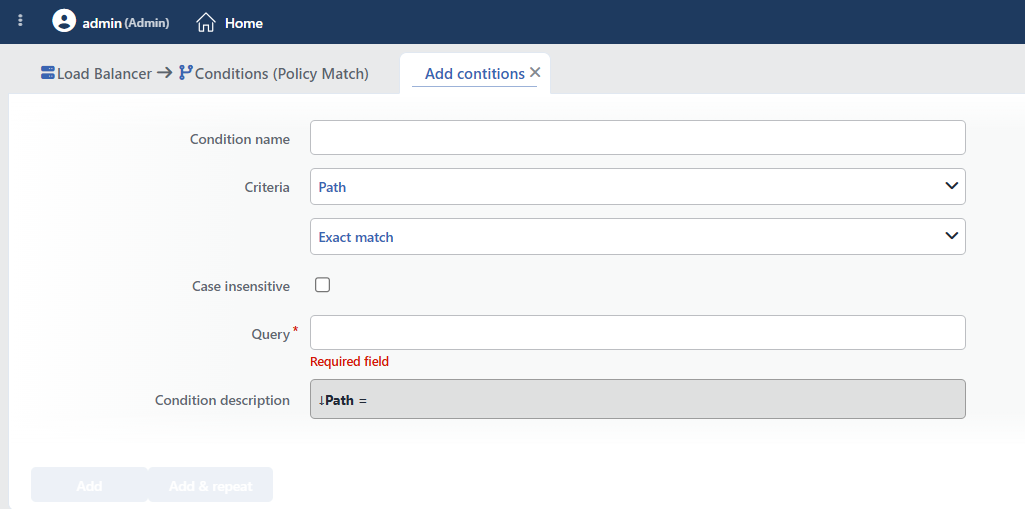 Path Condition Add Form
INFO
Condition Name
An optional name can be entered for the condition to be created.
This field is especially important in the following scenarios:
- When many conditions are defined under the same vService,
- When conditions with similar criteria need to be distinguished,
- When it is necessary to quickly understand which business rule the condition represents.
When this field is left empty, TR7 analyzes the content of the related condition and creates an automatic, descriptive name in the Condition Description field. This generated description is used as the name in condition lists.
INFO
Criteria Required
The field that determines the type of the condition; Path is selected from the searchable dropdown list. This selection determines the fields displayed in the form. The criterion cannot be changed after the condition is saved: if a different criterion is needed, a new condition is defined. For all criteria in the list and their scopes, the criteria catalog on the Conditions page can be referred to.
INFO
Content Matching Method Default: Exact match
Determines how the content is matched. The field appears in the form as an unlabeled dropdown list right below Criteria and opens with Exact match selected. The Is present option is not offered in this criterion.
| Option | Code | Description |
|---|---|---|
| Exact match | exactMatch | The value must match exactly. |
| Start | start | The value must start with the specified text. |
| End | end | The value must end with the specified text. |
| Includes | sub | The value must contain the specified text. |
| Regex | regex | The value must match the regular expression. |
Sample path matches:
| Method | Query | Matching Paths |
|---|---|---|
| Exact Match | /api/users | /api/users |
| Start | /api/ | /api/users, /api/products |
| End | .json | /data.json, /api/users.json |
| Includes | admin | /admin, /api/admin/users |
| Regex | ^/api/v[0-9]+/ | /api/v1/users, /api/v2/products |
INFO
Case Insensitive Default: Off
Controls case sensitivity.
- Active:
example,EXAMPLE,Exampleare considered the same - Not Active: An exact match is required (default)
TIP
URL paths and header names should usually be processed case-insensitively, while values should remain case-sensitive.
INFO
Query Required
The value to be matched is entered in this field. According to the selected matching method:
- Exact match: Checks for an exact match of the value.
- Start: Checks the beginning of the text to be searched for.
- End: Checks the end of the text to be searched for.
- Includes: Checks whether the text to be searched for is contained.
- Regex: Checks with a regular expression pattern (Regex).
Sample values:
/api/v1/users: for exact match/admin: start match for admin pages.php: end match for PHP files^/products/[0-9]+$: product ID regex
URL Encoding
The condition evaluates the path in its raw (encoded) form as it comes from the client; requests containing percent-encodings such as %2F and %2e or dot-segments (/./, /../) may not match plain text patterns. The URL Normalization action normalizes the path after the condition evaluation: it does not protect the condition against such bypasses. In security-oriented path checks, Regex patterns that also cover encoded variants should be preferred.
INFO
Condition Description
It is created automatically by TR7 in line with the entered criteria and values.
This description:
- which value the condition applies to,
- which criterion it works on,
- the quick understanding of the condition on listing screens
is produced dynamically by the system so as to provide these.
TIP
The path value of the request can be used in actions with the Path/page of the request [URI] smart variable (e.g. as the value of an HTTP header or a log field).
INFO
Form Buttons
Add
The condition adding process is completed by clicking the Add button.
Add & Repeat
With the Add & Repeat button, the condition adding process is completed, and another new condition can be added with different configurations without leaving the related window.
 Condition Added
Operational Usage Recommendations
- Start Matching Should Be Preferred. For API versioning and path prefixes, the
Startmethod is more performant and maintainable. - Regex Should Be Used Carefully. Regex is powerful but has a performance cost. Other methods should be preferred for simple matches.
- Trailing Slashes Should Be Taken into Account.
/api/usersand/api/users/are different paths. For consistency, they should be normalized, or conditions covering both should be created. - The Case Sensitivity Decision Should Be Made Consciously. URL paths are usually case-sensitive. However, Windows servers may be case-insensitive.
- The Path + Query Condition Should Be Used If Both Path and Query Checks Are Needed. If the query string is also needed, the Path + Query condition should be preferred.
Common Usage Scenarios in Live Environments
The examples below show how the related condition is applied in the most frequently encountered use cases in real systems. These scenarios are based on practices that are widely preferred in live environments and rest on experience gained in the field.
Scenario 1: Protection and Limitation for API Endpoints
Purpose: To provide path-based traffic control in order to apply special security, rate limiting and bot protection to API requests.
Configuration: Content Matching Method → Start · Query → /api/
Action Recommendations:
- ✅ Bandwidth Limitation → An IP-based 10 Mbps throughput limit is applied to API endpoints, and overloading is prevented.
- ✅ Quarantine → IPs that send more than 100 API requests per minute are quarantined for 5 minutes.
- ✅ Advanced Traffic Inspection → Detailed logging is performed for API usage statistics and anomaly detection.
Scenario 2: Admin Panel Access Control
Purpose: To apply multi-layered security in order to block unauthorized access to the management panel and log all admin access attempts.
Configuration: Content Matching Method → Start · Query → /admin
Action Recommendations:
- ✅ Block → Admin panel access from sources outside the authorized IP list is blocked with 403 Forbidden.
- ✅ Show Content → In unauthorized access attempts, the custom warning page "Access Denied - Admin Panel" is shown.
- ✅ Advanced Traffic Inspection → All admin path access attempts are logged in detail, and security analysis is performed.
Scenario 3: Static Content Optimization
Purpose: Browser cache optimization and log noise reduction for static files (CSS, JS, images).
Configuration: Content Matching Method → Regex · Query → \.(css|js|png|jpg|gif|ico|woff|woff2)$
Action Recommendations:
- ✅ Add HTTP Header → The
Cache-Control: max-age=31536000header is added to static files, and a 1-year browser cache is provided. - ✅ Conditional Silent Log → Static content requests are not logged, and log volume and disk usage are reduced.
Scenario 4: Access Protection for Sensitive Files and Directories
Purpose: To block access to sensitive paths such as configuration files (.env, wp-config.php) and version control directories (.git), and to monitor attack attempts.
Configuration: Content Matching Method → Includes · Query → .env
Action Recommendations:
- ✅ Block → Sensitive file paths (
.env,.git,wp-config.php) are blocked with 404 Not Found, and the existence of the files is hidden. - ✅ Quarantine → Within 5 minutes, IPs that make more than 3 sensitive file access attempts are quarantined for 60 minutes.
