
Smarter by Design.Simpler for Business
Edit
What Is Edit?
Edit changes the settings of an existing page type (WAF rule) in the Page Types list. The edit screen is exactly the same form as Add; the only difference is that the form comes filled with the current values of the selected rule and that the title and the confirmation button are Edit. For the detailed explanations of the fields (Path, Allowed Methods, Path Length, Path Depth, OWASP) see Add.
Every rule in the list is edited with the same screen independently of its source: in this respect there is no difference between the rules that have been added manually, learned by Analysis & Learning or taught over Event Logs.
Accessing the Edit Screen
The edit screen is reached in three ways:
- The toolbar: a rule is selected in the list and the Edit button is clicked. The button is enabled only while exactly one row is selected; it stays passive while there is no selection or while more than one row is selected.
- The detail panel: the Edit button in the title of the detail panel that opens on the right when a rule is clicked in the list is clicked.
- The right-click menu: a rule is right-clicked in the list; Edit is selected from the menu that carries the path of the rule as its title. The menu targets only the right-clicked row, independently of the selection.
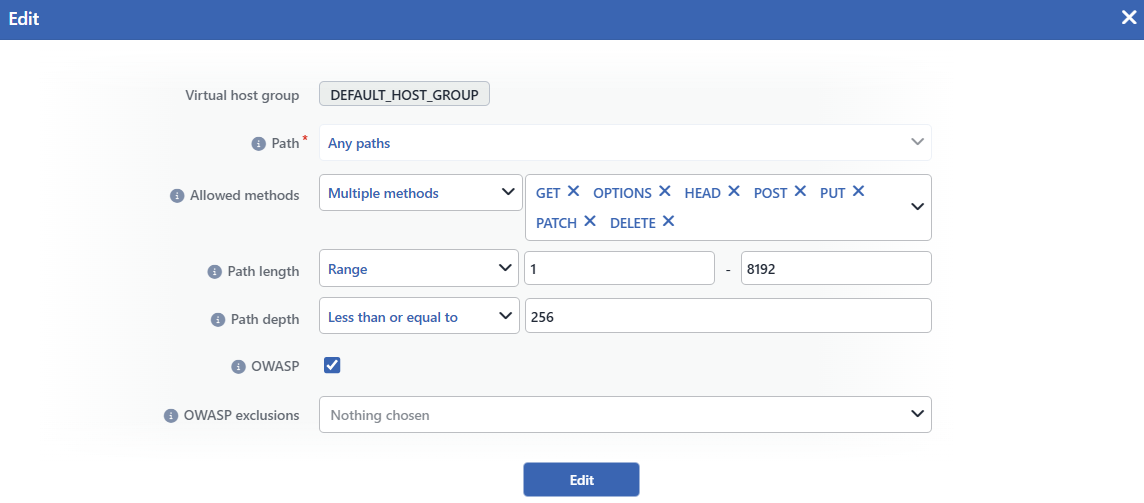 The Page Type Edit Screen
INFO
The Edit Form
The form opens with the current values of the rule. While a rule whose path is a glob pattern is being edited, the live path test table is seen again; however the examples entered in the test table are not stored; the table starts empty at every opening.
Editing the Any Paths Rule
The Any Paths (catch-all) rule can also be edited; however its path field is locked and stays fixed as Any Paths. The Allowed Methods, Path Length, Path Depth and OWASP settings can be changed freely. Since Any Paths meets every path, the length and depth restrictions are provided in this rule as well although the path is not a pattern.
The Effects of a Path Change
- The Check Fields configuration of the rule (the query, header and body field inspections) is preserved in a path change; only the matching pattern changes.
- If the new path collides with another rule in the same host group, the save is rejected and a Rule collision error is shown.
- The path can be changed freely between the exact and glob forms; the form enters or leaves the glob mode according to the new value entered.
Operational Best Practices
- The tightenings should first be observed in the Monitor mode. The effect of tightenings such as narrowing the Allowed Methods list or adding a Path Length / Path Depth restriction should first be watched in the Monitor mode; after it is verified that the legitimate traffic is not reported as an attack, the Blocking mode is passed to.
- A path-specific tightening should be made in that path's own rule. A change made in the Any Paths rule affects all the paths that have no rule of their own; the settings specific to a single application or path should be kept in the relevant rule instead of Any Paths.
