
Smarter by Design.Simpler for Business
Edit
What Is Edit?
Edit is the edit window that gathers all the settings of the IP Reputation Protection card. In which mode the protection will work, which traffic will be exempted and the category-based action rules themselves are defined here.
Unlike the other protections, the box in the body does not have a separate edit screen: the Action Rules rows read on the card are also written from this window.
4
Settings
The mode, the whitelist defined in two forms and the action rules
Active
Default Mode
The protection applies enforcement from the first moment; taking it into monitoring is the decision of the operator
At Least 1
Rule Row
A row always remains in the list; the last row cannot be deleted from the interface
Draggable
Row Order
When a second row is added, a handle appears in every row; the order is the priority itself
3 Types
Whitelist Row
IP Address · IP Network (CIDR) · ASN (Autonomous System)
Condition or List
Exemption Definition
The two fields are not alternatives to each other; the traffic that one of the two holds for is counted as exempt
The Edit Link on the IP Reputation Protection Card
The link is right below the mode badge at the top right corner of the card. The badge shows the current mode, and the link opens the window in which the mode is changed. The two information rows at the top right of the card (Whitelist, Whitelist Rules) are also the summary of the settings in this window.
 The Edit Link on the IP Reputation Protection Card
The Edit Screen
- The Bot/DDoS Management tab is opened.
- The Edit link at the top right of the IP Reputation Protection card is clicked; the edit window titled Edit - IP Reputation Protection opens.
- The following fields are edited and confirmed with the
Editbutton.
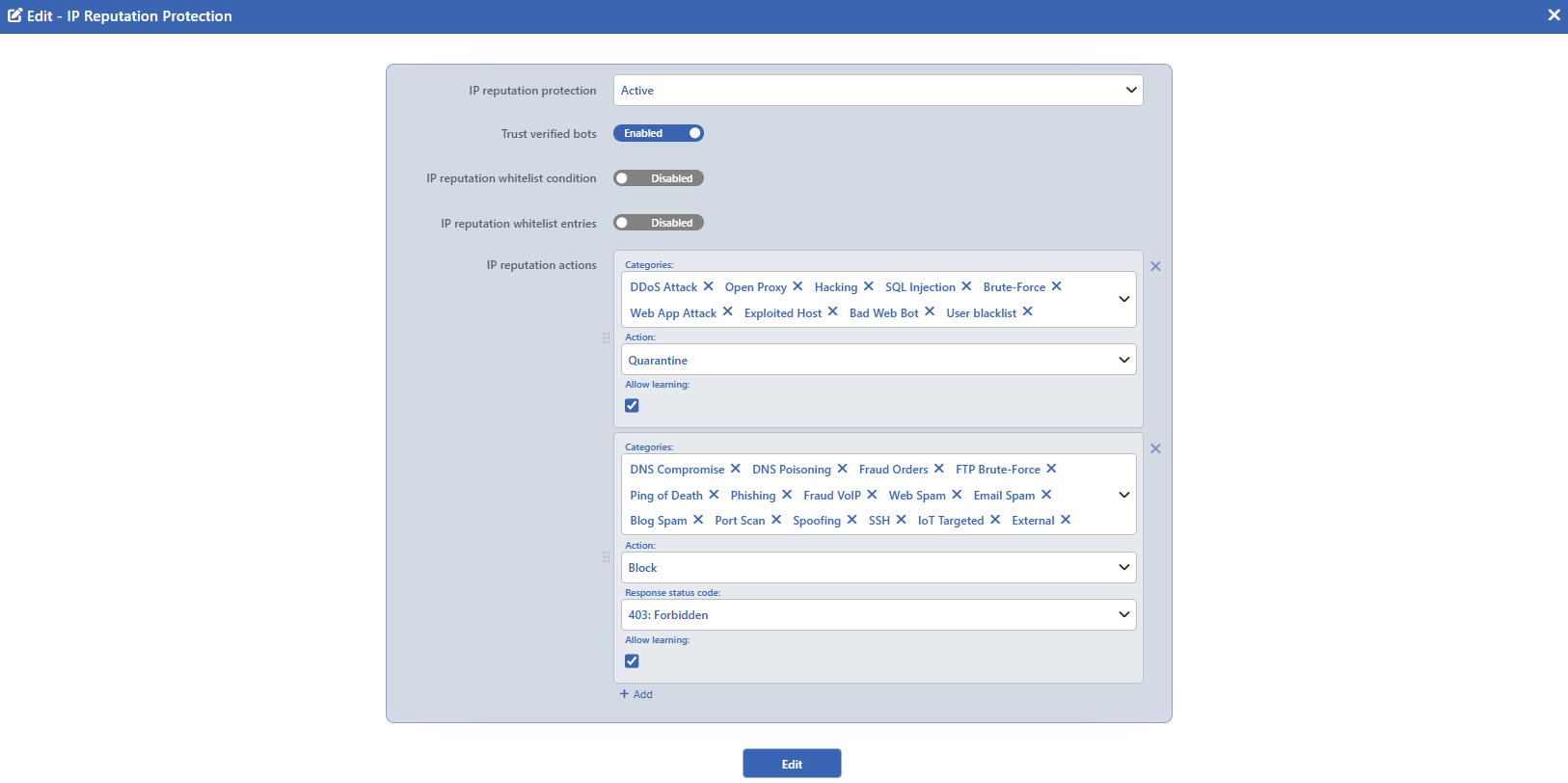 The IP Reputation Protection Edit Screen
INFO
IP Reputation Protection Default: Active
The working mode of the protection is selected; its default value is Active.
| Option | Meaning |
|---|---|
| Off | The protection does not work. The rules are not evaluated and the category distribution is not collected. |
| Active | The rules are applied: the action of the row that matches works on the traffic. |
| Monitor | The classification is made and events are produced, but no request is stopped. |
When Off is selected, a part of the other fields in the form is hidden: Trust Verified Bots, IP Reputation Whitelist Condition and IP Reputation Actions are removed from the screen. In the save made from this window their written values are not deleted, and they come back when the protection is turned on again. The same guarantee is not valid for the writes made from the external interfaces: a save made from there while the protection is off deletes the exemption definition and the rule list. The IP Reputation Whitelist Entries list continues to stay in the form, but since the exemption is not evaluated at all while the protection is off, the rows entered have no effect.
While Monitor is selected, an information icon appears next to the label of the field; the same text is seen when the icon is hovered over and when the field is focused on: Actions fire only while the pillar is Active — in Monitor everything here stays staged and no traffic is affected.
INFO
Trust Verified Bots Default: On
Whether verified crawler bots are exempted from the IP reputation rule list is selected; it is on by default. Community blacklists often report crawlers only because they crawl; a verified crawler, however, comes from the address ranges published by its owner, and its presence on a blacklist is not considered a threat signal.
The verification is not made by looking at the User-Agent header: the address range the bot comes from is compared with the verified bot group in the network type database. Besides the search engine crawlers, the group also covers AI crawlers (e.g. Googlebot, Bingbot, Applebot, DuckDuckBot, OpenAI GPTBot and ChatGPT-User, PerplexityBot). While the switch is on, such a source does not enter the rule list; it is counted as Trusted Bot in the Dashboard panel.
INFO
IP Reputation Whitelist Condition
The traffic to be exempted from the protection is defined with a condition. While the switch is in the Disabled position, there is no condition; when it is taken to the Enabled position, an empty combined condition opens and criteria are added.
The conditions that can be selected have been limited for this field: only the criteria that can be evaluated at the request stage and that fit the protocol of the vService are listed. The traffic that meets the condition does not enter the rules at all.
INFO
IP Reputation Whitelist Entries
It is the shortcut list of the same exemption written row by row. While the switch is in the Disabled position, the list is empty; when it is taken to the Enabled position, rows are added.
The list consists of the Type and Value columns. A new row is added with the plus icon in the Value column heading, and the rows are deleted with the trash bin icon at the end of the row. When the type of a row is changed, the row is set up again and the previous value drops; only in the transition between IP Address and IP Network (CIDR) is the address preserved and the mask comes as 24.
Every row carries a type and a value:
| Type | Its value |
|---|---|
| IP Address | A single address. |
| IP Network (CIDR) | An address and a network mask (24 by default). |
| ASN (Autonomous System) | The autonomous system number. Only digits are entered; even if a value with the AS prefix is accepted, it is not applied to the traffic. |
The rows are in an "or" relationship with each other and they combine with the condition in an "or" relationship as well: the traffic that matches one of the two is counted as exempt. The design limit of the list is 100 rows.
This list is exactly the list that the single-row exemption shortcut in the event log writes to: an address added from the log appears here as a row.
INFO
IP Reputation Actions
It is the list of the category-based action rules. A new row is added with the + Add button, and it is deleted with the cross icon on the right of the row. There is at least one row in the list: when a single row remains, the delete icon is not displayed, and it comes back the moment a second row is added. The + Add button is below the list.
The rows are evaluated according to their order in the list; when a second row is added, a handle icon appears on the left of the rows and the rows can be reordered by dragging. The ordering is not a display preference, it is the decision itself.
The fields of the row are explained under the The Fields of the Rule Row heading.
The Fields of the Rule Row
When the + Add button in the IP Reputation Actions field is clicked, a new row is added to the list and the fields of the row open as below. The button adds one more row at every click.
A new row opens with all the categories selected and its action is Block on HTTP vServices and Silent Drop on L7 TCP vServices. Since the row is added to the end of the list, it is born as a row that collects everything that the rows above it do not catch; to narrow its scope, the unnecessary categories are removed.
INFO
Categories
Which reputation categories the row covers is selected. The field makes a multiple selection: every category selected is listed as a chip, it is removed with the cross icon next to the chip, and the chips can be reordered by dragging.
The full list of the 25 categories that can be selected and their places in the default rules are on the IP Reputation Protection page. The content of the categories (which address is in which category) is managed not from this window but from the IP Intelligence & Reputation screen. In the drop-down list the 23 threat categories are located first, and the User Blacklist and External entries at the very end.
The category list can be left empty; however a row that has no category is not written to the configuration and is not applied to the traffic.
INFO
Action
The enforcement to be applied when the row matches is selected; its default value is Block on HTTP vServices and Silent Drop on L7 TCP vServices.
| Action | What it does | Its additional field |
|---|---|---|
| Silent Drop | The connection is dropped without a response being produced. | None |
| Block | The request is rejected with the selected status code. | Block Status Code |
| Tarpit | The request is held by being slowed down. | None |
| Redirect | The client is redirected to another address. | Redirect Location, Redirect Code |
| Show Content | A ready content page is returned. | Content Page, Status Code |
| Show Captcha | The client is directed to the challenge. | None |
| Quarantine | The client is taken into quarantine with the key monitored in the common penalty box. | None |
On L7 TCP vServices only Silent Drop and Quarantine can be selected; the actions specific to HTTP do not enter the list at all.
Block Status Code Default: 403: Forbidden
It is displayed when Block is selected in the Action field. The HTTP status code to be returned is selected; its default value is 403: Forbidden.
Redirect Location Default: /robots.txt
It is displayed when Redirect is selected in the Action field. The redirection target is written; the field accepts a smart variable and its default value is /robots.txt.
Redirect Code Default: 302
It is displayed when Redirect is selected in the Action field. The redirection code is selected; its default value is 302.
Content Page
It is displayed when Show Content is selected in the Action field. The content page to be returned is selected; with the plus row inside the drop-down list, a new content page is defined without leaving the list and the page defined is assigned directly to this field.
Status Code Default: 403
It is displayed when Show Content is selected in the Action field. The status code to be returned with the content page is selected; its default value is 403.
INFO
Allow Learning
It states whether the row is open to the learning engine or not. The two rows of the default rule list come checked, and the rows added manually are born unchecked.
For this protection the engine does not produce a row-level recommendation: the learning only recommends raising the mode from Monitor to Active. For this reason the mark does not affect the working of the rules at the moment.
The challenge and the quarantine are not configured in this row
The Show Captcha and Quarantine actions do not carry any additional field in the row. The form of the challenge and the period and the tracking window of the quarantine are defined on the Captcha and Quarantine cards; both cards are used in common by the three protections.
INFO
Edit
Changes in the form are saved by clicking the Edit button. There is no additional confirmation window or deploy step; the Load Balancer configuration is regenerated and applied automatically. The operation is written to the user log with a change summary.
As long as the form carries an invalid value, the button is passive: a missing or invalid whitelist row prevents the save and gives a warning together with the row number.
The exemption is calculated in the monitor mode as well
The whitelist is not an enforcement but a classification: it is evaluated in the Monitor mode as well. The exempt traffic appears in the event log with a separate exemption flag and is written to a separate bucket in the counters of the protection.
Scope and Limits
INFO
- This window covers the whole of the protection. The mode, the exemption and the rule list are edited from a single screen; the box in the body of the card does not have a separate edit screen.
- The default mode is Active. When the window is first opened, the protection is already in a state of applying enforcement.
- The rule list cannot be left empty. The last row cannot be deleted from the interface; when the list stays empty, the default rules come into play.
- A row without a category can be saved but does not work. The form accepts this row and the card counts it; it is not written to the configuration.
- A new row opens with all the categories. Since the row is added to the end of the list, even if its scope is not narrowed, it does not make the rows above it ineffective; it only collects everything that they do not catch. If the same row is dragged upwards, all the rows that remain below it become unreachable.
- The design limit of the whitelist is 100 rows. The limit is applied in the single-row adding shortcut in the event log and in the writes made from the external interfaces; in the save made from this window the number of rows is not checked separately.
- This window does not change the content of the categories. The address lists, the update period and the external feed sources are on the IP Intelligence & Reputation screen.
- The whitelist types change according to the protection. In this protection only the IP, CIDR and ASN rows are defined; the country and client fingerprint types are specific to the whitelists of the other protections.
- Saving does not ask for confirmation. The moment the
Editbutton is clicked, the configuration is written and the regeneration of the Load Balancer configuration is started in the background. - The window opens only on the users that have edit permission. The card is displayed with read-only permission; the Edit link is displayed only on the users that have edit permission.
