
Smarter by Design.Simpler for Business
Authentication Servers
What Are Authentication Servers?
Authentication Servers are the connection definitions of a directory or a service AGS connects to for authentication: the server addresses and ports, the load balancing method among several addresses, the route table from which the request goes out, the TLS certificate validation, the connection timeout and the pool size are kept in this profile. How the verification is performed (the search filters, the username format, the HTTP request), on the other hand, is defined in the provider profile on the Authentication Providers screen, and the provider is bound to this server profile with the Authentication Server field.
A server profile is shared by several providers; in this way the same Active Directory or OpenLDAP cluster is used in several flows with different search settings and an address change is made in a single place.
5
Protocols
LDAP · LDAPS · RADIUS · HTTP · HTTPS
Multiple
Server Addresses
Several host:port entries; Round Robin, Weighted Round Robin or Failover distribution
TLS
Secure Connection
Certificate validation and the minimum TLS version in LDAPS and HTTPS
Test
LDAP Connection Test
A connection attempt from the preview, over the route table of the profile
Shared
In the Providers
The LDAP, HTTP and RADIUS providers use the same server profile
How does it work?
- The server profile is defined on this screen: the Protocol is selected, the addresses are entered in the Server Hosts table and the Route Table from which the request goes out and the connection settings are configured.
- While a provider of the LDAP, HTTP or RADIUS type is being created on the Authentication Providers screen, this profile is selected in the Authentication Server field.
- When the verification step runs in the access flow, the connection is established from the selected route table to the server addresses; several addresses are distributed with the Load Balancing Method and the connection settings (the timeout, the pool size, TLS) are taken from the profile.
- On the LDAP and LDAPS servers the connection is attempted from the device with Test Connection in the preview, without the profile being changed.
Operational Best Practices
- The port suitable for the protocol. In the Server Hosts rows the port comes as 389; 636 must be entered for LDAPS, 1812 for RADIUS and the port of the service for HTTP and HTTPS (usually 80 and 443).
- Redundant addresses. Several servers of the same directory must be added to a single profile; the Failover method is selected for sequential redundancy and Weighted Round Robin for distribution according to the weight.
- The certificate validation on. Validate SSL Certificate must not be turned off in LDAPS and HTTPS; it must be ensured that the chain of the server certificate can be validated by TR7.
- The route table. If the directory servers are accessed from a separate route table such as the management network, the Route Table field must be selected accordingly; the LDAP connection test is also made from this table.
- The providers before deleting. The delete confirmation does not show the usage locations; the providers that use the server must be checked on the Used in tab in the preview.
How to Add?
A new Authentication Servers profile is added through the TR7 web management interface with the following steps:
- The Configuration Menu is opened by clicking the TR7 logo at the bottom left.
- The AGS → Authentication → Authentication Servers → Add steps are followed.
- A unique and descriptive name is entered for the profile.
- The Protocol is selected, at least one address is added to the Server Hosts table and the connection settings are configured.
- The profile is added by clicking the
Addbutton.
TIP
Reaching the page via quick search
Instead of navigating the menu step by step, the related page is reached directly by using the search bar in the bottom left corner of the screen. The search bar opens with the Alt + T shortcut on Windows and Opt + T on macOS; typing the name of the feature being searched for is then sufficient.
The created profile is used in the Authentication Server field in the provider form. The profile is also defined without leaving the provider form with the add icon next to this field; the created profile comes selected in the field.
Authentication Servers Listing Screen
The list of all Authentication Servers profiles that are added on the TR7 device is reached by following the AGS → Authentication → Authentication Servers path. Profile adding, editing and deleting operations are performed on this screen.
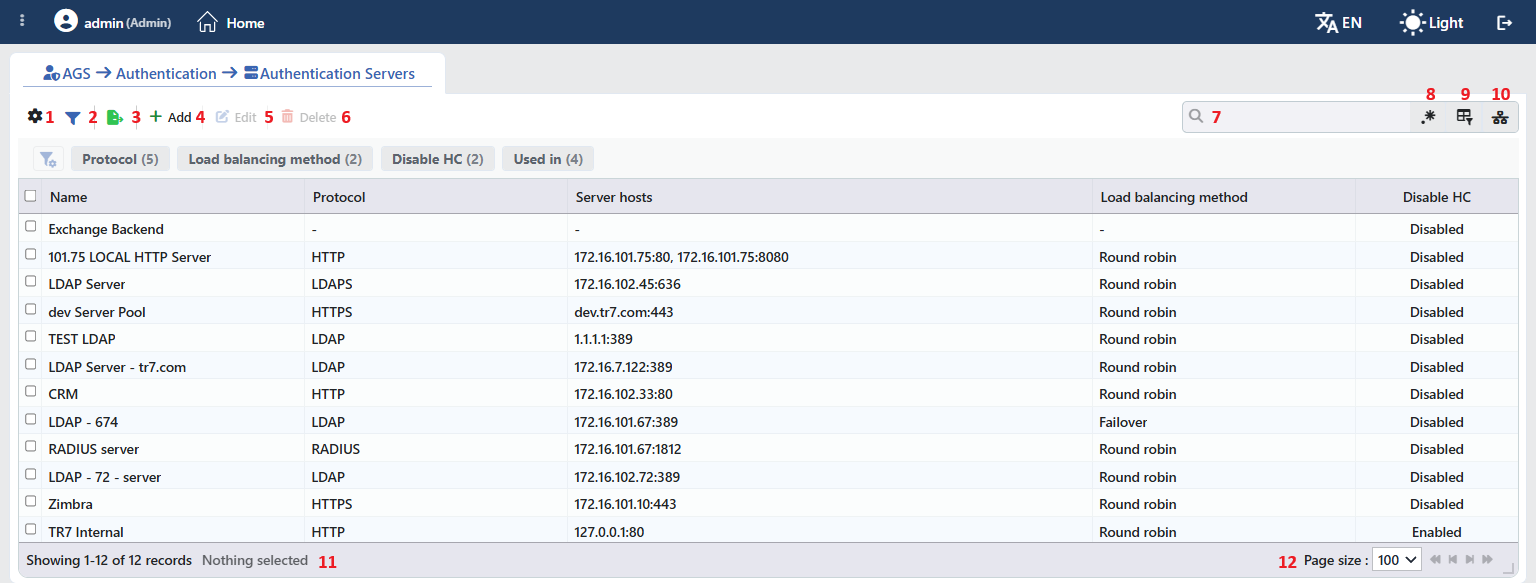 Authentication Servers Profiles Listing Form
The table opens with the following columns by default:
| Column | Description |
|---|---|
| Name | The name of the profile. |
| Protocol | The access protocol to the server. |
| Server Hosts | The server addresses, in the address:port form and with commas; - if there is no address. |
| Load Balancing Method | The distribution method among the addresses. |
| Disable HC | Whether the health check is turned off: Enabled (the check is off) or Disabled (the check is on). |
There is no column that is hidden by default. The table is not sorted when it opens; when a column header is clicked, first a descending and then an ascending sort is applied, and on the third click the sort is removed.
The items in the toolbar are arranged from left to right in the following order; the last two items (Page Information and Page Size) are located in the information strip below the table.
Columns
Which columns are shown in the table is selected; all five of the columns come on. In the same panel the columns are reordered by dragging and the alignment is selected per column; the row height is fitted to the page with the Fit rows to the page button and the column layout is returned to the default with the Reset button. When the width badge next to a manually widened column is clicked, the column returns to the automatic width.
Filter
The Filter button is used to filter the profiles shown in the list according to certain criteria. There are four cards in the filter strip; the number next to the card name shows how many different values are found for that card in the profiles in the list:
| Card | What it filters |
|---|---|
| Protocol | By the protocol (LDAP, LDAPS, RADIUS, HTTP, HTTPS). |
| Load Balancing Method | By the distribution method. |
| Disable HC | By the health check setting (Enabled / Disabled). |
| Used in | The vServices with AGS enabled that use the profile and the Unused Entries value, which lists the profiles that are not used anywhere. The provider names are not in this card; the link is followed through the provider up to the vService. |
Export
The table is exported as Excel, CSV or PDF by clicking the Export button. In the window that opens, the Filename, Format and Data Source, together with the Columns to be exported, are determined; the remaining fields are displayed according to the format: CSV Separator for CSV, Excel Sheet Name for Excel, and Page Orientation and Page Size for PDF.
Add
By clicking the Add button, the form for creating a new profile opens in the Add tab.
Edit
By clicking the Edit button, the edit form of the selected profile opens in the Edit tab. The button becomes enabled only when a single profile is selected.
The edit form is the same as the add form; all the fields including Protocol are changed and the button at the bottom of the form carries the name Edit. The change is saved without asking for confirmation and the providers that use the server connect with the new settings.
Delete
When one or more profiles are selected and the Delete button is clicked, the related profiles are deleted. Before deleting, the "Are you sure?" confirmation is asked for.
WARNING
A profile that is in use can also be deleted and the confirmation window does not show the usage locations.
The Authentication Server reference of the providers that use the server is not cleared automatically; these providers are not expected to be able to perform the verification. The providers must be edited and another server must be selected. The delete operation is written to the user operation record.
Search
Used to search all information in the table.
RegExp Search
Used to search all the information in the table with a regular expression (RegExp). While the usage filter is active and the column-based search is open, this button is hidden.
Column Based Search
Used to perform a column-based search on the information in the table.
Usage Filter
Used to filter in which vServices the profiles are used; the vService names and the Unused Entries option are in the selector. While the filter is active, a selector takes the place of the search box; when the icon is clicked again, the search box returns.
Page Information
Contains information about the total number of defined profiles and the number of profiles displayed in the list: Showing N-M of T records and the number of selected profiles (N selected, or Nothing selected when there is no selection).
Page Size
The maximum number of profiles to be displayed on the page is selected. On this screen the default is 100; the options are 5, 10, 20, 50, 100, 200, 500 and All.
Right-Click Menu
When a row is right-clicked, a menu with the profile's name in its title opens. Both operations in the menu apply only to the right-clicked profile; a selection made in the list does not affect the menu.
| Operation | What it does |
|---|---|
| Edit | Opens the editing form of the profile in the Edit tab; it is the same as the form opened by the Edit button in the toolbar. |
| Delete | Deletes the right-clicked profile; the same confirmation question as the deletion in the toolbar is displayed. |
Preview of the Selected Profile
When a row in the list is clicked, the preview of the profile opens on the right of the screen; when the selected row is clicked again, the panel closes. The header contains the server icon, the name of the profile and the Authentication Server subtitle, and the operations are at the top right.
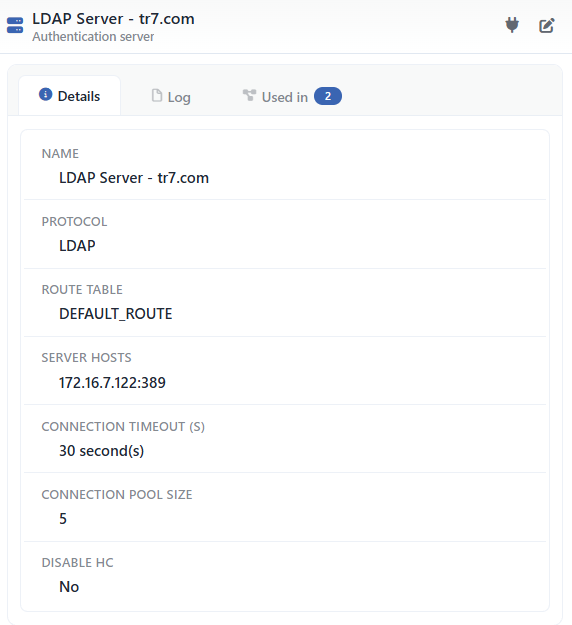 Preview of the Selected Profile
| Operation | What it does |
|---|---|
| Test Connection | Displayed only in the LDAP and LDAPS profiles; it starts a connection attempt from the device to the server (see Test Connection (LDAP)). |
| Edit | Opens the editing form of the profile in the Edit tab. |
There are three tabs in the panel; Used in is displayed only if the profile is used in at least one provider:
Details
Lists the connection settings of the server row by row (the table below).
Log
Lists the user operations on the profile (adding, editing, deleting) as a timeline.
Used in
Lists the parent objects that use the profile in tabs separated by their type (the providers and the vServices); each row shows the chain that extends from the parent object to the profile together with its intermediate nodes. The badge next to the tab name gives the total number of all the parent objects.
The rows in the Details tab are as follows, in order:
| Row | Description | Visibility condition |
|---|---|---|
| Name | The name of the profile. | Always |
| Protocol | The access protocol. | Always |
| Route Table | The route table from which the request goes out (e.g. DEFAULT or DEFAULT_ROUTE). | Always |
| Server Hosts | The address:port rows; the (wN) suffix on the rows whose weight is other than 1. | If there is at least one address |
| Load Balancing Method | The distribution method. | If there are two or more addresses |
| RADIUS Shared Secret | Always ********. | RADIUS |
| Validate SSL Certificate | Enabled or Disabled. | LDAPS, HTTPS |
| Minimum TLS Version | TLS 1.2 or TLS 1.3. | LDAPS, HTTPS |
| Connection Timeout (s) | In the 30 second(s) form. | Always |
| Connection Pool Size | The pool size. | Always |
| Disable HC | Yes or No. | Always |
Profile Add Form
A new Authentication Servers profile is added on the TR7 device by following the AGS → Authentication → Authentication Servers → Add steps. The form opens with LDAP selected; when the Protocol is changed, the fields specific to the protocol are displayed. Below, first the fields that are common to all the protocols and then the own fields and the usage notes of each protocol are explained.
Common Fields
INFO
Name Required
The name of the profile; it identifies the profile in the Authentication Server selection in the provider form and in the logs. The name must be unique on the device; a second profile with the same name is not saved and the Name is used warning is displayed. When it is left empty, the Required field warning is displayed.
INFO
Protocol Required Default: LDAP
The access protocol to the server is selected; the protocol must be compatible with the provider type that will use the profile:
| Option | Meaning |
|---|---|
| LDAP | An unencrypted LDAP connection to the directory server; it is used with the providers of the LDAP type. The details: LDAP. |
| LDAPS | An LDAP connection to the directory server encrypted with TLS; it is used with the providers of the LDAP type. The details: LDAPS. |
| RADIUS | A connection to the RADIUS server; it is used with the providers of the RADIUS type. The details: RADIUS. |
| HTTP | An unencrypted HTTP connection to a web service; it is used with the providers of the HTTP type. The details: HTTP. |
| HTTPS | An HTTP connection to a web service encrypted with TLS; it is used with the providers of the HTTP type. The details: HTTPS. |
INFO
Route Table Default: the default route table
The Route Tables record from which the connections to be made to the server go out; a route table that has access to the server must be selected. The LDAP connection test is also made from this table. The field comes filled with the default route table of the device; the name of this table varies by device (e.g. DEFAULT or DEFAULT_ROUTE).
INFO
Load Balancing Method Default: Round robin
How the connections are distributed to the addresses while there is more than one address in the Server Hosts table is selected:
| Option | Meaning |
|---|---|
| Round Robin | The connections are distributed to the addresses in turn. |
| Weighted Round Robin | The connections are distributed according to the Weight value in the rows; an address with a high weight receives more connections. |
| Failover | The connections go to the first address; if the first address is unreachable, the next address is used. |
INFO
Server Hosts Required (at least 1 row)
The table of the server addresses. The form opens with one empty row; new rows are added with the + icon next to the label. The following fields are on each row:
| Field | Meaning |
|---|---|
| Host Address | The IP address or the domain name of the server; it is required and when it is left empty the Required field warning is displayed. |
| Port | The port of the server; between 1 and 65535, it comes with 389. It must be changed according to the protocol. |
| Weight | The weight of the address; between 1 and 10, it comes with 1. It is used only in the Weighted Round Robin method; a high value means more connections. |
INFO
Connection Timeout (s) Default: 30
The longest duration that is awaited while the connection to the server is being established; a value between 1 and 300 seconds is entered.
INFO
Connection Pool Size Default: 5
The maximum number of connections to be kept open to the server; a value between 1 and 50 is entered. It reduces the connection establishment time on heavy logins.
INFO
Disable HC Default: unchecked
When it is checked, the health check towards the server addresses is disabled. The field is a checkbox and comes unchecked.
INFO
Add
The profile is added by clicking the Add button; the tab closes and the profile is displayed in the list.
LDAP
LDAP establishes an unencrypted connection to a directory server such as Active Directory or OpenLDAP; the standard port is 389 and the form comes with this port. Since the username and the password are carried to the directory as clear text, it must be used only on trusted internal networks; LDAPS must be preferred where possible. There is no field outside the common fields in this protocol. The profile is selected in the providers of the LDAP type on the Authentication Providers screen; the connection is attempted with Test Connection in the preview.
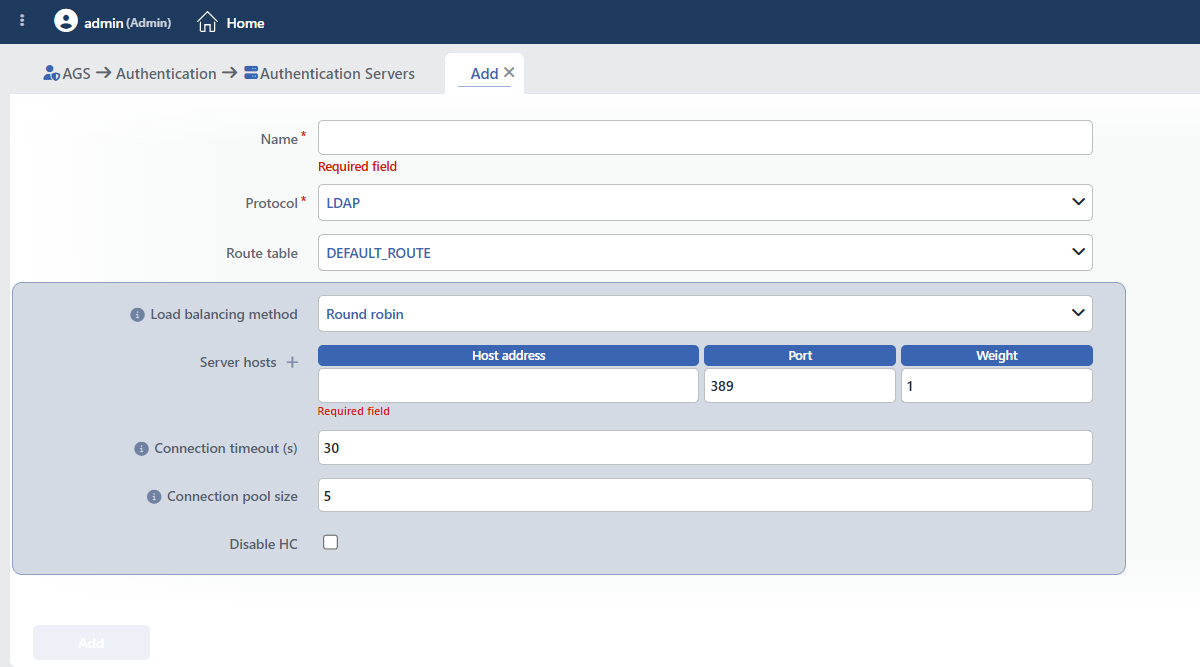 The Form While LDAP Is Selected
LDAPS
LDAPS establishes a connection encrypted with TLS to the directory server; the standard port is 636, the port in the Server Hosts rows must be changed accordingly. The credentials are carried over an encrypted channel. In addition to the common fields, the TLS fields are displayed. The profile is selected in the providers of the LDAP type; the connection is attempted with Test Connection in the preview.
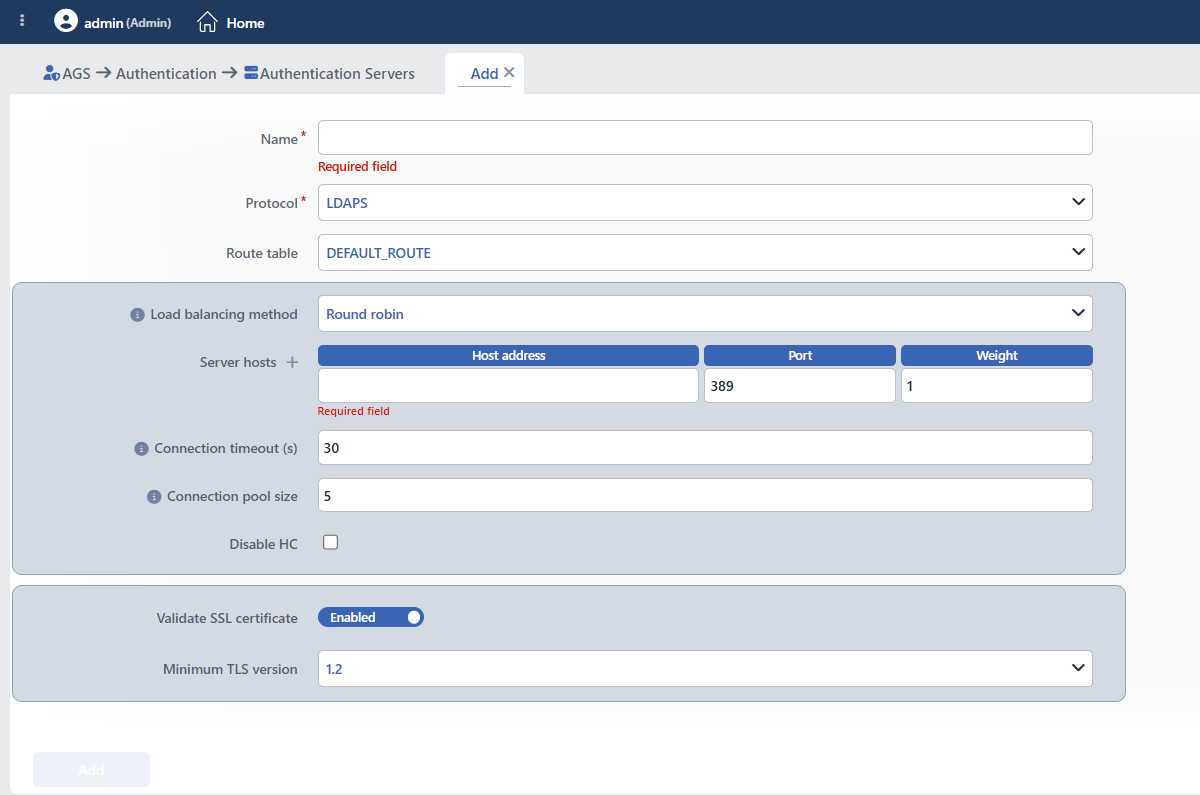 The Form While LDAPS Is Selected
INFO
Validate SSL Certificate Default: Enabled
While it is on, the certificate of the directory server is validated; a server with an invalid or untrusted certificate is not connected to. It must be turned off only in test environments.
INFO
Minimum TLS Version Default: 1.2
The lowest TLS version to be accepted is selected:
| Option | Meaning |
|---|---|
| 1.2 | TLS 1.2 and above are accepted; it is compatible with the common directory servers. |
| 1.3 | Only TLS 1.3 is accepted; the server has to support TLS 1.3. |
RADIUS
RADIUS performs the authentication with a RADIUS server (e.g. NPS, FreeRADIUS); the standard authentication port is 1812, the port in the Server Hosts rows must be changed accordingly. TR7 must be defined as a client on the RADIUS server and the two sides must use the same shared secret. The profile is selected in the providers of the RADIUS type.
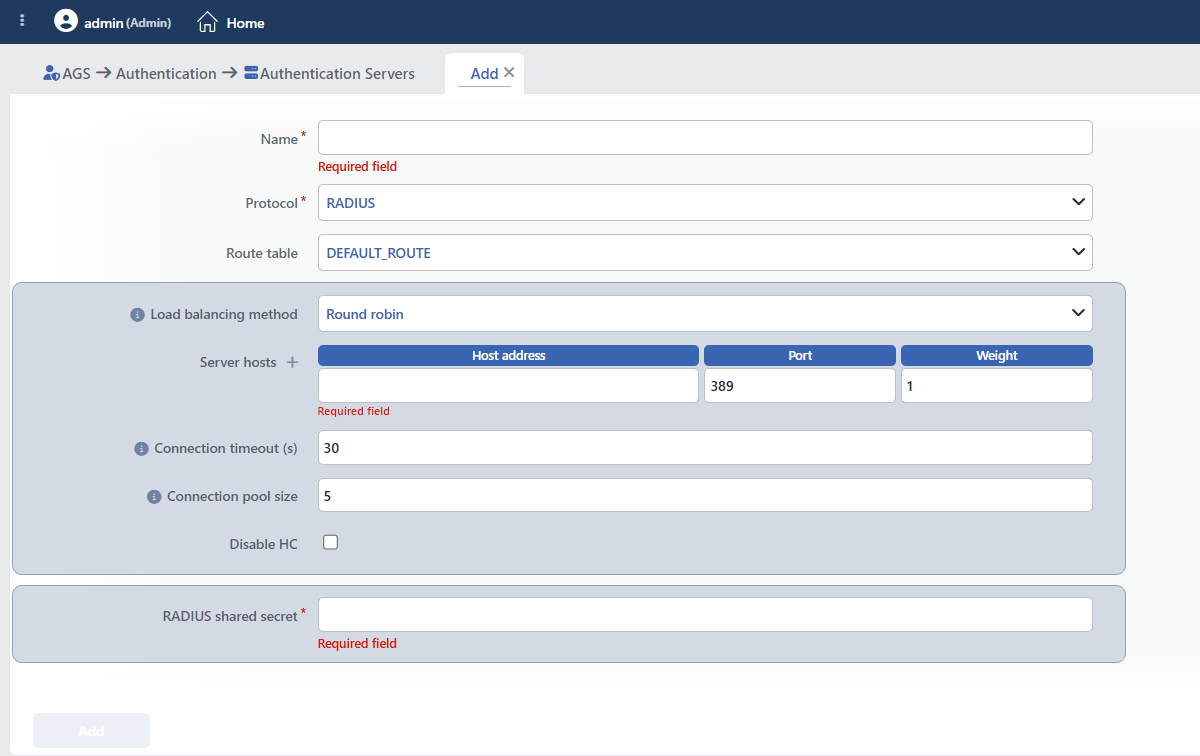 The Form While RADIUS Is Selected
INFO
RADIUS Shared Secret Required
The shared secret defined for TR7 on the RADIUS server; it is entered in a masked field. When it is left empty, the Required field warning is displayed. It is shown as ******** in the preview; in the edit form the field comes filled in masked form.
HTTP
HTTP establishes an unencrypted connection to a web service that performs authentication; the port must be changed according to the port the service listens on (usually 80). The path, the method, the headers and the success conditions of the request are defined not in this profile but in the provider profile. Since the credentials are carried as clear text, it must be used only on trusted networks or with services inside the device; otherwise HTTPS must be preferred. There is no field outside the common fields in this protocol. The profile is selected in the providers of the HTTP type.
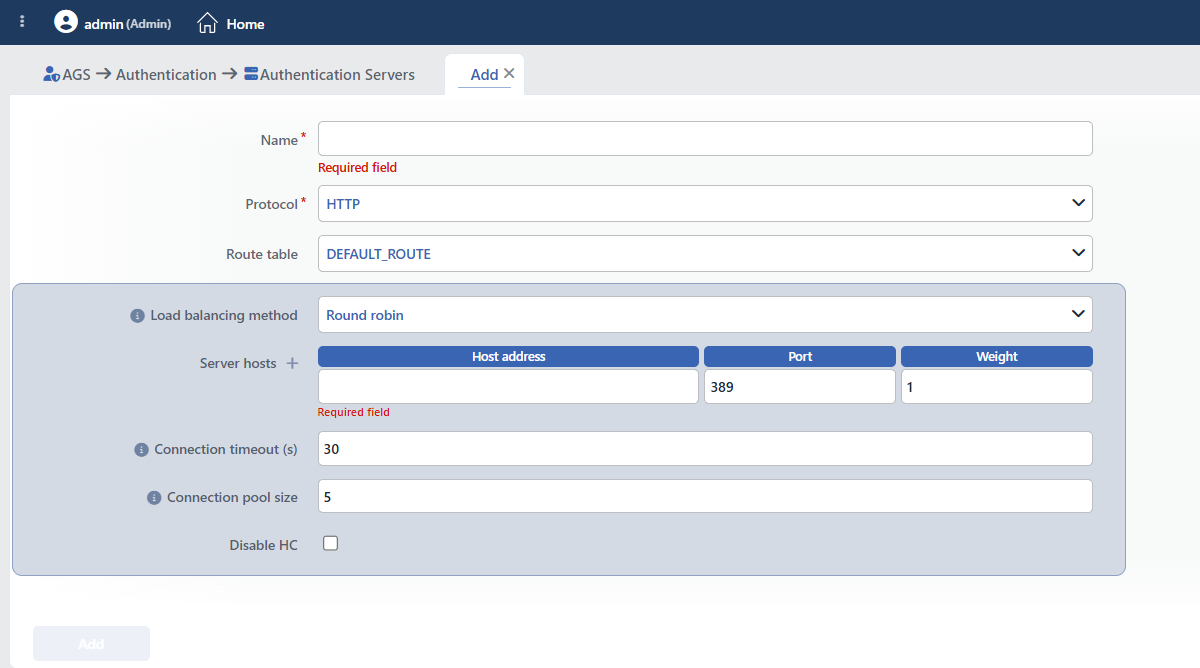 The Form While HTTP Is Selected
HTTPS
HTTPS establishes a connection encrypted with TLS to a web service that performs authentication; the port must be changed according to the port the service listens on (usually 443). The details of the request are defined in the provider profile. In addition to the common fields, the TLS fields are displayed. The profile is selected in the providers of the HTTP type.
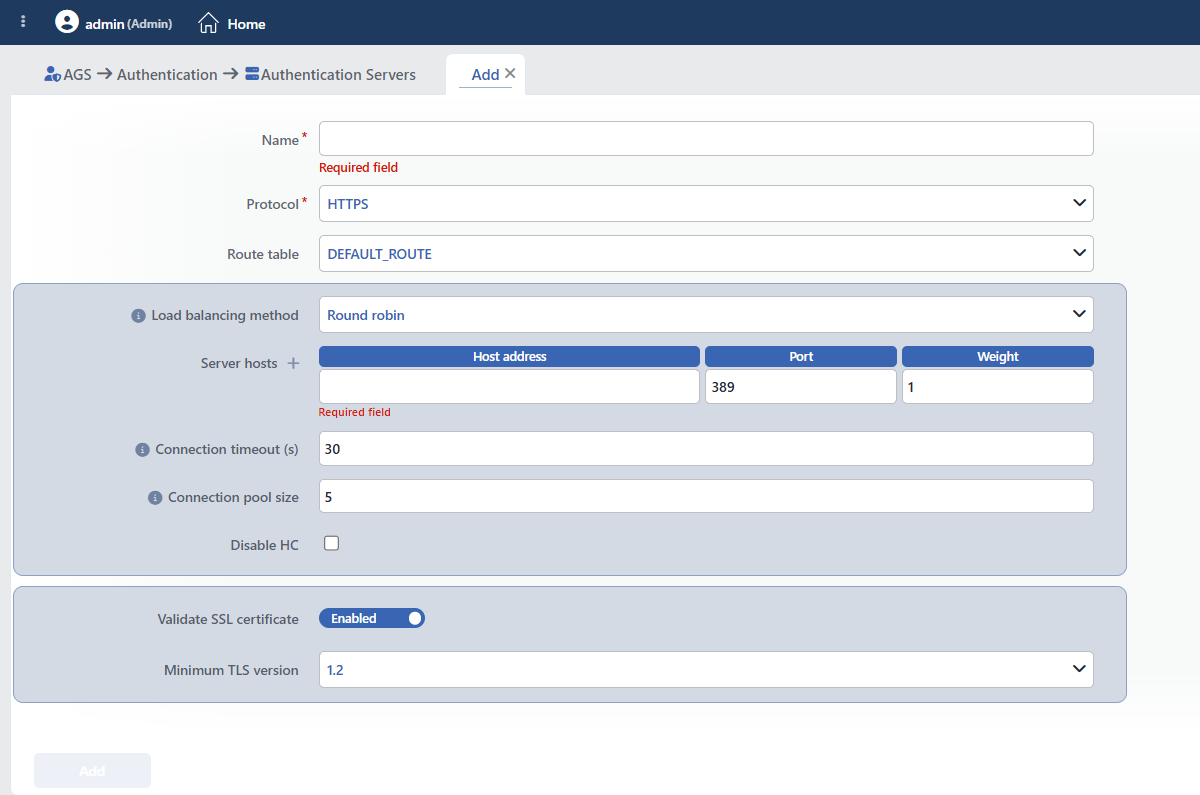 The Form While HTTPS Is Selected
INFO
Validate SSL Certificate Default: Enabled
While it is on, the certificate of the web service is validated; a service with an invalid or untrusted certificate is not connected to. It must be turned off only in test environments.
INFO
Minimum TLS Version Default: 1.2
The lowest TLS version to be accepted is selected:
| Option | Meaning |
|---|---|
| 1.2 | TLS 1.2 and above are accepted. |
| 1.3 | Only TLS 1.3 is accepted; the service has to support TLS 1.3. |
Test Connection (LDAP)
On the LDAP and LDAPS servers the Test Connection icon in the preview header starts a real connection attempt from the device to the server; no window opens separately. The attempt is made from the Route Table value of the profile and takes at most 25 seconds. The result is shown in a warning window with rows in the ✔/✘ Connection address:port (duration ms) form for each stage that is run and with the error text if there is one. The service account sign-in and the user sign-in stages (Service account sign-in, User sign-in) are attempted in the test made from the preview of an LDAP provider that is bound to the server (see Authentication Providers → Test Connection (LDAP)). The test is not written to the user operation record.
Operating Mechanism
INFO
- Distribution. The server profiles are transferred to the access engines of the vServices with AGS enabled; after a change the configuration is applied again.
- The connection settings. The profile is transferred to the access engine with the Server Hosts addresses, the Load Balancing Method, the Connection Pool Size, the Connection Timeout (s) and, for LDAPS and HTTPS, the Validate SSL Certificate and Minimum TLS Version values; the connection management is on the engine side.
- The route table. The Route Table value of the profile is added to the list of the outgoing route tables of the access engine of the vService when a provider uses this server.
- Cluster. The profiles are synchronized between the devices with the LB configuration.
- Logs. Adding, editing and deleting are monitored on the User Logs screen as the authentication server object; the connection test is not logged.
Scope and Limits
INFO
- License. The screen depends on the AGS license; for the details the Products & Licensing page must be consulted.
- Permission. The AGS screens depend on the Load Balancer permission area; for a user who does not have the permission the You don't have access to this page card is displayed instead of the page.
- The name is unique. A second profile carrying the same name is not saved.
- There is no built-in profile.
- The protocol and the provider type must be compatible: LDAP or LDAPS must be selected for an LDAP provider, RADIUS for a RADIUS provider and HTTP or HTTPS for an HTTP provider. The Authentication Server selector in the provider form does not filter by protocol; an incompatible profile can also be selected and the record is accepted.
- The connection test is only in LDAP and LDAPS. The RADIUS and HTTP servers are verified with a real login.
- Deleting does not perform a reference check; a profile in use is deleted as well.
Usage Locations
| Usage location | Field | Purpose |
|---|---|---|
| Authentication Providers | Authentication Server (in the LDAP, HTTP and RADIUS types) | The server the provider will connect to; the protocol must be compatible with the provider type |
