
Smarter by Design.Simpler for Business
Advanced Captcha
What Is the Advanced Captcha Action?
Advanced Captcha applies CAPTCHA verification in order to verify whether the client is a real user (a human) in the HTTP requests coming to the vService. If the verification is successful, a cryptographically signed verification cookie is placed in the browser of the client and the CAPTCHA is not asked again for the specified period.
This action works only at the request stage.
How Does Advanced Captcha Work?
Advanced Captcha offers three different verification types. Each type is aimed at different security needs:
| Type | User Experience | Use Case |
|---|---|---|
| Text | Reads and types a distorted text image | General bot protection, form security |
| Math | Solves a simple mathematical operation | User-friendly verification |
| Invisible | The user does nothing, the browser performs the verification in the background | The best user experience, transparent protection |
Verification Flow:
1. The client accesses the protected page.
↓
2. TR7 checks the verification cookie.
↓
↓
✓ Valid
3a. The request is forwarded to the Backend Service
✗ Invalid / Missing
3b. The CAPTCHA page is shown
↓
4. The client completes the verification
↓
5. The verification cookie is created
↓
6. The request is forwarded to the Backend Service
Cookie-Based Verification:
Advanced Captcha manages the verification state through an HTTP cookie. When the client successfully solves the CAPTCHA, a cryptographically signed verification cookie is placed in its browser.
TR7 checks this cookie on every new request:
- Signature verification: The cryptographic signature (HMAC) of the cookie is verified. Fake or modified cookies are detected.
- Visitor verification: The cookie is bound to the identity of the visitor. A fingerprint consisting of the IP address and the browser information of the client is embedded in the cookie. In this way, a cookie belonging to one visitor cannot be used from a different IP address or from a different browser.
- Period verification: The validity period of the cookie (Captcha Valid For) is checked. Expired cookies are rejected.
If all the checks are successful, the request is forwarded to the Backend Service. If any of the checks fails, the CAPTCHA page is shown to the client again.
The verification state is not kept in a session table on the server side: all the information is inside the signed cookie. In this way, a verified client does not have to solve the CAPTCHA again on configuration reloads, on service restarts and between the cluster devices.
Security Measures:
Advanced Captcha contains multi-layered security measures against automatic solving attempts:
- Visitor Binding: The verification cookie is bound to the IP address and the browser fingerprint of the client. A cookie given to one client cannot be used by another client.
- Cryptographic Signature: The cookies are signed with HMAC, and the generation and modification of fake cookies is prevented.
- Timeout: The cookies automatically become invalid at the end of the configured period.
- Rate Limiting: Built-in rate limiting is applied to the CAPTCHA verification requests, and the number of automatic attempts is restricted.
- Browser Verification (Proof-of-Work): In all the CAPTCHA types, the browser is verified by performing a calculation. This mechanism increases the cost for automatic tools.
- Minimum Solving Time: There is a minimum solving time requirement on the server side, and instant automatic submissions are prevented.
The Importance of the Advanced Captcha Action
Bot and automatic traffic create serious security and performance risks for web applications.
The Advanced Captcha action;
- distinguishes bot traffic from real user traffic,
- provides an additional protection layer against brute-force attacks,
- prevents web scraping and content theft,
- blocks form spam and automatic registration operations,
- provides protection against credential stuffing attacks,
- offers protection without spoiling the user experience thanks to the invisible mode.
For this reason, the Advanced Captcha action is a reliable solution for bot protection and human verification needs.
Supported vService Types
HTTP
L7 TCP
Network
Execution Timing
On Request
On Response
How to Add?
A new Advanced Captcha Action can be added through the TR7 web management interface by following the steps below:
- The Configuration Menu is opened by clicking the TR7 logo at the bottom left.
- The Load Balancer → Actions → Add steps are followed.
- A unique and descriptive name is entered for the action.
- Advanced CAPTCHA is selected as Action Type.
- The related configurations of the action are made.
- In the Conditions tab, the condition/conditions under which the action takes effect are determined.
- The action is added by clicking the
Addbutton.
Advanced Captcha Action Add Form
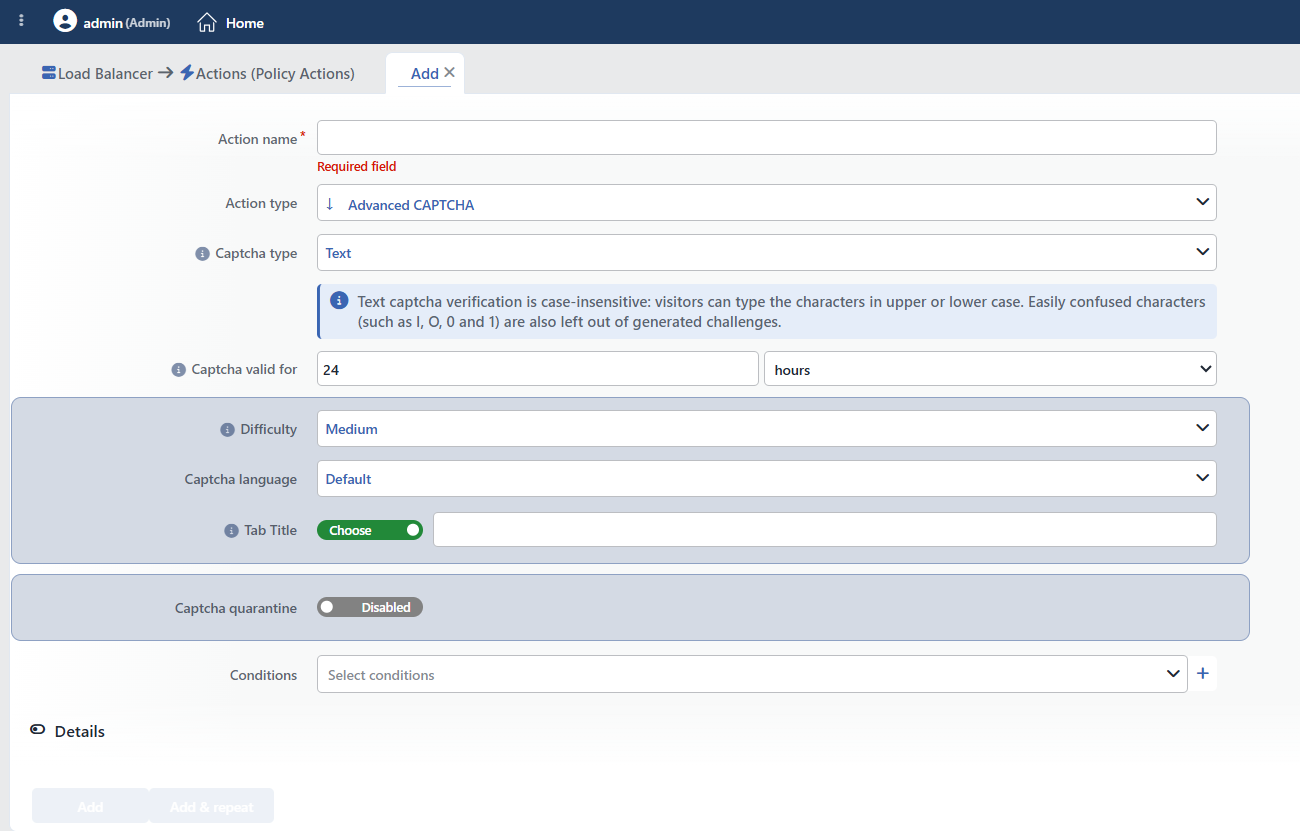 Advanced Captcha Action Add Form
INFO
Captcha Type Default: Text
Verification of the Text type is case-insensitive and characters that can be confused with each other (I, O, 0, 1) are never produced.
The CAPTCHA verification type is selected. The user experience and the security level change according to the selected type.
- Text: An image containing distorted text is shown to the client. The client must enter the text in the image correctly. According to the difficulty level, the text length and the amount of visual noise increase.
- Math: A simple mathematical operation is shown to the client. The client must enter the result of the operation. Since it requires visual verification, it is difficult to solve by automatic tools.
- Invisible: The client does not perform any visual verification. The browser completes a calculation task (Proof-of-Work) in the background. It is the option that affects the user experience the least.
TIP
- In scenarios that require high security, Text or Math is preferred.
- If the user experience is the priority, Invisible is selected.
- In the Invisible type, the visual settings (Size, Background color, Text color) are disabled.
INFO
Captcha Valid for
The period for which the client will remain valid without having to solve the CAPTCHA again after a successful CAPTCHA verification is determined. During this period, the client skips the CAPTCHA thanks to the verification cookie and accesses the Backend Service directly.
Minutes, Hours or Days can be selected as the unit.
| Period | Use Case |
|---|---|
| 5 minutes | High security, sensitive forms |
| 1 hour | General web protection |
| 24 hours | Standard user experience (default) |
| 7 days | Low-risk environments |
WARNING
It can be set as minimum 5 minutes and maximum 30 days.
INFO
Difficulty
The CAPTCHA difficulty level is determined. A higher difficulty provides stronger protection but makes the verification harder for the users.
| Level | Description | Recommended Use |
|---|---|---|
| Very Easy | The lowest difficulty | Test/development environment |
| Easy | Low difficulty | Low-risk pages |
| Medium | Balanced difficulty (default) | General use |
| Hard | High difficulty | Sensitive forms, login pages |
| Very Hard | The highest difficulty | Areas that require high security |
TIP
The difficulty level affects both the visual verification and the browser verification (Proof-of-Work) difficulty. At a high difficulty, the text is longer, the visual noise is greater and the browser calculation time is higher.
INFO
Captcha Language Default: Default
The language in which the CAPTCHA page will be shown is selected.
The options are limited to Default (follows the vService localization), English and Turkish.
INFO
Tab Title Default: Security Verification
Determines the title of the CAPTCHA page that will appear in the browser tab (at most 100 characters).
INFO
Captcha Quarantine
It is the integrated quarantine system that enables clients that consecutively fail the CAPTCHA verification to be temporarily quarantined. This feature detects automatic CAPTCHA solving attempts and protects the server resources by blocking attacking clients.
It is disabled by default.
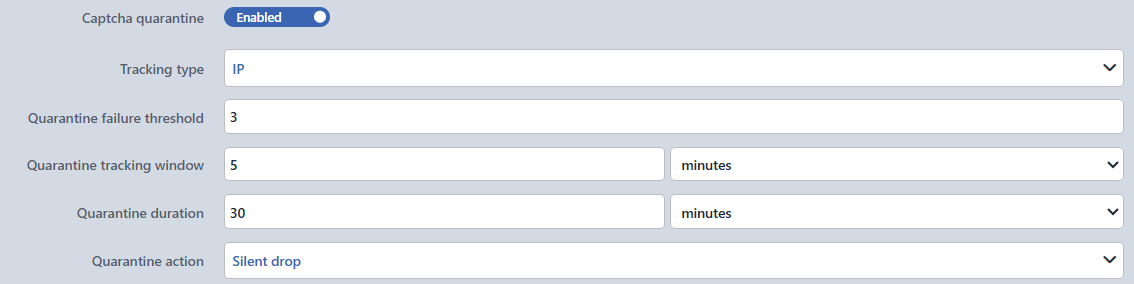 Captcha Quarantine
Tracking Type
According to which key/keys the quarantine tracking will be done is selected.
| Tracking Type | Description | Use Case |
|---|---|---|
| IP | Tracking only according to the source IP address | General protection (default) |
| IP + User-agent | The combination of the IP and the browser information | Bot detection |
| V-Host + IP | The combination of the virtual host and the IP | Multi-tenant environments |
| V-Host + IP + User-agent | The most detailed combination | Maximum granularity |
| Manual | A custom Variables combination | Customized scenarios |
Quarantine Tracking Keys Tracking type = Manual
According to which information the quarantine tracking will be done is defined manually; it is visible when Manual is selected as the Tracking Type. Each row is a smart variable and when the row is clicked, the Add variable / Edit variable window opens (Variable name → argument → Add functions → Summary → Submit). When more than one variable is selected, their combination becomes the unique tracking key.
Quarantine Failure Threshold
The number of failed CAPTCHA verifications required for the client to be quarantined is determined. This threshold is evaluated within the Quarantine Tracking Window period.
- Minimum: 1
- Maximum: 100
- Default: 3
TIP
A low threshold (1-3): Fast detection, but the risk of false positives. A high threshold (5+): More tolerant, but the attackers can make more attempts.
Quarantine Tracking Window
The time window in which the failed CAPTCHA attempts will be counted is determined. If the threshold value is reached within this period, the client is quarantined. Seconds, Minutes or Hours can be selected as the unit.
Default: 5 minutes. Minimum 10 seconds, maximum 24 hours.
Quarantine Duration
How long the quarantined client will be blocked is determined. When this period expires, the access of the client is opened automatically. Minutes, Hours or Days can be selected as the unit.
Default: 30 minutes. Minimum 1 minute, maximum 30 days.
Quarantine Action
The action to be applied to the quarantined client is selected.
- Silent Drop: The requests coming from the quarantined client are dropped silently; the client does not receive any response. (The default option.)
- Redirect: The quarantined client is redirected to the specified URL.
- Show content: A custom content page is shown to the quarantined client.
WARNING
The quarantine enforcement is applied across the vService, independently of the condition of the action: even if the condition covers only a path such as /login, a client that falls into quarantine is blocked on the whole of the vService.
Redirect Location Quarantine action = Redirect
The address to which the quarantined client will be redirected is entered; it is visible and mandatory when Redirect is selected as the Quarantine Action. The field supports smart variables: when the fx button is clicked, the Add variable / Edit variable window opens. In this window, the Variable name is selected from the searchable list, the related field is filled in if the variable takes an argument (a header name, a cookie name, etc.), and a smart function chain is defined with Add functions if necessary; the preview of the resulting expression is seen in the Summary field and it is written to the field with Submit.
Content Page Quarantine action = Show content
The content page to be shown to the quarantined client is selected; it is visible when Show content is selected as the Quarantine Action. By default, the built-in quarantine page is used.
Status Code Quarantine action = Show content
The HTTP status code to be returned together with the content page is selected; the default is 403.
INFO
Conditions
In this field, it is defined under which condition or conditions the related action takes effect.
By adding one or more conditions, the behavior can be applied in a targeted and controlled way with the and/or structure.
Detailed information about conditions is on the Conditions page.
WARNING
If no condition is defined in this field, the related action runs unconditionally (Always). In this case, the action is applied to all traffic coming to the related vService.
In live environments, using an action without defining a condition can lead to unexpected situations (service outages). For this reason, it is recommended that at least one condition always be defined when an action is created.
INFO
Details
It is the advanced settings section that configures the visual features of the CAPTCHA page.
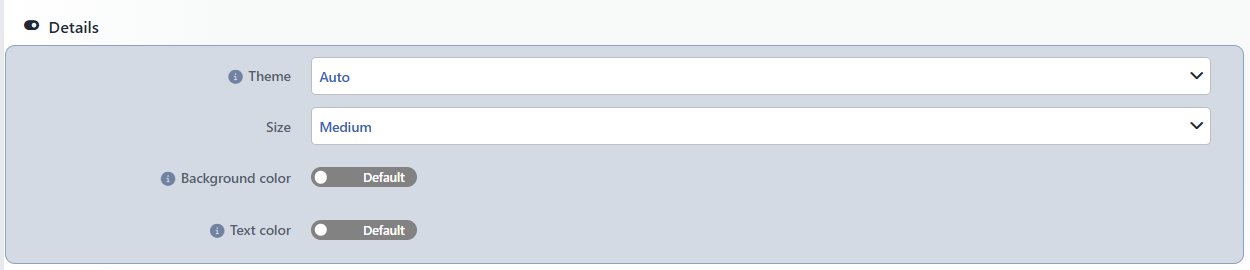 Details
WARNING
When the Invisible type is selected, the Size, Background Color and Text Color fields are disabled, because no visual page is shown to the client.
Theme
The theme color of the CAPTCHA page is determined.
| Theme | Description |
|---|---|
| Auto | Selected automatically according to the system preference of the client (default) |
| Light | Light theme |
| Dark | Dark theme |
Size
The size of the CAPTCHA image is determined. It is valid only in the Text and Math types.
| Size | Description |
|---|---|
| Small | Small-sized CAPTCHA image |
| Medium | Medium-sized CAPTCHA image (default) |
| Large | Large-sized CAPTCHA image |
Background Color
The background color of the CAPTCHA page is determined. It is valid only in the Text and Math types.
Text Color
The text color on the CAPTCHA page is determined. It is valid only in the Text and Math types.
INFO
Form Buttons
Add
The action adding process is completed by clicking the Add button.
Add & Repeat
With the Add & Repeat button, the action adding process is completed, and another new action can be added with different configurations without leaving the related window.
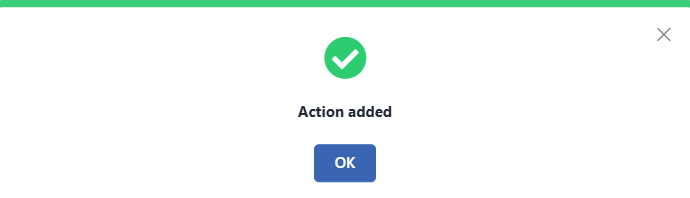 Action Added
How Are the Collected Data Viewed?
The data collected by the Advanced Captcha action can be viewed from the Logs & Tracking tab of the vService. For detailed information, they can be reached through Advanced Captcha Logs (Tracking) and Advanced Captcha Quarantine Logs (Quarantine).
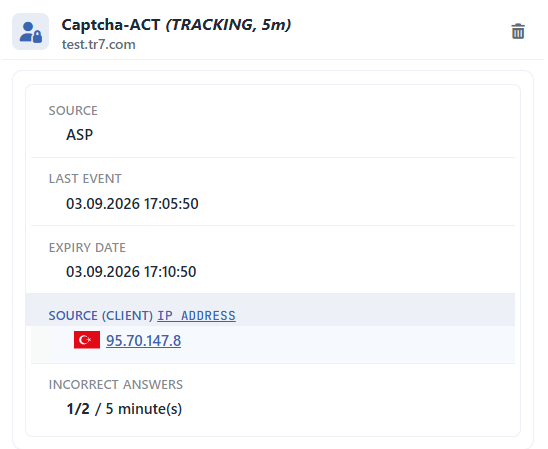 Advanced Captcha Logs (Tracking)
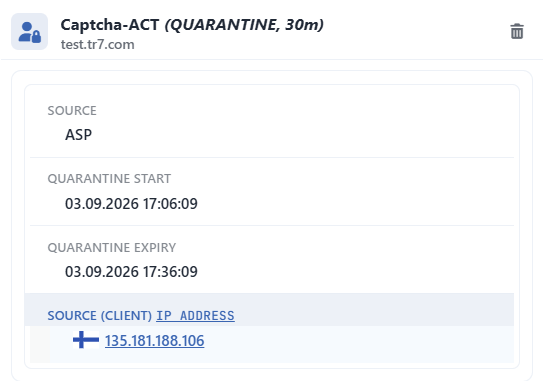 Advanced Captcha Logs (Quarantine)
1
Step 1 Go to the vServices screen
The Load Balancer → Load Balancer vService List path is followed in the TR7 web interface.
2
Step 2 Open the Logs & Tracking tab
The related vService is selected from the list and the Dashboard icon is clicked, or the related service under vServices is selected directly from the left menu. With both methods, the Dashboard screen of the related vService is reached and the Logs & Tracking tab is opened.
3
Step 3 Select the table
The CAPTCHA tracking or quarantine table is selected from the dropdown menu at the top left; the tables are listed in the form action name (TRACKING, period) and action name (QUARANTINE, period). These tables are created only while Captcha Quarantine is enabled.
4
Step 4 Load the data
The table data is loaded automatically. The Refresh button is clicked in order to update the table manually.
Advanced Captcha Logs (Tracking): Table Columns
| Column | Description |
|---|---|
| Last Event | The time of the last activity for this record |
| Expiry Date | The time when the record will be deleted from the table |
| IP | The monitored IP address (or the selected fx variables) |
| Incorrect answers | The number of faulty CAPTCHA verifications |
Advanced Captcha Quarantine Logs (Quarantine): Table Columns
| Column | Description |
|---|---|
| Quarantine Start | Entry into quarantine |
| Quarantine Expiry | Exit from quarantine |
| IP | The IP address of the quarantined client (or the selected fx variables) |
Operational and Safe Usage Recommendations
- The correct CAPTCHA type is selected. If the user experience is the priority, the Invisible type is preferred; if high security is needed, the Text or Math type is preferred. The Invisible type does not block legitimate users in any way.
- The difficulty level is balanced. A very high difficulty can spoil the experience of legitimate users. Medium is sufficient for most scenarios; Hard or Very Hard is used in sensitive operations.
- The quarantine system is enabled. The quarantine system is critically important against automatic CAPTCHA solving tools; quarantine is applied after 3-5 failed attempts.
- The Validity Period Should Be Kept Balanced. A very short period forces the users to solve a CAPTCHA continuously. A very long period can create a security vulnerability. 24 hours is sufficient for most scenarios.
- The
/captcha/Path Should Be Left Free. When this action is defined, the requests starting with/captcha/are reserved for the CAPTCHA infrastructure across the vService, independently of the condition; this path prefix must not be used in the Backend Service application. - Targeted Application with Conditions. Instead of applying a CAPTCHA to the whole site, targeted protection should be provided by defining conditions for sensitive pages (login, registration, form submissions).
Common Usage Scenarios in Live Environments
The examples below show how the related action is applied in the most frequently encountered use cases in real systems. These scenarios are based on practices that are widely preferred in live environments and rest on experience gained in the field.
Scenario 1: Login Page Bot Protection
Problem: Bots continuously make brute-force attacks on the login page of an e-commerce site. Automatic tools try thousands of password combinations within seconds and the server resources are exhausted.
Solution: By applying CAPTCHA protection of the Text type to the login page, the automatic login attempts of the bots are blocked; persistent attackers are blocked with the quarantine system.
Configuration:
- Captcha Type: Text
- Captcha Valid for: 1 hour
- Difficulty: Hard
- Captcha Language: Default
- Captcha Quarantine: Enabled
- Tracking Type: IP
- Quarantine Failure Threshold: 3
- Quarantine Tracking Window: 5 minutes
- Quarantine Duration: 1 hour
- Quarantine Action: Silent drop
- Conditions:
- Path starts with
/login ANDHTTP Method =POST
- Path starts with
Result:
- ✅ CAPTCHA verification is performed before access to the login page, and the automatic login attempts of the bots are blocked.
- ✅ IPs that make 3 failed CAPTCHA attempts in 5 minutes are blocked for 1 hour.
- ✅ The users who complete the verification successfully access without a CAPTCHA for 1 hour.
- ❌ Automatic tools and bots cannot pass the CAPTCHA page, and the brute-force attack fails.
Scenario 2: General Site Protection with a Transparent Bot Filter
Problem: Intense bot traffic comes to a news site; web scraping tools steal content and the server resources remain insufficient for legitimate users. However, the user experience must not be spoiled.
Solution: With the Invisible CAPTCHA, automatic browser verification is performed without the users noticing anything.
Configuration:
- Captcha Type: Invisible
- Captcha Valid for: 24 hours
- Difficulty: Medium
- Captcha Language: Default
- Captcha Quarantine: Enabled
- Tracking Type: IP + User-agent
- Quarantine Failure Threshold: 5
- Quarantine Tracking Window: 10 minutes
- Quarantine Duration: 30 minutes
- Quarantine Action: Show Content
- Content Page: Bot-Warning-Page
- Status Code: 403 Forbidden
- Conditions: Unconditional (Always)
Result:
- ✅ Real users do not encounter any visual verification, and transparent protection is provided.
- ✅ The bots that cannot pass the browser verification are detected automatically.
- ✅ A custom warning page is shown to the clients that make 5 failed verifications in 10 minutes.
- ❌ Web scraping tools and simple bots cannot access the site.
Scenario 3: Registration Form Spam Prevention
Problem: Fake accounts are created with automatic tools on the registration form of a SaaS application. Thousands of spam registrations arrive daily and the database fills up with unnecessary data.
Solution: By applying a CAPTCHA of the Math type to the registration form, automatic registrations are blocked.
Configuration:
- Captcha Type: Math
- Captcha Valid for: 30 minutes
- Difficulty: Medium
- Captcha Language: Default
- Captcha Quarantine: Enabled
- Tracking Type: IP
- Quarantine Failure Threshold: 5
- Quarantine Tracking Window: 5 minutes
- Quarantine Duration: 1 hour
- Quarantine Action: Silent drop
- Conditions: Path starts with
/register
Result:
- ✅ A mathematical verification is performed before the registration, and automatic form submission is blocked.
- ✅ Real users solve the simple mathematical operation easily.
- ✅ Persistent spam bots are quarantined and blocked for 1 hour.
- ❌ Automatic registration tools cannot pass the CAPTCHA, and the spam registrations stop.
Scenario 4: API Endpoint Protection and Corporate Theme
Problem: Excessive requests are sent with automatic tools to some endpoints of a public API. Browser verification is required for access to the API, but the corporate brand identity must be preserved.
Solution: A CAPTCHA of the Text type is configured in accordance with the corporate color scheme, and the user experience is preserved with a long validity period.
Configuration:
- Captcha Type: Text
- Captcha Valid for: 7 days
- Difficulty: Easy
- Captcha Language: Default
- Captcha Quarantine: Disabled
- Conditions: Path starts with
/api/public/ - Details:
- Theme: Light
- Size: Large
- Background Color: The corporate background color
- Text Color: The corporate text color
Result:
- ✅ CAPTCHA verification is performed before API access, and automatic access is blocked.
- ✅ The CAPTCHA page is displayed in accordance with the corporate brand identity.
- ✅ With the 7-day validity period, the users rarely encounter a CAPTCHA.
- ❌ Automatic tools and bots cannot access the API directly.
