
Smarter by Design.Simpler for Business
vService
What Is vService?
vService is the basic building block of TR7 Load Balancer. A vService is the service definition that listens for client traffic on a virtual IP address and port, passes each incoming request through the chain of configured rules and profiles and directs the result, according to the selected load balancing algorithm, to a healthy Backend Service (single target) or Backend Group.
It is TR7's equivalent of the concept known in the industry as virtual server or listener. Putting an application into service on the network always starts with defining a vService: the vService is the structure that defines where the traffic will be received, which rules it will pass through and where it will be distributed.
3 Types
vService types
HTTP (L7) · L7 TCP · Network (L4)
L4–L7
Operating layer
From packet level to full HTTP awareness
Single IP
Entry point
Abstracts the back-end infrastructure from the client
Centralized
Policy control
SSL, WAF/AGS, rules and profiles at a single point
Health
High availability
Distribution only to healthy Backend Services
Profiles
Reusable
Cache, compression, log, timeout, limit…
Virtual Hosting
Multiple domains
Many separate vServices on a single IP:port (SNI or Host header)
Content Switching
Content-based routing
To different targets by path, header, cookie or SNI
SSL Offloading
TLS termination
Decryption on TR7; back-end server load decreases
Single Screen
Easy management
All rules, profiles and targets in a single configuration
What does a vService bring together?
- Frontend: On which IP:port and in which protocol (HTTP / TCP / Network) the traffic will be received, and the SSL/TLS behavior.
- Target: The Backend Service or Backend Group to which the traffic will be forwarded.
- Rules: Evaluating, processing, routing or blocking the request with condition + action pairs and conditional routing (Content Switching).
- Profiles: Cache, compression, trusted proxy, log, report, notification, timeout and limit profiles; reusable settings packages that are defined once and attached. The health check profile is assigned to the Backend Service or Backend Group; the SSL/TLS behavior is determined with TLS Security Profiles, and session persistence with the vService's own setting.
- Security: Attaching the WAF, DDoS & Threat Protection, AGS and IP reputation layers to this service.
Why vService?
vService is where the load balancer stops being merely a component that distributes traffic and becomes a central control point in terms of security, performance and availability.
- Single entry point. The client sees not the dozens of servers behind it but a single vService address (virtual IP). Even if Backend Services are added, removed, put into maintenance or moved, the outward-facing address does not change; the back-end infrastructure is abstracted from the client.
- Policy enforcement center. SSL termination, WAF/AGS, condition/action rules and all traffic profiles are attached at the vService level; all policies to be applied to a request are managed from a single point.
- Type flexibility. The same management surface supports three operating types: full HTTP awareness at the application layer (HTTP), non-HTTP TCP applications (L7 TCP) and high-performance packet-level distribution (Network). The type is selected at creation time and determines which fields are valid in that vService.
Supported Protocols
With vServices, load balancing is performed mainly for the following protocol groups:
| Protocol Group | Example Protocols | vService Type Used |
|---|---|---|
| Web | HTTP, HTTPS, HTTP/2, HTTP/3 (QUIC), WebSocket | HTTP |
| Database | SQL, Oracle, MySQL, PostgreSQL | L7 TCP |
| Messaging | MQTT, AMQP, FIX | L7 TCP |
| File Transfer | FTP (control channel), SFTP | L7 TCP |
| VoIP / Multimedia | SIP, RTP | Network |
| Network Services | LDAP → L7 TCP · DNS, RADIUS → Network | L7 TCP · Network |
| Other | gRPC → HTTP · RDP → L7 TCP · SNMP → Network | HTTP · L7 TCP · Network |
The type is selected according to how the protocol is carried: traffic that must be parsed as HTTP is served with the HTTP type, TCP protocols carried at the connection level with the L7 TCP type, and UDP and raw IP protocols with the Network type. The types are explained in detail in the vService Types section.
vService Types
There are 3 different vService types on TR7. Each type is optimized for different use cases. The Type field is the discriminator field that determines the vService's behavior and its available fields.
HTTP (L7)
Richest type
Full HTTP awareness at the application layer; for websites, APIs and web applications. It is the TR7 type with the widest feature set.
- HTTP/1.1 · HTTP/2 · HTTP/3 (QUIC) · WebSocket · SSE · gRPC
- SSL/TLS termination (TLS 1.0–1.3) · SNI · multiple certificates
- 13 load balancing algorithms (including hash-based Source/URI/URL Param/HDR)
- Session persistence: New/Current Cookie · Hash · SAM
- WAF · AGS · DDoS & Threat Protection · IP Reputation
- Virtual Hosting (multiple domains on a single IP:port) · Content-based routing
- Cache · Compression (GZIP/Deflate) · X-Forwarded-For · Trusted Proxy
- Actions (request/response) · QOS · Bandwidth · Timeout · vService Limits
- Log · SSL Security · Notification · Report profiles
L7 TCP
TCP services
Layer 7 proxy for non-HTTP TCP-based protocols; for services such as RDP, SQL, LDAP, SMTP and MQTT.
- SSL/TLS termination (TCP + TLS) · SNI (read even without termination)
- 10 load balancing algorithms (including the self-persistent RDP Cookie)
- Session persistence: Hash (key defined with a Smart Variable: source IP · SNI · destination IP/port · JA3 · country)
- TCP-level content-based routing (SNI · source IP · port · SSL cipher/version · RDP cookie)
- Actions: TCP Connection Management · Quarantine · Advanced Traffic Inspection · Create Traffic Variable · Manual Action
- DDoS & Threat Protection · IP Reputation
- QOS · Bandwidth · Timeout · vService Limits
- Log · SSL Security · Notification · Report profiles
- RDP · SQL · LDAP · SMTP · MQTT · Redis
Network (L4)
Packet level
Layer 3/4 packet-level distribution (no connection termination); for UDP and raw IP services such as DNS, NTP, SIP and Syslog, with minimum latency.
- TCP - L4 · UDP - L4 · ANY - L3 (all IP protocols including ICMP/GRE/IPsec)
- LB modes: Direct Server Return (DSR) · Route Mode (NAT) · Source NAT (SNAT)
- 7 load balancing algorithms (including Source/Destination Hash · Locality-Based LC); 2 with the ANY - L3 protocol
- Session persistence: L4 Persistence (source IP) · SIP Persistence (Call-ID)
- Port Range switch (distribution of a port range through the firewall)
- Network segment selection with Route Table
- Health check (in the TCP - L4 and UDP - L4 protocols)
- Minimum latency (packet level, no termination)
- DNS · NTP · Syslog · SNMP · SIP · RADIUS
Why "L7 TCP"?
The type appears as L7 TCP in the Type field in the interface and in the Type column of the vService list; the name TCP is used only in the frontend protocol selector (TCP / TCP + TLS).
HTTP and L7 TCP run on the same Layer 7 (application layer) proxy core, and both terminate the connection on TR7; the difference between them is how the flow is processed:
- The HTTP type parses the traffic as the HTTP protocol; it provides awareness at the header, path and cookie level.
- The L7 TCP type does not parse the traffic as HTTP; it processes the flow at the connection level and, when necessary, inspects it at the level of the TLS ClientHello (SNI) and the RDP cookie. In this way, SSL termination, SNI reading and content-based routing are performed.
This is why the name starts with L7: unlike the Network (L4) type that works at the packet level and does not terminate connections, this type is a Layer 7 proxy running over TCP.
TIP
All Web/HTTPS traffic is of the HTTP type, and most layers such as WAF, AGS and cache can be used only in this type. L7 TCP is selected for a non-HTTP TCP application (database, RDP, etc.), and Network for UDP services or raw L4 performance.
Feature / Capability Comparison
| Feature / Capability | HTTP | L7 TCP | Network |
|---|---|---|---|
| Operating layer | L7 (HTTP) | L7 (TCP stream) | L3 / L4 (packet level) |
| Protocol support | HTTP / HTTPS / HTTP/2 / HTTP/3 | TCP | TCP / UDP / ANY |
| Connection termination | ✓ | ✓ | ✗ |
| SSL/TLS Offloading / Termination | ✓ | ✓ | ✗ |
| HTTP/2 · HTTP/3 (QUIC) | ✓ | ✗ | ✗ |
| Virtual Hosting | ✓ | ✗ | ✗ |
| Content-based routing (Content Switching) | ✓ | ✓ | ✗ |
| SNI-based routing | ✓ | ✓ | ✗ |
| Conditions / Actions | ✓ | ✓ | ✗ |
| Conditional Backend Services | ✓ | ✓ | ✗ |
| Debug (conditional logging) | ✓ | ✗ | ✗ |
| WAF | ✓ | ✗ | ✗ |
| DDoS & Threat Protection | ✓ | ✓ | ✗ |
| IP Reputation / blacklist-whitelist | ✓ | ✓ (via DDoS & Threat Protection) | ✗ |
| AGS | ✓ | ✗ | ✗ |
| Cache | ✓ | ✗ | ✗ |
| Compression | ✓ | ✗ | ✗ |
| X-Forwarded-For (XFF) | ✓ | ✗ | ✗ |
| Trusted Proxy | ✓ | ✗ | ✗ |
| Profile: Log | ✓ | ✓ | ✗ |
| Profile: SSL Security | ✓ | ✓ | ✗ |
| Profile: Notification | ✓ | ✓ | ✗ |
| Profile: Report | ✓ | ✓ | ✗ |
| Profile: Limit (vService Limits) | ✓ | ✓ | ✗ |
| Profile: Timeout | ✓ | ✓ | ✗ |
| QOS | ✓ | ✓ | ✗ |
| Bandwidth control | ✓ | ✓ | ✗ |
| Health check | ✓ | ✓ | ✓ (not applied in ANY - L3 and Port Range mode) |
| Load balancing algorithms | ✓ (13) | ✓ (10) | ✓ (7, packet level; 2 in ANY - L3) |
| Session persistence | ✓ (Cookie / Hash / SAM) | ✓ (Hash) | ✓ (L4 Persistence) |
| SAM (Session Affinity Manager) | ✓ | ✗ | ✗ |
| RDP Cookie | ✗ | ✓ | ✗ |
| SIP Persistence | ✗ | ✗ | ✓ |
| Network modes (DSR / Route Mode / SNAT) | ✗ | ✗ | ✓ |
| Frontend port range | ✓ | ✓ | ✓ (with the Port Range switch) |
| Example use | Web applications | RDP, SQL, LDAP, SMTP, MQTT | DNS, Syslog, RADIUS, SIP |
How Does It Work?
TR7 uses two separate load balancing cores, one at the application layer and one at the packet level; for this reason, the path a request follows varies according to the selected type.
HTTP and L7 TCP (application layer)
These two types run on a common L7 core that terminates the connection and performs application layer processing; this is why they share the same advanced feature set. An incoming request passes through the following stages in order:
- Frontend acceptance: the request is received on the IP:port the vService listens on.
- SSL/TLS termination: in encrypted connections, the TLS session is decrypted on TR7.
- Trusted Proxy: exists only in the HTTP type; if there is a proxy/CDN in front, the real client IP address is resolved.
- Security layers: the traffic is passed in order through WAF and AGS (only in HTTP), and then through the DDoS & Threat Protection and IP Reputation layers.
- Actions (request): the actions defined on the request (header, redirect, rate limit, etc.) are applied.
- Cache check: exists only in the HTTP type; if the request is served from the cache, the response is produced at this point and the subsequent stages are not entered.
- Content Switching: the target Backend Service/Group is determined according to the conditional routing rules; if no rule matches, Default Backend Services is used.
- Algorithm + Session Persistence: a healthy Backend Service is selected according to the load balancing algorithm and the persistence setting.
- Response path: the returned response is forwarded to the client after passing through the response actions and (only in HTTP) the cache and compression layers.
Network (packet level)
This type runs on a high-performance L3/L4 packet distribution core that forwards packets without terminating them; for this reason, it offers minimum latency but does not include the L7 layers above (SSL termination, WAF, cache, content routing). The packet is directed straight to a Backend Service according to the selected LB mode (DSR / Route Mode / SNAT), the algorithm and the L4 / SIP Persistence setting.
There are two separate distribution paths in the Network type. In the TCP - L4 and UDP - L4 protocols, the packet is forwarded through the L4 distribution core described above. When the ANY - L3 protocol is selected or the Port Range switch is turned on, the packet is instead distributed through firewall rules: on this path, the LB mode is not applied, the algorithm options are limited to Round-Robin and Weighted Round-Robin, and distribution is done by looking only at the weights of the Backend Services.
Health check
In the application layer core and on the TCP - L4 / UDP - L4 path of the Network type, traffic is sent only to Backend Services that pass the health check; faulty servers are automatically taken out of service, and when they become healthy again, they are automatically put back into traffic.
Since distribution is done through firewall rules in the ANY - L3 protocol and while Port Range is on, the health check result is not taken into account; a faulty Backend Service also continues to receive packets.
vService Listing Screen
The list of all vServices defined on the TR7 device is reached by following the Load Balancer → Load Balancer vService List path. Adding, editing, deleting, enabling and disabling vServices are performed on this screen.
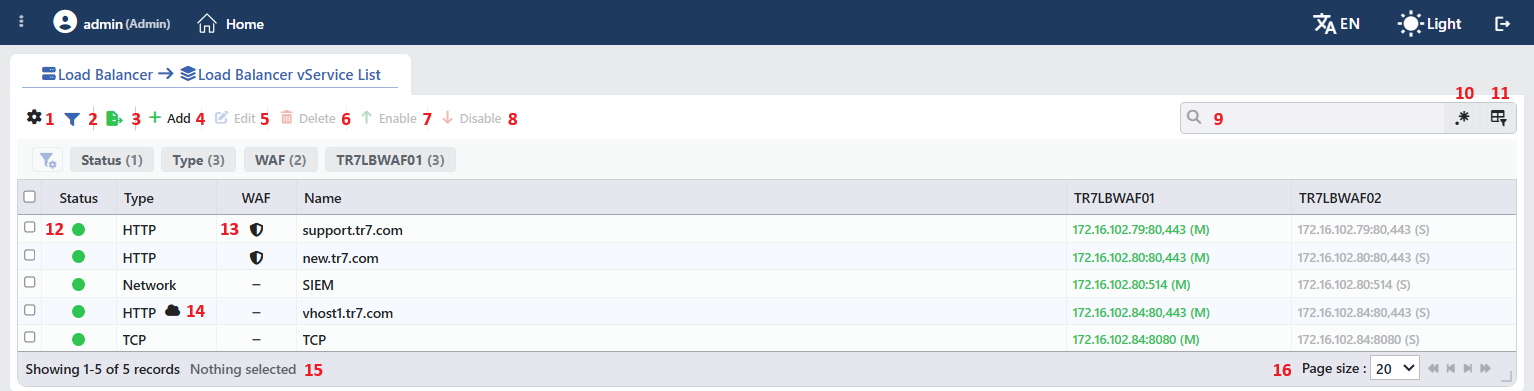 vServices Listing Form
The table opens with the following columns by default:
| Column | Description |
|---|---|
| Status | The current status of the vService is shown with a colored circle (described under vService Status); in a cluster configuration, the circle is split into two halves per device. |
| Type | The vService type (HTTP, TCP, Network); in HTTP vServices with Virtual Hosting defined, there is a cloud icon next to it. |
| WAF | A shield icon in WAF-enabled HTTP vServices, and a − sign in the others. |
| Name | The name of the vService. |
| IP | The frontend addresses the vService listens on, in the IP:port format (e.g. 172.16.102.79:80,443). In a cluster configuration, the column heading is the name of this device, VIP addresses appear with the (M) or (S) suffix, and a second column, carrying the peer device's name and showing the addresses on that device, is added. |
The following column is hidden by default and is added from the column selector:
| Column | Description |
|---|---|
| Algorithm | The load balancing algorithm of the vService. |
The items in the toolbar are arranged from left to right in the following order; items 12, 13 and 14 are indicators in the table cells, and the last two items (Page Information and Page Size) are located in the information strip below the table.
Columns
Which columns are shown in the table is selected; the columns other than Algorithm are on by default. In the same panel, columns are reordered by dragging and alignment (Align Left, Center, Align Right) is selected per column; the row height is fitted to the page with the Fit rows to the page button, and the column layout is reset to default with the Reset button. The layout is stored per user.
Filter
The Filter button is used to filter the vServices shown in the list according to specific criteria; the button shows the number of active filters with a badge. The strip contains the Status, Type, WAF and IP cards (in a cluster configuration, the IP card carries the name of the device); the initially hidden Algorithm column can also be filtered. The card header contains the filter name and the number of values; when a card is clicked, the values are listed below it with their row counts.
The filtering view can be customized: the order of the cards is changed by dragging, and a separate view style (card, grid, tag cloud, donut chart, bar chart, country flags and similar) is selected for each card. The filters are reset all together after a confirmation is requested.
Export
The table is exported as Excel, CSV or PDF by clicking the Export button. In the window that opens, the Filename, Format and Data Source (all filtered and sorted data · filtered data in the original order · only the displayed page), together with the Columns to be exported, are determined.
The remaining fields are displayed according to the selected format: CSV Separator for CSV, Excel Sheet Name for Excel, and Page Orientation and Page Size for PDF.
Add
By clicking the Add button, the form for creating a new vService opens. The button is not displayed to users who do not have modify permission in the Load Balancer area.
Edit
By clicking the Edit button, the edit form of the selected vService opens. The button becomes active only when a single vService is selected.
Delete
When one or more vServices are selected and the Delete button is clicked, confirmation is requested; when it is confirmed, the related vServices are deleted. The button is inactive when there is no selection.
WARNING
The monitoring screens, dashboards and record views of the deleted vService also disappear; this operation cannot be undone.
Enable
The selected vServices are put into service with the Enable button; a vService in the disabled (Disabled) state becomes active and starts receiving traffic. It is applied in bulk by selecting multiple vServices, and no confirmation is requested; the button is inactive when there is no selection.
Disable
The selected vServices are disabled with the Disable button; new connections are not accepted. The IP addresses a disabled vService listens on remain active on the device; only the ports defined on the vService are disabled. It is applied in bulk by selecting multiple vServices, and no confirmation is requested; the button is inactive when there is no selection.
Search
Used to search the information in the table. The Status and WAF columns are not included in the search.
RegExp Search
It is opened with the toggle icon inside the search box; used to search the information in the table with a regular expression (RegExp). Clicking the same icon again returns to plain text search.
Column Based Search
It is opened with the toggle icon inside the search box; used to perform a column-based search on the information in the table. While this view is open, the free search box becomes inactive.
vService Status
Shows the current status of the vService with a color:
In progress · accent colorThe vService is being created or edited, or its configuration is being reloaded.
Active · greenThe vService is running and receiving traffic.
Error · redThe vService process is not up, no Backend Service is healthy, the frontend IP address or interface cannot be found, or there is a configuration error.
Disabled · grayThe vService has been turned off manually, or the vDevice it is bound to is off.
Warning · yellowSome Backend Services are unreachable or in maintenance; there is a problem with the frontend IP addresses.
Unknown · dark accent colorNo status record has been read for the vService yet.
The colors come from the selected theme; the same status is shown in a different tone in different themes. In a cluster configuration, the status indicator is split into two semicircles: each half shows the status on the related device.
WAF Status
The WAF column exists in every vService row. A shield icon is displayed in WAF-enabled HTTP vServices, and a − sign in the others. The column is removed completely only in the WAF and AGS module lists.
Virtual Hosting Indicator
A cloud icon appears in the Type cell of HTTP vServices with Virtual Hosting defined. When the pointer is over the icon, all domain names defined on the vService are listed.
Page Information
Contains information about the total number of defined vServices and the number of vServices displayed in the list: Showing N-M of T records and the number of selected vServices (N selected, or Nothing selected when there is no selection). While a filter is active, the filter summary is also displayed.
Page Size
The maximum number of vServices to be displayed on the page is selected. The default is 20; the options are 5, 10, 20, 50, 100, 200, 500 and All.
Right-Click Menu
When a row is right-clicked, a menu with the vService's name in its title opens. The operations in the menu apply only to the right-clicked vService; a selection made in the list does not affect the menu.
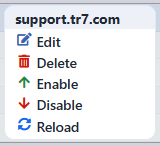 Right-Click Menu
| Operation | What it does |
|---|---|
| Edit | Opens the vService's edit form; it is the same form as the one opened by the Edit button in the toolbar. |
| Delete | Deletes the right-clicked vService; the same confirmation question as the delete in the toolbar is displayed. |
| Enable | Puts the vService into service. |
| Disable | Disables the vService. |
| Reload | Reloads the vService's configuration; it is inactive while the vService is disabled. |
Preview of the Selected vService
When a row in the list is clicked, the preview of the vService opens on the right side of the screen. The header contains a per-device status indicator, the vService's name and the vService subtitle, and at the top right there are two operations and a menu. When the panel is closed, it is reopened with the tool-icon handle at the top right of the list area; whether the panel is open or closed is stored per user.
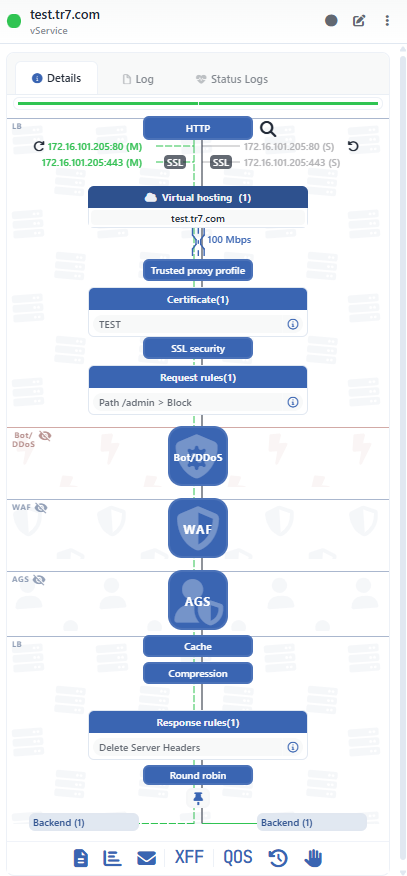 Preview of the Selected vService
| Operation | What it does |
|---|---|
| Edit | Opens the vService's edit form; it is not displayed to users who do not have modify permission in the Load Balancer area. |
| Dashboard | Opens the vService's Dashboard screen. |
| ⋮ | Opens the menu containing the Delete, Reload, Enable and Disable operations; Reload is inactive while the vService is disabled. |
On the vService Dashboard screen, the header of the same panel contains a tcpdump button for packet capture instead of the Dashboard button (the gray circle in the image).
There are three tabs in the panel:
Details
Shows the visual diagram of the vService configuration; the status messages and configuration warnings of the vService are listed above the diagram.
Log
Lists the user operations (add, edit, delete) on the vService as a timeline.
Status Logs
Lists the status change records of the vService.
The following are tracked visually in the diagram in the Details tab:
- Frontend IP addresses
- HTTPS Redirect status
- SSL Status
- Virtual Hosting
- Bandwidth Limitation
- Trusted Proxy Profile status
- Certificate
- SSL Security profile
- Request Rules (Actions)
- WAF
- AGS
- Threat & DDoS Protection
- Cache profile
- Compression profile
- Response Rules (Actions)
- Load balancing algorithm
- Persistence
- Content Switching
- Backend Services and their statuses
- Log, Report, Notification, Timeout, vService Limit profiles
- XFF
- QOS
TIP
When the items on the diagram are clicked, the summary window of the related profile opens; the edit screen is reached from this window.
Related
- Backend Services · Backend Groups: the targets to which the traffic will be directed
- Conditions · Actions: the conditions and actions attached to the vService
- Profiles: health check, compression, TLS, session persistence, log/report
- Types: HTTP (L7) · L7 TCP · Network
