
Smarter by Design.Simpler for Business
LDAP
What Is LDAP?
LDAP is the Authentication Providers type that verifies the username and the password the user writes in the login form in a corporate directory such as Active Directory or OpenLDAP. The verification is performed with the Search and Bind or the Direct Bind method; on a successful login the attributes of the user (the e-mail, the display name, the id) and optionally the group memberships are fetched from the directory. The connection settings (the address, the port, TLS) are taken from an LDAP or LDAPS server profile on the Authentication Servers screen.
How does it work?
- A server profile with the LDAP or LDAPS protocol is defined on the Authentication Servers screen.
- LDAP is selected as the Provider Type on this screen; the server, the verification method and the search settings are entered.
- The profile is added to the access flow as an Authentication Provider step after the login form.
- The username and the password are verified in the directory; the attributes are written to the session with the automatic mapping and the flow continues from the success or the fail transition.
Operational Best Practices
- The connection test. After the profile is saved, the connection, the service account sign-in and the sign-in of a test user must be verified with Test Connection in the preview.
- LDAPS must be preferred. Since the passwords are carried to the directory, the server profile must have the LDAPS protocol where possible.
- The service account with the least permission. The service account in the Search and Bind method must have only read permission.
- The group restriction. If only a certain group is required to have access, the verification must be limited to that group with Bind Restriction Filter.
- The lockout. In this type, which verifies a password, Account Lockout Policies must be assigned.
How to Add?
A new LDAP provider is added through the TR7 web management interface with the following steps:
- The Configuration Menu is opened by clicking the TR7 logo at the bottom left.
- The AGS → Authentication → Authentication Providers → Add steps are followed.
- A unique and descriptive name is entered for the profile; LDAP is selected as the Provider Type.
- The Authentication Server, the verification method and the search settings are entered.
- The profile is added by clicking the
Addbutton.
Profile Add Form
When the AGS → Authentication → Authentication Providers → Add steps are followed and LDAP is selected in the Provider Type field, the form opens with the following fields. The fields of the LDAP type are collected in sections with headings: Authentication Method, Search Configuration (Search and Bind) or Template Configuration (Direct Bind), Attribute Retrieval and Group Membership.
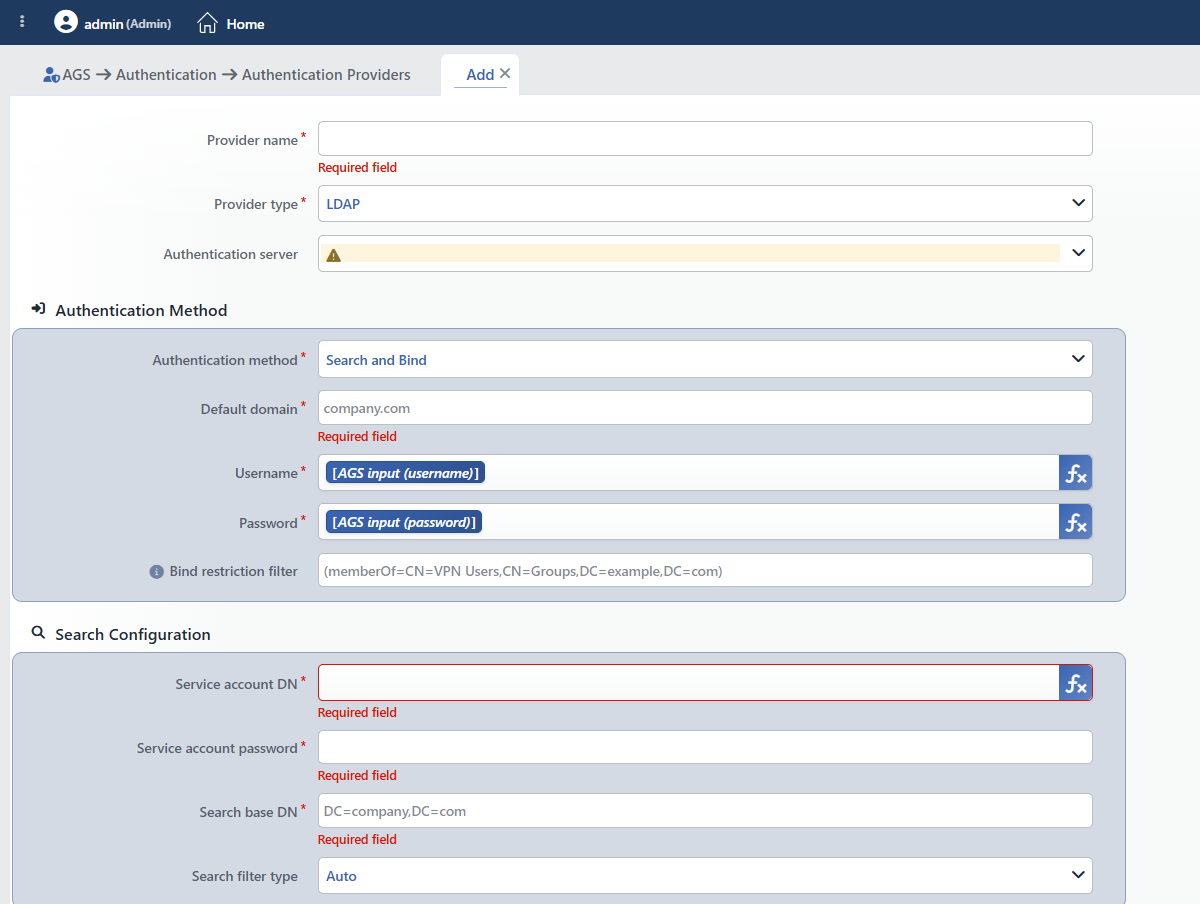 The Form While LDAP Is Selected
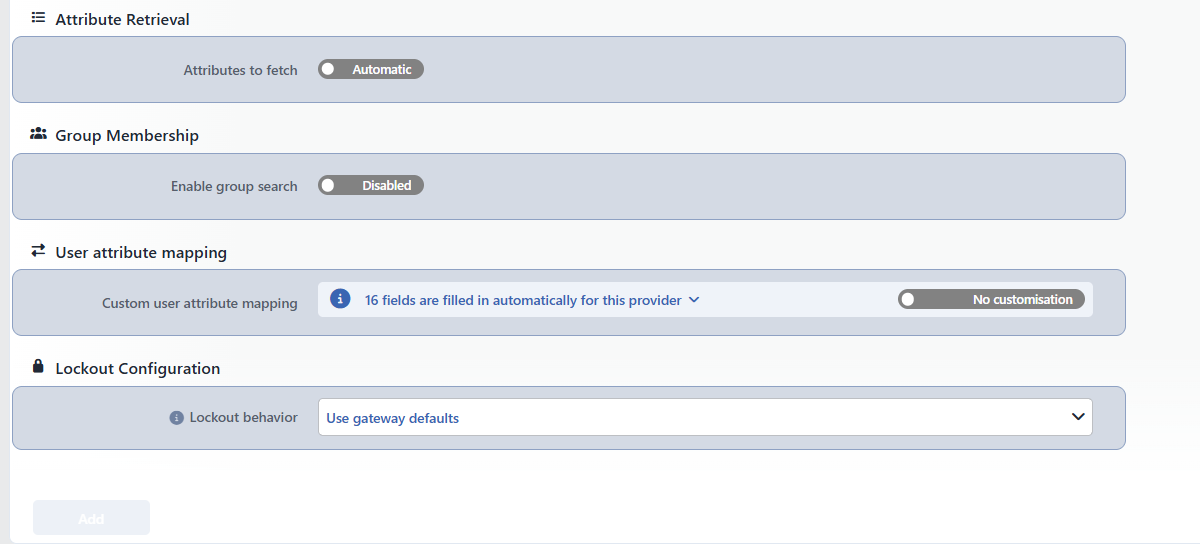 The Continuation of the LDAP Form
INFO
Provider Name Required
The name of the profile; it identifies the profile in the list, in the step selection in the flowchart, in the session list and in the logs. The name must be unique on the device; a second profile with the same name is not saved and the Name is used warning is displayed. When it is left empty, the Required field warning is displayed.
INFO
Provider Type Required
The provider type; LDAP is selected on this page. When the type is changed, only the fields of the new type are displayed and saved; the type is changed in the edit form as well.
INFO
Authentication Server
The server profiles on the Authentication Servers screen are listed; a profile with the LDAP or the LDAPS protocol must be selected. The selector does not filter by protocol, a profile outside these protocols can also be selected and the record is accepted. If there is a defined profile, the first profile in the list comes selected; if no profile is defined at all, the field opens empty and a warning icon is displayed in the field. The field is required in the schema, but the required mark and the Required field warning are not displayed in the form. With the + Add row at the top of the list that opens, a new profile is defined without leaving the page and comes selected in the field.
Authentication Method
INFO
Authentication Method Required Default: Search and Bind
How the user is verified in the directory is selected:
| Option | Meaning |
|---|---|
| Search and Bind | TR7 first connects to the directory with a service account and searches for the user, then tries the password of the user with the DN it finds; it is suitable for directories in which the users are located in different OUs. |
| Direct Bind | The username is turned into a DN with a template and the bind is made directly; a service account is not required. |
INFO
Default Domain Required
The default domain name to be added if there is no domain name in the username (company.com).
INFO
Username Required
The username expression to be sent to the directory. The field comes filled with the AGS input (username) variable (%AGS_USER_INPUT(username)), which carries the value coming from the login form; another smart variable is selected with the ƒx icon.
INFO
Password Required
The password expression to be sent to the directory. The field comes filled with the AGS input (password) variable (%AGS_USER_INPUT(password)), which carries the value coming from the login form; another smart variable is selected with the ƒx icon.
INFO
Bind Restriction Filter
Limits the verification with an additional LDAP filter (such as (memberOf=CN=VPN Users,CN=Groups,DC=example,DC=com)); it is combined with the user search filter. The field is displayed in both verification methods; since no user search is performed in the Direct Bind method, how the filter is applied in this method is not understood from the interface.
Search Configuration
Displayed only in the Search and Bind method.
INFO
Service Account DN Required
The DN of the service account that will search in the directory (CN=Service Account,CN=Users,DC=company,DC=com); it is a field that supports smart variables.
INFO
Service Account Password Required
The password of the service account; it is entered in a masked field.
INFO
Search Filter Type Default: Auto
| Option | Meaning |
|---|---|
| Auto | The filter suitable for the directory type is used. |
| Custom | The Custom Search Filter field is displayed and the filter is written manually. |
Custom Search Filter Required (Custom)
The user search filter; it is written in the (sAMAccountName=%AGS_USER_INPUT(username)) form. The example form with double curly braces in the placeholder of the field must not be copied; the syntax that works is the %AGS_USER_INPUT(...) form.
Template Configuration
Displayed only in the Direct Bind method.
INFO
Bind Template Default: UPN (user@domain)
How the username is turned into a DN is selected:
| Option | Meaning |
|---|---|
| UPN (user@domain) | The user@domain form; it is common for Active Directory. |
| NetBIOS (domain\user) | The DOMAIN\user form; for Active Directory. |
| UID | The uid=user,<User Container> form; for OpenLDAP. |
| CN | The cn=user,<User Container> form. |
| Custom | The pattern in the Custom Bind Pattern field is used. |
User Container Required (UID, CN)
The container in which the users are located in the UID and CN templates (ou=users).
Custom Bind Pattern Required (Custom)
The bind pattern in the Custom template (in the uid=%AGS_USER_INPUT(username),ou=people,dc=corp,dc=local form). The placeholder text of the field shows a syntax with double curly braces; this syntax is not valid in this field, the values must be written with %AGS_USER_INPUT(...) as in the Custom Search Filter field.
Attribute Retrieval
INFO
Attributes to Fetch Default: Automatic
The attributes to be fetched from the directory. In the Automatic position the default attribute set of AGS is used; when it is moved to the Choose position, the tag input comes filled with seven attributes (mail, displayName, memberOf, objectGUID, entryUUID, uid, sAMAccountName); the suggestion list opens while typing and the attributes are added and removed.
Group Membership
INFO
Enable Group Search Default: Disabled
Turns on the separate querying of the group memberships of the user.
Group Search Base
The DN at which the group search starts (OU=Groups,DC=company,DC=com).
Group Filter
The group search filter; the default value is in the (&(objectClass=group)(member=<dn>)) form and the <dn> placeholder (dn inside double curly braces) is replaced with the DN of the verified user.
User Attribute Mapping
INFO
Custom User Attribute Mapping Default: No customisation
How the fields in the provider response are mapped to the session attributes is managed. The information bar to the left of the field shows the number of fields mapped automatically for this type: 16 fields are filled in automatically for this provider. When the arrow icon on the bar is clicked, the 16 automatically mapped rows and the JSONata expression of each of them are listed.
When the switch on the right is moved to the Customised position, the AGS Attribute and Source Attribute table is displayed: the session attribute (with a suggestion list) is entered in the left column and the JSONata expression that is evaluated on the provider response in the right column. When the switch is turned on, the + Add link that adds a row appears on the right of the bar. A custom row that targets the same attribute as an automatic row overrides the automatic one (the replaced below badge) and the text of the information bar turns into the … fields are filled in automatically; you replace … of them form, which also says how many automatic rows are replaced. When a name outside the standard attributes of AGS is entered, this attribute is defined as a custom user field on the vService; names that start with _ are considered hidden fields and do not produce a custom user field.
Lockout Configuration
INFO
Lockout Behavior Default: Use gateway defaults
With which lockout policies the failed attempts on this provider are counted is selected:
| Option | Meaning |
|---|---|
| Use Gateway Defaults | The policies in the Default Lockout Policies list of the vService are used. |
| Replace Defaults | Only the policies selected in the Lockout Policies field are used. |
| Add to Defaults | In addition to the default policies of the vService, the ones selected in the Lockout Policies field are used as well. |
| No Lockout | Failed attempts are not counted on this provider, no lockout is performed. |
Lockout Policies
Displayed while Replace Defaults or Add to Defaults is selected; the built-in and defined policies on the Account Lockout Policies screen are selected.
INFO
Add
The profile is added by clicking the Add button; the tab closes and the profile is displayed in the list.
Test Connection
The Test connection button in the preview header of an LDAP provider that is bound to a server makes a real connection attempt from the device. There is a Bind Test switch in the window that opens: while it is off, the connection to the server (and additionally the service account sign-in in the Search and Bind method) is attempted; when it is turned on, the Test Username and Test Password fields become required and the sign-in of the entered user is attempted as well.
The result is shown separately for the stages that are run (Connection, Service account sign-in, User sign-in; the server address and the duration in milliseconds on each row); the description or the error text of the stage is written at the end of the row. The test is made from the route table of the server profile, takes at most 25 seconds and is not written to the user operation record.
