
Smarter by Design.Simpler for Business
Global WAF Report
What Is Global WAF Report?
Global WAF Report is the screen that combines the data of all the WAF-protected vServices on the device in a single report. The report form, the output formats and the report views are the same as WAF Report. Its difference is its scope and the vService breakdown added to the report.
| WAF Report | Global WAF Report | |
|---|---|---|
| Where it is opened from | From the WAF screen of the vService | From the Configuration Menu |
| The data covered | A single vService | All the vServices with WAF protection enabled |
| The tabs of the screen | The report tab (it can be closed) | The report + Periodic Reporting (both of them permanent) |
| The additional field in the form | - | vService |
| The report sections | Per host group | All vServices + per vService |
| The additional distribution | - | The vService × host group in the Overview |
| Access | The WAF authorization | The WAF authorization and an unrestricted vService scope |
The value of the screen is that it produces a single security document belonging to the whole of the device: how many attacks which application has received, from which countries the attacks come and which signatures stand out in all the services are gathered in a single document. If there are ten vServices on the device, producing ten separate reports and combining the tables manually is not needed.
The report answers two questions at the same time. The All vServices section gives the total across the device: the total number of attacks of the period, the attacker addresses, the countries and the vulnerability classes that stand out. When it is passed to a vService from the section list, the same breakdowns are read only for that application. Thus the questions "how many attacks has our device received" and "which of our applications is targeted" come out of a single document.
The vService distribution added to the Overview visualizes this comparison: how the attack load is distributed among the services and the host groups is seen in a single chart. That the load is gathered in a certain application and where the rule set should be tightened first are read from here.
The document can also be scheduled. The sending enabled from the Periodic Reporting tab delivers the report that covers the device as a whole by e-mail in the selected periods; nobody has to sit in front of the screen.
A Single Document
The whole of the device
All the WAF-protected vServices are combined in a single report
All vServices
The combined section
The totals across the device, ready in the first section of the list
With a Breakdown
vService and host group
How the attack load is distributed among the services, in a single chart
3
Output format
HTML on the screen, PDF for the management, XLSX for the data
Scheduled
Sending by e-mail
By itself in the daily, weekly, monthly and annual periods
Filtered
A targeted report
A separate document for a single vService, signature or source address
Scope Warning
An incomplete scanning is not hidden
If the scanning cannot reach the whole of the range, how far it has come is written
Included
Not a separate module
It is used on a device with a WAF license without being additionally enabled
The whole of the explanation is on the WAF Report page
The fields of the report form, the six views of the HTML report, the structure of the PDF and XLSX outputs and the reports not being stored are as explained on the WAF Report page. This page deals only with the behavior specific to the report across the device.
How to Access?
- The Configuration Menu is opened by clicking the TR7 logo at the bottom left.
- The WAF → Global WAF Report steps are followed.
The screen is not displayed in the menu in the users whose authorization is limited to certain vServices. If such a user tries to reach the screen directly with the address, the report production is rejected on the server side: This screen spans every vService — it is available only to accounts without a vService restriction.
The Tabs of the Screen
The screen consists of two permanent tabs:
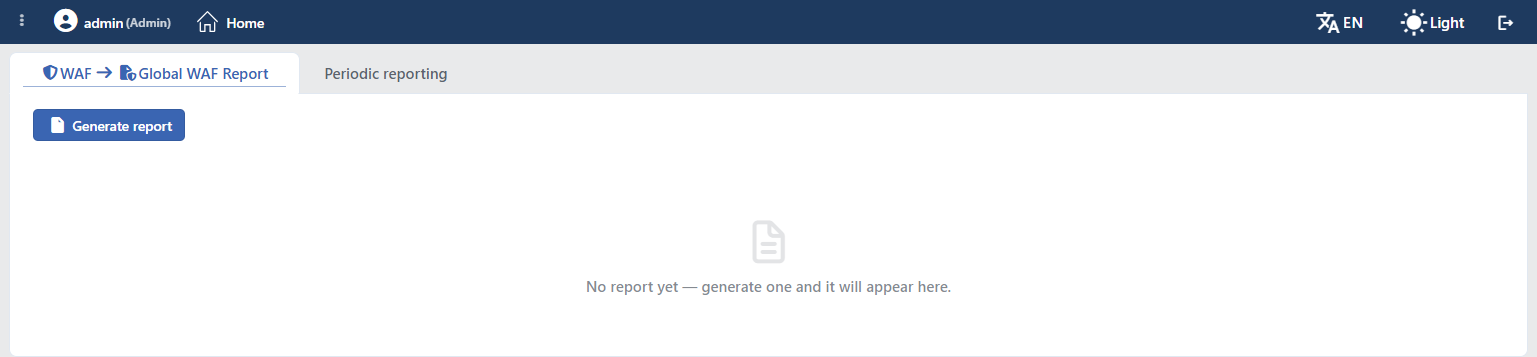 Global WAF Report - The Tabs of the Screen
| Tab | Content |
|---|---|
| The report tab | The report across the device explained on this page. On the tab, instead of a name, the WAF → Global WAF Report path is displayed and the tab cannot be closed. |
| Periodic Reporting | The settings of the scheduled e-mail report that covers the device as a whole. It cannot be closed. |
When the report tab is first opened, there is no report yet; on the screen only the Generate Report button and the No report yet — generate one and it will appear here. information are displayed.
Unlike the report tab on the vService screen, the report tab here cannot be closed; when the screen is left, the produced report is lost and when it is returned to, it needs to be produced again.
The Generate Report Screen
The form that opens when the Generate Report button is clicked is the same as the one on the WAF Report screen. A new field that determines the scope is added: the vService right below the Date field. Apart from this, the condition catalog of the Report Filter field widens and the remembered values of the form are kept separately.
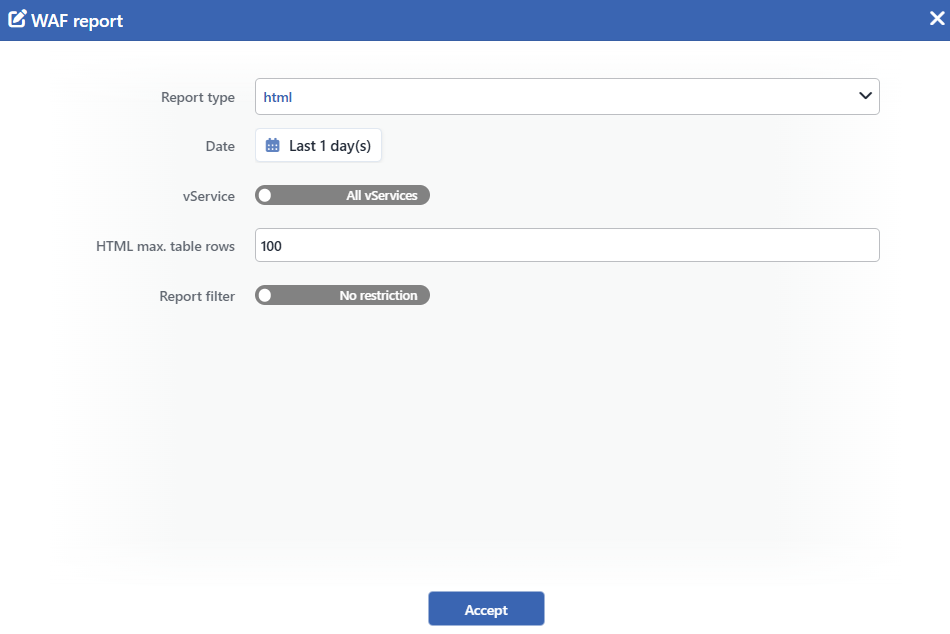 Global WAF Report - The Report Form
INFO
vService Default: All vServices
It is determined which vServices the report will cover. In the default state the switch is off and All vServices is written; all the WAF-protected vServices enter the report.
When the switch is turned on, it passes to the Pick vServices state and a vService is selected from the list. The selection does not only narrow the report, it narrows the scanning itself: the log files of the vServices that stay outside the scope are not opened at all.
An empty selection left on does not narrow
If it is passed to the Pick vServices state and no vService is selected, the report covers all the vServices again. The field allows an empty selection and does not give a warning; a report across the device may be produced while it is thought that a narrowing has been made.
A field is added to the condition catalog of the Report Filter field as well: the vService field that filters the vService the log belongs to. When this condition is set up in the and position, it narrows the scanning as well; in the or position it only filters the result.
The Sections of the Report
In the vService-based report the dropdown list on the report navigates the host groups. In the global report the same list navigates the vServices:
- In the first place of the list the All vServices section always takes place. This section is the combination of all the vServices; except for the vService distribution that is present only here, its breakdowns are the same as the vService sections.
- Then the vServices are sorted from the most to the least according to their attack volumes.
The list is displayed only if there is more than one section. A vService that has produced no log in the report range does not open a section; this does not mean that the report is incomplete. A vService that has a log but all of whose rows are eliminated because of the filter, on the other hand, can open an empty section with a zero value.
The host groups are combined in the vService sections
A vService section shows all the host groups of that service in a single total; a separate section is not opened per group. The host group breakdown lives only in the vService distribution in the Overview view: the rows there are the vService × host group pairs.
The host groups with the same name in different vServices stay as separate rows; since the chart labels are written in the <vService name> - <host group name> form, they are not mixed with each other.
The Difference in the Overview View
To the Overview view of the global report, a full-width chart and table that show the distribution per vService are added. The table carries two breakdown columns: vService and Host Group.
This distribution is present only in the All vServices section; when a single vService is selected from the list, the Overview consists again only of the country map and the country table.
The summary indicators (Total Attacks, Unique Attacker IPs, Attacking Countries, Triggered Rules, Top CWE) do not change, but are calculated according to the selected section: while All vServices is selected they tell about the device as a whole, and while a vService is selected only about that service.
The Scope of the Scanning and the Warnings
The report across the device uses the same scanning infrastructure as Global WAF Event Log. This has two results.
First, the simultaneity quota is common. At most two scannings across the device can run at the same time. This quota is shared not only with Global WAF Event Log but with the Bot/DDoS log scanning across the device as well; the quota is counted per region. While two scannings are going on in one of these screens, the report production gets a busy response.
Second, the scanning is subject to a time budget. The budget is at most five minutes. This limit is valid for the PDF and XLSX requests as well: even if the timeout of the request is much longer, the scanning stops in five minutes and the period completed until that moment is reported completely.
According to the situation, an information strip is displayed above the screen:
| Situation | What is written on the strip |
|---|---|
| The time budget is filled | Results are complete back to <date> — narrow the range to go deeper |
| A source error | <number> source(s) could not be scanned fully |
| The scanning is busy | Another global scan is running right now — please try again shortly |
| A scanning error | The global log scan failed — try refreshing |
On this screen the errors are reported not with a warning window but only with this strip.
The scope warning is updated only with the HTML report
The information strip is refreshed only while the HTML report is being produced. When PDF or XLSX is downloaded, the strip is not updated even if the scanning has stayed partial; on the screen the strip left from the previous HTML scanning may continue to stay. For this reason in the file reports with a wide range the scope should be verified by producing HTML first.
The date range on the report cover is not the requested range but the scanned range: when the budget is filled, the start is pulled to the date the scanning has reached.
The Periodic Reporting Edit Screen
The Periodic Reporting tab provides that the report that covers the device as a whole is sent by e-mail at regular intervals. The setting is single across the device; it works independently of the own Periodic Reporting settings of the vServices.
When the tab is opened, the settings in force are displayed; with the Edit button an editing tab that can be closed opens. The editing requires full authorization in the WAF area.
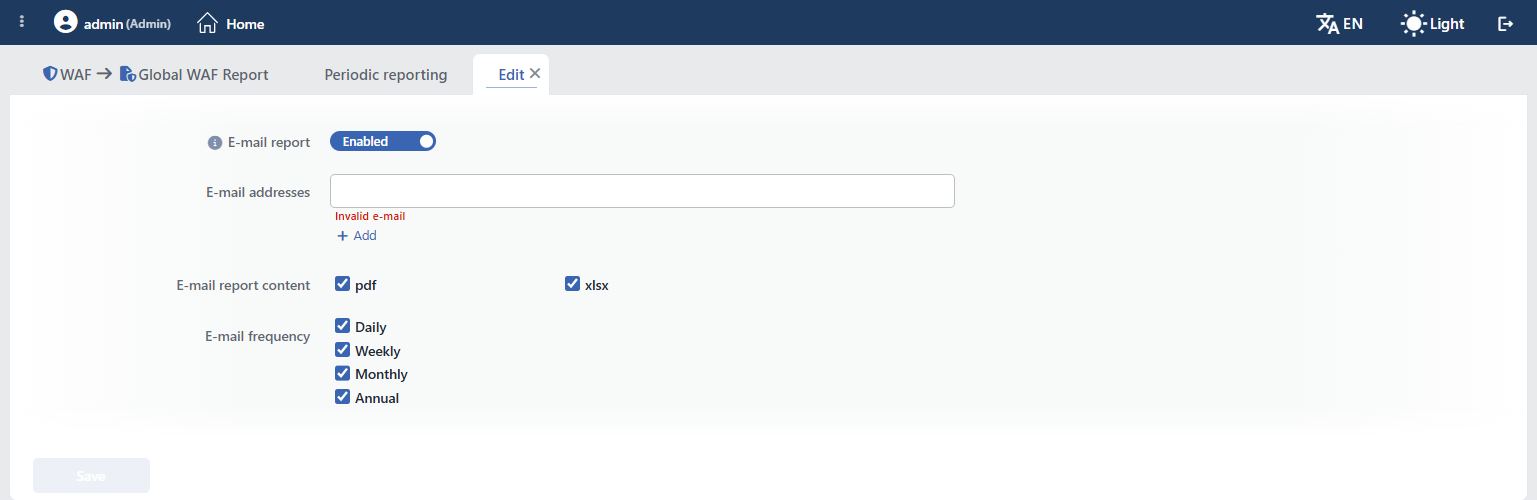 Global WAF Report - The Periodic Reporting Edit Screen
INFO
E-mail Report Default: Off
It turns the scheduled sending on. It is off by default: no report is sent without this setting being turned on. While the switch is off, the other three fields are hidden, but their saved values are preserved.
INFO
E-mail Addresses
The addresses to which the report will be sent are entered. With the Add link a new line is added. The addresses pass a format inspection; when an invalid value is entered, the Invalid e-mail warning is displayed below the field and the form cannot be saved. A repeated address is not accepted; this inspection is done during the saving and a warning does not appear below the field beforehand.
INFO
E-mail Report Content Saved default: pdf
The file formats to be sent are selected; pdf and xlsx can be checked together.
In a setup that has not been touched at all, the saved value is only pdf. On the other hand the editing form opens with both formats checked; the same is valid for the E-mail Frequency field as well. For this reason, even if the form is opened and saved only to add an address, the sending scope may widen. Before saving, both fields need to be reviewed.
INFO
E-mail Frequency
The sending frequency is selected: Daily, Weekly, Monthly and Annual. More than one frequency can be checked together; every sending covers a completed previous period.
INFO
Save
The settings are saved by clicking the Save button. The button is passive while there is an unresolved error in the form. The saved setting is single across the device and when the editing tab is closed, it is returned to the Periodic Reporting tab.
The sending times and the preconditions
The sendings are made at fixed times: daily 07:30, weekly Monday 03:30, monthly the 1st of the month 05:30, annual 1 January 06:30.
For a sending to take place, E-mail Report has to be on, at least one address has to be defined and a frequency that covers that period has to be checked. If one of the conditions is missing, nothing is sent and a warning does not appear to the user separately.
The scheduled report does not use the selections in the form
The scheduled report does not inherit the filter, row limit and language selections of the report produced from the screen. It is produced with the standard scope and in the default interface language of the device.
In the cluster setups the sending is made only from the primary device.
Scope and Limits
INFO
- The output name does not reflect the selected scope. Even if a subset is selected with Pick vServices, All vServices is written on the PDF cover and in the name of the downloaded file. Which vServices the report really covers is not understood from the output itself; this information should be noted separately while the report is being produced.
- Only the vServices of the HTTP type. Since WAF protection is present only in the vServices of the HTTP type, the report covers only these services as well. The Network (Layer 4) and L7 TCP vServices take place neither in the list nor in the report.
- The XLSX sheet names. If there is more than one section in the report, the sheets of the XLSX output are named in the <section name> - <breakdown> form; in a report with a single section the sheet name consists only of the breakdown. Since the area recognized for the sheet names is limited, the long names are trimmed from the end: the section name is preserved, the breakdown title is lost. If more than one sheet of the same section falls to the same name because of this, suffixes such as
~2,~3come at their ends and which breakdown the sheet belongs to may not be read from the name. - The form is remembered separately. The report form on this screen is stored per user separately from the one on the vService screen. A selection made in one does not affect the other.
