
Smarter by Design.Simpler for Business
AGS Condition
What Is AGS Condition?
AGS Condition is a special condition type used to make traffic routing and manipulation decisions by using the user authentication and session information provided by AGS - AAM (Application Access Management).
Variable typeAGS user groups
Text inclusion
Text to compareadmins
If the user's AGS group list contains "admins" → the condition returns TRUE
With this condition, dynamic traffic management can be performed according to the identity information, roles and session states of users.
WARNING
This condition can be used only in HTTP vServices. The condition can also be defined in an environment where AGS is not configured; however, since there is no AGS session data to be evaluated, in this case it never matches.
The Importance of AGS Condition
AGS Condition is a critical tool for user-based access control and content personalization.
With AGS Condition:
- Authenticated users can be detected,
- Access control can be performed according to user roles,
- Different content can be shown according to user groups,
- Routing can be performed according to the session state,
- Dynamic behaviors can be defined according to user attributes.
Supported AGS Variables:
| Variable | Description |
|---|---|
| AGS - is authenticated user | Is the user authenticated on AGS? (Boolean) |
| AGS session ID | The active session ID of the user |
| AGS user input | The form or input value received from the user |
| AGS user ID | The user ID assigned by AGS |
| AGS username | Username |
| AGS user e-mail address | The user's e-mail address |
| AGS user phone number | The user's mobile phone number |
| AGS user groups | The groups or roles the user is a member of |
| AGS user attribute | Custom user attributes in the AGS session (read by attribute name) |
Supported Operators:
| Operator | Description |
|---|---|
| Text equality | Checks the exact match of the text value |
| Text inclusion | Checks whether the text contains the specified value |
| Text start | Checks whether the text starts with the specified expression |
| Text end | Checks whether the text ends with the specified expression |
| Text regex | Checks whether the text matches the defined regular expression |
| Integer equality | Checks whether the numeric value is equal to the specified number |
| Integer greater than | Checks whether the numeric value is greater than the specified value |
| Integer less than | Checks whether the numeric value is less than the specified value |
| Integer range | Checks whether the numeric value is within a defined range |
| Boolean | Checks the state of the logical (true/false) value |
| IP/cidr match | Checks whether the IP address or network (CIDR) matches the specified IP/CIDR block |
Supported vService Types
HTTP
L7 TCP
Network
How to Add?
A new AGS Condition can be added through the TR7 web management interface by following the steps below:
- The Configuration Menu is opened by clicking the TR7 logo at the bottom left.
- The Load Balancer → Conditions → Add steps are followed.
- AGS condition is selected as Criteria.
- The related configurations of the condition are made.
- The condition is added by clicking the
Addbutton.
AGS Condition Add Form
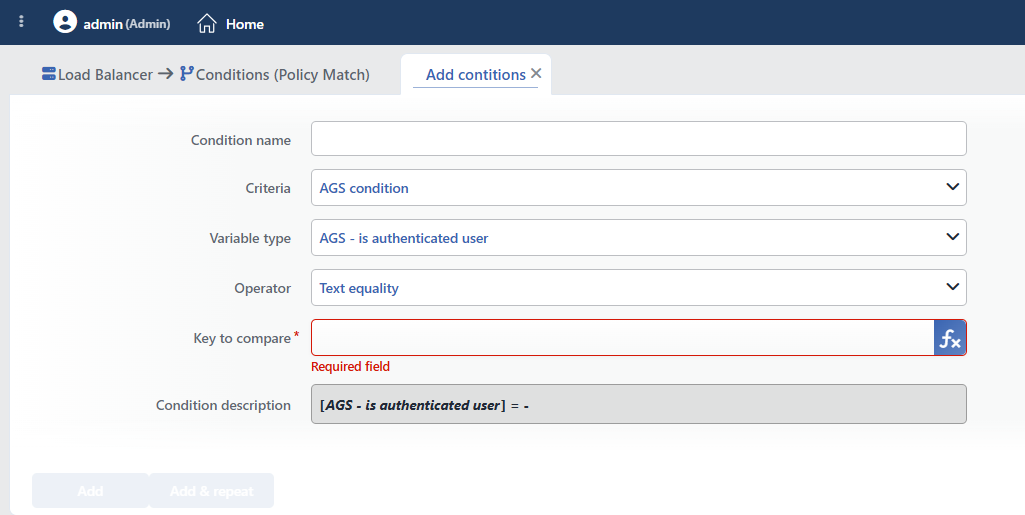 AGS Condition Add Form
INFO
Condition Name
An optional name can be entered for the condition to be created.
This field is especially important in the following scenarios:
- When many conditions are defined under the same vService,
- When conditions with similar criteria need to be distinguished,
- When it is necessary to quickly understand which business rule the condition represents.
When this field is left empty, TR7 analyzes the content of the related condition and creates an automatic, descriptive name in the Condition Description field. This generated description is used as the name in condition lists.
INFO
Criteria Required
The field that determines the type of the condition; AGS condition is selected from the searchable dropdown list. This selection determines the fields displayed in the form. The criterion cannot be changed after the condition is saved: if a different criterion is needed, a new condition is defined. For all criteria in the list and their scopes, the criteria catalog on the Conditions page can be referred to.
INFO
Variable Type Default: AGS - is authenticated user
The AGS variable to be compared is selected from the list. There is no fx button in the field; if needed, a free smart variable can also be entered from the variable window that opens by right-clicking on the field.
Available AGS Variables:
| Variable | Description |
|---|---|
| AGS - is authenticated user | Is the user authenticated on AGS? (Boolean) |
| AGS session ID | The active session ID of the user |
| AGS user input | The form or input value received from the user; when it is selected, an additional AGS input variable field opens and the input name is written |
| AGS user ID | The user ID assigned by AGS |
| AGS username | Username |
| AGS user e-mail address | The user's e-mail address |
| AGS user phone number | The user's mobile phone number |
| AGS user groups | The groups or roles the user is a member of |
| AGS user attribute | Custom user attributes in the AGS session; when it is selected, an additional Attribute name field opens and the attribute name is written |
Encrypted inputs
User inputs marked as encrypted on the AGS side (e.g. password fields) cannot be read in this condition; a condition bound to such an input never matches.
INFO
Operator Default: Text equality
The comparison method is selected; the selected operator determines the value field that opens below.
| Operator | Description |
|---|---|
| Text equality | Checks the exact match of the text value |
| Text inclusion | Checks whether the text contains the specified value |
| Text start | Checks whether the text starts with the specified expression |
| Text end | Checks whether the text ends with the specified expression |
| Text regex | Checks whether the text matches the defined regular expression |
| Integer equality | Checks whether the numeric value is equal to the specified number |
| Integer greater than | Checks whether the numeric value is greater than the specified value |
| Integer less than | Checks whether the numeric value is less than the specified value |
| Integer range | Checks whether the numeric value is within a defined range |
| Boolean | Checks the state of the logical (true/false) value; with this operator, no value field opens in addition |
| IP/cidr match | Checks whether the IP address or network (CIDR) matches the specified IP/CIDR block |
INFO
Comparison Value Field Varies by operator
The value on the right side of the comparison is entered in a field whose label and behavior change according to the selected operator:
| Operator | Field Opened | Behavior |
|---|---|---|
| Text equality | Key to compare | Text with smart variable support; there is an fx button |
| Text inclusion / Text start / Text end | Text to compare | Plain text (no fx) |
| Text regex | Regex to compare | Regular expression; it can be tried with the test tool next to it |
| Integer equality / greater than / less than | Integer to compare | Numeric value with smart variable support; there is an fx button |
| Integer range | Range start + Range end | Two separate fields for the range; both support smart variables |
| Boolean | - | No value field opens; the true/false state of the variable is evaluated |
| IP/cidr match | IP/cidr to compare | Separate IP and CIDR inputs (default CIDR: /24); both are validated |
All the opened fields are required.
TIP
Fields with the fx button support Smart Variables; dynamic content can be created by accessing the existing variables. For detailed information, the Variables document can be referred to.
INFO
Condition Description
It is created automatically by TR7 in line with the entered criteria and values.
This description:
- which value the condition applies to,
- which criterion it works on,
- the quick understanding of the condition on listing screens
is produced dynamically by the system so as to provide these.
INFO
Form Buttons
Add
The condition adding process is completed by clicking the Add button.
Add & Repeat
With the Add & Repeat button, the condition adding process is completed, and another new condition can be added with different configurations without leaving the related window.
 Condition Added
Operational Usage Recommendations
- A Session Check Should Come First. Before each AGS condition, the session state should be checked with AGS - is authenticated user.
- Role-Based Access. Role-based access control should be performed by using attributes such as
roleandmemberOfwith AGS user groups or AGS user attribute. - Department-Based Routing. Routing to different Backend Services should be performed according to the user's department.
- Attributes Should Be Used. Dynamic behaviors bound to the attributes in the session (e.g.
department) should be created with AGS user attribute.
