
Smarter by Design.Simpler for Business
Merge
What Is Merge?
Merge merges two or more page types (WAF rules) selected from the Page Types list into a single rule. The typical use is folding the many similar exact path rules that the learning produces (such as /api/v1/login, /api/v2/login) into a single glob rule (/api/v*/login): the rule list is simplified and the new paths that match the pattern are also covered automatically.
The merged rule is created with the combination of the settings and the Check Fields inspections of the selected rules and is added to the list as a new rule; how the settings are merged is explained below.
INFO
The Any Paths (catch-all) rule cannot be included in the merging; while there is Any Paths in the selection, the Merge button stays passive. The button also does not become enabled without at least two rules being selected.
The Merging Steps
- The rules to be merged (at least two) are checked in the list.
- The Merge button on the toolbar is clicked; the Merge WAF Rules window opens.
- The path of the merged rule is entered, and if necessary the Force Merge and Keep Original Rules options are checked.
- The merging is completed by clicking the
Acceptbutton.
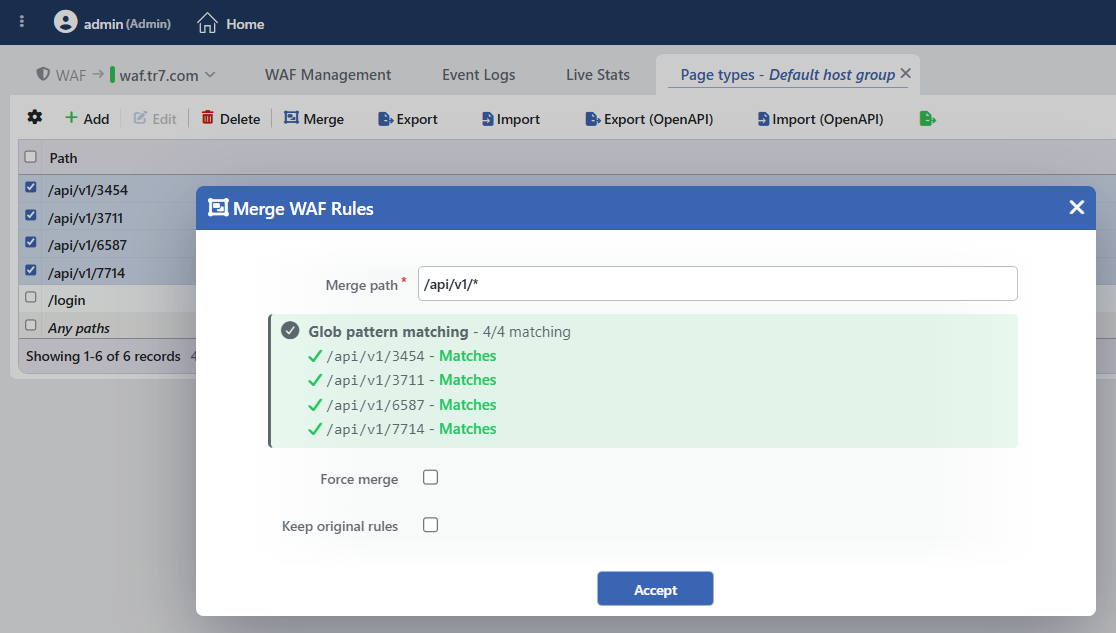 The Merge WAF Rules Window
INFO
Merge Path
The path of the merged rule; the field is required. An exact path or a glob pattern can be entered; when a glob is entered, the merged rule takes place in the list as a glob rule. If the entered path is the same as the path of an existing rule in the group (other than the ones being merged), the operation is rejected with a Rule collision error; the window stays open so that a correction can be made.
INFO
The Matching Preview
The information box below the Merge Path field shows the compatibility of the selected rules with the pattern to be entered, live. While the field is empty, the paths of the selected rules are listed with the Paths to merge (N): title. As the pattern is typed, the title is updated so as to show the type of the pattern and how many paths match (Glob pattern matching - m/n matching), and the matching state is stated next to every path: the matching ones are marked as Matches with a green check mark, the non-matching ones as Does not match with an orange cross mark. When all the paths match, the box is green in appearance, and as long as a non-matching path remains, orange.
INFO
Force Merge
When it is checked, the existence of the paths that do not match the entered pattern does not prevent the merging. While it is not checked, if there is a non-matching path, the "N path(s) do not match the merge pattern. Are you sure you want to continue?" confirmation question is shown after Accept; with Yes the merging is carried on anyway (it is equivalent to checking Force Merge), with No the form is returned to.
INFO
Keep Original Rules
When it is checked, the selected rules are not deleted; the merged rule is created in addition to the list. While it is not checked (the default), all the selected rules are deleted and a single merged rule takes their place.
INFO
Accept
The merging is completed by clicking the Accept button. There is no additional confirmation window (apart from the non-matching path case) or deployment (deploy) step; the WAF configuration is automatically produced again and applied, the selection in the table is cleared and the N Page Types number on the mode card is updated.
Merging the Settings
The merged rule takes a new rule identity; its settings are derived from the settings of the selected rules with the following behaviors:
| Setting | Merging behavior |
|---|---|
| Allowed Methods | If one of the rules is Any Methods, the result becomes Any Methods; the Multiple Methods lists are merged (the union). |
| The numeric restrictions (Path Length, Path Depth and the size/length/depth restrictions in the Check Fields) | The widest range that the two values cover is taken. If one of the sides is No Restriction, the restriction of the other side is preserved; if both are No Restriction, the result becomes No Restriction. |
| The allowed field lists | They are merged (the union). |
| The required field lists | The common elements are taken (the intersection). |
| OWASP | If one of the rules is on, the result becomes on. |
| Check Fields inspections | The inspections that belong to the same location and field name are merged into a single inspection; the different ones are added side by side. |
| Other settings | The value of the first selected rule is preserved. |
The Runtime Effect
In the default behavior (Keep Original Rules unchecked) the selected exact rules are deleted and the requests coming to their paths are from now on inspected with the merged glob rule. If Keep Original Rules is checked, the original exact rules continue to meet their own paths as required by the rule matching priority; the merged glob rule catches only the paths that have no exact counterpart. As required by the inheritance, the Check Fields inspections of the merged rule that are not defined in the original rules are also applied as complementary on the exact paths that match the pattern; in the conflicting settings, on the other hand, the exact rule's own value is always valid.
Operational Best Practices
- The pattern should be refined until all the paths match in the preview. The merging should not be done before the m/n matching counter of the matching preview reaches a full number; full coverage should be provided by widening the pattern or by narrowing the selection.
- The result of Force Merge should be known. When a path that does not match the pattern is merged by force, the settings of that path are carried to the merged rule; however, if the original rule has been deleted, the path no longer matches the merged rule and falls to the Any Paths rule.
- Keep Original Rules should be checked when one is not sure. The original rules stay prior and their own settings continue to be valid; if the merged rule does not give the expected result, it is deleted on its own and the old state is returned to.
