
Smarter by Design.Simpler for Business
What It Can Do for You
What Is What It Can Do for You?
What It Can Do for You turns the result of the last evaluation into jobs that can be done: it gathers the waiting recommendations in a single package and applies them, shows the way to the findings that are asked to be looked at, and carries the reset step that returns the configuration to its default state. The slogan of the card says this clearly: Steps that apply in one click.
This is the only surface of Learning that touches the configuration; the other two cards only explain. In the list there are at most three rows and the first two are seen only while there is something that corresponds to them; the reset row is always located there.
The recommendations are applied here
The other two cards of the strip only explain; this is the only surface that applies. The operations started from this card change the live configuration of the protections and come into force immediately.
The What It Can Do for You Card in the Learning Strip
The card is the one on the right among the three cards in the body of the band. At the top the title and the lightning icon, below it the slogan, and then the action rows are located.
 The Learning Strip - The What It Can Do for You Card
The action rows:
| Row | When it is seen | Its text and badge |
|---|---|---|
| The findings | If there is at least one finding in the evaluation | A red <number> Attention badge. If there is a single finding, next to it there is a clickable sentence: Click to look. If there is more than one finding, the sentence is not written, only the badge remains and the findings are opened from their own rows on the page. |
| The recommendations | If there is at least one waiting recommendation | The sentence Review and apply them together. and the <number> Suggestions badge. When it is clicked, the review window opens. |
| The reset | Always | Reset every threat-protection setting to its factory value. It is written with the return icon and in the warning color. |
The number on the badge and the number on the strip
The number on the Suggestions badge expresses the same magnitude as the Suggestions Waiting counter in the upper band: the number of recommendations that will be opened for review. The number on the Attention badge, on the other hand, is kept separate and does not enter the waiting recommendation counter.
The Pending Suggestions Window
When the Review and apply them together. row is clicked, the review window titled Pending Suggestions (<number>) opens. The window gathers all the waiting recommendations on a single screen and makes it possible to apply all of them in a single operation.
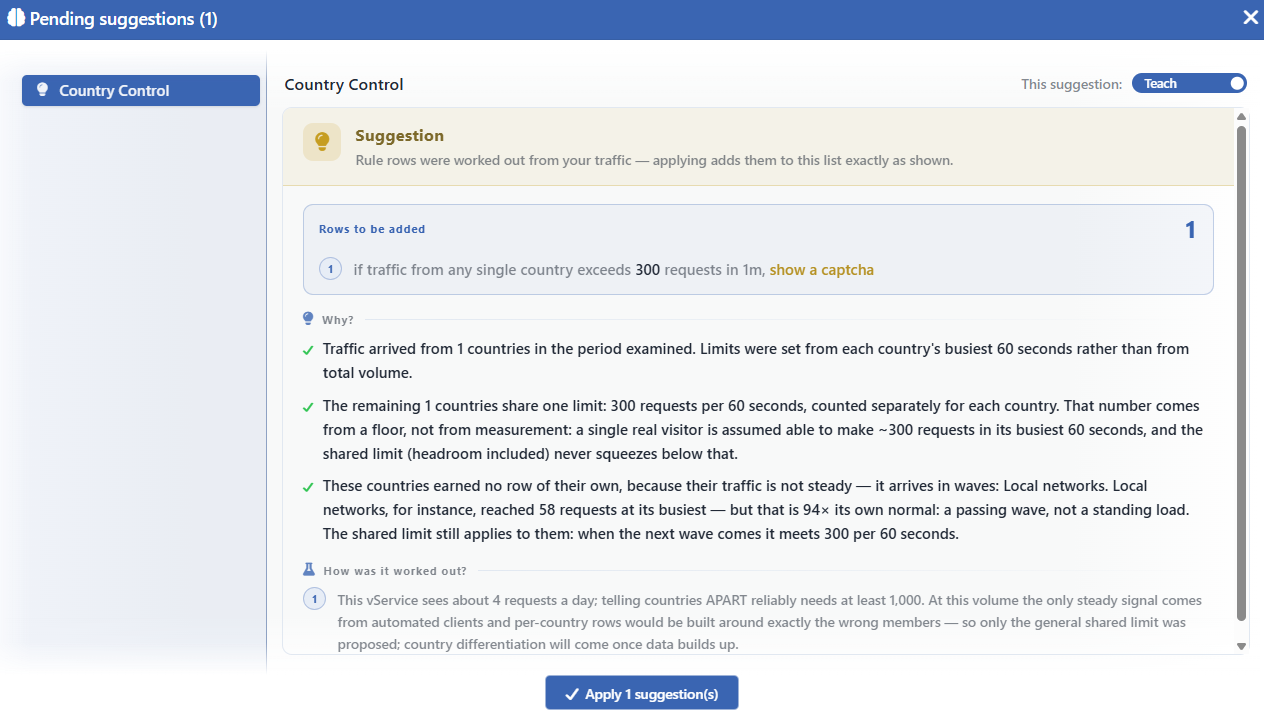 The Pending Suggestions Window
The Left List
On the left, every surface that carries a recommendation is listed as a row. The name of the row says where the recommendation comes from: the name of a protection (L7 DDoS Protection, Bot Protection, IP Reputation Protection), the name of a limit block (such as Country Control, Source IP Request Protection), Action Rules for the rule list, or the group name and the order number for a single rule row. The icon at the beginning of the row is the mark that shows the type of the recommendation.
The rows removed from the package fade and their names are written struck through.
The Right Panel
On the right, the justification of the selected row opens in detail:
| Section | Its content |
|---|---|
| The result band | The type of the recommendation (Suggestion) and the sentence that explains what it means. |
| Current Setting | The current state of the setting. |
| If Applied / Rows to be Added | What will happen when it is applied. If a single threshold is changing, the old and the new value are shown with an arrow; if a rule row is being produced, the rows to be added are listed as they are together with their number. |
| Why? | The justifications of the engine, as items with a check mark. |
| How Was It Worked Out? | From which measurement and how the value has been derived, as numbered steps. |
The justifications come in the language of the screen
The Why? and How Was It Worked Out? texts are produced by the engine and are prepared on the server in Turkish and in English; the window shows the one suitable for the language of the interface.
The Teach Switch
In the upper corner of the right panel there is a switch with the This suggestion: label: Teach / Skip. The switch does not write or save anything; it only determines whether that recommendation will enter the application package or not. A recommendation taken to the Skip position leaves the package, fades in the list on the left and the number on the button below decreases. The recommendation is not lost: it is offered again in the next evaluation.
The Application
The Apply <number> suggestion(s) button at the bottom of the window applies all the recommendations included in the package together. The button is passive while no recommendation is included and while the operation is in progress.
The operation asks for confirmation:
<number>learned suggestion(s) will be applied to this vService's threat-protection configuration. Are you sure?
After the confirmation, the package is sent as a single operation; the selections are put in order as first the numeric settings, then the rule rows and last the protection enablings. The application is in the form of all or none: if a single selection in the package is invalid, none of them is applied. The server rejects the enabling of a protection that has been turned off manually, writing over a full rule list and changing the rows that the engine has not taken ownership of. In a successful application the window closes, the strip starts a new evaluation and the counters, the result sentence and the badges on the protection cards are updated. The operation is written to the user log with a record that shows how many recommendations have been applied and which fields have changed.
Only the applicable recommendations are found in this window
The results that the engine has learned but that it cannot apply itself (Advice) and the findings that are asked to be looked at (Attention) do not enter this window. These are seen in the single recommendation window opened from the badge on the card or in the row of the related protection, without an apply button, only with their explanation. For example, the waiting room values are learned but not applied; and the engine does not compete with a rule list written manually either.
Reset to Factory
The last row of the list returns the whole Bot/DDoS configuration of the vService to its default state. The row is always seen and cannot be run while an evaluation is in progress.
The operation shows a confirmation window with two texts:
This vService's threat-protection configuration (
<number>stored field(s)) will be wiped back to factory state. Are you sure?Factory state = every pillar returns to MONITOR (including ones you turned off by hand), all blocks observe with factory limits, rules and learned values are erased. The Smart Advisor re-teaches from scratch; every wiped field is listed in the user log.
The number in the window is the number of setting fields stored at that moment. After the confirmation, the record is emptied and the configuration returns to its default definition: all the blocks start to work with their default limits, and the rules and the learned values are deleted. On the mode side, L7 DDoS Protection and Bot Protection go down to the Monitor mode (including the ones that have been turned off manually); since the default of IP Reputation Protection is Active, that protection continues to apply enforcement after the reset as well. The operation is written to the user log with a change summary and then the strip starts a new evaluation.
The confirmation text and the result diverge at this point
The sentence Factory state = every pillar returns to MONITOR in the confirmation window reads as if it covered all three protections. Since IP Reputation Protection is Active by default, the reset does not take it into monitoring; the protection continues to apply enforcement with its default rules.
The reset cannot be undone
The operation has no undo step. Beforehand, backing up the configuration with Export is recommended; the file is the most direct way of restoring the reset configuration.
Scope and Limits
INFO
- This is the only surface that applies. The other two cards only explain.
- The package is a whole. The application works in the form of all or none; a single invalid selection drops the whole package.
- Skip is not a permanent decision. A recommendation removed from the package is not deleted, it is offered again in the next evaluation.
- Advice and Attention are not applied here. These are read only in the window opened from the badge on their own cards; there is no apply button.
- The reset row is seen independently of the permission. On a user that has read-only permission, the row is located in the list and the confirmation window opens; however the operation is rejected on the server.
- The reset does not run while an evaluation is in progress. While an evaluation is continuing, the row appears clickable but it does not start an operation and does not give feedback either.
- The reset does not return to a state without rules. The stored rule rows are deleted, but the protections that require rules continue to work with their default rule lists.
