
Smarter by Design.Simpler for Business
Create Traffic Variable
What Is the Create Traffic Variable Action?
The Create Traffic Variable action defines named variables belonging to the traffic being processed. The value assigned to the variable can be a fixed text, or it can be dynamic content produced with smart variables.
The defined variable is read with the %TR7VAR(name) smart variable in the other conditions and actions within the same vService. In this way, information calculated once can be reused in the later steps of the rule flow.
The traffic variables are kept in an area isolated from the internal variables of the TR7 engine; the names given by the operator never conflict with the system values under any circumstances.
The Importance of the Create Traffic Variable Action
In complex traffic rules, the same information (a calculated key, a combined identity, a classification tag) is often needed at more than one point. Producing this information again every time both enlarges the rule set and creates the risk of inconsistency.
The Create Traffic Variable action;
- enables a value calculated once to be reused throughout the flow,
- makes it possible for the result of complex conditions to be tagged and simplified in the subsequent rules,
- enables more than one smart variable to be combined in a single value,
- makes it possible for the information obtained at the time of the request to be carried to the response stage,
- enables the produced tags to be written to the log lines.
Supported vService Types
HTTP
L7 TCP
Network
Execution Timing
On Request
On Response
How to Add?
A new Create Traffic Variable Action can be added through the TR7 web management interface by following the steps below:
- The Configuration Menu is opened by clicking the TR7 logo at the bottom left.
- The Load Balancer → Actions → Add steps are followed.
- A unique and descriptive name is entered for the action.
- Create Traffic Variable is selected as Action Type.
- The related configurations of the action are made.
- In the Conditions tab, the condition/conditions under which the action takes effect are determined.
- The action is added by clicking the
Addbutton.
Create Traffic Variable Action Add Form
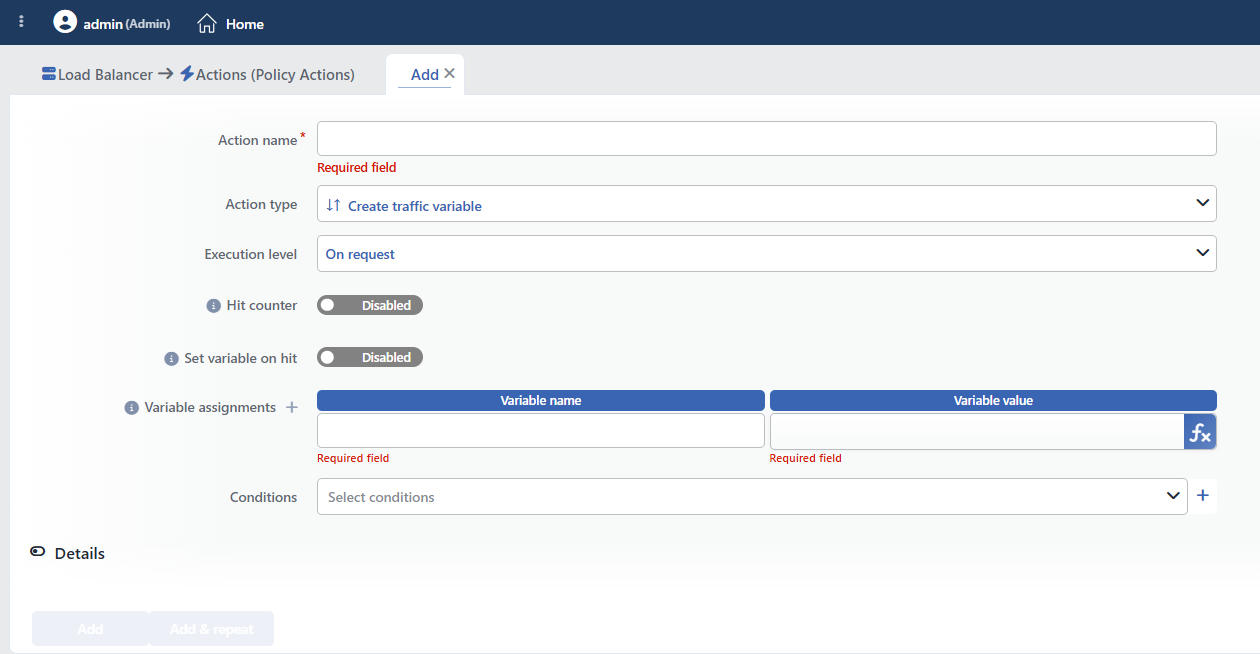 Create Traffic Variable Action Add Form
INFO
Execution Level Default: On request
Determines at which stage the action is run.
This field cannot be changed after saving; if a direction change is needed, a new action is defined. If the action is added from within a vService and the vService supports only a single direction, the field is filled automatically and cannot be edited.
- On Request: The variable is assigned while the request rules are being processed. The value can be accessed both from the subsequent request stage rules and conditions and from the response stage.
- On Response: The variable is assigned while the response rules are being processed. The value can be accessed only from the response stage rules and conditions that come after it; the request stage cannot see this variable.
The selection also determines the smart variable pool offered in the Variable Value field: when On Response is selected, the variables belonging to the response stage (e.g. the status code, the response headers) are listed.
INFO
Hit Counter Default: Off
Hit Counter counts every run of the action (it is evaluated together with the action's own condition; the count is not lost even in terminating actions such as Deny). Action-based rates and totals are displayed in the Action Hits tab of the vService dashboard and on the live statistics screen; they do not appear as a separate column in the lists. The counter is cumulative; there is no interface for resetting it manually: it starts from zero when the set of counted actions changes or when the vService is reloaded, while the history is preserved on the dashboard as a rate (hit/s).
INFO
Set Variable on Hit
A variable name whose value is assigned each time the action runs can be entered (optional; empty by default). The name can consist of letters, digits and underscores (at most 32 characters). When the action is triggered, the variable is set to 1, and chained behaviors can be built by reading it with the %TR7VAR(name) smart variable in other conditions and actions on the same vService.
WARNING
This field and the Variable Assignments table of the action itself share the same name space. If the same name is used in both of them, one overwrites the value of the other.
INFO
Variable Assignments Required
The traffic variables to be created are defined in this table. The table consists of the Variable Name and Variable Value columns; a new row is added with the + button to the right of the field label. At least one assignment must be defined; when a single row is left, it cannot be deleted. There is no upper limit for the number of rows, more than one variable can be created with a single action.
Variable Name
It is the name of the variable. Only letters, digits and underscores can be used and the name can be at most 32 characters; dots, hyphens and spaces are not accepted. The same name can be used only once within one action.
Writing the same name in different actions is allowed and is a supported way of use: in this case, the assignment that runs last in the rule order is valid. By writing different values to the same variable with several actions bound to different conditions, a "tagging according to the situation" setup can be created.
Variable Value
It is the value to be assigned to the variable. Plain text, a smart variable or a mixture of the two can be written (e.g. request information following a fixed prefix).
TIP
This field supports Smart Variables. When the variable row (or the fx button) is clicked, the Add variable / Edit variable window opens. In this window, the Variable name is selected from the searchable list, the related field is filled in if the variable takes an argument (a header name, a cookie name, etc.), and a smart function chain is defined with Add functions if necessary; the preview of the resulting expression is seen in the Summary field and it is written to the field with Submit.
Detailed information is on the Variables page.
The smart variable pool offered changes according to the selected Execution Level and the vService protocol. A traffic variable created earlier can also be read in this field with the %TR7VAR entry; in this way, the variables can be built on top of each other.
INFO
Conditions
In this field, it is defined under which condition or conditions the related action takes effect.
By adding one or more conditions, the behavior can be applied in a targeted and controlled way with the and/or structure.
Detailed information about conditions is on the Conditions page.
WARNING
If no condition is defined in this field, the related action runs unconditionally (Always) and the variable is assigned for all the traffic coming to the related vService.
INFO
Details
The advanced field is located in the collapsible Details section at the bottom of the form.
Rule Protocol Default: HTTP
Determines in the vServices of which protocol the action will be used: HTTP or TCP. The selection determines the smart variables offered in the Variable Value field and the set of conditions to which the action can be bound.
This field also cannot be changed after saving; if the action is added from within a vService, it is filled automatically according to the protocol of the vService and cannot be edited.
INFO
Form Buttons
Add
The action adding process is completed by clicking the Add button.
Add & Repeat
With the Add & Repeat button, the action adding process is completed, and another new action can be added with different configurations without leaving the related window.
 Action Added
The Life of the Variable and Where It Can Be Read
The variable lives throughout a single request/response flow
The traffic variable is limited to the life of the request being processed and its response. When the flow is completed, the variable disappears:
- The next request coming over the same connection sees the variable as empty.
- The variables are not bound to the client; they cannot be used to keep persistent information throughout the session. In scenarios that require persistent tracking, the Advanced Traffic Inspection or Quarantine actions are used.
- When a variable that has not been assigned yet is read, the result is an empty value; it does not produce an error, and the comparisons do not match.
The assigned variable can be read with the %TR7VAR(name) entry everywhere that accepts a smart variable in TR7:
| Place of use | Description |
|---|---|
| The value fields of the other actions | Fields such as the header content, the redirection address, the path and the content to be shown |
| Conditions | In the conditions that use a smart variable, the value of the variable is compared |
| The log line format | It can be written to the manual line format defined in the log profile |
Leave the expression alone when reading it in a condition
While a traffic variable is being read in a condition, the expression must be written on its own (only %TR7VAR(name); no text must be added before/after it and it must not be passed through a function).
When the expression is written alone, the value is read in accordance with the rule order, that is, taking into account the assignments that run before it. When text is added around the expression or a function chain is applied, the value is taken before the rule flow starts and, since the variable has not been assigned yet, it appears empty.
The Difference from Set Variable On Hit
Both mechanisms write a traffic variable; their purposes are different:
| The Create Traffic Variable action | The Set variable on hit field | |
|---|---|---|
| What it is | An independent action type | A side field on the actions that support a counter |
| How many variables | Unlimited (as a table) | A single variable |
| Value | Free; text and smart variables | The fixed value 1 |
| Purpose | To calculate and carry a piece of information | To leave a "this action ran" flag |
| In blocking actions | Not relevant | The variable is assigned even if the action terminates the traffic |
In short: Set variable on hit is a flag, and Create Traffic Variable is a value assignment.
Operational Usage Recommendations
- Meaningful Names Should Be Used. The variable names are visible in the rule lists and the log lines; names that state what they carry, such as
tier,tenantandriskLevel, should be preferred. - A Complex Condition Should Be Set Up Once. If long condition structures repeated in more than one action are evaluated once and tagged with a traffic variable, the rule set is simplified and the risk of inconsistency disappears.
- The Order Should Be Checked. The variable can be read in the rules that come after the action that creates it. If the reading action is higher in the list, the value comes empty; the action order should be arranged accordingly.
- The Same Name Should Be Used Consciously. Writing to the same variable by actions bound to different conditions is supported, but the last one that writes wins; name sharing should be planned in order to prevent unwanted overwrites.
- Sensitive Information Should Not Be Carried. Since the variable values can be transferred to the log lines and the headers, information such as passwords and keys should not be written to a variable.
Common Usage Scenarios in Live Environments
The examples below show how the related action is applied in the most frequently encountered use cases in real systems. These scenarios are based on practices that are widely preferred in live environments and rest on experience gained in the field.
Scenario 1: Tagging the Customer Segment and Transmitting It to the Backend Service
Problem: The application recalculates at every request which subscription level the user is at, and this information can remain inconsistent with the conditions defined on the TR7 side.
Solution: The segment information is determined once on the TR7 side and written to a traffic variable; it is then both transmitted as a header and used in the subsequent rules.
Configuration:
- Execution Level: On request
- Variable Assignments:
tier=gold - Conditions: User Cookie Name: the subscription cookie carries the corporate customer value
Result:
- ✅ The requests that meet the condition → The
tiervariable takes the valuegold. - ✅ The subsequent Add HTTP Header action → Fills the
X-Tierheader with %TR7VAR(tier). - ✅ The subsequent rules → Read the variable instead of repeating the long cookie condition.
Scenario 2: Producing a Combined Key in One Go
Problem: The same target information (the combination of the host and the path) is set up separately in more than one action; when one field changes, all the actions need to be updated.
Solution: The combined value is produced in a single action and written to a variable, and the other actions only read the variable.
Configuration:
- Execution Level: On request
- Variable Assignments:
routeKey= the host and path smart variables are added one after the other with fx - Conditions: Unconditional
Result:
- ✅ All the requests → The
routeKeyvariable is created. - ✅ The header adding, log and condition rules → Use the same value with %TR7VAR(routeKey).
- ✅ When the value definition changes → Only a single action is updated.
Scenario 3: Carrying the Request Information to the Response Stage
Problem: The decision to be made at the response stage depends on information that can be seen only at the time of the request (e.g. the path from which the request came or a mark belonging to the client); this information is no longer accessible at the response stage.
Solution: The information is written to a traffic variable at the time of the request, and the conditions and actions at the response stage read this variable.
Configuration:
- Execution Level: On request
- Variable Assignments:
apiCall=1 - Conditions: Path: starts with
/api/
Result:
- ✅ API requests → The
apiCallvariable is marked. - ✅ The actions at the response stage → Are applied only to the API responses through %TR7VAR(apiCall).
- ❌ The other requests → The variable remains empty, and the response stage rules do not run.
Scenario 4: Tagging According to the Situation and Writing to the Log
Problem: It is not visible in the log records which risk class the request falls into; the conditions are reinterpreted manually during the analysis.
Solution: Several actions bound to different conditions write different values to the same variable, and the log line format contains this variable.
Configuration:
- Execution Level: On request
- Variable Assignments:
riskLevel=high(in a second action,lowis written to the same variable) - Conditions: The related risk condition (e.g. Blacklist IP Category)
Result:
- ✅ Risky requests → The
riskLevelvariable takes the valuehigh. - ✅ The log line → Contains the class information with the %TR7VAR(riskLevel) field.
- ✅ The analysis → Can be filtered according to the risk class without reinterpreting the conditions.
