
Smarter by Design.Simpler for Business
HA Clustering & Sync (Standalone)
What Is HA Clustering & Sync?
HA Clustering & Sync is the screen that configures the two-device redundant (HA) operation of TR7 and monitors the pairing status. When the cluster is enabled, the two TR7 devices are paired and the configuration (the settings, the LB configuration, the network, the users etc.) is synchronized bidirectionally between the devices: on whichever device the change is made, it is transferred automatically to the peer device. Cluster ID determines not the direction of the sync but which device will initiate the peer connection.
This page describes the single-device (Standalone) view in which the cluster is not active. For the two-device view, the HA Clustering & Sync (Cluster) page can be looked at.
Clustering
Redundant operation
Enabling the cluster connection
Cluster ID
Device identity
The identity within the cluster: 1 or 2
Sync
Pairing status
Cluster Status and Sync Summary
Warning
The field list in the Sync Summary section changes according to the setup type: the vDevices and Firewall fields are listed only in the physical (vDevice-supported) setups; Firewall additionally requires at least one vDevice to be defined.
How to Edit?
The cluster settings are edited via the TR7 web management interface with the steps below:
- The Configuration Menu is opened by clicking the TR7 logo at the bottom left.
- The steps Settings → Device Management → HA Clustering & Sync are followed.
- By clicking the Edit button, a closable Edit editing tab is opened (if a sync interface is not defined on the device, the button stays disabled).
- The related fields are updated according to the requirements.
- The changes are saved by clicking the
Submitbutton.
TIP
Reaching the page via quick search
Instead of navigating the menu step by step, the related page is reached directly by using the search bar in the bottom left corner of the screen. The search bar opens with the Alt + T shortcut on Windows and Opt + T on macOS; typing the name of the feature being searched for is then sufficient.
The HA Clustering & Sync Screen
By following the path Settings → Device Management → HA Clustering & Sync, the cluster information belonging to the TR7 device is displayed. While the cluster is not active, the screen comes in the single-device view below.
 The HA Clustering & Sync Screen
Button Details
By clicking the Edit button, the form in which the cluster settings are edited is opened.
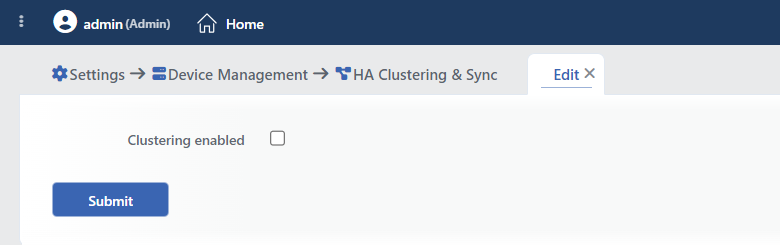 The Edit Tab: While Clustering Is Off
INFO
Clustering Enabled Default: Disabled
It enables the two-device redundant (HA) operation. It is disabled by default. When it is enabled, the Cluster ID and Manual Sync Mode fields become visible and the device establishes a peer connection with the second TR7 device.
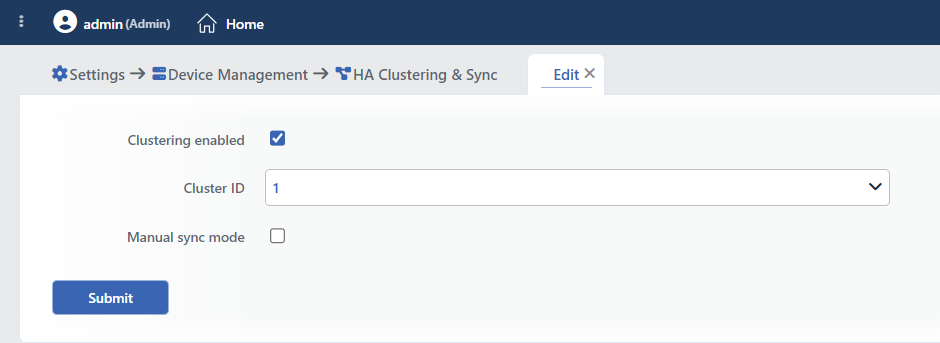 The Edit Tab: While Clustering Is On
INFO
Cluster ID
The identity of the device within the cluster is selected: 1 or 2 (default 1). Different identities are given to the two devices; the device numbered 1 is the party that initiates the peer connection, and the device numbered 2 waits for the incoming connection. The identity does not affect the direction of the configuration sync; the sync is always bidirectional.
This field is displayed only while Clustering Enabled is on.
INFO
Manual Sync Mode Default: Disabled
It determines whether the pairing between the devices will be done manually or automatically:
- Off (default): the pairing is automatic; the configuration on the device on which the change is made is transferred to the peer device instantly.
- On: the automatic pairing stops; the changes remain local and are sent manually only with Synchronize. It is useful in staged/controlled update or unstable connection scenarios.
This field is displayed only while Clustering Enabled is on.
The Sync Summary Table
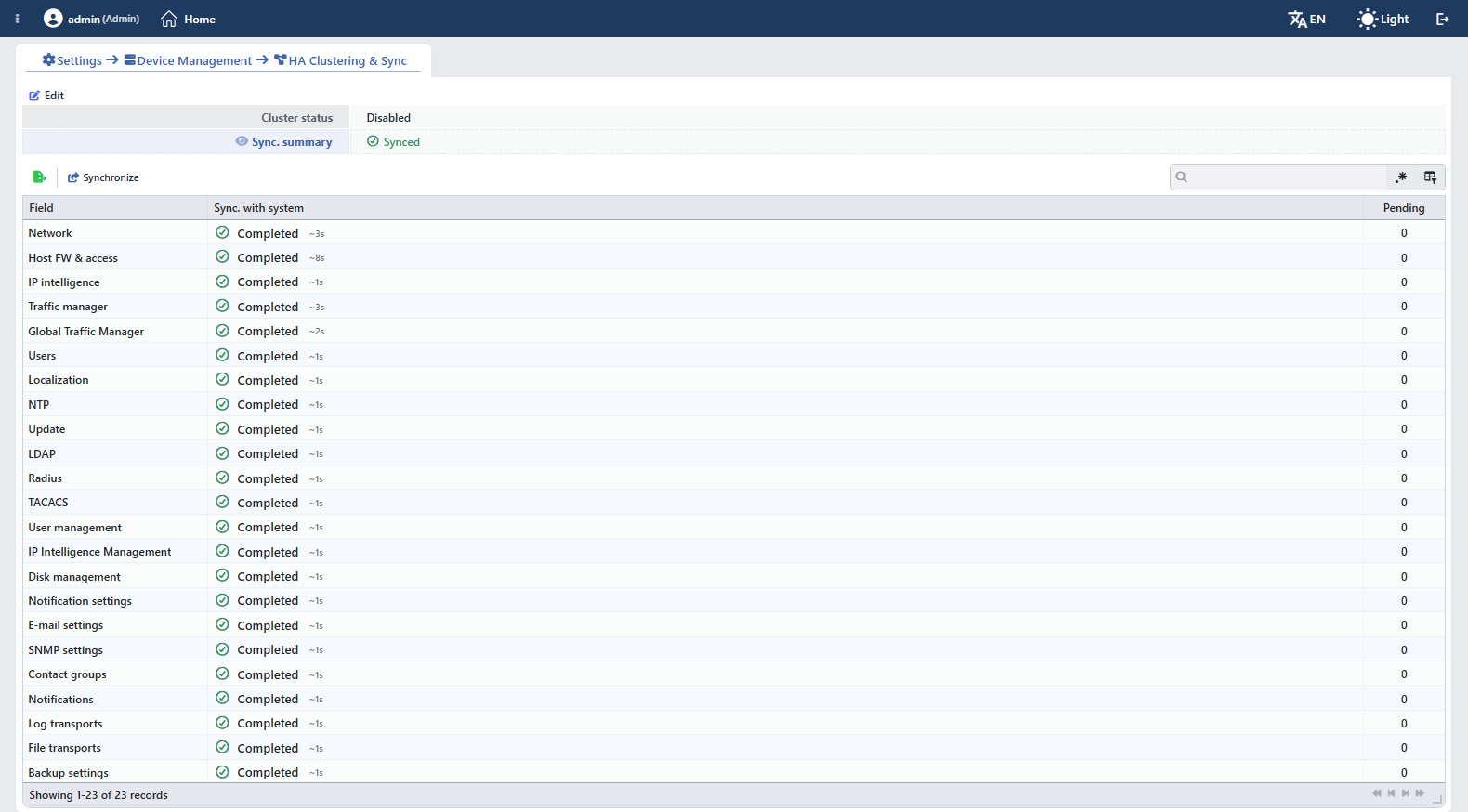 The Sync Summary Table While It Is Open
Cluster Status
It shows the clustering status: Enabled or Disabled. While the cluster is active, on this row the connection status ("Cluster Connection is OK" or "Disconnected"), the ID of the device and the Manual Sync Mode state are also shown as the sections of the same row separated by a divider; if there is an error (e.g. a hardware mismatch), a red error section appears at the end of the row. In a single-device setup, Disabled is written on the row.
Sync Summary
It shows the summary of the pairing status of the configuration; while everything is in place, Synced is written with a green check icon, and if there is a field being synchronized at that moment, the additional text "(… being paired)" is displayed next to the summary. By clicking the eye icon on the left of the row label, the detailed field table is opened and closed; while the table is closed, the icon comes crossed out. The table is closed by default.
In a single-device (Standalone) setup only three columns take place in the table; the comparison columns with the peer device are not displayed while the cluster is not active:
| Column | Description |
|---|---|
| Field | The name of the configuration field that is paired. |
| Sync. with System | The application status of the field to the running system (Completed, Syncing, Pending, Error, Queued, Locked, Idle). Next to the status, how long the last application of that field took is written in a small font (e.g. ~3s). |
| Pending | The number of pending changes for that field. |
During the sync, an Active Operations panel that shows the progress percentage and the remaining time for the fields appears above the table.
The paired fields:
| Field | Scope |
|---|---|
| Network | The network configuration (the interfaces, the IPs, the route tables) |
| Host FW & access | The firewall rules and the management access (Management Access) |
| IP intelligence | The IP reputation data |
| Traffic manager | The load balancing (LB) configuration |
| Global Traffic Manager | The GTM configuration |
| Users | The user accounts |
| Localization | The localization settings |
| NTP | The time synchronization settings |
| Update | The update settings |
| LDAP | The LDAP authentication settings |
| Radius | The RADIUS authentication settings |
| TACACS | The TACACS authentication settings |
| User management | The user management settings |
| IP Intelligence Management | The IP intelligence management settings |
| Disk management | The disk management settings |
| Notification settings | The notification settings |
| E-mail settings | The e-mail (SMTP) settings |
| SNMP settings | The SNMP settings |
| Contact groups | The contact groups |
| Notifications | The notification profiles |
| Log transports | The log forwarding (Log Forwarding) profiles |
| File transports | The file forwarding (File Forwarding) profiles |
| vDevices | The vDevice definitions; listed only in the physical setups |
| Firewall | The vDevice firewall; listed only in the physical setups and while at least one vDevice is defined |
| Backup settings | The backup settings |
| IP Tags | The names given to IP addresses and blocks (IP Tags) |
The Device DNS settings are deliberately not synchronized; every device carries its own DNS configuration.
Export
By clicking the Export button, the cluster status is exported as Excel, CSV or PDF.
Synchronize
It manually synchronizes the whole configuration according to this device; the operation starts after the confirmation question. It is used especially while Manual Sync Mode is on, in order to send the accumulated changes to the peer device. If there is a field whose sync is in progress at that moment or if 30 seconds have not passed since the last run, the operation is rejected with an error. In a single-device setup the button applies the configuration to the local system again.
Search
Used to search all information in the table.
RegExp Search
Used to search all information in the table with a regular expression (RegExp).
Column Based Search
Used to perform a column-based search on the information in the table.
