
Smarter by Design.Simpler for Business
Show Content for Traffic Manager Errors
What Is the Show Content for Traffic Manager Errors Action?
The Show Content for Traffic Manager Errors action shows a predefined content page on the HTTP error codes produced by TR7 itself. This action provides a faster user experience by serving content directly instead of redirecting.
In order to make a redirection in the case of an error code, the Redirect for Traffic Manager Errors action is used.
This action works only at the request stage and does not require a condition.
Traffic Manager Errors vs Backend Service Errors
In TR7, error redirection is separated according to two different sources:
| Error Source | Action | Execution Time |
|---|---|---|
| Traffic Manager | This Action | Request (before reaching the Backend Service) |
| Backend Service | Show Content for Backend Service Errors | Response (after the Backend Service has responded) |
Examples of Traffic Manager Errors:
- 503 Service Unavailable
- 502 Bad Gateway
- 504 Gateway Timeout
- 408 Request Timeout
- 429 Too Many Requests
The Importance of the Show Content for Traffic Manager Errors Action
Fast and consistent content delivery in error situations is critically important.
The Show Content for Traffic Manager Errors action;
- serves content directly instead of redirecting (faster),
- works without an external dependency,
- uses customizable HTML/CSS content pages,
- serves a custom information page for the selected error codes,
- offers the possibility to customize the HTTP status code.
For this reason, the Show Content for Traffic Manager Errors action is preferred for high-performance error management.
Supported vService Types
HTTP
L7 TCP
Network
Execution Timing
On Request
On Response
How to Add?
A new Show Content for Traffic Manager Errors Action can be added through the TR7 web management interface by following the steps below:
- The Configuration Menu is opened by clicking the TR7 logo at the bottom left.
- The Load Balancer → Actions → Add steps are followed.
- A unique and descriptive name is entered for the action.
- Show Content for Traffic Manager Errors is selected as Action Type.
- The related configurations of the action are made.
- The action is added by clicking the
Addbutton.
Show Content for Traffic Manager Errors Action Add Form
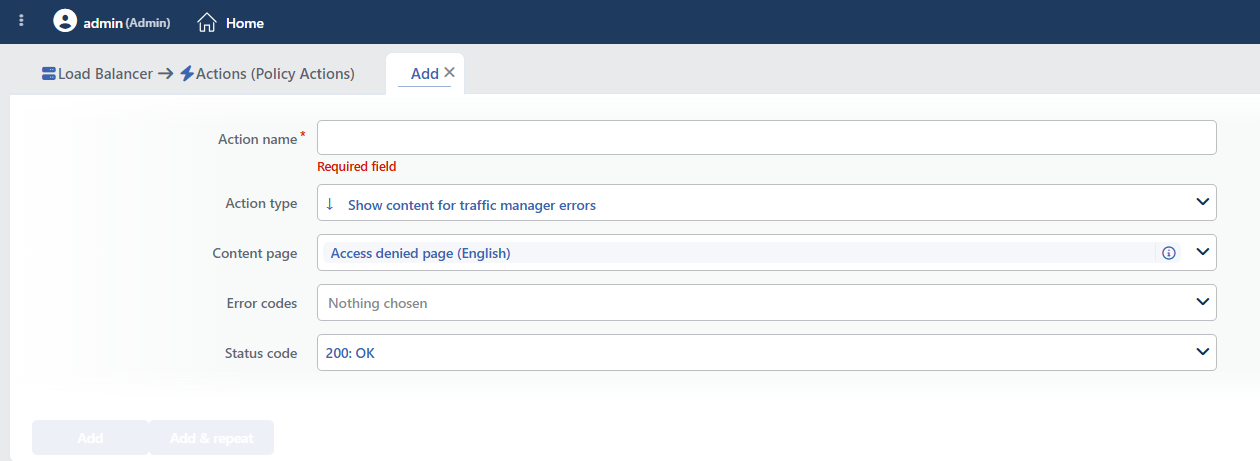 Show Content for Traffic Manager Errors Action Add Form
INFO
Content Page
The Content Pages to be shown to the client is selected in this field.
A selection can be made from the previously created content pages, or a new content page can also be created during the action adding step by clicking the Add button.
The content pages are managed centrally in the Load Balancer → Profiles → Content Pages section. Detailed information is on the Content Pages page.
Creating a Content Page
If there is no content page, the Default content page profile can be used, or a new page is created quickly by clicking the Add button in the dropdown list. The content pages can contain HTML, CSS and JavaScript.
INFO
Error Codes
The HTTP error codes on which the content will be shown are selected. More than one error code can be selected.
The Error Codes That Can Be Produced by TR7:
| Code | Status | Description |
|---|---|---|
| 400 | Bad Request | The request structure is faulty |
| 401 | Unauthorized | Authentication is required |
| 403 | Forbidden | Access is forbidden |
| 404 | Not Found | The resource was not found |
| 408 | Request Timeout | Request timeout |
| 429 | Too Many Requests | Rate limiting |
| 500 | Internal Server Error | An internal error |
| 502 | Bad Gateway | A Backend Service error |
| 503 | Service Unavailable | The service is unavailable |
| 504 | Gateway Timeout | A Backend Service timeout |
INFO
Status Code
The HTTP status code to be returned to the client is selected. 200 OK is selected by default.
Status Code Selection
- In order to preserve the original error code, the same code is selected (e.g. 503 for a 503 error)
- 200 can be used for SEO (it is used carefully)
- Preserving the original error code is generally recommended
Common Options:
| Code | Use Case |
|---|---|
| 200 | The content was served successfully (the error is hidden) |
| 503 | A maintenance page (the original error is preserved) |
| 404 | A not found page |
| 500 | A server error page |
INFO
Form Buttons
Add
The action adding process is completed by clicking the Add button.
Add & Repeat
With the Add & Repeat button, the action adding process is completed, and another new action can be added with different configurations without leaving the related window.
 Action Added
Condition Status
The Show Content for Traffic Manager Errors action does not require a condition and is applied unconditionally (Always) on the vService on which it is defined.
Actions that run unconditionally directly affect all traffic or behavior on the related vService, without an evaluation based on traffic content.
In live environments, it is recommended that target service behaviors and possible effects be evaluated carefully before such actions are enabled. Otherwise, unexpected service behaviors or operational problems can occur.
Behavior Details
- The Content Page field comes preselected with the ready Access denied page (English) page; if it is not touched, this page is shown in an error situation.
- The Default profile option in the list is only an empty page that carries the TR7 logo; it does not contain error text, its use is not recommended.
- The Error Codes field can be left empty; if no code is selected, the action does not do anything and no warning is given.
- If the content page bound to the action is deleted, the action is silently disabled; the deletion is not prevented.
- The smart variables in the content text are resolved; the client address or the timestamp can be shown on the page.
- The action cannot take a condition; the Conditions field is not located in the form. Since a counter is not supported either, the Hit Counter and Set Variable on Hit fields are not present.
- There is no number limit per vService; if a second definition is made for the same error code, no warning is given and only one of the definitions becomes valid. If a redirection action is also defined for the same code, which one is applied depends on the action order.
- The codes on which content cannot be returned (1xx, 204, 304) are not in the Status Code list.
INFO
Scope
The action covers the error responses produced by TR7 itself: the Backend Service not being reachable, a timeout, a faulty request and the responses returned by the Block action. When it is defined, it replaces the default error pages of TR7.
The responses that produce their own content are not affected: the WAF blocking page, the CAPTCHA page, the quarantine response and the waiting room page.
The connection is closed on the page shown with this action (Connection: close).
Operational and Safe Usage Recommendations
- Use Lightweight Content Pages. The error pages should be of minimum size. Large images or external resources can cause loading problems.
- Preserve the Original Status Code. For SEO and application compatibility, returning the original error code is recommended. Returning 200 for a 503 error can be misleading.
- Contact information is added. Support contact information is added to the error pages; the users should be able to get in touch when they experience a problem.
- Different content for different errors. Separate content is used for 503 (maintenance) and 500 (error); a suitable message is shown for each situation.
- Update the Content Regularly. When the maintenance schedule or the contact information changes, the content pages are updated.
Common Usage Scenarios in Live Environments
The examples below show how the related action is applied in the most frequently encountered use cases in real systems. These scenarios are based on practices that are widely preferred in live environments and rest on experience gained in the field.
Scenario 1: A Planned Maintenance Page with ETA Display
Problem: During planned system maintenance or an infrastructure upgrade, all the Backend Services will be shut down and TR7 will produce a 503 Service Unavailable. The users do not know when the maintenance will end or why it is being done. When a generic browser error page is shown, the users think that the site has completely crashed and panic occurs.
Solution: The 503 errors produced by TR7 are replaced with a professional maintenance page that contains the estimated end time (ETA), a progress bar and alternative contact information.
Configuration:
- Content Page:
Scheduled Maintenance with Progress - Error Codes: 503
- Status Code: 503 Service Unavailable
Result:
- ✅ User information → The reason for the maintenance, the estimated end time and the progress bar are shown.
- ✅ SEO is preserved → The 503 status code informs the search engines that it is a temporary situation.
- ✅ A fast response → Direct content instead of a redirection, minimum latency.
- ✅ Professional appearance → A branded maintenance page instead of a generic error.
Content Page Example:
html
<h1>Planned Maintenance</h1>
<p>Our systems are being updated.</p>
<p>Estimated End: 02:00 AM</p>
<progress value="60" max="100"></progress>
<p>Social Media: @company</p>
The Working Logic:
- TR7 sees all the Backend Services as down in the health check.
- It produces a 503 Service Unavailable.
- The Show Content action takes effect.
- The maintenance page is served directly. (no external redirect)
Scenario 2: All the Backend Services Are Down - Incident Communication
Problem: Because of an unexpected infrastructure problem (network outage, power failure, datacenter issue), all the Backend Services go down at the same time. TR7 produces a 502 Bad Gateway or a 504 Gateway Timeout. The users cannot understand the situation and hundreds of tickets are opened for the support team. There is no real-time status information.
Solution: The gateway errors produced by TR7 are replaced with a dynamic page that contains a status page link, a Twitter feed and incident updates.
Configuration:
- Content Page:
Service Outage with Status Feed - Error Codes: 502, 503, 504
- Status Code: 503 Service Unavailable
Result:
- ✅ Real-time updates → Instant status updates with the embedded Twitter feed.
- ✅ The support load decreases → Proactive communication lowers the number of tickets by 70%.
- ✅ Incident transparency → Access to detailed information with the status page link.
- ✅ Graceful degradation → A professional appearance even in a total failure situation.
The Features of the Content Page:
html
<h1>The Service Is Temporarily Unavailable</h1>
<p>Our technical team is working on the problem.</p>
<a href="https://status.example.com">Status Page</a>
<div id="twitter-feed">
  <!-- Twitter widget: real-time updates -->
</div>
<p>Last Update: 10:45 AM</p>
Dynamic Content:
- Auto-refresh with JavaScript (every 30 seconds)
- Incident updates with the Twitter API integration
- Status page iframe embedding
Scenario 3: An Auto-Retry Mechanism with Connection Timeout
Problem: The Backend Services slow down under high load and when the connection timeout period of TR7 (30 seconds) expires, a 504 Gateway Timeout is produced. The users see a blank screen and do not know what to do. They need to refresh the page manually, but they do not know this.
Solution: The timeout errors are replaced with a page that contains an auto-refresh countdown, a manual retry button and load status information.
Configuration:
- Content Page:
Gateway Timeout with Auto-Retry - Error Codes: 408, 504
- Status Code: 504 Gateway Timeout
Result:
- ✅ Auto-retry → An automatic retry after 10 seconds with JavaScript.
- ✅ User guidance → A countdown timer and a manual retry button.
- ✅ Transparency → User information with the message "The system is busy, please wait".
- ✅ Engagement → An interactive page instead of a blank screen, the user stays on the page.
Content Page Example:
html
<h1>Connection Timeout</h1>
<p>The system is currently busy.</p>
<p>Automatic retry: <span id="countdown">10</span> seconds</p>
<button onclick="location.reload()">Try Now</button>
<script>
  let count = 10;
  setInterval(() => {
    if (--count === 0) location.reload();
    document.getElementById('countdown').innerText = count;
  }, 1000);
</script>
The User Flow:
- The Backend Service does not respond within 30 seconds.
- TR7 produces a 504 Gateway Timeout.
- The auto-retry page is shown.
- The 10-second countdown starts.
- An automatic refresh or a manual retry.
- On the second attempt, the Backend Service responds and the page loads.
Scenario 4: A Rate Limiting Notification
Problem: Rate limiting is active on TR7 and the user exceeds the request limit. TR7 produces a 429 Too Many Requests. The user does not know why they have been blocked or when they can try again. The API clients cannot parse the rate limit response.
Solution: The 429 errors are replaced with a page that contains retry-after information, the remaining quota and an explanation of the limit.
Configuration:
- Content Page:
Rate Limit Exceeded - Error Codes: 429
- Status Code: 429 Too Many Requests
Result:
- ✅ User education → The reason for the rate limit and the limits are explained.
- ✅ Retry guidance → When they can try again is stated.
- ✅ API compatibility → The 429 status code is preserved, the clients perceive it correctly.
- ✅ Abuse prevention → The aggressive clients are informed, the legitimate users understand.
Content Page Example:
html
<h1>Request Limit Exceeded</h1>
<p>You have sent too many requests.</p>
<p>Limit: 100 requests / minute</p>
<p>Retry: in 45 seconds</p>
<p>Remaining Quota: 0/100</p>