
Smarter by Design.Simpler for Business
Backend SSO Configurations
What Are Backend SSO Configurations?
Backend SSO Configurations are the profiles that determine how the identity of the user verified in AGS is propagated to the Backend Service and how the session state of the Backend Service is monitored. The profile consists of three parts: the injections added to the requests going to the Backend Service after the user is verified (an HTTP header, Basic Auth, a Bearer Token or a cookie; the values are produced from the session attributes with smart variables), the response condition that shows that the Backend Service has lost the session and the reaction to be given to it (backend session lost: logging the user out or running the re-sync step in the flow) and the response condition that shows the own logout operation of the Backend Service and the redirect afterwards (backend logout).
The profile is selected from the Backend SSO Config field in the AGS settings of the vService; each vService uses a single profile and, when the re-sync strategy is selected, the step to be run is determined in the flow editor of the vService. This screen has no built-in profile.
4
Injection Type
Header · Basic Auth · Bearer Token · Cookie; the values with smart variables
2
Session Lost Strategy
Log the User Out · Re-sync (the re-sync step in the flow, at most 10 automatic retries)
2
Redirect Mode
HTTP 302 Redirect · Custom Header; applied on a backend logout
Logged-in
Only Verified Requests
The injections are added only to the requests that have logged in; the client header with the same name is cleared first
How does it work?
- The profile is defined on this screen: the injections are added according to the identity carrying form the Backend Service expects; if necessary, the session loss and logout conditions are defined.
- The profile is selected from the Backend SSO Config field in the AGS settings of the vService; if the strategy is Re-sync, the re-sync step is connected in the flow editor.
- On every request going to the Backend Service after the user is verified, the injections whose condition is satisfied are added to the request; the header with the same name coming from the client is removed first.
- If the response of the Backend Service matches the Backend Session Lost Condition, the user is directed to the session loss page if the strategy is Log the User Out and to the re-sync page if it is Re-sync; if it matches the Backend Logout Condition, the AGS session is terminated and the user is directed to the Redirect after Logout address.
Operational Best Practices
- The Backend Service must trust the identity. The injected headers and cookies must be accepted by the Backend Service only on the requests coming from TR7; although TR7 clears the header with the same name coming from the client, direct access to the Backend Service must be closed at the network level.
- The secret values with a smart variable. The password and token values must be produced from the session attributes or from secure sources with a smart variable instead of being written as fixed text; these values are not masked in the profile record.
- The session loss condition must be kept narrow. The condition must match only the responses in which the Backend Service really drops the session (e.g. a redirect to the login page); broad conditions force the user into an unnecessary logout.
- A flow step for Re-sync. When the Re-sync strategy is selected, the Backend SSO (Re)Sync step must be connected in the flow editor of the vService. In this strategy the first request of the user who logs in is directed to the re-sync page as well; the step has to be connected in the flow.
- The redirect mode according to the client. HTTP 302 Redirect is preferred in browser applications and Custom Header (e.g.
X-Auth-Redirect) in single-page applications and API clients; both can be selected together. - The vServices before deleting. The delete confirmation does not show the usage locations; the vServices that use the profile must be checked on the Used in tab in the preview.
How to Add?
A new backend SSO profile is added through the TR7 web management interface with the following steps:
- The Configuration Menu is opened by clicking the TR7 logo at the bottom left.
- The AGS → Integrations → Backend SSO Configurations → Add steps are followed; the form opens inside the list screen as a closable Add tab.
- A name is entered for the profile; the injection cards are added and, if necessary, the session loss and logout conditions are defined (for the details of the fields the Add Form section can be consulted).
- The profile is added by clicking the
Addbutton.
TIP
Reaching the page via quick search
Instead of navigating the menu step by step, the related page is reached directly by using the search bar in the bottom left corner of the screen. The search bar opens with the Alt + T shortcut on Windows and Opt + T on macOS; typing the name of the feature being searched for is then sufficient.
The profile is also defined without leaving the page with the add icon next to the Backend SSO Config field in the vService AGS settings; the created record comes selected in the field.
Backend SSO Configurations Listing Screen
The list of all Backend SSO profiles that are added on the TR7 device is reached by following the AGS → Integrations → Backend SSO Configurations path. Profile adding, editing and deleting operations are performed on this screen.
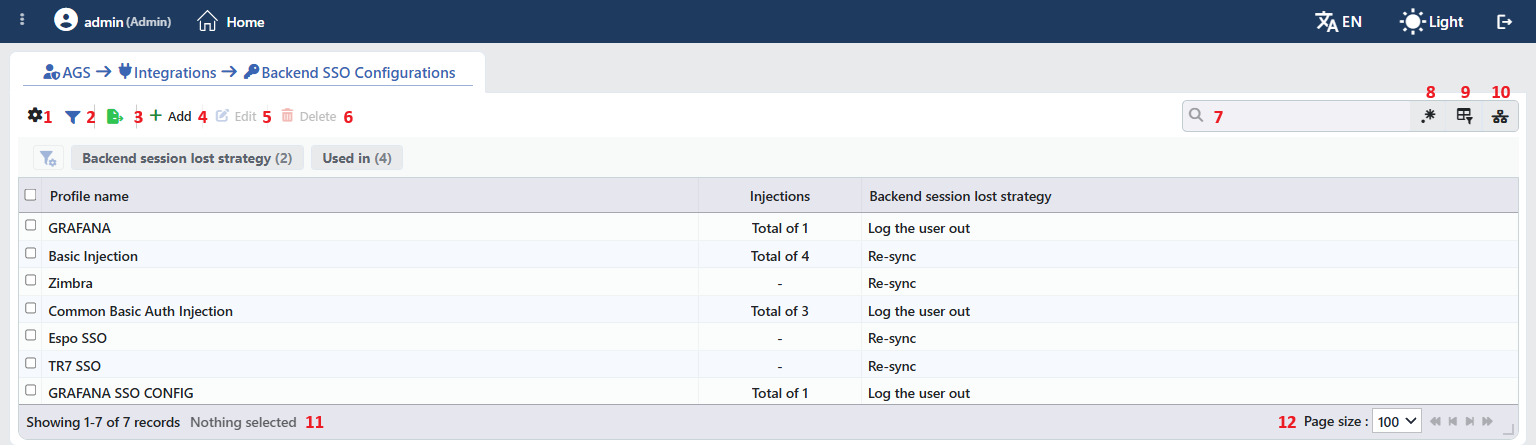 Backend SSO Configurations Listing Form
The table opens with the following columns by default:
| Column | Description |
|---|---|
| Profile Name | The name of the profile. |
| Injections | The number of injections in the profile (Total of N); - if there is no injection. |
| Backend Session Lost Strategy | The strategy applied on a session loss: Log the User Out or Re-sync. |
There is no column that is hidden by default. The table is not sorted when it opens; when a column header is clicked, first a descending and then an ascending sort is applied, and on the third click the sort is removed. The table body opens with a height of 12 rows, and more rows are scrolled inside the table.
The items in the toolbar are arranged from left to right in the following order; the last two items (Page Information and Page Size) are located in the information strip below the table.
Columns
Which columns are shown in the table is selected; all three of the columns come on. In the same panel the columns are reordered by dragging and the alignment is selected per column; the row height is fitted to the page with the Fit rows to the page button and the column layout is returned to the default with the Reset button. When the width badge next to a manually widened column is clicked, the column returns to the automatic width.
Filter
The Filter button is used to filter the profiles shown in the list according to certain criteria. There are two cards in the filter strip; the number next to the card name shows how many different values are found for that card in the profiles in the list:
| Card | What it filters |
|---|---|
| Backend Session Lost Strategy | By the session loss strategy (Log the User Out / Re-sync). |
| Used in | The vServices that use the profiles and the Unused Entries value, which lists the profiles that are not used anywhere. |
Export
The table is exported as Excel, CSV or PDF by clicking the Export button. In the window that opens, the Filename, Format and Data Source, together with the Columns to be exported, are determined; the remaining fields are displayed according to the format: CSV Separator for CSV, Excel Sheet Name for Excel, and Page Orientation and Page Size for PDF.
Add
By clicking the Add button, the form for creating a new profile opens in the Add tab.
Edit
By clicking the Edit button, the edit form of the selected profile opens in the Edit tab. The button becomes enabled only when a single profile is selected.
The edit form is the same as the add form; all the fields including the name are changed and the button at the bottom of the form carries the name Edit. The change is saved without asking for confirmation and the configuration of the vServices that use the profile is applied again.
Delete
When one or more profiles are selected and the Delete button is clicked, the related profiles are deleted. Before deleting, the "Are you sure?" confirmation is asked for.
WARNING
A profile that is in use can also be deleted and the confirmation window does not show the usage locations.
The Backend SSO Config reference is not cleared automatically on the vServices that use the profile; since the profile cannot be found, the injection, session loss and logout detection block is skipped without an error in the configuration of these vServices. Another profile must be selected in the AGS settings of the related vService; the Corporate Service Sign-On box on the settings canvas disappears. The delete operation is written to the user operation record.
Search
Used to search all information in the table.
RegExp Search
Used to search all the information in the table with a regular expression (RegExp). While the usage filter is active, this button is hidden.
Column Based Search
Used to perform a column-based search on the information in the table.
Usage Filter
Used to filter to which vServices the profiles are bound. While the filter is active, a selector takes the place of the search box; when the icon is clicked again, the search box returns.
Page Information
Contains information about the total number of defined profiles and the number of profiles displayed in the list: Showing N-M of T records and the number of selected profiles (N selected, or Nothing selected when there is no selection).
Page Size
The maximum number of profiles to be displayed on the page is selected. On this screen the default is 100; the options are 5, 10, 20, 50, 100, 200, 500 and All.
Right-Click Menu
When a row is right-clicked, a menu with the profile's name in its title opens. Both operations in the menu apply only to the right-clicked profile; a selection made in the list does not affect the menu.
| Operation | What it does |
|---|---|
| Edit | Opens the editing form of the profile in the Edit tab; it is the same as the form opened by the Edit button in the toolbar. |
| Delete | Deletes the right-clicked profile; the same confirmation question as the deletion in the toolbar is displayed. |
Preview of the Selected Profile
When a row in the list is clicked, the preview of the profile opens on the right of the screen; when the selected row is clicked again, the panel closes. The header contains the key icon, the name of the profile and the Backend SSO Config subtitle, and a single operation is at the top right.
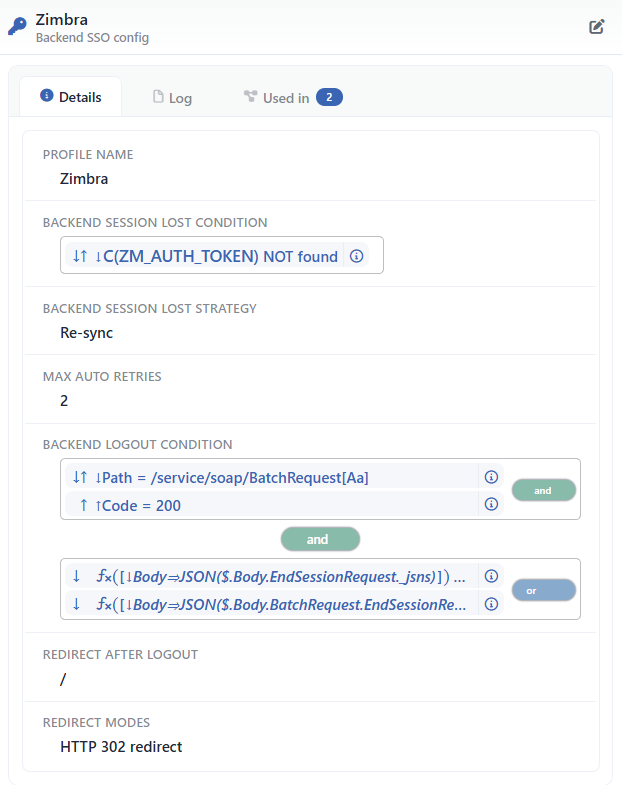 Preview of the Selected Profile
| Operation | What it does |
|---|---|
| Edit | Opens the editing form of the profile in the Edit tab. |
There are three tabs in the panel; Used in is displayed only if the profile is used on at least one vService:
Details
Lists the settings of the profile row by row (the table below).
Log
Lists the user operations on the profile (adding, editing, deleting) as a timeline.
Used in
Lists the vServices that use the profile. The badge next to the tab name shows the usage count.
The rows in the Details tab are as follows, in order:
| Row | Description | Visibility condition |
|---|---|---|
| Profile Name | The name of the profile. | Always |
| Injections | Each injection is a row: Header: name = value, Basic Auth: user / [password], Bearer Token: header ← token, Cookie: name = value (the values are short smart content). | If there is at least one injection |
| Backend Session Lost Condition | The condition tree (read-only). | If the condition is defined |
| Backend Session Lost Strategy | Log the User Out / Re-sync. | If the condition is defined |
| Max Auto Retries | The number of retries. | If the strategy is Re-sync |
| Backend Logout Condition | The condition tree. | If the condition is defined |
| Redirect after Logout | The address (smart content). | If it is filled |
| Redirect Modes | The selected modes, with commas. | If it is filled |
| Custom Redirect Header Name | The header name. | If Custom Header is selected |
Profile Add Form
A new Backend SSO profile is added on the TR7 device by following the AGS → Integrations → Backend SSO Configurations → Add steps.
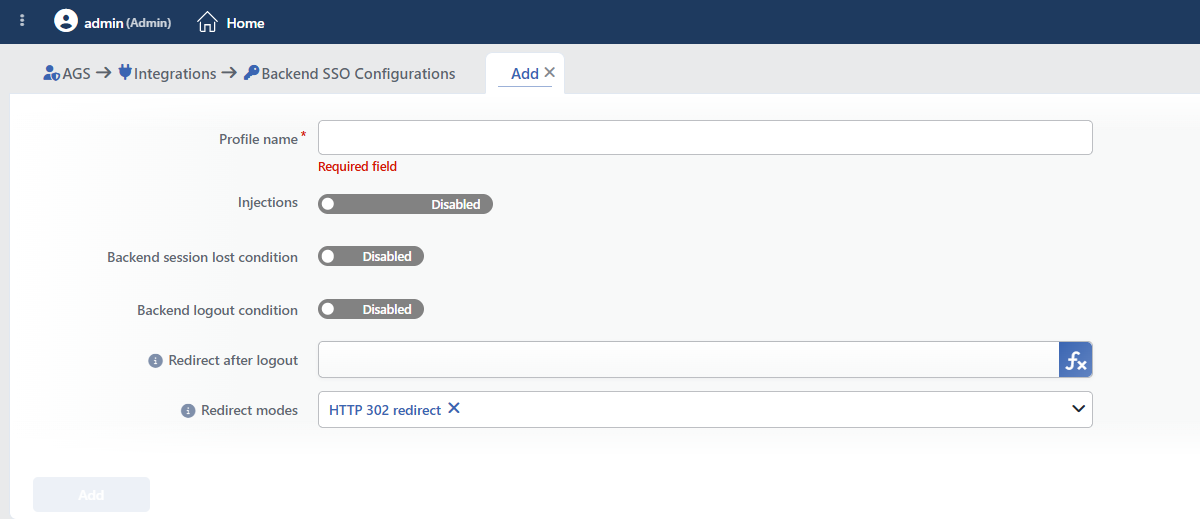 Backend SSO Configurations Profile Add Form
There is no section with a heading in the form; the fields are listed in a single block. The information icon next to the label of the fields that have a description (Backend Session Lost Strategy, Max Auto Retries, Redirect after Logout, Redirect Modes, Custom Redirect Header Name, Header Name Override) shows the field description.
INFO
Profile Name Required
The name of the profile; it identifies the record in the selection in the vService settings and in the logs, and it must be unique on the device (the Name is used warning).
INFO
Injections
The list of the injection cards. When the switch is moved to the Enabled position, the first card opens and a new card comes in the Header type; the cards are multiplied with the + Add control at the bottom of the list.
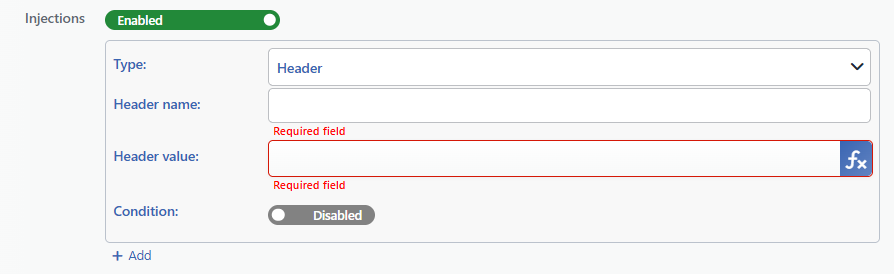 The Fields of the Injections Card
The following fields are on each card; the fields other than Type are displayed according to the selected type.
Type Required Default: Header
By which method the identity is propagated to the Backend Service is selected:
| Option | Meaning |
|---|---|
| Header | An HTTP header whose name and value are set is added to the request; information such as the username, the e-mail or the group is carried with the header. The header with the same name coming from the client is removed first. |
| Basic Auth | The username and the password are encoded with base64 in the user:password form and are added as the Authorization: Basic … header; it is used for the Backend Services that expect HTTP Basic authentication. |
| Bearer Token | The token value is added as the Authorization: Bearer … header (the header name is changed with Header Name Override); it is used for token-based APIs and services. |
| Cookie | A cookie whose name and value are set is added to the Cookie header in the request; the cookie with the same name coming from the client is removed first. It is used for the Backend Services that recognize the session with a cookie. |
Header Name Required (Header)
The name of the header to be added to the request in the Header type (e.g. X-Remote-User).
Header Value Required (Header)
The value of the header in the Header type; a value specific to the user is produced with smart variables.
Username Source Required (Basic Auth)
The smart variable or the fixed value from which the username is taken in the Basic Auth type.
Password Source Required (Basic Auth)
The smart variable or the fixed value from which the password is taken in the Basic Auth type.
Bearer Token Required (Bearer Token)
The token value to be sent in the Bearer Token type; it is produced with smart variables.
Header Name Override
The name of the header in which the token is carried in the Bearer Token type; the value is still written in the Bearer … form. When it is left empty, Authorization is used; if the Backend Service expects a different header, this field is filled in.
Cookie Name Required (Cookie)
The name of the cookie to be sent to the Backend Service in the Cookie type.
Cookie Value Required (Cookie)
The value of the cookie in the Cookie type; it is produced with smart variables.
Condition Default: Disabled
While the switch is in the Disabled position, there is no condition and the injection is applied to every verified request. When it is moved to the Enabled position, the HTTP request condition builder opens and the injection is applied only to the requests that match the condition. The conditions are selected from the HTTP conditions defined on the Conditions screen.
INFO
Backend Session Lost Condition Default: Disabled
When the switch is moved to the Enabled position, the Select Conditions selector and the + icon next to it are displayed; the HTTP condition that shows that the Backend Service has lost the session (the request and response side, e.g. a redirect to the login page or the absence of the session cookie) is selected from the conditions defined on the Conditions screen or is created with +. While the switch is off, the fields below are not displayed.
 While Backend Session Lost Condition Is On
Backend Session Lost Strategy Required (if the condition is on) Default: Log the user out
The strategy to be applied when a session loss is detected is selected:
- Log the user out: the response is redirected to the
<the AGS root path>/session-expiredaddress with a 302 and the user sees the session loss page of the access engine. Redirect after Logout and Redirect Modes are not applied on this path. - Re-sync: the response is redirected to the
<the AGS root path>/resyncaddress with a 302 and the Backend SSO (Re)Sync step connected in the vService flow is run; the original address of the user is stored to be returned to after the re-sync. In this strategy the first request of the user who logs in is directed to the re-sync page as well, without waiting for the condition.
Max Auto Retries Default: 2
How many times the re-sync can be attempted without requesting user interaction; a value between 0 and 10 is entered. 0 requests user interaction every time. The field appears only while the Re-sync strategy is selected.
INFO
Backend Logout Condition Default: Disabled
When the selector is opened, the condition builder (the request and response side) appears; the conditions are selected from the HTTP conditions defined on the Conditions screen; the response condition that shows that the Backend Service has completed its own logout operation. On a match the AGS session is terminated as well.
INFO
Redirect after Logout
The address to which the user is directed after a backend logout (a Backend Logout Condition match) is entered; the field supports smart variables and when it is left empty / is used. This address is not used on a session loss (Log the User Out).
INFO
Redirect Modes Default: HTTP 302 Redirect
How the redirect is made is selected; the two options can also be checked together:
| Option | Meaning |
|---|---|
| HTTP 302 Redirect | The status code of the Backend Service response is turned into 302 and the address is returned with the Location header; for browsers. |
| Custom Header | The status code of the response does not change; the address is returned with the header in the Custom Redirect Header Name field; for single-page and mobile applications that make their own redirect. |
If neither mode is selected, the session is still terminated on a backend logout, but no redirect is made and the Backend Service response is forwarded as it is.
Custom Redirect Header Name Required (Custom Header)
The name of the header in which the address is returned is entered (e.g. X-Auth-Redirect). The field appears only while Custom Header is selected; it is not marked with an asterisk in the form, but it must not be left empty, otherwise the custom header is not sent.
INFO
Add
The profile adding operation is completed by clicking the Add button. As long as there is a field that is not validated in the form, the button stays inactive.
Operating Mechanism
INFO
- Where it is applied. The injection and detection rules are written into the load balancing configuration of the vService; the profile is additionally given to the access engine together with the AGS database, and the session loss page and the re-sync are carried out on the engine side.
- The injection. It is applied only on the requests on which the AGS session is open; the own condition of each injection is evaluated together with the session condition. In the header injections the header with the same name coming from the client and in the cookie injection the cookie with the same name are cleared as an anti-forgery measure and then the value in the profile is added. The clearing is performed on every request, independently of the injection condition and the session; in the Basic Auth and Bearer Token injections the client's own
Authorizationheader is removed as well. If more than one injection writes to the same header, the value of the last injection is valid. The values are produced with the AGS smart variable context (the session attributes). - The backend logout. The Backend Logout Condition is evaluated on the response of the Backend Service; on a match the AGS session cookie is deleted, the session record is removed and the user is directed to the Redirect after Logout address with a 302 redirect and/or a custom header according to the Redirect Modes selection. The domain of the deleted cookie is the Cookie Domain value of the vService; if it is empty, the host name of the request is used. If the two conditions match on the same response, the backend logout has priority. The responses coming from the AGS root path are kept outside the session loss and re-sync check in order to prevent a loop.
- The session loss. The Backend Session Lost Condition is evaluated on the response; in the Log the User Out strategy a signed session loss cookie valid for 60 seconds is left and the response is redirected to the
<the AGS root path>/session-expiredaddress with a 302; in the Re-sync strategy a signed 60-second cookie that carries the original address is left, the response is redirected to the<the AGS root path>/resyncaddress and the re-sync flow step is run in the access engine. In the Re-sync strategy the re-sync is triggered on the first request of every newly opened AGS session as well. - The vService connection. When a Backend SSO Config is selected, the Corporate Service Sign-On box and the sentence "The authenticated user is introduced to the corporate service with this profile" appear on the settings canvas; in the Re-sync strategy the flow editor draws the re-sync connection point.
- Cluster. Records are synchronized between devices together with the LB configuration.
- Logs. Adding, editing and deleting are monitored on the User Logs screen as the backend SSO config object.
Scope and Limits
INFO
- Permission. The AGS screens depend on the Load Balancer permission area; for a user who does not have the permission the You don't have access to this page card is displayed instead of the page.
- The name is unique. A second profile carrying the same name is not saved.
- There is no built-in profile. The screen comes empty.
- A consecutive session loss and logout. If both conditions match on the same response, the backend logout is applied.
- A single profile per vService.
- The condition sides. The injection conditions accept only request side conditions; the session loss and logout conditions cover the request and the response side.
- License. The screen requires the AGS license.
- The secret values are not masked. The password and token sources are kept as clear text in the record; in the preview the password is shown as
[password]. - Deleting does not perform a reference check; a profile in use is deleted as well.
Usage Locations
| Usage location | Field | Purpose |
|---|---|---|
| A vService with AGS enabled → AGS Management | Backend SSO Config | Identity propagation to the Backend Service and session monitoring; it can be left empty (None) |
| A vService with AGS enabled → Flowchart (edit mode) | The re-sync step connection | The step to be run in the Re-sync strategy |
| A vService with AGS enabled → the settings canvas | The Corporate Service Sign-On box | The summary of the selected profile |
