
Smarter by Design.Simpler for Business
Request Size (bytes)
What Is the Request Size (bytes) Condition?
Request Size (bytes) is a condition type used to make traffic routing and manipulation decisions by evaluating the byte length of the first part of the HTTP request that reaches TR7.
The measured value is the byte length of the first part of the request that reaches TR7: the header block and the part of the body buffered up to that moment. Since the request body is not buffered in its entirety, the condition does not see the total size of large bodies and does not read the Content-Length header.
This condition is used to detect large requests and subject them to special processing.
WARNING
The size is measured at the time of the request; the condition can also be selected in rules at the response stage and is evaluated over the same value.
The Importance of the Request Size (bytes) Condition
Request size control is critically important for resource management, security and performance optimization.
With the Request Size (bytes) condition:
- Requests carrying an unusually large header block can be blocked, and resource consumption can be prevented,
- Requests whose buffered content exceeds a specific size can be distinguished,
- Large requests can be routed to different Backend Services,
- Bandwidth management can be performed,
- It can be used as an additional criterion for rate limiting.
Request Size (bytes) vs Response Size (bytes):
| Criterion | Request Size (bytes) | Response Size (bytes) |
|---|---|---|
| Direction | Client → Server | Server → Client |
| Measured | Header block + buffered part of the body | Only the response body (headers excluded) |
| Evaluation | Request stage | Response stage |
Supported vService Types
HTTP
L7 TCP
Network
How to Add?
A new Request Size (bytes) Condition can be added through the TR7 web management interface by following the steps below:
- The Configuration Menu is opened by clicking the TR7 logo at the bottom left.
- The Load Balancer → Conditions → Add steps are followed.
- Request size (bytes) is selected as Criteria.
- The related configurations of the condition are made.
- The condition is added by clicking the
Addbutton.
Request Size (bytes) Condition Add Form
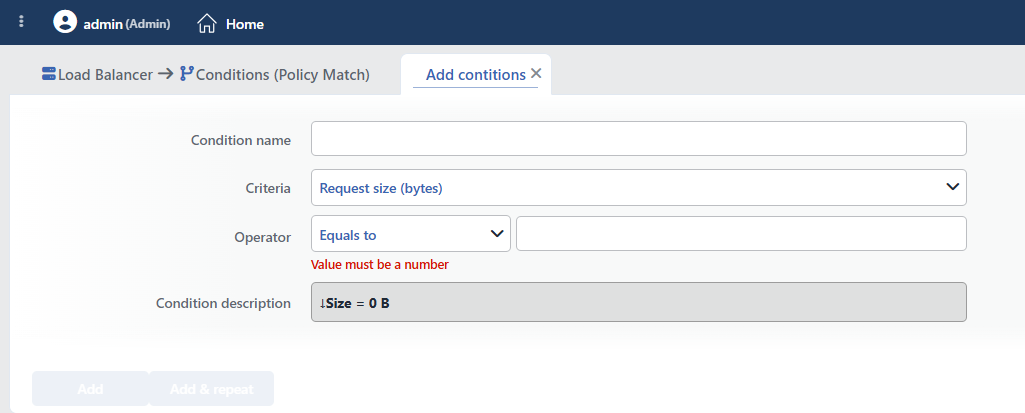 Request Size (bytes) Condition Add Form
INFO
Condition Name
An optional name can be entered for the condition to be created.
This field is especially important in the following scenarios:
- When many conditions are defined under the same vService,
- When conditions with similar criteria need to be distinguished,
- When it is necessary to quickly understand which business rule the condition represents.
When this field is left empty, TR7 analyzes the content of the related condition and creates an automatic, descriptive name in the Condition Description field. This generated description is used as the name in condition lists.
INFO
Criteria Required
The field that determines the type of the condition; Request size (bytes) is selected from the searchable dropdown list. This selection determines the fields displayed in the form. The criterion cannot be changed after the condition is saved: if a different criterion is needed, a new condition is defined. For all criteria in the list and their scopes, the criteria catalog on the Conditions page can be referred to.
INFO
Operator
The numeric comparison operator and value are entered.
| Operator | Symbol | Description |
|---|---|---|
| Less than | < | The value must be less |
| Equals to | = | The value must match exactly |
| Greater than | > | The value must be greater |
| Range | - | The value must be between two values |
Sample request size comparisons:
| Operator | Value | Description |
|---|---|---|
> | 1048576 | Requests larger than 1 MB |
< | 1024 | Requests smaller than 1 KB |
- | 10240-102400 | Between 10 KB and 100 KB |
< | 512 | Very small requests (with minimal headers) |
Common size references:
| Unit | Bytes |
|---|---|
| 1 KB | 1024 |
| 10 KB | 10240 |
| 100 KB | 102400 |
| 1 MB | 1048576 |
| 10 MB | 10485760 |
| 100 MB | 104857600 |
TIP
When the Range (-) operator is selected, two values are entered; both boundaries are included in the range. The form opens with the operator Equals to (=) selected and the value empty; the entered value must be an integer. The entered byte values appear with a readable unit in the automatic description (e.g. 1048576 → 1 MB).
WARNING
Since the request is not buffered in its entirety, the upper limit that can be evaluated in practice is limited by the buffer size of the vService; thresholds in the MB range never match in most installations. Thresholds should be selected from realistic values (in the KB range) that remain within the header block + buffer scope.
INFO
Condition Description
It is created automatically by TR7 in line with the entered criteria and values.
This description:
- which value the condition applies to,
- which criterion it works on,
- the quick understanding of the condition on listing screens
is produced dynamically by the system so as to provide these.
TIP
The measured request size can be used in actions with the Request size smart variable (e.g. as the value of an HTTP header or a log field).
INFO
Form Buttons
Add
The condition adding process is completed by clicking the Add button.
Add & Repeat
With the Add & Repeat button, the condition adding process is completed, and another new condition can be added with different configurations without leaving the related window.
 Condition Added
Operational Usage Recommendations
- It Should Not Be Used for Total Upload Size. Since the condition does not see the whole body, it does not limit large file uploads by total size; the threshold should be determined over the header block and the buffered part.
- DoS Protection. Resource consumption should be prevented by blocking very large requests.
- Routing According to Backend Capacity. Large requests should be routed to more powerful Backend Services.
- It Should Be Used for Monitoring. Usage patterns should be understood by monitoring requests in a specific size range.
Common Usage Scenarios in Live Environments
The examples below show how the related condition is applied in the most frequently encountered use cases in real systems. These scenarios are based on practices that are widely preferred in live environments and rest on experience gained in the field.
Scenario 1: Blocking Abnormally Large Requests
Purpose: To prevent resource consumption by blocking requests that carry an unusually large header block/first part (inflated headers, abnormal form submissions).
Configuration: Operator → Greater than (>) 16384
Action Recommendations:
- ✅ Block → Abnormally large requests are blocked; 413 Payload Too Large can be selected as the response code (default 403 Forbidden).
- ✅ Show Content → The custom error page "Request size limit exceeded" is shown.
Scenario 2: Bandwidth Limitation for Large File Uploads
Purpose: To apply bandwidth limitation to large form/upload entries and protect network resources.
Configuration: Operator → Range (-) 8192-16384 (above this, the blocking in Scenario 1 takes over)
Action Recommendations:
- ✅ Bandwidth Limitation → The upload speed is limited to 5 Mbps, and network congestion is prevented.
Scenario 3: Form Submit Size Validation
Purpose: To detect form submissions according to the size range and apply validation.
Configuration: Operator → Range (-) 1024-8192
Action Recommendations:
- ✅ Add HTTP Header → The
X-Form-Submit: trueandContent-Length-Valid: trueheaders are added. - ✅ Manage HTTP Security Headers → The
X-Content-Type-Options: nosniffheader is added, and form security is increased.
Scenario 4: Detection of Very Small Requests
Purpose: To mark requests that come with minimal headers and are smaller than ordinary browser traffic (simple automation clients, health checks). Even a GET request without a body is not 0 bytes because of the headers; for this reason, a low threshold is used instead of = 0 for an "empty request".
Configuration: Operator → Less than (<) 512
Action Recommendations:
- ✅ Add HTTP Header → The
X-Minimal-Request: trueheader is added; the Backend Service distinguishes this traffic. - ✅ Advanced Traffic Inspection → The minimal request profile and source distribution are reported.
