
Smarter by Design.Simpler for Business
LDAP Settings
What Is LDAP Settings?
LDAP Settings is the screen on which the integration required for the identity of the TR7 administrative users to be authenticated over an LDAP directory server (Active Directory etc.) is configured. When LDAP is selected as the Authorization Source while a device user is being added, the password of the user is authenticated against the LDAP server defined on this screen; the password is not stored on TR7.
If an optional query (service) user is defined, TR7 can pull the e-mail and phone information of the users from the LDAP directory.
Server
Connection
The LDAP Host and Port
TLS
Security
The encrypted connection option
Bind
Query user
The Base DN and the Query User
Attributes
Attribute mapping
The e-mail and phone attributes
Cluster Behavior
In the TR7 installations running as a cluster (two devices), when the LDAP settings are changed on one device, they are automatically synchronized with the other TR7 device; there is no need to set them separately.
The related screen
When LDAP is selected as the Authorization Source while a device user is being added, the authentication is done over the LDAP server on this screen. The automatic creation of the user at the first successful LDAP login can be turned on with Automatic User Creation under Device Users → User Management Settings.
What Is It For?
Authenticating the identity over a central LDAP directory (Active Directory etc.) takes the user management out of the local and carries it to the corporate directory. This approach provides the following:
- The password is not stored on TR7: the authentication is done against the directory server every time,
- Central account management: the users are managed from a single point (the directory); there is no need to open a separate account on every device,
- The corporate password policies (complexity, validity period, locking) are applied automatically on the directory,
- The access is in sync with the directory: when the personnel leaves or the account is closed in the directory, the TR7 access also ends,
- Group-based restriction: with the Bind Restriction Filter, only the users in specific directory groups can log in,
- Automatic information pulling: if the query (service) user is defined, the e-mail and phone information is taken from the directory,
- Empty password protection: the login attempts made with an empty password are rejected without being asked to the directory at all (the anonymous binding is prevented).
How to Edit?
The LDAP settings are edited via the TR7 web management interface with the steps below:
- The Configuration Menu is opened by clicking the TR7 logo at the bottom left.
- The steps Settings → User Management → LDAP Settings are followed.
- By clicking the Edit button, a closable editing tab is opened.
- The related fields are updated according to the requirements.
- The changes are saved by clicking the
Savebutton.
TIP
Reaching the page via quick search
Instead of navigating the menu step by step, the related page is reached directly by using the search bar in the bottom left corner of the screen. The search bar opens with the Alt + T shortcut on Windows and Opt + T on macOS; typing the name of the feature being searched for is then sufficient.
The LDAP Settings Screen
By following the path Settings → User Management → LDAP Settings, the LDAP integration information belonging to the TR7 device is displayed.
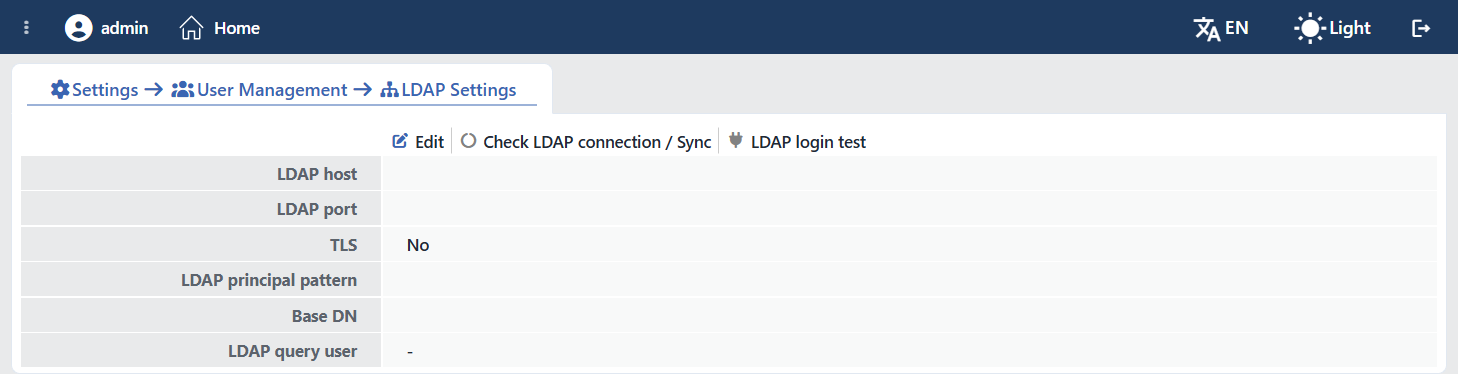 The LDAP Settings Screen
The screen is read-only and shows the LDAP Host, LDAP Port, TLS, LDAP Principal Pattern, Base DN and LDAP Query User rows. The three entries at the top are, in order, Edit, Check LDAP Connection / Sync and LDAP Login Test.
Button Details
By clicking the Edit button, a closable editing tab in which the LDAP settings are edited is opened.
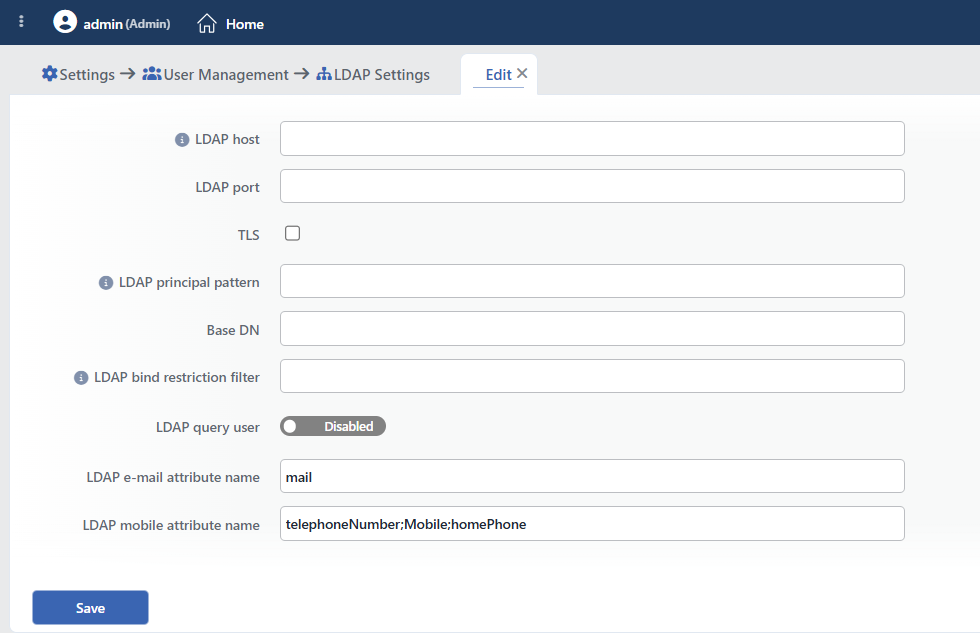 The Edit Tab
INFO
LDAP Host
The IP address or the domain name of the LDAP server is entered. The protocol (http/https) and the port information are not written.
INFO
LDAP Port
The port the LDAP server listens on is entered (1 – 65535; the common values: 389 unencrypted, 636 with TLS). When it is left blank, 636 (TLS on) or 389 (TLS off) is used automatically according to the TLS selection.
INFO
TLS Default: Off
Whether the LDAP connection will be made encrypted with TLS (LDAPS) or not is selected.
INFO
LDAP Principal Pattern
It is the pattern that will be used while the user is being bound to LDAP. $USERNAME is written in the place the user name will come. For example, for the companyX.com domain: $USERNAME@companyX.com.
TIP
The related device user must be added on the Device Users screen without the domain name (only with the user name); the domain name is completed here over the pattern.
INFO
Base DN
The base DN to be used in the user authentication is entered. For example, for the tr7test.com domain: DC=tr7test,DC=com. After the successful binding (bind), the user is authenticated by being searched under this DN.
If it is left blank
When the Base DN is left blank, a user search is not done after the bind; all the users whose password is verified in the directory are accepted. In order to narrow down the access, the Base DN and/or the Bind Restriction Filter must be defined.
INFO
LDAP Bind Restriction Filter Optional
An optional LDAP filter is entered in order to limit the authentication. Only the users that match this filter can log in; if the filter is entered without parentheses, it is put in parentheses automatically. Example: (memberOf=CN=AppUsers,CN=Groups,DC=company,DC=com). The same filter is also applied in the information sync done with the query user.
INFO
LDAP Query User Optional · service account
It is the query (service) account that will be used in order to search the user information in the LDAP directory. The field is opened with an on/off switch; while it is off, Disabled is written on the switch. When it is enabled, a user name field appears next to the switch with the default Administrator value, and below it the following two required fields open.
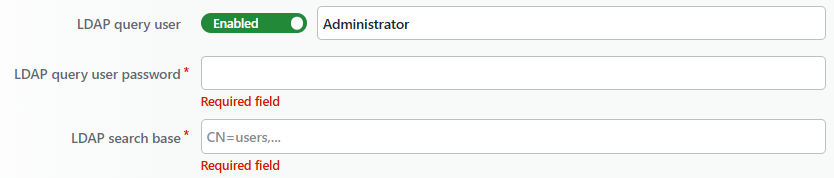 While LDAP Query User Is On
When this account is defined, TR7 can pull the e-mail and phone attributes of the users from the directory; if it is not defined, only the password authentication (bind) is done.
LDAP Query User Password
The password of the query account is entered.
LDAP Search Base
The base directory (search base) in which the users will be searched is entered. Example: CN=users,DC=company,DC=com.
INFO
LDAP E-mail Attribute Name
The LDAP attribute name from which the e-mail address of the user will be read is entered (default mail). More than one attribute can be given with ;; in this case the values in all the attributes are read and are merged in the e-mail list of the user.
INFO
LDAP Mobile Attribute Name
The LDAP attribute name from which the phone number of the user will be read is entered. More than one attribute can be given with ; (default: telephoneNumber;Mobile;homePhone); the values in all the attributes are read and merged in the phone list of the user.
The LDAP Connection Check
The Check LDAP Connection / Sync button checks the correctness of the configuration and behaves as follows:
- If the query (service) user and the Search Base are defined: the connection is tested and, with the information pulled from the directory, the e-mail / phone / display name information of the LDAP users defined on TR7 is updated (synchronized). This operation does not create a new user; it only refreshes the information of the existing LDAP users. The values coming from the directory are not written over the information entered manually on the user; they are added to the list.
- If the query user is not defined: only a connection test is done.
The sync also runs automatically in the background; the button is used in order to trigger the sync manually without waiting for it. In a cluster setup the sync is carried out only on the device numbered 1; on the device numbered 2 the button only does a connection test.
As a result of the operation, the information that the connection is successful or failed is shown.
Failed
 The Connection Check: Failed
Successful
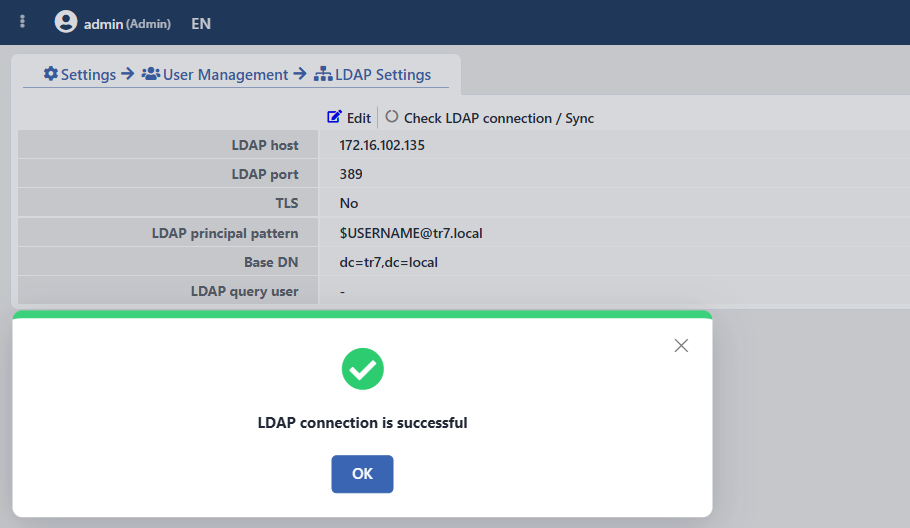 The Connection Check: Successful
The LDAP Login Test
The LDAP Login Test button runs a staged diagnostic test on the saved LDAP settings. In the window that opens there is the Sign-In Attempt with a Test User checkbox; when the box is checked, the Test Username and Test Password fields are displayed (both of them required) and the test tries exactly the same as the real login path. Without the required fields being filled in, the Accept button stays disabled.
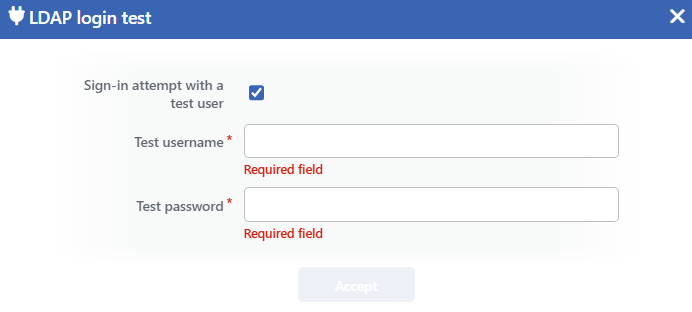 The LDAP Login Test Window
The result is listed stage by stage with a ✔ / ✘ mark and the duration (ms) for every stage:
| Stage | When It Runs | What Is Tried |
|---|---|---|
| Connection | Always | The access to the LDAP server; the addresses tried are shown in the note |
| Query User Login | If the query (service) user is defined | Binding with the service account |
| User Search | If a test user name is given (in the directories that require a search) | Finding the user in the directory; the DN found is shown in the note |
| User Login | If the test credentials are given | A real login attempt with the test user |
If the connection stage fails, the following stages are not tried. This test does not take the place of the Check LDAP Connection / Sync button; it is used in order to see which stage fails while troubleshooting.
