
Smarter by Design.Simpler for Business
Example Use Scenarios
The four examples below show how the variables are used on different screens. In every example the field to which the variable is added is marked with a red frame in the screenshot.
Sending SNI to the Backend Service with the Host Name of the Request
A Backend Service that hosts more than one domain name and certificate on the same IP address and port understands which certificate it will present in the TLS connection from the SNI information. While SSL service is checked in the Backend Services adding form, the Request HTTP header content variable is added to the SNI field with the Host argument. While TR7 is establishing the TLS connection with the Backend Service, it sends as the SNI the host name that the client has asked for; a single Backend Service definition serves all the domain names.
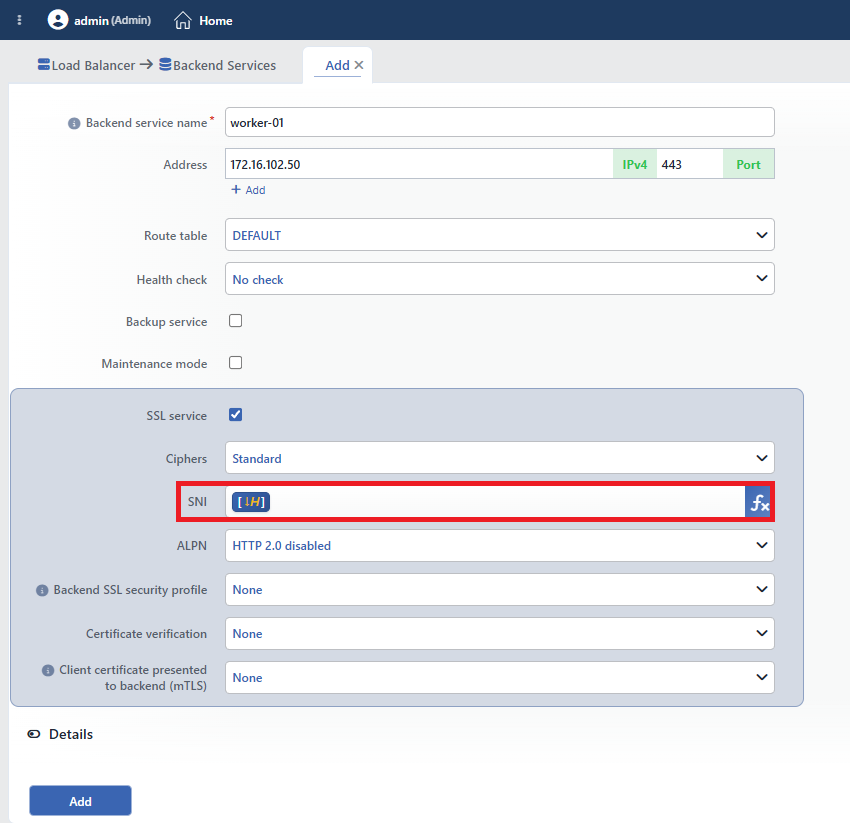 The Host variable added to the SNI field in the Backend Services adding form
| Field | Shown in the Field | Variable | Value |
|---|---|---|---|
| SNI | ↓H | Request HTTP header content, Header name: Host | The Host header of the request, e.g. docs.tr7.com |
On L7 TCP vServices
This variable reads the HTTP header of the request. Since the header cannot be read on an L7 TCP vService, a fixed domain name is written in the SNI field.
Redirecting an Old Domain Name to a New Domain Name While Preserving the Path
When a domain name changes, it is wanted that the requests that come to the old address go to the same page on the new domain name. In the Redirect location field of the Location Redirection action, the Path + query of the request variable is added to the end of the fixed address: https://docs.tr7.com[↓PathQ]. With the ↓H = docsinternal.tr7.com condition in the Conditions field, the action works only on the requests that come to the old domain name and it redirects with the 301: Moved Permanently code.
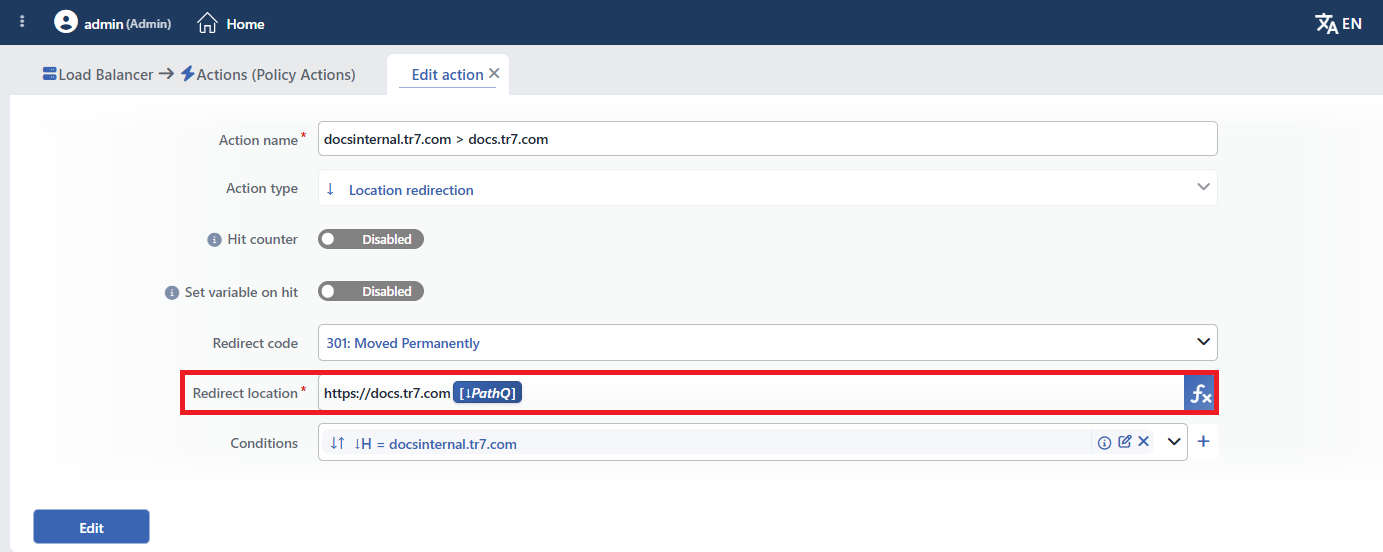 The PathQ variable added to the Redirect location field in the Location Redirection action
| Field | Value | Description |
|---|---|---|
| Redirect code | 301: Moved Permanently | A permanent redirection; the search engines take the new address as the basis |
| Redirect location | https://docs.tr7.com + ↓PathQ | The new domain name and the path and query of the request (Path + query of the request) |
| Conditions | ↓H = docsinternal.tr7.com | The action works only on the requests whose Host header is the old domain name |
| The Request That Comes | The Address Redirected To |
|---|---|
https://docsinternal.tr7.com/tr/lb/ | https://docs.tr7.com/tr/lb/ |
https://docsinternal.tr7.com/tr/waf/?q=owasp | https://docs.tr7.com/tr/waf/?q=owasp |
Showing the Client Information on the Error Page
In the Content Pages profile, a variable is added inside the text with the Add TR7 variable button in the toolbar of the Content editor. Every time the page is shown, the values are filled according to that request; the screenshot that the user sends to the support team shows directly from which address, with which browser and from which country the request has come.
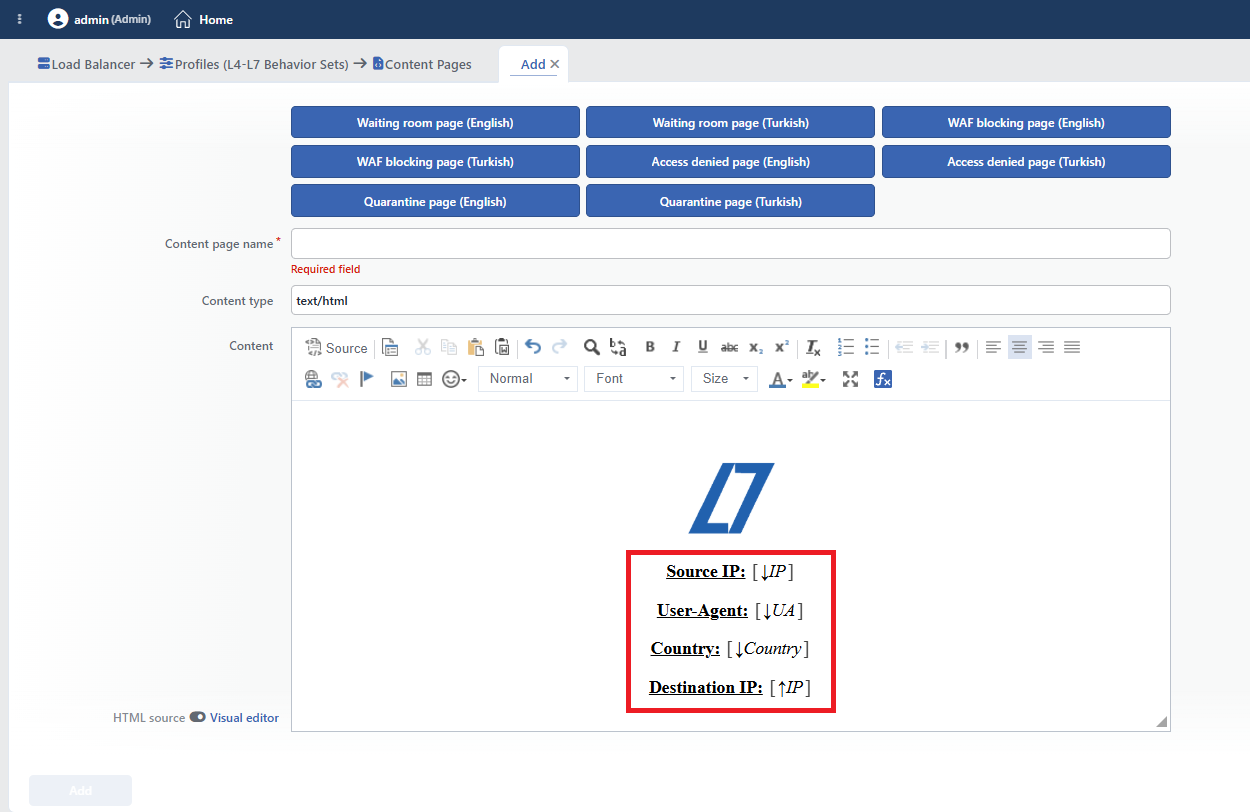 The client variables added to the content editor in the Content Pages adding form
| The Label on the Page | Shown in the Field | Variable |
|---|---|---|
| Source IP | ↓IP | Client IP address |
| User-Agent | ↓UA | Request HTTP header content, Header name: User-Agent |
| Country | ↓Country | Client country |
| Destination IP | ↑IP | Destination IP address |
Setting Up the Log Line That Goes to SIEM as Key-Value
When Manual JSON Format is selected as the Line format in the log profile, every row in the Manual log entries table becomes a key in the JSON output; a variable is placed in the Value column. The Log-SIEM profile in the example sends the logs with UDP to the SIEM at the address 172.16.102.101:514; on the SIEM side every field is parsed with its own key. For the detail of the format, see Manual JSON Format.
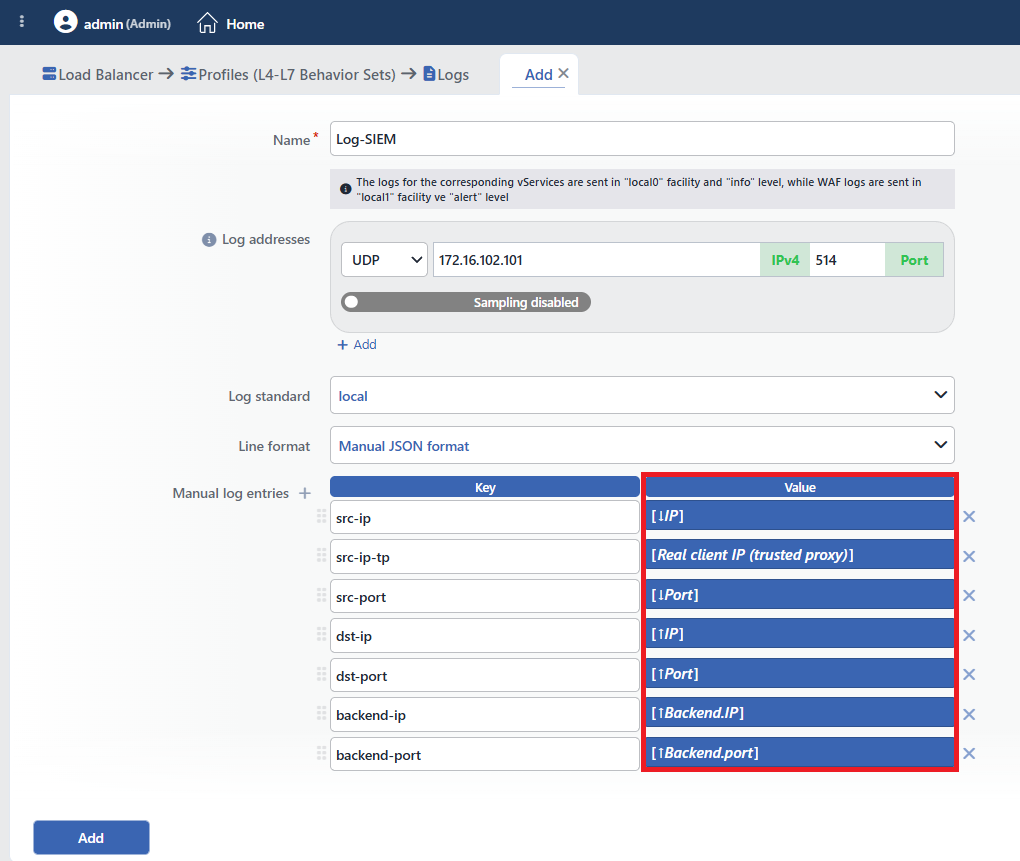 The variables added to the Manual log entries table in the Logs profile adding form
| Key | Value | Variable |
|---|---|---|
src-ip | ↓IP | Client IP address |
src-ip-tp | Real client IP (trusted proxy) | Real client IP (trusted proxy) |
src-port | ↓Port | Client port number |
dst-ip | ↑IP | Destination IP address |
dst-port | ↑Port | Destination port number |
backend-ip | ↑Backend.IP | Backend service IP address |
backend-port | ↑Backend.port | Backend service port number |
The real client address
If there is a proxy or a CDN in front of TR7, ↓IP gives the address of the proxy. Real client IP (trusted proxy), on the other hand, reads the real client address from the header on the requests that come from the proxies defined in the Trusted Proxies profile. Logging the two values with separate keys makes it possible to monitor both the source of the connection and the source of the user in the SIEM.
