
Smarter by Design.Simpler for Business
Log Forwarding
What Is Log Forwarding?
Log Forwarding is the screen that provides TR7 to forward the logs it generates to an external Syslog server or to a SIEM system. The structure is profile-based: every profile defines a destination server, a transport protocol, the Syslog and message format and the log sources to be sent. By adding more than one profile, the logs can be sent to different destinations at the same time.
Before being sent, the logs are translated into the selected language, are cleared of the HTML markup and are delivered to the destination in the preferred message format (JSON, CEF or plain text). TR7 currently supports the Syslog transport type (UDP/TCP).
Transport Type
Transport type
Log delivery method (Syslog)
Destination
Destination server
Syslog Server · Port · Protocol
Format
Log format
Syslog Format and Message Format
Log Sources
Log sources
Which TR7 logs will be sent
Cluster Behavior
In the TR7 installations running as a cluster (two devices), when the Log Forwarding settings are changed on one device, they are automatically synchronized with the other TR7 device; there is no need to set them separately. Every TR7 device forwards the logs it generates to the destination independently.
What Is It For?
Forwarding the logs to an external Syslog server or to a SIEM system carries the event data off the device and provides centralized monitoring and long-term retention. This approach provides the following:
- Centralized monitoring (SIEM): the User / Notification / GTM logs are collected in a single center and are correlated with the data of the other systems,
- Long-term retention: the logs are archived off the device, independently of the device capacity,
- Compliance: a separate, external copy of the audit trails is kept,
- Real-time alerting: with the rules on the SIEM side, instant detection and alarms can be produced,
- Flexible distribution: with more than one profile, the same logs can be sent to different destinations/formats.
How Does It Work?
When a log is generated, it goes through the following stages until it is delivered to the destination:
01 · GenerateThe log is generatedTR7 creates a log record (User / Notification / GTM…)
02 · TranslateIt is translated into the languageIt is translated according to the selected Log Language
03 · FormatIt is put into the message formatJSON · CEF · plain text
04 · ForwardIt is sent to the destinationTo the server / SIEM with Syslog (UDP / TCP)
How to Add?
A new Log Forwarding profile is added via the TR7 web management interface with the steps below:
- The Configuration Menu is opened by clicking the TR7 logo at the bottom left.
- The steps Settings → General Settings → Log Forwarding → Add are followed.
- A unique and descriptive name is entered for the profile.
- The related fields are configured according to the requirements; for the details of the fields, the Log Forwarding Add Form section can be looked at.
- The profile is added by clicking the
Addbutton.
TIP
Reaching the page via quick search
Instead of navigating the menu step by step, the related page is reached directly by using the search bar in the bottom left corner of the screen. The search bar opens with the Alt + T shortcut on Windows and Opt + T on macOS; typing the name of the feature being searched for is then sufficient.
Log Forwarding Listing Screen
By following the path Settings → General Settings → Log Forwarding, the list of the Log Forwarding profiles defined on the TR7 device is reached. The profile adding, editing and deleting operations are done from this screen.
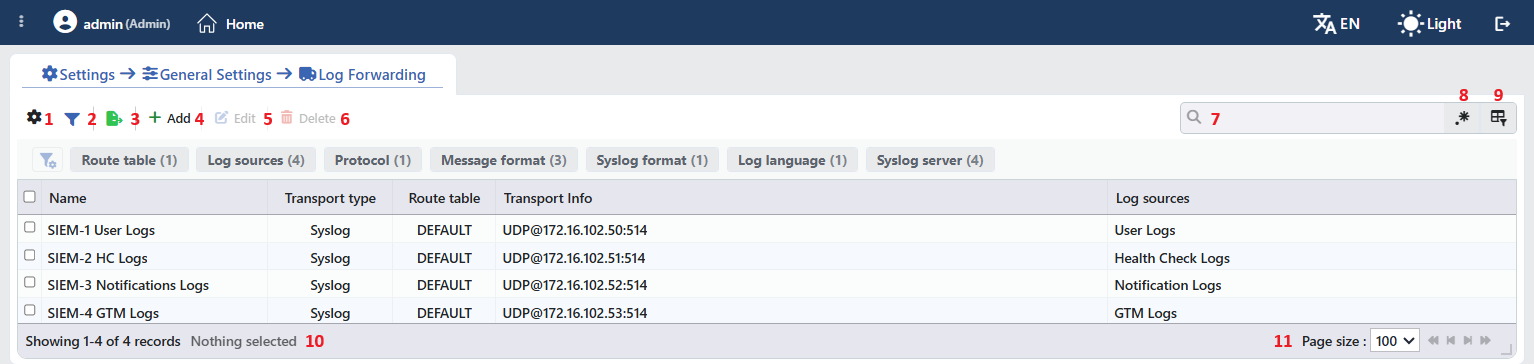 The Log Forwarding Listing Screen
The table opens with the following columns by default:
| Column | Description |
|---|---|
| Name | The name given to the profile. |
| Transport Type | With which method the logs are forwarded. Syslog, which is the only option at the moment, is written. |
| Route Table | The route table the forwarding traffic goes out of; on the default table DEFAULT is written. |
| Transport Info | The summary of the destination connection, in the PROTOCOL@server:port format (e.g. UDP@172.16.102.50:514). The undefined values are shown with ?. |
| Log Sources | The log sources the profile forwards; if more than one source is selected, they are written separated by a comma. |
There is no column hidden by default; these five columns take place in the column selector.
The items in the toolbar are arranged from left to right in the following order; the last two items (Page Information and Page Size) are located in the information strip below the table.
Columns
Which columns will be shown in the table is selected; all five columns are on by default. In the same panel the columns are reordered by dragging, the alignment is selected per column, a manually set column width is returned to automatic sizing by clicking, and with the Reset button the column layout is returned to the default. The layout is stored per user.
Filter
The Filter button is used to filter the profiles shown in the list according to certain criteria. The filter criteria offered come dynamically, specific to the related type. The filtering view can be customized: which filters will be shown can be selected, the position (order) of the filters can be changed and the view can be arranged according to the need.
Export
By clicking the Export button, the table is exported as Excel, CSV or PDF according to the desired data columns.
Add
By clicking the Add button, the form for creating a new Log Forwarding profile is opened.
Edit
When a profile is selected from the list and the Edit button is clicked, the editing form of that profile is opened.
Delete
When one or more profiles are selected and the Delete button is clicked, the related profiles are deleted on the TR7 device.
Search
Used to search all information in the table.
RegExp Search
Used to search all information in the table with a regular expression (RegExp).
Column Based Search
Used to perform a column-based search on the information in the table.
Page Information
Information about the total number of defined profiles and the number of profiles displayed in the list takes place. When a profile is selected from the left side in order to delete it, the number of selected profiles is also shown here.
Page Size
The maximum number of profiles to be displayed on the page is selected. The arrow icons are used to navigate between the pages.
Preview of the Selected Profile
When a row in the list is clicked, the preview of the profile opens on the right of the screen; when the selected row is clicked again, the panel closes. In the title there are an icon that shows the transport type (an airplane icon on the Syslog profiles), the name of the profile and, as a subtitle, the transport type.
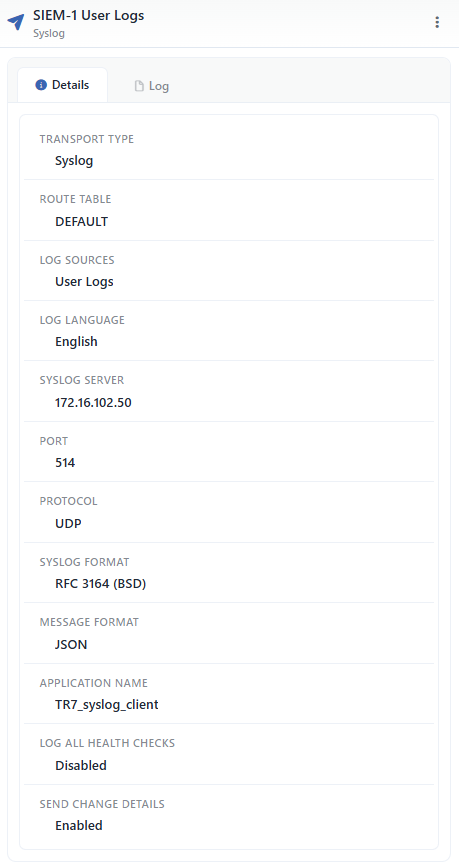 Preview of the Selected Profile
There is no operation button that appears directly in the title; both operations are under the menu at the top right:
| Operation | What it does |
|---|---|
| Edit | Opens the editing form of the profile. The same form is also opened with the Edit button in the toolbar. |
| Delete | Deletes the profile. Confirmation is requested before deleting. |
The panel has two tabs:
Details
Lists the definition of the profile row by row (the table below).
Log
Lists the user actions on the profile (adding, editing, deleting) as a timeline.
The rows in the Details tab are as follows, in order:
| Row | Description | Visibility condition |
|---|---|---|
| Transport Type | The forwarding method of the logs; at the moment Syslog. | Always |
| Route Table | The route table the forwarding traffic goes out of. | Always |
| Log Sources | The log sources the profile forwards. | Always |
| Log Language | The language of the log content: English or Türkçe. | Always |
| Syslog Server | The address of the destination Syslog server. | While Transport Type is Syslog |
| Port | The port the destination server listens on. | While Transport Type is Syslog |
| Protocol | The transport protocol: UDP or TCP. | While Transport Type is Syslog |
| Syslog Format | The Syslog framing format: RFC 3164 (BSD) or RFC 5424. | While Transport Type is Syslog |
| Message Format | The format of the message body: JSON, CEF (Common Event Format) or Plain Text. | While Transport Type is Syslog |
| Application Name | The value written as the application name in the Syslog record. | While Transport Type is Syslog |
| Log All Health Checks | If it is Enabled, every health check is forwarded; if it is Disabled, only the status changes are. | While there is Health Check Logs in Log Sources |
| Send Change Details | If it is Enabled, the field-based change list is sent together with the user action logs. | While there is User Logs in Log Sources |
Log Forwarding Add Form
A new Log Forwarding profile is created by following the steps Settings → General Settings → Log Forwarding → Add.
The form consists of three sections: the basic information (Name, Transport Type, Route Table), the Syslog Settings section in which the destination server and the format settings take place, and the Content Settings section in which the log language and its sources are selected.
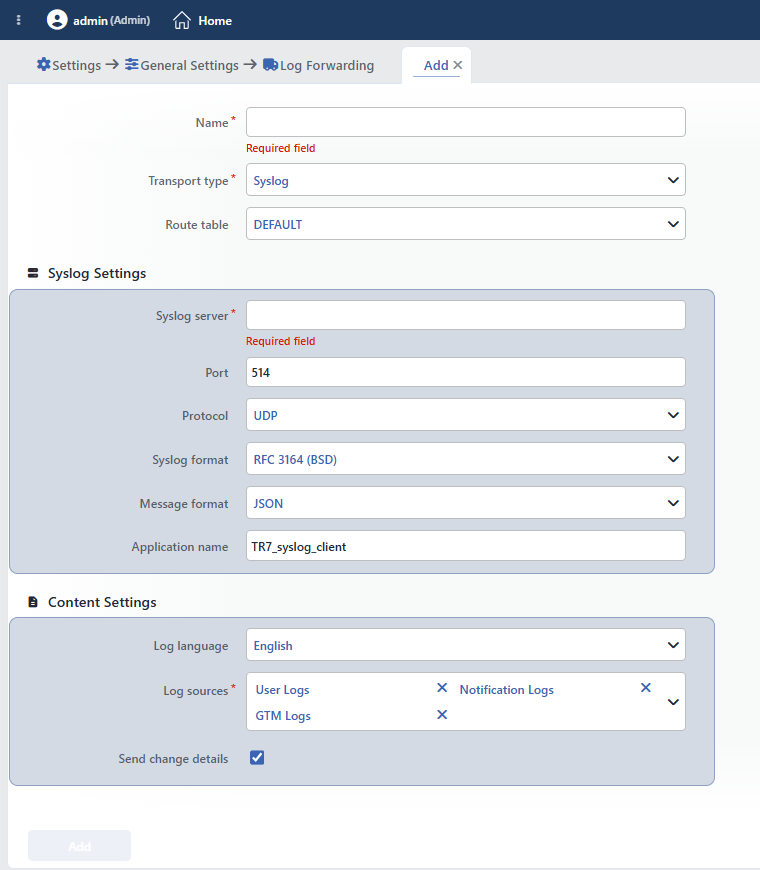 The Log Forwarding Add Form
INFO
Name Required
A unique name is entered for the profile to be created. The same name cannot be used in another profile.
INFO
Transport Type Default: Syslog
With which method the logs will be forwarded is selected. At the moment only Syslog is supported; when this type is selected, the Syslog Settings fields below are displayed.
INFO
Route Table Default: default
Through which route table (network) the logs will be sent is selected. For every route table, the forwarding is carried out through a separate process running in the network area of that table; in this way the Syslog packets go out of the correct network/interface. For details about the route tables, the Route Tables page can be looked at.
Syslog Settings
The destination Syslog server together with the Syslog and message format settings. These fields are displayed when Transport Type = Syslog is selected.
INFO
Syslog Server Required
The IP address or the domain name of the destination Syslog server the logs will be sent to is entered.
INFO
Port Default: 514
The port the destination Syslog server listens on is entered (1 – 65535). The default port for Syslog is 514.
INFO
Protocol Default: UDP
The transport protocol to be used in sending the logs is selected: UDP (connectionless, low overhead) or TCP (connection-based, higher delivery reliability).
INFO
Syslog Format Default: RFC 3164 (BSD)
The framing standard of the Syslog message is selected:
| Format | Description |
|---|---|
| RFC 3164 (BSD) | The traditional/common syslog format. The application name is added to the beginning of the message body (app_name: message). |
| RFC 5424 | The modern syslog standard. The application name is carried in a separate APP-NAME header field. |
INFO
Message Format Default: JSON
The data format of the log body is selected:
| Format | Description |
|---|---|
| JSON | Structural format; it contains timestamp, source, severity, message and the additional (meta) fields. It is easily processed both by machines and by humans. |
| CEF (Common Event Format) | The standard headed CEF:0|TR7|LogTransport|…|sev=… key=value. It is suitable for security analysis and log correlation (SIEM). |
| Plain Text | A single line without structural arrangement: <timestamp> [SEVERITY] [source] message. |
In all the formats the severity field takes the following values: info · warning · error · critical (in CEF they are mapped as 3 / 5 / 7 / 10 respectively).
INFO
Application Name Default: TR7_syslog_client
It is the application name used in the central log system (SIEM / log server) in order to distinguish which device or service the incoming data comes from. In RFC 3164 it is added to the beginning of the message; in RFC 5424 it is written into the APP-NAME field. If the field is left blank, TR7 is used in the messages.
Content Settings
The settings related to the log content to be sent: the language of the logs and which sources will be forwarded.
INFO
Log Language Default: English
In which language the logs will be sent to the destination server is determined: English or Türkçe. The log text is translated into the selected language before being sent.
INFO
Log Sources At least one source
Which TR7 logs will be sent is selected. At least one source must be selected. By default all the sources except Health Check Logs come selected.
| Source | Content |
|---|---|
| User Logs | The actions performed by the users |
| Notification Logs | The generated notification messages |
| GTM Logs | The GTM (Global Traffic Manager) events |
| Health Check Logs | The Backend Service health check results |
Log All Health Checks
It is a switch that appears when Health Check Logs is selected (default off). While it is off, only the status changes (a Backend Service going up/down) are logged; while it is on, every health check result is logged. Leaving it on may lead to a large number of logs being sent to the destination in busy health check environments.
INFO
Send Change Details Log Sources = User Logs Default: On
It is the switch displayed while the User Logs source is selected. While it is on, the field-based change list is sent together with the user action logs; that is, what has been added, deleted and changed in the record. The changes are forwarded in the JSON format with the changeCount and changes fields, and in the CEF and plain text formats with the change summary added to the message; very long change lists are sent abbreviated.
