
Smarter by Design.Simpler for Business
Query Parameter
What Is the Query Parameter Condition?
Query Parameter is a condition type used to make traffic routing and manipulation decisions by checking the presence or value of a specific query string parameter in the URL of the HTTP request.
Query parameters are the key-value pairs that come after the ? sign in the URL.
https://example.com/search?q=test&page=2&sort=desc
Query Parameter · key: q · value: test
This condition is used to check the presence or the value of a specific parameter.
The Importance of the Query Parameter Condition
In modern web applications, query parameters are widely used to carry search queries, pagination, filtering and state information.
With the Query Parameter condition:
- The presence of specific parameters can be checked,
- Different actions can be applied according to parameter values,
- Debug/test parameters can be detected and blocked,
- API versioning parameters can be managed,
- Cache strategies can be created on a parameter basis.
Difference Between Path + Query and Query Parameter:
| Criterion | Approach | Example |
|---|---|---|
| Query Parameter | Parameter-focused | Parameter q = test |
| Path + Query | Full string matching | /search?q=test |
Supported vService Types
HTTP
L7 TCP
Network
The condition can be used at both the request (At Request) and response (At Response) stages; the parameter value is detected at the time of the request.
How to Add?
A new Query Parameter Condition can be added through the TR7 web management interface by following the steps below:
- The Configuration Menu is opened by clicking the TR7 logo at the bottom left.
- The Load Balancer → Conditions → Add steps are followed.
- Query Parameter is selected as Criteria.
- The related configurations of the condition are made.
- The condition is added by clicking the
Addbutton.
Query Parameter Condition Add Form
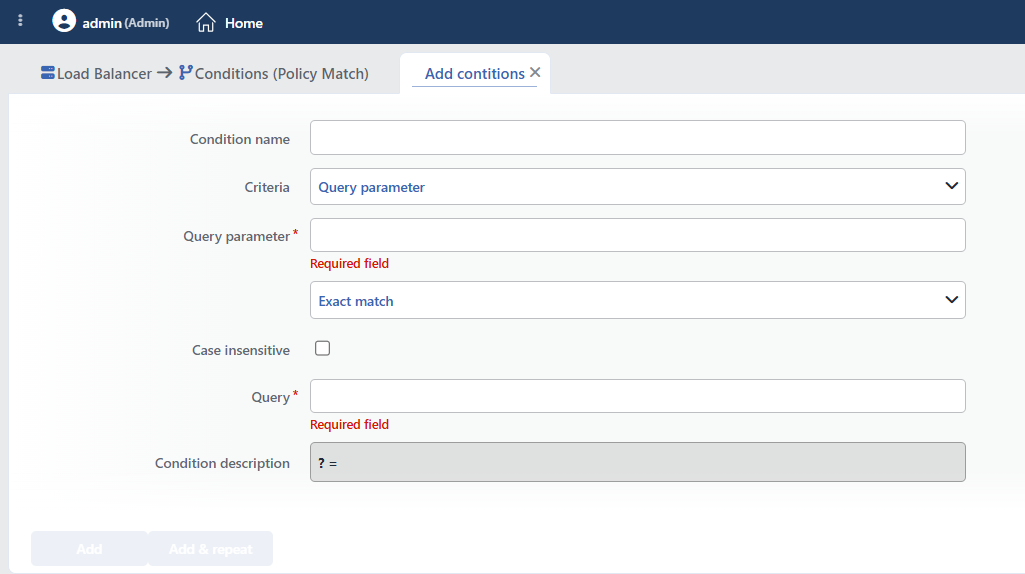 Query Parameter Condition Add Form
INFO
Condition Name
An optional name can be entered for the condition to be created.
This field is especially important in the following scenarios:
- When many conditions are defined under the same vService,
- When conditions with similar criteria need to be distinguished,
- When it is necessary to quickly understand which business rule the condition represents.
When this field is left empty, TR7 analyzes the content of the related condition and creates an automatic, descriptive name in the Condition Description field. This generated description is used as the name in condition lists.
INFO
Criteria Required
The field that determines the type of the condition; Query Parameter is selected from the searchable dropdown list. This selection determines the fields displayed in the form. The criterion cannot be changed after the condition is saved: if a different criterion is needed, a new condition is defined. For all criteria in the list and their scopes, the criteria catalog on the Conditions page can be referred to.
INFO
Query Parameter Required
The name, that is the key, of the query parameter to be checked is entered in this field.
Examples:
| URL | Parameter Name |
|---|---|
/search?q=test | q |
/users?page=2&limit=10 | page and limit |
/api?version=v2 | version |
INFO
Content Matching Method Default: Exact match
Determines how the content is matched. The field appears in the form as an unlabeled dropdown list right below Criteria and opens with Exact match selected.
| Option | Description |
|---|---|
| Exact match | The value must match exactly. |
| Start | The value must start with the specified text. |
| End | The value must end with the specified text. |
| Includes | The value must contain the specified text. |
| Regex | The value must match the regular expression. |
| Is present | Only a presence check is performed. (the value does not matter) |
TIP
When Is present is selected, whether the parameter exists in the request is checked regardless of its value (e.g. requests containing ?debug=true). With this selection, the Query and Case Insensitive fields are hidden.
INFO
Case Insensitive Default: Off
Controls case sensitivity and is applied only to the value in the Query field; the parameter name is always case-sensitive (Page and page are different parameters).
- Active:
example,EXAMPLE,Exampleare considered the same - Not Active: An exact match is required (default)
INFO
Query Required
The value (value) of the query parameter to be checked is entered in this field. The value is compared in its raw (encoded) form as it comes from the client: encodings such as %20 and %3D are not decoded; Regex can be used to also cover encoded variants. If more than one parameter with the same name is sent (?a=1&a=2), the condition evaluates a single value; matching with both values cannot be established. According to the selected matching method:
- Exact match: Checks for an exact match of the value.
- Start: Checks the beginning of the text to be searched for.
- End: Checks the end of the text to be searched for.
- Includes: Checks whether the text to be searched for is contained.
- Regex: Checks with a regular expression pattern (Regex).
This field is hidden when Is present is selected.
INFO
Condition Description
It is created automatically by TR7 in line with the entered criteria and values.
This description:
- which value the condition applies to,
- which criterion it works on,
- the quick understanding of the condition on listing screens
is produced dynamically by the system so as to provide these.
TIP
The value of the parameter can be used in actions with the Query parameter smart variable, by giving the parameter name (e.g. as the value of an HTTP header or a log field).
INFO
Form Buttons
Add
The condition adding process is completed by clicking the Add button.
Add & Repeat
With the Add & Repeat button, the condition adding process is completed, and another new condition can be added with different configurations without leaving the related window.
 Condition Added
Operational Usage Recommendations
- Is Present Should Be Used for Presence Checks. The Is Present method should be used to check the presence of a parameter regardless of its value.
- Attention to URL Encoding. Query parameters may be URL encoded. This should be taken into account for special characters.
- Security Parameters Should Be Monitored. Parameters such as
debug,testandadminshould be blocked or monitored in the production environment.
Common Usage Scenarios in Live Environments
The examples below show how the related condition is applied in the most frequently encountered use cases in real systems. These scenarios are based on practices that are widely preferred in live environments and rest on experience gained in the field.
Scenario 1: Blocking the Debug Parameter
Purpose: To detect and block debug/test parameters in the production environment, and to prevent security vulnerabilities.
Configuration: Query parameter → debug · Content Matching Method → Is present
Action Recommendations:
- ✅ Block → Requests with the debug parameter are blocked with 403 Forbidden, and debug mode is disabled in the production environment.
- ✅ Show Content → The warning page "Debug mode not allowed in production" is shown, and the user is informed.
Scenario 2: API Version Routing
Purpose: To route to the Backend Service according to the API version parameter and provide backward compatibility.
Configuration: Query parameter → api_version · Content Matching Method → Exact match · Case insensitive → checked · Query → v2
Action Recommendations:
- ✅ Add HTTP Header → The
X-API-Version: v2header is added, and the Backend Service responds according to the version. - ✅ Set Path → The
/v2prefix is added to the path, and version-based routing is performed.
Scenario 3: Pagination Security and Scraping Prevention
Purpose: To detect abnormal page numbers and block web scraping and automated crawling attacks.
Configuration: Query parameter → page · Content Matching Method → Regex · Query → ^[0-9]{4,}$
Action Recommendations:
- ✅ Quarantine → Page requests of 1000 and above (4+ digits) are detected, and after 10 attempts the IP is quarantined for 30 minutes.
- ✅ Bandwidth Limitation → For IPs showing suspicious pagination behavior, the bandwidth is limited to 800 Kbps.
- ✅ Manage HTTP Security Headers → The
X-Scraping-Detected: trueheader is added, and the Backend Service takes additional security measures.
Scenario 4: Admin Parameter Protection
Purpose: To detect hidden admin/test parameters, and to block and monitor unauthorized access attempts.
Configuration: Query parameter → admin · Content Matching Method → Is present
Action Recommendations:
- ✅ Quarantine → Unauthorized admin parameter attempts are detected, and after 3 failed attempts the IP is blocked for 60 minutes.
Scenario 5: UTM Campaign Tracking
Purpose: To detect marketing campaign parameters, forward analytics information to the Backend Service and collect metrics.
Configuration: Query parameter → utm_campaign · Content Matching Method → Is present
Action Recommendations:
- ✅ Add HTTP Header → The
X-UTM-Campaign: detectedandX-Marketing-Source: utmheaders are added, and the Backend Service processes the campaign data. - ✅ Set Path + Query → A path and query string cleaned of campaign parameters is created, and clean URLs are used.
Scenario 6: Search Query XSS Protection
Purpose: To detect XSS and injection patterns in search parameters and block attacks.
Configuration: Query parameter → q · Content Matching Method → Includes · Case insensitive → checked · Query → <script
Action Recommendations:
- ✅ Block → Search queries containing an XSS pattern are blocked with 400 Bad Request, and the attack is stopped.
- ✅ URL Normalization → Malicious characters are encoded or cleaned, and a safe query string is created.
- ✅ Quarantine → IPs attempting XSS are detected, and after 5 attempts they are quarantined for 120 minutes.
