
Smarter by Design.Simpler for Business
Content Pages
What Is Content Pages?
Content Pages is a configuration profile that makes it possible for custom HTML contents to be presented to the clients in certain situations on the vServices running on TR7.
In the TR7 architecture, content management is designed on a profile basis. Thanks to this structure, the error pages, the information messages, the redirection screens and the custom responses are defined centrally and applied by being assigned to the related actions. The content pages work in different actions and profiles at the vService level and are valid for HTTP vService traffic.
When a Content Page is defined, TR7 presents it to the clients through the determined actions or profiles. The content pages can be used in the error situations, in the access blockings, in the DDoS protection or in a custom content display.
The rich text editor
- Contents can be created in the HTML format.
- Font, size and color customizations can be made.
- Images can be added (as base64 or as a URL).
- Links and tables can be created.
- HTML editing can be done directly in the source code (Source) mode.
The Importance of the Content Pages Profile
In modern web applications the user experience is shaped not only by the successful responses; it is shaped by the contents presented in the error situations and the custom scenarios as well. Professional and consistent error pages protect the brand image and guide the users.
Without the content pages, the system shows the default TR7 error messages or the browser default error screens. This situation both creates an appearance far from professionalism and does not offer helpful information to the users.
That the content pages are managed on a profile basis and centrally on TR7 makes it possible for different contents to be presented consistently for different scenarios. A 404 page and a WAF blocking page can contain different messages and both of them can be designed in accordance with the corporate identity.
UX
User experience
Guiding pages even at the moments of an error
Brand
Corporate identity
A consistent visual identity is protected
Security
Blocking notice
The user is informed in the WAF/DDoS blockings
HTML
Rich editor
WYSIWYG or direct HTML source editing
For this reason, Content Pages is one of the basic building blocks for offering professional and user-friendly services on TR7.
The Default Content Pages Behavior
There is a default Content Page profile in the TR7 system. This profile presents a simple HTML page that contains the TR7 logo.
The values applied within the scope of the default Content Page:
| Parameter | Default | Description |
|---|---|---|
| Content Type | text/html | The MIME type of the content. |
| Content | A basic HTML page that contains the TR7 logo | The default content presented to the client. |
The default profile is listed with the name Default Profile in the selectors; it provides a basic content for a quick start. Creating user-friendly content pages in accordance with the corporate identity for every application is recommended.
The Built-in Ready Pages
Besides the default profile, TR7 offers eight built-in ready pages; these are listed together with the user pages in the selectors and can be assigned directly:
| Built-in Page | Use |
|---|---|
| Waiting room page (English) | The waiting room screen (English) |
| Waiting room page (Turkish) | The waiting room screen (Turkish) |
| WAF blocking page (English) | The WAF blocking screen (English) |
| WAF blocking page (Turkish) | The WAF blocking screen (Turkish) |
| Access denied page (English) | The access blocking screen (English) |
| Access denied page (Turkish) | The access blocking screen (Turkish) |
| Quarantine page (English) | The quarantine information screen (English) |
| Quarantine page (Turkish) | The quarantine information screen (Turkish) |
At the top of the add form these built-in pages are displayed as template buttons; when a button is clicked, the content and the type of the page are copied into the form and it can be customized and saved as a new page.
The Areas of Use
Content Pages is used in various scenarios on TR7.
INFO
Actions
The content page field is available in five action types:
- Show Content: it shows custom content to the client when certain conditions are met.
- Show Content for Traffic Manager Errors: it shows custom content in the errors that occur at the TR7 level (502, 503, 504, etc.).
- Show Content for Backend Service Errors: it shows custom content in the error codes returned from the Backend Services (404, 500, etc.).
- Quarantine: when the quarantine action is selected as Show Content, it shows content to the client taken into quarantine.
- Advanced CAPTCHA: it shows content while the Captcha quarantine is on and when the quarantine action is selected as Show Content.
INFO
The L7 DDoS / Threat Protection Profiles
In the Threat Protection (L7 DDoS) profiles, a content page is assigned at every point where the action is selected as Show Content: the metric thresholds (total requests/connections, requests/connections per source IP, error rate, the number of active sources), the country and network type rules and the bot and IP reputation action steps. In addition, the quarantine content and the default and conditional pages of the waiting room are also selected from Content Pages.
INFO
The WAF Blocking Pages
In the Web Application Firewall (WAF) profiles, the blocking page to be shown when the malicious requests are blocked can be selected from a content page; different blocking pages bound to a condition can also be defined. The quarantine content of the CAPTCHA action and the AGS bot protection policies also use a content page.
The Supported Content Types
On the content pages the Content Type field determines the MIME type of the content. The content types recommended on TR7:
| Content Type | Description |
|---|---|
text/html | HTML pages (default) |
text/plain | Plain text content |
text/css | CSS style files |
application/json | Data in the JSON format |
application/xml | Data in the XML format |
application/x-ns-proxy-autoconfig | Proxy auto-configuration (PAC) files |
The Content Type field can also be entered as free text; the custom MIME types that are not in the list can be written manually (the field cannot contain a space). The most common use scenario is the text/html type; the error pages, the information messages and the blocking notices are generally prepared in the HTML format. In the presented responses, ; charset=utf-8 is added to the header in most of the places of use.
Operational Best Practices
- A design in accordance with the corporate identity. A consistent visual identity is used on all the content pages; the logo, the color scheme and the fonts must be in accordance with the corporate standards.
- User-friendly messages. Clear messages are used instead of technical jargon; instead of "502 Bad Gateway", explanatory texts such as "The service is temporarily unavailable at the moment, please try again later." are preferred.
- Guiding information is added. On the error pages it is stated what the user should do: a link back to the home page, the support contact information or alternative ways are offered.
- No change is made without the "Used in" information being checked. A content page must not be updated without knowing in which actions and vServices it is used; the changes in the live environment take effect instantly.
- Separate pages are created for different scenarios. Separate content pages are defined for 404, 503, WAF blocking and DDoS protection; a message specific to every scenario improves the experience.
- A responsive design is used. In order for the content pages to be displayed properly on the mobile devices as well, adaptation to different screen sizes is provided with CSS media queries.
- The content size is kept small. Instead of large images, improved visuals or base64-encoded small icons are used; this shortens the loading time and provides bandwidth saving.
How to Add?
A new Content Page is added through the TR7 web management interface with the steps below. Instead of starting from scratch, one of the built-in ready pages can also be used as a template; when one of the template buttons at the top of the form is clicked, the content is copied into the form.
- The Configuration Menu is opened by clicking the TR7 logo at the bottom left.
- The Load Balancer → Profiles → Content Pages → Add steps are followed.
- If desired, one of the ready page templates at the top of the form is selected and the content is copied into the form.
- A unique and descriptive name is entered for the content page.
- The content type and the content are configured in accordance with the application requirements.
- The content page is added by clicking the
Addbutton.
TIP
Reaching the page via quick search
Instead of navigating the menu step by step, the related page is reached directly by using the search bar in the bottom left corner of the screen. The search bar opens with the Alt + T shortcut on Windows and Opt + T on macOS; typing the name of the feature being searched for is then sufficient.
The created Content Page can be used on one or more actions or profiles.
Content Pages Listing Screen
By following the Load Balancer → Profiles → Content Pages path, the list of all the Content Pages added on the TR7 device is reached. Content page adding, editing and deleting operations are performed through this screen.
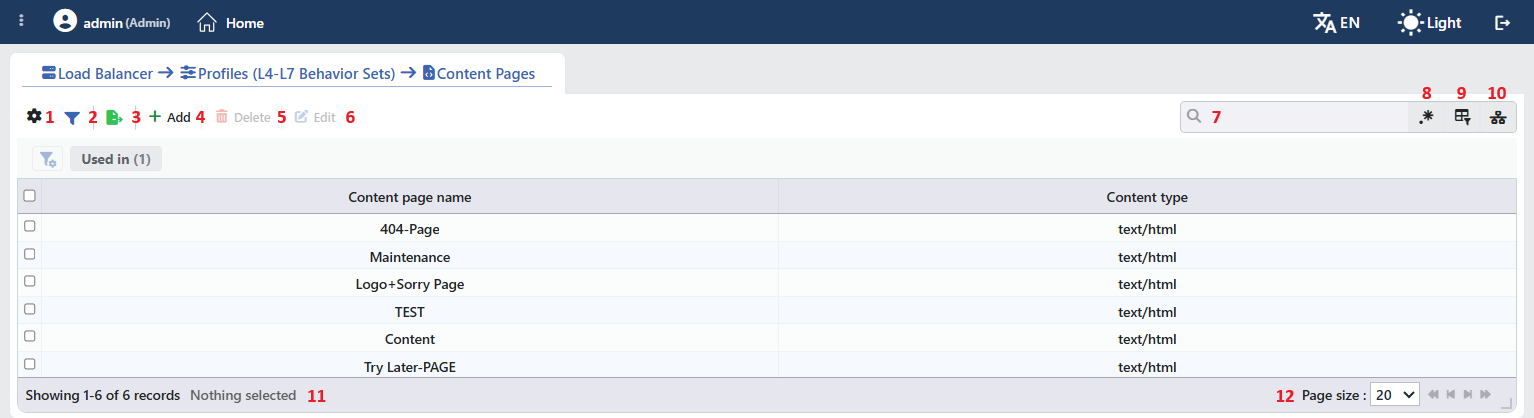 Content Pages Listing Form
The table opens with the following columns by default:
| Column | Description |
|---|---|
| Content Page Name | The name of the content page. |
| Content Type | The content type in which the page will be returned (e.g. text/html). |
The page content is not in the table as a column; it is displayed on the preview panel. There is no column hidden by default; these two columns are in the column selector. The table is not sorted when it opens; when a column header is clicked, descending sorting is applied first, then ascending, and on the third click the sorting is removed.
The items in the toolbar are arranged from left to right in the following order; the last two items (Page Information and Page Size) are located in the information strip below the table.
Columns
Which columns will be shown in the table is selected; both columns are on by default. In the same panel, the columns are reordered by dragging and the alignment is selected per column; with the Fit rows to the page button the row height is fitted to the page, and with the Reset button the column layout is returned to the default. The layout is stored on a user basis.
Filter
The Filter button is used to filter the content pages shown in the list according to certain criteria; the button shows the number of active filters with a badge. There is a single card in the strip: Used in. The card lists the places where the content page is used; for the pages that are not used anywhere, the Unused Entries option is available. The selections are displayed as closable labels under the card strip, right above the table.
Export
The table is exported as Excel, CSV or PDF by clicking the Export button. In the window that opens, the Filename, Format and Data Source, together with the Columns to be exported, are determined; the remaining fields are displayed according to the format: CSV Separator for CSV, Excel Sheet Name for Excel, and Page Orientation and Page Size for PDF.
Add
By clicking the Add button, the form for creating a new content page opens in the Add tab.
Delete
When one or more content pages are selected and the Delete button is clicked, the related pages are deleted.
WARNING
A page that is in use can also be deleted and the confirmation window does not show the usage places. The Show Content and quarantine rules that use the deleted page become completely disabled; the rule is not applied at all and the traffic passes without being blocked. The Threat Protection and AGS actions fall back to a status code without content (with an empty body), and the WAF blocking page falls back to the plain "WAF BLOCKED" text. Before deleting, all the places of use must be checked.
Edit
By clicking the Edit button, the edit form of the selected content page opens in the Edit tab. The button becomes enabled only when a single content page is selected.
Search
Used to search all information in the table.
RegExp Search
Used to search all information in the table with a regular expression (RegExp). This button is hidden while column-based search or the usage filter is active.
Column Based Search
Used to perform a column-based search on the information in the table.
Usage Filter
Used to filter the content pages according to the places where they are used; the pages in the selected place of use are listed, and there is an Unused Entries option for those not used anywhere. While the filter is active, the selector takes the place of the search box; when the icon is clicked again, the search box returns.
Page Information
Contains information about the total number of defined content pages and the number of content pages displayed in the list: Showing N-M of T records and the number of selected content pages (N selected, or Nothing selected when there is no selection). If a selection has been made in the filter strip, the number of applied filters and the shown/total row information are added to the same line.
Page Size
The maximum number of content pages to be displayed on the page is selected. The default is 20; the options are 5, 10, 20, 50, 100, 200, 500 and All.
Right-Click Menu
When a row is right-clicked, a menu with the content page's name in its title opens. Both operations in the menu apply only to the right-clicked content page; a selection made in the list does not affect the menu.
| Operation | What it does |
|---|---|
| Edit | Opens the editing form of the content page in the Edit tab; it is the same as the form opened by the Edit button in the toolbar. |
| Delete | Deletes the right-clicked content page; the same confirmation question as the deletion in the toolbar is displayed. |
Preview of the Selected Content Page
When a row in the list is clicked, the preview of the content page opens on the right of the screen; when the selected row is clicked again, the panel closes. In the title there are the content page icon, the name of the content page and the Content Page subtitle, and at the top right there is a single operation.
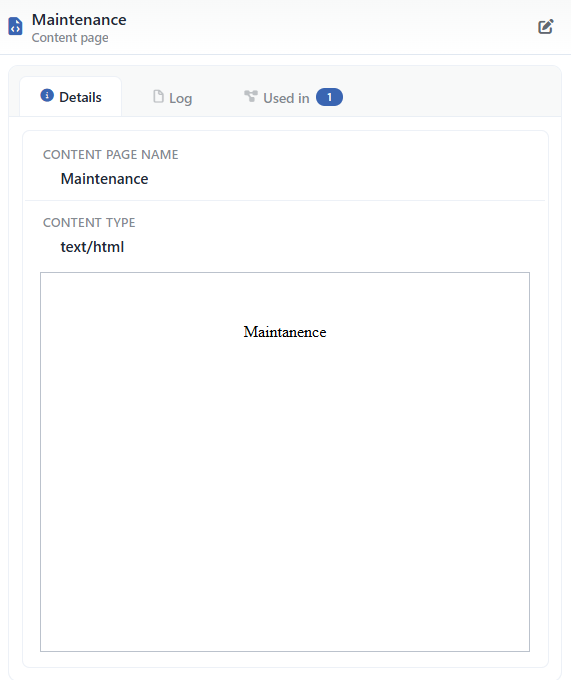 Preview of the Selected Content Page
| Operation | What it does |
|---|---|
| Edit | Opens the editing form of the content page in the Edit tab. |
The panel has three tabs; the last one is displayed only if there is an action that uses the page:
Details
Lists the settings of the content page line by line (the table below).
Log
Lists the user operations on the content page (adding, editing, deleting) as a timeline.
Used in
Lists the actions in which the content page is used. The badge next to the tab name shows the number of usages; if there is no action that uses the page, the tab is not displayed at all.
The rows in the Details tab are as follows, in order:
| Row | Description | Visibility condition |
|---|---|---|
| Content Page Name | The name of the content page. | Always |
| Content Type | The content type of the page (e.g. text/html). | Always |
| (untitled) | The page content is previewed in a frame in its processed form, without a row title. | Always |
The "Used in" tab must be checked
The Used in tab shows the actions (Rules) in which the content page is used. Since the updates to be made in a live environment will affect all the bound usages instantly, evaluating the possible effects before a change is critically important.
WARNING
In this version Used in lists only the action (Show Content and its derivatives) usages; the WAF blocking page, Threat Protection (quarantine, waiting room, bot/IP reputation), CAPTCHA and AGS usages are not visible on this tab. Before a deletion or a change, these configurations must be checked separately.
Content Page Add Form
A new Content Page is added on the TR7 device by following the Load Balancer → Profiles → Content Pages → Add steps. Instead of starting from scratch, one of the built-in ready pages can be used as a template; when one of the template buttons at the top of the form is clicked, the content is copied into the form.
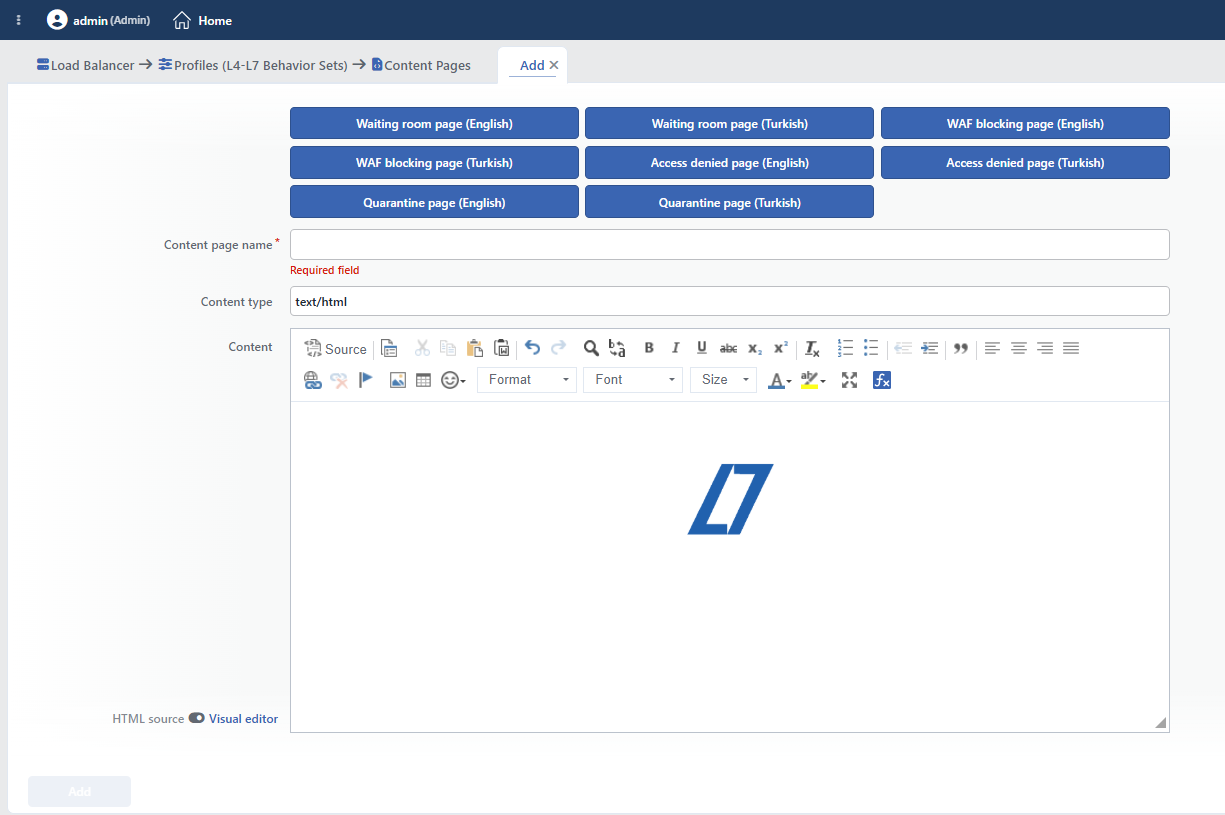 Content Page Add Form
INFO
The Ready Page Templates
At the very top of the form, the eight built-in ready pages are lined up as template buttons. When a button is clicked, the content and the type of the related page are copied into the form; the content is customized and saved as a new page.
INFO
Content Page Name Required
A unique name is entered for the content page to be created. When a name that is in use is entered, the form gives a Name is used warning and the record is not completed.
INFO
Content Type Default: text/html
The MIME type of the content page to be shown is specified. The recommended values can be selected from the list or a custom MIME type can be written manually.
INFO
Content
The content to be shown to the client is entered. The field accepts content up to 153,600 characters and offers two editing modes; the modes are changed with the HTML Source ⇄ Visual Editor switch next to the field:
- HTML Source: the content is edited directly as HTML code. The manually written pages and the new (empty) pages open in this mode.
- Visual Editor: a rich text editor: text formatting, font/size, coloring, lists, alignment, tables, links and visuals (a URL or base64). The Smart Variable expressions in the content are displayed as clickable labels and can be edited.
When it is switched to the HTML Source mode, the toolbar disappears and the field turns into a plain text box that shows the raw HTML source of the content; the embedded data: visuals also appear as a base64 string inside this source.
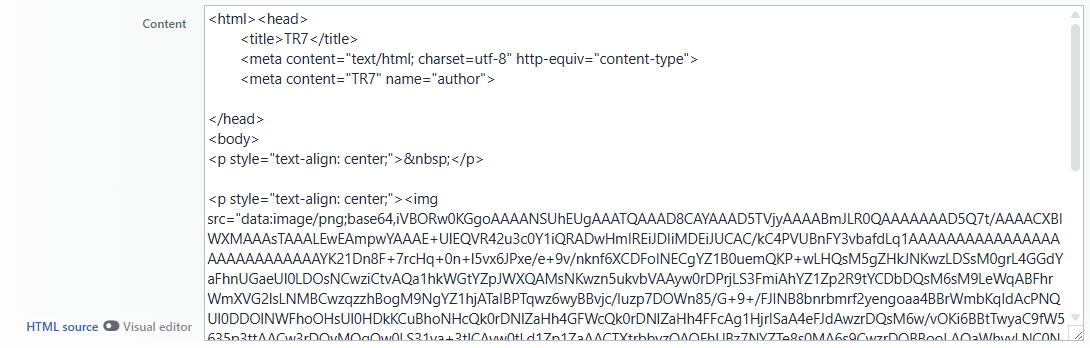 The HTML Source Mode
The mode is selected automatically according to the content: the pages that start with <!doctype or <html> open in the Visual Editor. The Visual Editor converts the content into its own form at the save; if the manually written custom HTML needs to be preserved, the HTML Source mode must be stayed in (the tooltip text of the switch also states this).
The content size is limited by the vService buffer
If the size of the presented page exceeds the buffer limit of the vService on which the profile is used (Buffer Size − 2 KB; approximately 14 KB if the buffer is not set), not only the page but the whole vService configuration cannot be loaded. The form allows much larger contents than this; if large pages are going to be used, the Buffer size(kB) value in the vService Limits profile of the related vService must be increased accordingly.
Usage Locations
The content pages are not assigned to a vService directly; they are put into effect through the actions and the security profiles. The page selector opens everywhere the result of an action is determined as Show Content.
| Surface | The place where the content page is selected |
|---|---|
| Load Balancer › Actions | The five action types (below) |
| Bot/DDoS Protection profile | The L7 DDoS metric protections, the country and network type rules, the Bot and IP Reputation action rules, Quarantine, Waiting Room |
| WAF profile | The blocking page and the conditional blocking pages |
| AGS Bot Protection policy | The steps whose action is Show Content |
The Actions
1
Step 1 Go to the Actions screen
The Load Balancer → Actions → Add steps are followed in the TR7 web interface.
2
Step 2 Select the Action Type and assign the content page
On the screen that opens, one of the options below is selected as the Action Type. The content page field is available only in these five action types:
| Action | The content page field |
|---|---|
| Show Content | Content Page: it is shown when the conditions are met. |
| Show Content for Traffic Manager Errors | Content Page: it is shown in the error codes originating from TR7. |
| Show Content for Backend Service Errors | Content Page: it is shown in the error codes returned from the Backend Service. |
| Quarantine | Content Page: it opens only when Quarantine Action = Show Content is selected. |
| Advanced CAPTCHA | Content Page: it opens only while Captcha Quarantine is on and when Quarantine Action = Show Content is selected. |
The content page is selected from the related field; with the Add next to the field, a new page can also be created from the same window.
The Bot/DDoS Protection Profile
In the Bot/DDoS Protection profile of a vService, every point whose action is determined as Show Content requires a content page:
- The L7 DDoS metric protections: the total request/connection, the request/connection per source IP, the error protection and the active source number thresholds.
- The country and network type rules: the action of the geographic and network type based rules.
- The Bot Protection and IP Reputation action rules: the action of the steps defined per score band or category.
- Quarantine: the page to be shown to the client taken into quarantine (Quarantine Action = Show Content).
- Waiting Room: the default waiting page in the Waiting Page field and the conditional pages in the Conditional Waiting Pages list.
The WAF Profile
In the WAF profile of a vService, two points use a content page:
- Blocking Page Profile: the page to be shown when a malicious request is blocked. The field is visible only when the source of the blocking content is selected as a profile; in its alternative the content is written into the profile directly.
- The conditional blocking pages: with the condition + Page Profile + status code triplet, a different blocking page is shown to certain requests.
The AGS Bot Protection Policy
In the policies defined on the AGS Bot Protection Policies page, when the action of a step is selected as Show Content, the Content Page field opens and the page to be shown is selected from here.
The built-in pages are listed everywhere
The eight built-in ready pages are listed together with the user pages in all of these selectors. In some of them a ready default also comes: WAF blocking page (English) in the WAF blocking fields, Waiting room page (English) in the default page of the waiting room, Access denied page (English) in the actions and in the AGS bot protection policies. The protection steps in the Bot/DDoS profile and the quarantine and conditional waiting page fields come without a default; the page must be selected manually.
