
Smarter by Design.Simpler for Business
AGS Management
What Is AGS Management?
AGS Management is the tab that summarizes with plain sentences the AGS access control configuration of a vService. Instead of listing the form fields one by one, the screen turns every setting into a readable sentence: in which mode AGS works, which requests pass through the access control, who verifies the identity of the visitor, what the session is bound to and how long it lives, how the door is protected against brute force and automation, which pages and languages the visitor sees and who is alerted are read on a single screen.
The screen is a reading surface. The Edit link located on the title strip of every section opens the AGS configuration in a window reduced only to the fields of that section; the links related to the login flow, on the other hand, lead to the Flowchart tab on which the flow is edited. Thus no intermediate step is left between reading a setting and correcting it.
No row on the screen is queried separately for this screen; all of them are derived from the AGS record of the vService and from the policy, provider and profile records this record refers to, and they refresh themselves the moment the record changes. The runtime data is not located on this screen: the measurements are on the Dashboard and Live Stats tabs, the open sessions on Sessions, the lockouts on Lockout and the engine state on the Engine tab.
6 / 7
Sections
Six sections in the Standalone Application mode; in the Portal and Portal Application modes a portal section is added
3 Modes
AGS Working Mode
Standalone Application, Portal and Portal Application; the section set changes according to the mode
4 Stages
Flow Strip
The Entry, Authentication, Second Factor and Outcome stages count the login flow according to the roles
One Click
Going to the Setting
The Edit link of every section opens only the fields of that section
Read-Only
In an Unauthorized User
If there is no authorization, the Edit links of the sections disappear and the content stays complete
It Warns
Missing Configuration
A flow that has no authentication step or a provider profile that has not been selected is marked with an amber sentence
Accessing the Screen
- Left Monitor Panel is opened.
- AGS-Enabled vServices is selected from the category tabs at the top left.
- The vServices defined on TR7 with AGS access control enabled are listed.
- The vService to be monitored is clicked; the screen opens with the Dashboard tab that carries the vService's name.
- On the screen that opens, the AGS Management tab is clicked.
On the right of the screen, the AGS - AAM Data Flow Panel panel on the Dashboard tab is used on this tab as well; if the panel is collapsed, only the handle figure is displayed (in the images above the panel is collapsed). The diagram and this screen are two separate readings of the same configuration.
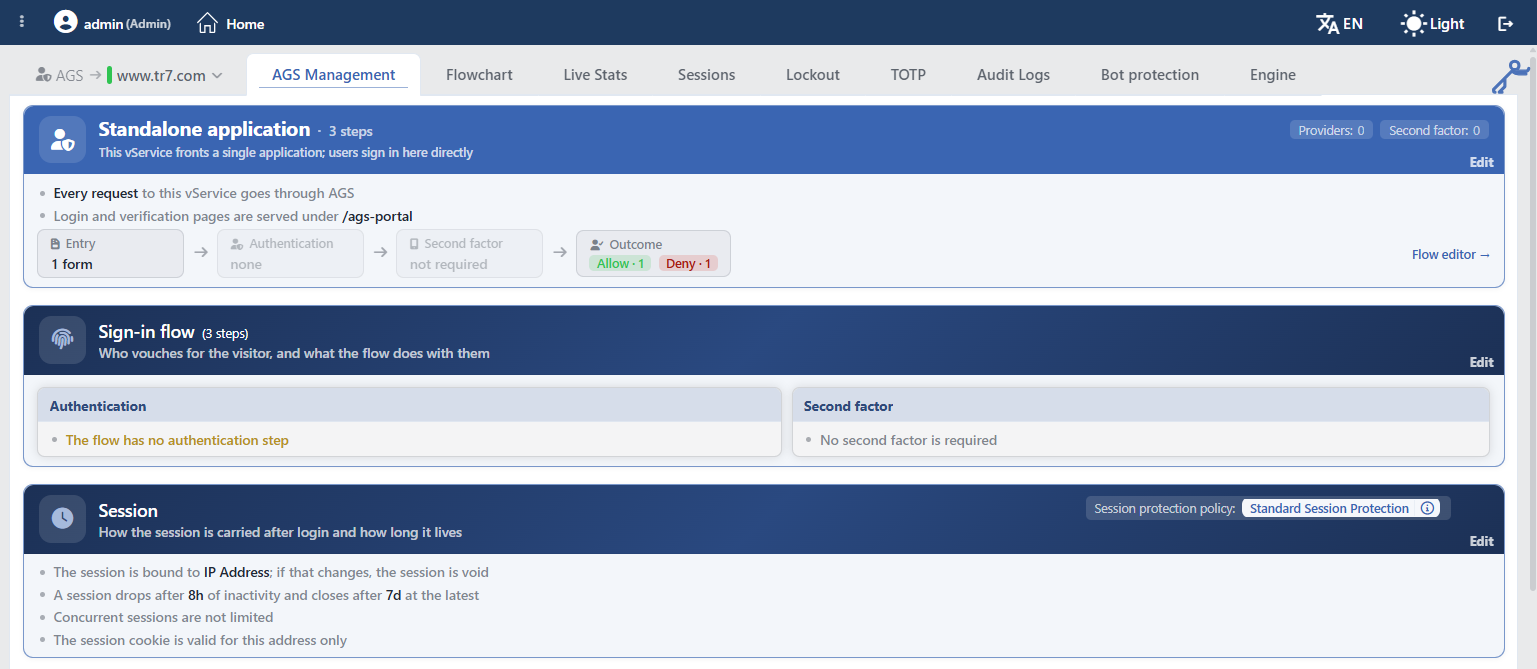 AGS Management (the upper sections)
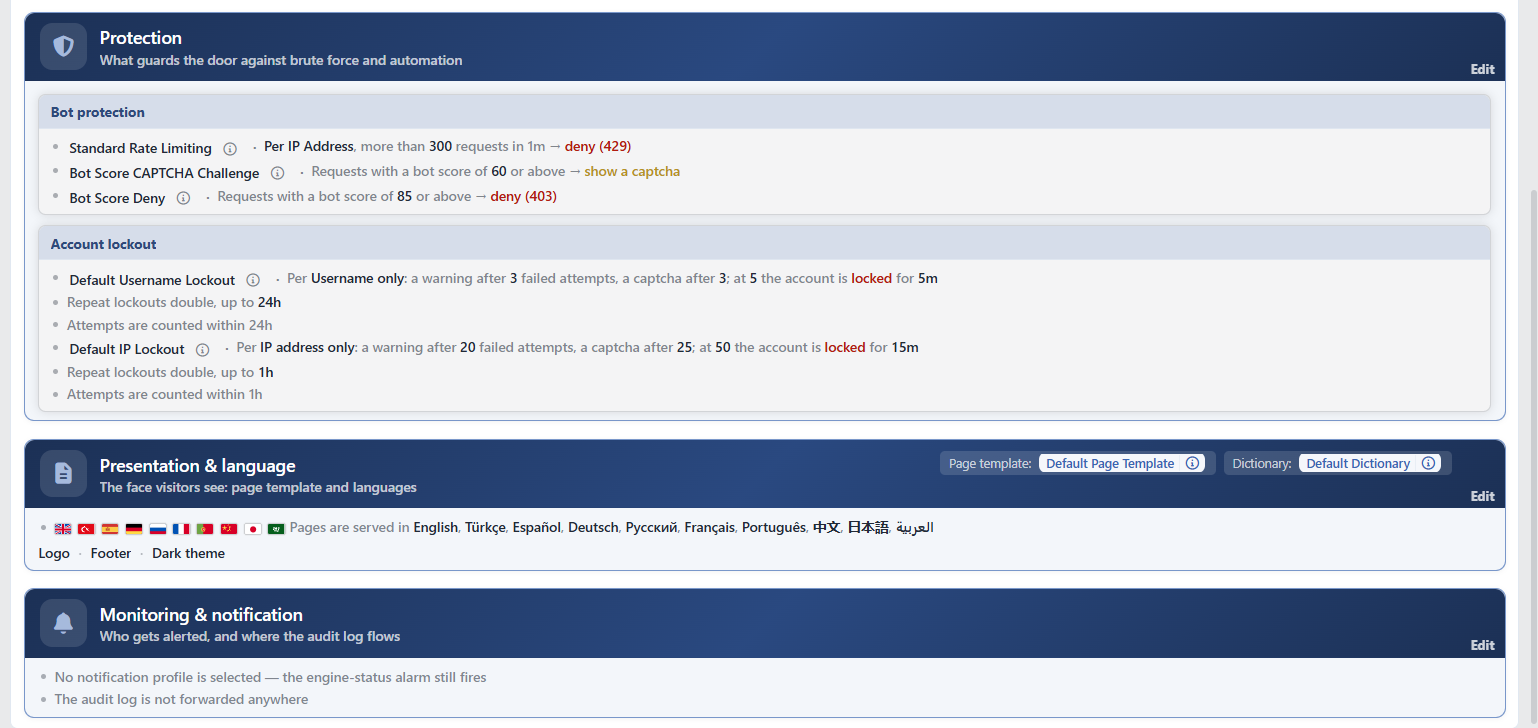 AGS Management (the lower sections)
Layout of the sections
The sections are lined up one under the other at full width; there is no layout in which two sections share the same row. The boxes inside a section, on the other hand, are lined up side by side and every box takes the width of its content; a box that does not fit goes down to the lower row. In the image above the Authentication and Second Factor boxes are displayed side by side, and the Bot Protection and Account Lockout boxes, which carry long sentences, one under the other.
Common Elements of the Screen
All of the sections use the same pattern: on the left a title strip with its icon, its title and its subtitle, below the strip a list of sentences with bullets and/or boxes. On the top right of the strip of some sections there are chips: in the mode section the numbers of the providers and MFAs in the flow, in the other sections the records assigned to the section. The editing entry exists only at the section level: the Edit text in the bottom right corner of the title strip. Unlike the Load Balancer Management screen, there is no separate pencil icon in the title of the boxes.
Section Header and Color
The title of the mode section is the working mode of AGS: Standalone Application, Portal or Portal Application. Next to the title there is the number of steps in the flow, and below it the introduction sentence of the mode.
The strip color of the sections is fixed and carries no state: the first section is displayed with a plain strip in the accent color of the theme, and the other sections with the gradient strip of the darkened version of the same color; the texts are white. The running state of the AGS engine or of the vService is not reflected in any color on this screen. The counterpart of the first section with the status color on the Load Balancer Management screen is not present on this screen.
Edit Link
There is an Edit text on the title strip of every section. Two different behaviors are seen according to the sections:
| Where it is clicked | What opens |
|---|---|
| The Edit of the Sign-in Flow section and the Flow Editor → link in the mode section | No window opens; it is passed to the Flowchart tab and the flow diagram opens in the editing mode. The preview panel closes on the Flowchart tab. |
| The Edit of the other sections | The AGS configuration form opens as a window whose title is Edit / <section name> and is reduced only to the fields belonging to that section. The saving writes only the fields of this window over the current state of the record on the screen; the changes made to the other fields are preserved. When it is given up, nothing is written. |
The form fields that the sections open are as follows:
| Section | Window title | The fields opened in the form |
|---|---|---|
| The mode section | Edit / Scope & identity | AGS Activation Condition, AGS Root Path, Gateway Mode; in the Portal mode also Portal URL, Private Tunnel Domain and Portal Applications, and in the Portal Application mode Trusted Portals. When the mode is changed inside the window, the fields in question appear or disappear immediately. |
| Sign-in Flow | (no window) | The Flowchart tab, the editing mode |
| Session | Edit / Session | Session Protection Policy, Cookie Domain, Cookie Name Prefix |
| Protection | Edit / Protection | Bot Protection Policies, Default Lockout Policies |
| Portal & Applications | Edit / Portal & applications | Portal URL, Private Tunnel Domain, Portal Applications |
| Trusted Portals | Edit / Trusted portals | Trusted Portals |
| Presentation & Language | Edit / Presentation & language | Dictionary, Page Template |
| Monitoring & Notification | Edit / Monitoring & notification | Log Level, Audit Log Forwarders, Notification Profile |
In the Portal mode the private tunnel domain and the cookie domain are bound to each other. In the Edit / Session window, if Private Tunnel Domain is defined in the Portal mode, the information box This gateway is a portal; its private tunnel domain <domain> must stay within the cookie domain you set here, or app links will keep bouncing back to the portal; and in the window of the portal section (Edit / Portal & applications or Edit / Trusted portals), if Cookie Domain is defined, the information box The cookie domain is <domain>; the private tunnel domain must sit under it so the portal session reaches the applications is displayed at the very top. The steps of the login flow are not located in any window; the flow is edited only on the Flowchart tab.
Inline ⓘ and Pencil Icons
At the end of the names of the policy, provider, multi-factor authentication, form, log forwarding, trusted portal and SSO profiles mentioned in the sentences and of the record names in the title chips there are small icons. Between the record name and the sentence there is a · separator.
| Icon | Function |
|---|---|
| It opens the quick view of that record; the fields of the record are listed in the window. In the title there are the Go to Page and Edit buttons that lead to the list page of the record. In the trusted portal row the quick view shows the flow diagram of the portal as read-only. | |
| It opens the own editing window of that record. This window is not the AGS configuration form but the form of the policy or the profile in question. |
The pencil icon is not present in every row: it is not displayed in the built-in AGS records, and in those rows only the quick view is offered. Since all of the records in the images above are built-in, only the information icon is displayed. The MFA names on the flow strip, the form name in the sentence of the form that feeds a single provider (Credentials are collected by <form>, Sign-in starts from a button on <form>), the portal application names and the language names, on the other hand, carry no icon at all. The group row of the form that feeds more than one provider, however, opens with the record of the form and carries its icons.
Reading the Sentences
| Appearance | Meaning |
|---|---|
| A gray sentence with bold phrases inside | The setting is defined and in force; the values (the threshold, duration, name, path) are written bold (e.g. The session is bound to IP Address); the counting window duration in the bot policy stays gray. |
| A completely gray sentence | The setting is not defined (e.g. Concurrent sessions are not limited) or the row carries only complementary information (e.g. Attempts are counted within 24h, The audit log is forwarded to this target). The row of a setting that is not defined is written as well, because knowing what has not been set is information too. |
| A sentence with a red phrase inside | A penalty action: deny, hold and deny, block and locked in the lockout sentence. |
| A sentence with an amber phrase inside | A challenge or a weakened state: show a captcha, show a content page, limit bandwidth, the concurrent session exceeding action, not bound to any identity, muted and the debug log level. |
| A completely amber sentence | The configuration is missing and affects the access (e.g. The flow has no authentication step). |
| A faded box | No policy has been assigned to the box in the Protection section. |
| A faded stage | A stage that has no counterpart on the flow strip (e.g. none, not required). |
On this screen the sentence lists and the tables are not collapsed. The shortening is applied only on the flow strip: the provider icons are gathered as +N after six and the MFA names after two.
The repetition, counting window and condition sentences that come after a policy row are displayed as separate bullet rows; the rows until the next policy name belong to that policy.
The Mode Section (Standalone Application / Portal / Portal Application)
The mode section describes the working mode and the scope of AGS. Its title is the name of the mode; if there is a step in the flow, · N steps (and if there is a branch, also · N branches) is added next to the title. The number of steps is the total of all the steps in the flow; the form, provider, MFA, Decision Point, Switch, Assign User Attributes, Allow and Deny steps are each counted separately. The number of branches is the total of the Decision Point and Switch steps.
| Mode | Subtitle |
|---|---|
| Standalone Application | This vService fronts a single application; users sign in here directly |
| Portal | This gateway is a portal: users sign in here and reach the published applications from it |
| Portal Application | This application serves no login pages of its own; it inherits its session from a trusted portal |
On the top right of the strip there are the Providers: N (the number of different authentication providers in the flow) and Second Factor: N (the number of different MFA profiles) chips; if the value is zero, the value of the Providers and Second Factor chips is written faded. In the Portal mode the Applications: N chip that shows the number of published applications is added as well.
| State | Sentence |
|---|---|
| The activation condition is not defined | Every request to this vService goes through AGS |
| The activation condition is defined | <condition> → the request goes through AGS; anything else goes straight to the backend (the condition opens the sentence with its short display on the condition screens) |
| Always | Login and verification pages are served under <path> (if the path is not defined, /ags-portal) |
| If the portal address is defined in the Portal mode | Portal address <address> |
The Flow Strip
Below the sentences there is a strip that summarizes the login flow in four stages. The stages are connected with arrows; in every box there is the icon and the stage name at the top and the value at the bottom. The strip does not show the branches and the transitions of the flow, it counts the steps only according to their roles. The Flow Editor → link at the right end of the strip opens the Flowchart tab in the editing mode.
| Stage | Visibility condition | Value | Faded state |
|---|---|---|---|
| Entry | If there is at least one form step in the flow; if there is none, the stage is not displayed at all | 1 form / N forms; the steps that use the same form profile are counted as a single form | - |
| Authentication | Always | 1 provider / N providers and the provider icons (the brand logo in the built-in OAuth providers, the key icon in the others; the provider name when it is hovered over) | If there is no provider, none |
| Second Factor | Always | The names of the first two MFA profiles | If there is no MFA, not required |
| Outcome | Always | The green Allow · N and the red Deny · N chips | If neither is present, none |
If the flow has not been built yet
If there is no step in the flow, a single faded sentence is displayed instead of the stages: The sign-in flow is not built yet — it is created in the flow editor. In that case the number of steps is not written in the title either.
Sign-in Flow
Who vouches for the visitor, and what the flow does with them
This section describes the steps that verify the identity of the visitor and what the flow does with this identity. Next to the title there is the number of steps in the flow in parentheses, and if there is a branch, also the number of branches (e.g. (3 steps)). The Edit link of the section does not open a window, it opens the Flowchart tab in the editing mode. If the flow is empty, the sentence The sign-in flow is not built yet — it is created in the flow editor is displayed instead of the boxes.
The boxes are lined up in a fixed order: Authentication, Second Factor and, conditionally, User Identity together with Corporate Service Sign-on.
Authentication
It lists the Authentication Providers profiles in the flow; the number in the title is the number of different providers. Every row starts with the name of the provider (with the brand icon in the built-in OAuth providers) and describes how the provider verifies:
| Provider type | Sentence |
|---|---|
| Built-in OAuth (Google, Microsoft etc.) | Sign-in with a <name> account (<OAuth2 / OpenID Connect>) |
| LDAP / HTTP / RADIUS | Verifies users against the <server> server (<type>) |
| Local Database | Verifies users against the <database> local database |
| Portal | Trusts the session of the <portal> portal |
| Web Form | Verifies by handing the credentials to <login address> |
| SAML 2.0 | Redirects to the enterprise identity provider (SAML 2.0) |
| Custom OAuth2 / OpenID Connect | Redirects to an external <OAuth2 / OpenID Connect> provider |
| The profile has not been selected or its record cannot be found | Amber: No provider profile selected |
Next to the provider rows the following sentences are located as well:
| State | Sentence |
|---|---|
| A single form feeds the provider | Credentials are collected by <form> (LDAP, HTTP, RADIUS, Local Database, Web Form) or Sign-in starts from a button on <form> (OAuth2, OpenID Connect, SAML, Portal) |
| The same form feeds more than one provider | The row of the form before the providers: The N verifiers below start from this form's buttons, This form collects the credentials for the N verifiers below or, in the mixed case, The N verifiers below are reached from this form |
| The lockout behavior of the provider is Replace Defaults or Add to Defaults and a policy is selected | Uses its own lockout policy: <policy names> (in the Add to Defaults case the default policies are applied as well) |
| There is no provider in the flow at all | Amber: The flow has no authentication step |
Second Factor
It lists the Multi-Factor Authentication (MFA) profiles in the flow.
| State | Sentence |
|---|---|
| TOTP | <profile> · TOTP — a <N>-digit authenticator code (the number of digits is taken from the profile; if the profile name is the same as the method name, A <N>-digit authenticator code) |
| Email OTP / HTTP OTP | <profile> · <method> — a <N>-digit code, valid for <duration> (if the profile name is the same as the method name, A <N>-digit code, valid for <duration>; if the code length or the duration is absent, only the method name) |
| Device remembering is on | An additional row: The device is remembered for <duration>; within it, the second factor is not asked again |
| The profile has not been selected or its record cannot be found | Amber: No provider profile selected |
| There is no MFA in the flow | Gray: No second factor is required |
User Identity
It is displayed only if the flow writes a session specific attribute or if there is at least one provider in the flow.
| State | Sentence |
|---|---|
| The attribute assignment steps or the provider mappings write a custom attribute | The session also carries <attribute names> |
| There is at least one provider in the flow | Core identity fields (username, e-mail…) are mapped from the provider automatically |
Corporate Service Sign-on
It is displayed only if a Backend SSO Configurations profile has been selected for the vService: <profile> · The authenticated user is introduced to the corporate service with this profile.
Session
How the session is carried after login and how long it lives
It describes what the session is bound to after the session is opened, how long it lives and where the cookie is valid. If a policy is selected, the Session Protection Policy: <name> chip is displayed on the top right of the strip. The Edit link of the section opens the Edit / Session window.
| Row | State | Sentence |
|---|---|---|
| The policy | The Session Protection Policies policy has not been selected or its record cannot be found | No session protection policy selected — the default behaviour applies (in that case the binding, timeout and concurrent session rows are not written) |
| The binding | It is not bound to an identity | The session cookie is not bound to any identity — it can be used from another device (with an amber phrase) |
| The binding | Bound to the IP address or to the IP and the browser information | The session is bound to <IP Address / IP + User Agent>; if that changes, the session is void |
| The binding | Composite binding | The session is bound to Composite (N components); if that changes, the session is void |
| The timeout | The idle and the absolute durations are defined | A session drops after <duration> of inactivity and closes after <duration> at the latest |
| The timeout | Only the idle duration | A session drops after <duration> of inactivity |
| The timeout | Only the absolute duration | A session closes after <duration> at the latest |
| The concurrent session | The limit is defined | One user may hold N sessions; beyond that: <Deny New Session / Logout Oldest Session / Logout All Sessions> (the action is amber) |
| The concurrent session | There is no limit | Concurrent sessions are not limited |
| The cookie domain | Defined | The session cookie is shared across <domain> |
| The cookie domain | Not defined | The session cookie is valid for this address only |
| The exemption | There is an exemption condition in the policy | <condition> → exempt from these limits |
| The cookie prefix | Defined | Cookie name prefix <prefix> |
| The cookie prefix | Not defined, the Portal Application mode | The cookie name prefix is inherited from the trusted portal |
The durations are written in the short form (8h, 7d, 1m). If the timeout duration is not defined, the timeout row, and in the other modes, if the cookie prefix is not defined, the prefix row is not written at all.
Protection
What guards the door against brute force and automation
It lists the policies that protect the door against brute force attempts and automation. The section always consists of two boxes: Bot Protection and Account Lockout. The policies are listed in the order of assignment, with their name and their sentence; if a condition is defined in the policy, the row <condition> → this policy applies is added after the policy rows. If no policy has been assigned to the box or if the record of the assigned policies cannot be found, the box fades and a single gray row is displayed. The Edit link of the section opens the Edit / Protection window.
Bot Protection
It lists the Bot Protection Policies policies assigned to the vService.
| Trigger | Sentence |
|---|---|
| The number of requests | <scope>, more than N requests in <window> → <action> |
| The number of failed logins | <scope>, more than N failed logins in <window> → <action> |
| The bot score | Requests with a bot score of N or above → <action> |
| Every request | Every request → <action> |
| There is no policy | No bot protection policy is set |
The scope is written as Across all traffic for all the traffic, and in the other cases as Per <IP Address / IP + User Agent> or Per Composite (N components). The action texts and colors:
| Action | Text | Color |
|---|---|---|
| Deny | deny (<status code>) | Red |
| Tarpit | hold and deny (<status code>) | Red |
| Block | block (<status code>); if the duration is defined, for <duration> is added | Red |
| Captcha | show a captcha | Amber |
| Show Content | show a content page (<status code>) | Amber |
| Bandwidth Limit | limit bandwidth | Amber |
If the status code is not defined, the parenthesis is not written.
Account Lockout
It lists the default Account Lockout Policies policies assigned to the vService.
| State | Sentence |
|---|---|
| The warning and the CAPTCHA thresholds are defined | Per <scope>: a warning after W failed attempts, a captcha after C; at L the account is locked for <duration> |
| Only the CAPTCHA threshold | Per <scope>: a captcha after C failed attempts; at L the account is locked for <duration> |
| Only the warning threshold | Per <scope>: a warning after W failed attempts; at L the account is locked for <duration> |
| The threshold is not defined | Per <scope>: at L failed attempts the account is locked for <duration> |
| The repeated lockouts are doubled | Repeat lockouts double, up to <duration> |
| The counting window is defined | Attempts are counted within <duration> |
| There is no policy | No default lockout policy — authentication providers may use their own |
The scope names are written as Username only, Username + IP, IP address only and Custom combination (N components). The CAPTCHA threshold enters the sentence only if the CAPTCHA protection is on in the policy.
Portal & Applications
Which applications this portal publishes, at which addresses
It is displayed only in the Portal mode. The number in the title is the number of published applications. If the private tunnel domain is defined, the sentence Private-address applications are served under <domain>, at per-user addresses is written; if there is no application, No applications are published yet is displayed. The Edit link of the section opens the Edit / Portal & applications window.
The applications are listed in a table:
| Column | Content |
|---|---|
| Application | The name of the application. |
| Access | The access form: Domain tunnel, TR7 application or Private domain tunnel. |
| Address | The address of the application; in the private domain tunnel private address is written. |
| Target vService | The name of the vService to which the application is directed, with the quick view and editing icons at its end; if no target has been selected, —. |
Trusted Portals
It is displayed only in the Portal Application mode; this section has no subtitle. Every portal whose session is trusted is listed in a row with the vService name: <portal> · Sessions of this portal are trusted. If no portal whose record is found is left on the list, the amber sentence No provider profile selected is displayed. The Edit link of the section opens the Edit / Trusted portals window; only the vServices that work in the Portal mode are located in the selection list.
Presentation & Language
The face visitors see: page template and languages
It describes the appearance and the languages of the login and verification pages the visitor sees. On the top right of the strip there are the Page Template: <name> and Dictionary: <name> chips. The Edit link of the section opens the Edit / Presentation & language window.
| Row | State | Text |
|---|---|---|
| The languages | There is at least one language in the Dictionaries (Multilingual) dictionary | The language flags and Pages are served in <languages>; the language names are written in their own languages, and when the flag is hovered over the name of the language is displayed |
| The customization | There is a translation row in the selected dictionary | N texts are customised for this service (N is the number of translation rows in the dictionary) |
| The tab title | The title is customized in the template | The browser tab title is customised |
| The tab title | The title is turned off in the template | No browser tab title is shown |
| The template elements | The element in question is on in the Page Templates template | Logo · Footer · Dark theme · Background image · Brand colour (a single row without a bullet; next to Brand Colour the color of the template is shown as a small dot) |
If the default tab title is used, the tab title row is not written.
Monitoring & Notification
Who gets alerted, and where the audit log flows
It describes who is alerted and where the audit record is transferred. If a notification profile is selected, the Notification Profile: <name> chip is displayed on the top right of the strip. The Edit link of the section opens the Edit / Monitoring & notification window.
| Row | State | Sentence |
|---|---|---|
| The notification | A Notification Profiles profile has not been selected | No notification profile is selected — the engine-status alarm still fires |
| The engine alarm | On | An engine status change raises an alarm |
| The engine alarm | Off | The engine-status alarm is muted (muted is amber) |
| The failed login threshold | Defined | More than N failed logins in a minute raise an alarm |
| The wrong second factor threshold | Defined | More than N wrong second-factor answers in a minute raise an alarm |
| The locked account threshold | Defined | An alarm stays on while N or more accounts are locked |
| The session threshold | Defined | An alarm stays on while authenticated sessions reach N |
| An e-mail to the user at login | On | Users get an e-mail on every sign-in to their account |
| The audit record | A Log Forwarding target is selected | For every target: <target> · The audit log is forwarded to this target |
| The audit record | No target has been selected or its record cannot be found | The audit log is not forwarded anywhere |
| The log level | A level other than the default (info) is selected (error, warn, debug, silly) | Log level <level> (debug is amber, the others are bold) |
The notification sentences do not state over which channel (e-mail, SMS, SNMP, the interface) the warning will be forwarded; the channels are defined in the notification profile.
The Differences According to the Gateway Mode
The rule of the screen is as follows: if a setting cannot be applied in that mode, the row or the section is not written at all; if it has been left empty by the user, the row stays and says that it is not defined. The order of the sections is fixed: the mode section, Sign-in Flow, Session, Protection, (the portal section of the mode), Presentation & Language and Monitoring & Notification.
| Element | Standalone Application | Portal | Portal Application |
|---|---|---|---|
| The chips of the mode section | Providers · Second Factor | Providers · Second Factor · Applications | Providers · Second Factor |
The Portal address row | - | If the portal address is defined | - |
The additional fields of Edit / Scope & identity | - | Portal URL · Private Tunnel Domain · Portal Applications | Trusted Portals |
| Sign-in Flow | ✔ | ✔ | ✔ |
| Session | ✔ | ✔ | ✔ (with the row that says that the cookie prefix is inherited from the portal if it is empty) |
| Protection | ✔ | ✔ | ✔ |
| Portal & Applications | - | ✔ | - |
| Trusted Portals | - | - | ✔ |
| Presentation & Language | ✔ | ✔ | ✔ |
| Monitoring & Notification | ✔ | ✔ | ✔ |
| Total sections | 6 | 7 | 7 |
Scope and Limits
INFO
- The screen shows only the configuration. The session, lockout and verification measurements are on the Dashboard and Live Stats tabs; no color or row on this screen depends on the running state of the AGS engine.
- The editing authorization. The Edit texts of the sections are displayed with the Load Balancer write authorization; the saving of the change is also accepted with the same authorization. There is no separate authorization specific to AGS. If there is no authorization, the Edit texts of the sections are not displayed; the Flow Editor → link on the flow strip, however, continues to be displayed; the sections, the sentences, the chips, the tables and the own and icons of the records inside the sentences continue to be displayed.
- The login flow is not shown and not edited on this screen. The decision points, the branches and the transitions are displayed only on the Flowchart tab; this screen counts the flow according to the roles of the steps.
- The order of the sections is fixed and does not change according to the configuration; only the section the mode does not cover falls off the list.
- The section windows save only their own fields. The exception is the window of the mode section: this window carries the portal fields as well and, when it is saved with Gateway Mode changed, the Portal URL, Private Tunnel Domain, Portal Applications or Trusted Portals values that remain invalid in the new mode are removed from the record.
- The policy, provider and profile details are edited on their own pages. From this screen it is passed to the record itself with the Go to Page and Edit buttons in the quick view or with the pencil icon in the row.
