
Smarter by Design.Simpler for Business
OWASP Rules
What Is OWASP Rules?
OWASP Rules is the signature and rule view of a vService with WAF protection enabled. The screen itself is the same as Signature & Rule Library: the same summary cards, the same table, the same columns and the same toolbar are used. Its difference is its scope.
| Signature & Rule Library | OWASP Rules | |
|---|---|---|
| Where it is opened from | Configuration Menu, across the device | From the WAF management of a single vService |
| The layer that is edited | The global layer | The vService's own layer |
| The effect of the change made | All the vServices with WAF protection enabled | Only the vService that is open |
| What is seen in the list | The built-in library + the global layer | The built-in library + the global layer + the vService's own rules |
This distinction determines the whole of the screen: a rule added here works only in the traffic of this vService, a signature disabled here is turned off only in this vService. The other vServices are not affected and these changes are not seen on the global library screen.
Which screen you are on determines the result
Since the two screens look the same as each other, the scope of a change made is not understood from the appearance of the screen. Before a signature is turned off or a rule is added, it needs to be verified on which screen the work is being done:
- If the screen has been opened from the Configuration Menu, it is in the global library and the change affects all the vServices.
- If the screen has been opened from the WAF management of a vService, it is in the layer of that vService and the change affects only that vService.
The Signature Summary Strip on WAF Management
On the WAF Management screen the signature summary strip that takes place right below the mode cards summarizes with which rule set the vService is protected at that moment and is the door that opens to the rule view. The strip does not carry a title; its own upper band serves as the title.
 WAF Management - The Signature Summary Strip
In the upper band of the strip there are two numbers: Total Active Signatures and Unique Signature Patterns. The difference between the two is explained on the Signature & Rule Library page. The OWASP rules link in the lower right corner of the upper band opens the rule view explained on this page.
Below the band there are four boxes:
| Box | The value it shows |
|---|---|
| Signature Categories | The number of the attack categories that carry a rule. |
| OWASP Web Coverage | How many of the OWASP Top 10 Web list are met. |
| OWASP API Coverage | How many of the OWASP Top 10 API list are met. |
| Status | The status breakdown of the rules: Active, Monitor and Disabled. |
The values in the strip are calculated according to the protection level of this vService: the low-score signatures that will never be triggered at that level are subtracted from the counting. Its detail is in the The Effect of the Protection Level on the View section.
How to Access?
The rule view of a vService is opened over the WAF management:
- The Configuration Menu is opened by clicking the TR7 logo at the bottom left.
- The WAF → WAF-Protected vService List steps are followed and the relevant vService is selected.
- With the Dashboard icon in the preview window the WAF screen of the vService, and then the WAF Management tab is opened.
- The OWASP rules link in the signature summary strip is clicked; the rule view opens as a new tab.
The same view is also reached by clicking the Total Active Signatures row in the vService preview window.
The tab can be closed
The rule view is not a permanent tab; it is closed with the close symbol in its title and the WAF Management tab is returned to. When the page is refreshed, the tab is not created again, the WAF screen of the vService opens with its first tab.
The OWASP Rules Screen
The screen is exactly the same as the Signature & Rule Library across the device: the same summary cards, the same table and columns, the same toolbar and the same forms are used.
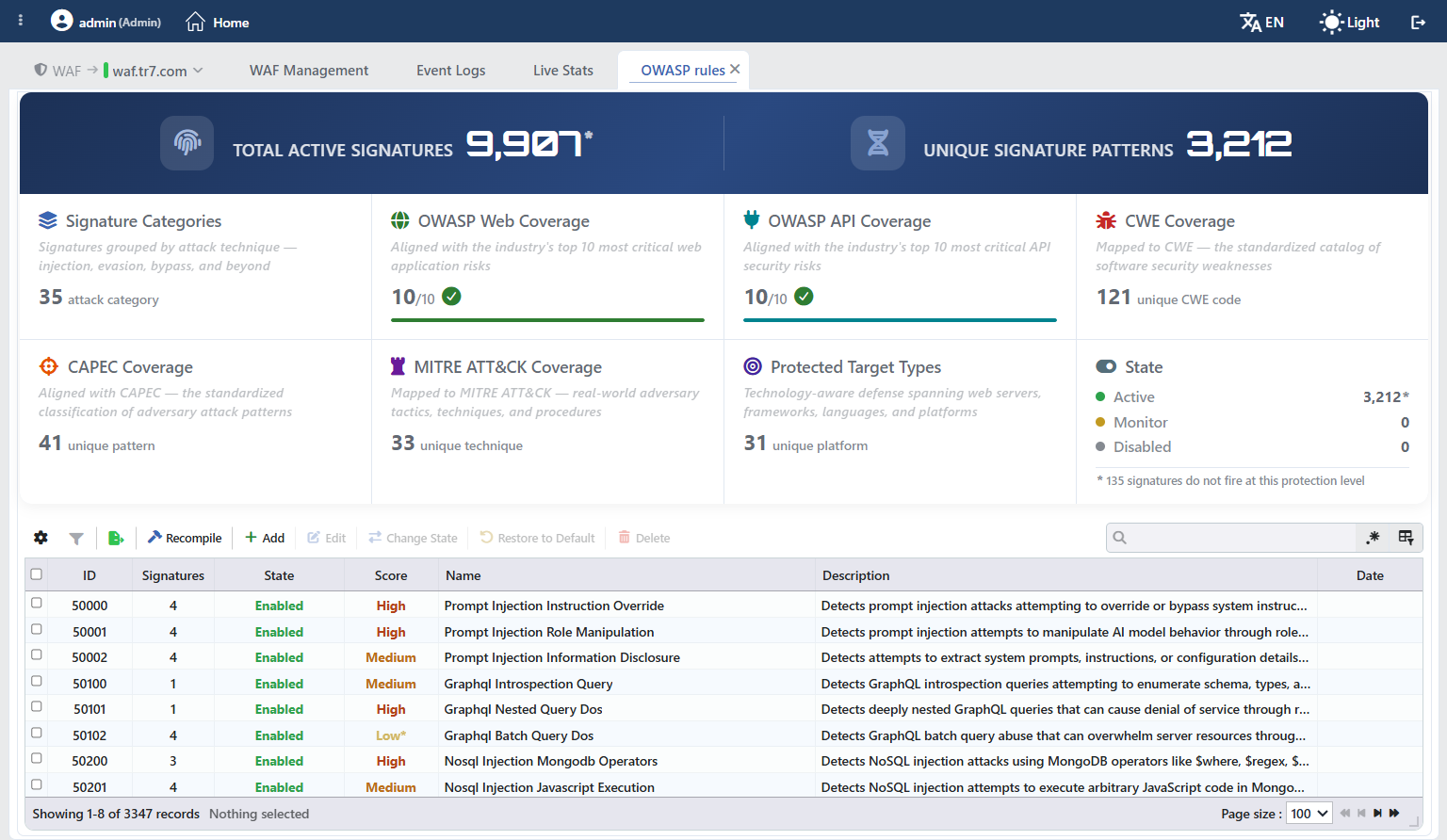 The OWASP Rules Screen
The individual elements of the screen are not repeated on this page; the sections below explain only the behaviors that change in the vService context. For the details concerning the screen itself:
| Subject | Section |
|---|---|
| What the summary cards count | The Library Summary Cards |
| The columns, the filters, the search and the pagination | The Rules Listing Screen |
| The preview window and the right-click menu | The Preview of the Selected Rule |
| The rule adding and editing forms | The Rule Add Form · The Rule Edit Form · The Change State Form |
| The risk score, the status values and the recompilation | Score · State · Recompilation |
The Rule Layers and the Place of This Screen
The library consists of three layers; this screen edits the third layer and shows the combined result of the three.
| Layer | Content | On this screen |
|---|---|---|
| The built-in library | The signatures and the inspection records that come with TR7. | It cannot be changed directly; a change specific to this vService is defined on top of it. The structural inspections and the IP reputation record, on the other hand, are entirely read-only. |
| The global layer | The device-wide changes made on the Signature & Rule Library screen and the global custom rules. | It is displayed in its applied state; it cannot be edited directly from here. |
| The layer of this vService | The changes valid only for this vService and the rules specific to this vService. | This is the layer that is edited. |
The layers merge field by field: the status, the risk score and the inspection scopes are evaluated independently of each other and for every field the value defined in the most specific layer wins. The order starts from the built-in definition, is overridden by the global layer and at the very last by the layer of this vService; that is, if the same field has been changed both in the global layer and here, the value here is valid. If this vService has changed only the risk score, the status change defined in the global layer for the same rule continues to stay valid here as well.
From which layer a rule comes is not shown on the screen
In the list there is no label, color or badge that states whether a row comes from the built-in library, from the global layer or from the vService's own layer. The only reliable way of distinguishing is the ID column:
| Rule number | Its source |
|---|---|
| Below 1,000,000 | The built-in library (the signatures, the structural inspections, the IP reputation record) |
| 1,000,000 – 4,999,999 | A global custom rule (it works in all the vServices) |
| 5,000,000 – 9,999,999 | A rule specific to this vService |
The rule names are not unique between the layers either: two rules with the same name can exist in the global layer and in the layer of this vService and they are seen as separate rows in the list. Within the same layer, on the other hand, the name has to be unique: a second rule with the same name cannot be added to this vService. In this case the distinction is again made from the rule number.
The coloring shows only this layer
The rows displayed in italic and in color in the list are the rules added or changed in the layer of this vService. A rule whose pattern cannot be compiled, on the other hand, is displayed not in italic but in red and carries the Faulty suffix in the State column. A custom rule added in the global layer is displayed on this screen like an ordinary built-in rule, without color.
In the same way the Customizations group in the Filter window also counts only the customizations in the layer of this vService; the changes made in the global layer do not enter this number.
The coloring and this counting do not overlap exactly: a rule whose status alone has been changed is seen in color in the row but stays as Unchanged in the Customizations counting. Only the rules that have been added and the rules whose risk score or inspection scope has been changed enter the counting.
The Effect of the Protection Level on the View
Differently from the global library, this screen knows the OWASP Protection Level setting of the vService and corrects the numbers accordingly.
If the protection level is set to a value other than Aggressive, the signatures that have the lowest risk score are never triggered in this vService. These signatures are subtracted from the counting and an asterisk is added next to the affected values:
- Next to the Total Active Signatures value at the top,
- In the Active row on the State card,
- In the Score column of the affected rows.
When the asterisk is hovered over, how many signatures do not work at this level is stated, and when the asterisk in the row is hovered over, that the rule works only at the Aggressive level.
Raising the score brings the signature back
If a low-score signature needs to work in this vService, instead of changing the protection level, the risk score of the signature can be raised from this screen. When the score is raised, the signature goes out of the suppression scope and starts to work only in this vService.
The Counterpart of the Operations on This Screen
The toolbar is the same as the global library; the only thing that changes is in which layer every button works. In addition to the operations below, there are two more symbols on the toolbar that export the table and that open the filter window. The rule import operation does not exist in any rule view; the import on the WAF Rules screen covers only the path and inspection rules, it does not cover the signature library.
| Button | What it does on this screen |
|---|---|
| Add | It adds the rule to the layer of this vService. The rule works only in the traffic of this vService; it is not listed in the global library and in the rule view of another vService. On the Event Logs, Analysis & Learning and Whitelist screens of the same vService, on the other hand, it is seen with its name. |
| Edit | It defines a change specific to this vService for the status, the risk score and the inspection scopes in a built-in signature. If the selected rule is the own custom rule of this vService, instead of this the full edit form of the rule opens: the name, the description and the pattern can be changed as well. |
| Change State | It changes the status of the selected rules only for this vService. A global custom rule can also be silenced in this vService this way. |
| Restore to Default | It deletes only the changes in the layer of this vService. |
| Delete | It deletes only the custom rules added to this vService. The global custom rules and the built-in signatures cannot be deleted from here. |
| Recompile | It is not specific to the vService: it compiles the whole of the signature database on the device from scratch. Its behavior is the same as the one in the Recompilation of the Signature Database section. |
Restore to Default returns not to the default but to the global layer
The button name and the confirmation text state that the rule will return to its original values; in reality what is deleted is only the change in the layer of this vService. If a change is defined in the global layer for the same rule, after the operation the rule returns not to its built-in definition but to the value in the global layer.
If it is necessary to return to the built-in definition, the change in the global layer needs to be removed from the Signature & Rule Library screen as well.
The operations in the preview title work only on this screen
In the title of the preview window of the selected rule there are the Edit, Change State, Restore to Default and Delete operations. These four entries are active only in the vService layer; on the global library screen they are seen in the same title but cannot be used. In the global library these operations are done from the toolbar.
What the comparison in the preview counts as the original
When a rule that has been changed in the layer of this vService is selected, the preview window shows the Original Rule and Edited Rule columns side by side; in a rule that has been changed only in the global layer a single column is displayed. On this screen the Original rule column shows not the built-in definition but the value the global layer gives. The comparison therefore tells not "how far it has moved away from the built-in definition" but "how much this vService has departed from the global configuration".
Scope and Limits
INFO
- The authorization scope is different on the two screens. Making a change in the global library requires full authorization in the WAF area; for the changes on this screen the change authorization on the vService is enough. Its practical result is the following: although a user who manages only their own vService cannot touch the global library, they can freely edit the rule layer of their own vService from this screen. The read authorization is the same on the two screens: a user who can see the WAF area opens both lists.
- The view settings are common on the two screens. The hidden columns, the selected filters and the width of the preview window are stored per user in a single place. These settings are not separated per vService: a column hidden in the global library comes hidden on this screen of every vService as well.
- The layer is preserved when WAF is turned off. When WAF protection is turned off in a vService, since the vService falls out of the list, this screen cannot be accessed through the documented ways and the rules are not applied to the traffic; on the other hand the rule layer of the vService is not deleted. When the protection is turned on again, the custom rules added before and the changes defined stay valid as they are. When the vService is deleted entirely, on the other hand, the layer is removed as well.
- The application of the change. The status, risk score and scope changes are applied with the configuration synchronization; they do not require a recompilation. When a rule specific to this vService is added or its pattern is changed, only the rule set of this vService is recompiled, the inspection of the other vServices is not affected.
