
Smarter by Design.Simpler for Business
Signature & Rule Library
What Is Signature & Rule Library?
Signature & Rule Library is the central library on which the WAF signature set that comes with TR7 is listed and examined on a single screen and is widened with rules specific to the organization. Every rule in the library defines an attack pattern; this pattern is searched for in the selected sections of the requests that pass the WAF inspection and, when a match is found, it makes a contribution to the risk score of the request. When the accumulated score reaches the OWASP Protection Level threshold selected on the vService, the request is blocked.
The screen does three jobs at once:
- The scope of the built-in signature set (the attack category, OWASP Web, OWASP API, CWE, CAPEC, MITRE ATT&CK and the protected platform) is examined.
- The state and the risk score of the rules one by one are changed, in order to fit the inspection to the real traffic.
- Rules specific to the organization are added and managed.
The library belongs not to a single vService but to the whole of the device: a change here affects the inspection of all the vServices with WAF protection enabled.
The signature scanning is not the only step of the WAF inspection. A request passes, in order, the source IP reputation (an address in the blacklist is blocked without any rule being evaluated), the structural inspections (the size, the depth, the schema and the content type policies) and then the signature scanning in this library. This screen manages only the signature link of the chain; the size limits, the required parameters and the content type policies are defined from the WAF Rules screen of the vService.
No signature gives a blocking decision on its own. The scores of the signatures triggered in a request are summed and, when the total reaches the threshold of the protection level selected on the vService, the request is blocked. For this reason the same signature can produce a blocking on its own in a vService working at a tight level while it produces only a record in a vService at a loose level.
Which decision is given where
Turning a signature off everywhere or changing its score is done from this page, doing it for a single vService from the OWASP Rules screen of that vService, and defining an exception for a single path or parameter from the WAF Rules screen. The three are separate layers and do not take the place of one another.
The library settings do not override the mode of the vService
No setting here exceeds the WAF mode of the vService. In a vService in the Monitor or Learning mode the signatures are scanned and produce a record, but no request is blocked. In the requests recognized by the teacher (Teacher) the blocking threshold is disabled as well.
Reading is open to everyone, writing requires full authorization
Viewing the library is open to every account that has WAF access; every writing operation here, on the other hand, requires full authorization in the WAF area. An account that carries only the change authorization sees the list and the preview, but cannot add a rule, change a state, restore to the default and delete. This threshold arises from the global rule set being shared by all the vServices; there is no such restriction on the own OWASP Rules screen of a vService.
10,300+
Active signature
The number of signatures that come with the built-in library and that work without requiring additional configuration
3,300+
Unique pattern
The number of rules that are displayed in the list as a row and that can be managed one by one
35+
Attack category
From injection to evasion techniques, from LLM prompt injection to supply chain attacks
10/10
OWASP coverage
The whole of the OWASP Top 10 Web and OWASP Top 10 API lists is met
125+
CWE code
The signatures have been matched with the standard catalog of the software vulnerabilities
30+
Protected platform
From the web server to the database, from the runtimes to the artificial intelligence services
Online / Offline
Update path
The library is loaded from the online update server or, in the setups closed to the internet, from the update file left on the device
The numbers are not fixed
The summary cards on the screen are calculated again from the loaded rule set at every opening and increase as the library widens. The numbers on this page are for this reason given as an approximate lower bound; the current values on the device are always read from the screen itself. Only the denominator (10) of the OWASP Web and OWASP API cards is fixed.
The Distinction Between the Signature and the Pattern
The two numbers at the very top of the screen are different from each other and this difference is the key to understanding the whole of the library:
| Concept | Its counterpart |
|---|---|
| Unique Signature Patterns | The number of rules displayed in the list as a row. Every row carries a single attack pattern and the settings of that pattern. |
| Total Active Signatures | The total number of signatures that is formed by the same pattern being counted separately for every request section to be inspected. |
A rule states in which sections of the request it will be searched for with the Inspection Scopes field. The pattern is compiled once in the signature database; every selected scope is counted as a separate signature and the pattern is additionally scanned against the content of that scope. The Signatures column in the list shows in how many scopes that row works: a rule with four scopes selected adds four signatures to the library although it appears in the table as a single row.
The inspection scopes and the approximate number of signatures that work in every scope:
| Scope | The content inspected | Signature |
|---|---|---|
| Query String | Every parameter name and every value in the query string are scanned separately. | 2,800+ |
| Form Data | The application/x-www-form-urlencoded field names and values and the multipart form fields are scanned. | 2,700+ |
| JSON Body | All the keys and the text values in the parsed JSON body are scanned. | 1,800+ |
| Raw Body | The bodies that cannot be parsed, the whole of the multipart requests and the contents of the uploaded files are scanned. | 900+ |
| URI Path | The normalized and resolved request path is scanned. | 800+ |
| HTTP Headers | The header names and values are scanned. The cookies are not a separate scope; they are inspected inside the Cookie header. | 700+ |
| XML Body | All the element names and the text values in the parsed XML body are scanned. | 400+ |
The Rule Layers
The library consists of three layers; on every screen the combined result of these layers is displayed.
| Layer | Content | The screen it is edited on |
|---|---|---|
| The built-in library | The signatures that come with TR7, the structural inspection records and the IP reputation record. This layer is read-only. | It cannot be changed; only a change is defined on top of it. |
| The global layer | The state, risk score and scope changes valid across the device and the global custom rules. | This page. |
| The vService layer | The changes valid only for a single vService and the rules specific to that vService. | The OWASP Rules screen of the vService. |
Every change on this page is applied to all the vServices on the device
This page edits the global layer. A custom rule added here enters the inspection of every vService with WAF protection enabled; a signature disabled here is turned off in every vService as well. The scope cannot be narrowed: in the global layer a restriction in the form of "only for this vService" cannot be defined.
If the change needs to stay limited to a single vService, the operation should be done from the OWASP Rules screen of that vService. The rules added and the changes made there are valid only in that vService; they do not enter the inspection of any other vService and are not listed on this page.
The layers are combined field by field. The state, the risk score and the inspection scopes of a rule are evaluated independently of each other; for every field the value defined in the most specific layer wins:
| The final value of the field | How it is determined |
|---|---|
| State | If it is defined in the vService layer, that one is valid, if not, the one in the global layer, and if that one is not present either, the built-in value. |
| Score | It is determined in the same order. |
| Inspection Scopes | It is determined in the same order. |
In practice this separateness means the following: if a vService has changed only the risk score, the state change defined on this page for the same rule continues to stay valid in that vService as well.
A vService can turn a global rule off in its own layer
A custom rule added on this page can be taken into the Monitor or Disabled state in the own layers of the vServices one by one. For this reason the expression "a global rule works everywhere" is not absolute: the rule reaches every vService, but the vService can silence this rule in its own layer.
The opposite of this is not valid: a rule a vService has added from its own screen is not reflected on this page in any way.
What is not seen on this page
The list shows only the built-in library and the global layer. The custom rules added in the vService layer and the state, risk score or scope changes made in that layer do not take place on this screen. In the same way the Customizations group in the Filter window also counts only the customizations in the global layer.
With which rule set a vService on the device really works is seen only from the OWASP Rules screen of that vService.
When a global custom rule is deleted
When the rule is deleted, the state and score changes defined for that rule in the vService layers are also cleaned by themselves at the next configuration verification; no unused record is left behind.
Behavior in the cluster
The rule layers are carried to both devices with the normal configuration synchronization. On the other hand the signature database is compiled separately on every device; the compilation result is not copied between the devices.
How to Access?
The signature and rule library is reached over the TR7 web management interface with the following steps:
- The Configuration Menu is opened by clicking the TR7 logo at the bottom left.
- The WAF → Signature & Rule Library steps are followed.
- All the signatures and rules loaded on the device are listed together with the summary cards.
TIP
Reaching the page via quick search
Instead of navigating the menu step by step, the related page is reached directly by using the search bar in the bottom left corner of the screen. The search bar opens with the Alt + T shortcut on Windows and Opt + T on macOS; typing the name of the feature being searched for is then sufficient.
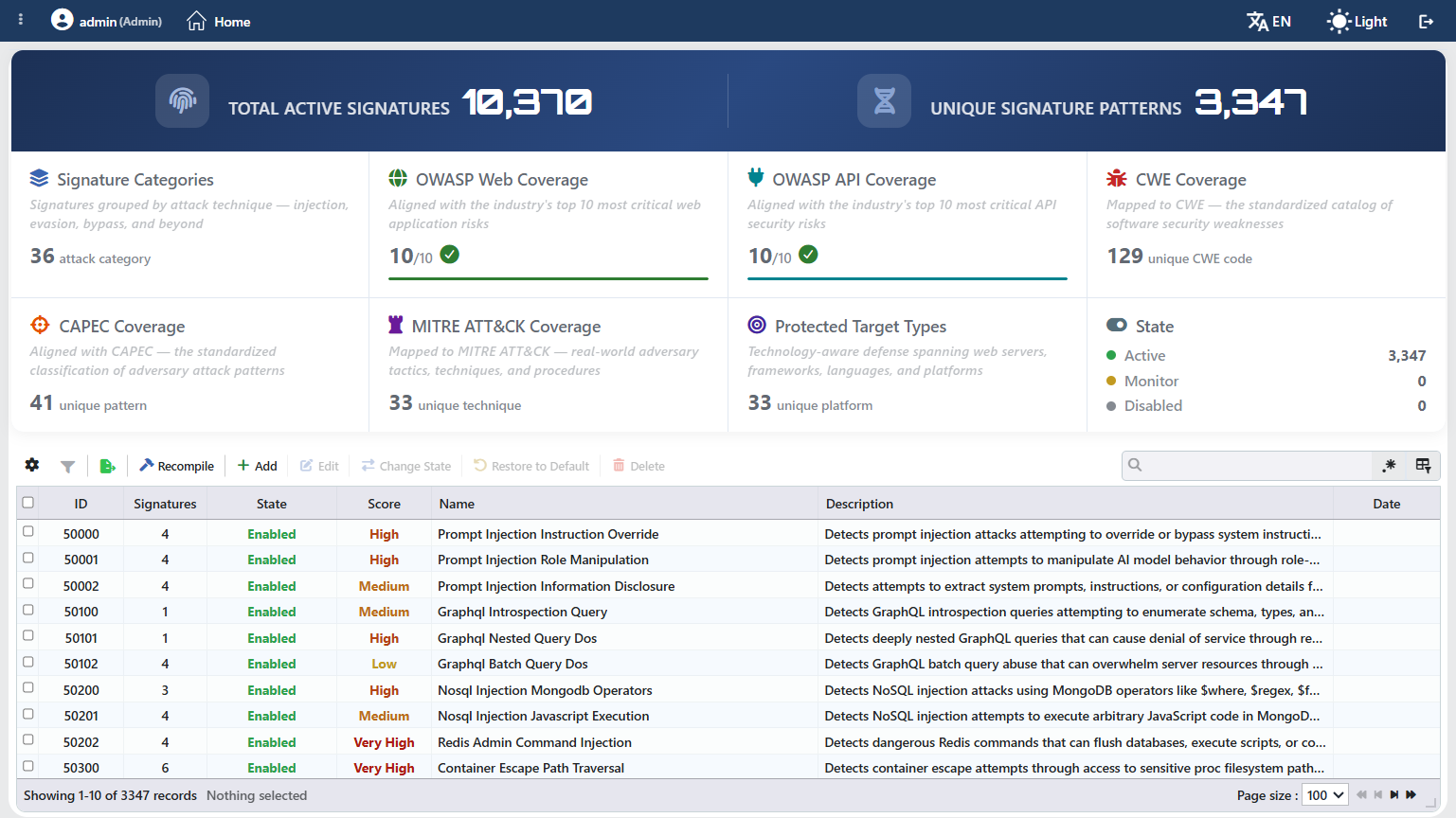 Signature & Rule Library
The Library Summary Cards
Above the list there are eight cards that summarize the scope of the loaded rule set. All of the values on the cards are calculated from the library.
| Card | The value it shows |
|---|---|
| Signature Categories | The number of attack categories that carry a rule in the library. |
| OWASP Web Coverage | How many of the OWASP Top 10 Web list are met. When the value reaches the denominator, it is marked with a confirmation icon and the progress bar below it fills completely. |
| OWASP API Coverage | How many of the OWASP Top 10 API list are met. Its display form is the same as the OWASP Web card. |
| CWE Coverage | The number of unique CWE codes that appear in the signatures. |
| CAPEC Coverage | The number of unique CAPEC patterns that appear in the signatures. |
| MITRE ATT&CK Coverage | The number of unique MITRE techniques that appear in the signatures. The techniques during the attack and after the attack are counted together. |
| Protected Target Types | The number of unique platforms the signatures protect. |
| State | The state breakdown of the rules: Active, Monitor and Disabled. This card counts the rules, not the signatures; for this reason the sum of the three values is equal to the number of unique patterns. The rules that cannot be compiled are counted here under their own states; in the Filter window, on the other hand, they fall into a separate Faulty option. |
The difference displayed in the vService context
The same card set is displayed on the OWASP Rules screen of a vService as well. Since the selected protection level is known there, the low-scored signatures that will never be triggered at that level are subtracted from the count and a star sign is added next to the Total Active Signatures value, next to the Active row in the State card and next to the Score column of the affected rows. Since there is no protection level context on this page across the device, the star sign is not displayed.
The Rules Listing Screen
By following the WAF → Signature & Rule Library path, the list of all the signatures and rules loaded on the TR7 device is reached. Over this screen the rule adding, editing, state changing, restoring to the default and deleting operations are done.
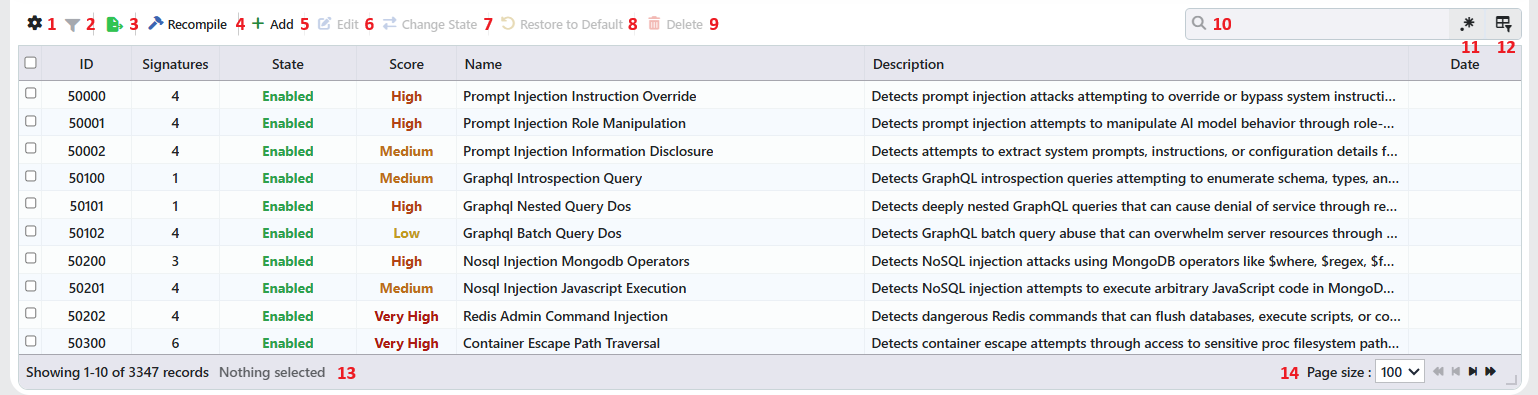 The Rules Listing Screen
The table opens with the following columns by default:
| Column | Description |
|---|---|
| ID | The number of the rule. In the built-in signatures it comes from the library, in the custom rules it is assigned automatically by the system. |
| Signatures | The counted signature number of the rule; it is equal to the number of inspection scopes the pattern works in (The Distinction Between the Signature and the Pattern). In the structural inspection records and in the IP reputation record it always shows 1. |
| State | The state of the rule (Enabled, Monitor, Disabled), in the state color (State Values and Their Counterpart in the Traffic). |
| Score | The weight added to the risk score of the request when the rule matches (Low, Medium, High, Very High), in the score color (Score Values and the Protection Level). |
| Name | The name of the rule. |
| Description | The text that explains what the rule detects. |
| Date | In the custom rules added by the user, the creation date; in the built-in signatures it is empty. This date does not change during the editing. |
The following columns are hidden by default and are added from the column selector:
| Column | Description |
|---|---|
| Type | The type of the record: OWASP, Structure, Blacklist or Custom. It is the fastest way of distinguishing the read-only rows. |
| Signature Category | The attack category of the rule (Signature Categories). |
| CWE | The CWE weakness codes of the rule. |
| CAPEC | The CAPEC attack pattern codes of the rule. |
| MITRE ATT&CK | The MITRE ATT&CK techniques of the rule during the attack. |
| MITRE Post-Exploit | The MITRE ATT&CK techniques of the rule belonging to after the attack. |
| Protected Targets | The platforms the rule protects (Protected Target Types). |
| OWASP Web Coverage | The counterpart of the rule in the OWASP Top 10 Web list. |
| OWASP API Coverage | The counterpart of the rule in the OWASP Top 10 API list. |
The arrangement of the list
The list shows by default first the built-in signatures and then the global custom rules; every group is sorted within itself according to the rule number. When the same screen is opened from inside a vService, the rules specific to that vService are listed at the very end. A different sorting is applied by clicking the column titles.
The rows are colored according to their source and their state: the disabled rules are displayed pale, the changed and added rules are written in italic, the rules that cannot be compiled are marked in the error color. The structural inspection records and the IP reputation record are shown in their own tones as well.
The items in the toolbar are arranged from left to right in the following order; the last two items (Page Information and Page Size) are located in the information strip below the table.
Columns
It is selected which columns will be shown in the table; the seven columns above are open by default and nine columns are hidden. On the same panel the columns are reordered by being dragged and an alignment is selected per column; with the Fit rows to the page button the row height is fitted to the page, and with the Reset button the column layout is taken to the default. The layout is stored per user.
Filter
The Filter button is used to filter the rules shown in the list according to certain criteria. On this screen nine filter groups are offered: Signature Categories, OWASP Web Coverage, OWASP API Coverage, CWE Coverage, CAPEC Coverage, MITRE ATT&CK Coverage, Protected Target Types, State and Customizations. In the taxonomy groups (Signature Categories, OWASP Web Coverage, OWASP API Coverage, CWE Coverage, CAPEC Coverage, MITRE ATT&CK Coverage, Protected Target Types) the number next to the options shows the number of signatures, and in the State and Customizations groups the number of rules. The selections in different groups are applied together.
In the State group, besides the three states, the Faulty option that gathers the rules that cannot be compiled takes place as well.
In the title of the filter area the Total Active Signatures, Unique Signature Patterns and Customizations values belonging to the records listed at that moment are displayed as a summary; as the filter is narrowed, these three values are also calculated again according to the narrowing set.
The Customizations group shows how much of the library has been touched: Added lists the custom rules added, and Changed the rules whose risk score or inspection scopes have been changed. Only the rules whose state has been changed stay outside this count and appear under Unchanged; the state breakdown is monitored from the separate State group.
The filtering view can be customized: which filters will be shown is selected, the order of the filters is changed and the view is arranged according to the need. The selected filter is stored per user.
Export
The table is exported as Excel, CSV or PDF by clicking the Export button. In the window that opens, the Filename, Format and Data Source, together with the Columns to be exported, are determined; the remaining fields are displayed according to the format: CSV Separator for CSV, Excel Sheet Name for Excel, and Page Orientation and Page Size for PDF.
Recompile
When the Recompile button is clicked, the whole of the signature database is compiled again from scratch. In the confirmation window it is stated that the operation may take up to a minute; since every device compiles its own database in a cluster setup, it is additionally reminded that the operation will run on both devices at once. When it is confirmed, the configuration synchronization starts and the progress is followed from the synchronization indicator of the interface.
In the daily management this button is not needed: the state, risk score, scope and pattern changes are compiled and applied by themselves. The details are in the Recompiling of the Signature Database section.
Add
A form for creating a new custom rule is opened by clicking the Add button.
Edit
The editing form of the selected rule is opened by clicking the Edit button. Two different forms open according to the source of the rule: in a rule added by the user all the fields, and in a built-in signature only the state, the risk score and the inspection scopes are edited.
The button becomes enabled only when a single rule is selected. The structural inspection records and the IP reputation record cannot be edited.
Change State
When one or more rules are selected and the Change State button is clicked, a form with a single field opens. The details are in the Change State Form section.
Restore to Default
When one or more rules are selected and the Restore to Default button is clicked, the changes defined in this layer on the selected rules are deleted and the rules return to their original values. The operation is verified with a confirmation window. The button is passive if there is no rule with a change on it in the selection.
WARNING
The operation reverts only the changes of the selected rows; the whole of the library is not restored to the default. The custom rules added by the user are not affected by this operation, they are not deleted.
Delete
When one or more custom rules are selected and the Delete button is clicked, the related rules are deleted. The operation is verified with a confirmation window.
The deletion works only in the rules added by the user; the built-in signatures, the structural inspection records and the IP reputation record cannot be deleted. The button is passive if there is no deletable rule in the selection.
Search
Used to search all information in the table. The search works on the values seen on the screen and without observing the case distinction.
RegExp Search
Used to search all information in the table with a regular expression (RegExp).
Column Based Search
Used to perform a column-based search on the information in the table.
Page Information
Contains information about the total number of rules in the library and the number of rules displayed in the list: Showing N-M of T records and the number of selected rules (N selected, Nothing selected while there is no selection). While a filter is active, the filter summary is displayed as well.
Page Size
The maximum number of rules to be displayed on the page is selected. The default is 100; the options are 50, 100, 250, 500 and All. The selection is not stored, at the next opening it is started with 100 again.
Right-Click Menu
When a row is right-clicked, a menu that has the number of the rule in its title opens. The operations in the menu are applied only to the right-clicked rule; the selection made in the list does not affect the menu. Unlike the icons in the preview title, in the menu only the operations that can be applied to that rule take place; the ones that cannot be applied are not put in the menu at all.
| Operation | What it does |
|---|---|
| Edit | It opens the editing form of the rule; it is the same as the form the Edit button on the toolbar opens. |
| Change State | It opens the Change State Form only for that rule. |
| Restore to Default | It deletes the changes defined in this layer on the rule; the same confirmation question as the operation on the toolbar is displayed. |
| Delete | It deletes the rule added by the user; the same confirmation question as the deletion on the toolbar is displayed. |
Which operations take place in the menu depends on the source and the state of the rule:
| Rule | What appears in the right-click menu |
|---|---|
| Built-in, with no change on it | Edit · Change State |
| With a change defined on it | Edit · Change State · Restore to Default |
| Added by the user | Edit · Change State · Delete |
| A structural inspection record or the IP reputation record | Since there is no applicable operation, the menu does not open |
Since Recompile and Add are not operations bound to a single rule, they do not take place in this menu. The menu is independent of the icons in the preview title and works on this page across the device as well.
Preview of the Selected Rule
When any rule in the list is clicked, the preview window belonging to that rule opens on the right side of the screen. In the title there are the name of the rule, below it the type · category information and the copiable rule number; the signature icon to the left of the name is colored according to the state of the rule and writes its state when it is hovered over.
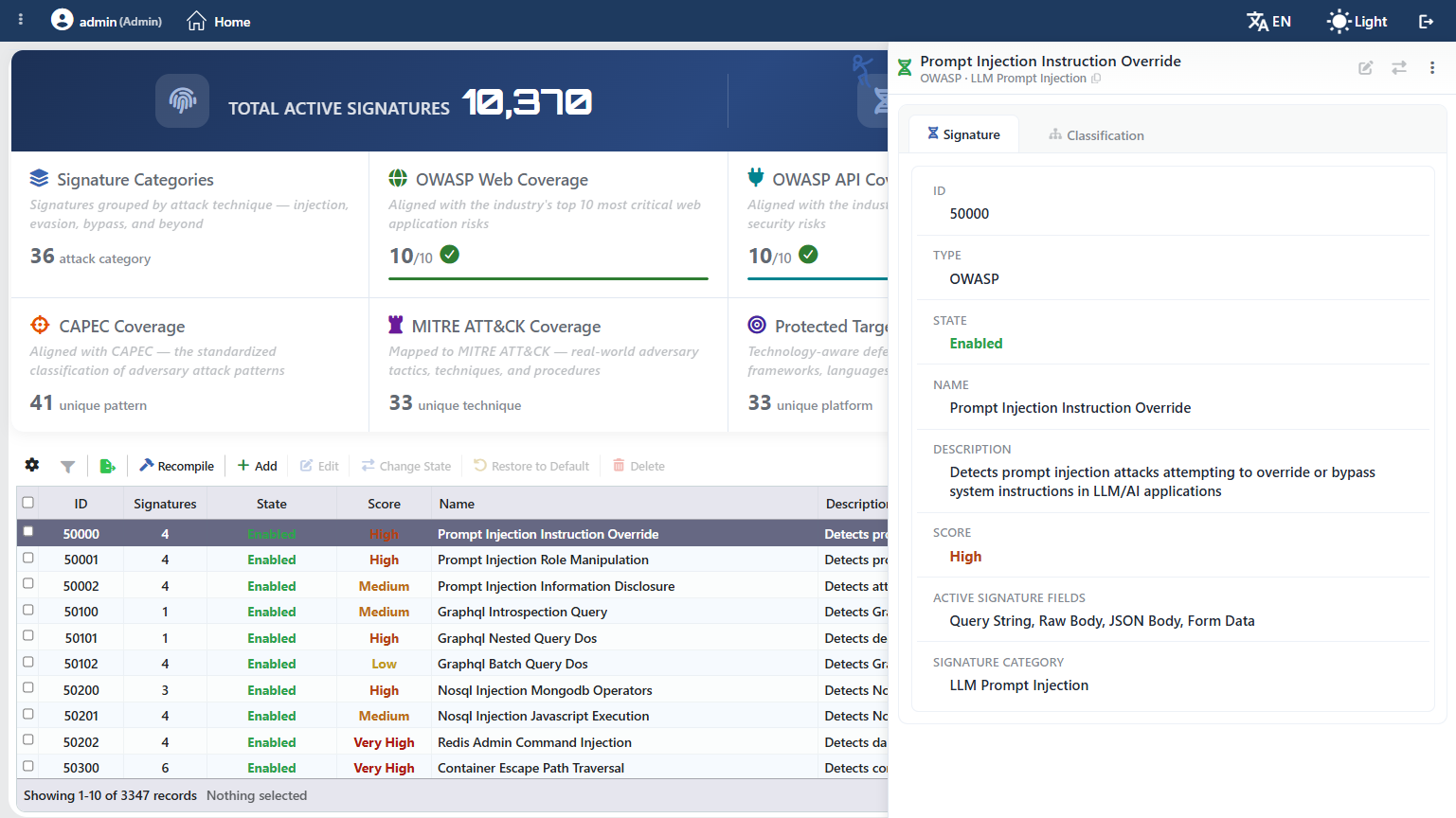 Preview of the Selected Rule
At the top right of the title there are the operation icons that work on the selected rule:
| Operation | What it does |
|---|---|
| Edit | It opens the editing form of the rule. The form comes as the Rule Add Form or the Rule Edit Form according to the source of the rule. |
| Change State | It opens the Change State Form in order to change only the state of that rule. |
| ⋮ | It opens the menu that contains the Restore to Default and Delete operations. |
The panel has two tabs:
Signature
It shows the identity and the working settings of the rule: ID, Type, State, Name, Description, Score, Active Signature Fields (the inspection scopes the rule works in), Signature Category and Date.
Classification
It shows the counterparts of the rule in the security taxonomy: CWE, CAPEC, MITRE ATT&CK, MITRE Post-Exploit, OWASP Web, OWASP API and the protected platforms.
In the tabs, the fields that can stay empty (Description, Signature Category, Date and the taxonomy fields) are not listed if they have no value; the Date field of the built-in rules is for this reason not displayed.
If a change is defined on the rule, the preview is separated into two columns: on the left Original Rule and on the right Edited Rule are displayed and the fields that differ are highlighted. Thus how far it has moved away from the built-in definition is seen at a single glance.
The operation icons in the title are passive on this page
The icons stay in their places and look passive when they are not applicable in the selected rule as well; thus the layout of the title does not change while navigating along the list.
On this page across the device all four of them are passive; the icons in the title become enabled in the OWASP Rules view of the same screen that is opened from inside a vService.
On this page the same operations are done from the toolbar or from the right-click menu of the row.
The pattern of the built-in signatures is not displayed
The preview window shows completely which attack the rule targets, in which scopes it works and its place in the taxonomy; on the other hand the search pattern of a built-in signature does not take place in the interface. The pattern is displayed only in the editing form of the custom rules added by the user.
Rule Add Form
By following the WAF → Signature & Rule Library → Add steps, a new rule specific to the organization is added to the library. The window opens with the Add Custom Rule title.
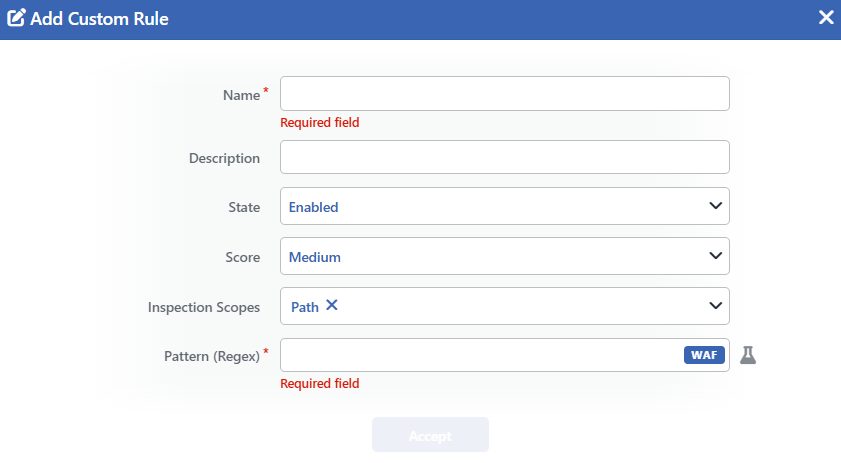 Rule Add Form
INFO
Name Required
A unique name is entered for the rule to be created. The name is used as the identity of the rule in the list and in all the records. The uniqueness is inspected on the device during the saving; if there is a rule with the same name in the same layer, the saving is rejected and the form stays open.
INFO
Description
A free text that explains what the rule detects is entered. It is displayed in the Description column in the list and in the preview window.
INFO
State Default: Enabled
The state of the rule at the moment it is created is selected.
| Option | Meaning |
|---|---|
| Enabled | The signature is scanned; the match is recorded and is added to the risk score of the request. If the total score reaches the threshold of the protection level, the request is blocked. |
| Monitor | The signature is scanned; the match is recorded and is reflected in the reports, but it is not added to the risk score. A signature in this state does not block any request on its own. |
| Disabled | The signature is not taken into account during the scanning; a match is not searched for, a record is not produced. |
The detailed behavior of the three states is in the State Values and Their Counterpart in the Traffic section.
INFO
Score Default: Medium
The weight to be added to the risk score of the request when the rule matches is selected. The Low, Medium, High and Very High options are offered.
INFO
Inspection Scopes Default: Path
It is selected in which sections of the request the pattern will be searched for. At least one scope has to stay selected; the field cannot be emptied. In the list the Path, Query, Header, Form, JSON, XML and Raw options take place; what each of them inspects has been explained in the table in the The Distinction Between the Signature and the Pattern section. With the selection switch at the beginning of the list all the scopes can be checked and unchecked in a single move.
Selecting at least one scope is required; by default Path comes checked.
The pattern is scanned separately against the content of every selected scope; for this reason more scopes being selected than necessary increases the inspection cost per request. For example, for a pattern that is meaningful only in the query parameters, selecting Query is enough.
INFO
Pattern (Regex) Required
The attack pattern to be searched for is entered as a regular expression. The WAF badge at the right end of the field states in which engine the pattern will work; with the trial icon next to it the pattern is tested on sample inputs without being saved.
The field tests the entered expression by compiling it on the device not only during the saving but during the typing as well and shows the size of the compiled signature with a badge; as the size grows, the badge turns first into the warning and then into the danger color. If the pattern cannot be compiled, the saving is not completed and the form stays open.
The pattern is written with the syntax the signature engine accepts. This syntax is a subset of PCRE; the back reference, lookahead and lookbehind, atomic group, possessive quantifier and recursion structures are not supported. Since very wide repetition limits will enlarge the compiled signature, the field displays a warning in this case.
The pattern length can be at most 4096 characters.
INFO
Accept
The rule adding operation is completed by clicking the Accept button. The button is passive while there is an unresolved error in the form.
The taxonomy fields in the custom rules
The custom rules are written into the Custom Rules category; the CWE, CAPEC, MITRE ATT&CK, OWASP and protected platform information cannot be entered manually and stays empty. For this reason, when a custom rule matches, only the name of the rule is carried into the SIEM record as meaningful information; the selected taxonomy fields take place in the record so that the record schema stays fixed, but are sent with an empty value.
The rule number is assigned automatically by the system. The rules added from this page are valid across the device, and the ones added from the OWASP Rules screen of a vService only in that vService.
Case sensitivity
The entered pattern is compiled as case sensitive. If the uppercase and lowercase variants need to be caught together, this situation should be expressed within the pattern itself with character sets.
Rule Edit Form
The form that opens when a rule is selected in the list and the Edit button is clicked changes according to the source of the rule:
- When a rule added by the user is selected, the same fields as the Rule Add Form open with the Edit Custom Rule title and all of them, including its name, description and pattern, can be edited.
- When a built-in signature is selected, not the signature itself but the change defined on top of it is edited. The form explained below is this one.
The name, description, pattern and taxonomy information of a built-in signature cannot be changed in any way; in the form that opens with the Edit Rule Changes title only three fields take place.
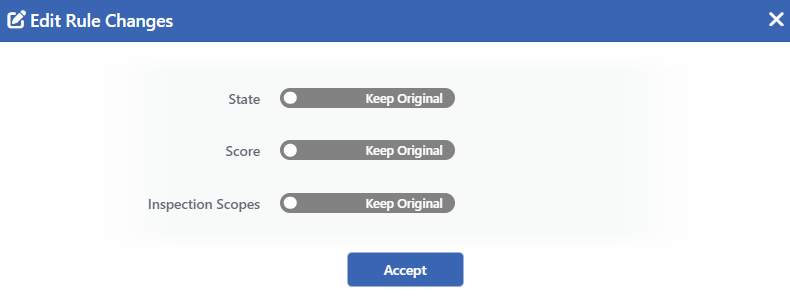 Rule Edit Form
Each of the three fields has two states. While Keep Original is selected, the field stays with its value that comes from the upper layer and no change is recorded for that field. When Change is selected, a selection list opens next to the field and the new value is determined.
INFO
State Default: Keep Original
It changes the place of the rule in the inspection chain. When Change is selected, the following options are offered:
| Option | Meaning |
|---|---|
| Enabled | The signature is scanned; the match is recorded and is added to the risk score of the request. If the total score reaches the threshold of the protection level, the request is blocked. |
| Monitor | The signature is scanned; the match is recorded and is reflected in the reports, but it is not added to the risk score. A signature in this state does not block any request on its own. |
| Disabled | The signature is not taken into account during the scanning; a match is not searched for, a record is not produced. |
The detailed behavior of the three states is in the State Values and Their Counterpart in the Traffic section.
For a signature suspected of producing a false positive, selecting Monitor instead of Disabled directly is preferred: the matches continue to be recorded, but the requests are not blocked.
INFO
Score Default: Keep Original
It changes the weight to be added to the risk score of the request when the rule matches. When Change is selected, the Low, Medium, High and Very High options are offered; an intermediate value cannot be entered.
The score being raised makes the rule contribute to the blocking more quickly. This has a second effect as well: since the signatures with the Low score are never triggered at the protection levels other than Aggressive, when the score of such a signature is raised, the signature comes into play again.
INFO
Inspection Scopes Default: Keep Original
It changes in which sections of the request the pattern will be searched for. When Change is selected, at least one of the Path, Query, Header, Form, JSON, XML and Raw options is checked; with the selection switch at the beginning of the list all of them can be checked and unchecked at once. What each option inspects has been explained in the table in the The Distinction Between the Signature and the Pattern section.
When the scope list is narrowed, the signature is searched for only in the remaining sections. This is the way of taking a signature out only of the section in which it produces a false positive, without turning it off entirely: for example Query can be removed from a signature that works correctly in the body but matches unnecessarily in the query string.
A scope being added or removed changes the counted signature number of the rule and the request sections it is scanned in; it does not require the signature database to be recompiled.
INFO
Accept
The change is saved by clicking the Accept button. The button is passive while there is an unresolved error in the form. There is no additional confirmation window or deployment (deploy) step; the WAF configuration is automatically produced again and applied.
Making all three fields Keep Original deletes the change
If in a rule that has been changed before all three fields at once are taken into the Keep Original state and saved, the change record on the rule is removed entirely and the rule returns to its definition that comes from the upper layer. The result is the same as the rule being selected and the Restore to Default button being clicked.
The monitoring of the changes in the list
The rules with a change on them are displayed in the list in italic and in a different color, and in the preview window the original and the edited values are compared side by side. How much of the library has been touched is seen collectively from the Customizations group in the Filter window.
The fields are saved independently of each other: if only the risk score has been changed, the state and the scopes of the rule continue to come from the upper layer.
Change State Form
The second way of changing the state of a rule is one or more rules being selected in the list and the Change State button being clicked. In the Change State window that opens a single field takes place and the selected state is applied to all the selected rules together.
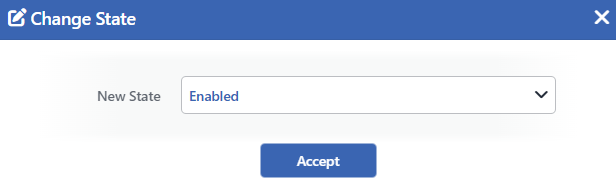 Change State Form
INFO
New State Default: Enabled
The new state the selected rules will take is determined.
| Option | Meaning |
|---|---|
| Enabled | The signature is scanned; the match is recorded and is added to the risk score of the request. If the total score reaches the threshold of the protection level, the request is blocked. |
| Monitor | The signature is scanned; the match is recorded and is reflected in the reports, but it is not added to the risk score. A signature in this state does not block any request on its own. |
| Disabled | The signature is not taken into account during the scanning; a match is not searched for, a record is not produced. |
The detailed behavior of the three states and how the rules that get a compilation error are displayed are in the State Values and Their Counterpart in the Traffic section.
The field does not show the current state of the rules; every time the window is opened, Enabled comes selected. If rules in different states have been selected together, the saved value equalizes the state of all of them.
INFO
Accept
The state change is saved by clicking the Accept button. A separate confirmation window is not displayed; the operation is applied the moment it is clicked.
The records that cannot be edited in the selection
If the selection also contains the rows that cannot be edited, such as the structural inspection records or the IP reputation record, these are not taken into the operation and a warning is not displayed; the state is applied only to the rules that can be edited.
The change is written into the same layer as the Rule Edit Form: when it is done on this page it affects all the vServices on the device, and when it is done on the OWASP Rules screen of a vService only that vService.
Score Values and the Protection Level
Score states the weight to be added to the risk score of the request when a signature matches. The score is not directly a blocking decision: the scores of all the signatures triggered in a request are summed and, when the total reaches the OWASP Protection Level threshold selected on the vService, the request is blocked.
| Score | Meaning |
|---|---|
| Low | The lowest weight. It is enough for blocking on its own only at the Aggressive level; at the other levels the signature is already disabled. |
| Medium | The middle weight. It blocks on its own at the Very Tight and Aggressive levels. |
| High | High weight. It blocks on its own at the Tight and tighter levels. |
| Very High | The highest weight. It is enough for a single-hit blocking at the Tight and tighter levels. |
Whether a signature blocks on its own or not depends on the protection level selected on the vService:
| Protection level | The scores that block on their own |
|---|---|
| Aggressive | Low, Medium, High, Very High |
| Very Tight | Medium, High, Very High |
| Tight | High, Very High |
| Normal and Elementary | None; for a blocking the score of more than one hit has to be summed |
The risk score distribution of the library is mostly at the upper end: more than three quarters of the rules have the High or Very High score, and the ones with the Low score stay below five percent.
The signatures with a low score work only at the Aggressive level
Since the signatures with the Low score cannot reach any threshold on their own, they are disabled at all the protection levels other than Aggressive. Although these signatures appear as Enabled on this page, they are never triggered in the traffic of the vServices whose protection level is not Aggressive.
On the OWASP Rules screen of the vService this situation is additionally stated with a row tooltip.
In the editing forms the risk score is selected only as one of the Low, Medium, High and Very High values; intermediate values cannot be entered.
State Values and Their Counterpart in the Traffic
State determines the place of the rule in the inspection chain.
| State | Its behavior in the traffic |
|---|---|
| Enabled | The signature is scanned; the match is recorded and is added to the risk score of the request. If the total score reaches the threshold of the protection level, the request is blocked. |
| Monitor | The signature is scanned; the match is recorded and is reflected in the reports, but it is not added to the risk score. A signature in this state does not block any request on its own. |
| Disabled | The signature is not taken into account during the scanning; a match is not searched for, a record is not produced. |
When a rule cannot be compiled, the (Faulty) expression is displayed next to its state and the row is marked in the error color. This rule is not applied; the rest of the protection continues to work. When the compilation partially fails, a band that reports how many rules have been compiled and how many have failed is displayed above the list. When none of the rules can be compiled, a separate warning band that reports that the protection continues with the last successful rule set appears.
When the Monitor state is used
When a signature is suspected of producing a false positive in the own traffic of the organization, taking the signature into the Monitor state is preferred instead of disabling it directly: the matches continue to appear in Event Logs and in the reports, but the requests are not blocked. Thus whether the signature is really unnecessary or not is decided by being observed.
An exception for a single path or parameter
The changes made on this screen are library-wide: when a signature is turned off, it is turned off in all the traffic. If a signature exception needs to be defined only for a certain path or a certain parameter, this operation is done from the rule form on the WAF Rules screen.
Recompiling of the Signature Database
The patterns in the library are compiled on the device and turned into a signature database before they are used in the traffic inspection. This compilation is managed by itself:
- When the state, the risk score or the inspection scopes of a rule are changed, the new values are applied with the configuration synchronization; recompiling is not needed.
- When a pattern is changed or a new custom rule is added, only the affected section is compiled again.
The Recompile button provides, outside this mechanism that works by itself, the whole of the database being produced from scratch. It is used after a compilation error is removed or when the integrity of the database is suspected.
Its effect on the traffic
Recompiling does not cut the traffic. When the new signature database is ready, the vServices pass to the new definitions without interruption; the existing connections are not affected.
If an error occurs in the compilation that works by itself, the existing signature database is not touched and the protection continues to work with the rule set compiled successfully last. In the full reproduction started with Recompile, on the other hand, the database is set up from scratch; for this reason the new database is not passed to until the operation is completed. When a single rule cannot be compiled, only that rule is disabled and is marked in the list as (Faulty).
A new compilation cannot be started during the compilation
While there is a configuration synchronization going on, the Recompile button is passive. In a cluster setup the operation runs separately on both devices; the state of the peer is determined according to its own synchronization.
Signature Categories
Every rule in the library is bound to an attack category. The categories are used from the Signature Category column in the list and from the Signature Categories group in the Filter window.
| Category | The attack type it covers |
|---|---|
| SQL Injection | It detects the attempts of accessing, changing or deleting data by manipulating the database queries with malicious input. |
| Cross-Site Scripting | It detects the cross-site scripting (XSS) attacks that inject a harmful script into the web pages in order to steal session data, take over accounts or manipulate the page content. |
| OS Command Execution | It detects the operating system command injection attacks that run arbitrary system commands through shell meta characters or a direct command call. |
| Template/Expression Eval | It detects the server-side template injection (SSTI) and expression language injection attacks that run arbitrary code through the template engines or the expression evaluators. |
| Arbitrary File Read | It detects the attempts of reading sensitive files such as configuration files, credentials, backups and source code from the server file system. |
| Data Query Injection | It detects the injection attacks that contain malicious query syntax targeting the LDAP directories, the NoSQL databases and the XPath/XQuery processors. |
| Insecure Deserialization | It detects the insecure deserialization attacks that target running code remotely by exploiting the object serialization mechanisms in Java, PHP, Python and .NET. |
| Directory/Path Traversal | It detects the directory traversal attacks that use path sequences such as ../ and their encoded variants in order to access the files outside the targeted directory. |
| Server-Side Request Forgery | It detects the SSRF attacks that direct the server to make a request to the internal network resources, the cloud metadata endpoints or the other restricted network targets. |
| Malicious Code Detection | It detects the known malicious code signatures in the request payloads, including the webshell, backdoor, crypto miner and obfuscated malware patterns. |
| Information Disclosure | It detects the information leakage vulnerabilities in which sensitive data is disclosed through the error messages, the debugging endpoints, the directory listings or the server responses. |
| XML External Entity | It detects the XML External Entity (XXE) attacks that abuse the XML parsers in order to read local files, access internal services or trigger denial of service situations. |
| Encoding Evasion | It detects the encoding-based evasion techniques such as double encoding, Unicode abuse and mixed encoding that are used to bypass the security filters. |
| CRLF / Header Injection | It detects the CRLF injection attempts that enable response splitting and log poisoning attacks by injecting line ending characters into the HTTP headers. |
| File Write/Upload | It detects the harmful file upload attempts, including the executable file uploads, the extension bypass techniques and the webshell placement. |
| CSV Formula Injection | It detects the CSV formula injection attempts that can lead to a formula being run on the user device by malicious input containing special characters being exported to spreadsheets. |
| File Inclusion | It detects the local and remote file inclusion (LFI/RFI) attacks that target the inclusion of harmful or sensitive files by exploiting the dynamic file loading mechanisms. |
| Access Control Bypass | It detects the attempts of bypassing the access control mechanisms, including privilege escalation, forced page access, IDOR and CORS configuration errors. |
| Prototype Pollution | It detects the JavaScript prototype pollution attacks that inject harmful object properties by manipulating the prototype chain through the proto or constructor properties. |
| Input Validation/Neutralization | It detects the general input validation and neutralization errors, including the faulty processing of special characters and delimiters and insufficient allow/deny list filtering. |
| Application DoS | It detects the application layer denial of service attacks such as resource consumption, decompression bombs, ReDoS and XML entity expansion. |
| Open Redirect | It detects the open redirect vulnerabilities in which the users are redirected to external sites under the control of the attacker by the URL parameters being manipulated. |
| LLM Prompt Injection | It detects the prompt injection attacks directed at the LLM and artificial intelligence services, including direct instruction override, jailbreak patterns and system prompt extraction attempts. |
| Unsafe Reflection | It detects the unsafe reflection attacks in which externally controlled input enables running arbitrary code by selecting a class or a method through the reflection APIs. |
| SSI Injection | It detects the Server-Side Include attacks that inject SSI directives into the web pages in order to run a command or include a file on the server side. |
| Format String Attack | It detects the format string attacks that lead to unauthorized reading/writing to the memory and to the application crashing by injecting format specifiers into the user input. |
| Authentication Bypass | It detects the attempts of bypassing the authentication mechanisms, including brute-force attacks, default credentials, replay attacks and faulty authentication logic. |
| Business Logic Abuse | It detects the business logic abuse attempts, including workflow violations, CAPTCHA bypass and the manipulation of the application-specific processes. |
| Structure Limits | The request size, length, number and depth inspection: the path length/depth, the header/query/form key length and number, the header/query/form/JSON/XML/raw total size, the JSON/XML nesting depth, the value length per field, the repetition number per field. It prevents resource consumption and buffer overflow through excessively large or deeply nested input. |
| Structure Policies | The request schema and content policy inspection: the required parameters (must-args), the allowed parameter whitelists, the field-based regex validation, the HTTP method restrictions, the content-type blocking keys and the MIME type whitelists for the file uploads. It applies the positive security model by rejecting the unexpected fields, methods or content types. |
| HTTP Request Smuggling | It detects the HTTP request smuggling attacks that bypass the security controls by exploiting the request parsing inconsistencies between the proxy and the backend server. |
| Parameter Pollution | It detects the HTTP parameter pollution attacks that use repeated or conflicting parameters in order to bypass the WAF rules and manipulate the server-side processing. |
| Session Manipulation | It detects the session manipulation attacks, including cross-site request forgery (CSRF), session fixation and the exploitation of insufficient session expiration. |
| Content Integrity | The content format correctness inspection: the rejection of the faulty JSON, XML or form bodies whose parsing fails, the detection of the truncated request bodies (buffer overflow bypass) and the unexpected parser errors. It provides that only the syntactically valid and complete payloads are processed. |
| Cache Poisoning | It detects the attacks that inject harmful content into the shared caches through the request components that are not included in the cache key, such as the headers and the cookies. |
| IP Reputation | The source IP reputation inspection: the requests that come from the IPs in the blacklist (manually defined or DDoS/reputation sourced) are blocked before the rule evaluation. |
| Custom Rules | The user-defined custom WAF rules created at the global or the vService level. |
The inspection records are listed as well
The records in the Structure Limits, Structure Policies, Content Integrity and IP Reputation categories are not the patterns of the signature engine; these are the catalog counterparts in the library of the inspections configured on other screens. For this reason they are read-only: they cannot be edited, their states cannot be changed and they cannot be deleted.
The settings of these inspections are done from the WAF Rules and IP Intelligence & Reputation screens.
Protected Target Types
Every signature is labeled with which technology it provides protection against the attacks targeting. This information makes it possible to see to what extent the library covers the technologies the organization uses and is filtered from the Protected Target Types group in the Filter window.
| Protected platform | Against the attacks that target this platform |
|---|---|
| Web Application | The application offered to the users over the web. |
| Web Server | The web server that meets the HTTP requests and serves content. |
| File System | The host file system that stores the files and directories. |
| Sql Database | The relational database queried with SQL. |
| Operating System | The underlying host operating system. |
| Shell Interpreter | The operating system shell that runs the commands. |
| Java Runtime | The Java Virtual Machine (JVM) runtime. |
| Application Server | The server that hosts and runs the application logic. |
| Template Engine | The template engine that turns the dynamic templates into output. |
| Serial Engine | The object serialization/deserialization engine. |
| Api Endpoint | The single API endpoint that accepts requests. |
| Expr Evaluator | The component that parses and evaluates the expressions. |
| Xml Parser | The component that parses the XML documents. |
| Internal Network | The internal/private network behind the perimeter security. |
| Nosql Database | The non-relational (NoSQL) data store. |
| Nodejs Runtime | The Node.js JavaScript runtime. |
| Ldap Directory | The LDAP directory service that stores the identities. |
| Php Runtime | The PHP interpreter runtime. |
| Python Runtime | The Python interpreter runtime. |
| File Upload Handler | The component that receives and processes the uploaded files. |
| Dotnet Runtime | The .NET runtime. |
| Cloud Service | The cloud provider service or the managed resource. |
| Metadata Service | The cloud instance metadata endpoint (e.g. 169.254.169.254). |
| Ai Llm Service | The large language model / artificial intelligence inference service. |
| Reverse Proxy | The reverse proxy that forwards the requests to the backend servers. |
| Auth System | The authentication and authorization system. |
| Rag Pipeline | The Retrieval-Augmented Generation (RAG) pipeline. |
| Api Gateway | The API gateway that directs and manages the API traffic. |
| Ai Tooling Service | The artificial intelligence agent tool/function calling service. |
| Session Manager | The component that manages the user sessions. |
| Saml Service | The SAML-based single sign-on / identity service. |
| Cache Server | The in-memory cache server (e.g. Redis, Memcached). |
| Websocket Service | The service that manages the WebSocket connections. |
