
Smarter by Design.Simpler for Business
Action Rules
What Is Action Rules?
Action Rules is the rule list that defines what will be done with the calculated bot score. Every rule carries a threshold score and an action: the action is applied to the client whose score reaches that threshold. How the score is calculated is defined on the Factors screen; this screen only turns the result into a decision.
The rules are not alternatives to each other but the continuation of each other: the list sets up a tiering from a soft enforcement with a low threshold to a hard enforcement with a high threshold. The default configuration does this with two tiers: 75 and above is challenged, and 90 and above is blocked.
By Band
Evaluation
The rules are ordered according to their thresholds and only a single rule fits every score
0–100
Threshold Range
The threshold is written freely; it can also be pulled to the band floors with the band buttons
7
Action Options
On L7 TCP vServices it is limited to Silent Drop and Quarantine
2 Rules
Default List
90 and above is blocked and 75 and above is challenged
60
Learning Floor
Whatever the evidence says, the engine does not lower the threshold below 60
With a Veto
Allow Learning
Turning it off in a single rule makes the whole list the operator's
The Action Rules Box on the Bot Protection Card
The box is the upper one of the two boxes in the body of the Bot Protection card. In its title the number of rules and at its top right the pencil icon are located; in its body every rule is listed turned into its own sentence.
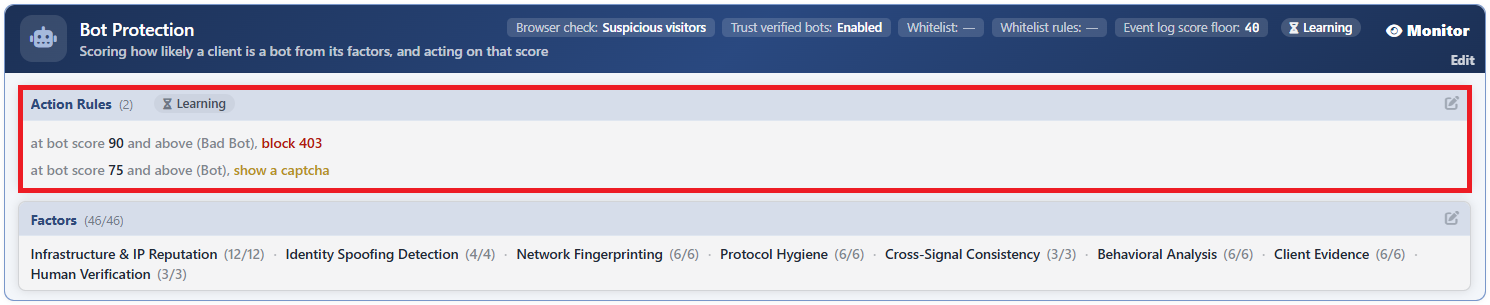 Bot Protection - The Action Rules Box
The pattern of the rule sentence:
at bot score
<threshold>and above (<band>),<action>
| Part | How it is written |
|---|---|
| The threshold | It is written in bold. |
| The band | The name of the score band into which the threshold falls, in parentheses and in a faded tone. One of four classes is written: Clean for 0-39, Suspicious for 40-59, Bot for 60-84 and Bad Bot for 85-100. |
| The action | The verb of the action is written and, if it has a single parameter, it is added: the status code in blocking and in showing content, and the redirection code in redirection. Silent dropping, blocking, tarpit and quarantine are written in red; the challenge, the redirection and showing content in amber. |
Whatever the number of rules is, all the rows are written; there is no folding in the form of +N. The badge next to the title reports the state of the learning engine about the rules and, according to the situation, writes Learning, Verified, Advice, Attention or Suggestion; its detail is on the Bot Protection page.
How Are the Rules Evaluated?
The rules are applied by being turned into bands. The list is ordered from the largest to the smallest according to the threshold, and every rule becomes the owner of the range from its own threshold up to the threshold of the rule one above. In this way exactly one rule fits a score.
The table that the default two rules set up:
| Score range | The rule applied |
|---|---|
| 0–74 | No rule; the request passes. |
| 75–89 | Show Captcha |
| 90–100 | Block 403 |
The order in the list does not determine the enforcement
The rule rows can be reordered by dragging, but this ordering affects only the display. Which rule will be applied to which score is derived completely from the threshold values. This is the point at which it differs from the IP Reputation Protection rules: there the order is the decision itself, and here the threshold is the decision itself.
For a rule to be applied, the threshold being exceeded is not enough on its own; the following conditions are also looked for:
- Bot Protection must have won the race between the three protections. If L7 DDoS Protection or IP Reputation Protection has applied an enforcement on the same request, these rules are not fired.
- The client must not be a verified search engine robot (while Trust Verified Bots is on). The verification is based on the address being in the verified bot group in the network type database.
- The client must not match the whitelist definition.
In addition, the enforcement is compared with the score from which the trust signals have been subtracted. The score written to the event log and entering the telemetry, on the other hand, is the raw score; for this reason, while the score of a client in the log appears above the threshold, the enforcement may not have been applied.
The Action Rules Edit Screen
- The Bot/DDoS Management tab is opened.
- The pencil icon at the top right of the Action Rules box in the body of the Bot Protection card is clicked; the edit window titled Edit - Action Rules opens.
- The following fields are edited and confirmed with the
Editbutton.
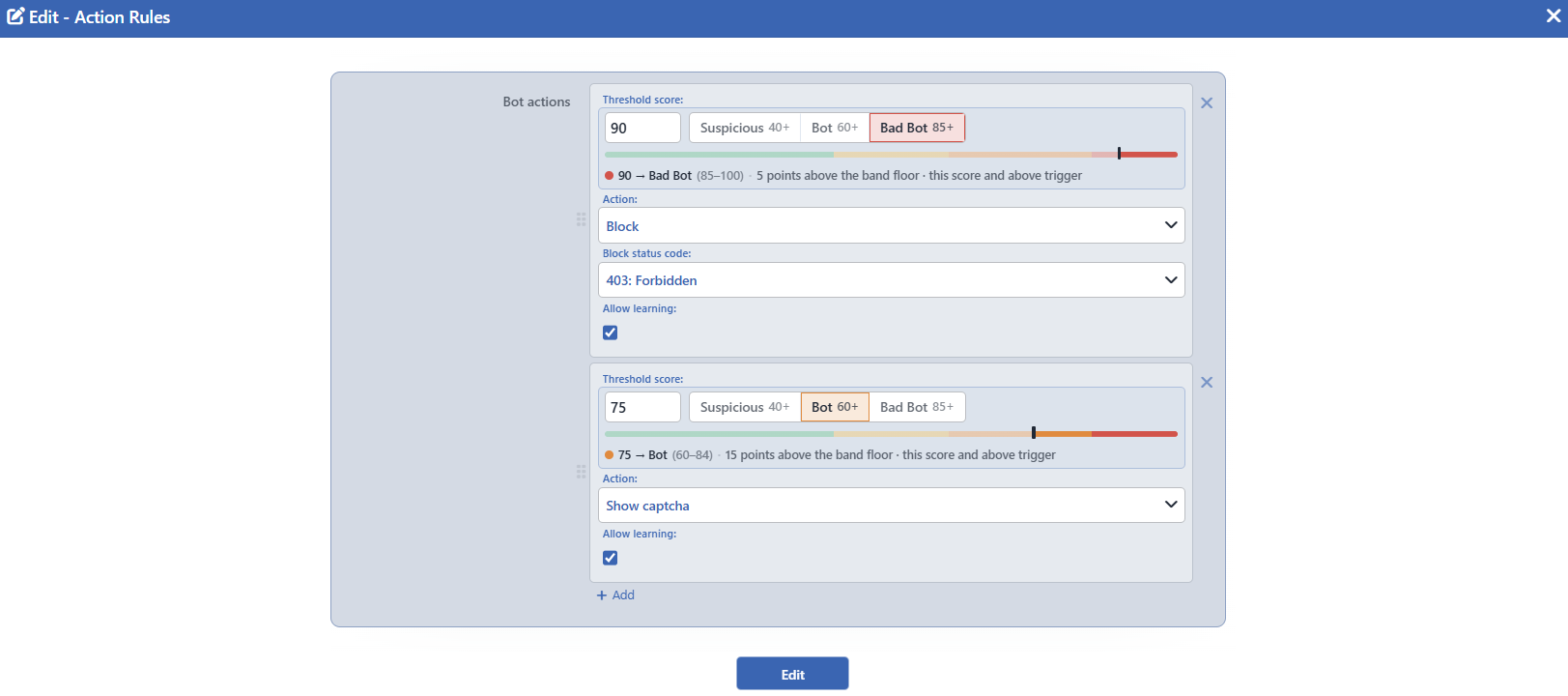 Bot Protection - The Action Rules Edit Screen
INFO
Bot Actions
It is the rule list. A new rule is added with the + Add button, and it is deleted with the cross icon on the right of the rule. There is at least one rule in the list: when a single rule remains, the delete icon is not displayed.
While there is more than one rule, a handle icon is displayed on the left of the rules and the ordering can be changed with this icon; the ordering is only for ease of reading and does not affect the enforcement.
The rule fields are explained under the The Fields of the Rule Row heading.
The Fields of the Rule Row
When the + Add button in the Bot Actions field is clicked, a new rule is added to the list and its fields open as below. A new rule opens with the threshold 60 and with the Block action on HTTP vServices and the Silent Drop action on L7 TCP vServices.
INFO
Threshold Score
The lowest bot score at which the rule will be triggered is written.
The field is a single value that has three surfaces: the number box, the band buttons (Suspicious 40+ · Bot 60+ · Bad Bot 85+) and the colored strip. Clicking one of the band buttons pulls the value to the floor of that band; on the strip the part that stays above the threshold is displayed in full color and the part below it faded.
The explanation row below the field starts with a dot in the color of the band and is written in the following form: <score> → <band name> (<lower limit>–<upper limit>) · <position explanation>. The position explanation in the last part takes one of three states:
| State | The explanation row |
|---|---|
| The value is exactly at the floor of the band | exactly the band floor · this score and above trigger |
| The value is above the floor of the band | <N> points above the band floor · this score and above trigger |
| The value falls into the lowest band | the clean-traffic band · a threshold here fires on nearly every visitor: it is written in the warning color |
The threshold can be written freely between 0 and 100. A threshold that goes down to the Clean band catches almost all of the ordinary visitors; the field does not prevent this, it only warns.
INFO
Action
The enforcement to be applied when the rule is triggered is selected; its default value is Block on HTTP vServices and Silent Drop on L7 TCP vServices.
| Action | What it does | Its additional field |
|---|---|---|
| Silent Drop | The connection is dropped without a response being produced. | None |
| Block | The request is rejected with the selected status code. | Block Status Code |
| Tarpit | The request is held by being slowed down. | None |
| Redirect | The client is redirected to another address. | Redirect Location, Redirect Code |
| Show Content | A ready content page is returned. | Content Page, Status Code |
| Show Captcha | The client is directed to the challenge. | None |
| Quarantine | The client is taken into quarantine with the key monitored in the common penalty box. | None |
On L7 TCP vServices only Silent Drop and Quarantine can be selected; the actions specific to HTTP do not enter the list at all.
Block Status Code Default: 403: Forbidden
It is displayed when Block is selected in the Action field. The HTTP status code to be returned is selected; its default value is 403: Forbidden.
Redirect Location Default: /robots.txt
It is displayed when Redirect is selected in the Action field. The redirection target is written; the field accepts a smart variable and its default value is /robots.txt. The target address is not seen in the rule sentence on the card; it is read as a tooltip when the sentence is hovered over.
Redirect Code Default: 302
It is displayed when Redirect is selected in the Action field. The redirection code is selected; its default value is 302. Only this code is seen in the rule sentence on the card.
Content Page Default: denied
It is displayed when Show Content is selected in the Action field. The content page to be returned is selected; with the plus row inside the drop-down list, a new content page is defined without leaving the list. Its default value is the ready denied page.
Status Code Default: 403
It is displayed when Show Content is selected in the Action field. The status code to be returned with the content page is selected; its default value is 403.
INFO
Allow Learning Default: Not checked
It states whether the rule is open to the learning engine or not. In the rules added manually it is not checked by default; the rules that the engine sets up itself and the rules that the default configuration brings come checked.
For this protection the effect of the switch covers the whole list: when the mark is removed in even one of the rules, the engine counts the whole of the rule list as the operator's and does not produce a threshold recommendation again. On the card this situation is reported with the Advice badge.
The challenge and the quarantine are not configured in this row
The Show Captcha and Quarantine actions do not carry any additional field in the rule. The form of the challenge and the period and the tracking window of the quarantine are defined on the Captcha and Quarantine cards; both cards are used in common by the three protections.
INFO
Edit
Changes in the form are saved by clicking the Edit button. There is no additional confirmation window or deploy step; the Load Balancer configuration is regenerated and applied automatically. The operation is written to the user log with a change summary.
The Default Rules
On a new vService the rule list does not come empty; two rules are written.
| Threshold | Band | Action |
|---|---|---|
| 90 | Bad Bot | Block, status code 403 |
| 75 | Bot | Show Captcha |
On L7 TCP vServices the twin of the same list is written: the 90 threshold takes the Quarantine action and the 75 threshold the Silent Drop action.
The default thresholds being high is deliberate. Since the configuration has not seen any evidence yet, it behaves cautiously: the challenge is set to the client that is clearly a bot, and the blocking to a level that the scorer rarely produces. As the traffic accumulates, the learning engine pulls these thresholds down, but it never goes below 60.
Emptying the list does not turn the protection off
When the rule list stays empty, the protection does not work without rules: the default two rules come into play again. The way of really stopping the protection is to make the mode Off.
How Does the Learning Engine Adjust the Rules?
On this screen the engine adjusts the thresholds according to the traffic; it does not take the factor selection as its subject at all. When the recommendation is applied, the rule list is replaced with the rows that the engine produces and these rows also carry their own actions: Block (status code 403) and Show Captcha on HTTP vServices, and Quarantine and Silent Drop on L7 TCP vServices. A rule that carries a different action and that has been left open to the learning turns into one of these actions when the recommendation is applied.
- Lowering the threshold (tightening) is recommended only if there is no settled traffic mass between the target threshold and the current threshold. The engine does not lower a rule onto the real traffic that already passes.
- Raising the threshold (loosening) is recommended only if there is a settled mass above the current threshold or in line with it.
- The blocking rule is always fixed to 85, that is, to the floor of the malicious band. The threshold of 90 that the default configuration uses is the cautious start before evidence is seen; the scorer producing 90 and above very rarely justifies the engine lowering this rule to the band floor.
- The recommended threshold is first rounded upwards to a multiple of five, and then, if there is a band boundary within five points, it is stuck to that boundary.
- The challenge rule is placed ten points above the highest settled band and then pulled to the floor of 60.
- If the number of daily scored requests is below 200 or if the observation period is short, the engine does not produce a recommendation and the Learning badge stays in the box.
- If a settled mass in a band of 80 and above is found and the observation period has passed the maturity threshold, the engine refuses to place a rule and leaves the subject to the operator with the Attention badge.
Scope and Limits
INFO
- It is present on both vService types. On L7 TCP vServices the selectable actions are limited to Silent Drop and Quarantine.
- A single rule fits a score. The rules are turned into bands; more than one rule does not work for the same request.
- The order in the list does not determine the enforcement. The ordering is only the display; the decision is derived from the threshold values.
- The rule list cannot be left empty. In the window the last rule cannot be deleted; if the list stays empty in the record, the default two rules are applied.
- The enforcement reads the score from which the trust signals have been subtracted. The score written to the event log and to the telemetry, on the other hand, is the raw score.
- For the enforcement, the protection must win the race. If another protection has decided on the same request, these rules are not fired.
- Even if Allow Learning is turned off in a single row, the whole list is closed to the learning.
- Saving does not ask for confirmation. The moment the
Editbutton is clicked, the configuration is written and the regeneration is started in the background. - The pencil icon depends on the permission. The box is displayed with read-only permission; the pencil icon is displayed only on the users that have edit permission. While the protection is Off, the pencil icon of the box is not seen either.
