
Smarter by Design.Simpler for Business
Records
What Is Records?
The Records tab is the screen on which the DNS records (A, AAAA, CNAME, MX, etc.) that belong to a domain name in the selected DNS service are managed. The records are listed according to the domain name selected in the toolbar; every record carries a record name, a type, a TTL and one or more addresses.
On TR7 GTM a DNS record does not only return a static address; every address can be bound to a health scenario, the addresses are answered with a distribution algorithm and, when no address remains healthy, the fail-safe (backup) records come into play. In this way intelligent routing, load distribution and automatic load handover are provided at the DNS layer.
35 Types
Wide record support
A, AAAA, CNAME, MX, TXT, SRV and many more DNS record types
Per Address
Health condition
Every address is evaluated with Static, Disabled or a health scenario
9 Algorithms
Balance Algorithm
All, the first N healthy, round robin, weighted, random or geographic proximity
Topology
An answer according to the client
The address selection according to the network, the country, the continent or the ASN
Fail-Safe
The last resort record
The backup answer to be returned when no address remains healthy
AXFR
Zone Transfer
The bulk transfer of the records from an external DNS server
The content that changes according to the mode
The fields in the record add form and the rows of the preview panel change according to the operating mode (Standalone, Disaster Recovery, Datacenter) of the domain name. The mode of the record comes from the domain name and cannot be changed in the form. For the details of the modes see Domains › Operating Modes.
The Supported DNS Record Types
In the Record Type list there are 35 record types:
| Category | Record Types |
|---|---|
| Basic | A, AAAA, CNAME, MX, NS, PTR, SOA, TXT, SRV, SPF |
| Security | CAA, CERT, DNSKEY, DS, KEY, RRSIG, SSHFP, TLSA, TSIG, TKEY |
| Infrastructure | AFSDB, DNAME, HINFO, LOC, NAPTR, NSEC, NSEC3, NSEC3PARAM, RP, URI |
| Modern | ALIAS, CDNSKEY, CDS, OPENPGPKEY, SMIMEA |
The Record Type Specific Fields
In most of the record types the address is entered into a single value field as free text (RDATA). In the types below, on the other hand, there are structured and validated sub-fields:
| Type | Fields |
|---|---|
| A / AAAA | The IPv4 / IPv6 address; on an unsuitable value the Requires IPv4 / Requires IPv6 warning. |
| CNAME, NS, PTR | A domain name that ends with a dot; on a missing dot the Must end with dot(.) warning. |
| MX | Priority (an integer of 0 and above) and Domain Name. |
| SRV | Priority, Weight, Port (each of them 0–65535) and Domain Name. |
| RP | E-mail and Domain Name. |
| TXT, SPF | Free text; it is written into the record in quotes. |
| SOA | SOA MNAME and SOA RNAME (ending with a dot), SOA Refresh Rate (s) (0–43,200, default 10,800), SOA Retry Rate (s) (0–2,419,200, default 3,600), SOA Expire Time (s) (0–2,419,200, default 1,209,600), SOA Default TTL (0–2,419,200, default 3,600). The serial number is managed automatically. |
An address that is left empty is shown with the Must not be empty warning.
The SOA record
In every domain name there is a single SOA record and it is added by itself with the ns1.@ hostmaster.@ 10800 3600 1209600 3600 content when the domain name is created. If the SOA record is deleted, it is created again with this default content; a second SOA is not added. The Balance Algorithm is always First Healthy Record and a single SOA row is always served in the answer. Zone Transfer never deletes the SOA record.
More than one SOA row is entered into the data center group of the record; each row is evaluated with its own HC condition and the first healthy row is served. When no healthy row is left, the first row of the group is served and the record goes into the Fail-safe state. The other rows being unhealthy does not move the record to the Partially OK state.
With this structure the two devices of a cluster serve different SOA records. For example, Health Scenarios scenarios tied to Expression (JSONata) checks using the expression device.clusterId = 1 for the first row and device.clusterId = 2 for the second row are assigned; the first device (master) serves the SOA MNAME value of the first row, the second device (slave) that of the second row. The configuration is the same on both devices; which row is served is decided by each device's own evaluation.
The Record Resolution Logic
When a DNS query comes, the answer for the related record is determined with the following steps:
- The health filtering. Every address of the record is evaluated according to its HC value: the Static addresses are always healthy, the addresses bound to a health scenario are considered healthy only while the scenario is active, and the Disabled addresses and the addresses whose content is empty are excluded.
- The mode combination. The candidate addresses are determined according to the operating mode of the domain name:
- Standalone: the healthy addresses in the single group.
- Disaster Recovery: normally the Main DC; the DR DC when the switching condition occurs.
- Datacenter: the data centers are sorted according to the selected source and the addresses of the first N healthy data centers are taken. While All DC Records is selected, no sorting is done and the group order in the form is used; while Client Based is selected, the first N limit is not applied.
- The distribution and the topology. The remaining healthy addresses are turned into an answer with the selected Balance Algorithm; if Topological Selection is on, the addresses are also filtered according to the source information of the client (the network, the country, the continent, the ASN) at the moment of the query.
- Fail-safe. If no candidate address remains after the mode combination and the first N cut, the fail-safe records are returned if they are defined. The topology rules not matching any address does not trigger the fail-safe.
This evaluation is made again in the health and metric changes; when the conditions improve, the answer returns to the normal state by itself.
The Record Status Values
The Status circle in the list, the preview panel and the filter card show the status of the record with the values below:
| State | Meaning |
|---|---|
| OK | The addresses of the record are healthy. |
| Partially OK | In the Datacenter mode only a part of the data centers is healthy. |
| Partially OK (a record is down) | A part of the addresses is unhealthy. |
| DR | In the Disaster Recovery mode the answers are given from the DR DC. |
| Fail-safe | Since no healthy address remains, the fail-safe records are returned. |
| No healthy records | There is no healthy address and no fail-safe record. |
| Absent | The record has not been created on the device yet. |
Operational Best Practices
- The TTL must be adjusted according to the load handover speed. In the redundancy and business continuity structures, a short TTL (e.g. 60–300 seconds) makes the answer spread to the clients quickly after the switching.
- At least one address must be entered into every data center group. The groups start empty and the form is saved with an empty group as well; a group that does not have an address does not contribute to the answer.
- A fail-safe must be defined on the critical records. A maintenance page or a backup load balancer address prevents the answer from returning empty when no address remains healthy.
- In the weighted algorithms the weights must be given consciously. When Weighted Round Robin and Weighted Random are selected, the Weight column opens for every address; the default is 1.
- Overwrite must be used carefully in Zone Transfer. This option also removes the local records that do not have an equivalent in the source; in the first transfer Keep Current Records is preferred.
- The record name and type must be entered carefully. Both of them are locked in the editing form; in order to change them, the record is deleted and added again.
How to Add?
A new DNS record is added through the TR7 web management interface with the steps below:
- The Configuration Menu is opened by clicking the TR7 logo at the bottom left.
- The GTM → GTM Services → The service name → Records → Add steps are followed.
- A unique name is entered for the record.
- Record Type and TTL are selected; the addresses and the HC conditions are entered into the data center groups, and the Balance Algorithm and the mode-specific fields are set.
- The record is added by clicking the
Addbutton.
TIP
Reaching the page via quick search
Instead of navigating the menu step by step, the related page is reached directly by using the search bar in the bottom left corner of the screen. The search bar opens with the Alt + T shortcut on Windows and Opt + T on macOS; typing the name of the feature being searched for is then sufficient.
The records can be added one by one and they are also transferred in bulk from an external DNS server with Zone Transfer.
Records Listing Screen
By following the GTM → GTM Services → The service name → Records path, the list of the DNS records that belong to the domain name selected in the toolbar is reached. Record adding, editing, deleting and bulk transfer operations are performed through this screen.
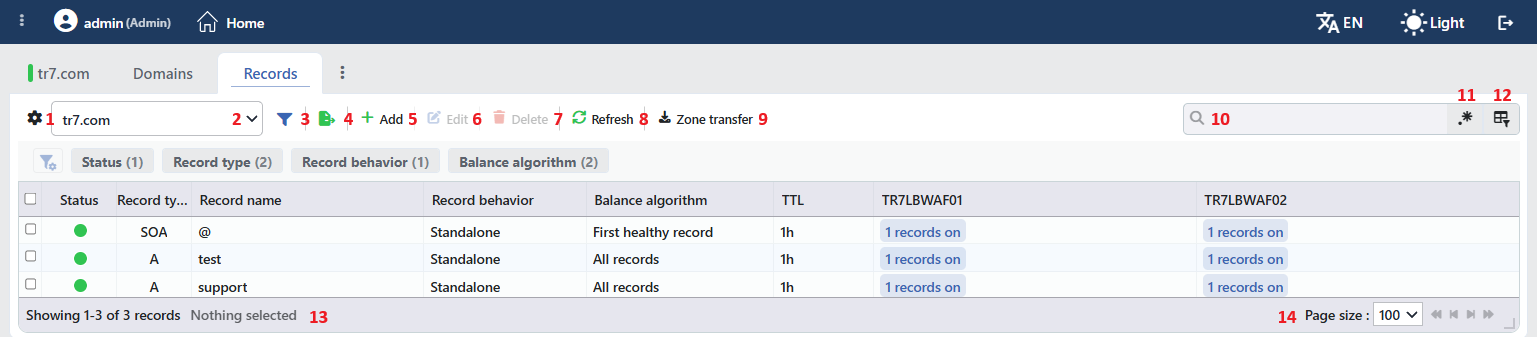 Records Listing Screen
The table opens with the following columns by default:
| Column | Description |
|---|---|
| Status | The status of the record is shown with a colored circle (see The Record Status Values); in a cluster the circle is divided into two halves. |
| Record Type | The record type. |
| Record Name | The record name; the root record is shown as @. |
| Record Behavior | The mode of the record (it comes from the domain name). |
| Balance Algorithm | The distribution algorithm of the record. |
| TTL | The cache period, in the shortened form (e.g. 1h). |
| Summary | The summary status of the record: the number of answering addresses (N records on), the number of unhealthy addresses (N records unhealthy) or the Fail-safe, No healthy records, Disaster recovery is on badges. In a cluster the header of the column is the name of this device and a second column is added for the peer device (e.g. TR7LBWAF01, TR7LBWAF02). |
There is no column hidden by default. The table is not sorted by default; the SOA record is always in the first row and the other records are listed in the order in which they were added.
The items in the toolbar are arranged from left to right in the following order; the last two items (Page Information and Page Size) are located in the information strip below the table.
Columns
Which columns are shown in the table is selected; all seven columns are on by default. In the same panel, columns are reordered by dragging and alignment is selected per column; the row height is fitted to the page with the Fit rows to the page button, and the column layout is reset to default with the Reset button. When the width badge next to a manually widened column is clicked, the column returns to the automatic width.
The Domain Name Selection
The domain name whose records will be listed is selected; while there is no selection, Select domain name is written in the box. The selected domain name is stored per service on a user basis and, when the screen is opened again, it comes with that domain name.
Filter
The Filter button is used to filter the records shown in the list. There are four cards in the strip: Status, Record Type, Record Behavior and Balance Algorithm. The number in the parentheses next to the card title is the number of values listed in that card; more than one value can be selected together and the selections are displayed as a label in the Title = Value form.
Export
The table is exported as Excel, CSV or PDF by clicking the Export button. In the window that opens, the Filename, Format and Data Source, together with the Columns to be exported, are determined; the remaining fields are displayed according to the format: CSV Separator for CSV, Excel Sheet Name for Excel, and Page Orientation and Page Size for PDF.
Add
By clicking the Add button, the form for creating a new DNS record for the selected domain name opens in the Add Record tab.
Edit
By clicking the Edit button, the editing form of the selected record opens in the Edit Record tab. The button becomes enabled only when a single record is selected. The editing form is the same as the add form; the Domain Name, Record Name, Record Type and Record Behavior fields are locked, and the change is saved without asking for confirmation.
Delete
When one or more records are selected and the Delete button is clicked, the related records are deleted. Before deleting, the "Are you sure?" confirmation is asked. The button is passive while there is no selection.
WARNING
The deletion cannot be undone and is written into the user operation record (Record <type> <name> is deleted). If the SOA record is deleted, it is created again by itself with the default content.
Refresh
It reloads the current status of the records.
Zone Transfer
By clicking the Zone Transfer button, the records are transferred in bulk from an external DNS server with Zone Transfer (AXFR). The fields of the AXFR zone transfer for <domain name> window that opens are explained in the The Zone Transfer Window section after the step-section.
Search
Used to search all information in the table.
RegExp Search
Used to search all information in the table with a regular expression (RegExp).
Column Based Search
Used to perform a column-based search on the information in the table; a separate search line opens for every column and next to every box there are the Negate button that reverses the result and its own RegExp key.
Page Information
Contains information about the total number of defined records and the number of records displayed in the list: Showing N-M of T records and the number of selected records (N selected, or Nothing selected when there is no selection).
Page Size
The maximum number of records to be displayed on the page is selected. The default is 100; the options are 5, 10, 20, 50, 100, 200, 500 and All.
The toolbar according to the record management form
The buttons in the toolbar change according to the record management form in the data center groups of the domain name. Add, Delete and Zone transfer are displayed while there is at least one Local group in the domain name. If there is at least one Express group in the domain name, two more buttons take place in the toolbar: Sync via Express (it synchronizes the records with the source DNS server over AXFR again) and Express Logs (it shows the synchronization records). On the domain names that have Local and Express groups together, all of these buttons are visible. The record rows of the Express groups are read-only in the form. See Express Profiles.
The Zone Transfer Window
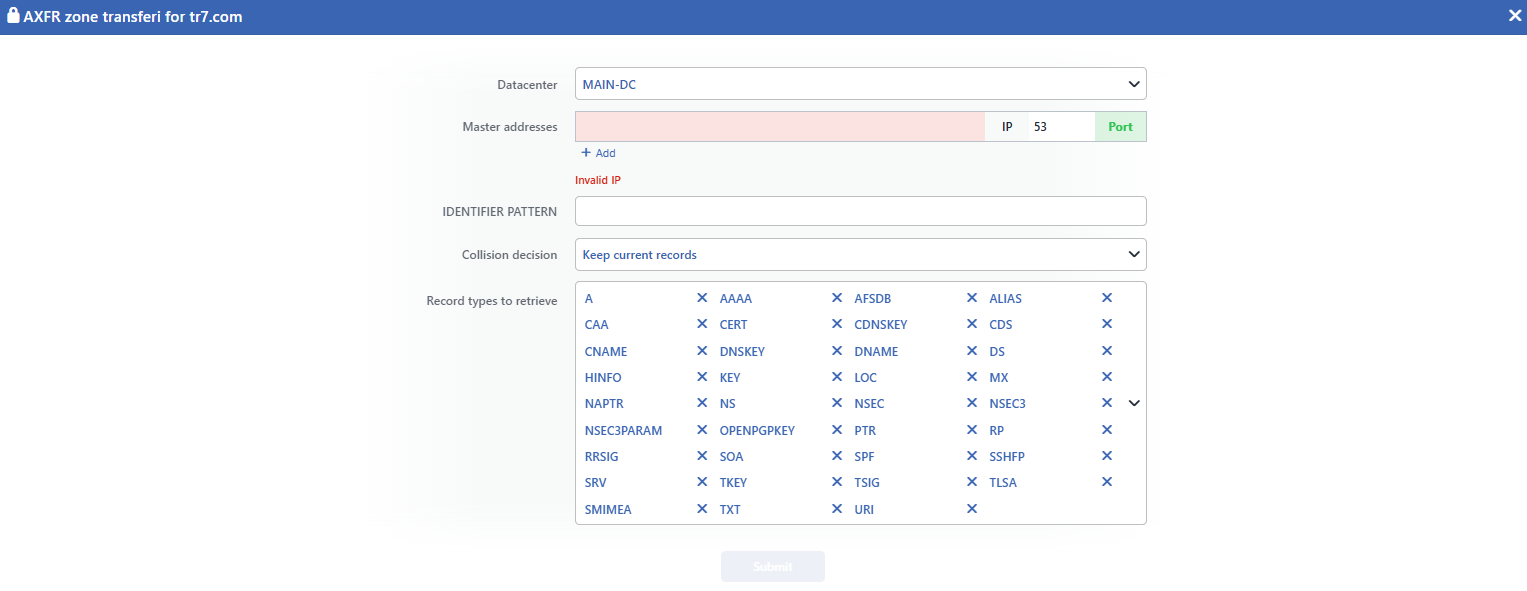 The Zone Transfer Window
INFO
Datacenter
The data center group into which the transferred records will be written is selected; in the list there are only the Local groups of the domain name. A group must be selected for the transfer.
INFO
Master Addresses
The IP address and the port of the source DNS servers are entered (the default port is 53); with + Add at most 10 addresses are added. On an invalid address the Invalid IP warning and on a repeated address the Elements must be unique warning is given. The addresses are tried in order and it is stopped at the first successful answer.
INFO
IDENTIFIER PATTERN
It is the comma-separated pattern list applied to the names of the records that will be transferred; when it is left empty, all the records are transferred. It is not applied to the SOA record.
| Pattern | Its effect |
|---|---|
x | The records whose name ends with .x are transferred and this suffix is dropped from the name; the records that do not match are not transferred. |
!x | The records whose name is x or ends with .x are excluded from the transfer. |
INFO
Collision Decision Default: Keep Current Records
The behavior to be applied when a local record with the same name and type is present is selected:
| Option | Meaning |
|---|---|
| Keep Current Records | The existing records are not touched; only the names and types that are not present locally are added (the default). |
| Overwrite | The existing content is replaced with the one in the source; the row in this group of the local records that do not have an equivalent in the source is emptied and the record is removed. |
| Combine Records | The existing content is preserved, the missing addresses in the source are added. |
INFO
Record Types to Retrieve
The record types to be transferred are selected; all of the 35 types are selected by default and with the icon at the right of the box, all of them are selected or left.
INFO
Submit
The transfer is started by clicking the Submit button. The result is shown with one notification per data center group (<DC>: AXFR failed or a success notification); if there is no error, the window closes. The records created with the transfer take the mode of the domain name, the All Records algorithm and the TTL in the source; in the Datacenter mode Total DCs to Select From becomes 1. The operation and the record-based changes (… added / edited / deleted via AXFR) are written into the logs.
Right-Click Menu
When a row is right-clicked, a menu with the full name of the record in its title opens. Both operations in the menu apply only to the right-clicked record; a selection made in the list does not affect the menu.
| Operation | What it does |
|---|---|
| Edit | Opens the editing form of the record in the Edit Record tab; it is the same as the form opened by the Edit button in the toolbar. |
| Delete | Deletes the right-clicked record; the same confirmation question as the deletion in the toolbar is displayed. |
Preview of the Selected Record
When a row in the list is clicked, the preview of the record opens on the right of the screen; when the selected row is clicked again, the panel closes. In the title there are the status circle (in a cluster one circle for every device), the full name and the type of the record (e.g. test.tr7.com. / A) and the DNS Record subtitle, and at the top right there are three operations.
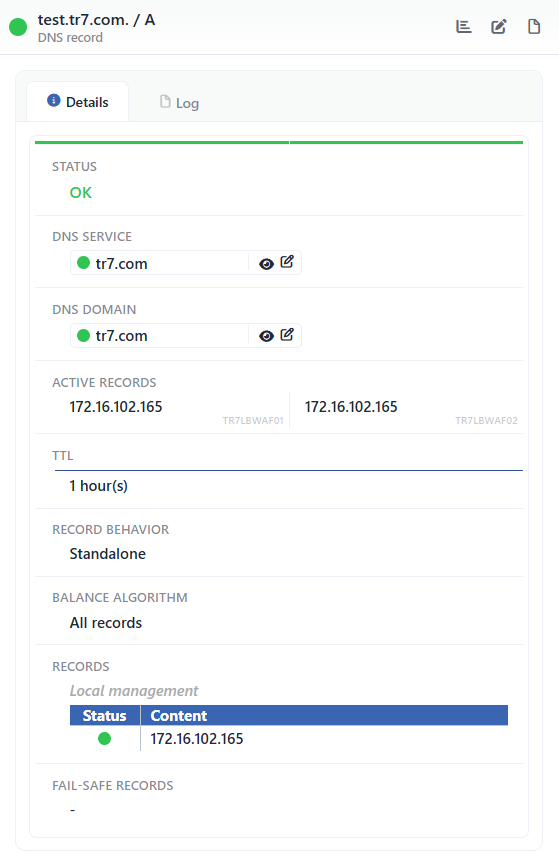 Preview of the Selected Record
| Operation | What it does |
|---|---|
| Dashboard | Opens the own dashboard of the record (see The Record Dashboard). |
| Edit | Opens the editing form of the record in the Edit Record tab. |
| Log | Opens the GTM event records and the user operations that belong to the record in a window, without leaving the page. |
The panel has two tabs:
Details
Lists the configuration and status lines of the record (the table below).
Log
Lists the operations performed on the record and the GTM events that belong to it as a timeline.
The rows in the Details tab are as follows, in order. In a cluster the table is shown with two columns; Active Records is written separately for every device.
| Row | Description | Visibility condition |
|---|---|---|
| Status | The status of the record, with the status color; in the Disaster Recovery mode the answering data center is added in parentheses. | Always |
| DNS Service | The DNS service to which the record is bound; the next to it opens the preview and the opens the editing form. | Always |
| DNS Domain | The domain name to which the record is bound; with the same two icons. | Always |
| Active Records | The addresses that return in the answer at that moment. | Always |
| Disaster Recovery Condition | Automatic (when no healthy primary records left) or the name of the selected scenario; if the switching is active, (Enabled) is added at the end. | In the Disaster Recovery mode |
| Latest Actions | The last switching operations of the record. | In the Disaster Recovery mode |
| TTL | The cache period (e.g. 1 hour(s)). | Always |
| Record Behavior | The mode of the record; in the Datacenter mode the selection source and the criterion, and if the topology is on, Topological Selection is added in the line below. | Always |
| Balance Algorithm | The distribution algorithm. | Always |
Records / Main DC Records / DR Records / <DC> Records | For every data center group, the record management form (Local management / EXPRESS) and the Status + Content table. The row name changes according to the mode. | Always |
| Fail-Safe Records | The defined fail-safe addresses; if there are none, -. | Always |
DNS Record Add Form
A new DNS record is added to the selected domain name by following the GTM → GTM Services → The service name → Records → Add steps. Below, first the fields common to the three modes and then the mode-specific fields are explained.
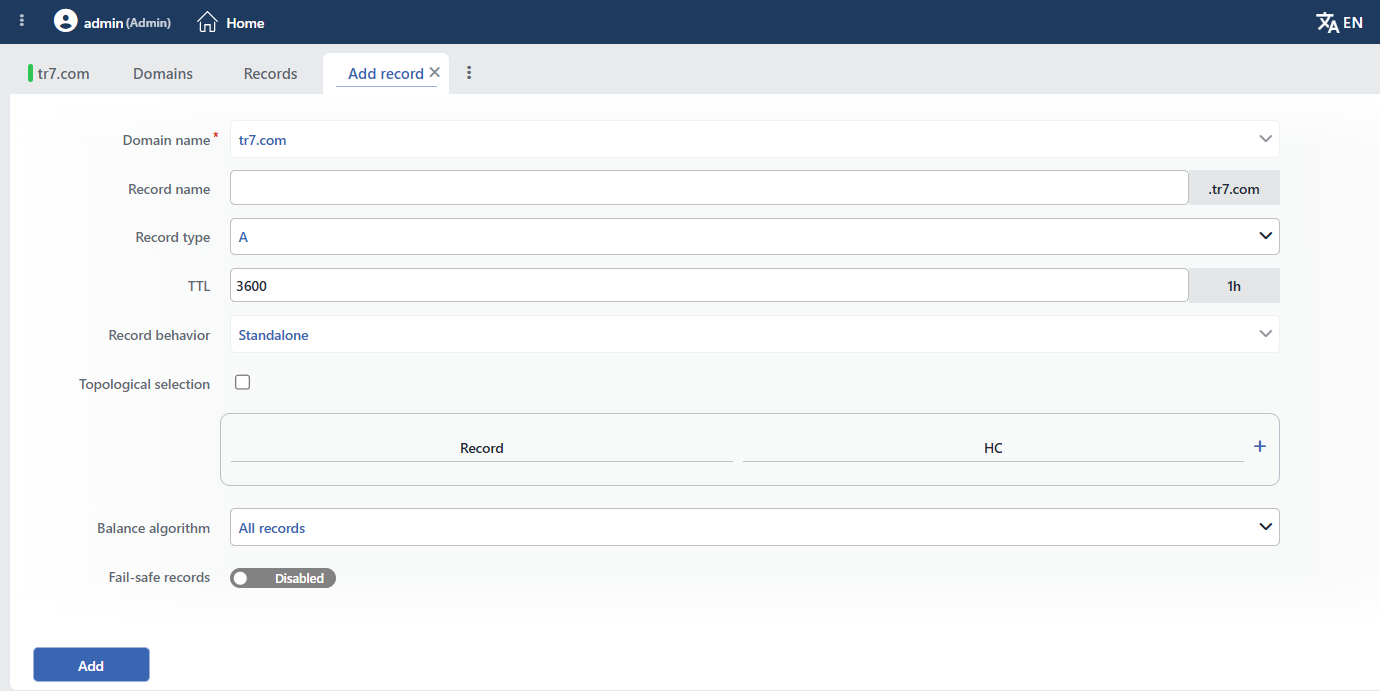 DNS Record Add Form
INFO
Domain Name Required
The domain name to which the record will be added; it comes from the domain name selected in the list and is locked in the form.
INFO
Record Name
The name of the DNS record is entered (e.g. www, mail, api); at the right of the box the domain name suffix (e.g. .tr7.com) is shown. A name that is left empty or entered as @ represents the root domain name; the wildcard names in the * and *.x form are also accepted. The name consists of lowercase letters, digits and the _ . - characters, starts with a letter, a digit or _ and ends with a letter or a digit. On an invalid name the Invalid record name: <name> warning and, while there is a record with the same name and type, the Record is used warning is given. The name is locked in the editing form.
INFO
Record Type
The DNS record type is selected (see The Supported DNS Record Types); according to the selected type the form of the address fields changes. The type is locked in the editing form.
INFO
TTL Default: 3600
The cache period of the DNS record is entered in terms of seconds; an integer between 0 and 31,536,000 (365 days). At the right of the box the shortened equivalent of the value (e.g. 1h) is shown.
INFO
Record Behavior
The mode of the record is shown; the value comes from the Default Mode setting of the domain name and the field is locked.
INFO
Topological Selection Default: off
When the checkbox is marked, the Topology column is added to the address table and a topology rule is defined for every address; the queries are routed to different addresses according to the source information of the client. The rule is established by selecting Type and, according to the type, a value in the window opened with the pencil icon in the cell; the Negate switch reverses the rule into the "those that do not meet this criterion" form and ≠ is added to the end of the type in the cell (e.g. Country(2)≠). While there is no Local group in the domain name, the field is locked.
 Topological Selection
| Option | Meaning |
|---|---|
| Always | Unconditional; it is returned to all the queries (the default). |
| Network | The IP / subnet (CIDR) information of the client. |
| Country | The country of the client. |
| Continent | The continent of the client. |
| ASN | The autonomous system number of the client. |
INFO
Record / HC
In every data center group the addresses of the record and the health condition of every address are defined in a table; the columns are Record, (while the topology is on) Topology, HC and (in the weighted algorithms) Weight. The + icon adds a new row and the trash can at the end of the row deletes the row; the last remaining row cannot be deleted. The groups start empty.
 Record / HC
An address suitable for the record type is entered into the Record cell (e.g. 192.168.1.1 for an A record, www.example.com. for a CNAME record); in the structured types the pencil icon in the cell opens the sub-fields. When the same address is entered a second time in the same group, the Same record is given warning is given. In the HC cell the health condition of the address is selected:
| Option | Meaning |
|---|---|
| Static | The address is always considered healthy (the default). |
| Disabled | The address is not included in any answer. |
| HC Scenario | While the selected Health Scenarios scenario is active, the address is included in the answer; if no scenario is selected, the Choose scenario warning is given. The automatic scenarios are not in the list; a new scenario is also added from the row. |
The Weight column is visible only when Weighted Round Robin and Weighted Random are selected; an integer of 1 and above, the default is 1.
INFO
Balance Algorithm
With which algorithm the addresses that will return in the answer will be selected is determined. If the field is left empty, the record is saved with All Records.
| Option | Meaning |
|---|---|
| All Records | All the healthy addresses are returned. |
| First Healthy Record | The first healthy address in the order is returned. |
| First 2 Healthy Records | The first two healthy addresses in the order are returned. |
| First 3 Healthy Records | The first three healthy addresses in the order are returned. |
| Round Robin | The distribution is done in order among the healthy addresses. |
| Weighted Round Robin | The distribution is done in order among the healthy addresses according to their weights. |
| Random | A random selection is made from the healthy addresses. |
| Weighted Random | A random selection is made from the healthy addresses according to their weights. |
| Geographic Proximity | The healthy address geographically closest to the client is returned; it is effective only on the A and AAAA records and on the other types it behaves like All Records. |
INFO
Fail-Safe Records Default: Disabled
With the Enabled / Disabled switch, the backup addresses to be returned when no candidate address remains are defined. The fail-safe records are returned regardless of the health condition.
The last resort
The fail-safe records come into play when no healthy address remains after the mode combination; the topology rules not matching does not trigger the fail-safe. It is suitable for the IP address of a maintenance page or the address of a backup load balancer.
In the Standalone Mode
The record is defined with a single data center group; the addresses are entered directly into the Record / HC table. The appearance of the form is as in the screenshot above; there is no mode-specific additional field.
In the Disaster Recovery Mode
The record addresses are defined under two data center groups named Main DC and DR DC; at the head of every group the data center of the group (locked) and the record management form (Local management / EXPRESS) are written. With the / icons at the end of the row (One Up / One Down) the places of the groups are changed; this operation also changes the role of the main and the backup data center.
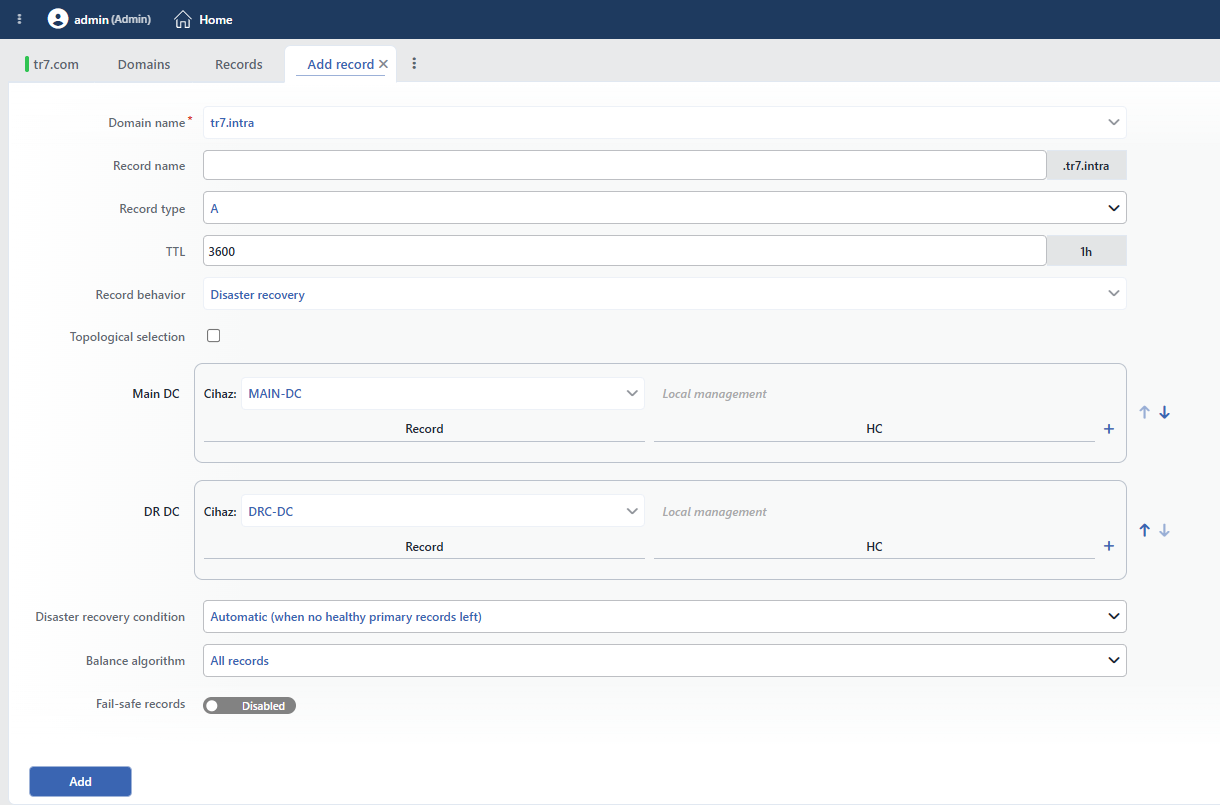 DNS Record Add Form: Disaster Recovery
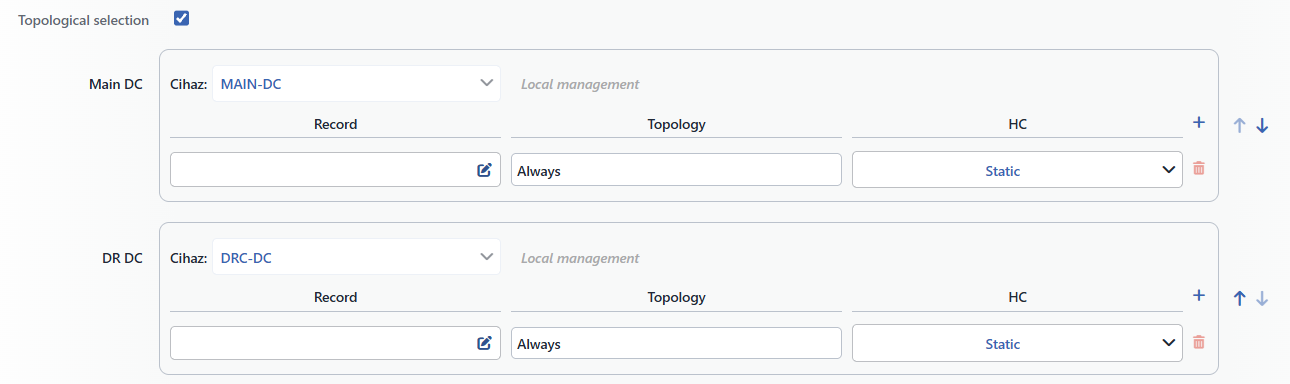 Topological Selection: Disaster Recovery
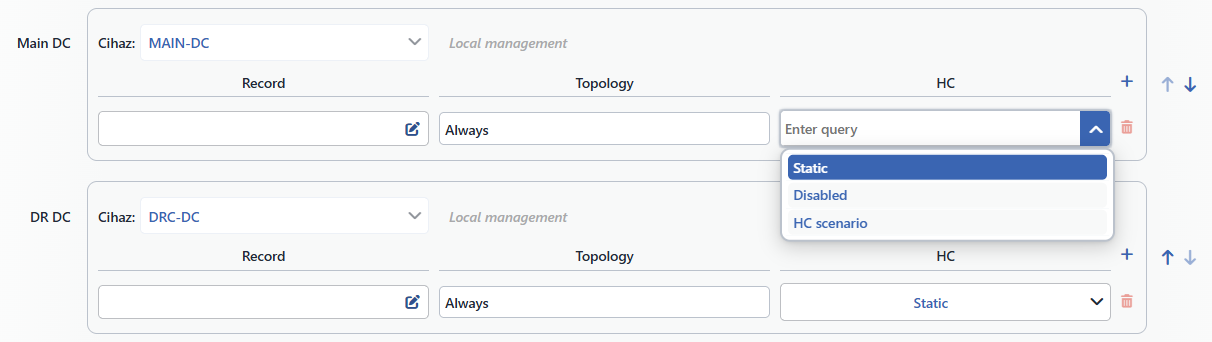 Record / HC: Disaster Recovery
INFO
Disaster Recovery Condition Default: Automatic (when no healthy primary records left)
The condition for switching to the backup data center is selected. While Automatic (when no healthy primary records left) is selected, when no healthy address remains in the Main DC, the answers pass to the DR DC. In the list, afterwards all the Health Scenarios scenarios take place; when a scenario is selected, the answers are given from the DR DC as long as the scenario is active. A new scenario is also added from the row.
Disaster Recovery on No Healthy Records Default: on
It is displayed only while a scenario is selected. While it is on, even if the scenario is not active, when no healthy address remains in the Main DC the answers pass to the DR DC.
In the Datacenter Mode
The record addresses are defined under one group for every data center defined in the domain name (DC № 1, DC № 2 …); the number of groups is equal to the number of data centers of the domain name. At the head of every group the data center of the group (locked) and the record management form are written; with the arrow icons the order of the groups is changed.
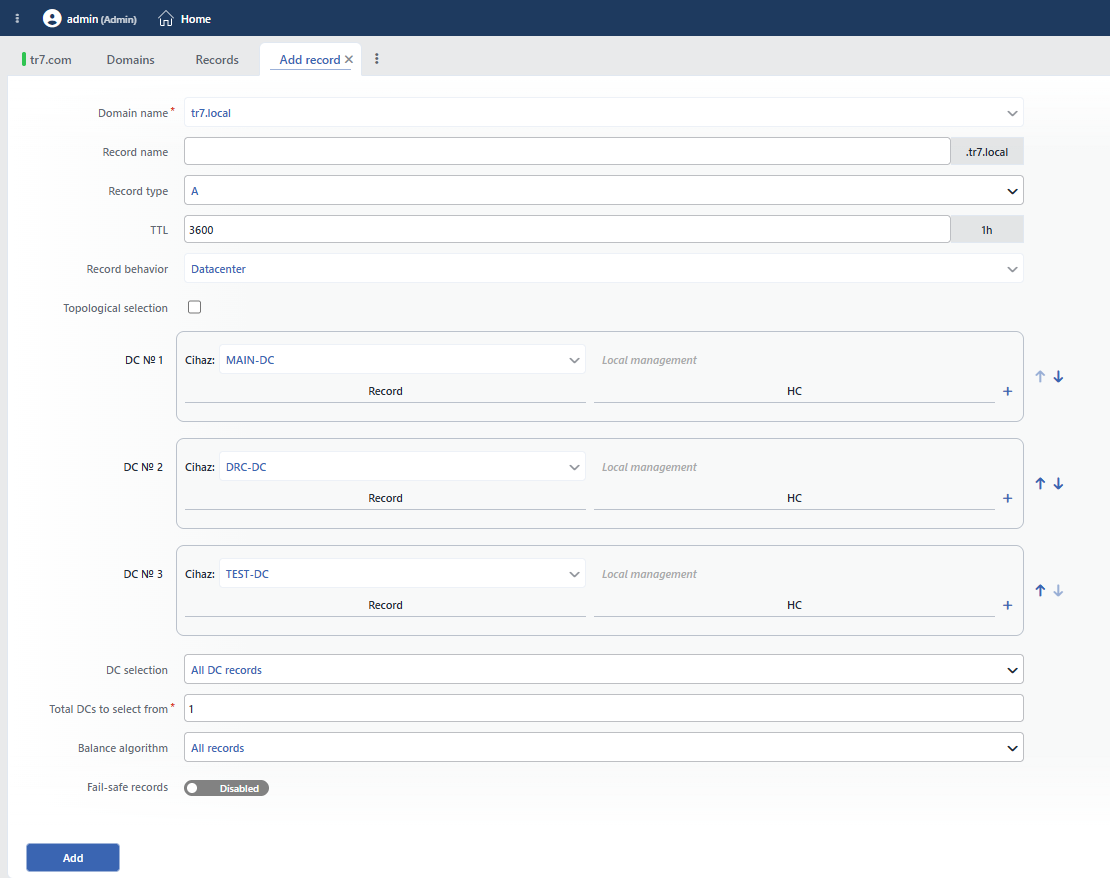 DNS Record Add Form: Datacenter
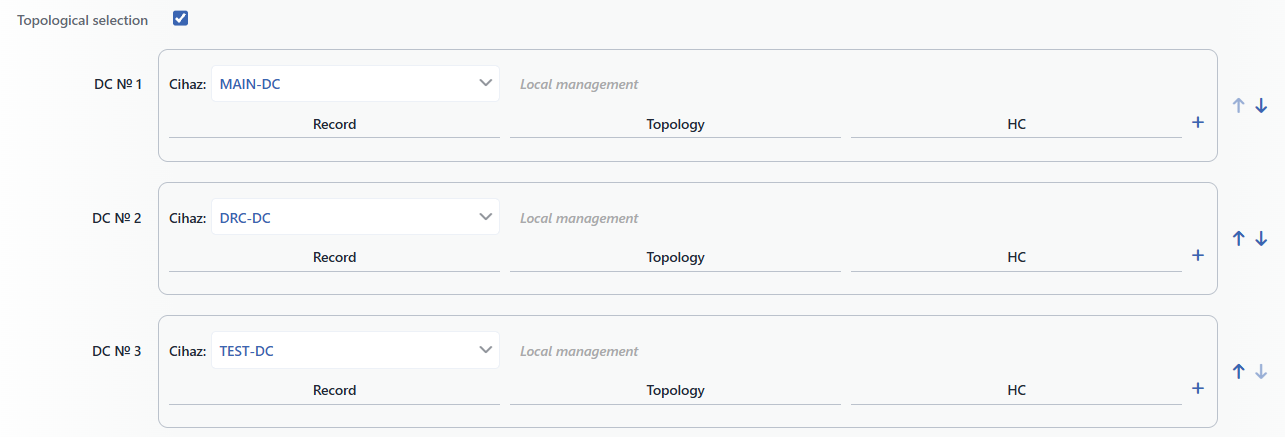 Topological Selection: Datacenter
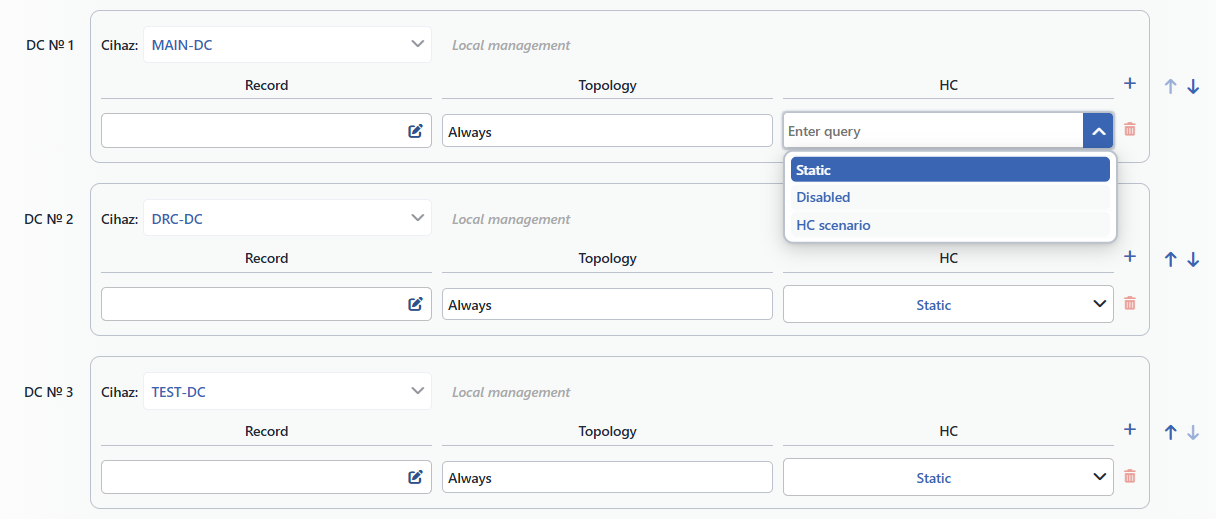 Record / HC: Datacenter
INFO
DC Selection
According to which source the data centers that will take part in the answer will be sorted is selected. When the source is changed, Selection Criterion is taken to the first option of the list.
| Option | Meaning |
|---|---|
| All DC Records | No sorting is done; according to the group order in the form, the first N healthy data centers take part in the answer. |
| DC Based | The data centers are sorted according to the metric of the data center device monitored on the Remote Devices screen. |
| Service Based | The data centers are sorted according to the metric of a vService whose name is entered, in that data center. |
| Client Based | The data centers are sorted according to their network proximity to the client; in this source Total DCs to Select From and the fail-safe records are not applied. |
Service Name Required
It is displayed only while Service Based is selected; the name of the vService whose metrics will be read is entered as free text.
Selection Criterion
The metric to be used in the sorting is selected; the list changes according to the source:
| Source | Options |
|---|---|
| DC Based | CPU, Memory, Bandwidth, Status, Packet Loss |
| Service Based | CPU, Memory, Bandwidth, Requests, Connections, New Sessions, Status, Healthy Backends |
| Client Based | Number of Hops, MOS, Packet Loss, TTL |
INFO
Total DCs to Select From Required Default: 1
The number of data centers that will take part in the answer as a result of the sorting; an integer of 1 and above.
The Record Dashboard
Every record has its own dashboard that shows only the queries coming to that record. The dashboard is opened with the Dashboard button in the record preview or by clicking the record row in the GTM record tab in the Left Monitor Panel.
On the dashboard screen the name of the tab is the full name and the type of the record (e.g. test.tr7.com. / A); in front of it there is a strip that carries the status color of the record. In the ⋮ menu at the right of the tab bar there is the Edit Record operation; it opens the editing form of the record as a closable additional tab. On the preview panel at the right there are the Edit and Log buttons.
On the dashboard there are a single view tab (Summary) and two panels: first the digital value, then the line chart. The time interval, the refresh, the settings, the template menu, the panel view icons and the summary columns are the same as the service dashboard; for their detail see Dashboard › Screen Controls. The dashboard layout is stored separately from the service and domain name dashboards and in common on all the record dashboards.
Queries
It shows the DNS query rate coming to the record (the Queries series). The panel title is in the <record name / TYPE> - Queries form; the summary columns are Last q/s, Avg. q/s, Max. q/s and Total queries. The line, table and digital value views are offered.
Operating Mechanism
INFO
- The mode transfer. The mode of the record is pulled to the Default Mode value of the domain name at every save; when the mode of the domain name changes, the data center groups of the records are re-established.
- The logs. Adding, editing and deleting are written into the user operation record with the texts Record
<type><name>is created, is edited and is deleted. The addresses being turned on and off (<name>/<type>:<address>is enabled / disabled) in all the modes; the passing to the fail-safe and no healthy record remaining in the Standalone and Disaster Recovery modes; and the DR switching and return (DR is on, DR ended) in the Disaster Recovery mode are written into the GTM logs. - Zone Transfer. The transfer is made with a 10-second timeout; the source address is selected by itself as the IP of the DNS service in the same subnet or as the cluster VIP. An answer that does not contain a SOA is considered failed.
- The cluster. The record definition is reflected to the peer device as well; in a cluster every device calculates the status of the record and the addresses in the answer itself, and for this reason two Summary columns are seen in the list and two Active Records columns in the preview.
Scope and Limits
INFO
- The screen requires a GTM license and full GTM authorization. If there is no GTM module in the license, the Not covered by your license card is displayed, and on the users who do not have full authorization in the GTM area, the You don't have access to this page card is displayed.
- The records are listed within a single domain name. The list always shows the records of the domain name selected in the toolbar; all the records of the service are not displayed in a single table.
- The Express groups are not edited manually. The rows of the data center groups whose record management is Express are read-only in the form; these groups are synchronized with the source DNS server.
- The SOA record is permanent. A deleted SOA record is created again with the default content.
Usage Location
| Screen | Where it is used |
|---|---|
| Dashboard | The Queries per Record panel on the service dashboard shows every record as a separate series. |
| Domains | The Queries Per Record panel on the domain name dashboard shows the records of the domain name. |
| Left Monitor Panel | In the GTM record tab the records are listed and the record dashboard is opened. |
