
Smarter by Design.Simpler for Business
Search Bar
What Is Search Bar?
Search Bar is the search window that is opened with the Search TR7... field at the bottom left corner of the screen or with the Alt + T (Option + T on macOS) shortcut and makes it possible to reach the screens and the records in the TR7 interface by typing. Instead of browsing the menus one by one, the name of a screen, a vService, a Backend Service, a rule, a profile or a network element is typed and, by selecting the result, one goes directly to the related screen.
The search runs in the browser: when the window is opened for the first time, the screens and the records are loaded into a search index in the browser, and the subsequent searches are made in this index without a query being sent to the server. The changes made on the records are reflected to the index within a few seconds.
Alt + T
Opened from every screen
Option + T on macOS; clicking the Search TR7... field at the bottom left opens the same window
9
Result tabs
Navigation, vServices, Backends, Actions, Conditions, Profiles, Security, AGS and Network
3 letters
Matching from the beginning of the word
The whole name is not needed; the first three letters of the word are enough
50
Result limit
At most 50 results are listed in one search
Why Is Search Bar Important?
In a busy management interface, memorizing deep menu paths and browsing manually among hundreds of records is a waste of time. Search Bar reduces these two tasks to a single step: the name of the screen or the record is typed and, by pressing the Enter key, one goes directly there. Since the window is opened with the keyboard and used with the keyboard, the mouse is not needed during intensive operation.
How Is It Opened and Closed?
| Operation | Method |
|---|---|
| Opening | The Search TR7... field at the bottom left is clicked or the Alt + T (Option + T on macOS) shortcut is used. The shortcut also works while the focus is in a text box; when the window opens, the cursor is placed in the search box. |
| Closing | The Esc key is pressed, the dimmed area outside the window is clicked or a result is opened. Pressing the shortcut again while the window is open does not close the window. |
When the pointer is placed over the field, the Search (Alt+T) tooltip is displayed; the badge on the right of the field shows the shortcut (⌥T on macOS).
The Search Bar Screen
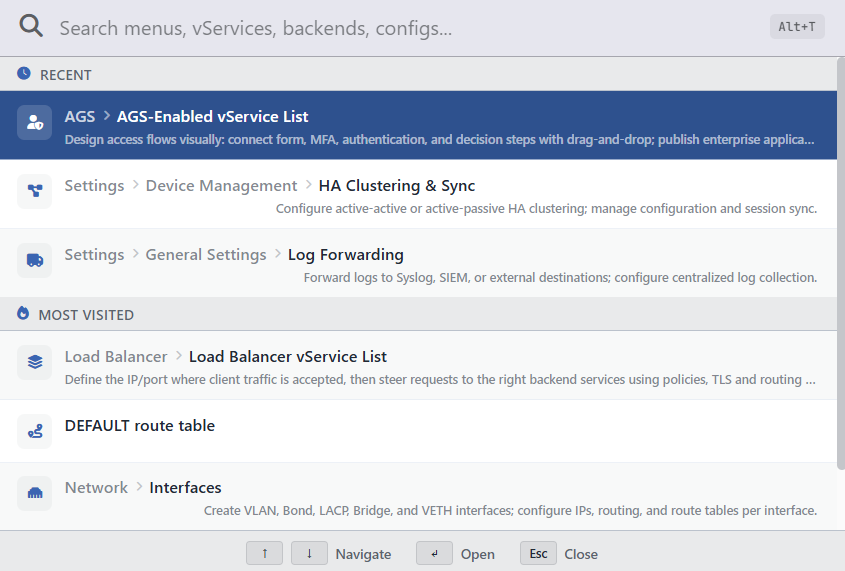 Search Bar
The window opens at the top of the screen, in the middle, and consists of three sections:
| Section | Description |
|---|---|
| The search box | It carries the Search menus, vServices, backends, configs... placeholder text; the badge on its right shows the shortcut (Alt+T, Option+T on macOS). |
| The result area | While the search box is empty, the recently and the most visited screens are listed, and after typing, the search results. When the list gets long, the area is scrolled within itself. |
| The hint strip | The usable keys are shown at the bottom of the window: ↑ ↓ Navigate, ← → Switch tab (only while the result tabs are visible), ↵ Open, Esc Close. |
When the window is opened for the first time in the session, the Initializing search... indicator is displayed while the search index is being prepared; once the index is built, it is kept up to date throughout the session.
While the Search Box Is Empty
While nothing has been typed in the search box yet, two shortcut lists are shown:
| List | Content |
|---|---|
| Recent | The recently visited screens; at most 3 records. The screens that are in the Most Visited list are not repeated here. |
| Most Visited | The most frequently visited screens; at most 4 records. |
- The lists contain only the menu screens; the records such as vServices and Backend Services are not located here. The records are limited to the screens in the tabs for which the user has permission.
- The visit history is stored on the device depending on the user account; it is also preserved when the session is closed and opened again and when a login is made from a different browser.
- In every record there are the icon and the name of the screen, its location path if any (e.g. Settings › Device Management › HA Clustering & Sync) and its short description; the screens bound to a record, such as a route table, are listed only with the name (e.g. DEFAULT route table).
- If there is no visit history yet, the Start typing to search hint is displayed.
What Can Be Searched?
The typed expression is searched in the names and the descriptions of the record types below. The results are separated into tabs according to their types:
| Tab | The records searched | In the result row | When selected |
|---|---|---|---|
| Navigation | The menu screens; the openable screens in the tabs for which the user has permission (except the group cards that list sub-screens). The address path of the screen is also searched (e.g. /lb). | The icon, the location path, the screen description | Opens the screen. |
| vServices | The name and the type of the vServices. | The status circle, the name, the type badge (HTTP, TCP, NETWORK) and the type line in the vService - HTTP form | Opens the Dashboard screen of the vService. |
| Backends | The name and the IP:port information of the Backend Services; the name of the Backend Groups. | The health check indicator, the name, the type badge; in the Backend Service the IP:port | Opens the Dashboard screen in the Backend Service, and in the Backend Group the Backend Groups list with the group selected. |
| Actions | The name and the type of the actions. | The name, the action type badge | Opens the Actions list with the record selected. |
| Conditions | The name and the criterion text of the conditions. | The name, the criterion badge | Opens the Conditions list with the record selected. |
| Profiles | The Health Checks, Timeouts, Compression, Cache, Trusted Proxies, Logs, Notifications, vService Limits, Reports and Content Pages profiles. | The name, the profile type badge | Opens the related profile list with the record selected. |
| Security | The SSL/TLS certificates, TLS Security Profiles, Certificate Authorities (CA), Certificate Profiles, Client Certificates, Private Key Library and ACME DNS Providers records. | The name, the record type badge | Opens the related list with the record selected. |
| AGS | The AGS-Enabled vServices and the AGS profiles (Page Templates, Dictionaries, Login Forms, MFA, Authentication Providers and Servers, Local Databases, Local Users, protection policies, CAPTCHA Providers, Backend SSO Configurations, Notification Profiles). | The name, the record type badge | Opens the related list with the record selected. |
| Network | The route tables, the interfaces, the routes and the IP addresses on the main device and on the other defined devices. | The status circle, the name, the type badge and, after the @ sign, the device on which the record is located (Host Device on the main device); in the route and the IP additionally the connected interface. The routes are named in the target -> gateway form; in the IP row the address of every device in the cluster is located side by side. | The status, the type and the connected interface of the record are read from the result row; the IP address is taken to the clipboard with the copy icon. |
- The fixed words that state the record type are also searched: for example, when navigation is typed, the menu screens are listed as well, and when network is typed, the network records. The 50-result limit is valid in these searches too; the records whose name contains the searched word come first.
- In the IP address results, when the pointer is placed over the address, a copy icon appears; when the icon is clicked, the address is copied to the clipboard without the window being closed.
The Result Tabs
- Only the tabs that have results are displayed. If there are results in more than one tab, a tab bar appears at the top of the window and next to every tab the number of results in that tab is located; only the results of the selected tab are visible in the list.
- If there are results in a single tab, the tab bar is not shown and the results are listed as a flat list.
- The tabs are arranged in the fixed order in the table above. The results in a tab are listed so that those matching in the name come first and those matching in the description come after.
- If no record matches, the No results found message is displayed.
The result limit
At most 50 results are listed in one search and the limit is applied before the results are distributed to the tabs; when the limit is filled, the records that match in the name have priority. A very general expression (e.g. only load) can fill the limit in a single tab and hide the matches in the other tabs; if the searched record does not appear, the expression is narrowed.
The Matching Rules
| Rule | Description | Example |
|---|---|---|
| Matching from the beginning of the word | The expression matches the beginning of the words in the name and the description; matching from the middle or the end of the word is not performed. | vse and vServ → vServices is found; ervices is not found. |
| At least 3 characters | Expressions shorter than 3 characters are not searched in the name and the description. When the name, the identity (ID) or the vService type of the record is typed in full, it is also found with a shorter expression. Port numbers shorter than 3 digits are not searched. | we gives no result; web does. |
| More than one word | All the typed words must occur in the same field (in the name or in the description); the order of the words does not matter. | health check and check health give the same result. |
| Uppercase/lowercase and Turkish characters | Uppercase/lowercase does not matter; ş/s, ç/c, ğ/g, ö/o, ü/u and İ/i can be written in place of each other. The letter ı does not match i; a record whose name contains ı is searched with ı. | sifre → şifre-portal; kilic → Kılıç is not found, kılıç is found. |
| Typing error | A typing error is not tolerated; the expression must begin exactly like the name of the record. | helth → Health Checks is not found. |
| IP address and port | The IP addresses and the ports are searched with their parts. | 10.0.1, 8080, 10.0.1.5:8080 |
The matching expression is highlighted with a colored background in the result row; in the menu screen results the highlight is only in the name. The highlight is displayed where the typed expression occurs in the row in the same order and with the same characters; in the results found with reordered words or with a plain letter instead of a Turkish character, the highlight is not displayed.
Use with the Keyboard
| Key | Function |
|---|---|
| ↑ / ↓ | Navigates among the results; stops at the beginning and at the end of the list. |
| ← / → | Passes to the previous or the next tab while the result tabs are visible. |
| Tab / Shift + Tab | Passes to the next or the previous tab while the result tabs are visible. |
| Enter | Opens the selected result or shortcut. |
| Esc | Closes the window. |
When the pointer is placed over a row with the mouse, that row is selected; Enter opens the selected row.
The full keyboard flow
Alt + T (Option + T on macOS) → the expression is typed → if there is more than one tab, the tab is selected with ← → → the result is selected with ↑ ↓ → it is opened with Enter.
