
Smarter by Design.Simpler for Business
Hardware Management
What Is Hardware Management?
Hardware Management is the screen where the inventory of the physical network interfaces (NIC) on the TR7 device is listed and configured. The MAC address, the inventory status, the SR-IOV virtual function (VF) count, the connection status, the name and the usage role of every interface are displayed from this screen.
The screen does not offer only viewing; in the editing mode the interfaces can be renamed, the SR-IOV virtual function (VF) count can be determined, the interfaces can be removed from the inventory (Delete) or kept (Keep), and in a two-device cluster setup the synchronization interface between the devices can be selected.
Network Interfaces
Physical NIC
All the network interfaces on the device
Inventory
MAC & Inventory
Hardware identity and inventory information
VF
SR-IOV
Virtual function (Virtual Function) count
Status
Connection & usage
Status and Usage information
What Can Be Done?
The Hardware Management screen does not only list the interfaces; it provides the following operations from a single screen:
Seeing the Master + Slave MAC on a single screen Cluster
In a cluster setup, the MAC address on both devices for each interface is shown in separate columns; each column is labeled with the server name (hostname) of the related device. This way, the interface MACs of the master and slave devices are seen side by side for comparison. (In a standalone setup, the second column is hidden.)
Changing the interface name Name
A meaningful name can be given to each interface (renaming). The name is validated against the validity rules; if an interface is in use (IP, route, VLAN, bond/bridge membership, vDevice interface etc.), it cannot be renamed.
Determining the SR-IOV virtual function (VF) count 0 – 63
The number of SR-IOV virtual functions (0–63) to be created on a NIC can be determined. The created VFs are assigned to the vDevices and provide hardware-accelerated network access.
Assigning a synchronization interface Cluster
In a two-device cluster, the synchronization interface over which the configuration/database synchronization between the devices will be performed is selected.
Inventory management Keep / Delete
An interface can be kept in the inventory (Keep) or removed from the inventory (Delete); in this way the unused interfaces are managed from the list.
Best Practices
- The dependencies of an interface in use should be removed before it is changed. If an interface is used by an IP, a route, a VLAN, a bond/bridge membership or a vDevice, it cannot be renamed and its VF count cannot be changed; the related configuration should be removed first.
- The MAC columns should be compared in a cluster. In a two-device setup, the interface matching and the cabling can be verified by checking the MAC address of every interface on the two devices side by side.
- A separate interface should be allocated for the synchronization. In order to separate the synchronization traffic from the production and management traffic, a dedicated interface should be assigned as the Sync Interface.
- The VF and name changes should be applied in a maintenance window. Since these changes are applied at the hardware level, they may cause an interruption on the vDevices that use the related interface.
- The unused interfaces should be removed from the inventory. By removing the interfaces that are not actively used from the inventory with Delete, the list is kept clean and manageable.
The Hardware Management Screen
By following the Settings → Device Management → Hardware Management path, the list of all the network interfaces defined on the TR7 device is reached.
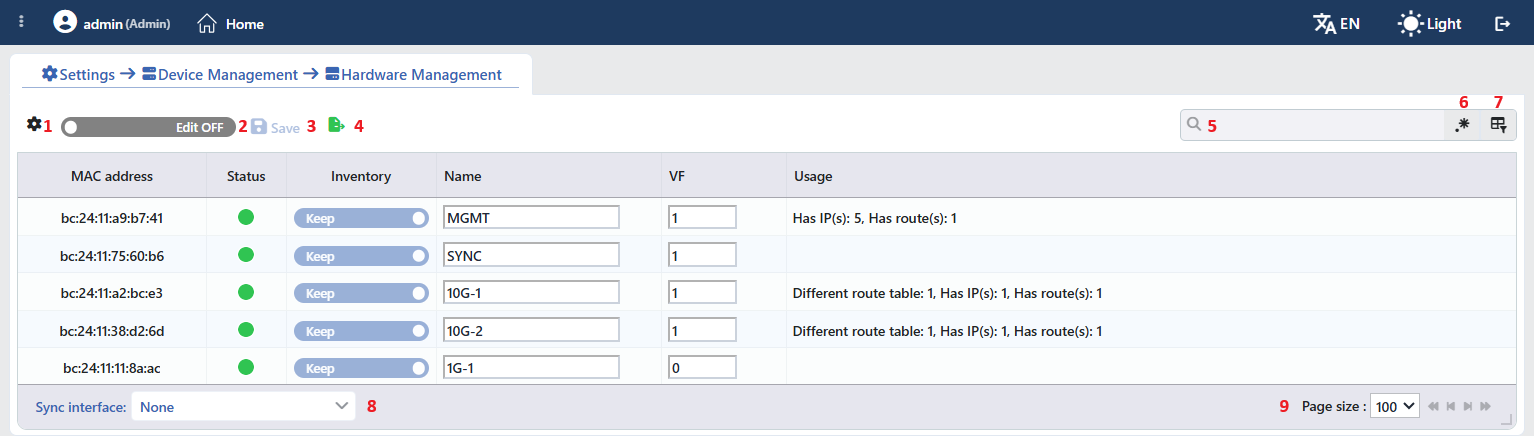 The Hardware Management Screen (Standalone)
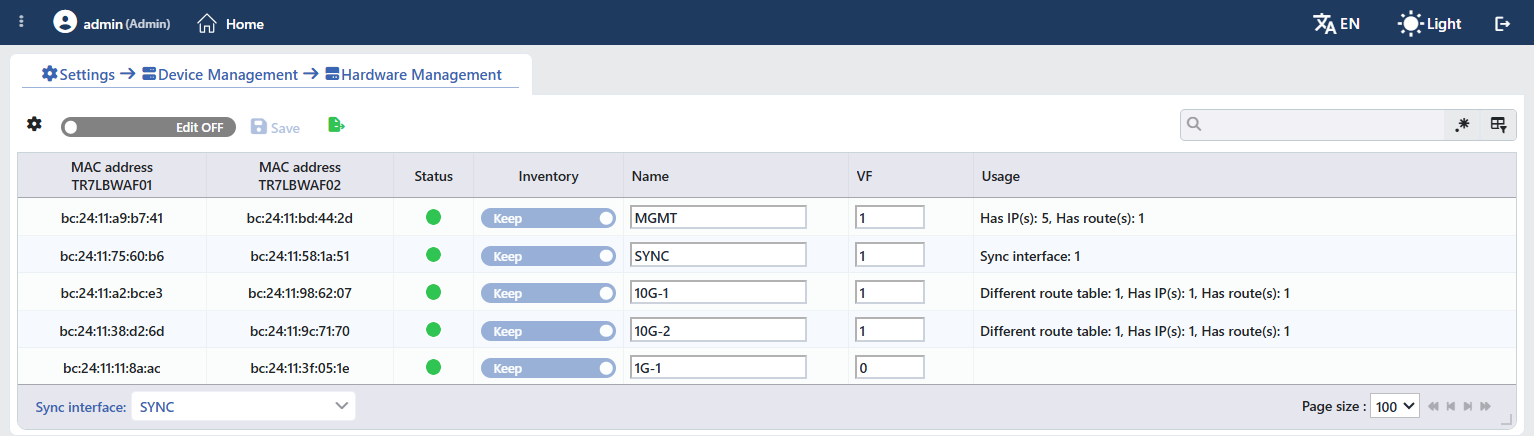 The Hardware Management Screen (Cluster)
The table opens with the following columns by default:
| Column | Description |
|---|---|
| MAC Address | The hardware address of the interface. In a Cluster setup this column is split into two and each one is labeled with the Server Name value of the related device (e.g. MAC address TR7LBWAF01); in a standalone setup it comes as a single column. |
| Status | The colored indicator that shows the connection status of the interface. |
| Inventory | The on/off switch that determines whether the interface will be kept in the inventory or not: Keep or Delete. It can be changed only in the editing mode. |
| Name | The name given to the interface. In the editing mode it is changed directly inside the cell. |
| VF | The SR-IOV virtual function count to be created on the interface. In the editing mode it is changed directly inside the cell. |
| Usage | The summary of where the interface is used; it is written as counters separated by a comma (e.g. Has IP(s): 5, Has route(s): 1, Different route table: 1, Sync interface: 1). On the interfaces that are not used anywhere, the cell stays empty. |
There is no column hidden by default.
The items in the toolbar are arranged from left to right in the following order; the last two items (Sync Interface and Page Size) are in the information strip under the table.
Columns
Which columns will be shown in the table is selected; all the columns are on by default. In the same panel the columns are reordered by dragging, the alignment is selected per column, a manually set column width is returned to automatic sizing by clicking, and with the Reset button the column layout is returned to the default. The layout is stored per user.
Edit
It is the on/off switch in the toolbar; while it is off, Edit OFF is written on it, and while it is on, Edit ON. While the switch is off, the table is read-only. When it is turned on, the following fields become editable on every row:
| Field | Rule |
|---|---|
| Name | The name of the interface. It must be 3 – 15 characters and must start with a letter or a digit; afterwards the letters, the digits and the _ - . characters can be used. |
| VF | The SR-IOV virtual function count of the interface; an integer in the 0 – 63 range. The determined number of virtual functions is created and can be assigned to the vDevices. |
| Inventory | The inventory action of the interface: Keep (keep in the inventory) or Delete (remove from the inventory). |
An interface that is in use (IP, route, VLAN, bond/bridge membership, vDevice interface etc.) cannot be renamed and its VF count cannot be changed; which usages there are is seen from the Usage column.
Save
By clicking the Save button, the interface changes made in the editing mode (the name, the VF count, the inventory action) and the selected synchronization interface are applied. While there is no pending change, the button stays disabled.
Export
By clicking the Export button, the table is exported as Excel, CSV or PDF according to the desired data columns.
Search
Used to search all information in the table.
RegExp Search
Used to search all information in the table with a regular expression (RegExp).
Column Based Search
Used to perform a column-based search on the information in the table.
Sync Interface
It is the selector that takes place in the information strip under the table; the synchronization interface over which the configuration and database synchronization between the devices will be made is determined here. The selected interface is used as the connection reserved for the HA pairing and appears as Sync interface: 1 in the Usage cell of that interface.
The selector is also found in a standalone setup; while no interface is assigned, None is written. The selection is applied together with Save.
Page Size
The maximum number of records to be displayed on the page is selected. The arrow icons are used to navigate between the pages.
WARNING
The interface name and the SR-IOV virtual function (VF) count changes are applied at the hardware level and may affect the vDevices that use the related interface. The changes should be applied at a time when a service interruption is acceptable.
