
Smarter by Design.Simpler for Business
How to Enable AGS?
What Does Enabling AGS Mean?
In TR7 AGS is not a single switch that is turned on and off device-wide: it is enabled separately for every HTTP vService. The moment AGS is turned on, the requests that come to that vService and do not carry an authenticated session are directed to the AGS engine of the vService instead of being forwarded to the Backend Service; the traffic of the vServices on which AGS is off does not enter this check.
The enabling does not start with an empty configuration. TR7 creates by itself an AGS configuration consisting of a login flow that starts with the built-in Basic Login form for the vService, built-in session protection, account lockout and bot protection policies, the default page template and dictionary, together with a separate AGS engine belonging to the vService. In the default flow the output of the Basic Login form is connected to the Deny step and, since there is no path that reaches the Allow step, the users are not expected to reach the Backend Service until the flow is arranged.
vService
Unit of Enabling
AGS is turned on separately for every vService and works with a separate AGS engine
HTTP
Supported Type
It is enabled only in the vServices of the HTTP type
Basic Login
Starting Flow
The flow that starts with the built-in form, in the Standalone Application mode
Restricted
Traffic Effect
Since there is no path to the Allow step in the default flow, the users do not reach the Backend Service until the flow is arranged
AGS is enabled only in the HTTP vServices
AGS is turned on only in the vServices of the HTTP type. In the vServices of the L7 TCP and Network (Layer 4) types the AGS option is displayed neither on the list nor in the vService form; since the traffic of these services is not analyzed at the application layer, it cannot be directed to the login flow.
Two Ways
AGS is turned on from two separate places. Both produce the same result; which one will be used depends on how many vServices will be taken into the scope at the same time.
| Way | From where | When it is preferred |
|---|---|---|
| AGS-Enabled vService List | Configuration Menu → AGS | If one or more than one existing vService will be taken into the scope collectively |
| The vService form | The vService creation or editing screen, the Details list | While a new vService is being set up or while a single service is being edited |
Way 1: Over the AGS-Enabled vService List
In one or more than one existing vService, AGS is turned on collectively by following the steps below.
1
Step 1 Go to the AGS-Enabled vService List screen
The Configuration Menu is opened by clicking the TR7 logo at the bottom left and the AGS → AGS-Enabled vService List path is followed (the featured card above the AGS tab). The whole of the screen is explained on the AGS-Enabled vService List page.
2
Step 2 Open the adding tab
The Enable button at the top of the list is clicked; a new tab titled Add opens next to the list.
3
Step 3 Select the vServices on which AGS will be turned on
The vServices on which AGS will be turned on are selected from the HTTP vServices to protect with AGS field. When no selection is made, the field writes Nothing chosen.
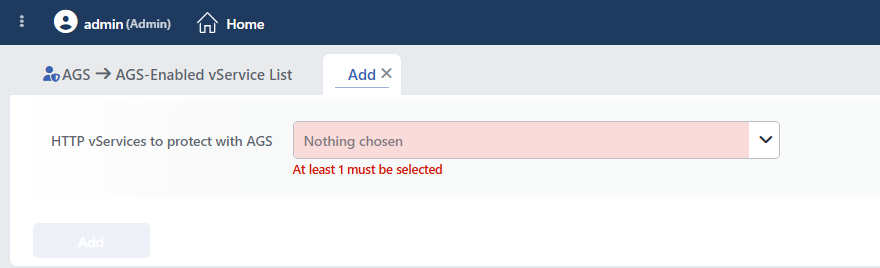 Enabling AGS
There is no upper limit for the number of vServices that can be selected; dozens of services can be taken into the scope in a single operation.
4
Step 4 Confirm
The selection is confirmed by clicking the Add button. AGS is turned on in the selected vServices and the vServices start to be seen on the list.
As long as no vService is selected, the warning At least 1 must be selected is displayed below the field and the Add button stays inactive; the warning is seen as soon as the tab is opened. When the operation is completed the tab closes by itself and the list view is returned to; the tab can also be closed with the closing icon in its title. When the tab closes, the application of the configuration to the vService can take a few seconds; during this time the list row can show temporary values (Scope and Limits).
Only the ones whose AGS is off are offered on the list
The HTTP vServices to protect with AGS field lists not all the vServices on the device but only the ones that are of the HTTP type and whose AGS has not been turned on yet. A vService whose AGS is on is not seen on this list; that service is located on the list itself. The vService does not have to be in a running state: a stopped vService is offered on the list as well and its AGS can be turned on.
Way 2: Over the vService Form
AGS is added to a vService by following the steps below.
1
Step 1 Go to the vServices screen
The Load Balancer → Load Balancer vService List path is followed in the TR7 web interface.
2
Step 2 Open the editing screen of the vService
The vService to which AGS will be added is right-clicked and Edit is selected; or the vService is clicked and the Edit icon is clicked in the window that opens on the right.
AGS can be added while a new vService is being set up as well; in that case the same form opens in the vService creation flow.
3
Step 3 Open the Details section
The Details button in the top right corner of the form is clicked; the advanced configuration list opens on the right of the screen.
4
Step 4 Enable the AGS feature
In the Details list that opens on the right, AGS is put into service by checking the AGS box right below the L7 DDoS & Threat Protection row.
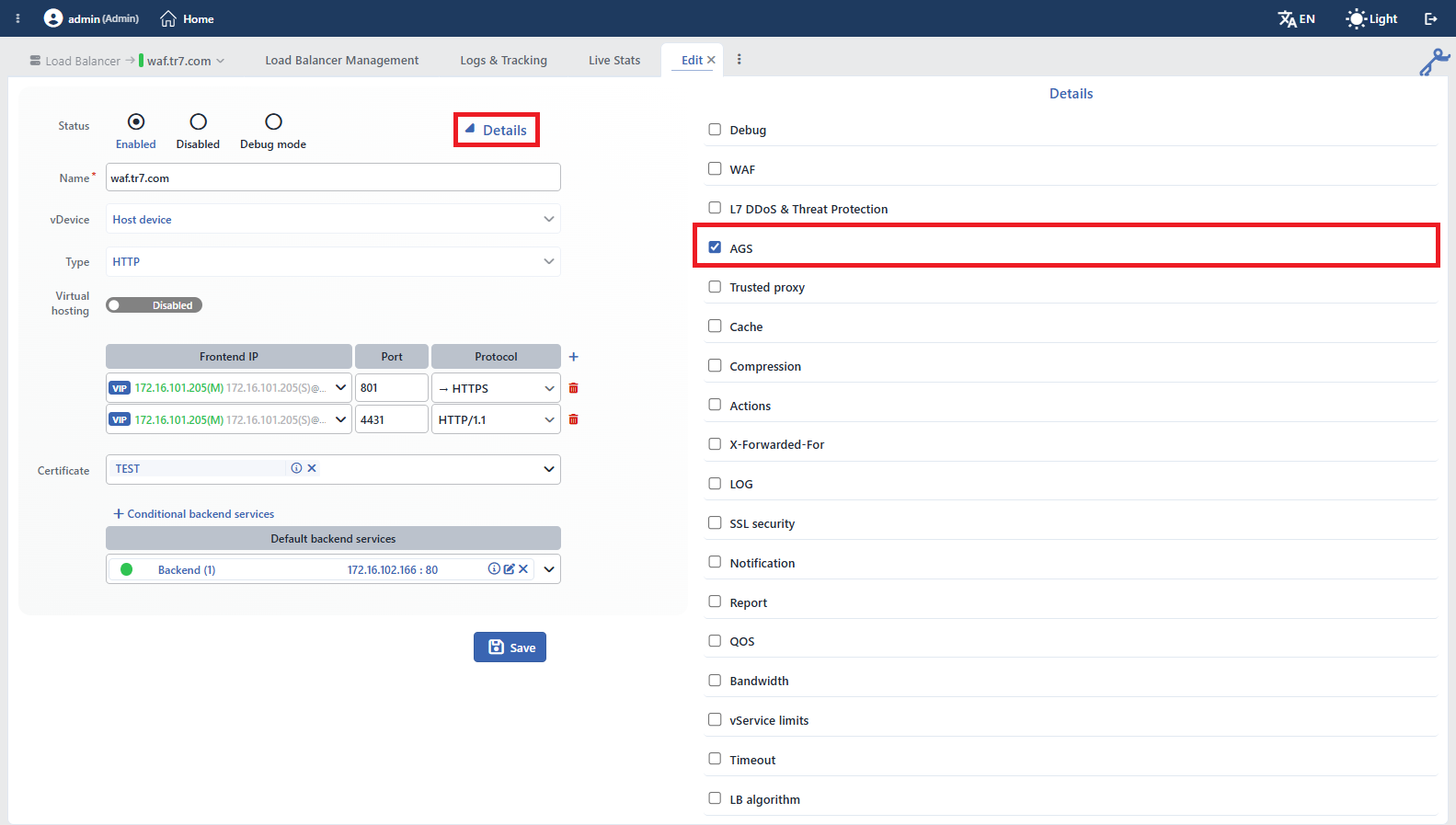 The AGS Selection on the vService Editing Screen
The option is located only in the form of the vService of the HTTP type. WAF and AGS are not included in the list of the L7 TCP form; in the Network (Layer 4) type, on the other hand, only Report and LB Algorithm are located in the list.
5
Step 5 Save
The changes are saved by clicking the Save button; the configuration is applied to the vService.
The AGS box does not open a separate setting section
When AGS is checked, no profile selection or setting section that expands is displayed on the list. AGS is only enabled; the login flow and all the AGS settings are configured from the AGS-Enabled vServices screen's Flowchart and AGS Management tabs after the vService is saved.
The same switch is located in the Edit window of the Security Modules section on the Load Balancer Management tab of the vService screen as well.
The box does not become passive according to the permission
The AGS box is not displayed as passive according to the authorization of the user. Saving the change requires change authorization in the Load Balancer area; the save of a user who has no authorization is refused.
The HTTP (L7) vService page can be looked at for the whole of the vService form.
What Is Created After It Is Enabled?
When AGS is turned on, not only a mark changes; the configuration of the vService is produced again and applied, and the AGS record and the AGS engine are created.
01The configuration is createdThe AGS configuration for the vService is created with the default flow, policy, template and dictionary selections. If AGS has been turned on and off before in the vService, the previous configuration comes back exactly.
02The traffic engine is reloadedThe change is applied with an uninterrupted reload under normal conditions. From this moment on, the requests that are not authenticated are directed to the AGS engine. If the automatic synchronization is on in a cluster setup, the change is spread to the peer device as well.
03The AGS engine is startedThe AGS engine belonging to the vService is created and started. Until the engine is ready, the requests directed to AGS get the HTTP 503 page containing the text
Access Gateway is being prepared. Please try again shortly.04The login flow comes into playThe flow starts with the Basic Login form step; the Live Stats and Dashboard data are created as traffic is taken.
The defaults created:
| Setting | Default value | Meaning |
|---|---|---|
| Gateway Mode | Standalone Application | The vService protects the application behind it with its own login flow (Standalone Application). |
| The login flow | Start → Form (Basic Login) → Deny | The Allow step is created but is not connected to any step. |
| Session Protection Policy | Standard Session Protection | Binding to the IP address, an idle time of 8 hours, an absolute time of 7 days. |
| Default Lockout Policies | Default Username Lockout, Default IP Lockout | The counting of the failed attempts and the locking on the basis of the user name and the IP address. |
| Bot Protection Policies | Standard Rate Limiting, Bot Score CAPTCHA Challenge, Bot Score Deny | In the requests directed to the AGS engine, 429 at 300 and more requests per minute per IP, a CAPTCHA at a bot score of 60 and above, 403 at 85 and above. |
| Dictionary / Page Template | Default Dictionary / Default Page Template | The texts and the appearance of the AGS pages. |
| AGS Root Path | /ags-portal | The path on which the login, verification and auxiliary pages are served. |
| AGS Activation Condition | Undefined | All the requests that come to the vService are within the AGS scope. |
| Cookie Domain / Cookie Name Prefix | Empty / Automatic | The session cookie is valid for the address the request comes to; the cookie names are created with the AGS_ prefix. |
| Log Level | info | The detail level of the working logs of the AGS engine. |
| Backend SSO Config, Notification Profile, Audit Log Forwarders | Undefined | No login information is carried to the Backend Service, and no profile notification and audit event forwarding is done. |
All of the values are changed from the General Settings window of the Flowchart tab and from the AGS Management sections. The policies based on the bot score work even if Bot/DDoS Protection is off in the vService; in that case the bot score is produced only for the AGS policies for monitoring purposes, and if Bot Protection is on the same score is used.
The access to the Backend Service is restricted the moment AGS is turned on
Unlike the Learning start of WAF, AGS comes into play the moment it is turned on: all the requests that do not carry an authenticated session are directed to the AGS engine. In the default flow the output of the Basic Login form is connected to the Deny step and there is no path that reaches the Allow step; the users should not be expected to reach the Backend Service until the flow is arranged.
For this reason, in a vService that carries live traffic, AGS should be turned on in a maintenance time in which the flow can be completed right afterwards, or it should be tried first in a vService that takes no traffic. The flow and the AGS Activation Condition can be arranged only after AGS is turned on.
If a path starting with /ags-portal is used in the Backend Service, this path cannot be reached after AGS is turned on; in that case the AGS Root Path value should be changed.
What Should Be Done After This?
Turning AGS on is the beginning of the process. The recommended order:
- The identity source is prepared. An Authentication Providers profile is created; for the LDAP, HTTP and RADIUS types a record is first defined on the Authentication Servers screen, and for the Local Database type on the Local Databases screen.
- The flow is completed. On the Flowchart tab the Edit Mode is passed to and the Authentication Provider step is added. The output of the form is connected to this step, the SUCCESS output of the step to Allow and the FAILURE output to Deny, and it is saved with Save. The Form step has no output that separates the successful and the failed verification; for the credential entered to be verified, the output of the form should not be connected directly to Allow.
- MFA is added if necessary. A Multi-Factor Authentication (MFA) profile is placed in the flow as a second verification step.
- The policies are reviewed. The session, lockout and bot policies are changed from the AGS Management tab according to the requirement of the organization; the profiles are edited on the Session Protection Policies, Account Lockout Policies and Bot Protection Policies screens.
- The scope and the integrations are determined. If AGS is wanted to be applied only to certain requests, the AGS Activation Condition is defined; Backend SSO Configurations is used for the transition to the Backend Service with a single session, and Login Forms, Page Templates and Dictionaries (Multilingual) for the appearance of the login pages.
- The working is verified. It is checked on the Engine tab that the engine is running, and on the Sessions and Audit Logs tabs that the logins are created as expected.
The working of the flow at run time is on the Flowchart page.
The Removal of AGS
AGS is removed from two separate places, as in the enabling.
Over the List (Collective)
One or more than one vService is selected on the AGS-Enabled vService List screen and the Disable button is clicked. The button is passive when no selection is made on the list. For a single vService the row is right-clicked and Remove AGS access is selected.
The removal operation does not show a confirmation window
The moment Disable or Remove AGS access is clicked, AGS is removed in the selected vServices and the users start to reach the Backend Service without authentication being done. For this reason the selection should be verified before the operation.
Over the vService Form (A Single Service)
The AGS of a single vService is removed from the editing form as well: the Details button is clicked, the check of the AGS box is removed in the list that opens on the right and it is saved with Save. The same operation is also done by turning the AGS switch off in the Edit window of the Security Modules section on the Load Balancer Management tab of the vService screen.
This way is safer than making a selection on the list for a single service and using the collective Disable; it carries no risk of other vServices staying selected by mistake. After the removal the vService falls off the list on the AGS-Enabled vService List screen.
The configuration is not deleted, the engine is removed
When AGS is removed, the AGS configuration of the vService (the login flow, the gateway mode, the policy, template and dictionary selections) is not deleted; when AGS is turned on again the same configuration becomes valid. The configuration is removed only when the vService itself is deleted. The AGS engine belonging to the vService, on the other hand, is deleted when AGS is removed.
Scope and Limits
INFO
- The enabling requires Load Balancer authorization. Both the operation done over the list and the save done over the vService form require change authorization in the Load Balancer area; a WAF authorization is not enough to turn AGS on. A user who has only read authorization sees the list but cannot change the AGS state.
- The Enable, Disable and Remove AGS access operations on the list screen are not hidden according to the authorization. A user with only read authorization learns the refusal only after trying the operation.
- The enabling and the removal done over the list do not fall into the audit record. The save done over the vService form, on the other hand, is written as a vService editing record.
- If the automatic synchronization is on in a cluster setup, the change is spread to the peer device as well. Every device runs its own AGS engine and session store for the vService.
- Every vService on which AGS is enabled runs a separate AGS engine. The memory limit of the engine is half of the Memory Limit value of the vService, and 1 GB if Memory Limit has not been selected. The engine runs as long as AGS stays on even if the vService has been stopped; while AGS is being turned on in a large number of vServices, the device resources are taken into consideration.
- Right after AGS is turned on, the Gateway Mode cell in the list row can display
-and the Actions cellTotal of 0for a short time; when the configuration record is created the values becomeStandalone applicationandTotal of 3. - The requests under the AGS Root Path are not taken into the WAF check; since the flow steps are served under this path, the login form, OTP and CAPTCHA submissions do not enter the WAF rules and learning. On the other paths, including the unauthenticated requests directed to the AGS engine, WAF works normally.
