
Smarter by Design.Simpler for Business
My Preferences
What Is My Preferences?
My Preferences is the screen where the personal settings of the TR7 web interface — those that apply only to the signed-in user account — are managed. From this screen, the interface theme, font, layout (the top Header Bar and the right-hand preview panel) and language are set per user.
Its key difference from the other screens under Settings → General Settings is scope: none of the settings on this page affect the whole device or other users. The preferences are stored not in the browser but on the device, per user account; they also apply when the same account signs in from a different browser or computer.
Appearance
Theme and font
30 built-in themes + custom themes · 9 fonts
Layout
Workspace
Header Bar and preview panel behavior
Language
Personal interface language
Independent of the device default
Instant Save
No Save button
Every change applies and saves immediately
Personal vs. device-wide
The settings on this screen are kept per account. The device-wide brand and default language settings, on the other hand, are managed on the Localization screen. As long as the user leaves the Default option in their own language preference, the Default Language setting on the Localization screen applies; when a personal language is selected, this selection takes precedence over the system default.
What Is It For?
The My Preferences screen adapts the interface to the user's working habits. This provides:
- Personalization: the interface color scheme (theme) and font are chosen per user, independently of the other users on the device; a custom theme is created if desired,
- Workspace control: the behavior of the top Header Bar and the right-hand preview panel is adjusted according to the screen space and the reading preference,
- Personal language: the interface language is set for the user account, independently of the device's default language,
- Portability: since the preferences are stored on the device together with the account, the same look is obtained no matter which browser is used to sign in.
Where Do the Settings Take Effect?
| Setting | Effect |
|---|---|
| Theme | The color scheme of the whole interface; including the pages, the tables, the menus, the panels and the Web CLI |
| Interface Font | The typeface of the whole interface; the chart and graph labels switch to the same typeface as well |
| Header Bar | The visibility of the Header Bar at the top of the screen |
| Preview Panel Layout / Mode | The inner arrangement and the opening behavior of the preview panel that opens on the right of the listing screens |
| User Language | Only this user's interface language; it does not change the language of the device or of the other users |
Cluster Behavior
In the TR7 installations running as a cluster (two devices), the Theme, Interface Font and Header Bar preferences are automatically synchronized to the other TR7 device as well; the same look is obtained no matter which device the account signs in to. User Language, Preview Panel Layout and Preview Panel Mode, on the other hand, are not synchronized; if needed, they are selected separately on the other device.
How to Edit?
The personal preferences are edited via the TR7 web management interface with the steps below:
- The Configuration Menu is opened by clicking the TR7 logo at the bottom left.
- The steps Settings → General Settings → My Preferences are followed.
- The relevant preference is changed via its control on the screen (the theme card, the dropdown or the selection button).
There is no Save button
This screen has no separate save step: every preference applies the moment it is selected and is automatically saved to the account in the background. The page does not need to be reloaded.
TIP
Reaching the page via quick search
Instead of navigating the menu step by step, the related page is reached directly by using the search bar in the bottom left corner of the screen. The search bar opens with the Alt + T shortcut on Windows and Opt + T on macOS; typing the name of the feature being searched for is then sufficient.
The My Preferences Screen
By following the path Settings → General Settings → My Preferences, the personal preferences screen of the signed-in user is displayed.
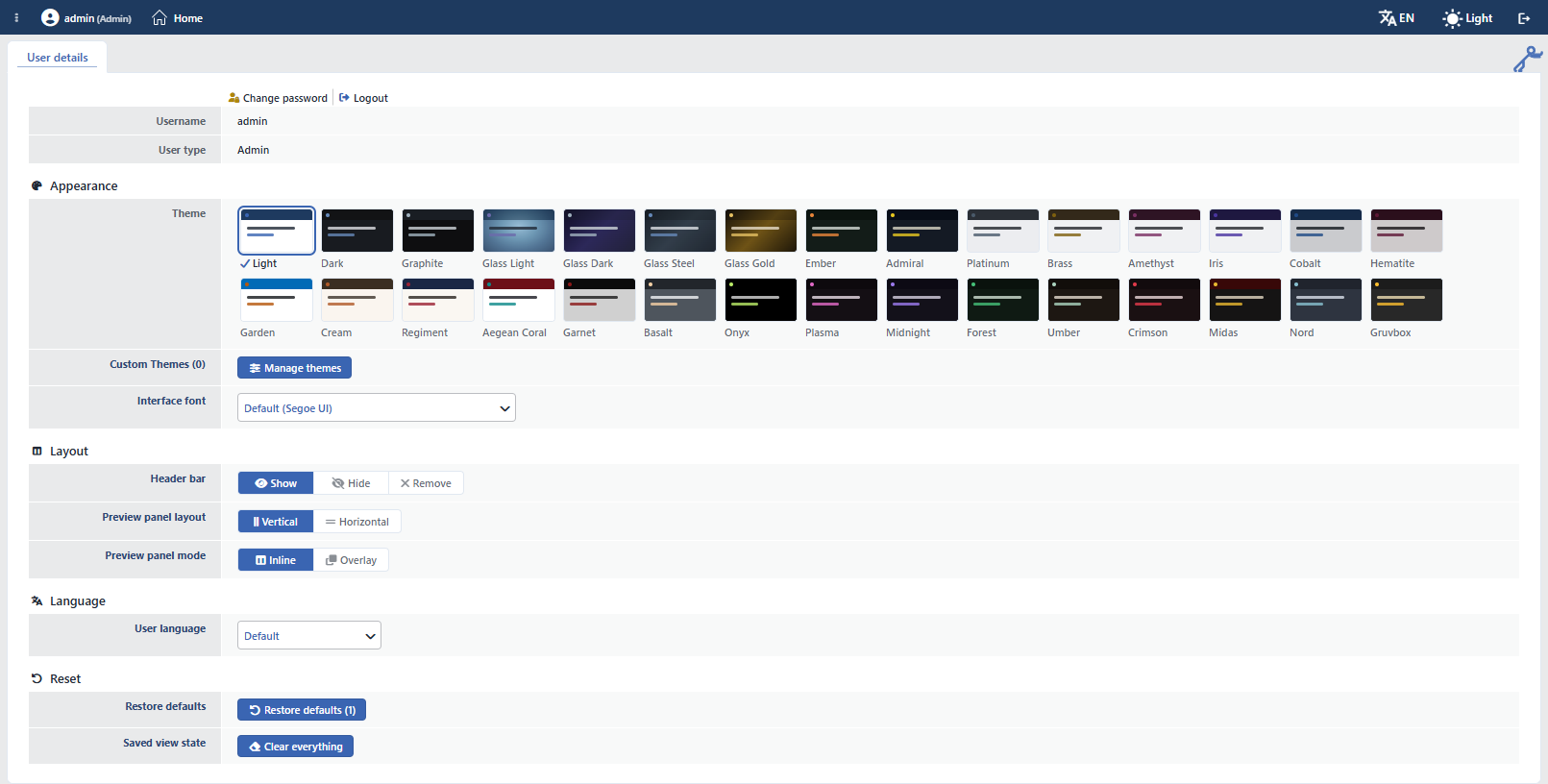 The My Preferences Screen
The screen opens in a single tab titled User details; this tab cannot be closed. After the account information, four preference sections titled Appearance, Layout, Language and Reset are listed. The Change Password and Manage Themes operations open as closable tabs next to this tab; when they are closed, it returns to the User details tab.
When the page opens, the preview panel on the right comes into play; the panel shows the current values of the preferences together with the user name and type, and a Change Password entry is also found in the panel title. Since the layout preferences already govern this panel, the effect of a change made is observed on the panel immediately. If the panel was collapsed before, it stays collapsed; it is opened from the handle on the right edge.
Account Information
At the top of the page there are first the session actions and, right below them, the read-only identity details belonging to the signed-in account.
INFO
Change Password
Opens the password change form as a separate tab; when the form is closed, it returns to the User details tab. The same entry is also found in the title of the preview panel on the right.
In the users whose account is authenticated via LDAP, this button is not shown; the password is managed on the directory server that is connected to.
INFO
User Type
The user type of the account is displayed read-only (e.g. Admin, Read-Only User, Traffic Manager, WAF Manager). The user types and their permissions are managed on the Device Users screen.
In the users of the Client type (multi-tenant vDevice client), additional read-only fields are listed in this section: the vDevice that is connected to, the cores and the frontend IP addresses assigned to the account, the allowed Backend networks, the license information and the Max. vServices, Max. Connections per vService and Max SSL Connections per vService limits.
Appearance
INFO
Theme Default: Light / Dark, following the operating system
Determines the color scheme of the interface. The theme is selected from the grid consisting of colored preview cards (swatches); when the mouse rests briefly on a card, the theme is previewed live across the whole interface, and when the grid is left, it returns to the previous theme. Clicking makes the selection permanent.
The list contains 30 built-in themes plus the custom themes created by the user. The built-in themes:
Light · Dark · Graphite · Glass Light · Glass Dark · Glass Steel · Glass Gold · Ember · Admiral · Platinum · Brass · Amethyst · Iris · Cobalt · Hematite · Garden · Cream · Regiment · Aegean Coral · Garnet · Basalt · Onyx · Plasma · Midnight · Forest · Umber · Crimson · Midas · Nord · Gruvbox
The default theme is not fixed: until the user makes a selection, the Light or Dark theme is applied according to the operating system's light/dark appearance preference.
INFO
Custom Themes Up to 20 custom themes
The Custom Themes row shows the number of custom themes saved on the account. The Manage Themes button opens the theme management tab; the custom themes are listed in a table there. A custom theme is created, edited and deleted from scratch or on the basis of an existing built-in theme; the themes are exported as a JSON file and imported. If the limit is exceeded during the import, the exceeding themes are skipped and which ones were skipped is reported. At most 20 custom themes are saved per account; when the limit is reached, one of the existing custom themes is deleted in order to add a new theme.
INFO
Interface Font Default: Default (Segoe UI)
Determines the typeface the whole interface is displayed in. JetBrains Mono is bundled with the device; the other options use the typefaces installed on the user's computer. There are nine options:
| Option | Note |
|---|---|
| Default (Segoe UI) | The default interface typeface |
| Inter (modern) | Modern, widely used interface typeface |
| IBM Plex Sans (technical) | Technical-looking interface typeface |
| Roboto Condensed (narrow) | Narrow cut; fits more text into the same space |
| Atkinson Hyperlegible (high legibility) | Designed for high legibility |
| JetBrains Mono (monospace) | Monospaced; bundled with the device |
| Operating system font | The operating system's own interface typeface |
| Tahoma (system) | System typeface |
| Verdana (system, wide) | Wide-cut system typeface |
If the selected typeface is not installed on the computer, the interface continues to be displayed with the default typeface family. The change applies instantly without the page being reloaded; the chart and graph labels switch to the selected typeface as well.
Layout
INFO
Header Bar Default: Show
Determines the visibility of the Header Bar widget bar at the top of the screen. There are three options:
| Option | Behavior |
|---|---|
| Show | The bar is in the visible state |
| Hide | The bar is hidden; a thin strip remains at the top and when it is clicked, the bar opens back |
| Remove | The bar is removed completely |
INFO
Preview Panel Layout Default: Vertical
Determines how the field name is positioned relative to its value in the preview panel on the right:
| Option | Behavior |
|---|---|
| Vertical | The field name sits above the value; it reads more comfortably in a narrow panel |
| Horizontal | The field name sits beside the value |
INFO
Preview Panel Mode Default: Inline
Determines how the preview panel opens relative to the page:
| Option | Behavior |
|---|---|
| Inline | When the panel opens, the page narrows and makes room for the panel |
| Overlay | The panel opens by sliding over the page |
Language
INFO
User Language Default: Default
Determines the interface language of the signed-in user only; it does not change the language of the device or of the other users. At the beginning of the list there is the Default option, followed by the interface languages installed on the device (e.g. Türkçe, English), each together with the flag of its language.
While Default is selected, the interface opens according to the Default Language setting on the Localization screen. When a personal language is selected, this preference takes precedence over the system default.
Reset
INFO
Restore Defaults
Returns the preferences on this page to their default values. The number of preferences that are in a state different from the default is shown on the button (e.g. Restore Defaults (3)); if no preference has been changed, the button stays disabled as Already Default. When it is clicked, a confirmation is requested by reporting how many preferences will return to the default.
In this operation the theme does not return to a fixed theme, but to the Light or Dark theme according to the operating system's appearance preference.
INFO
Saved View State
Beyond the preferences on this page, the interface also automatically remembers the table layouts, the chart settings and the filter selections per user. The Clear Everything button deletes all of this saved view state together with the preferences above and reloads the page.
Warning
This operation cannot be undone: along with the theme, the language and the layout preferences, all of the user's table/chart/filter views return to their default state. Before the operation, a confirmation is requested by reporting the number of records to be deleted.
