
Smarter by Design.Simpler for Business
Timeouts
What Is the Timeouts Profile?
Timeouts is a profile structure used to control the connection and session timeout behaviors between the client and TR7 and between TR7 and the Backend Services on the HTTP and TCP based services running on TR7.
In the TR7 architecture, timeout management is designed on a profile basis. Thanks to this structure, the timeout values can be defined centrally and applied by being assigned to the related vServices. Timeouts Profiles work at the vService level and are valid for both HTTP and L7 TCP vService traffic.
Even if a Timeouts Profile is not defined, all the vServices on TR7 are put into effect with the predefined (default) timeout values. These default values provide a balanced and safe starting behavior for the client connections, the Backend Service accesses, the request queuing processes, the HTTP keepalive sessions and the long-lived connections (for example WebSocket tunnels).
TR7 applies timeout management on the traffic flow, at every phase of the connection and session life cycle. Every timeout parameter is evaluated specifically for the related phase such as the connection establishment, the request transmission, the response waiting or the session termination, and in this way the traffic is managed in a controlled and predictable way.
The benefits it provides
- The long-lasting or unresponsive Backend Service operations can be taken under control.
- The system resources being occupied unnecessarily is prevented.
- A consistent and predictable service behavior is provided even under load.
- Different timeout policies can be applied easily for different application and service needs.
The Importance of the Timeouts Profile
In the load balancer and application delivery architectures, timeout management is not only a setting that determines when the connections will be terminated; it is a critical component that has a direct effect on the stability, the resource usage and the predictability of the system.
In the application traffic the clients or the Backend Services do not always respond within the expected times. When the long-lasting requests, the Backend Services that do not produce a response or the network delays are not managed properly, they can cause the connections to remain open unnecessarily and the system resources to be consumed. This situation leads to a decrease in the service quality and to chain performance problems, especially under high traffic.
The timeout mechanisms make it possible for reasonable time limits to be defined for every connection and session phase. In this way the operations that do not produce a response or that are delayed are terminated in a controlled manner and the system continues to allocate resources for the services that work healthily.
That the timeouts can be defined on a profile basis and at the vService level on TR7 makes it possible for different applications to be managed according to their different behavior needs. The services from which a short response time is expected and the long-lived connections (for example WebSocket or long polling scenarios) can be run on the same system without affecting each other negatively.
Stability
System stability
The unresponsive connections are kept under control
Efficiency
Resource usage
The idle and slow connections are released
Foresight
Behavior under load
A stable and predictable service even under excessive load
Flexibility
Profile-based policy
A separate timeout strategy for every service
For this reason, Timeouts Profiles are not only a technical setting; they are one of the basic building blocks of the services running on TR7 being presented in a stable, reliable and manageable way.
The Default Timeouts Profile Behavior
When no Timeouts Profile is assigned to a vService (HTTP/L7 TCP) on TR7, the system works with the default timeout profile. This profile offers safe and balanced timeout values for the general use scenarios and makes the system remain stable in the connection and session management. It can be used without requiring an additional configuration, especially for the first installation and the standard web/API traffic scenarios.
The timeout values applied within the scope of the default Timeouts Profile:
| Parameter | Default | Description |
|---|---|---|
| HTTP Keepalive Timeout | 120 seconds | It determines how long the HTTP connection between the client and TR7 will be kept open without a data transfer. |
| HTTP Request Timeout | 30 seconds | It expresses the maximum time allowed for an HTTP request to be received completely from the client. |
| Connect Timeout | 20 seconds | It defines the maximum time that TR7 will wait to establish a TCP connection with the Backend Service. |
| Server Timeout | 90 seconds | It determines the longest time for which the data flow can stop on the Backend Service side. |
| Client Timeout | 90 seconds | It defines how long the connection will be kept open before data comes from the client. |
| Queue Timeout | 60 seconds | It specifies how long at most a request can wait in the Backend Service queue. |
| Tunnel(Websocket) Timeout | 120 seconds | It determines how long the connection will remain open while there is no data flow on the long-lived connections such as WebSocket. |
| Client FIN | 3 seconds | It defines the time to be waited for the closing to be completed after the connection is terminated by the client. |
| Server FIN | 6 seconds | It expresses the time to be waited for the closing process to be completed on the connections terminated by the Backend Service. |
These default values offer a safe starting point for most of the standard web and API applications and are designed by taking the system security and stability into account; however, they do not guarantee the optimal values for every environment. When WebSocket usage, long-lasting Backend Service operations, a high traffic volume or special application requirements are in question, configuring the profiles specifically for the application is recommended.
Effects and Behavior
The timeout values defined within the scope of the Timeouts Profiles make it possible for the connections and the sessions to be managed in a controlled way during the traffic flow on TR7. When the timeout values are reached, TR7 terminates the related connection or session in a controlled manner, releases the system resources and makes the other operations continue.
The sequence diagram below shows at which phase every timeout parameter comes into play in the life cycle of a connection:
In the sections below the critical behaviors of the process are explained in detail.
INFO
The Connections From Which No Response Is Received
When no response is received within the determined times on the client or the Backend Service side, TR7 terminates the waiting connections within the defined limits and prevents resource exhaustion and chain performance problems. When a connection cannot be established to the Backend Services or no response is received, the Connect timeout and Server timeout values come into play and make the traffic continue over the healthy services.
INFO
The Queue Timeout Behavior
Thanks to the Queue timeout, the requests taken into the queue under a heavy Backend Service load are not kept waiting for an unlimited time; when the determined time is exceeded, the request is terminated in a controlled manner. This behavior makes the system remain predictable and stable even under excessive load.
INFO
The Long-Lived Connections (WebSocket)
On the long-lived connections such as WebSocket, the Tunnel(Websocket) timeout value prevents the idle connections from consuming the system resources unnecessarily while also making it possible for the legitimate long-lived connections to be preserved.
Thanks to this behavior model, the Timeouts Profiles work as a protective control mechanism against the slow or unresponsive connections instead of creating a service interruption.
Recommended Values and Tuning Guide
The correct configuration of the timeout values has critical importance for the performance, the stability and the predictability of the services running on TR7. The default values offer a balanced starting point for the general use scenarios; however, they may need to be adjusted depending on the application type, the Backend Service behavior and the traffic.
TIP
Microsoft Exchange (Outlook / OWA / ActiveSync)
The Microsoft Exchange services contain long-lived HTTP based sessions that can remain continuously open in the background, such as the Outlook clients, OWA (Outlook Web App) and ActiveSync connections. On this type of service:
- The HTTP keepalive timeout value must be increased.
- The Server timeout and Client timeout values can be configured above the default.
- The Connect timeout value must not be kept too low.
- The Queue timeout value must be adjusted so that it does not create a connection interruption in the busy hours.
- If WebSocket or a similar long connection is used, the Tunnel(Websocket) timeout value must be increased.
Low timeout values can cause connection drops, re-authentication loops and delayed opening problems on the Outlook clients.
TIP
The Web Applications (Standard HTTP/HTTPS)
In the classic web applications the requests are generally responded to in a short time and the client–server interaction has a synchronous structure. On this type of service:
- The HTTP request timeout and Connect timeout values can be kept low.
- The Server and Client timeout values can be left at the default levels.
- The Queue timeout value must be configured so that it provides a controlled waiting in the sudden traffic increases.
This approach prevents the unresponsive or slow operations from consuming the system resources.
TIP
API Services
The API services generally work over short-lived connections that are expected to produce a fast response. In these scenarios:
- The HTTP request timeout value can be kept shorter.
- The Server timeout value must be adjusted according to the expected maximum processing time of the API.
- The keepalive periods can provide a performance advantage on the APIs that have a high request volume.
The aim is to prevent the slow or erroneous API calls from affecting the other requests.
TIP
The Long-Lasting Backend Service Operations
In the long-lasting Backend Service operations such as reporting, file processing or data analysis:
- The Server timeout and Client timeout values can be increased.
- The Queue timeout value must be adjusted carefully according to the Backend Service capacity.
On this type of service, keeping the timeout values lower than necessary can cause the operations to be terminated before they are completed.
TIP
WebSocket and the Long-Lived Connections
In the WebSocket or similar scenarios of connections that remain continuously open:
- The Tunnel(Websocket) timeout value must be increased according to the expected idle time of the application.
- After the WebSocket connection is established, the Client Timeout and Server Timeout values are not in effect; the determining one is only the Tunnel(Websocket) Timeout value. This value must be selected longer than the keep-alive (ping/pong) interval of the application.
This configuration prevents the long-lived connections from being terminated unnecessarily while keeping the resource usage under control.
TIP
Environments Under Load
In the environments that have high traffic or a limited Backend Service capacity:
- The Queue timeout value must be adjusted so that it makes the system behave predictably even under excessive load.
- Keeping the Connect timeout value at a reasonable level limits the waitings made to the inaccessible Backend Services.
This approach prevents the chain performance problems while protecting the service continuity.
The Scope of the Timeout Values
Two fields are not applied on the L7 TCP vServices
HTTP Keepalive Timeout and HTTP Request Timeout are valid only on the HTTP vServices. When the profile is assigned to an L7 TCP vService, these two values are silently ignored; the other seven values are applied.
The connection mode can make the HTTP KeepAlive value ineffective
If Close after every request is selected in the HTTP TCP Multiplexing action, since the connection is closed after the response, the waiting phase does not occur at all and the HTTP Keepalive Timeout remains nonfunctional.
In the Close the backend service connection selection, on the other hand, since the persistent connection on the client side is preserved, the value continues to be valid.
The Connect timeout carries a second function
The Connect Timeout value also determines the holding time of the actions that hold the request without responding (the holding option in the Block action and its equivalents on the WAF and AGS side). Lowering this value also reduces the effect of the holding-based slowing down.
The value zero means unlimited
The fields accept the value 0; this means that the related timeout is disabled completely. For example, if Client Timeout is made 0, the idle client connections are never closed and continue to consume resources. This value must not be used unless it is selected consciously.
Operational Best Practices
- Profile-based management is used. Common profiles are defined for the vServices that have a similar traffic structure and behavior model; a separate profile is created for the services that use long-lived connections such as WebSocket. This approach both reduces the complexity and provides a consistent behavior.
- The default profile is not used blindly in live traffic. The default profile offers a safe start; however, it must be customized according to the application requirements in high traffic, long-lasting Backend Service operations or special scenarios.
- The timeout values are adjusted gradually. Sudden and large changes are avoided; especially lowering the critical values such as the Server timeout and the Client timeout causes unexpected connection interruptions.
- No change is made without the "Used in" information being checked. A profile must not be updated without knowing on which vServices it is used in the live environment; the change instantly affects all the connected services.
- The Server Timeout is adjusted according to the Backend Service performance. The value must be determined according to the real response times of the Backend Services; the values lower than necessary cut the operations halfway and the values higher than necessary lead to a waste of resources.
- Configure the Tunnel(Websocket) Timeout carefully in the WebSocket scenarios. The value must be adjusted according to the expected idle time of the application and to the ping/pong mechanism; low values can cause the active sessions to be cut.
- Continuous observation is made with the traffic and log data. After the configuration, the vService metrics and the log records are monitored regularly; the timeout-related errors are analyzed and the profiles are updated.
Supported vService Types
HTTP
L7 TCP
Network
How to Add?
A new Timeouts Profile is added through the TR7 web management interface with the steps below:
- The Configuration Menu is opened by clicking the TR7 logo at the bottom left.
- The Load Balancer → Profiles → Timeouts → Add steps are followed.
- A unique and descriptive name is entered for the profile.
- The values suitable for the application and service requirements are configured.
- The profile is added by clicking the
Addbutton.
TIP
Reaching the page via quick search
Instead of navigating the menu step by step, the related page is reached directly by using the search bar in the bottom left corner of the screen. The search bar opens with the Alt + T shortcut on Windows and Opt + T on macOS; typing the name of the feature being searched for is then sufficient.
The created profile can be used on one or more vServices. The moment the profile is assigned, the defined timeout values become valid for the related vService traffic.
Profiles Listing Screen
By following the Load Balancer → Profiles → Timeouts path, the list of all the Timeouts Profiles added on the TR7 device is reached. Profile adding, editing and deleting operations are performed through this screen.
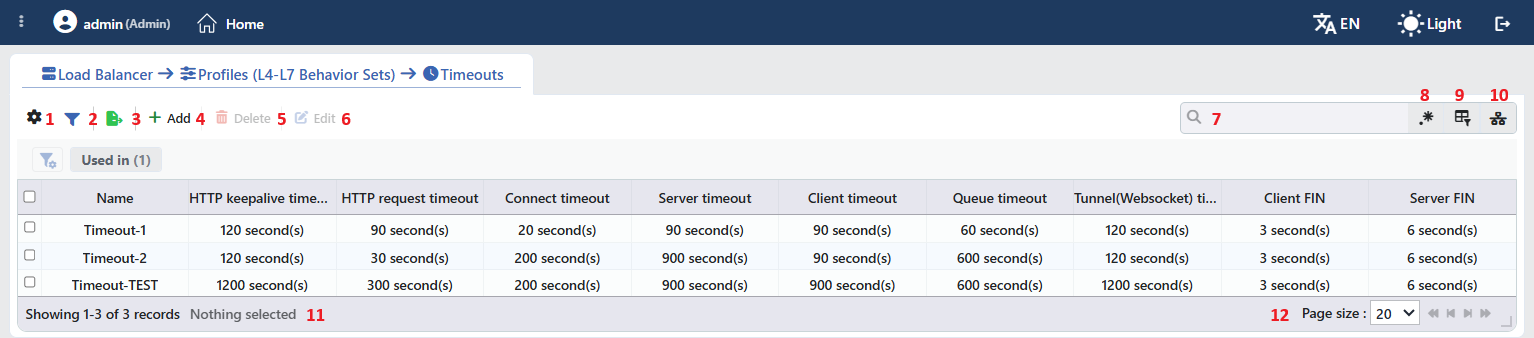 Timeouts Profiles Listing Form
The table opens with the following columns by default:
| Column | Description |
|---|---|
| Name | The name of the profile. |
| HTTP Keepalive Timeout | The time for which the next request can be waited for on the HTTP connection. |
| HTTP Request Timeout | The time allowed for a complete HTTP request to be received. |
| Connect Timeout | The time allowed for a connection to be established to the Backend Service. |
| Server Timeout | The inactivity time on the Backend Service side. |
| Client Timeout | The inactivity time on the client side. |
| Queue Timeout | The time for which the request can wait in the queue. |
| Tunnel(Websocket) Timeout | The inactivity time on the tunnel (WebSocket) connections. |
| Client FIN | The time for which the half-closed connection is held on the client side. |
| Server FIN | The time for which the half-closed connection is held on the Backend Service side. |
The time columns show the value in the N second(s) form. There is no column hidden by default; these ten columns are in the column selector. The table is not sorted when it opens; when a column header is clicked, descending sorting is applied first, then ascending, and on the third click the sorting is removed.
The items in the toolbar are arranged from left to right in the following order; the last two items (Page Information and Page Size) are located in the information strip below the table.
Columns
Which columns are shown in the table is selected; all ten columns are on by default. In the same panel, columns are reordered by dragging and alignment is selected per column; the row height is fitted to the page with the Fit rows to the page button, and the column layout is reset to default with the Reset button. The layout is stored per user.
Filter
The Filter button is used to filter the profiles shown in the list according to certain criteria; the button shows the number of active filters with a badge. There is a single card in the strip: Used in. The card lists the names of the vServices on which the profile is used; for the profiles that are not used on any vService, the Unused Entries option is available. The selections are displayed as closable labels under the card strip, right above the table.
Export
The table is exported as Excel, CSV or PDF by clicking the Export button. In the window that opens, the Filename, Format and Data Source, together with the Columns to be exported, are determined; the remaining fields are displayed according to the format: CSV Separator for CSV, Excel Sheet Name for Excel, and Page Orientation and Page Size for PDF.
Add
By clicking the Add button, the form for creating a new profile opens in the Add tab.
Delete
When one or more profiles are selected and the Delete button is clicked, the related profiles are deleted.
WARNING
A profile that is in use can also be deleted and the confirmation window does not show the usage places. The vServices that use the profile silently return to the default values; before deleting, the Used in tab on the preview panel must be checked.
Edit
By clicking the Edit button, the edit form of the selected profile opens in the Edit tab. The button becomes enabled only when a single profile is selected.
Search
Used to search all information in the table.
RegExp Search
Used to search all information in the table with a regular expression (RegExp). This button is hidden while column-based search or the usage filter is active.
Column Based Search
Used to perform a column-based search on the information in the table.
Usage Filter
Used to filter which vServices the profiles are bound to; the profiles used on the selected vService are listed, and there is an Unused Entries option for those not used on any vService. While the filter is active, the selector takes the place of the search box; when the icon is clicked again, the search box returns.
Page Information
Contains information about the total number of defined profiles and the number of profiles displayed in the list: Showing N-M of T records and the number of selected profiles (N selected, or Nothing selected when there is no selection). If a selection has been made in the filter strip, the number of applied filters and the shown/total row information are added to the same line.
Page Size
The maximum number of profiles to be displayed on the page is selected. The default is 20; the options are 5, 10, 20, 50, 100, 200, 500 and All.
Right-Click Menu
When a row is right-clicked, a menu with the profile's name in its title opens. Both operations in the menu apply only to the right-clicked profile; a selection made in the list does not affect the menu.
| Operation | What it does |
|---|---|
| Edit | Opens the editing form of the profile in the Edit tab; it is the same as the form opened by the Edit button in the toolbar. |
| Delete | Deletes the right-clicked profile; the same confirmation question as the deletion in the toolbar is displayed. |
Preview of the Selected Profile
When a row in the list is clicked, the preview of the profile opens on the right of the screen; when the selected row is clicked again, the panel closes. In the title there are the clock icon, the name of the profile and the Timeout profile subtitle, and at the top right there is a single operation.
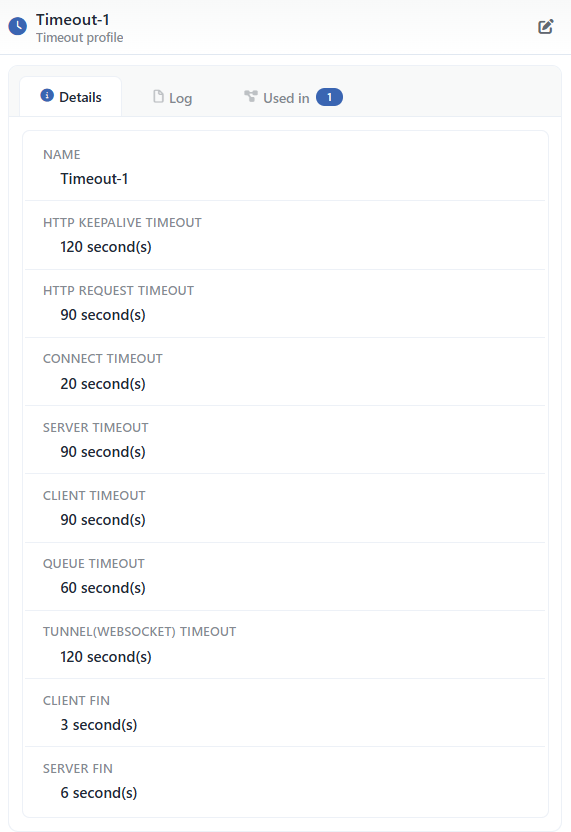 Preview of the Selected Profile
| Operation | What it does |
|---|---|
| Edit | Opens the editing form of the profile in the Edit tab. |
The panel has three tabs; the last one is displayed only if there is a vService that uses the profile:
Details
Lists the settings of the profile line by line (the table below).
Log
Lists the user operations on the profile (adding, editing, deleting) as a timeline.
Used in
Lists the vServices on which the profile is used. The badge next to the tab name shows the number of usages; if there is no vService that uses the profile, the tab is not displayed at all.
The rows in the Details tab are as follows, in order:
| Row | Description | Visibility condition |
|---|---|---|
| Name | The name of the profile. | Always |
| HTTP Keepalive Timeout | The time in the N second(s) form. | Always |
| HTTP Request Timeout | The time in the N second(s) form. | Always |
| Connect Timeout | The time in the N second(s) form. | Always |
| Server Timeout | The time in the N second(s) form. | Always |
| Client Timeout | The time in the N second(s) form. | Always |
| Queue Timeout | The time in the N second(s) form. | Always |
| Tunnel(Websocket) Timeout | The time in the N second(s) form. | Always |
| Client FIN | The time in the N second(s) form. | Always |
| Server FIN | The time in the N second(s) form. | Always |
The "Used in" tab must be checked
The Used in tab shows on which vServices the profile is active. Since updates to the profile settings in a live environment will immediately affect all bound services, evaluating the possible service impacts before a change is critically important.
Profile Add Form
A new Timeouts Profile is added on the TR7 device by following the Load Balancer → Profiles → Timeouts → Add steps.
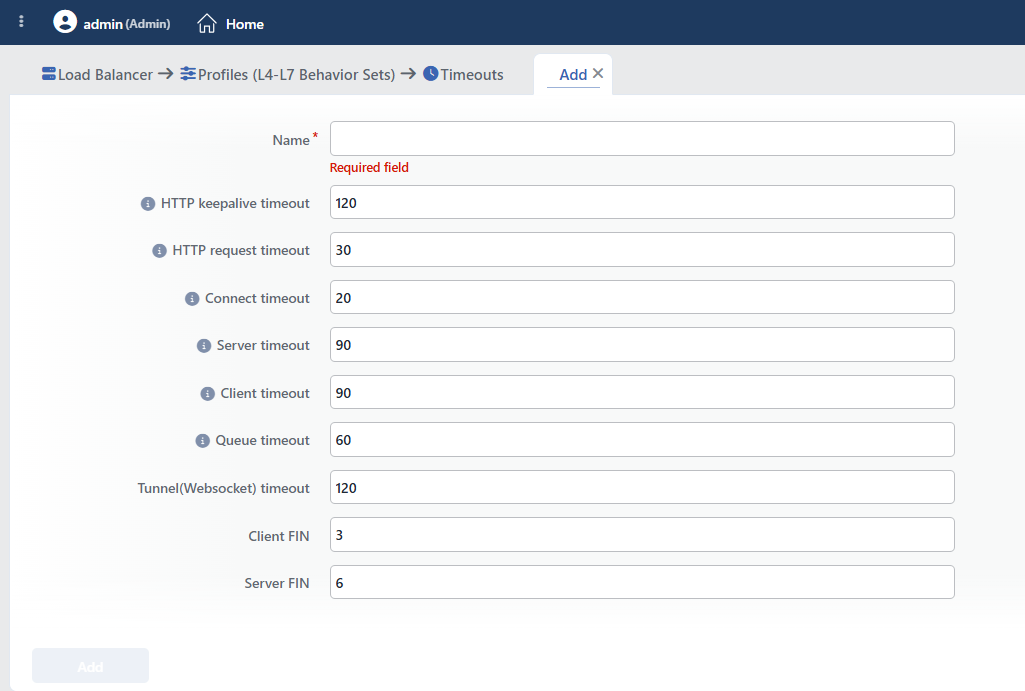 Timeouts Profile Add Form
The number fields come empty in the form and the default value is displayed as a gray hint; the default value is applied to the field left empty at the save. All the times are in terms of seconds.
INFO
Name Required
A unique name is entered for the profile to be created. When a name that is in use is entered, the form gives a Name is used warning and the record is not completed.
INFO
HTTP Keepalive Timeout Default: 120 s
How long the HTTP connection established between the client and TR7 will be kept open without an active data transfer is determined. During this time more than one HTTP request can be sent over the same TCP connection; it increases the performance by reducing the connection establishment cost. A value between 0 – 60,000 seconds can be entered.
INFO
HTTP Request Timeout Default: 30 s
It is the time allowed for the first line and all the headers of the request to be received; the request body is not within this scope (the body is limited by the Client Timeout). It provides protection against the clients that send their headers slowly. A value between 0 – 60,000 seconds can be entered.
INFO
Connect Timeout Default: 20 s
The maximum time that TR7 will wait to establish a TCP connection with the Backend Service is determined. If the Backend Service is inaccessible or the connection is delayed, the connection is considered failed at the end of this time. It prevents the unresponsive Backend Services from affecting the traffic flow for a long time. A value between 0 – 60,000 seconds can be entered.
INFO
Server Timeout Default: 90 s
It limits the time for which the data flow stops on the Backend Service side. The counter is reset at every data transfer; for this reason the field determines not the total time of the operation but the longest silence between two pieces of data.
The long-lasting operations that continue to stream data (a download in progress, a chunked response) are not cut by this time; the situation that is cut is the Backend Service not sending any data at all. A value between 0 – 60,000 seconds can be entered.
INFO
Client Timeout Default: 90 s
It limits the time for which the data flow stops on the client side; the counter is reset at every transfer. In the situation where the client leaves the connection open and does not send data, the connection is closed at the end of this time. It prevents the idle client connections from consuming resources. A value between 0 – 60,000 seconds can be entered.
INFO
Queue Timeout Default: 60 s
In the situations where the Backend Services are busy, the maximum time for which a request can wait in the Backend Service queue is determined. When this time is exceeded, the request is terminated without being processed and a 503 response is returned to the client. It makes the system work predictably and in a controlled way even under excessive load. A value between 0 – 60,000 seconds can be entered.
INFO
Tunnel(Websocket) Timeout Default: 120 s
The timeout period valid for the long-lived connections that remain continuously open, such as WebSocket, is determined. When there is no data flow on the connection, the tunnel is closed at the end of this time. It makes the long-lived connections be managed safely and in a controlled way. A value between 0 – 60,000 seconds can be entered.
INFO
Client FIN Default: 3 s
The maximum time to be waited for the connection to be closed completely after the TCP connection is terminated by the client is determined. It makes the TCP closing process be completed quickly and properly. A value between 0 – 60,000 seconds can be entered.
INFO
Server FIN Default: 6 s
The maximum time to be waited for the connection to be closed completely after the TCP connection is terminated by the Backend Service is determined. It makes the connection closings on the Backend Service side be managed consistently and in a controlled way. A value between 0 – 60,000 seconds can be entered.
How to Add to a vService?
A Timeouts Profile is assigned to a vService by following the steps below.
1
Step 1 Go to the vServices screen
The Load Balancer → Load Balancer vService List path is followed in the TR7 web interface.
2
Step 2 Open the editing screen of the vService
The vService to which the profile will be added is right-clicked and Edit is selected; or the vService is clicked and the Edit icon is clicked in the window that opens on the right.
3
Step 3 Enable the Timeout feature
On the Details panel on the right of the editing screen of the vService, the feature is put into effect by marking the Timeout option. When it is marked, the built-in Default profile comes selected; on a new vService this option starts off.
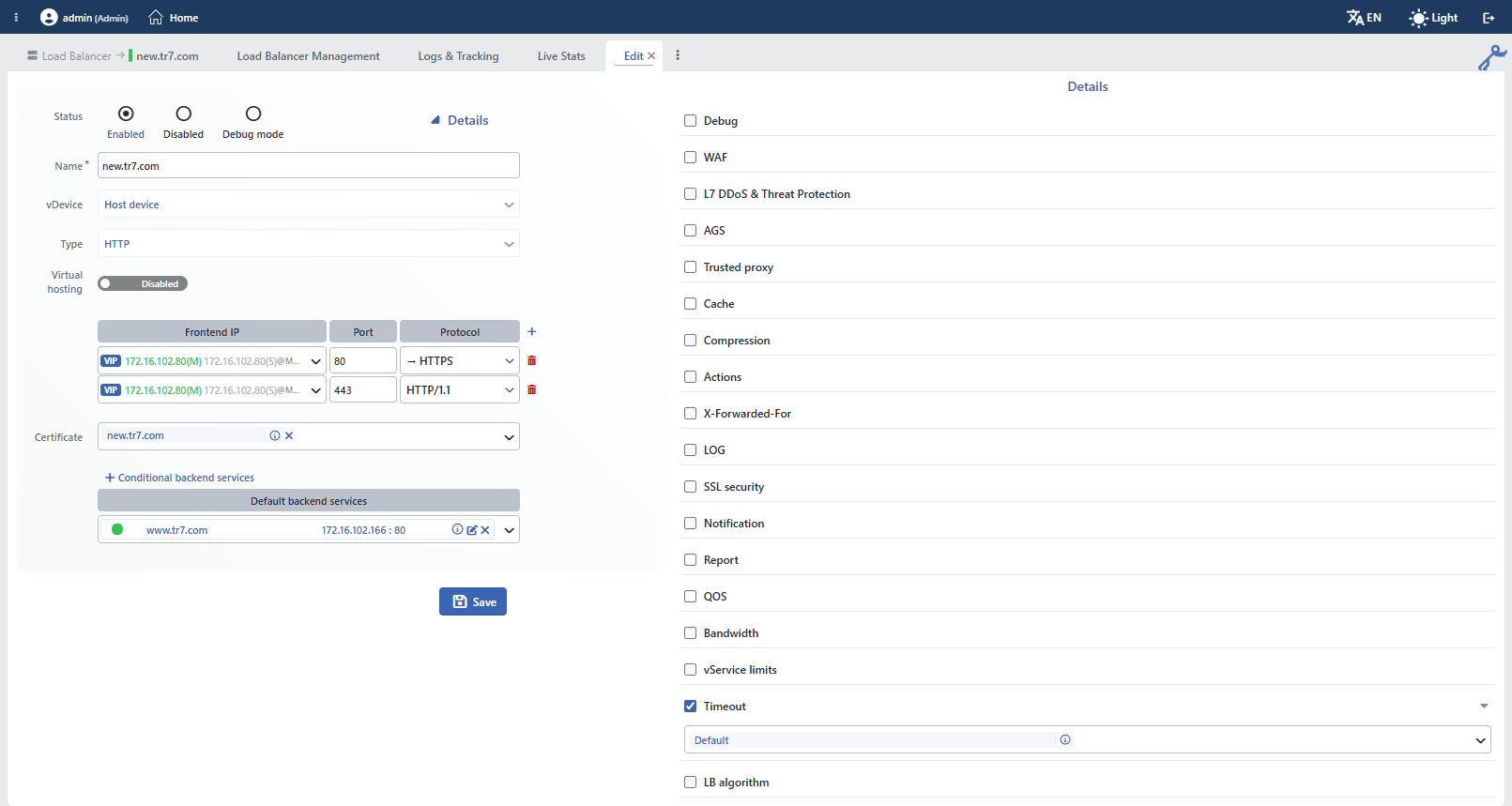 The Timeouts Selection on the vService Editing Screen
4
Step 4 Select a profile or add a new one
In order to use a profile other than Default, the arrow sign next to the row is clicked and a selection is made from the list in the expanding section.
If desired, a new profile can also be added through the vService editing screen by clicking the Add button.
5
Step 5 Save
The changes are saved by clicking the Save button; while the configuration is being applied to the vService, the "vService is being edited" notification is displayed.
