
Smarter by Design.Simpler for Business
Edit
What Is Edit?
Edit is the edit window that gathers the settings of the Bot Protection card other than the score and the factors. The six settings here determine how the protection will work: in which mode it will be, to whom the browser check will be applied, which traffic will be exempted and from which score records will be written to the event log.
The score thresholds are edited on the Action Rules screen and the detection factors on the Factors screen.
6
Settings
The mode, the browser check, the bot trust, the whitelist in two forms and the log score floor; five on L7 TCP
Monitor
Default Mode
On HTTP vServices the protection scores at the first moment; on L7 TCP the default is Off
Suspicious
Browser Check
By default only the visitors that the score suspects are checked
On
Bot Trust
The verified crawler bots are exempt from the rules by default
6 Types
Whitelist Row
IP · CIDR · ASN · JA4 · JA4 Family · User-Agent
40
Log Score Floor
The enforcement and monitoring records are written independently of the floor
The Edit Link on the Bot Protection Card
The link is right below the mode badge at the top right corner of the card. The badge shows the current mode, and the link opens the window in which the mode is changed. The information chips at the top right of the card are also the summary of the settings in this window.
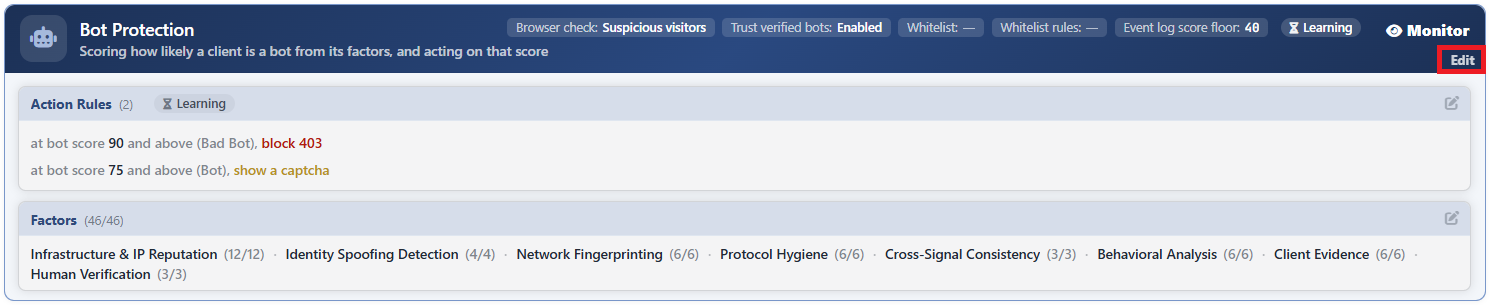 The Edit Link on the Bot Protection Card
The Edit Screen
- The Bot/DDoS Management tab is opened.
- The Edit link at the top right of the Bot Protection card is clicked; the edit window titled Edit - Bot Protection opens.
- The following fields are edited and confirmed with the
Editbutton.
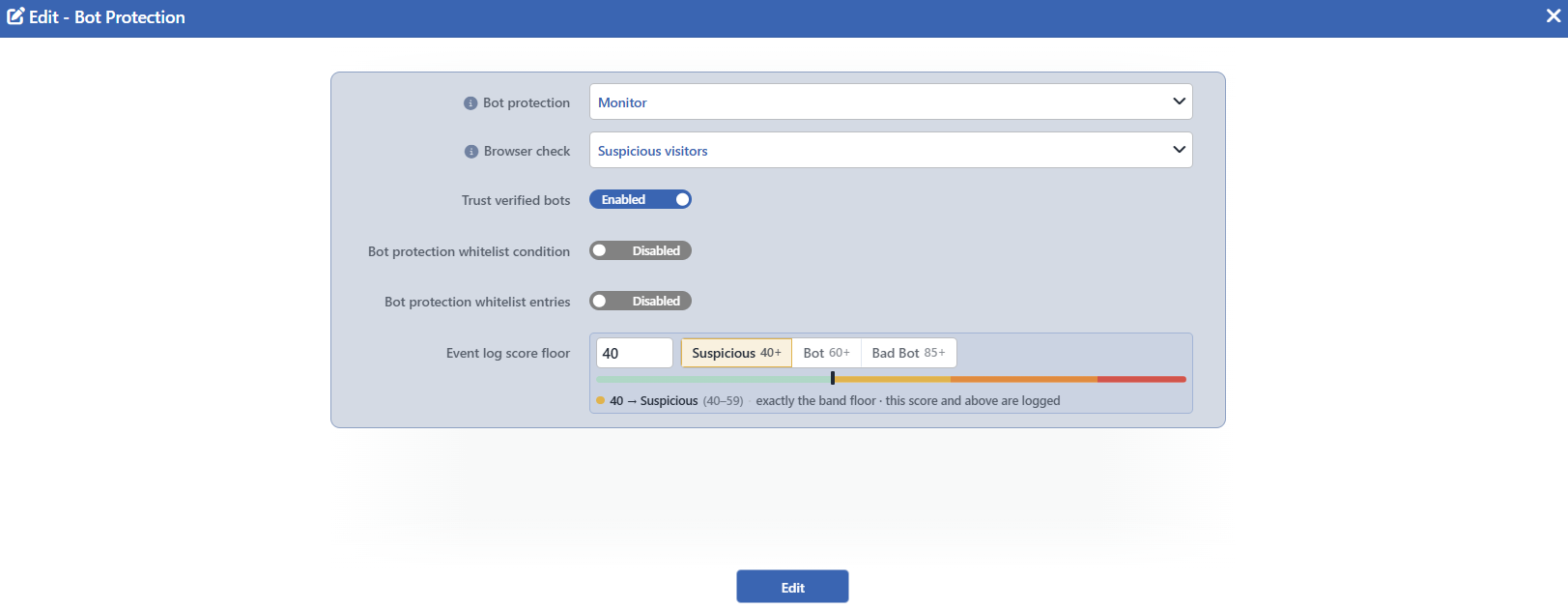 The Bot Protection Edit Screen
INFO
Bot Protection
The working mode of the protection is selected. Its default value is Monitor on HTTP vServices and Off on L7 TCP vServices.
| Option | Meaning |
|---|---|
| Off | The scoring stops completely: the factor counters, the score telemetry and the bot events are not produced. |
| Active | The score is calculated and the action rules are applied. |
| Monitor | The score is calculated, the telemetry is collected and which action would be applied is written to the event log; the traffic is not touched. |
When Off is selected, most of the fields in the form are hidden: the browser check, the bot trust, the whitelist condition and the factor selection and the rule list on the other screens are removed from the screen. Their written values are not deleted, and they come back when the protection is turned on again. The Bot Protection Whitelist Entries and Event Log Score Floor fields, on the other hand, continue to stay in the form; while the protection is off, neither of the two has any effect.
While Monitor is selected, an information icon appears on the left of the label; when it is hovered over, the following text is seen: Actions fire only while the pillar is Active — in Monitor everything here stays staged and no traffic is affected. The icon is present only in this mode and disappears while Active and Off are selected.
INFO
Browser Check Default: Suspicious Visitors
To which visitors the browser check will be applied is selected; its default value is Suspicious Visitors.
| Option | Meaning |
|---|---|
| Off | The browser check is not made. |
| Suspicious Visitors | Only the visitors whose score has reached the Suspicious band (40 and above) are checked. |
| Every Visitor | Every new visitor is checked once. |
In the values other than Off, an information icon appears on the left of the label and opens a long text that tells what the selected mode does. The text of the Every Visitor mode also says the cost of this mode: the clients that cannot run the check (application interface calls, mobile applications, scripts) are not blocked, but each of them pays an extra round trip.
The check is made by returning a short and silent page instead of the response of the request. The page asks the visitor nothing and gives no exemption; it only measures whether the browser really behaves like a browser and writes the result to the Client Evidence and Human Verification factors. The measurement report is sent to a separate path and is met directly by the engine with an empty response; this request does not reach any Backend Service. The result itself is kept in a signed cookie on the client. The cookie has two separate lifetimes: the incriminating signals stay valid for 24 hours and the trust signals that lower the score for 30 minutes.
The check is applied only to the GET requests made for navigation: the application interface calls, the scripts and the mobile clients are not measured. To be counted as navigation, the request must be marked as navigation in its Sec-Fetch-Mode header or, if this header is not present, HTML must be requested in its Accept header, and in addition the Accept-Language header must be present. Right after the measurement a short-lived mark cookie is placed; the same visitor is not asked one after another at short intervals.
| Subject | Behavior |
|---|---|
| HTTP only | On L7 TCP vServices the field is not present at all and the check is not made. |
| It works in the Monitor mode as well | The check is not an enforcement but a measurement; in the monitoring mode it is the only way for a decision to be able to see the browser. |
| The exemptions | The traffic that matches the whitelist, the clients that carry a valid measurement cookie and the protocol surfaces are not checked. The protocol surfaces do not consist only of the challenge pages: the certificate validation path, the measurement reporting endpoint and the authentication surface are also covered. The exemption of the verified bots, on the other hand, is present only while Trust Verified Bots is on. |
| It is below the actions | A request that has been rejected, redirected or taken into quarantine does not see the check page. |
The check window can close
In the Active mode the check is made only in the range before an action rule is triggered. If the lowest rule threshold is lowered down to the floor of the browser check (40), the range closes and, even if Suspicious Visitors is written on the screen, no check is made at all. In the Monitor mode there is no such upper limit.
INFO
Trust Verified Bots Default: On
Whether the verified crawler bots will be exempted from the action rules or not is selected; it is on by default.
The verification is not made by looking at the User-Agent header: the address range from which the bot comes is compared with the verified bot group in the network type database. A client that introduces itself as a search engine cannot benefit from this exemption; moreover such a client receives points from the Crawler Impersonation factor in addition.
The exemption does not stop the score: the score is still calculated, the factor and histogram telemetry still work and the record is still produced. Only the action is not applied and the browser check is not made.
Its difference from its twin in L7 DDoS
The setting that carries the same name is off by default on the L7 DDoS Protection card. The reason is a priority that reverses: in the volume protection the availability comes first and it is wanted that a crawling storm also stays under the ceiling. In the bot protection, on the other hand, it is not wanted that a verified search engine bot is blocked by looking at its score.
INFO
Bot Protection Whitelist Condition
The traffic to be exempted from the protection is defined with a condition. While the switch is in the Disabled position, there is no condition; when it is taken to the Enabled position, an empty combined condition opens and criteria are added.
The conditions that can be selected have been limited for this field: only the criteria that can be evaluated at the request stage and that fit the protocol of the vService are listed.
INFO
Bot Protection Whitelist Entries
It is the shortcut list of the same exemption written row by row. While the switch is in the Disabled position, the list is empty; when it is taken to the Enabled position, rows are added.
The list consists of the Type and Value columns. A new row is added with the plus icon in the Value column heading, and the rows are deleted with the trash bin icon at the end of the row. When the type of a row is changed, the row is set up again and the fields that the new type does not use drop. The value is preserved only between the types that share the same value field: the address stays between IP Address and IP Network (CIDR), and the text stays as it is between JA4 Fingerprint, JA4 Family and User-Agent (Exact Match).
The row types that the bot protection accepts:
| Type | Its value |
|---|---|
| IP Address | A single address. |
| IP Network (CIDR) | An address and a network mask (24 by default). |
| ASN (Autonomous System) | The autonomous system number; only digits are entered. |
| JA4 Fingerprint | A complete JA4 TLS fingerprint. |
| JA4 Family | A JA4 client family. |
| User-Agent (Exact Match) | The exactly matching User-Agent text; a substring match is not made. |
The JA4 Fingerprint and JA4 Family rows work only on the engine versions that have JA4 support. The User-Agent row is specific to HTTP and is skipped on L7 TCP vServices.
The rows are in an "or" relationship with each other and they combine with the condition in an "or" relationship as well: the traffic that matches one of the two is counted as exempt. The design limit of the list is 100 rows; the limit is applied in the writes made from the external interfaces, and in the save made from this window the number of rows is not checked separately.
The score of the exempt traffic is still calculated: the exemption is a classification, not an action. For this reason it is evaluated in the Monitor mode as well and appears in the event log with a separate exemption flag.
INFO
Event Log Score Floor Default: 40
The lowest bot score to be written to the event log is determined; its default and smallest value is 40.
The field is a single value that has three surfaces: the number box, the band buttons (Suspicious 40+ · Bot 60+ · Bad Bot 85+) and the draggable colored strip. Clicking one of the band buttons pulls the value to the floor of that band. The explanation row below the field writes into which band the number entered falls and its position according to the floor of that band; if it is exactly at the floor of the band, exactly the band floor · this score and above are logged, and if it is above it, how many points higher it is is stated. A value below the smallest value can also be written into the number box; in that case the row shows the text the clean-traffic band · a floor here writes ordinary visitors into the log in the warning color and the field gives a validation error.
The floor gates only the "scored but nothing done" records. The records below are always written independently of the floor:
- The requests on which an action is applied.
- The requests that carry the "which action would be applied" stamp in the Monitor mode.
- The requests that come from the addresses recorded in the reputation lists.
The floor does not affect the counters: the score histogram, the factor telemetry and the outcome buckets are filled independently of the value entered.
The floor reads the score before the trust signals are subtracted
The log floor is compared with the score before the Human Verification signals are taken into account. In this way the evidence produced by a client whose score has been pulled down because it has logged in also appears in the log.
INFO
Edit
Changes in the form are saved by clicking the Edit button. There is no additional confirmation window or deploy step; the Load Balancer configuration is regenerated and applied automatically. The operation is written to the user log with a change summary. As long as the form carries an invalid value, the button is passive.
Even if the window seems to send only its own fields, the save is overlaid on the whole of the stored configuration: the factor selection and the rule list edited on the other screens are not affected by this save.
Scope and Limits
INFO
- The score and the factors are not on this screen. The thresholds are edited on the Action Rules screen and the detection factors on the Factors screen.
- Browser Check is present only on HTTP vServices. On L7 TCP vServices the field is not produced at all.
- The browser check does not give an exemption. A visitor that passes the check does not become exempt from the action rules; only its score is calculated with better evidence.
- Event Log Score Floor stays in the form while the protection is off. However, since the scoring is not made at all in the Off mode, the field has no effect.
- The whitelist types change according to the protection. The JA4 and User-Agent rows are present only in this protection; the country row is specific to the L7 DDoS protection.
- The exemption and the bot trust do not stop the score. Both of them only remove the enforcement; the score, the telemetry and the record continue to work.
- Saving does not ask for confirmation. The moment the
Editbutton is clicked, the configuration is written and the regeneration is started in the background. - The window opens only on the users that have edit permission. The card is displayed with read-only permission; the Edit link is displayed only on the users that have edit permission.
