
Smarter by Design.Simpler for Business
Tracking Condition
What Is Tracking Condition?
Tracking Condition is a condition type used to make traffic manipulation decisions by evaluating the traffic statistics collected by the Advanced Traffic Inspection action.
This condition compares the metrics in the tracking table created by the Advanced Traffic Inspection action (the number of requests, the number of errors, the bandwidth, the number of connections, etc.) with a threshold value and, according to the result, triggers actions such as blocking, showing content and redirecting.
1. Advanced Traffic Inspection
The vService traffic is monitored; statistics are collected according to keys such as IP and User-Agent.
2. Tracking Condition
The collected metrics are compared with the threshold value (e.g. HTTP requests > 500).
3. Action
The action is applied to the clients that meet the condition (Block, Show Content, etc.).
In the example below, the IP-based request counts collected in the LOGIN_MONITOR tracking table and the threshold evaluation are shown:
WARNING
In order for this condition to work, traffic tracking must first have been started with the Advanced Traffic Inspection action. Tracking Condition references the tracking table created by this action through the Tracked Table field.
The Importance of Tracking Condition
Tracking Condition is a critical component that turns the data collected by the Advanced Traffic Inspection action into action decisions.
With Tracking Condition:
- Request flood attacks can be detected and blocked,
- HTTP error rates can be monitored and action can be taken when the threshold is exceeded,
- Bandwidth abuse can be detected and limited,
- Connection exhaustion attacks can be blocked,
- Graduated threshold values can be defined for different metrics.
Relationship Between the Condition and the Action:
| Component | Role |
|---|---|
| Advanced Traffic Inspection Action | Collects the traffic statistics, creates the tracking table |
| Tracking Condition | Compares the collected metrics with the threshold values |
| Other Actions (Block, Show Content, etc.) | The actions to be applied when the condition is met |
Common Usage Scenarios:
| Scenario | Tracking Criterion | Operator | Value | Action |
|---|---|---|---|---|
| Request flood | HTTP requests | > | 500 | Block |
| Error rate | HTTP Errors | > | 50 | Conditional logging |
| Bandwidth | Outgoing Data | > | 1 GB | Limit bandwidth |
| Connection spike | Current Connections | > | 100 | Show content |
Supported vService Types
HTTP
L7 TCP
Network
How to Add?
A new Tracking Condition can be added through the TR7 web management interface by following the steps below:
- The Configuration Menu is opened by clicking the TR7 logo at the bottom left.
- The Load Balancer → Conditions → Add steps are followed.
- Tracking condition is selected as Criteria.
- The related configurations of the condition are made.
- The condition is added by clicking the
Addbutton.
Tracking Condition Add Form
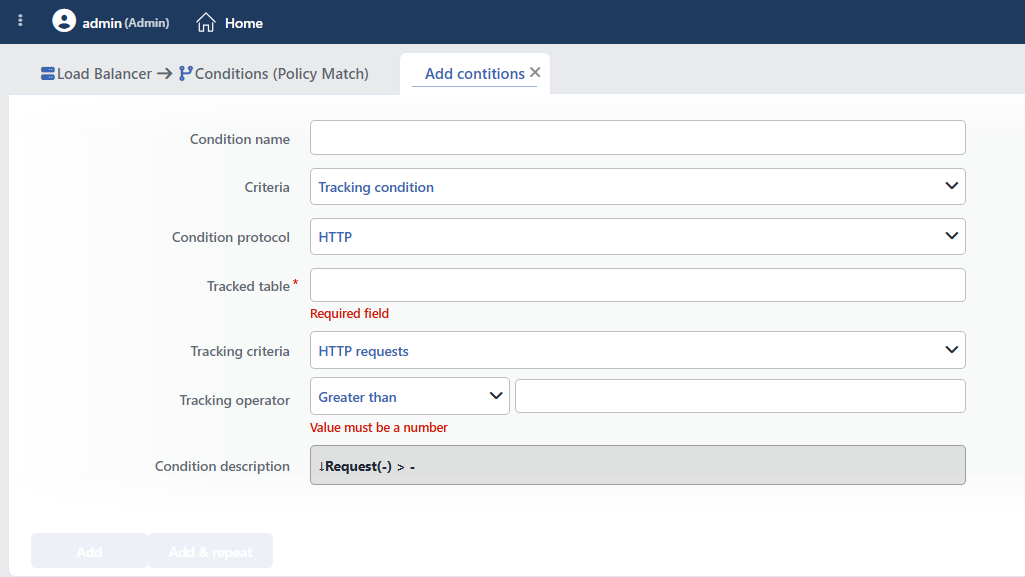 Tracking Condition Add Form
INFO
Condition Name
An optional name can be entered for the condition to be created.
This field is especially important in the following scenarios:
- When many conditions are defined under the same vService,
- When conditions with similar criteria need to be distinguished,
- When it is necessary to quickly understand which business rule the condition represents.
When this field is left empty, TR7 analyzes the content of the related condition and creates an automatic, descriptive name in the Condition Description field. This generated description is used as the name in condition lists.
INFO
Criteria Required
The field that determines the type of the condition; Tracking condition is selected from the searchable dropdown list. This selection determines the fields displayed in the form. The criterion cannot be changed after the condition is saved: if a different criterion is needed, a new condition is defined. For all criteria in the list and their scopes, the criteria catalog on the Conditions page can be referred to.
INFO
Condition Protocol
Which vService type the condition will be valid for is selected. The available Tracking Criteria options change according to the selection.
- HTTP: Used for HTTP vServices. All tracking criteria can be used.
- TCP: Used for L7 TCP vServices. Only data and connection metrics can be used.
INFO
Tracked Table Required
Which tracking table the condition will evaluate is determined in this field. In this field, the Traffic Tag values defined in the Advanced Traffic Inspection action are listed.
WARNING
In order for an option to appear in this field, at least one Advanced Traffic Inspection action must have been created and a Traffic Tag must have been defined.
TIP
Example: If LOGIN_MONITOR is defined as the Traffic Tag in the Advanced Traffic Inspection action, LOGIN_MONITOR is written in the Tracked Table field of the Tracking Condition. The field is free text: the existing tags are listed as a suggestion but the spelling is not validated; the tag must belong to an Advanced Traffic Inspection action in the same vService where the condition will be used (the suggestion list can also show the tags of other vServices).
Wrong Table Name Trap
If the tracked table value does not match any Traffic Tag defined in the related vService, the condition silently falls in the configuration and the rule to which the condition is bound (including Block) can remain unconditional and be applied to all traffic. The tag name must be exactly the same as its spelling in the action.
INFO
Tracking Criteria
Which metric in the tracking table will be evaluated is selected. The available metrics change according to the vService type.
HTTP vService:
| Criterion | Description |
|---|---|
| HTTP requests | The number of HTTP requests in the tracking period |
| HTTP errors | The number of faulty HTTP requests in the tracking period (4xx) |
| Incoming data (B) | The amount of incoming data in the tracking period (bytes) |
| Outgoing data (B) | The amount of outgoing data in the tracking period (bytes) |
| Total connections | The total number of connections in the tracking period |
| Current connections | The instantaneous number of active connections |
L7 TCP vService:
| Criterion | Description |
|---|---|
| Incoming data (B) | The amount of incoming data in the tracking period (bytes) |
| Outgoing data (B) | The amount of outgoing data in the tracking period (bytes) |
| Total connections | The total number of connections in the tracking period |
| Current connections | The instantaneous number of active connections |
TIP
The HTTP requests and HTTP errors criteria can be used only in HTTP vServices. These options are not visible in L7 TCP vServices.
INFO
Tracking Operator
The numeric comparison operator and threshold value are entered.
| Operator | Symbol | Description |
|---|---|---|
| Less than | < | The value must be less |
| Equals to | = | The value must match exactly |
| Greater than | > | The value must be greater |
| Range | - | The value must be between two values |
TIP
The values are entered in the appropriate unit according to the selected criterion. For example, 500 is entered for the HTTP requests criterion, and 1073741824 (1 GB) in bytes for the Incoming data (B) criterion.
INFO
Condition Description
It is created automatically by TR7 in line with the entered criteria and values.
This description:
- which value the condition applies to,
- which criterion it works on,
- the quick understanding of the condition on listing screens
is produced dynamically by the system so as to provide these. The table name is also included in the description; in byte criteria the value is shown with a readable unit (1073741824 → 1 GB).
TIP
The same tracking counters can also be read in log, header and content templates with smart variables such as HTTP requests during tracking period, HTTP errors during tracking period, Current connections and Incoming data during tracking period (B), by giving the tracking tag.
INFO
Form Buttons
Add
The condition adding process is completed by clicking the Add button.
Add & Repeat
With the Add & Repeat button, the condition adding process is completed, and another new condition can be added with different configurations without leaving the related window.
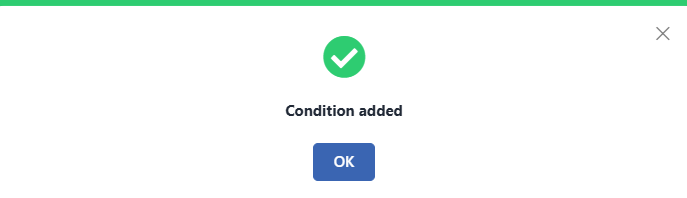 Condition Added
Usage with the Advanced Traffic Inspection Action
Tracking Condition is used together with the Advanced Traffic Inspection action. The action collects the traffic data, and the condition evaluates this data and triggers the other actions.
1
Step 1 Creating the Advanced Traffic Inspection Action
First, the action that starts traffic tracking is created.
- Action Type:
Advanced Traffic Inspection - Fields to Track:
Source (client) IP address - Traffic Tag:
LOGIN_MONITOR - Tracking Period:
1 minute - Conditions: Path =
/login(optional)
2
Step 2 Creating the Tracking Condition
The condition that will evaluate the collected data is created.
- Criteria:
Tracking condition - Tracked Table:
LOGIN_MONITOR - Tracking Criteria:
HTTP requests - Tracking Operator:
> 100
3
Step 3 Creating the Action (Block, Show Content, etc.)
The action to be applied when the condition is met is created and the condition is added.
- Action Type:
Block(or another action) - Conditions: The Tracking Condition created in Step 2
Result:
- The traffic coming to the login page is monitored on an IP basis.
- The IPs that, within 1 minute, make more than 100 requests are detected.
- The selected action (block, show content, etc.) is applied to the detected IPs.
Operational Usage Recommendations
- The Traffic Tracking Action Should Be Created First. In order for this condition to work, the Advanced Traffic Inspection action must first be created and traffic tracking must be started.
- Graduated Thresholds Should Be Defined. Different actions should be defined for different threshold values (e.g. > 100 requests → add a header, > 500 requests → block).
- The Correct Criterion Should Be Selected. The criterion appropriate for the purpose should be selected: HTTP requests for DDoS, data metrics for bandwidth abuse, current connections for slowloris.
- Threshold Values Should Be Verified in a Test Environment. Threshold values should be verified in a test environment before production. Low thresholds can block legitimate users.
