
Smarter by Design.Simpler for Business
Malformed Flags & Scans
What Is Malformed Flags & Scans?
Malformed Flags & Scans does not measure a rate or a number in the TCP band; it looks at the form of the packet itself.
The flags in the TCP header carry a protocol grammar. Some flag combinations can never occur according to this grammar: a legitimate stack does not produce them. Such a packet appearing on the network is not an error but a deliberate production; it is usually the trace of a tool trying to probe the firewall behavior or to tire the stack.
For this reason the four rules in the box are the most definite rules of the band and they carry no false positive risk.
4
Rules
All four are signature checks; none of them has an adjustable value
12
Bogus Flag Patterns
A single rule catches twelve malformed flag patterns
4
Exempt from the Promotion Permission
All four can promote into enforcement while the Mode Promotion permission is off
4
Able to Send to Quarantine
All four can take the source into quarantine
60 Seconds
Scan Trap Window
All the traffic of the source that touches the trap is dropped during this time
No Setting
Edit Window
The definition row of the rule together with Status, Learning Lock and Save; no sub-field
The Malformed Flags & Scans Box on L4 DDoS Management
The box is the third box in the body of the TCP band. In its header there are its name and the number of rules it carries, and in its body four rule rows.
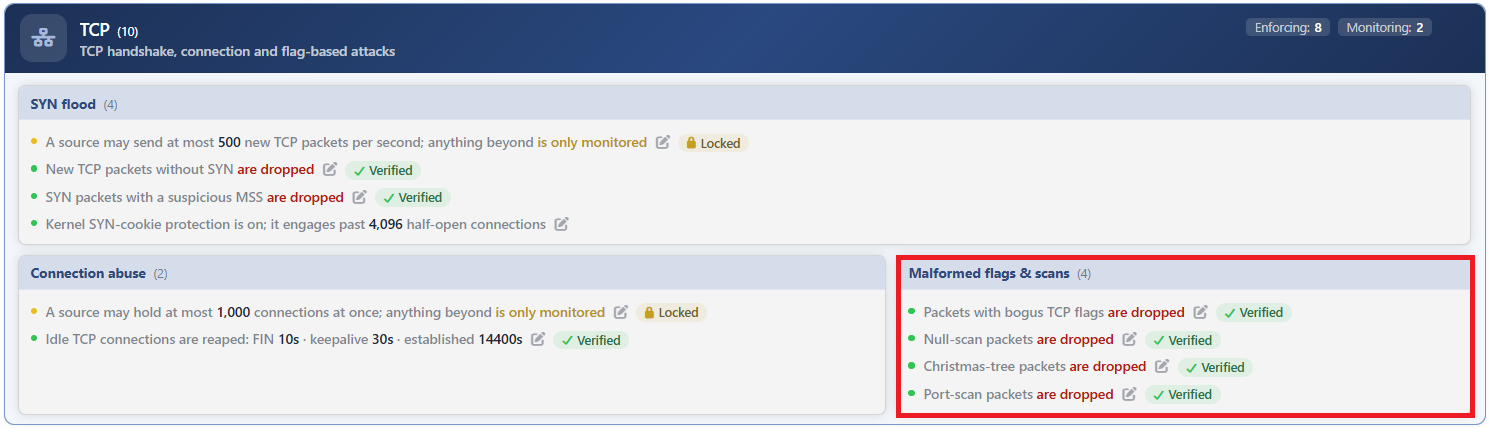 TCP - The Malformed Flags & Scans Box
| Row | Rule | What it catches |
|---|---|---|
| 1 | Bogus TCP Flags | The twelve flag patterns that cannot occur in legitimate traffic. |
| 2 | Null Flood | The packets with no flag marked. |
| 3 | Christmas Tree Scan | The packets with all their flags marked. |
| 4 | Port Scan | The sources that touch the scan trap. |
All four carry the same editing pattern
None of these rules has an adjustable value: the matching criterion is in the rule's own definition and cannot be changed from the interface. In their edit windows, below the information row that gives the definition of the rule, there are only Status, Learning Lock and Save.
All four offer the same four values: Disabled · Monitor · Block · Quarantine.
Bogus TCP Flags
It is the rule of the box with the widest scope: on its own it catches twelve flag patterns. All of them are contrary to the protocol grammar; none of them comes out of a legitimate TCP stack.
The patterns caught are roughly separated into three families: the marking together of flags that contradict each other (such as the connection opening and the connection closing request being in the same packet), the sending on their own of flags that are meaningless alone, and the scan patterns produced by marking only a certain subset among all the flags. The first pattern of the list, on the other hand, is the packet with no flag marked.
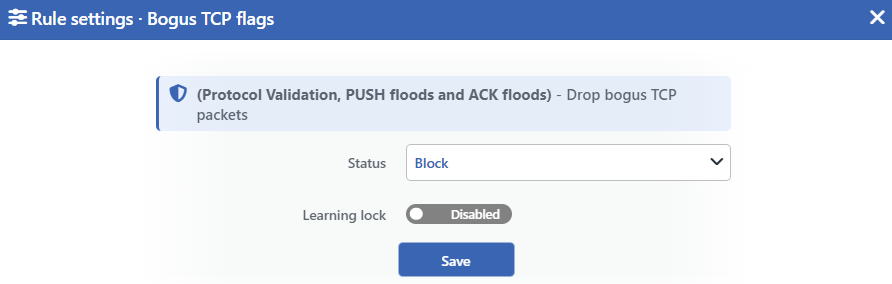 Bogus TCP Flags Edit Screen
INFO
Status
Selects the rule's operating mode. Four values are offered, and the selected value also determines the sentence on the row:
| Value | The sentence in the row |
|---|---|
| Disabled | Packets with bogus TCP flags are not monitored |
| Monitor | Packets with bogus TCP flags are only monitored |
| Block | Packets with bogus TCP flags are dropped |
| Quarantine | Packets with bogus TCP flags are dropped and their sources are quarantined |
INFO
Learning Lock Default: Off
Closes the rule to the learning engine. When the switch is turned on, the engine cannot change the mode of this rule; the rule is changed only manually from this window.
It is off by default. While the lock is on, an unlabeled padlock icon is displayed on the row, to the left of the pencil.
INFO
Save
Saves the change made and puts it into force immediately. Only the changed fields are updated.
Even if a packet fits more than one pattern it is counted once
The twelve patterns of the rule are checked separately, but the measurement is gathered in a single counter and a matching packet is counted only once. For this reason the value in the counter gives not the number of patterns matched but the number of packets caught.
Null Flood
Catches the TCP packets with no flag marked. A TCP packet has to carry at least one flag; a packet with all of them empty is a probe that tries to measure how the firewall reacts to an unknown packet.
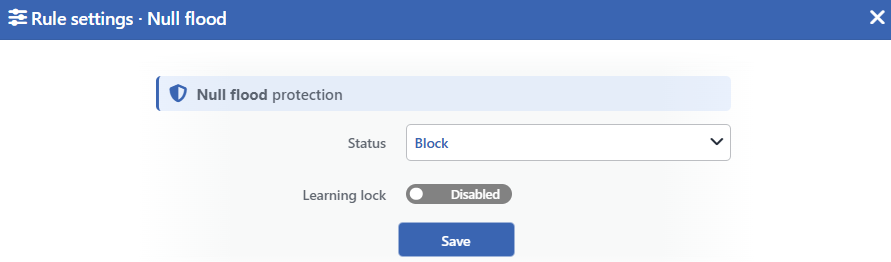 Null Flood Edit Screen
INFO
Status
Selects the rule's operating mode. Four values are offered, and the selected value also determines the sentence on the row:
| Value | The sentence in the row |
|---|---|
| Disabled | Null-scan packets are not monitored |
| Monitor | Null-scan packets are only monitored |
| Block | Null-scan packets are dropped |
| Quarantine | Null-scan packets are dropped and their sources are quarantined |
INFO
Learning Lock Default: Off
Closes the rule to the learning engine. When the switch is turned on, the engine cannot change the mode of this rule; the rule is changed only manually from this window.
It is off by default. While the lock is on, an unlabeled padlock icon is displayed on the row, to the left of the pencil.
INFO
Save
Saves the change made and puts it into force immediately. Only the changed fields are updated.
Christmas Tree Scan
Catches exactly the opposite of the previous one: the packets with all their flags marked at the same time. It takes its name from its resemblance to a decorated tree with all its lights on.
It serves the same purpose as the packet with empty flags; the stacks reacting differently to these two extremes helps to guess which system the other side is.
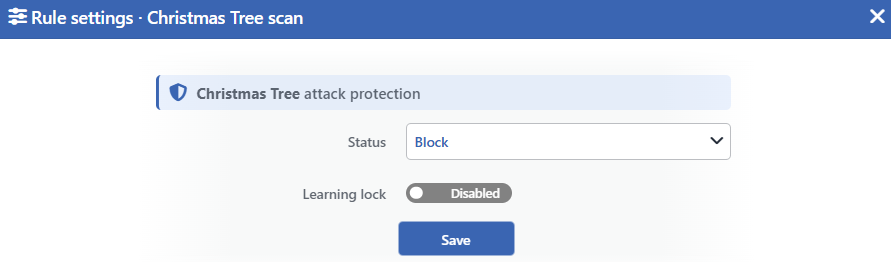 Christmas Tree Scan Edit Screen
INFO
Status
Selects the rule's operating mode. Four values are offered, and the selected value also determines the sentence on the row:
| Value | The sentence in the row |
|---|---|
| Disabled | Christmas-tree packets are not monitored |
| Monitor | Christmas-tree packets are only monitored |
| Block | Christmas-tree packets are dropped |
| Quarantine | Christmas-tree packets are dropped and their sources are quarantined |
INFO
Learning Lock Default: Off
Closes the rule to the learning engine. When the switch is turned on, the engine cannot change the mode of this rule; the rule is changed only manually from this window.
It is off by default. While the lock is on, an unlabeled padlock icon is displayed on the row, to the left of the pencil.
INFO
Save
Saves the change made and puts it into force immediately. Only the changed fields are updated.
Port Scan
It is the rule of the box that works differently from the other three: it looks not at the form of a packet but at the behavior of a source.
The rule sets up a trap. A target that is not served on the network but that the scanning tools try almost always is listened to; a source that touches it is counted as having attempted a scan and is left out completely for a short time.
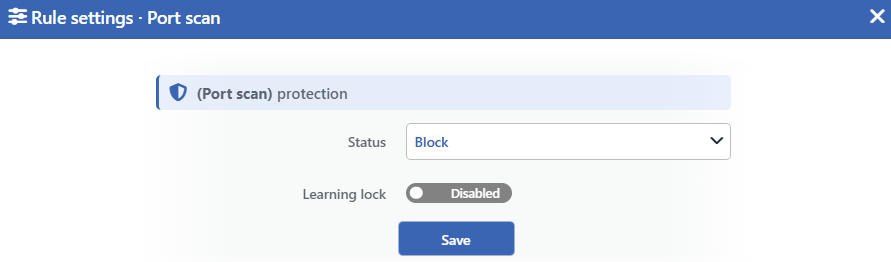 Port Scan Edit Screen
INFO
Status
Selects the rule's operating mode. Four values are offered, and the selected value also determines the sentence on the row:
| Value | The sentence in the row |
|---|---|
| Disabled | Port-scan packets are not monitored |
| Monitor | Port-scan packets are only monitored |
| Block | Port-scan packets are dropped |
| Quarantine | Port-scan packets are dropped and their sources are quarantined |
INFO
Learning Lock Default: Off
Closes the rule to the learning engine. When the switch is turned on, the engine cannot change the mode of this rule; the rule is changed only manually from this window.
It is off by default. While the lock is on, an unlabeled padlock icon is displayed on the row, to the left of the pencil.
INFO
Save
Saves the change made and puts it into force immediately. Only the changed fields are updated.
The enforcement is not limited to the packet that touches the trap
While the rule is in an enforcement mode, it works in two stages. The packet that touches the trap is dropped and the source is written to a short-term list; all the traffic of that source from then on, whichever port or protocol it goes to, is dropped during the list time.
The time is 60 seconds and it starts over at every new touch to the trap. The purpose is not to punish but to cut an ongoing scan; the permanent blocking is the job of the Quarantine rule.
In the monitoring mode the trap is not set up
While the rule is in the Monitor mode, only a counter works: the touches made to the trap are counted. Neither is a packet dropped nor is a short-term list created.
For this reason a number seen in the monitoring mode means not "the scan blocked" but "the touch seen".
Why Do These Four Rules Not Require the Promotion Permission?
Before promoting a rule from monitoring into enforcement, the learning engine looks for the Mode Promotion permission in most rules. The four rules of this box are outside this gate and can take a promotion recommendation while the permission is off as well.
The justification is the false positive risk. In a rule that measures a threshold, a wrongly calculated number can cut legitimate traffic; in the rules in this box, on the other hand, there is no number to be measured. The packet caught is either contrary to the protocol grammar or has been sent to a target that is not served. Since in both cases there is no legitimate counterpart, promoting the rule into enforcement has no known cost.
The same justification is not valid in the other signature rules of the band
The SYN Flood: Not-SYN and SYN Flood: Bad MSS rules in the SYN Flood box do not measure a threshold either, but a healthy network can also produce the packets they catch: asymmetric routing and some network devices on the path can create these packets legitimately.
For this reason those two rules, despite being signature checks, are subject to the Mode Promotion permission. The assumption "every rule that is a signature check is exempt from the promotion permission" is wrong.
Measurement and Dashboard
The measurement of the four rules is displayed on the Suspicious Packets tab of the dashboard, in a separate L4 DDoS Packet Class — <rule> panel per rule, as packets per second.
| Rule | Panel tab | What is measured | Quarantine panel | Dropped Traffic |
|---|---|---|---|---|
| Bogus TCP Flags | Suspicious Packets | The number of packets that fit one of the twelve patterns; the packet is counted once | Yes | Yes; it produces a value only in the Block and Quarantine modes |
| Null Flood | Suspicious Packets | The number of packets with no flag marked | Yes | Yes; it produces a value only in the Block and Quarantine modes |
| Christmas Tree Scan | Suspicious Packets | The number of packets with all their flags marked | Yes | Yes; it produces a value only in the Block and Quarantine modes |
| Port Scan | Suspicious Packets | Every TCP packet sent to the trap target; not only the first touch | Yes | Yes; it produces a value only in the Block and Quarantine modes |
The same packet can be seen on two panels
The counters work before the dropping rules. Since the flagless and full-flagged packets also fit the Bogus TCP Flags patterns, they are counted both on their own panels and on the Bogus TCP Flags panel.
The counting covers the traffic directed at the device and the traffic passed through the device, and merges the IPv4 and IPv6 traffic into a single series. While the rule is Disabled, the counter is not set up and the panel is not listed. On the L4 DDoS Live View screen all four rules are on the Signatures & Malformed card.
The Dropped Traffic series do not correspond to the rules one to one
While Bogus TCP Flags is in the Block mode, the flagless and full-flagged packets are dropped by this rule first; the drop volume is written to the Bogus TCP Flags series instead of Null Flood and Christmas Tree Scan.
While Port Scan is in an enforcement mode, all the traffic the source that touches the trap sends during 60 seconds is written to the drop series as well. For this reason the Dropped Traffic value of the rule can be larger than the value on the Suspicious Packets panel.
Scope and Limits
INFO
- None of the four rules has an adjustable value. Their matching criteria are in the rule's definition.
- All four can send a source to quarantine and all four are exempt from the Mode Promotion permission.
- Bogus TCP Flags gathers the twelve patterns in a single counter; even if a packet fits more than one pattern it is counted once.
- In the enforcement mode Port Scan drops all the traffic of the source that touches the trap for 60 seconds; in the monitoring mode neither the trap nor the list is created.
- In an untouched route table all four are born with the catalog default, that is, they are in the Block mode.
- The measurements do not separate the IP versions. The counter of a rule counts the IPv4 and IPv6 traffic together.
- The sources in the exemption list are not caught by any of these rules and are not written to their counters either.
- Editing requires modify permission in the Network area.
