
Smarter by Design.Simpler for Business
Block
What Is the Block Action?
The Block action enables the requests coming to the vServices running on TR7 or the responses returned to be blocked in a controlled manner according to the defined conditions. This action can be put into effect at the request (request) or the response (response) stage.
The blocked clients are answered with the HTTP 403 (Forbidden) status code by default. Different HTTP status codes can also be used as needed.
Request TR7 Block403Forbidden
The Block action is widely used for the purposes of blocking unauthorized access, narrowing the attack surface and protecting sensitive services.
The Importance of the Block Action
The blocking operations performed within the scope of traffic manipulation are one of the basic building blocks of application security and traffic control. Thanks to properly configured Block actions, harmful or unwanted requests are blocked before they reach the Backend Services.
The Block action;
- blocks unauthorized access attempts,
- enables sensitive endpoints to be protected,
- prevents security breaches from affecting the Backend Services,
- offers the possibility of fast and deterministic control over the traffic,
- creates a holistic security layer together with WAF, DDoS and traffic rules.
For this reason, the Block action is one of the most critical actions of the security and traffic policies applied on TR7.
Supported vService Types
HTTP
L7 TCP
Network
Execution Timing
On Request
On Response
How to Add?
A new Block Action can be added through the TR7 web management interface by following the steps below:
- The Configuration Menu is opened by clicking the TR7 logo at the bottom left.
- The Load Balancer → Actions → Add steps are followed.
- A unique and descriptive name is entered for the action.
- Block is selected as Action Type.
- The related configurations of the action are made.
- In the Conditions tab, the condition/conditions under which the action takes effect are determined.
- The action is added by clicking the
Addbutton.
Block Action Add Form
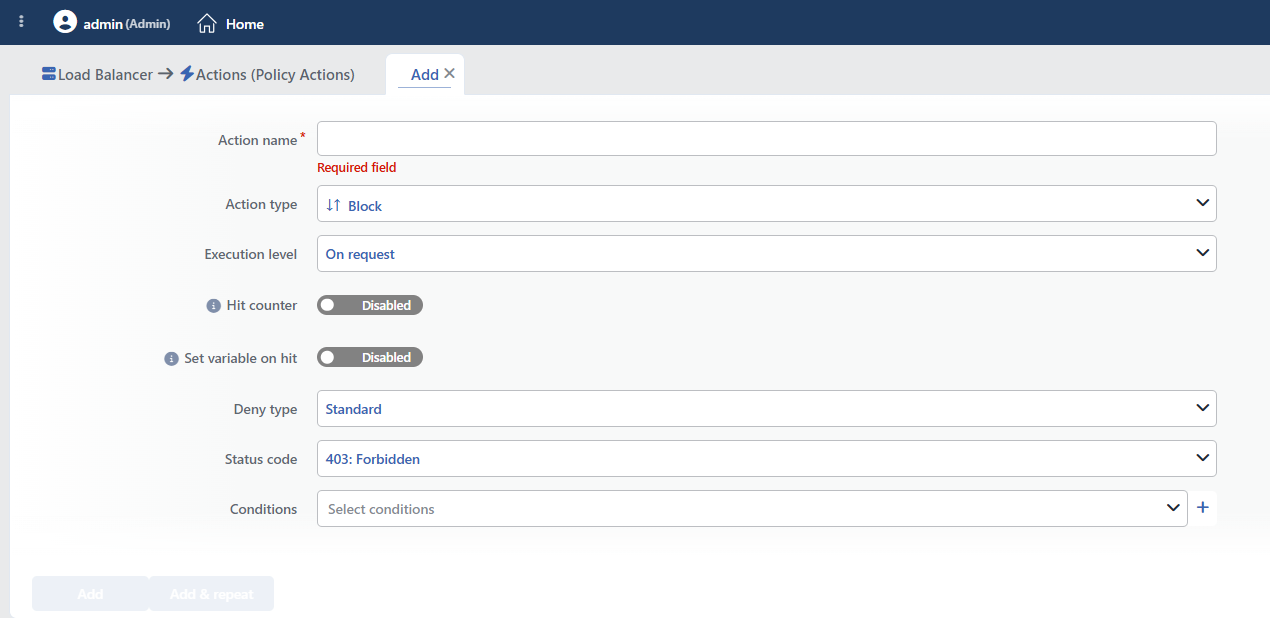 Block Action Add Form
INFO
Execution Level
Determines at which stage the action is run.
- On Request: The action is applied before the request is forwarded to the related Backend Service. This level is used in cases where changes need to be made to the request or additional information needs to be passed to the Backend Service.
- On Response: The action is applied before the response is forwarded to the client. This level is used in cases where edits or additions need to be made to the response sent to the client.
INFO
Hit Counter Default: Off
Hit Counter counts every run of the action (it is evaluated together with the action's own condition; the count is not lost even in terminating actions such as Deny). Action-based rates and totals are displayed in the Action Hits tab of the vService dashboard and on the live statistics screen; they do not appear as a separate column in the lists. The counter is cumulative; there is no interface for resetting it manually: it starts from zero when the set of counted actions changes or when the vService is reloaded, while the history is preserved on the dashboard as a rate (hit/s).
INFO
Set Variable on Hit
A variable name whose value is assigned each time the action runs can be entered (optional; empty by default). The name can consist of letters, digits and underscores (at most 32 characters). When the action is triggered, the variable is set to 1, and chained behaviors can be built by reading it with the %TR7VAR(name) smart variable in other conditions and actions on the same vService.
INFO
Deny Type
How the blocking operation will be applied on the client side is selected. The selected deny type directly affects the behavior that will be returned to the client and the way the connection is terminated.
- Standard: The request is blocked instantly the moment the defined condition is met and a response with the selected HTTP status code is returned to the client. This method provides the rejection of the access by giving clear and deterministic feedback to the client, and it is the most widely used deny type as the default blocking approach.
- Tarpit: The client connection is deliberately kept open and the traffic is slowed down by delaying the response generation. The waiting time comes from the Connect timeout value in the timeout profile of the vService (20 seconds by default). This method is used for the purpose of wearing down automatic scanning tools, bots and brute-force attempts through the connection time and resource consumption.
- Silent Drop: The connection is terminated or completely ignored without any HTTP response being returned to the client. With this selection, the Status Code field is hidden (since no response is generated, no code is selected). This method is used for the purpose of blocking bot, scanning and attack traffic that has been clearly detected as malicious in a way that affects the system resources at a minimum level.
The Tarpit option is located in the list only while On Request is selected as the Execution Level; when On Response is selected, this option is not offered (if it was selected beforehand, it automatically returns to Standard).
INFO
Status Code
The HTTP status code to be returned to the client during the blocking operation is selected in this field. HTTP 403 (Forbidden) is used by default.
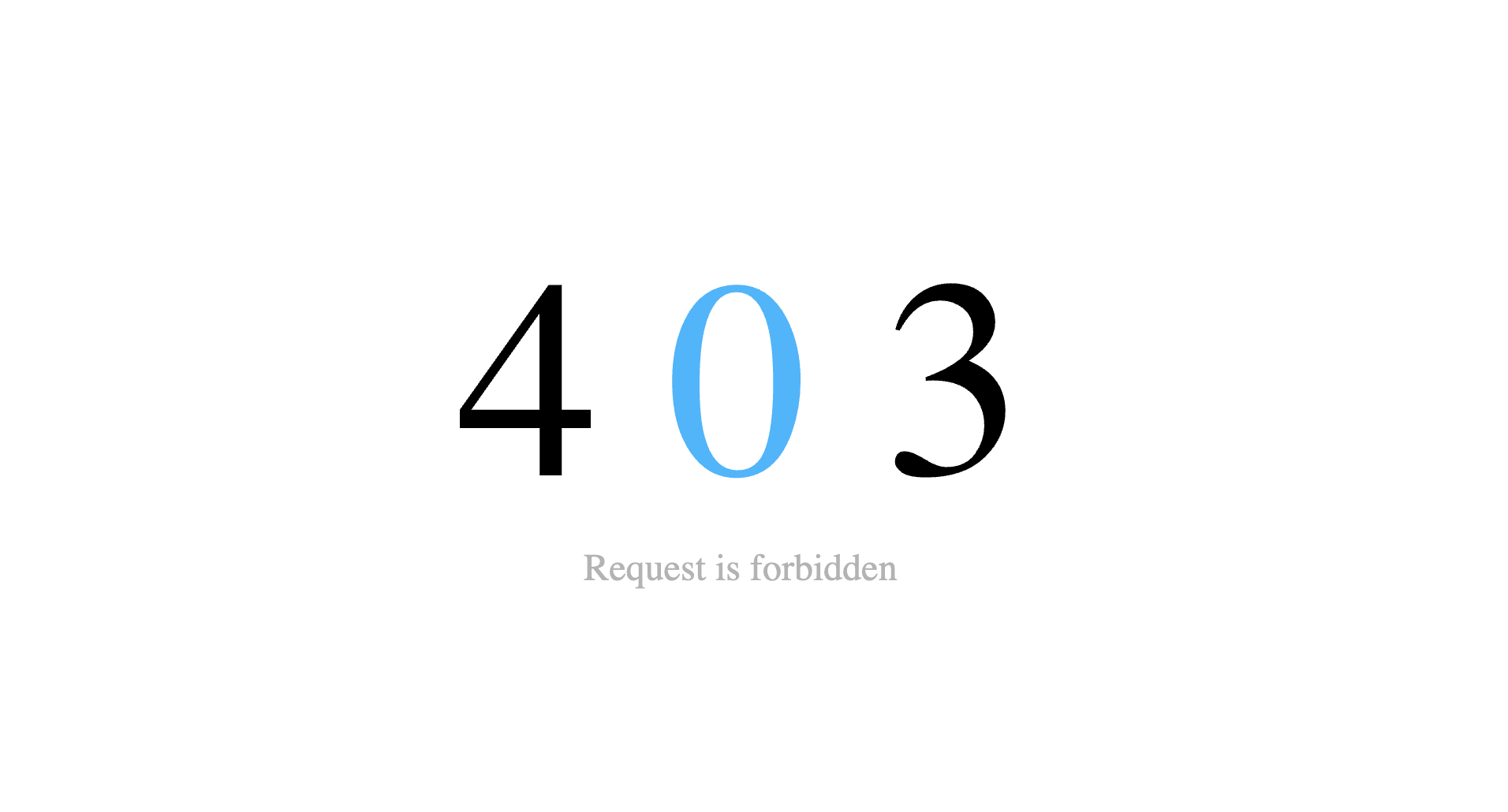 Sample 403 Blocking Page
The selected HTTP status code directly affects how the blocking will be perceived on the client side and the feedback that the application will give.
Common use cases:
- 403 – Forbidden: States that access to an unauthorized or access-restricted resource has been attempted. It is the most widely used blocking code and is recommended for most security scenarios.
- 401 – Unauthorized: Indicates that the client has not performed authentication or has not presented valid credentials. When this code is selected, the client is given the message that access requires authentication.
- 404 – Not Found: The impression is given that the requested resource does not exist. It can be preferred for the purpose of hiding sensitive endpoints (management panels, private paths, etc.).
- 429 – Too Many Requests: States that the client has sent too many requests. It provides meaningful feedback in rate limit, brute-force or congestion scenarios.
- 503 – Service Unavailable: Creates the impression that the service is temporarily unavailable. It can be used in maintenance, temporary restriction or controlled service stopping scenarios.
Selecting the correct HTTP status code provides both the correct expression of the security policies and the steering of the client behavior in the desired direction.
WARNING
For some codes (e.g. 426, 451), the engine does not have a ready-made error page; with these codes, a plain text response containing only the code is returned to the client instead of a formatted error page.
INFO
Conditions
In this field, it is defined under which condition or conditions the related action takes effect.
By adding one or more conditions, the behavior can be applied in a targeted and controlled way with the and/or structure.
Detailed information about conditions is on the Conditions page.
WARNING
If no condition is defined in this field, the related action runs unconditionally (Always). In this case, the action is applied to all traffic coming to the related vService.
In live environments, using an action without defining a condition can lead to unexpected situations (service outages). For this reason, it is recommended that at least one condition always be defined when an action is created.
INFO
Form Buttons
Add
The action adding process is completed by clicking the Add button.
Add & Repeat
With the Add & Repeat button, the action adding process is completed, and another new action can be added with different configurations without leaving the related window.
 Action Added
Operational and Safe Usage Recommendations
The Block action offers a powerful control mechanism on TR7. The recommendations below provide safe and controlled use in live environments.
- The Execution Level Selection Should Be Made According to the Scenario. On Request should be preferred for the requests that must not reach the backend, and On Response for the cases where control is needed according to the response content.
- The Deny Type Selection Should Be Made Consciously. For standard blocking, Standard can be used; for automatic scanning and bot activities, the use of Tarpit or Silent Drop can be evaluated.
- The Status Code Selection Should Be Determined According to the Purpose. Appropriate status codes should be preferred, such as 403 for unauthorized access and 429 in rate limit or congestion scenarios.
- The "Used In" Information Should Be Checked Before a Change in the Live Environment. Making a change without checking in which vServices a Block action is active can cause unexpected service outages.
- The Blocking Scope Should Be Kept Clear. Conditions that are broader than necessary can lead to legitimate traffic being blocked. The conditions should be defined as targeted and clearly as possible.
Common Usage Scenarios in Live Environments
The examples below show how the related action is applied in the most frequently encountered use cases in real systems. These scenarios are based on practices that are widely preferred in live environments and rest on experience gained in the field.
Scenario 1: WordPress Admin Security
Problem: Everyone can access the WordPress management panel over the internet, and this creates a serious security risk.
Solution: Allow only the requests coming from the office network (192.168.10.0/24) and block the others.
Configuration:
- Execution Level: On Request
- Deny Type: Standard
- Status Code: 403 Forbidden
- Conditions:
Result:
- ✅ From the office network (192.168.10.x) → Access to the WordPress admin panel is provided.
- ❌ From external networks (the Internet) → An HTTP 403 Forbidden response is received.
Scenario 2: Exchange Admin Panel Protection
Problem: Everyone can access the Exchange Control Panel (ECP) over the internet, there is a risk of unauthorized access.
Solution: Allow access only from the IP addresses defined in the whitelist and block all the other requests.
Configuration:
- Execution Level: On Request
- Deny Type: Standard
- Status Code: 403 Forbidden
- Conditions:
Result:
- ✅ The IPs in the whitelist → Access to the Exchange Control Panel is provided.
- ❌ The IPs outside the whitelist → An HTTP 403 Forbidden response is received.
Scenario 3: General Admin Path Protection
Problem: Everyone can access the generic admin panel over the internet, and this creates a serious security risk.
Solution: Allow only the requests coming from the office network (192.168.10.0/24) and block the others.
Configuration:
- Execution Level: On Request
- Deny Type: Standard
- Status Code: 403 Forbidden
- Conditions:
Result:
- ✅ From the office network (192.168.10.x) → Access to the admin panel is provided.
- ❌ From external networks (the Internet) → An HTTP 403 Forbidden response is received.
Scenario 4: Blocking the SQL Injection Scanner
Problem: SQL injection test tools such as SQLMap scan the system for vulnerabilities and put an unnecessary load on the Backend Service.
Solution: Detect SQLMap from the User-Agent header and block it by slowing it down with the Tarpit mode.
Configuration:
- Execution Level: On Request
- Deny Type: Tarpit
- Status Code: 403 Forbidden
- Conditions: HTTP Header User-Agent CONTAINS
sqlmap
Result:
- ✅ Legitimate users (a normal User-Agent) → Are forwarded to the Backend Service.
- ❌ The SQLMap tool → The connection is kept waiting for as long as the Connect timeout period in the timeout profile (20 seconds by default) and HTTP 403 is returned.
Scenario 5: Blocking Multiple Scanner Tools
Problem: More than one vulnerability scanner tool, such as Nikto, Nmap and Masscan, scans the system for vulnerabilities.
Solution: Detect the known scanner tools from the User-Agent header and block them collectively.
Configuration:
- Execution Level: On Request
- Deny Type: Standard
- Status Code: 403 Forbidden
- Conditions:
- HTTP Header User-Agent CONTAINS
nikto ORHTTP Header User-Agent CONTAINSnmapORHTTP Header User-Agent CONTAINSmasscan
- HTTP Header User-Agent CONTAINS
Result:
- ✅ Legitimate users (a normal User-Agent) → Are forwarded to the Backend Service.
- ❌ The scanner tools (Nikto/Nmap/Masscan) → An HTTP 403 Forbidden response is received.
Scenario 6: Blocking Path Traversal Attacks
Problem: Attackers try to access upper directories with path traversal (directory traversal) techniques and attempt to reach sensitive files.
Solution: Detect the traversal patterns in the path and block both their normal and URL-encoded forms.
Configuration:
- Execution Level: On Request
- Deny Type: Standard
- Status Code: 403 Forbidden
- Conditions:
Result:
- ✅ Normal paths (no traversal pattern) → Are forwarded to the Backend Service.
- ❌ Traversal attempts (../../ or ..%2F) → An HTTP 403 Forbidden response is received.
Scenario 7: Single Domain Control
Problem: Requests come to the vService with different Host header values, and this leads to domain spoofing and cache poisoning risks.
Solution: Allow only the requests coming to the www.tr7.com domain and block the other Host header values.
Configuration:
- Execution Level: On Request
- Deny Type: Standard
- Status Code: 403 Forbidden
- Conditions: HTTP Header Host NOT EQUALS
www.tr7.com
Result:
- ✅ Host: www.tr7.com → Is forwarded to the Backend Service.
- ❌ Different Host header values → An HTTP 403 Forbidden response is received.
Scenario 8: Blocking IP-Based Host Headers
Problem: Attackers make cache poisoning and host header injection attacks by using an IP address as the Host header.
Solution: Detect the IP address pattern in the Host header and block such requests. Make the use of a domain mandatory.
Configuration:
- Execution Level: On Request
- Deny Type: Standard
- Status Code: 403 Forbidden
- Conditions: HTTP Header Host CONTAINS an IP Pattern (detected with a regex)
Result:
- ✅ Host: domain.com (domain format) → Is forwarded to the Backend Service.
- ❌ Host: 192.168.1.1 (IP format) → An HTTP 403 Forbidden response is received.
Scenario 9: Blocking Domain Fronting
Problem: Attackers make a domain fronting attack by creating a mismatch between the TLS SNI and the HTTP Host header, and try to bypass the filtering mechanisms.
Solution: Compare the TLS SNI value with the HTTP Host header value and block them if there is a mismatch.
Configuration:
- Execution Level: On Request
- Deny Type: Standard
- Status Code: 403 Forbidden
- Conditions:
- SSL SNI Info =
expected-domain.com ANDHTTP Header Host NOT EQUALSexpected-domain.com
- SSL SNI Info =
Result:
- ✅ The SNI and the Host header match → Are forwarded to the Backend Service.
- ❌ The SNI and the Host header do not match (domain fronting) → An HTTP 403 Forbidden response is received.
Scenario 10: Blocking High-Risk Countries
Problem: A high rate of attack traffic coming from specific countries (Russia, China, North Korea) is detected and creates a security risk in the system.
Solution: Block all the requests coming from these countries by using GeoIP and return a status code of inaccessibility for legal reasons.
Configuration:
- Execution Level: On Request
- Deny Type: Standard
- Status Code: 451 Unavailable For Legal Reasons
- Conditions:
Result:
- ✅ The requests coming from the other countries → Are forwarded to the Backend Service.
- ❌ The requests coming from RU/CN/KP → An HTTP 451 Unavailable For Legal Reasons response is received (with this code, a plain text body is returned instead of a formatted error page).
Scenario 11: Geo-Blocking for Critical Paths
Problem: Access attempts are made to the admin panel from all over the world, but access is needed only from specific countries.
Solution: Allow access to the admin panel only from Turkey, the USA and the United Kingdom, and block all the other countries.
Configuration:
- Execution Level: On Request
- Deny Type: Standard
- Status Code: 403 Forbidden
- Conditions:
Result:
- ✅ An /admin request from TR/US/GB → Is forwarded to the Backend Service.
- ❌ An /admin request from the other countries → An HTTP 403 Forbidden response is received.
Scenario 12: Use of a High-Risk Country List
Problem: Fraud attempts coming from high-risk countries to the payment pages are detected.
Solution: Allow access to the payment pages only from low-risk countries and block the high-risk countries.
Configuration:
- Execution Level: On Request
- Deny Type: Standard
- Status Code: 403 Forbidden
- Conditions:
Result:
- ✅ A /payment request from low-risk countries → Is forwarded to the Backend Service.
- ❌ A /payment request from high-risk countries → An HTTP 403 Forbidden response is received.
