
Smarter by Design.Simpler for Business
WAF-Protected vService List
What Is WAF-Protected vService List?
WAF-Protected vService List is the management page on which all the vServices with WAF protection enabled on the device are listed on a single screen. In every row the working state of the vService, the addresses it listens on, the WAF mode of its host groups, the OWASP protection level and the periodic reporting configuration are displayed.
The screen is at the same time the place where the WAF protection is enabled and disabled collectively: by selecting one or more HTTP vServices, the protection is started or removed. Thus the protection state of tens of vServices is managed from a single list.
Only the vServices of the HTTP type and with WAF protection on take place in the list. Since the vServices of the L7 TCP and Network (Layer 4) types do not enter the WAF scope, they are not displayed in this list; the list of the vServices on which the protection can be started is limited to the HTTP type in the same way as well.
How to Access?
The WAF-protected vService list is reached over the TR7 web management interface with the following steps:
- The Configuration Menu is opened by clicking the TR7 logo at the bottom left.
- The WAF → WAF-Protected vService List steps are followed.
- All the vServices with WAF protection enabled on the device are listed.
TIP
Reaching the page via quick search
Instead of navigating the menu step by step, the related page is reached directly by using the search bar in the bottom left corner of the screen. The search bar opens with the Alt + T shortcut on Windows and Opt + T on macOS; typing the name of the feature being searched for is then sufficient.
vService Listing Screen
By following the WAF → WAF-Protected vService List path, the list of all the vServices with WAF protection enabled on the TR7 device is reached. Over this screen the operations of starting and removing the WAF protection on the vServices are done.
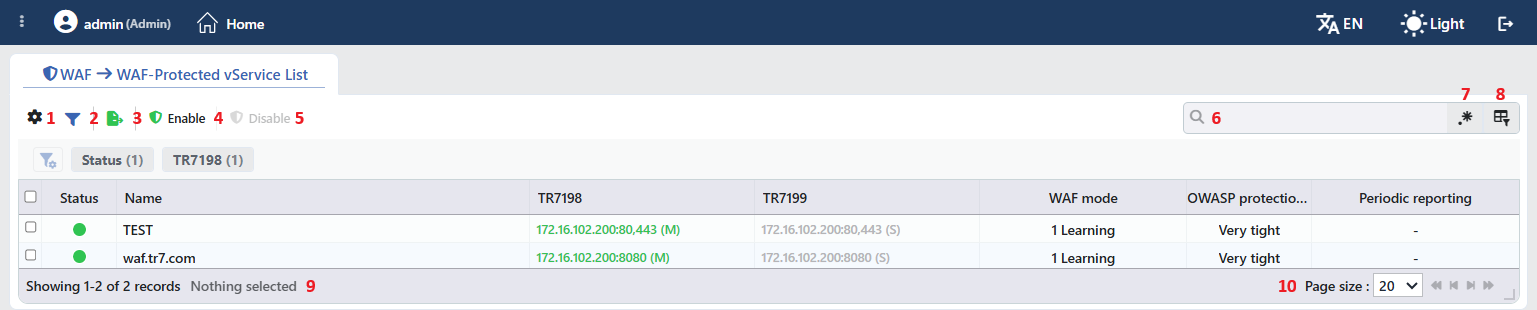 vService Listing Screen
The table opens with the following columns by default:
| Column | Description |
|---|---|
| Status | The instantaneous state of the vService is shown with a colored circle; the meaning of the colors is on the vService page. In a cluster configuration the circle is separated into two halves per device. |
| Name | The name of the vService. |
| IP | The addresses and ports the vService listens on (e.g. 172.16.102.200:80,443). In a cluster configuration the addresses are shown in two separate columns and the title of every column carries the name of the related device (Server Name / Hostname); in the VIP addresses the (M) Master (green) and (S) Slave (gray) labels are displayed (Interfaces List › Interface and IP States). |
| WAF Mode | The mode distribution of the host groups of the vService, as a count sorted from the most to the least (e.g. 2 Blocking, 1 Learning). The open learning methods are written at the end of the value with the +Teacher and +Conditional learning suffixes. |
| OWASP Protection Level | The OWASP Protection Level value of the vService (e.g. Very Tight). |
| Periodic Reporting | The selected report frequencies; if the e-mail report is off or if no frequency has been selected, - is displayed. |
If a cloud client is defined on the device, the Client column that shows the client the vService belongs to is added to the beginning of the list; this column is hidden by default and is opened from the column selector. When a column title is clicked, first a descending and then an ascending sorting is applied; at the third click the sorting is removed.
The items in the toolbar are arranged from left to right in the following order; the last two items (Page Information and Page Size) are located in the information strip below the table.
Columns
Which columns are shown in the table is selected. In the same panel, columns are reordered by dragging and alignment is selected per column; the row height is fitted to the page with the Fit rows to the page button, and the column layout is reset to default with the Reset button. The layout is stored per user and is common to all the vService lists: a column hidden here also comes hidden in the Load Balancer vService list of the same user.
Filter
The Filter button is used to filter the vServices shown in the list according to certain criteria; the button shows the number of active filters with a badge. On the strip there are the cards of the Status and of the address column (in a cluster it carries the name of the device). In the card title the filter name and the number of values take place; when the card is clicked, the values are listed below it with their row numbers and the selections in different cards are applied together.
The filtering view can be customized: which filters will be shown is selected, the order of the filters is changed and the view is arranged according to the need.
Export
The table is exported as Excel, CSV or PDF by clicking the Export Table button. In the window that opens, the Filename, Format and Data Source, together with the Columns to be exported, are determined; the remaining fields are displayed according to the format: CSV Separator for CSV, Excel Sheet Name for Excel, and Page Orientation and Page Size for PDF.
Enable
When the Enable button is clicked, a new tab titled Add opens next to the list. From the HTTP vServices to WAF field the HTTP vServices on which the WAF protection will be started are selected and confirmed with the Add button. The selected vServices are taken under protection and start to appear in the list.
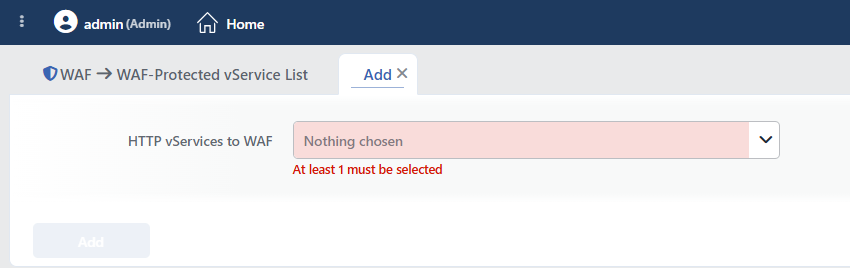 Enable
The field writes Nothing chosen when no selection is made; when it is tried to be saved without at least one vService being selected, the At least 1 must be selected warning is displayed below the field and the Add button does not become enabled. The tab is closed with the closing icon in its title.
A vService newly taken under protection starts with the Very Tight OWASP protection level and the Learning mode.
Disable
When one or more vServices are selected and the Disable button is clicked, the WAF protection of the related vServices is removed. The button is passive when no selection is made in the list.
The "selection" here is the selection made with the checkboxes at the beginning of the rows; clicking a row and opening its preview does not make the button active. The bulk selection box in the column heading, on the other hand, selects all the rows filtered at that moment, including the ones on the other pages.
WARNING
The Disable operation does not show a confirmation window; the moment it is clicked, the protection of all the selected vServices is removed and the traffic starts not to pass the WAF inspection. For this reason the selection should be verified before the button is clicked.
When the protection is removed, the WAF configuration of the vService (the rules, the host groups, the settings) is not deleted; when the protection is turned on again, the same configuration becomes valid.
The Enable and Disable operations are not only a mark change: the configuration of the related vService is regenerated and applied. In a cluster installation the change is also propagated to the peer device. There is no upper limit for the number of vServices selected; the operation is applied at once.
Search
Used to search the information in the table. The search works on the values seen on the screen and without observing the case distinction. The Status column is not included in the search; the filtering according to the state information is done with Filter.
RegExp Search
Used to search all information in the table with a regular expression (RegExp).
Column Based Search
Used to perform a column-based search on the information in the table.
Page Information
Contains information about the number of vServices displayed in the list: Showing N-M of T records and the number of selected vServices (N selected, Nothing selected while there is no selection). While a search or a filter is active, the total number shows not all the vServices with WAF protection enabled but the rows that remain after the filtering; the filter summary is displayed as well.
Page Size
The maximum number of vServices to be displayed on the page is selected. The default is 20; the options are 5, 10, 20, 50, 100, 200, 500 and All.
Right-Click Menu
When a row is right-clicked, a menu with a single operation that has the name of the vService in its title opens. The operation is applied only to the right-clicked vService; the selection made in the list does not affect the menu.
| Operation | What it does |
|---|---|
| Edit | It opens the WAF Management tab of the vService; it is the same as the Edit icon in the preview title. |
The Delete, Enable, Disable and Reload operations in the Load Balancer vService list are not present in this menu; the operation of removing the WAF protection is done with the Disable button on the toolbar.
Preview of the Selected vService
When a row in the list is clicked, the preview of the vService opens on the right of the screen; when the row is clicked again, the selection is removed. In the title the state color of the vService, its name and the vService subtitle, and at the top right two operations are located. Clicking a row on its own does not pass to another screen.
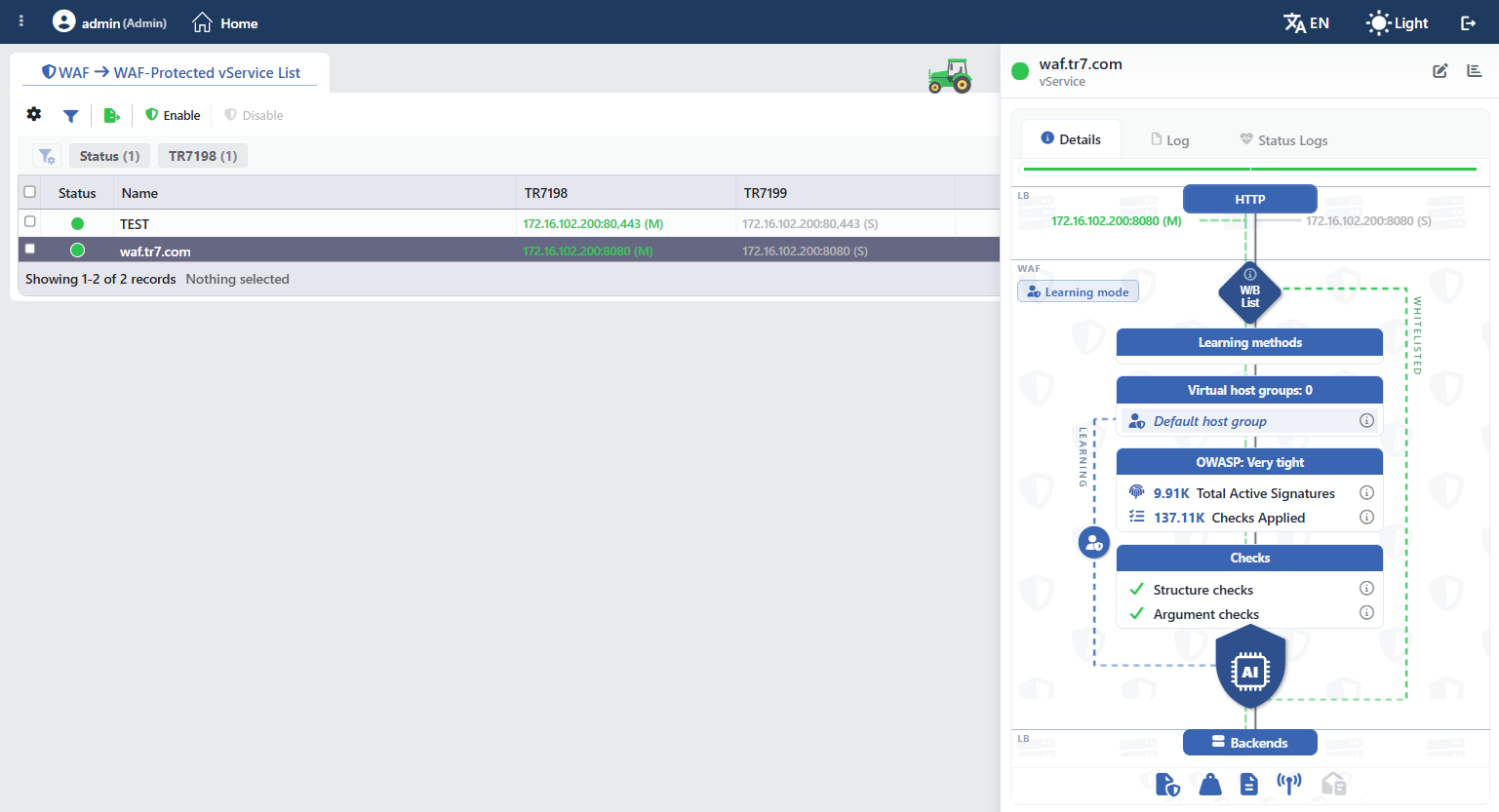 Preview of the Selected vService
| Operation | What it does |
|---|---|
| Edit | It opens the WAF Management tab of the vService. |
| Dashboard | It opens the WAF Dashboard screen of the vService. |
There are three tabs in the panel:
Details
It shows the WAF configuration of the vService as a diagram on the path the request follows (the list below).
Log
It lists the user operations done on the vService (adding, editing, deleting) as a timeline.
Status Logs
Lists the state transition history of the vService (on which date it passed to which state).
The Details diagram summarizes at a single glance the path from the entry point of the request to the Corporate Services (the Corporate Services themselves are not detailed in this view) and the WAF configuration on this path. The following are followed visually on the diagram:
- The working mode of the host group
- The Whitelist & Blacklist list
- The open Learning Methods
- The number of the defined Virtual Host Groups
- The OWASP Protection Level with the numbers of signatures enabled and inspections applied at this level
- The open Checks inspections
TIP
The information icons on the diagram show the detail of the related setting.
Scope and Limits
INFO
- The screen is opened to the users who have the WAF authorization; in a user who does not have the authorization the menu entry is not seen.
- Turning the protection on and off requires the change authorization in the WAF area. A user who has only the read authorization sees the list and also sees the Enable and Disable buttons as enabled; however the operation is rejected on the server.
- An account whose vService scope is limited sees in the list only the vServices defined for it.
- The list is updated by itself as the configuration changes; a separate refresh step is not needed. When the mode, the protection level or the reporting setting of a vService is changed on another screen, the row shows the new value instantly.
