
Smarter by Design.Simpler for Business
Sessions
What Is Sessions?
Sessions is the tab where the sessions the AGS engine opens in a vService with the AGS access control enabled are listed and managed. Every row represents a session and shows the identity of the session, its authentication state, the last activity and expiry times, the IP address and the browser of the client, and the user information written to the session.
The session is created when the client enters the AGS flow. Until the authentication is completed the session is in the Unauthenticated state; when the user logs in with an authentication provider it passes to the Authenticated state and the information coming from the provider (such as the username, the email, the name, the company and the department) is written to the session according to the mapping rules.
The screen answers the question "who is connected to the vService right now?" and makes it possible for a session to be ended before it expires. The data is read from the session store of the AGS engine with its state at the moment it is displayed; the sessions that expire fall out of the store by themselves and are not found in the list.
Instant
From the Session Store
The sessions alive at the moment it is displayed; no history is kept
500
Limit
The number of the newest sessions read from every device
3 Views
Auth State
All Sessions · Authenticated · Unauthenticated
9 Columns
Default View
The custom user fields come open as well; the remaining information is added from the column selector
Revoke
Ending a Session
The selected sessions are permanently deleted from the session store
From the Provider
User Information
Fields such as the name, the email, the company and the department are filled by the mapping rules
Cluster
A Single Combined List
The sessions of the two devices are shown in a single list
Manual
Refresh
The list is not refreshed by itself; the current state is taken with Refresh
Accessing Sessions
- Left Monitor Panel is opened.
- AGS-Enabled vServices is selected from the category tabs at the top left.
- The vServices defined on TR7 with AGS access control enabled are listed.
- The vService to be monitored is clicked; the screen opens with the Dashboard tab that carries the vService's name.
- On the screen that opens, the Sessions tab is clicked.
The tab is displayed unconditionally to the users who have monitoring authorization in the Load Balancer area. The sessions are listed with the Load Balancer view authorization; the Revoke Session(s) operation requires the Load Balancer modify authorization; in a user who has no authorization the button is displayed and the operation is rejected after the confirmation.
Sessions Listing Screen
When the Sessions tab is opened, the sessions in the session store of the vService are listed in the form of a table. The list is fetched once when the screen is opened and is not refreshed by itself.
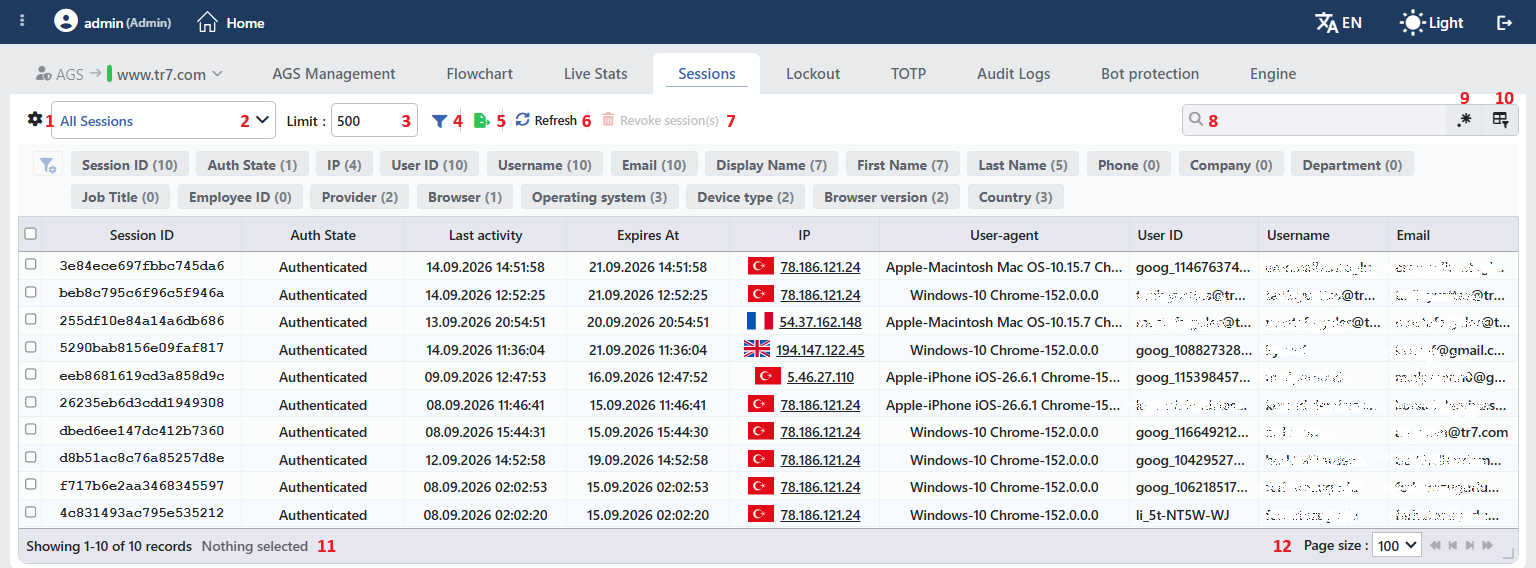 Sessions Listing Screen
The table opens with the following columns by default:
| Column | Description |
|---|---|
| Session ID | The identity of the session. |
| Auth State | The authentication state of the session: Authenticated in the sessions whose identity has been verified, Unauthenticated in the sessions whose verification has not been completed. |
| Last Activity | The date and time of the last activity in the session. In the sessions whose identity has been verified it is updated at most once a minute. |
| Expires At | The date and time at which the session will end if no new request comes. It is calculated from the remaining duration at the moment the list is fetched. |
| IP | The IP address of the client that creates the session, with the country flag. When it is hovered over the reputation summary of the address is displayed, and when it is clicked the IP information window titled <ip> details is opened. |
| User-agent | The browser information of the client, abbreviated in the Vendor-Model OS-Version Browser-Version form. In the clients that are not recognized the tool name (e.g. curl 8.5.0) or the raw text is written; when it is hovered over the raw User-agent text is displayed. |
| User ID | The identity the authentication provider gives to the user. |
| Username | The username. |
| The email address of the user. |
The following columns are hidden by default and are added from the column selector:
| Column | Description |
|---|---|
| Display Name | The display name of the user. |
| First Name | The first name of the user. |
| Last Name | The last name of the user. |
| Phone | The telephone number of the user. |
| Picture | The profile picture of the user, as a small round image; if the picture cannot be loaded the user icon is displayed. |
| Locale | The language and region preference of the user. |
| Timezone | The time zone of the user. |
| Company | The company of the user. |
| Department | The department of the user. |
| Job Title | The job title of the user. |
| Employee ID | The employee number of the user. |
| Groups | The groups of the user. |
| Provider | The name of the Authentication Providers profile that verifies the session. |
| TTL | The duration remaining until the session ends, in seconds; the value is calculated at the moment the list is fetched and is updated with Refresh. |
In the user information columns the empty values are written as -. Which information will be filled depends on the information the provider that verifies the session returns and on the mapping rules of the provider; for example in a user who logs in with Google the Phone, Company and Department stay empty. The custom user fields defined in the Custom User Attribute Mapping rows of the provider profiles used in the flow of the vService or in the Assign User Attributes steps in the flow (except the built-in field names and the names that begin with _) are added as separate columns with their names and come visible by default.
The Company, Department, Job Title and Employee ID columns are shown while at most 8, and the First Name and Last Name columns while at most 10 columns are visible; when the number of visible columns exceeds this value, even if it stays marked in the column selector it does not take place in the table and in the export. For these columns other columns are closed from the column selector.
The rows are read first on every device from the newest to the oldest according to the creation time, then they are ordered from the newest to the oldest according to the authentication time; the sessions that have no authentication time take place at the beginning of the list. By clicking on a column title the list is ordered according to that column.
The items in the toolbar are arranged from left to right in the following order; the last two items (Page Information and Page Size) are located in the information strip below the table.
Columns
Which columns will be shown in the table is selected; nine columns and, if there are any, the custom user fields come open. In the same panel the columns are reordered by being dragged and the alignment per column is selected; with the Fit rows to the page button the row height is fitted to the page, and with the Reset button the column layout is taken to the default. The layout is stored per user.
Auth State Filter
The sessions to be shown in the list are selected according to the authentication state. The filtering is done on the sessions fetched on the screen; a request is not sent to the server again. For this reason the Limit is applied first and the sessions whose identity has not been verified are included in the number of sessions read as well. The selection is stored per user.
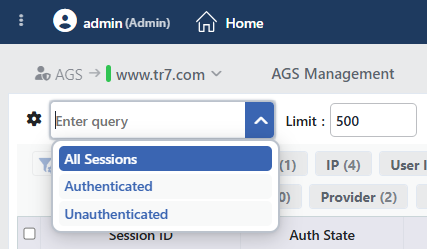 Sessions View Options
| Option | Sessions shown |
|---|---|
| All Sessions Default | All of the sessions. |
| Authenticated | The sessions whose identity has been verified. |
| Unauthenticated | The sessions whose authentication has not been completed. |
Limit
The maximum number of sessions to be read from the session store of every device is entered; the default is 500. The sessions are read from the newest to the oldest according to the creation time; when the limit is full the older sessions are not listed. In a cluster setup the limit is applied to every device separately. The value is stored per user and is applied with the next Refresh.
Filter
Opens and closes the filter panel; the panel comes open by default. The filters are listed above the table in the form of a card strip and the number next to the card is the number of different values found for that criterion; the empty values are not counted. The order of the cards is changed by being dragged and the selections made are stored. The filter criteria that can be used:
| Filter | Description |
|---|---|
| Session ID | The session identity; a search is made within the card. |
| Auth State | The authentication state. |
| IP | The IP address of the client, with the country flag; a search is made within the card. |
| User ID | The user identity; a search is made within the card. |
| Username | The username; a search is made within the card. |
| The email address; a search is made within the card. | |
| Display Name | The display name; a search is made within the card. |
| First Name | The first name; a search is made within the card. |
| Last Name | The last name; a search is made within the card. |
| Phone | The telephone number; a search is made within the card. |
| Company | The company. |
| Department | The department. |
| Job Title | The job title. |
| Employee ID | The employee number. |
| Provider | The authentication provider that verifies the session. |
| Browser | The browser name extracted from the User-agent text. |
| Operating System | The operating system extracted from the User-agent text. |
| Device Type | The device type extracted from the User-agent text. |
| Browser Version | The main browser version extracted from the User-agent text (e.g. 152). |
| Country | The country of the client IP address. In the private and local addresses the country information is not found. |
| IP Tags | The IP Tags that match the client address; untagged addresses are collected under the No Tags option. |
For each of the custom user fields a separate card is added with its name. The information in the hidden columns is not taken into account in the search; the filtering according to this information is done with the filter cards.
Export
The table is exported as Excel, CSV or PDF by clicking the Export button. In the window that opens, the Filename, Format and Data Source, together with the Columns to be exported, are determined; the remaining fields are displayed according to the format: CSV Separator for CSV, Excel Sheet Name for Excel, and Page Orientation and Page Size for PDF.
Refresh
By clicking the Refresh button the sessions are fetched again from the session store with the current Limit value. Since the list is not refreshed by itself, the current state is taken with this button.
Revoke Session(s)
When one or more sessions are selected and the Revoke session(s) button is clicked, the selected sessions are ended. Before the operation the "Are you sure?" confirmation is requested; while no row is selected the button is passive. When at least one session is deleted the list is fetched again. The same operation is found in the right-click menu and in the preview title as well.
WARNING
- The session record is permanently deleted from the session store; the operation is not undone. In a cluster setup the deletion request is sent to both devices.
- The next request of the user is processed as a request whose identity has not been verified and the AGS flow starts from the beginning; the first step the user meets depends on the flow configuration of the vService.
- The operation only ends the session on TR7; the session in the authentication provider is not affected by this operation. A user whose session stays open in the provider can be verified without the password being asked when they enter the flow again.
- The operation is recorded on the User Logs screen on behalf of the user who performs the operation with the text
<count> AGS session(s) revoked for "<vService>" service;<count>is the number of sessions deleted on the devices. The operation is not displayed on the Audit Logs tab.
Search
Used to search all information in the table.
RegExp Search
Used to search all information in the table with a regular expression (RegExp).
Column Based Search
Used to perform a column-based search on the information in the table.
Page Information
The information belonging to the total number of sessions fetched and to the range of sessions displayed in the list takes place: Showing N-M of T records and the number of selected rows (N selected, Nothing selected while there is no selection). The total is not the number of all of the sessions in the session store but the number of those remaining after the Auth State selection, the filters and the search from among the sessions fetched with the Limit.
Page Size
The maximum number of sessions to be displayed on the page is selected. The default is 100; the options are 50, 100, 250, 500 and All. The selection is not stored.
Right-Click Menu
When a row is right-clicked, a single-operation menu that has the expression Session and the session identity in its title (e.g. Session 3e84ece697fbbc745da6) is opened. The operation is applied only to the session right-clicked; the selection made in the list does not affect the menu.
| Operation | What it does |
|---|---|
| Revoke Session(s) | Ends the session right-clicked; like the Revoke session(s) in the toolbar, it requests the "Are you sure?" confirmation. |
Preview of the Selected Session
When a row in the list is clicked, the preview of the session opens on the right of the screen. In the title there is the profile picture of the user, and if there is no picture or it cannot be loaded, the icon that shows the session state (in a session whose identity has been verified a green user check icon, and in one that has not been verified an amber waiting icon); when the icon is hovered over Authenticated or Unauthenticated is written. The title text is the first filled one of, in order, the display name, the username, the email or the session identity; below it the email address, and if there is none the username, is written. The icon next to the subtitle copies the Session ID value of the session to the clipboard; if the email and the username are empty the subtitle and the icon are not displayed.
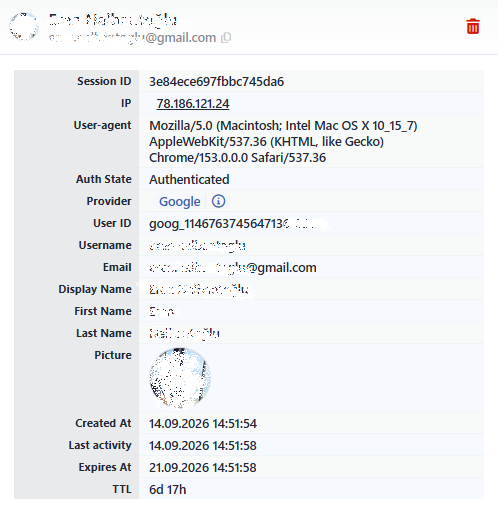 Preview of the Selected Session
With the icon at the top right of the title an operation is performed on the session:
| Operation | What it does |
|---|---|
| Revoke Session(s) | Ends the previewed session; it requests the "Are you sure?" confirmation. |
The information rows in the panel are as follows in order:
| Row | Description | Visibility condition |
|---|---|---|
| Session ID | The identity of the session. | Always |
| IP | The IP address of the client; when it is clicked the IP information window is opened. | If there is IP information |
| User-agent | The unabbreviated User-agent text of the client. | If there is User-agent information |
| Auth State | Authenticated in a session whose identity has been verified, Pending in a session whose verification has not been completed. | Always |
| Provider | The name of the authentication provider that verifies the session; the icon next to it shows the settings of the provider profile in a small window; with the Edit button in the window title the profile is edited. | Always |
| User ID | The user identity. | Always |
| Username | The username. | Always |
| The email address. | Always | |
| Display Name | The display name. | If there is a value |
| First Name | The first name. | If there is a value |
| Last Name | The last name. | If there is a value |
| Phone | The telephone number. | If there is a value |
| Picture | The profile picture, as a round image. | If there is a value |
| Locale | The language and region preference. | If there is a value |
| Timezone | The time zone. | If there is a value |
| Company | The company. | If there is a value |
| Department | The department. | If there is a value |
| Job Title | The job title. | If there is a value |
| Employee ID | The employee number. | If there is a value |
| Groups | The groups. | If there is a value |
| Custom user fields | With the field name, each of them on a separate row. | If there is a value |
| Created At | The date and time at which the session was created. | Always |
| Last Activity | The date and time of the last activity. | Always |
| Expires At | The date and time at which the session will end. | Always |
| TTL | The duration remaining until the session ends, with the two largest units (e.g. 6d 17h). | Always |
Scope and Limits
INFO
- It is an instant view. The screen does not show the sessions that have ended; the session history and the login events are examined on the Audit Logs tab.
- The session duration comes from the policy. In a session whose identity has been verified, as activity is seen the Expires At and the TTL shift forward by as much as the idle duration at most once a minute and do not exceed the absolute duration ceiling. These durations are determined by the Session Idle Timeout (the default 8 hours) and Session Absolute Timeout (the default 7 days) settings in the Session Protection Policies profile; if no policy is assigned to the vService the idle duration is 1 hour.
- The limit fetches the newest sessions. When the number of sessions exceeds the Limit value the older sessions do not take place in the list and the Page Information total does not show the total number of sessions in the store.
- In a cluster setup the sessions are kept per device. Every device returns the sessions in its own session store and the screen combines the two in a single list; which device the row comes from is not shown in the table. If one of the devices cannot respond, the list is shown only with the sessions of the device that responds.
- The portal sessions are listed in the portal vService. In a portal application that is logged in over a trusted portal, the session is kept in the session store of the portal vService; these sessions are displayed on the Sessions tab of the portal vService and are ended from there.
- The reading duration is limited. If the sessions cannot be fetched within 10 seconds the request ends; a warning is not displayed and the previous list stays in the table.
- The sensitive session information is not shown. The access tokens and the session binding values bound to the session are not brought to the screen.
