
Smarter by Design.Simpler for Business
Management Access
What Is Management Access?
Management Access is the screen that controls the management access of the TR7 device. Over which IP addresses, ports and networks the TR7 web interface (HTTP/HTTPS), the server console (SSH), the file sharing (FTP) and the monitoring protocol (SNMP) can be accessed is defined here.
The screen also provides the login security policies (Captcha, two-factor authentication, failed login quarantine, idle session time) and the monitoring integrations (SNMP agent, Prometheus/Grafana) to be configured. The default access ports are 80 (HTTP), 443 (HTTPS) and 22 (SSH); these ports can be changed from this screen. The IP addresses listed are the IP addresses defined on the Network → Interfaces screen.
Web
Management interface
HTTP (80) / HTTPS (443) access
SSH
Console access
Command-line access over port 22
FTP
File access
Access to the log / backup / update files
SNMP
Monitoring
SNMP agent (v1 / v2c / v3)
Grafana
Monitoring dashboards
Prometheus metrics and Grafana dashboards
System Users
System users
Service accounts with FTP access
Standalone / Cluster
The access screen is a single view and the settings are common to both TR7 devices in a two-device setup. In a cluster setup every IP binding is listed on a single row in a way that shows the peer IPs of the two devices together (e.g. 172.16.102.77 - 172.16.102.78 Interface IP@MGMT : 443).
How to Edit?
The access settings are edited via the TR7 web management interface with the steps below:
- The Configuration Menu is opened by clicking the TR7 logo at the bottom left.
- The steps Settings → Device Management → Management Access are followed.
- By clicking the Edit button, a closable Edit editing tab is opened.
- The related fields are updated according to the requirements.
- The changes are saved by clicking the
Editbutton.
The saving permission
Only the users of the Admin (Super Admin) type can save the access settings; the other users can view the screen but the saving operation is rejected. On the devices on which a Sync interface is not defined, the Edit button stays disabled.
TIP
Reaching the page via quick search
Instead of navigating the menu step by step, the related page is reached directly by using the search bar in the bottom left corner of the screen. The search bar opens with the Alt + T shortcut on Windows and Opt + T on macOS; typing the name of the feature being searched for is then sufficient.
The Management Access Screen
By following the path Settings → Device Management → Management Access, the access information belonging to the TR7 device is displayed. The screen is read-only; the Edit entry at the top opens the editing tab.
On the access rows the address is written together with the interface name and the port. In a standalone setup a single IP appears (e.g. 172.16.102.77 (MGMT) : 80); in a cluster setup, on the other hand, the IP of both devices is listed on the same row and it is stated that the binding is made according to the interface (e.g. 172.16.102.77 - 172.16.102.78 Interface IP@MGMT : 80).
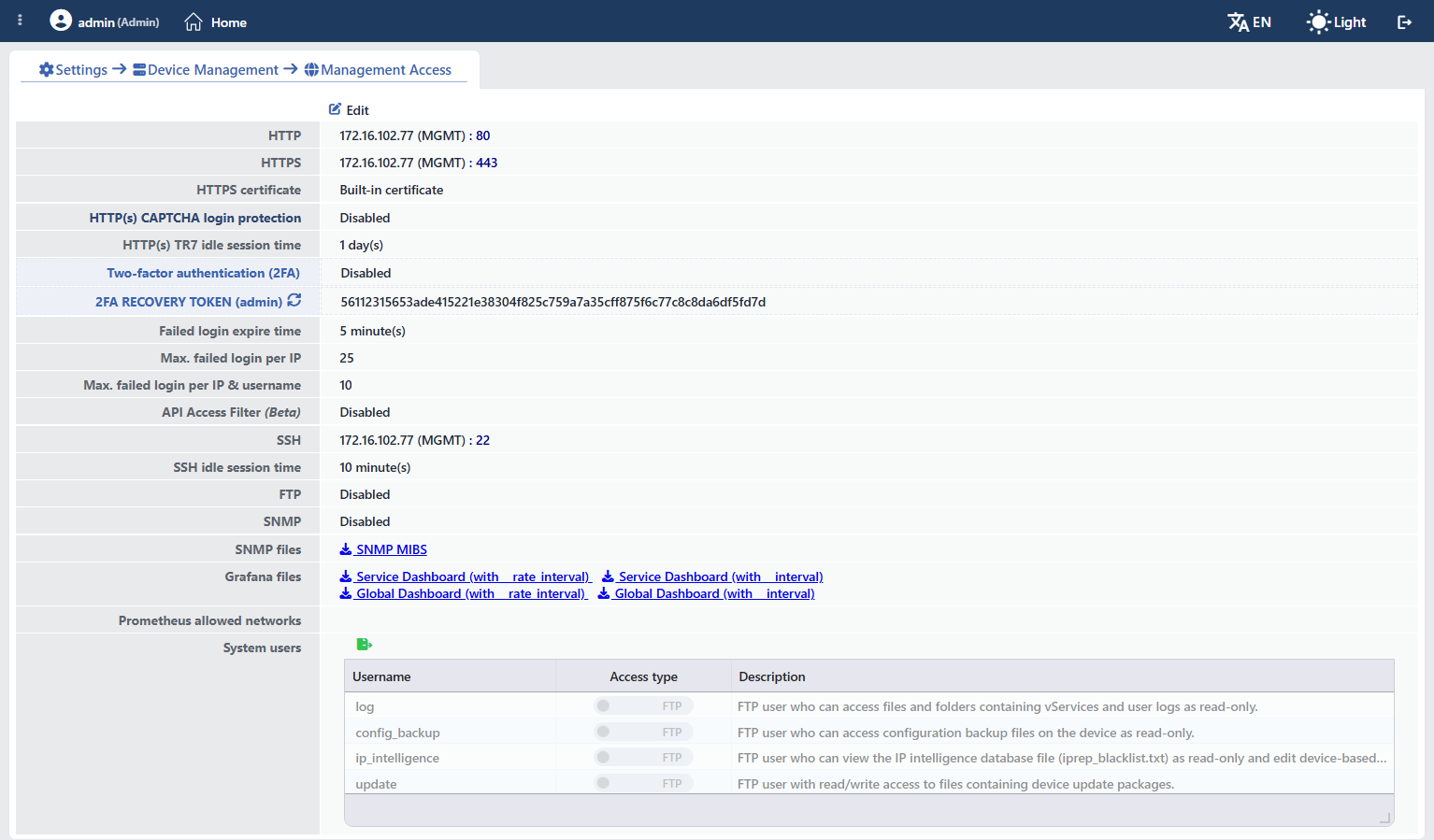 The Management Access Screen (Standalone)
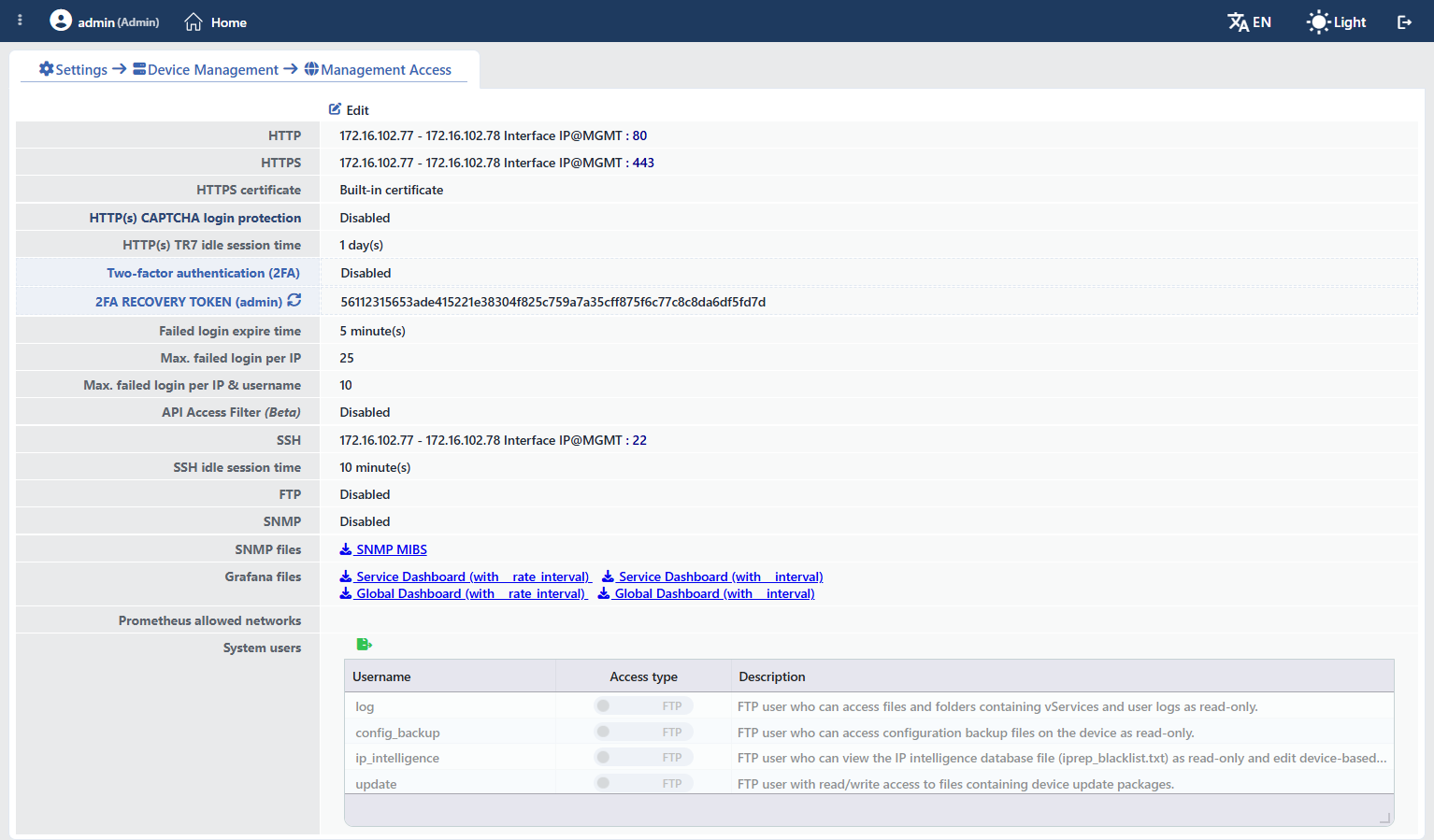 The Management Access Screen (Cluster)
Button Details
By clicking the Edit button, a closable editing tab in which the access settings are edited is opened. The form is grouped under the HTTP, HTTPS, CAPTCHA, Two-Factor Authentication (2FA), Brute-Force Protection, SSH, FTP, SNMP, Prometheus and System Users section headings. On the display screen, under every access row, the Allowed Networks information is displayed if it is defined; the row of a protocol for which no access is defined is shown as Disabled.
At least one web access is required
While saving, at least one HTTP(s) access address must be defined ("At least 1 HTTP(s) access address must be given"); otherwise the form is not saved; the access to the web interface of the device cannot be closed completely.
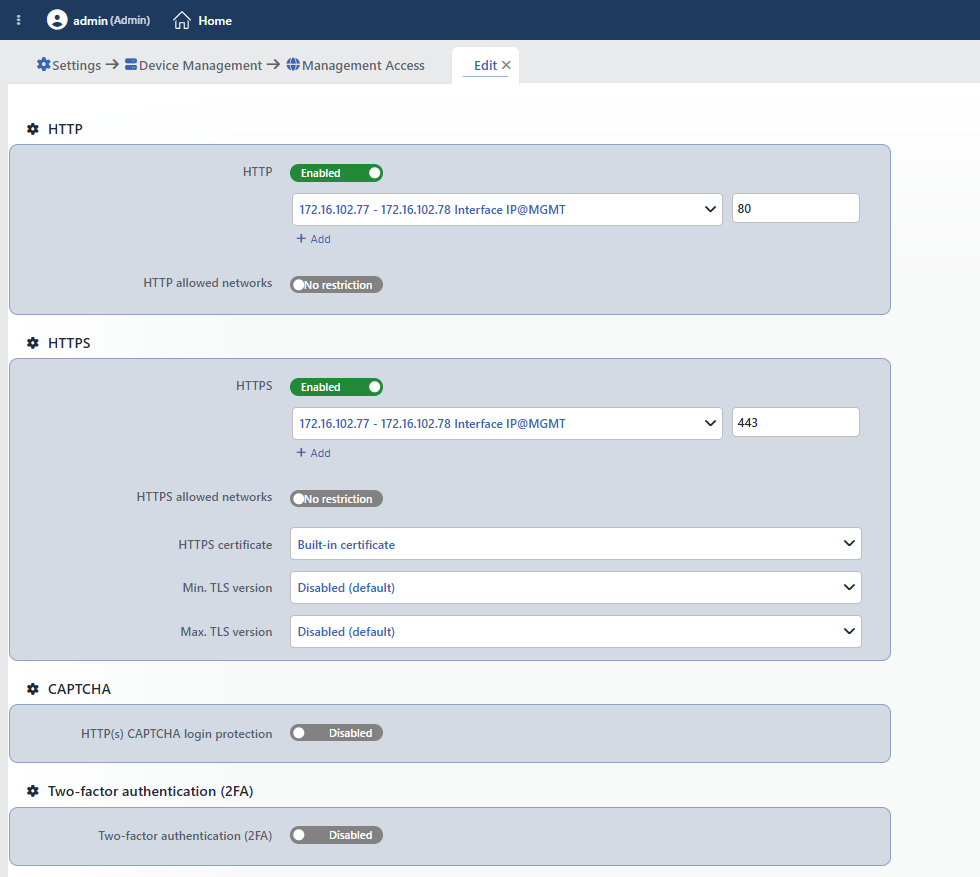 The Edit Tab: HTTP · HTTPS · CAPTCHA · 2FA
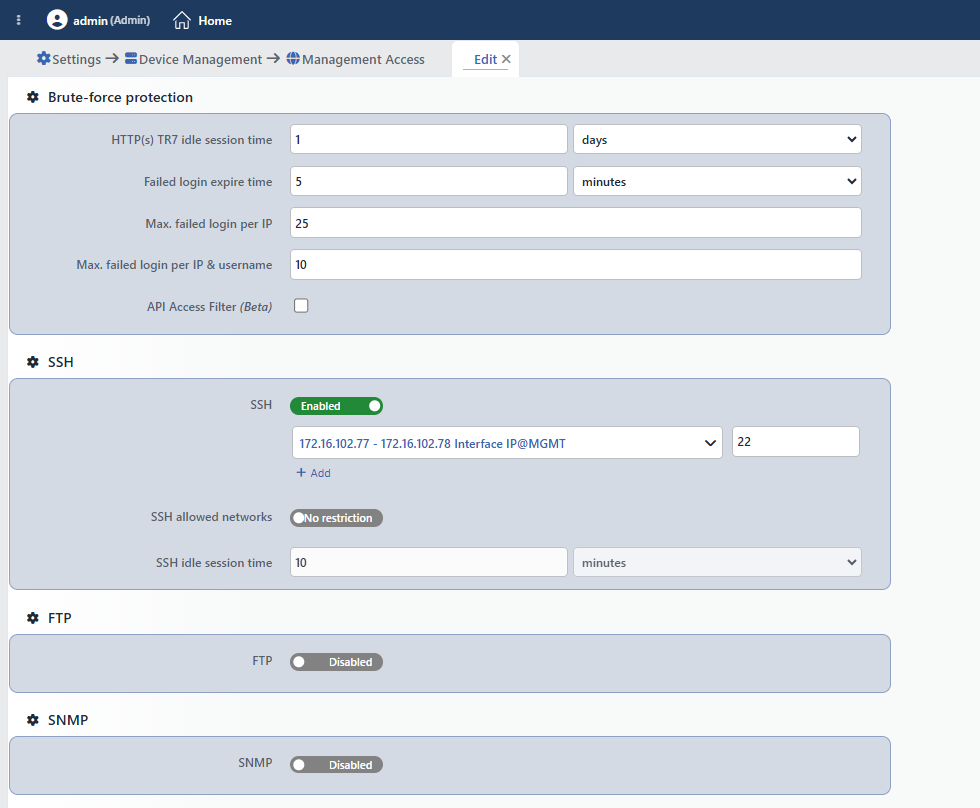 The Edit Tab: Brute-force Protection · SSH · FTP · SNMP
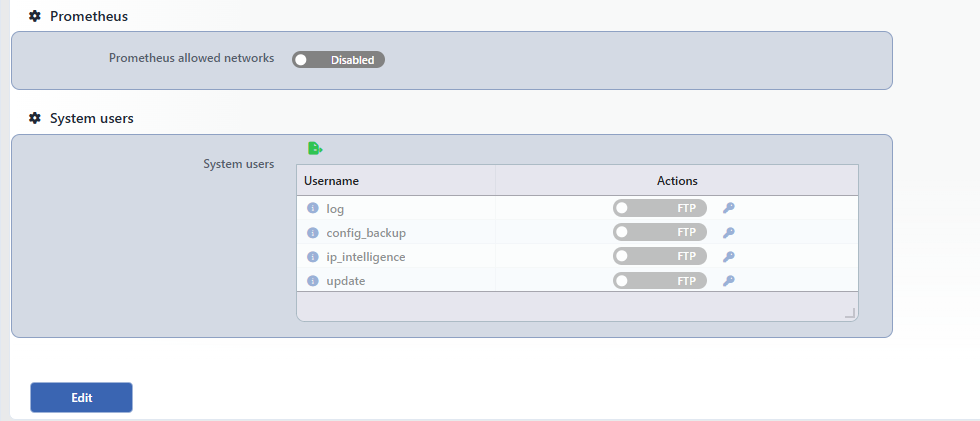 The Edit Tab: Prometheus · System Users
HTTP
INFO
HTTP Default port: 80
The IP address (or addresses) and the port to be used in the access to the TR7 web interface over HTTP are selected. With (+) more than one IP:port binding can be added. The port comes as 80 by default and can be changed when needed. The IPs listed are the interface IPs on the default route table.
HTTP Allowed Networks
Only the networks specified here (in the CIDR format) are allowed to reach the HTTP access; the networks must be different from one another. The field is opened with an on/off switch; while it is off, No restriction is written on the switch and a network-based restriction is not applied. The switch is displayed only while at least one IP is defined in HTTP.
HTTPS
INFO
HTTPS Default port: 443
The IP address (or addresses) and the port to be used in the access to the TR7 web interface over HTTPS are selected. With (+) more than one IP:port binding can be added. The port comes as 443 by default.
HTTPS Allowed Networks
Only the networks specified here (in the CIDR format) are allowed to reach the HTTPS access. When it is left blank, a network-based restriction is not applied. The field is displayed only while at least one IP is defined in HTTPS.
HTTPS Certificate
The certificate to be presented on the HTTPS connection is selected. The certificates added on the SSL/TLS Certificates screen are listed here. When no selection is made, the built-in certificate of the device is used.
Min. TLS Version / Max. TLS Version Default: Disabled
The lowest and the highest TLS version to be accepted on the management interface HTTPS connection are selected. The options: SSLv3, TLSv1.0, TLSv1.1, TLSv1.2, TLSv1.3 and Disabled (default) (a version restriction is not applied). The highest version cannot be selected lower than the lowest version. The fields are displayed only while at least one IP is defined in HTTPS; on the display screen they take place under the HTTPS row as the TLS Versions summary.
CAPTCHA
INFO
Captcha
HTTP(s) CAPTCHA login protection. When it is enabled, a CAPTCHA verification is requested on the web interface login screen against the automated/repeated login attempts. The text CAPTCHA verification is case insensitive; the characters that can be confused (such as I, O, 0 and 1) are not included in the generated questions.
Captcha Difficulty Default: Easy
The difficulty level of the CAPTCHA is selected: Easy, Medium or Hard. The field is displayed only while the CAPTCHA is enabled.
Two-Factor Authentication (2FA)
INFO
Two-Factor Authentication (2FA)
It requires a second verification factor in addition to the password at the login. When it is enabled, the fields below open.
2FA Methods Default: E-mail
Through which channel the verification code will be delivered to the user is selected: E-mail or SMS; more than one method can be selected together; at least one method is required.
2FA Requiring User Types Default: all the types
The user types for which 2FA will be mandatory are selected; all the user types defined on the device are offered in the list and all of them come selected by default. When the restriction is left off, it applies to all the users.
2FA Excluded Users Default: admin
The users to be exempted from 2FA are selected; these users log in without a second factor being asked for. By default the admin user is exempt.
2FA Recovery Token (Admin)
On the display screen there is a recovery code row that the admin user can use when the 2FA login cannot be done; with the refresh icon on the row a new recovery code is generated. The same information is also displayed as an information box in the editing form. If a code has not been generated yet, the row does not appear.
2FA No Contact Policy
It is the policy to be applied when the user has no contact information (e-mail/phone) for the selected method:
The options
- Block login: the login of the user who has no contact information is blocked.
- Allow login: the user who has no contact information is exempted from 2FA and the login is allowed.
Brute-Force Protection
INFO
HTTP(s) TR7 Idle Session Time Default: 3 hours
It is the period during which the session of a user who has logged in to the web management interface will stay open without any activity. When the period expires, the user is redirected to the login page. At most 24 hours can be entered.
INFO
Failed Login Expire Time Default: 3 hours
It is the period during which the IP addresses or the user names that exceed the failed login limit will be held in quarantine. During this period the web interface cannot be logged in to with the related IP/user. At most 7 days can be entered.
INFO
Max. Failed Login per IP 0 – 1000
It is the failed login limit that an IP address can make. When the limit is exceeded, the related IP address is taken into quarantine.
INFO
Max. Failed Login per IP & Username 0 – 1000
It is the failed login limit based on the IP address and the user name. When the limit is exceeded, the related IP + user name combination is taken into quarantine.
INFO
API Access Filter (Beta)
It enables the internal filter (inner WAF) that filters the TR7 API access. It is at the Beta stage; for detailed information the TR7 Support Team should be contacted.
SSH
INFO
SSH Default port: 22
The IP address (or addresses) and the port to be used in the access to the server console over SSH are selected. With (+) more than one IP:port binding can be added. The port comes as 22 by default.
SSH Allowed Networks
Only the networks specified here (in the CIDR format) are allowed to reach the SSH access. The field is opened with an on/off switch; while it is off, No restriction is written on the switch and a network-based restriction is not applied. The switch is displayed only while at least one IP is defined in SSH.
SSH Idle Session Time Read-only
It is the period during which the session of a user who has logged in with SSH will stay open on the console without any activity. When the period expires, the SSH connection times out. This field is displayed but cannot be edited (read-only).
FTP
INFO
FTP Default port: 21
It enables the FTP service and the IP address (or addresses) and the port to be used in the access are selected. The port comes as 21 by default. With the FTP service, the files belonging to the system such as the logs, backups, updates can be retrieved by different clients or systems.
FTP Allowed Networks
Only the networks specified here (in the CIDR format) are allowed to reach the FTP access. When it is left blank, a network-based restriction is not applied. In the FTP access only IPv4 addresses can be selected.
FTP Passive Port Range Default: 40000 – 40023
It is the port range to be used in the FTP passive mode connections (start – end, in the 1024 – 65535 range). The range must contain at least 24 ports and the same range is used for every defined FTP IP. The field is displayed only while at least one IP is defined in FTP.
SNMP
INFO
SNMP Default port: 161
The access is defined so that TR7 can be queried as an SNMP agent. Every entry contains a Device, an IP and a port; with the Device field, whether the access will be listened to on the Host (the main device) or on a vDevice is selected.
SNMP Allowed Networks
Only the networks specified here (in the CIDR format) are allowed to reach the SNMP access. The field is displayed only while at least one IP is defined in SNMP; the SNMP version switches and their sub-fields open with the same condition too.
SNMPd v1
It enables the SNMP v1 version. It provides access with the read-only community (public).
SNMPd v2
It enables the SNMP v2c version. When it is enabled, a Community name is entered.
SNMPd v3
It enables the SNMP v3 version. A user list is defined; for every user a user name, an authentication protocol and a password are entered:
- SHA + AES (authPriv): authentication and encryption together.
- MD5 (authNoPriv): authentication only.
Prometheus
INFO
Prometheus Allowed Networks
The networks (in the CIDR format) that will be able to access the Prometheus metric endpoint (/metrics) are entered; in the Prometheus and Grafana integration, the networks from which the metrics will be pulled are limited here. The field is opened with an on/off switch; while it is off, Disabled is written on the switch.
System Users
INFO
System Users
It is the section where the system users with FTP access belonging to the system are configured. The user list is fixed; a new user cannot be added and the existing ones cannot be deleted. What can be done is to enable a user, to disable it and to assign its password.
On the display screen the table comes with the Username, Access Type and Description columns. In the editing tab, on the other hand, there are the Username and Actions columns: on every row there are an on/off switch that turns the FTP access of the user on and off and a key icon that serves to assign a password; the information icon on the left of the user name shows the description of that user. With the export icon above the table, the list is retrieved as Excel, CSV or PDF.
log
The user that has read-only FTP access to the files and folders in which the vService and the user logs are located.
config_backup
The user that has read-only FTP access to the configuration backups of the device.
ip_intelligence
The FTP user that can see the IP intelligence database file (iprep_blacklist.txt) and can edit the device-based IP lists.
update
The FTP user that can access the files in which the device update packages are located with the read/write right.
INFO
Edit
The changes made are saved by clicking the Edit button at the very bottom of the form. On this screen the name of the saving button is not Save but Edit.
SNMP & Grafana Files
From this section, the files required for the monitoring integrations are accessed:
- The SNMP MIB file (
tr7-mibs.zip) is downloaded; it is used for resolving the TR7 OIDs in the SNMP monitoring systems. - For the Grafana / Prometheus integration, four links are offered to the required dashboard JSON files: Service Dashboard (with __rate_interval), Service Dashboard (with __interval), Global Dashboard (with __rate_interval) and Global Dashboard (with __interval). The links open the file in a new tab.
 The SNMP and Grafana Files Rows
