
Smarter by Design.Simpler for Business
Redirect for Backend Service Errors
What Is the Redirect for Backend Service Errors Action?
The Redirect for Backend Service Errors action redirects the client to a specified URL on the HTTP error codes returning from the Backend Services. This action makes it possible to turn the error responses of the Backend Service into user-friendly pages.
In order to show content in the case of an error code, the Show Content for Backend Service Errors action is used.
This action works only at the response stage and does not require a condition.
1 · Backend Service response (error)
HTTP/1.1 404 Not Found ↓
2 · TR7 redirects the client
Location: /error-page↓
3 · User-friendly page
The backend error detail is hidden, a custom page is shownBackend Service Errors vs Traffic Manager Errors
In TR7, error redirection is separated according to two different sources:
| Error Source | Action | Execution Time |
|---|---|---|
| Backend Service | This action | Response (after the Backend Service has responded) |
| Traffic Manager | Redirect for Traffic Manager Errors | Request (before reaching the Backend Service) |
Examples of Backend Service errors:
- 404 Not Found
- 500 Internal Server Error
- 403 Forbidden
- 401 Unauthorized
The Importance of the Redirect for Backend Service Errors Action
The central management of the Backend Service errors provides a consistent user experience.
The Redirect for Backend Service Errors action;
- standardizes the error pages of different Backend Services,
- redirects 404 errors to the search page or the home page,
- redirects to the support page on application errors,
- hides the Backend Service error details from the user,
- provides dynamic redirection with Smart Variables.
For this reason, the Redirect for Backend Service Errors action is an important tool for user experience and security.
Supported vService Types
HTTP
L7 TCP
Network
Execution Timing
On Request
On Response
How to Add?
A new Redirect for Backend Service Errors Action can be added through the TR7 web management interface by following the steps below:
- The Configuration Menu is opened by clicking the TR7 logo at the bottom left.
- The Load Balancer → Actions → Add steps are followed.
- A unique and descriptive name is entered for the action.
- Redirect for Backend Service Errors is selected as Action Type.
- The related configurations of the action are made.
- The action is added by clicking the
Addbutton.
Redirect for Backend Service Errors Action Add Form
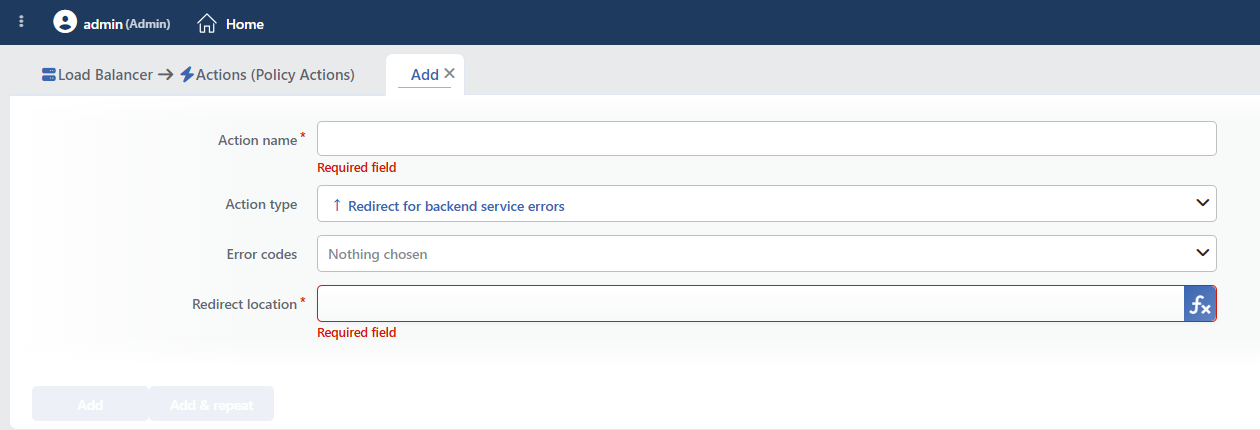 Redirect for Backend Service Errors Action Add Form
INFO
Action Type
Redirect for backend service errors is selected as the action type.
Since the action works only at the response stage and unconditionally, the Execution Level, Rule Protocol, Conditions, Hit Counter and Set Variable on Hit fields are not located in the form.
INFO
Error Codes
The HTTP error codes on which the redirection will be made are selected. More than one error code can be selected; the list consists of 16 codes and does not narrow according to the situation.
WARNING
The field is not required, but if no code is selected, the action does not do anything and no warning is given either.
The error codes that can be selected:
| Code | Status | Backend Service Scenario |
|---|---|---|
| 400 | Bad Request | The application parameter is faulty |
| 401 | Unauthorized | The session has expired |
| 403 | Forbidden | Insufficient authorization |
| 404 | Not Found | The page/API was not found |
| 405 | Method Not Allowed | Unsupported HTTP method |
| 410 | Gone | The resource was permanently removed |
| 500 | Internal Server Error | The application crashed/gave an error |
| 502 | Bad Gateway | Backend Service proxy error |
| 503 | Service Unavailable | The application is under maintenance |
| 407 | Proxy Authentication Required | Proxy authentication is required |
| 408 | Request Timeout | The request timed out |
| 413 | Payload Too Large | The request size is too large |
| 425 | Too Early | The request was sent too early |
| 429 | Too Many Requests | The request limit was exceeded |
| 501 | Not Implemented | The method is not implemented |
| 504 | Gateway Timeout | Gateway timeout |
INFO
Redirect Location Required
The URL information to which the client will be redirected in the case of a Backend Service error is entered. It can be a full URL or a relative path.
TIP
This field supports Smart Variables. Existing variables can be accessed with the fx button and dynamic content can be created.
Sample variables: response stage variables such as the request path (Path), the parameters (Query) and the returned status code (Status). They can be used together with fixed text values.
Since the action works at the response stage, the variable pool also contains the response variables: the returned status code, the response headers and the response cookies can be used in the target address. There is no separate "Host" variable; if the domain name is needed, the Request HTTP header content variable is used with the host header name.
Detailed information is on the Variables page.
 Smart Variable Usage Example
Sample values:
| Value | Description |
|---|---|
/error-page | General error page |
https://example.com/404 | Not found page |
/search?q=[Path/page of the request [URI]] | Redirect to the search page |
https://help.example.com/error | Help page |
INFO
Form Buttons
Add
The action adding process is completed by clicking the Add button.
Add & Repeat
With the Add & Repeat button, the action adding process is completed, and another new action can be added with different configurations without leaving the related window.
 Action Added
WARNING
The Redirect for Backend Service Errors action does not require a condition and is applied unconditionally (Always) on the vService on which it is defined.
Actions that run unconditionally directly affect all traffic or behavior on the related vService, without an evaluation based on traffic content.
In live environments, it is recommended that target service behaviors and possible effects be evaluated carefully before such actions are enabled. Otherwise, unexpected service behaviors or operational problems can occur.
The errors of an unreachable Backend Service do not fall to this action
This action evaluates only the status codes of the responses that actually return from the Backend Service. When the Backend Service cannot be reached at all (the service is down, the connection times out), TR7 itself produces the error response and this action does not take effect.
The Redirect for Traffic Manager Errors action is used in order to meet these situations. The two actions can be defined together on the same vService; one meets the errors produced by the Backend Service, the other meets the errors produced by TR7.
WARNING
When the redirection response is produced, the body of the Backend Service is not forwarded to the client and the subsequent response actions are not run on the same vService. More than one redirection action can be added to the same vService for different code groups.
Operational and Safe Usage Recommendations
- 404 errors are managed intelligently. 404 errors are redirected to the search page or to the site map; this helps the user to find what they are looking for.
- The details are hidden on 500 errors. Application errors can contain a stack trace; a redirection to a custom error page is made in order to hide them.
- The client is redirected to the login page on 401 errors. When a 401 is received on the pages that require a session, the client is redirected to the login page.
- A redirection loop is avoided. If the redirection target also gives an error, a loop occurs; it is verified that the target page is static and reliable.
- The Redirection Code Is Fixed. This action produces the redirection as a temporary redirect (302); the status code cannot be selected. If a permanent redirect (301) is needed, the Location Redirection action must be used.
Common Usage Scenarios in Live Environments
The examples below show how the related action is applied in the most frequently encountered use cases in real systems. These scenarios are based on practices that are widely preferred in live environments and rest on experience gained in the field.
Scenario 1: Redirecting 404 Errors to a Smart Search Page
Problem: On an e-commerce site, when a product goes out of stock or the URL changes, the Backend Service gives a 404 Not Found error. Instead of seeing an error page, the users should be able to find the product they are looking for. Especially the old bookmarks and the search engine links give a 404.
Solution: On a 404 error, the user is redirected to the on-site search page and the information about the searched page is filled into the search box automatically.
Configuration:
- Error Codes: 404
- Redirect Location:
/search?q=+ thePath/page of the request [URI]variable is selected with the Smart Variables (fx) button
Result:
- ✅ User experience → Instead of seeing a 404 page, they can make a search.
- ✅ Prevention of sales loss → The user can find alternative products and purchase them.
- ✅ SEO friendly → The search engines direct the users to a useful page.
- ✅ Automatic search → The path information is filled into the search box, the user searches with a single click.
Sample redirection:
- Request:
https://example.com/products/iphone-14-case - Backend Service: 404 Not Found
- Redirection:
https://example.com/search?q=/products/iphone-14-case - The user sees similar products in the search results
Scenario 2: Redirecting 500/502/503 Application Errors to the Support Page
Problem: The Backend Service sometimes gives a 500 Internal Server Error and sensitive information such as a stack trace and a database connection error is shown to the users. The users do not know what to do and a security vulnerability occurs.
Solution: All the server errors (500, 502, 503) are redirected to a custom support/help page and the error details are hidden.
Configuration:
- Error Codes: 500, 502, 503
- Redirect Location:
https://help.example.com/server-error
Result:
- ✅ Security → The stack trace and the database information are hidden.
- ✅ Professional appearance → A help page prepared specially for the user is shown.
- ✅ Support integration → There can be ticket opening and chat support on the error page.
- ✅ User guidance → What they need to do is stated clearly.
Redirection flow:
User → TR7 → Backend Service (500 Error + Stack Trace)
                  ↓
            TR7 (Redirect)
                  ↓
User ← https://help.example.com/server-error
The content of the support page:
- "A temporary problem has occurred in the system"
- A ticket opening form
- Alternative contact information
- A link to the system status page
Scenario 3: Redirecting the 401 Session Expired Error to the Login Page
Problem: In a web application, the user session closes automatically after 30 minutes. When the user tries to perform an operation, the Backend Service gives a 401 Unauthorized error. The user does not understand what has happened and sees technical messages such as "Forbidden".
Solution: On a 401 error, the user is redirected to the login page and is informed that the session has ended and that it is necessary to log in again.
Configuration:
- Error Codes: 401
- Redirect Location:
/login?session_expired=true&return_url=+ thePath/page of the request [URI]variable is selected with the Smart Variables (fx) button
Result:
- ✅ User experience → They see the message "The session has expired, please log in again".
- ✅ Return URL → After logging in, they return to the page where they left off.
- ✅ Session management → The user understands the situation and logs in again.
- ✅ Prevention of loss → The user can complete the operation they were performing.
Sample flow:
- The user: is performing an operation on the
/dashboard/orders/edit/123page - Backend Service: 401 Unauthorized (session expired)
- Redirection:
/login?session_expired=true&return_url=/dashboard/orders/edit/123 - After the login: returns to the
/dashboard/orders/edit/123page
The message of the login page:
html
<div class="alert alert-warning">
    <strong>Your session has expired.</strong>
    For your security, your session was closed automatically.
    Please log in again.
</div>
Scenario 4: Redirecting 403 Authorization Errors to the Permissions Page
Problem: In a corporate web application, the users try to access the pages for which they do not have authorization and the Backend Service gives a 403 Forbidden error. When the user sees the "Forbidden" message, they do not know what to do and call support.
Solution: On a 403 error, the user is redirected to the permission request page and the resource that is wanted to be accessed is shown automatically.
Configuration:
- Error Codes: 403
- Redirect Location:
/access-denied?resource=+ thePath/page of the request [URI]variable is selected with the Smart Variables (fx) button
Result:
- ✅ User information → Why they cannot access it is stated clearly.
- ✅ Permission request process → The user can request permission from the administrator by stating which resource they want to access.
- ✅ Decrease in the support load → The user requests permission with self-service, they do not call support.
- ✅ Audit trail → Which user tried to access which resource is logged.
Sample flow:
- The user: is entering the
/admin/reports/financialpage - Backend Service: 403 Forbidden (no permission)
- Redirection:
/access-denied?resource=/admin/reports/financial
The Access Denied page:
html
<div class="alert alert-danger">
    <h3>You Do Not Have Access Permission</h3>
    <p>You do not have permission to access the following resource:</p>
    <code>/admin/reports/financial</code>
    <p>You can request permission from your administrator to access this resource.</p>
    <button class="btn btn-primary">Request Permission</button>
</div>