
Smarter by Design.Simpler for Business
Advanced Captcha (Tracking) Logs
What Are Advanced Captcha (Tracking) Logs?
Advanced Captcha (Tracking) Logs are the live content of the tracking stage of the Captcha Quarantine feature of the Advanced Captcha action assigned to a vService. They track the clients that fail CAPTCHA verification according to the selected keys (Tracking Type).
Each row represents a tracked client (by default IP) and shows, in the Incorrect column, the number of failed CAPTCHA verifications of that client within the Quarantine Tracking Window. When this value reaches the Quarantine Failure Threshold, the client is quarantined and is also listed in the Advanced Captcha (Quarantine) Logs view. The tracking row is not deleted; it continues to remain in this table until its own window expires.
The counter increases only on failed verification responses, and a correctly solved CAPTCHA does not reset it; the value drops only as the tracking window slides.
Thanks to this view, automated CAPTCHA solving attempts (bot behavior) can be monitored and analyzed before they are quarantined.
CAPTCHA Tracking
Failed attempts
Counts failed CAPTCHA verifications
Toward the Threshold
Incorrect / threshold
Shows how close the threshold is
Bot Detection
Before quarantine
Clients tracked before being quarantined
Key-Based
Tracking Type
IP or selected variables
HTTP Only
Web traffic
CAPTCHA only in HTTP vServices
Manageable
Remove from Table
Tracking records can be cleared
Advanced Captcha (Tracking) Logs are not a recorded history log; they are the current content of the tracking table. Records drop from the table when the Quarantine Tracking Window expires. The Last Event and Expiry Date information is kept separately for each record (row).
Supported vService Types
HTTP
L7 TCP
Network
How to Enable?
This view does not require a separate enabling; it becomes usable automatically when an Advanced Captcha action is defined on the vService and the action's Captcha Quarantine feature is enabled. The keys to be tracked (Tracking Type), the threshold (Quarantine Failure Threshold) and the tracking window (Quarantine Tracking Window) are determined in the action's own configuration.
Appearance in the drop-down menu
This record source appears in the source list in the Logs & Tracking tab together with the action's name and tracking window, in the <action name> (TRACKING, <Quarantine Tracking Window>) format (e.g. captcha (TRACKING, 5m)).
Viewing
- Left Monitor Panel is opened.
- Load Balancer vServices is selected from the category tabs at the top left.
- The vServices defined on TR7 are listed.
- The vService to be monitored is clicked; the screen opens with the Dashboard tab that carries the vService's name.
- On the screen that opens, the Logs & Tracking tab is clicked and the
(TRACKING, …)entry of the related Advanced Captcha action is selected.
Advanced Captcha (Tracking) Logs Listing Screen
When the related tracking source is selected, the current content of the tracking table is listed as a table.
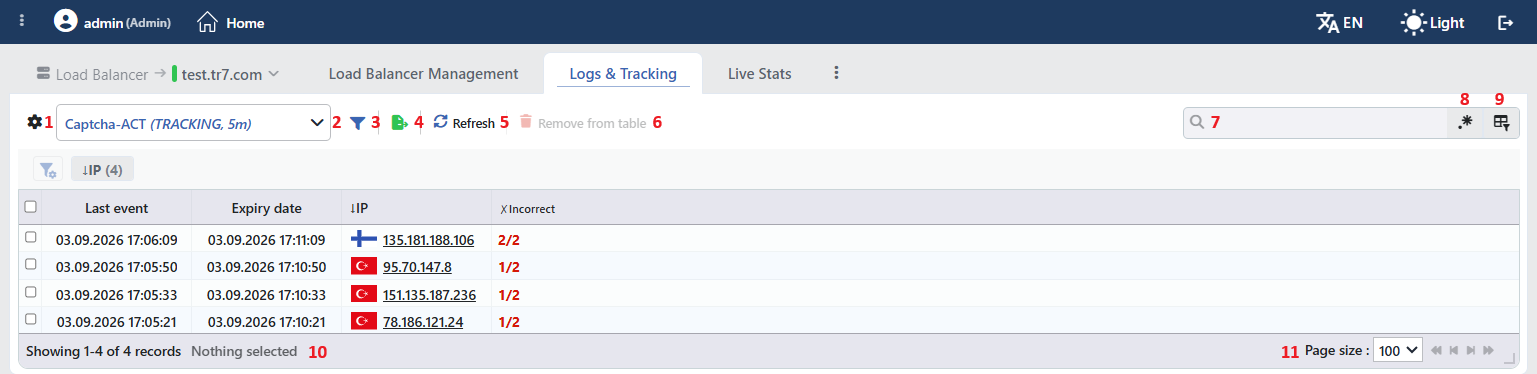 Advanced Captcha (Tracking) Logs Listing Screen
The table opens with the following columns by default:
| Column | Description |
|---|---|
| Last Event | The time of the last activity (last event) for this record. |
| Expiry Date | The time at which the record will be deleted from the tracking table. |
| Source (Client) IP Address (key) | The IP address of the tracked client (the default Tracking Type). It appears in the list with the ↓IP heading. |
| Incorrect Answers | The number of failed CAPTCHA verifications of the client within the Quarantine Tracking Window; it is shown together with the threshold in the attempts/threshold format (e.g. 1/2). Values greater than zero are highlighted. It appears in the list with the ✗Incorrect heading. |
The following column is hidden by default and is added from the column selector:
| Column | Description |
|---|---|
| Source | The name of the TR7 device that holds the record (in cluster setups). It is always present in the preview panel. |
INFO
Unlike the other tracking logs, the Advanced Captcha tracking table has no request/data/connection counters; only the Incorrect column, which shows the number of failed CAPTCHAs, is present.
The items in the toolbar are arranged from left to right in the following order; the last two items (Page Information and Page Size) are located in the information strip below the table.
Columns
Which columns are shown in the table is selected. In the same panel, columns are reordered by dragging and alignment is selected per column; the row height is fitted to the page with the Fit rows to the page button, and the column layout is reset to default with the Reset button. The layout is stored per user.
Logs Type
Determines the source to be viewed. The (TRACKING, …) entry of the related Advanced Captcha action is selected.
Filter
The Filter button is used to filter the list according to specific criteria. The filter criterion is the Tracking Type key selected in the action (e.g. ↓IP in this configuration).
Export
The table is exported as Excel, CSV or PDF by clicking the Export button. In the window that opens, the Filename, Format and Data Source, together with the Columns to be exported, are determined; the remaining fields are displayed according to the format: CSV Separator for CSV, Excel Sheet Name for Excel, and Page Orientation and Page Size for PDF.
Refresh
The current content of the tracking table is fetched by clicking the Refresh button. Since the list is not refreshed automatically, the current state is obtained with this button. While fetching is in progress, the button stays inactive and shows a spinning icon.
Remove from Table
When one or more rows are selected and the Remove from Table button is clicked, the tracking records accumulated by the related clients are removed from the table. The operation asks for confirmation and cannot be undone; the button is inactive while no row is selected. Deletion only resets the failure counter: a client that is currently in quarantine is not released. The trash can in the header of the preview panel does the same job but does not ask for confirmation. The same operation is also available in the right-click menu.
Search
Used to search all information in the table.
RegExp Search
Used to search all information in the table with a regular expression (RegExp).
Column Based Search
Used to perform a column-based search on the information in the table.
Page Information
Contains information about the total number of fetched records and the range of records displayed in the list: Showing N-M of T records and the number of selected rows (N selected, or Nothing selected when there is no selection).
Page Size
The maximum number of records to be displayed on the page is selected. The default is 100; the options are 50, 100, 250 and All. The selection is not stored.
Right-Click Menu
When a row is right-clicked, a menu with a single operation opens. The operation applies only to the right-clicked record; a selection made in the list does not affect the menu.
| Operation | What it does |
|---|---|
| Remove from Table | Removes the right-clicked record from the tracking table; like Remove from Table in the toolbar, it asks for Are you sure? confirmation. It is not displayed in the menu while the operation is in progress. |
Preview of the Selected Log
When any row in the list is clicked, the preview panel of that record opens. The panel shows the tracked client and the number of failed CAPTCHAs one below the other; the Incorrect Answers value is given together with the tracking window (e.g. 1/2 / 5 minute(s)).
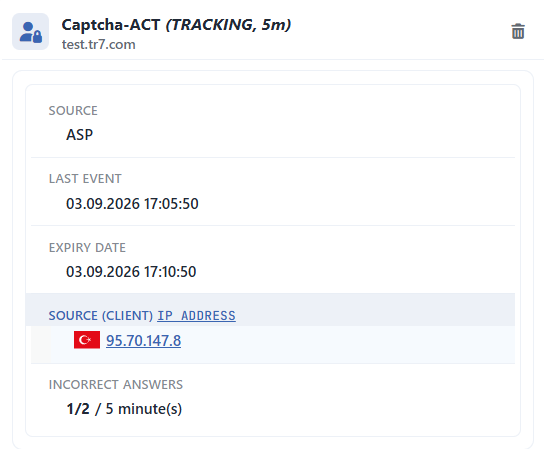 Preview of the Selected Log
Operations are performed on the record with the icon at the top right of the header:
| Operation | What it does |
|---|---|
| Remove from Table | Removes the record from the tracking table; the client's failed CAPTCHA counter is reset, and a client in quarantine is not released. Unlike the toolbar and right-click paths, it deletes without asking for confirmation. |
| Information | Description |
|---|---|
| Source | The name of the TR7 device that holds the record (in cluster setups). |
| Last Event | The time of the last activity for this record. |
| Expiry Date | The time at which the record will be deleted from the tracking table. |
| Source (Client) IP Address | The IP address of the tracked client. |
| Incorrect Answers | The number of failed CAPTCHA verifications within the tracking window; it is shown together with the threshold in the attempts/threshold format. |
