
Smarter by Design.Simpler for Business
Virtual Host Groups
What Is Virtual Host Groups?
Virtual Host Groups makes the traffic of a WAF-protected vService be divided according to the Host header of the request and a separate rule set and a separate working mode be applied to every part. The different domain names published over the same vService, instead of being squeezed into a single rule set, carry their own learned page types and their own mode: for example while a domain name newly put into service is being learned in the Learning mode, the mature domain names continue to be protected in the Blocking mode.
In every vService there is a default host group that cannot be deleted. This group has no host pattern; the requests that match no other group's pattern fall here.
What is per group and what is across the vService
Only three things change per host group: the name of the group, its host patterns and its WAF mode; and also the page types belonging to the group (the path rules and their inspection settings). All the settings under OWASP Protection Level, Checks, Whitelist & Blacklist, Blocking Page, Request Body Limits and Learning & Reporting are across the vService and are common in all the groups.
The independence of the groups from each other
There is no rule sharing between the groups. When a new group is opened, its rules are not copied from another group; the group starts empty with the default rule set and the suggested header inspections. The way of moving the rules in one group to another is to use the Export operation in the source group and the Import operation in the target group.
The Virtual Host Groups Band on WAF Management
The Virtual Host Groups band at the very bottom of the WAF Management screen carries in its sub note the explanation A separate working mode and learning setup per host and summarizes the existing configuration in a single sentence:
- If there is a single group, a directing text is displayed: Define virtual host groups to apply a different WAF mode and learning setup per host.
- If there is more than one group, the distribution is summarized: Requests are evaluated in 3 host groups, each with its own WAF mode — 2 Blocking, 1 Monitor, +Teacher. The number of groups in the summary includes the default group as well; the groups are counted from the most to the least according to the mode and the learning methods that are on (Teacher, Conditional Learning) are added at the end.
While more than one group is defined, in the upper right corner of the band there are additionally the Collective Analysis & Learning button and a shortcut that goes to the Analysis & Learning screen across the vService.
With the icon in the upper right corner of the band a new group is added; with the Edit link right below it the group list is opened.
 WAF Management - The Virtual Host Groups Band
The Host Group Mode Cards
For every host group a separate mode card is displayed at the top part of the screen; the cards are ordered so that the named groups come first and the default group at the very end. In the title strip of the card that is colored according to the mode, at the very top there is the name of the mode (Blocking Mode, Monitor Mode, Learning Mode) and next to it what the mode does: Attacks are blocked, Attacks are only monitored, not blocked or Learning mode - rules are not enforced yet. The name of the group is displayed below this, in a lower line; in the default group Default host group is written in this line.
In the card body what requests the group meets is written: in the named groups Requests to <pattern> are handled by this group (more than one pattern is separated with ·), and in the default group Requests matching no other group's hosts are handled here. While only the default group is defined in the vService, the card explains only the mode: the group name and this sentence are not displayed.
From inside the card the following are accessed:
- The number of page types of the group (<number> page types); when it is clicked, the rules of the group open in the tab titled Page types - <group name> (WAF Rules). Since a newly created group starts with a single rule, this number is 1 at the beginning.
- The Analysis & Learning starting link locked only to that group and the icon that goes to the analysis results of the group.
- If there is a new analysis result that has not been applied for the group, the New badge is displayed; when it is clicked, the result is previewed and from here it can be applied, ignored, edited or deleted. While there is no new result waiting and the last application has been completed without an error, the Applied badge is displayed.
- The Edit link in the lower right corner of the title strip opens the editing screen of the group.
If there is an analysis running for the group, its progress is watched on this card as well.
The Virtual Host Groups Listing Screen
When the Edit link in the Virtual Host Groups band is clicked, the list window titled Virtual Host Groups opens. Over this screen the host group adding, editing and deleting operations are done.
 The Virtual Host Groups List
The table opens with the following columns by default:
| Column | Description |
|---|---|
| Virtual Host Group Name | The name of the group. The row of the default group is displayed in italic and takes place first in the list; on the mode cards, on the other hand, it is displayed at the very end. |
| Virtual Host Patterns | The host patterns the group meets, separated by commas. In the default group it is empty. |
There is no column hidden by default. When a row is clicked, a preview panel does not open.
The items in the toolbar are arranged from left to right in the following order; the last two items (Page Information and Page Size) are located in the information strip below the table.
Columns
Which columns are shown in the table is selected. In the same panel, columns are reordered by dragging and alignment is selected per column; the row height is fitted to the page with the Fit rows to the page button, and the column layout is reset to default with the Reset button. The layout is stored per user.
Export
The table is exported as Excel, CSV or PDF by clicking the Export button. In the window that opens, the Filename, Format and Data Source, together with the Columns to be exported, are determined; the remaining fields are displayed according to the format: CSV Separator for CSV, Excel Sheet Name for Excel, and Page Orientation and Page Size for PDF.
Add
The host group adding window is opened by clicking the Add button.
Edit
The editing window of the selected group is opened by clicking the Edit button. The button becomes enabled only when a single group is selected.
Delete
When one or more groups are selected and the Delete button is clicked, the related groups are deleted. Before the deletion the confirmation "Are you sure that you want to delete virtual host groups object?" is asked; when more than one group is selected, the confirmation text states the number of the selection. The default host group cannot be deleted; when it is included in the selection, the button does not become enabled.
WARNING
Deleting a host group also permanently deletes all the page types and rule settings belonging to that group; there is no undoing of this operation. (Editing the group does not touch the rules: a name, mode or pattern change leaves the page types as they are.) The requests that come to the host patterns of the deleted group fall to the default group from now on and are inspected with the rule set of that group. If the rules need to be preserved, they should be exported with Export before the deletion.
Search
Used to search all information in the table.
RegExp Search
Used to search all information in the table with a regular expression (RegExp).
Column Based Search
Used to perform a column-based search on the information in the table.
Page Information
There is information belonging to the number of the groups displayed in the list: Showing N-M of T records and the number of the selected groups (N selected, Nothing selected while there is no selection).
Page Size
The maximum number of the groups to be displayed on the page is selected. The default is 100; the options are 5, 10, 20, 50, 100, 200, 500 and All. The selection is not stored.
Right-Click Menu
When a row is right-clicked, a menu with two operations opens. The operations are applied only to the right-clicked group; the selection made in the list does not affect the menu.
| Operation | What it does |
|---|---|
| Edit | It opens the editing window of the group; it is the same form as the Edit on the toolbar. |
| Delete | It deletes the right-clicked group; the same confirmation question as the deletion on the toolbar is displayed. It is not present in the default group. |
Adding and Editing a Host Group
- The WAF Management tab is opened.
- The window titled Add is opened by clicking the icon at the top right of the Virtual Host Groups band. If an existing group is to be edited, the Edit link on the mode card of the group is clicked, or the row is selected in the list window and the Edit button is clicked; the window titled Edit opens.
- The fields below are edited and confirmed with the
Addbutton (Editin the editing).
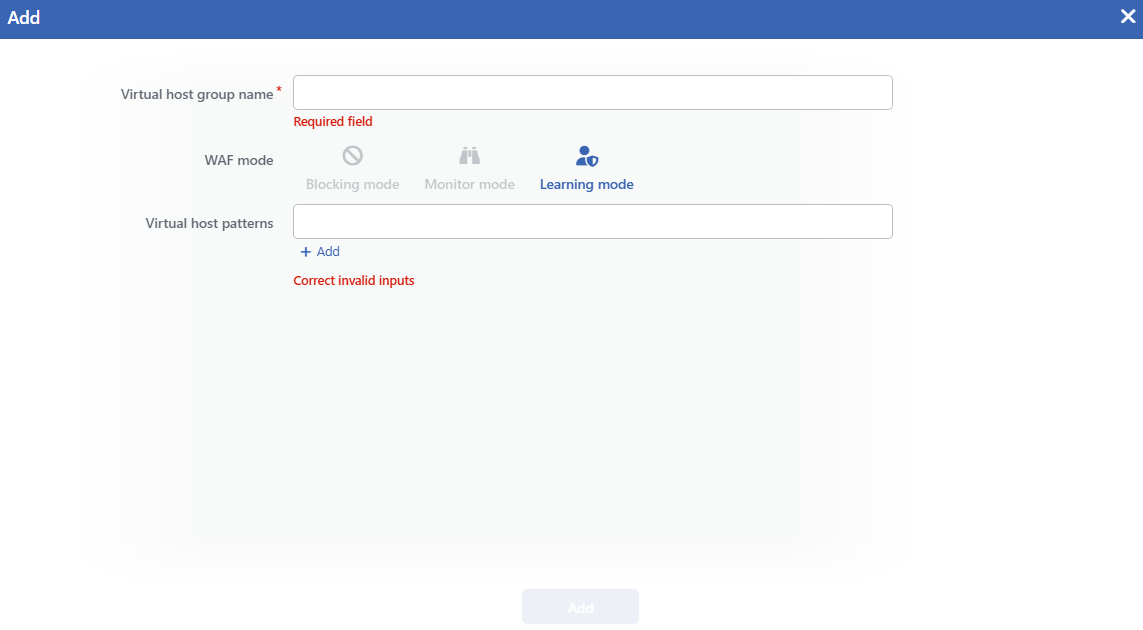 The Host Group Add Screen
INFO
Virtual Host Group Name
The name of the group is entered; it is a required field. The name is used to identify this group on the mode cards, in the list window, on the analysis screens and in the operation records.
INFO
WAF Mode
The working mode of the group is selected; a new group opens with the mode defined for the vService:
| Option | Meaning |
|---|---|
| Blocking Mode | The requests that exceed the threshold are blocked. |
| Monitor Mode | The attacks are recorded but the request is not blocked. |
| Learning Mode | The rules are not applied; the traffic is written into the learning record. |
The detailed behavior of the modes is explained on the WAF Mode page. Changing the mode of a vService afterwards does not change the mode of the groups defined at that moment; it only determines the starting mode of the groups added afterwards from the interface. The requests that carry the Conditional Learning identity, on the other hand, are processed in the learning mode independently of the mode of the group.
INFO
Virtual Host Patterns
The host patterns the group will meet are entered; at least one pattern must be defined. Every pattern is written in its own field and with the + Add link below the field a new pattern field is added. The pattern can be a full domain name (ornek.com) as well as it can carry a wildcard at the beginning (*.ornek.com). A field left empty is not accepted; when the form is tried to be saved, the warning Correct invalid inputs is displayed below the field.
The patterns are compared with the Host header of the request as they are: the case difference and the port information in the header are not ignored. For this reason the ornek.com pattern does not meet a request that comes with the Ornek.com or ornek.com:8443 header; these requests fall to the default group. In the publications in which a non-standard port is used, the pattern needs to contain the port as well (ornek.com:8443).
The interface accepts the * character anywhere in the pattern; when the same group is edited from the REST/CLI interface, on the other hand, only the wildcard in the *. form at the beginning counts as valid. For this reason it is recommended that the patterns be kept in the *.ornek.com form. The uniqueness of the group name is also inspected only on the REST/CLI side.
While the default host group is being edited, this field is not displayed in the form; the default group does not carry a pattern.
INFO
Add
The group is saved by clicking the Add button (in the editing window the button carries the name Edit); the button becomes enabled when no error remains in the form. There is no additional confirmation window or deployment (deploy) step; the WAF configuration is automatically produced again and applied.
Which group a request falls to
When a request arrives, the host patterns are tried in the order of definition and the first matching group wins; a narrower pattern has no priority over a wider one. If no pattern matches (and if the request has no Host header), the request falls to the default group.
A pattern collision between the groups is not prevented: if two groups that meet the same host are defined, the requests of that host always go to the group that comes first in the order and the rules of the second group never work for that host. The evaluation order is the creation order of the groups and cannot be changed afterwards; the collision is removed by narrowing the patterns or by deleting the group and creating it again.
The application of the changes
The group adding, editing and deleting operations are reflected in the WAF configuration the moment they are saved; a separate application step or a service restart is not needed. Since the changes made one after another are gathered in a single application, the reflection may take a few seconds. In a cluster setup the change is transferred to the other device as well.
