
Smarter by Design.Simpler for Business
Quarantine
What Is Quarantine?
Quarantine is the enforcement that keeps a persistent source completely outside for a period. When a rule is taken into Quarantine mode, the address of the source that exceeds the threshold is written to a timed list; during that period the new traffic of the source cannot enter the route table at all.
This box carries not the enforcement itself but its duration and the forwarding of the quarantine entries to log destinations. The rules decide who will enter quarantine; how long they will stay is decided by the single value defined here. Every quarantine entry is recorded on the Quarantine History screen and, if desired, also sent to the selected log destinations.
10 Minutes
Default Duration
The unit can be selected as seconds, minutes, hours or days
Table-Wide
Scope of the Duration
The duration is not per rule but common for all the rules in the route table
16 / 19
Rules That Can Send
The management access rules are counted only in the DEFAULT table of the main device
Per Rule
Quarantine List
Every rule has its own list; the duration is the same in all of them
New Connection
Traffic That Is Cut
The established sessions are not cut, the quarantine stops the new flows
Log Forwarding
Quarantine Records
Entries can be sent to Log Forwarding profiles
No Upper Limit
Duration Validation
The number field does not accept below 1; there is no limit above
The quarantine is a mode, the box is a setting
There are two things that must not be confused. Quarantine is one of the four modes the rules can select and is selected from every rule's own editing window. The box here, on the other hand, carries the duration of that mode and the forwarding of the records; it has no mode of its own and it does not pass a rule into quarantine.
For this reason the status dot at the beginning of the duration row is always green: it shows not an on/off state but a value in force. The dot of the log forwarding row, on the other hand, is gray while no forwarding is defined, and the row is displayed faded.
The Quarantine Box in L4 DDoS Management
The box is the second box in the body of the status card. In its body there are two sentences that tell the duration and the log forwarding, below it the number of rules that can send to quarantine and at the bottom right the link that goes to the live table.
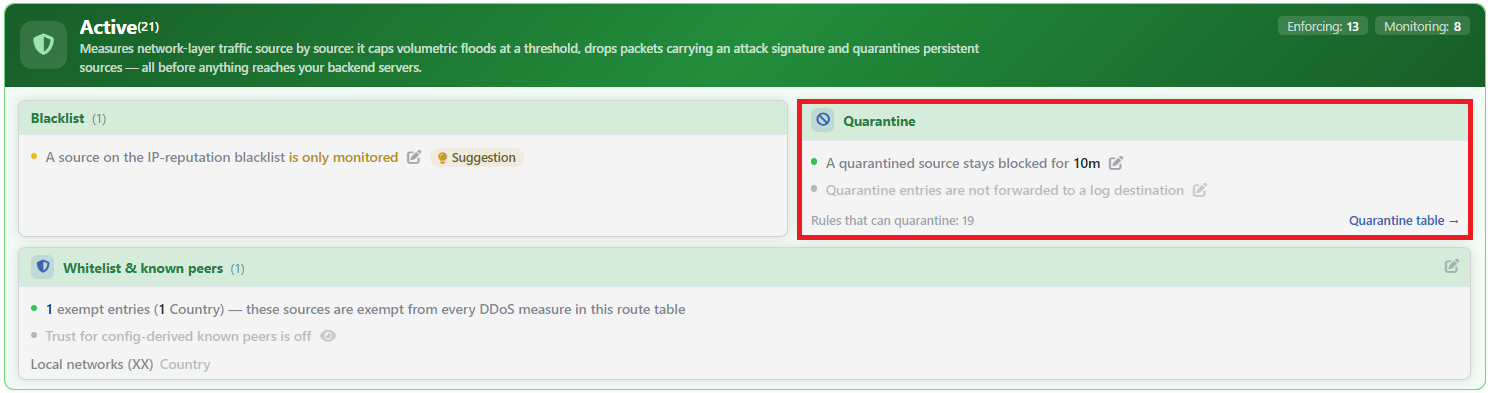 L4 DDoS Protection Mode - Quarantine Box
| Element | Meaning |
|---|---|
| The duration sentence | It is in the form A quarantined source stays blocked for <duration>; the duration is written in the short notation (10m). The pencil icon on its right opens the Rule Settings · Quarantine Time window. |
| The log forwarding sentence | While no forwarding is defined, it reads Quarantine entries are not forwarded to a log destination; the dot is gray and the row is faded. When one or more destinations are selected, it takes the form Quarantine entries are forwarded to <destinations>; the destination names are written in bold and separated by commas, and the dot turns green. When the pointer is moved over the sentence, a description that tells what the forwarding does is displayed. The pencil icon on its right opens the Rule Settings · Quarantine Log Forwarding window. |
| The subtitle | Rules that can quarantine: <number>: the number of rules in the route table that can send to quarantine. |
Quarantine table → | Opens the live list of the sources in quarantine. |
The number in the subtitle does not care about the mode
The Rules that can quarantine number does not show how many rules are running in quarantine mode at that moment. It counts only the rules that have this capability; even if all of them are disabled, the number does not change.
The number also changes according to the route table: since the three rules that protect the device's own management ports are displayed only in the DEFAULT table of the main device, there 19 is read and in the other tables 16.
The link does not open a separate page
The Quarantine table → link opens not a new screen but the L4 DDoS Live View tab of the same management screen. The list of the sources in quarantine, the source deleting and the adding to the exemption list operations are there.
Rule Settings · Quarantine Time Screen
- The L4 DDoS Management tab is opened.
- The pencil icon on the right of the duration sentence in the Quarantine box is clicked; the Rule Settings · Quarantine Time window with a single field opens.
- The field below is edited and confirmed with the
Savebutton.
At the top of the window an information band is displayed stating that the duration is common for all the rules in the route table.
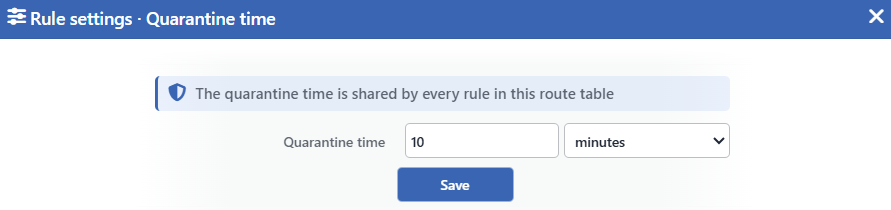 The Rule Settings · Quarantine Time Screen
INFO
Quarantine Time Default: 10 minutes
Determines how long a source taken into quarantine will be held in the list. It consists of two parts: a number field and a unit selector.
| Unit | Option |
|---|---|
| seconds | Seconds |
| minutes | Minutes |
| hours | Hours |
| days | Days |
The default value is 10 minutes. The validation checks only that the value is a duration that can be resolved and applies no upper limit; the number field, on the other hand, accepts only a value of 1 and above.
INFO
Save
Saves the value and puts it into effect immediately. When the duration is changed, the remaining time of the sources currently in quarantine does not change: the new value is applied only to the sources that will enter quarantine from now on.
The duration is ten minutes in a table that has not been touched as well
Since the catalog default of the quarantine duration is written to the configuration while the route table is being created and at device startup, the duration in force is 10 minutes in a route table that has never been saved as well; the value seen in the box and the value that works do not diverge.
When the window is opened, the value is left as it is and Save is used, no field is written, because the save carries only the changed fields.
Rule Settings · Quarantine Log Forwarding Screen
- The L4 DDoS Management tab is opened.
- The pencil icon on the right of the log forwarding sentence in the Quarantine box is clicked; the Rule Settings · Quarantine Log Forwarding window with a single field opens.
- The field below is edited and confirmed with the
Savebutton.
At the top of the window the information band "Each quarantine entry of this route table is also sent to the selected log destinations (Settings › Log transports)" is displayed.
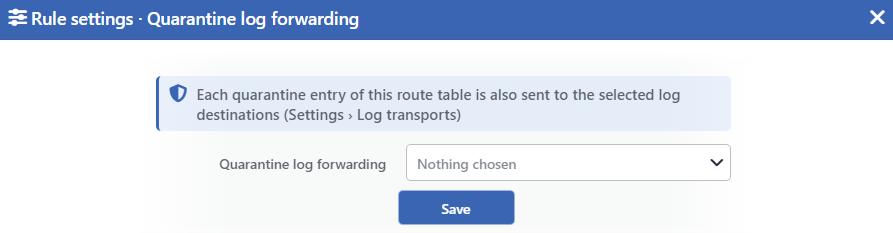 Rule Settings · Quarantine Log Forwarding Screen
INFO
Quarantine Log Forwarding Default: Nothing chosen
The log destinations to which the quarantine entries in the route table will be sent are selected. The options are the profiles defined on the Log Forwarding screen; at most 5 profiles are selected. When none is selected, the field reads Nothing chosen and no forwarding is done.
When a source enters quarantine, the record written to the Quarantine History screen is also sent to every selected profile:
- When: only on entry into quarantine; the release from quarantine is not forwarded.
- Message: written in the form
<ip> quarantined (<rule>), with the short name of the rule; the message is produced in the language of the profile's Log Language setting. The severity is warning. - Additional fields: sent only in the JSON and CEF formats: the route table, the IP address and its version, the country, the rule, the limit and the limit type, the quarantine duration, the release time and the device that produced the record. Empty fields are not sent. In the plain text format the message consists only of the time, the severity and the text.
- Format: JSON, CEF or plain text according to the profile's Message Format setting; the syslog format and the application name also come from the profile.
- Log Sources: the profile's Log Sources selection does not affect this forwarding; the quarantine records are sent only to the profiles selected here, independently of that selection. On the Log Forwarding screen there is no separate source for quarantine.
- Cluster: every TR7 device forwards its own quarantine entries.
Forwarding is limited during an intense attack
At most 200 records per second are sent to each destination. The records that exceed this limit are not forwarded; at most once a minute, together with a new quarantine entry, the summary message "N quarantine entries were not forwarded in the last minute (they remain in the quarantine history)" is sent. The records that are not forwarded continue to be present on the Quarantine History screen.
A Log Forwarding profile that is deleted after being selected is skipped in the forwarding.
INFO
Save
Saves the selection and puts it into effect immediately; from now on the quarantine entries are sent to the selected destinations. No retroactive forwarding is done for the sources that entered quarantine earlier.
Who Can Send to Quarantine?
The quarantine is a mode the rules can select; however, not every rule can select this mode. The capability is defined per rule in the rule catalog and is not calculated: whether a rule can send to quarantine or not is a preference written into the catalog.
| Band | The rules that can send to quarantine |
|---|---|
| TCP | The SYN flood limit, the new packet without SYN, the SYN with a suspicious MSS, the concurrent connection limit, the malformed flag, the null scan, the Christmas tree and the port scan rules |
| UDP | The UDP flood limit, the DNS flood limit, the zero-byte UDP and the SMB signature rules |
| ICMP & Reflection | The ICMP packet rate limit and the reflection limit |
| Packet Integrity | The packet with an invalid state and the packet that spoofs the device's own address rules |
| TR7 Management Access | The SSH, HTTP and HTTPS concurrent connection limits (only in the DEFAULT table of the main device) |
Of the rules that stay outside this list, the ones that use the enforcement levels take only the Disabled, Monitor or Block value. The settings with an on/off structure (Allow ICMP, SYN Cookies, Source Routing, Zombie TCP, Smurf: TCP Reset Limit), on the other hand, are only on or off and carry no mode level.
Two rules that use the enforcement levels but cannot send to quarantine stand out:
- The Blacklist rule cannot send to quarantine: since the source is already in a permanent list, a timed quarantine has no point.
- The rule for the sources coming from private address spaces cannot send either: behind a packet whose source address has been spoofed there is no real actor to be held.
The Difference Between Quarantine and Block
Both modes stop the traffic, but their methods and effects are different.
| Subject | Block | Quarantine |
|---|---|---|
| The scope of the decision | Only the packet caught by the rule is dropped; in the rules with a threshold this is the packet that exceeds the threshold. | All the new traffic of the source is stopped. |
| Duration | There is none; every packet is evaluated one by one. | As long as the duration here. |
| The other rules | The traffic of the source that enters the other rules is not affected. | The source loses its access not only for the triggering rule but for all its new traffic entering that route table; no port or protocol distinction is made. |
| The established sessions | They are not affected. | The established sessions directed to the device are not affected, only the new flows are stopped; in the traffic passed through the device, on the other hand, the established sessions are also cut. |
| Traceability | Only the amount of dropped packets and bytes. | The source itself is seen in the list and can be released manually. |
For this reason the quarantine is designed for persistent sources: instead of punishing a client that exceeds a threshold once, it takes out of service a source that continues to exceed it for a period.
Every rule has its own list
The quarantine is not a single list: every rule that can send to quarantine has its own list and a source can be in more than one list at the same time. The duration is common in all of them.
This distinction is preserved in the live view as well: every row also carries which rule sent the source. The Quarantine Population — Total panel on the dashboard, on the other hand, counts unique sources, so it can be smaller than the rule-based total.
Leaving Quarantine
A source leaves quarantine in four ways:
| Way | Where |
|---|---|
| The expiry of the duration | By itself; at the end of the duration defined in this box. |
| Deleting the source from the list | The row operation in the L4 DDoS Live View table. |
| Emptying the list of the rule | On the same screen, a bulk operation on a rule basis. |
| Adding to the exemption list | Adding the source to the Whitelist & Known Peers list releases its traffic without waiting for its remaining duration. |
The last way does two jobs at once: it takes the source out of quarantine and ensures that from then on it is not caught by any L4 DDoS rule. In the live view there is a single-click shortcut for this operation.
The exemption also prevents entry: an exempt source is not taken into quarantine by any rule in the first place, it is not only released while it is inside.
The quarantine members are not synchronized in a cluster
In a cluster setup the quarantine setting is written to both devices together, but the sources taken into quarantine are per device: every device keeps its own list according to its own measurement. The live view shows the lists of the two devices together and states in a separate column which device every row belongs to.
The scopes of the two clearing operations are different: deleting a row is applied to the device the row belongs to, and emptying the list of a rule follows the device selector in the toolbar and, if the selection is Both Devices, runs on both devices at once.
The live list is truncated
The quarantine list shows at most 2,500 rows in the live view. The counters stay complete: the truncation affects only the listing, the total and the per-rule numbers continue to carry the real value.
Scope and Limits
INFO
- This box is not an enforcement but a duration and forwarding setting. It has no mode of its own and it does not pass any rule into quarantine.
- The duration belongs to the whole route table. A different duration cannot be defined per rule.
- Returning to the default resets the duration and preserves the log forwarding. The returning to the default operation on the Learning strip sets the quarantine duration to 10 minutes; the Quarantine Log Forwarding selection stays as it is.
- A duration change does not apply retroactively. The remaining time of the sources waiting in quarantine runs according to the old value.
- There is no upper limit in the form. The number field does not accept below 1; above, a duration of hundreds of days can also be written.
- Saving with the same value writes nothing. The save carries only the changed fields.
- When a rule is taken out of quarantine mode, the sources in its list stay in the record until their durations expire, but they are neither blocked nor listed in the live view any more.
- The number of rules in the subtitle is a capability number, not the number of rules running in quarantine mode at that moment.
- In the traffic directed to the device the quarantine stops only the new flows; the established sessions are not affected. In the traffic passed through the device the established sessions are also cut.
- The
Quarantine table →link does not open a separate page, it passes to the live view tab of the same screen. - Editing requires change authorization in the Network area. With monitoring-only authorization the box is displayed and the pencil icons are not displayed.
