
Smarter by Design.Simpler for Business
Authentication Providers
What Are Authentication Providers?
Authentication Providers are the profiles of the step that verifies who the user is in the AGS access flow. When the user enters the credentials in the login form or is directed to an external identity provider, this profile determines where and how the verification is performed: a corporate directory (LDAP / Active Directory), an OAuth2 or OpenID Connect provider, a SAML 2.0 identity provider, a RADIUS server, an HTTP-based service, an existing web login form, a local user database on TR7 or an AGS portal.
The profile is used as the Authentication Provider step in the access flow of a vService with AGS enabled; the verification result is carried to the next step of the flow with the success or fail transition. The user information returned by the provider (the username, e-mail, display name, groups…) turns into session attributes with the automatic mapping and the optional custom mapping. The LDAP, HTTP and RADIUS types take their connection settings from a server profile on the Authentication Servers screen; the Local Database type is connected to a database on the Local Databases screen.
This page explains the listing screen, the preview and the form fields that are common to all types; the fields specific to each type are on the subpages in the Provider Type Options table.
9
Provider Types
OAuth2 · OpenID Connect · SAML 2.0 · LDAP · HTTP · Local Database · RADIUS · Portal · Web Form
14
Built-in OAuth Providers
e-Devlet, Google, Microsoft, GitHub, Apple, GitHub Enterprise, GitLab, Keycloak, Okta, Auth0, X (Twitter), LinkedIn, Facebook, Yandex
Automatic
Attribute Mapping
The fields in the provider response are mapped to the session attributes automatically; a custom mapping is added
Test
Connection and Discovery
The LDAP connection test, the OIDC endpoint discovery, SAML metadata importing
Lockout
Lockout Behavior
Account lockout policies on a provider basis: inherit, replace, add or turn off
success / fail
Flow Transitions
The verification result is connected to the next step with two outputs in the flowchart
How does it work?
- The provider profile is defined on this screen: the Provider Type is selected and the connection information according to the type (the server profile, the client id, the endpoint addresses, the search filters…) is entered.
- The profile is added to the access flow of the vService with AGS enabled as an Authentication Provider step; the username and the password coming from the login form are carried to the provider with the
%AGS_USER_INPUT(username)and%AGS_USER_INPUT(password)variables, and in the OAuth2, OpenID Connect, SAML and Portal types the user is directed to the external provider or to the portal. - The response of the provider is evaluated: if it is successful, the user information is written to the session attributes with the automatic mapping and the Custom User Attribute Mapping rules and the flow continues from the success transition, otherwise from the fail transition.
- Failed attempts are counted with the lockout policies specific to the provider or with the default ones of the vService, according to the Lockout Behavior setting.
Provider Type Options
| Provider Type | Verification method | Additional requirement |
|---|---|---|
| OAuth2 | The user is directed to the authorization page of the external provider; the identity is taken from the user information endpoint with the access token. | Namespace; a built-in provider or custom endpoints |
| OpenID Connect | The same flow as OAuth2; the identity is read from the ID token whose signature is verified (JWKS). | Namespace; the JWKS address is discovered |
| SAML 2.0 | The user is directed to the single sign-on address of the identity provider (IdP); the signed SAML response is verified. | The IdP certificate and addresses (imported from the metadata) |
| LDAP | The username and the password are verified on the selected LDAP server with the Search and Bind or the Direct Bind method; the attribute and group information is fetched. | Authentication Server (LDAP or LDAPS) |
| HTTP | The user information is sent to the selected HTTP server with a request; success is determined by the status code, a cookie, a redirect or a JSONata condition. | Authentication Server (HTTP or HTTPS) |
| Local Database | The username and the password are verified in the local user database on TR7. | User Database |
| RADIUS | The username and the password are verified on the RADIUS server with PAP or CHAP. | Authentication Server (RADIUS) |
| Portal | The identity is taken from another AGS vService running in portal mode (the portal). | Portal Gateway |
| Web Form | The user information is sent to the login form of an existing web application; success is determined by the conditions of the HTTP type. | Namespace; the login form address and its fields |
Operational Best Practices
- Server and database profiles first. For the LDAP, HTTP and RADIUS types an Authentication Servers profile and for the Local Database type a Local Databases profile must be defined beforehand; both fields are also added without leaving the form.
- Discovery and metadata in external providers. Fetch Endpoints from Issuer in OpenID Connect and Import Metadata in SAML must be used; errors in manually written addresses break the login flow silently.
- Lockout behavior. In external providers (OAuth2, OpenID Connect, SAML) the lockout is generally performed on the provider side; No Lockout or Use Gateway Defaults must be selected for Lockout Behavior. In the types that take a password (LDAP, RADIUS, Local Database, HTTP, Web Form) Account Lockout Policies must be assigned.
- Flow check before deleting. The delete confirmation does not show the usage locations; the vService flows that use the provider must be checked on the Used in tab in the preview.
- Secret information. The client secret and the service account password come filled in masked form in the edit form; the profiles must be kept on devices that only the necessary users can access.
How to Add?
A new Authentication Providers profile is added through the TR7 web management interface with the following steps:
- The Configuration Menu is opened by clicking the TR7 logo at the bottom left.
- The AGS → Authentication → Authentication Providers → Add steps are followed.
- A unique and descriptive name is entered for the profile.
- The Provider Type is selected and the fields displayed according to the type are filled in.
- The profile is added by clicking the
Addbutton.
TIP
Reaching the page via quick search
Instead of navigating the menu step by step, the related page is reached directly by using the search bar in the bottom left corner of the screen. The search bar opens with the Alt + T shortcut on Windows and Opt + T on macOS; typing the name of the feature being searched for is then sufficient.
The created profile is used in the profile selector of the Authentication Provider step in the access flow of the vServices with AGS enabled. The profile is also defined without leaving the flow editor with the add icon next to this selector.
Authentication Providers Listing Screen
The list of all Authentication Providers profiles that are added on the TR7 device is reached by following the AGS → Authentication → Authentication Providers path. Profile adding, editing and deleting operations are performed on this screen.
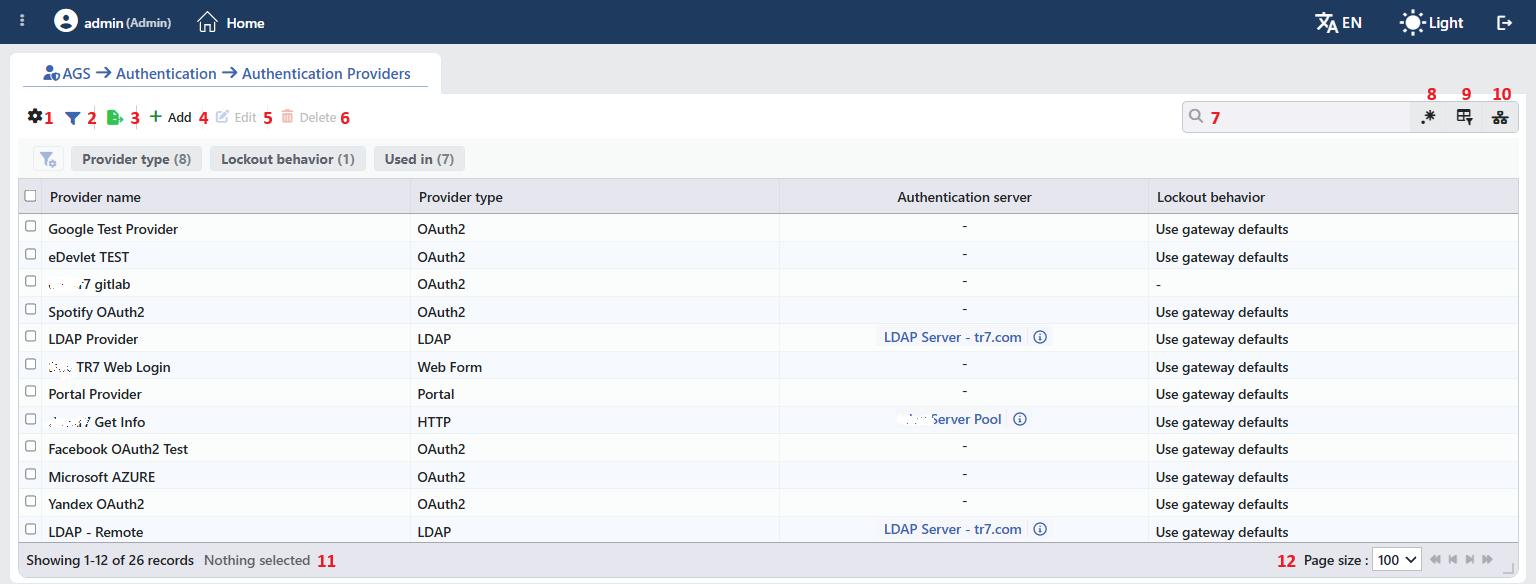 Authentication Providers Profiles Listing Form
The table opens with the following columns by default:
| Column | Description |
|---|---|
| Provider Name | The name of the profile. |
| Provider Type | The provider type. |
| Authentication Server | The bound server profile; the summary of the profile is opened with the information icon next to it. It is filled only in the types that use a server (LDAP, HTTP, RADIUS) and shows - in the others. |
| Lockout Behavior | The lockout behavior (e.g. Use Gateway Defaults). - is displayed in the records whose value is empty; the vService defaults are applied in these records as well. |
There is no column that is hidden by default. The table is not sorted when it opens; when a column header is clicked, first a descending and then an ascending sort is applied, and on the third click the sort is removed.
The items in the toolbar are arranged from left to right in the following order; the last two items (Page Information and Page Size) are located in the information strip below the table.
Columns
Which columns are shown in the table is selected; all four of the columns come on. In the same panel the columns are reordered by dragging and the alignment is selected per column; the row height is fitted to the page with the Fit rows to the page button and the column layout is returned to the default with the Reset button. When the width badge next to a manually widened column is clicked, the column returns to the automatic width.
Filter
The Filter button is used to filter the profiles shown in the list according to certain criteria. There are three cards in the filter strip; the number next to the card name shows how many different values are found for that card in the profiles in the list. In the Used in card this number also includes the Unused Entries entry, which is always added even if there is no unused profile:
| Card | What it filters |
|---|---|
| Provider Type | By the provider type. |
| Lockout Behavior | By the lockout behavior. |
| Used in | The vServices that use the profiles and the Unused Entries value, which lists the profiles that are not used anywhere. |
Export
The table is exported as Excel, CSV or PDF by clicking the Export button. In the window that opens, the Filename, Format and Data Source, together with the Columns to be exported, are determined; the remaining fields are displayed according to the format: CSV Separator for CSV, Excel Sheet Name for Excel, and Page Orientation and Page Size for PDF.
Add
By clicking the Add button, the form for creating a new profile opens in the Add tab.
Edit
By clicking the Edit button, the edit form of the selected profile opens in the Edit tab. The button becomes enabled only when a single profile is selected.
The edit form is the same as the add form; all the fields including Provider Type are changed and the button at the bottom of the form carries the name Edit. When the type is changed, the fields of the previous type are deleted from the profile. The hidden fields (the client secret, the service account password, the Apple private key) come with their saved values in the form. The change is saved without asking for confirmation and is reloaded on the vServices that use the profile.
Delete
When one or more profiles are selected and the Delete button is clicked, the related profiles are deleted. Before deleting, the "Are you sure?" confirmation is asked for.
WARNING
A profile that is in use can also be deleted and the confirmation window does not show the usage locations.
The step in the access flows that use the profile is not deleted; the step points to a profile that no longer exists. The No provider profile selected warning appears on the settings canvas, and when the step is opened in the flow editor the profile selection switches to the first provider in the list; the flow must be edited and a valid provider must be selected. In the session list and in the metrics the profile id appears instead of the provider name. The delete operation is written to the user operation record.
Search
Used to search all information in the table.
RegExp Search
Used to search all the information in the table with a regular expression (RegExp). While the usage filter is active and the column-based search is open, this button is hidden.
Column Based Search
Used to perform a column-based search on the information in the table.
Usage Filter
Used to filter in the flow of which vServices the profiles are used. While the filter is active, a selector takes the place of the search box; when the icon is clicked again, the search box returns.
Page Information
Contains information about the total number of defined profiles and the number of profiles displayed in the list: Showing N-M of T records and the number of selected profiles (N selected, or Nothing selected when there is no selection).
Page Size
The maximum number of profiles to be displayed on the page is selected. On this screen the default is 100; the options are 5, 10, 20, 50, 100, 200, 500 and All.
Right-Click Menu
When a row is right-clicked, a menu with the profile's name in its title opens. Both operations in the menu apply only to the right-clicked profile; a selection made in the list does not affect the menu.
| Operation | What it does |
|---|---|
| Edit | Opens the editing form of the profile in the Edit tab; it is the same as the form opened by the Edit button in the toolbar. |
| Delete | Deletes the right-clicked profile; the same confirmation question as the deletion in the toolbar is displayed. |
Preview of the Selected Profile
When a row in the list is clicked, the preview of the profile opens on the right of the screen; when the selected row is clicked again, the panel closes. The header contains the provider icon, the name of the profile and the Authentication Provider subtitle, and the operations are at the top right.
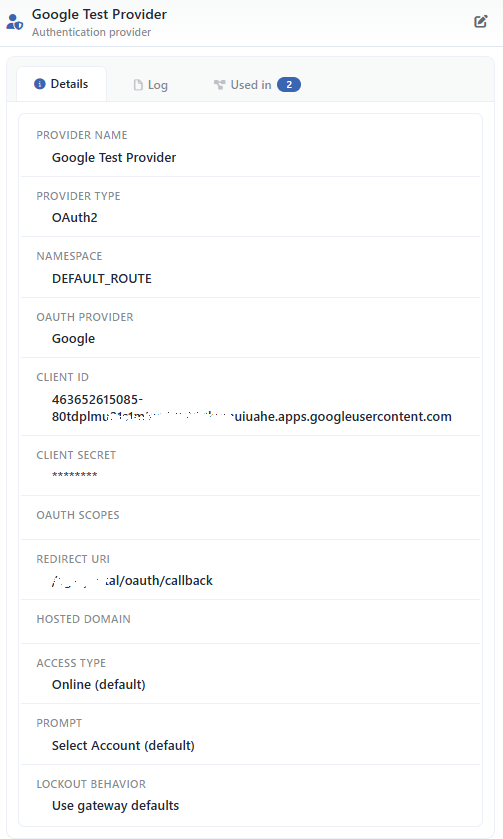 Preview of the Selected Profile
| Operation | What it does |
|---|---|
| Test Connection | Displayed only in the profiles of the LDAP type that are bound to a server; the details are on the LDAP page. |
| Edit | Opens the editing form of the profile in the Edit tab. |
There are three tabs in the panel; Used in is displayed only if the profile is used in the flow of at least one vService:
Details
Lists the settings of the profile row by row according to the type; the password and secret key fields are shown as `********`.
Log
Lists the user operations on the profile (adding, editing, deleting) as a timeline.
Used in
Lists the vServices with AGS enabled that use the profile in their flow. The badge next to the tab name shows the usage count.
The rows that are common to all the types on the Details tab are the following; the type-specific rows are listed on the related subpage:
| Row | Description | Visibility condition |
|---|---|---|
| Provider Name | The name of the profile. | Always |
| Provider Type | The provider type. | Always |
| Type-specific rows | The fields of the selected type (e.g. Namespace, OAuth Provider, Client ID in OAuth2). | According to the type |
| Custom User Attribute Mapping | The AGS attribute ← source attribute rows. | If the table is filled |
| Lockout Behavior | The lockout behavior. | Always |
| Lockout Policies | The selected lockout policies. | While Replace Defaults or Add to Defaults is selected and at least one policy is selected |
Profile Add Form
A new Authentication Providers profile is added on the TR7 device by following the AGS → Authentication → Authentication Providers → Add steps. Provider Name and Provider Type are at the top of the form, the fields that change according to the selected type are in the middle, and the User Attribute Mapping and Lockout Configuration sections that are present in all the types are at the bottom. The type-specific fields are explained on the subpages in the Provider Type Options table.
INFO
Provider Name Required
The name of the profile; it identifies the profile in the list, in the step selection in the flowchart, in the session list and in the logs. The name must be unique on the device; a second profile with the same name is not saved and the Name is used warning is displayed. When it is left empty, the Required field warning is displayed.
INFO
Provider Type Default: LDAP
The provider type is selected; when the type is changed, only the fields of the new type are displayed and saved:
| Option | Subpage |
|---|---|
| OAuth2 | OAuth2 |
| OpenID Connect | OpenID Connect |
| SAML 2.0 | SAML 2.0 |
| LDAP | LDAP |
| HTTP | HTTP |
| Local Database | Local Database |
| RADIUS | RADIUS |
| Portal | Portal |
| Web Form | Web Form |
INFO
User Attribute Mapping
Manages how the fields in the provider response are mapped to the session attributes. The information bar at the top of the section writes how many fields are mapped automatically for the selected type and provider (N fields are filled in automatically for this provider); when the bar is opened, the automatic rows and the JSONata expression of each of them are seen. The automatic mapping is present for LDAP, HTTP, SAML, all the built-in and custom OAuth providers and Local Database; in the RADIUS, Web Form and Portal types there is no automatic mapping, every attribute is mapped manually.
Custom User Attribute Mapping Default: No customisation
The information bar to the left of the field gives the number of fields mapped automatically for the selected type and is written with one of three texts: … fields are filled in automatically for this provider while there is an automatic mapping, … fields are filled in automatically; you replace … of them when a custom row overrides an automatic one, and No automatic mapping for this provider - every attribute has to be mapped below in the types that have no automatic mapping (RADIUS, Web Form, Portal). In the first two cases, when the text of the bar is clicked, the automatic rows and their expressions are opened; with the JSONATA chip on the right of each row the expression is examined in the JSONata workspace in read-only form.
When the switch is moved to the Customised position, the + Add link that adds a row appears on the right of the bar and the AGS Attribute and Source Attribute table is displayed: the session attribute is entered in the left column and the JSONata expression that is evaluated on the provider response in the right column. The suggestion list of the left column contains, next to the standard fields of AGS, the custom user fields defined on the vServices with AGS enabled on the device; free text outside the list is also written. The expressions in the right column pass a syntax check row by row, and while there is a faulty expression the form is not submitted. A custom row that targets the same attribute as an automatic row overrides the automatic one (the replaced below badge). When a name outside the standard attributes of AGS is entered, this attribute is defined as a custom user field on the vService; names that start with _ are considered hidden fields and do not produce a custom user field.
The JSONata contexts specific to the types and example expressions are explained on the related provider subpages.
INFO
Lockout Behavior Default: Use gateway defaults
It is located in the Lockout Configuration section; with which lockout policies the failed attempts on this provider are counted is selected:
| Option | Meaning |
|---|---|
| Use Gateway Defaults | The policies in the Default Lockout Policies list of the vService are used. |
| Replace Defaults | Only the policies selected in the Lockout Policies field are used. |
| Add to Defaults | In addition to the default policies of the vService, the ones selected in the Lockout Policies field are used as well. |
| No Lockout | Failed attempts are not counted on this provider, no lockout is performed. |
Lockout Policies
Displayed while Replace Defaults or Add to Defaults is selected; next to the policies defined on the Account Lockout Policies screen, the built-in Default Username Lockout, Default IP Lockout, Default MFA Lockout and Default Username + IP Lockout policies are listed as well.
INFO
Add
The profile is added by clicking the Add button; the tab closes and the profile is displayed in the list.
Operating Mechanism
INFO
- Distribution. The provider profiles are transferred to the access engine of every vService with AGS enabled; after adding, editing and deleting, the configuration is applied again and the edited profile is refreshed in the related engines.
- Flow step. The profile is called with the Authentication Provider step in the flowchart; the OAuth2 and OpenID Connect providers run over the
/oauthpath of the vService and the other types over the/authpath (in more than one step of the same type the-2and-3suffixes are used). The result returns to the flow with the success or fail transition. - User input. In the types that take a password, the
%AGS_USER_INPUT(username)and%AGS_USER_INPUT(password)variables carry the values coming from the login form; flow variables are used in the LDAP, HTTP, RADIUS, Web Form and Local Database fields. - Attribute mapping. The automatic mapping rules are selected according to the type and the provider; the custom mapping rows override the automatic ones. The mapped attributes are used in the flow steps, in the rules and in the templates throughout the session.
- Network. The OAuth2, OpenID Connect and Web Form requests go out from the route table of the Namespace of the profile; the LDAP, HTTP and RADIUS requests from the route table of the bound server profile.
- Lockout. Lockout Behavior determines which lockout policies operate for the failed attempts on this provider; when No Lockout is selected, the attempts are not counted.
- Cluster. The profiles are synchronized between the devices with the LB configuration.
- Logs. Adding, editing and deleting are monitored on the User Logs screen as the authentication provider object; the connection test and the endpoint discovery are not written to the user operation record.
Scope and Limits
INFO
- License. The screen depends on the AGS license; for the details the Products & Licensing page must be consulted.
- Permission. The AGS screens depend on the Load Balancer permission area; for a user who does not have the permission the You don't have access to this page card is displayed instead of the page.
- The name is unique. A second profile carrying the same name is not saved.
- There is no built-in profile. The built-in OAuth providers are not a profile but sets of settings selected inside a profile.
- Type limits. Apple is only in the OpenID Connect type; there is no automatic attribute mapping in the RADIUS, Web Form and Portal types; in the Portal type only a vService in portal mode is saved.
- The connection test is only in LDAP. The other types are verified with a real login.
- The appearance of the login button is not set in the form. The button text, icon and color of the profile are in the schema and are displayed in the preview when they are filled in, but these fields are not in the add and edit forms.
- Deleting does not perform a reference check; a profile in use is deleted as well.
Usage Locations
| Usage location | Field | Purpose |
|---|---|---|
| A vService with AGS enabled → Flowchart | The Authentication Provider step → the profile selector | The verification of the login step with this profile; the success and fail transitions |
| A vService with AGS enabled → AGS Management | The Authentication and User Identity sections | The summary of the providers in the flow and of the lockout behavior; the summary of the mapped attributes |
| A vService with AGS enabled → Sessions | The provider column | With which provider the session was opened |
| A vService with AGS enabled → Live Stats | The verification counters on a provider basis | The successful and failed login metrics per profile |
