
Smarter by Design.Simpler for Business
Local Databases
What Are Local Databases?
Local Databases are the user account stores kept on TR7 for scenarios in which there is no external directory or identity provider. Each database carries its own password policy (the minimum length, the complexity, the reuse prevention of the last passwords) and the reset and change permissions of the user for their own password; the user accounts are managed on the Users tab of the same screen, bound to this database.
The database is bound to the access flow by creating a provider of the Local Database type on the Authentication Providers screen; the username and the password the user enters in the login form are verified in this database and the mapping of the fields in the account (the name, the e-mail, the groups) to the session attributes is defined in the default mapping of the provider.
2
Tabs
Databases (the database and the password policy) · Users (the accounts)
3
Complexity Levels
None · Basic (letter + number) · Strong (upper + lower + number + symbol)
5
Password History
While Prevent Password Reuse is on, the last 5 passwords (the current one included) cannot be reused
argon2id
Password Storage
The passwords are stored hashed one-way; the raw password is not shown on any screen
Self-service
Password Operations
The user resetting and changing their own password is turned on per database
7 Groups
User Fields
Core, Name, Contact, Profile, Organization, Authorization, Security + custom attributes
How does it work?
- The database is created and the password policy is determined on the Databases tab.
- The database is selected and the users are added on the Users tab; the password is assigned with the Assign New Password switch and is checked according to the policy of the database.
- A provider of the Local Database type is created on the Authentication Providers screen and this database is selected in the User Database field; the provider is added to the access flow.
- On login the username and the password are verified in the database. If the policy allows it, the user resets or changes their own password from the access pages.
Operational Best Practices
- The policy first. The password policy is applied only on the subsequent password assignments; it must be determined while the database is being created, and when it is tightened afterwards the existing passwords do not change.
- No account must be left without a password. The user is created without a password while Assign New Password is off; such an account is not expected to pass the password verification. A password must be assigned while the account is being opened.
- The username does not change afterwards. Username is fixed after the record is created; a new account must be opened for a different name. The same username is used in different databases.
- The providers before deleting. The delete confirmation does not show the usage locations; the providers that use the database must be checked on the Used in tab in the preview. When the database is deleted, the user accounts in it are permanently deleted as well.
- Self-service reset. Allow Self Password Reset allows the user to reset the password with an e-mail link; for this the accounts must have an e-mail address and the e-mail sending channel must be configured.
How to Add?
A new Local Databases profile is added through the TR7 web management interface with the following steps:
- The Configuration Menu is opened by clicking the TR7 logo at the bottom left.
- The AGS → Authentication → Local Databases → Add steps are followed.
- A unique and descriptive name is entered for the profile.
- The password policy fields are configured.
- The profile is added by clicking the
Addbutton; then the users are added from the Users tab (see Local User Add Form).
TIP
Reaching the page via quick search
Instead of navigating the menu step by step, the related page is reached directly by using the search bar in the bottom left corner of the screen. The search bar opens with the Alt + T shortcut on Windows and Opt + T on macOS; typing the name of the feature being searched for is then sufficient.
The created database is used in the User Database field in the provider form. The database is also defined without leaving the page with the add icon next to the User Database field in the provider form and the Database field in the user form.
Local Databases Listing Screen
The list of all Local Databases profiles that are added on the TR7 device is reached by following the AGS → Authentication → Local Databases path. Profile adding, editing and deleting operations are performed on this screen. There are two fixed tabs in the top strip of the screen: the database list, which carries the menu path, and Users. The add and edit forms open in this strip as closable tabs named Add and Edit.
 Local Databases Profiles Listing Form
The table opens with the following columns by default:
| Column | Description |
|---|---|
| Database Name | The name of the database. |
| Minimum Password Length | The minimum number of characters of the passwords to be assigned. |
| Password Complexity | The password complexity level. |
| Allow Self Password Reset | The permission of the user to reset their own password: Enabled or Disabled. |
| Allow Self Password Change | The permission of the user to change their own password: Enabled or Disabled. |
There is no column that is hidden by default. The table is not sorted when it opens; when a column header is clicked, first a descending and then an ascending sort is applied, and on the third click the sort is removed.
The items in the toolbar are arranged from left to right in the following order; the last two items (Page Information and Page Size) are located in the information strip below the table.
Columns
Which columns are shown in the table is selected; all five of the columns come on. In the same panel the columns are reordered by dragging and the alignment is selected per column; the row height is fitted to the page with the Fit rows to the page button and the column layout is returned to the default with the Reset button. When the width badge next to a manually widened column is clicked, the column returns to the automatic width.
Filter
The Filter button is used to filter the profiles shown in the list according to certain criteria. There are four cards in the filter strip; the number next to the card name shows how many different values are found for that card in the profiles in the list:
| Card | What it filters |
|---|---|
| Password Complexity | By the password complexity level. |
| Allow Self Password Reset | By the state of the reset permission (Enabled / Disabled). |
| Allow Self Password Change | By the state of the change permission (Enabled / Disabled). |
| Used in | It carries only the Unused Entries value, which lists the databases that are not used in any provider; no value is produced in this card for the databases in use. Where a database is used is seen on the Used in tab in the preview. |
Export
The table is exported as Excel, CSV or PDF by clicking the Export button. In the window that opens, the Filename, Format and Data Source, together with the Columns to be exported, are determined; the remaining fields are displayed according to the format: CSV Separator for CSV, Excel Sheet Name for Excel, and Page Orientation and Page Size for PDF.
Add
By clicking the Add button, the form for creating a new profile opens in the Add tab.
Edit
By clicking the Edit button, the edit form of the selected profile opens in the Edit tab. The button becomes enabled only when a single profile is selected.
The edit form is the same as the add form; all the fields including the name are changed and the button at the bottom of the form carries the name Edit. A policy change does not affect the existing passwords, it is applied on the subsequent password assignments. The change is saved without asking for confirmation.
Delete
When one or more profiles are selected and the Delete button is clicked, the related profiles are deleted. Before deleting, the "Are you sure?" confirmation is asked for.
WARNING
A database that is in use can also be deleted and the confirmation window does not show the usage locations.
When the database is deleted, all the user accounts in it are permanently deleted on the next configuration application; no separate confirmation or user operation record is created for these accounts. The User Database reference of the providers of the Local Database type that use the database is not cleared; a login cannot be made with these providers, the provider must be edited and another database must be selected. The delete operation is written to the user operation record.
Search
Used to search all information in the table.
RegExp Search
Used to search all the information in the table with a regular expression (RegExp). While the column-based search is open, this button is hidden.
Column Based Search
Used to perform a column-based search on the information in the table.
Usage Filter
Used for filtering by the usage location. On this screen the filter selector is not displayed at all; when the icon is clicked, the list empties and no filtering can be performed. When the icon is clicked again, the list comes back.
Page Information
Contains information about the total number of defined profiles and the number of profiles displayed in the list: Showing N-M of T records and the number of selected profiles (N selected, or Nothing selected when there is no selection).
Page Size
The maximum number of profiles to be displayed on the page is selected. On this screen the default is 100; the options are 5, 10, 20, 50, 100, 200, 500 and All.
Right-Click Menu
When a row is right-clicked, a menu with the profile's name in its title opens. Both operations in the menu apply only to the right-clicked profile; a selection made in the list does not affect the menu. The same menu is present on the rows on the Users tab as well; since the local user records have no name field, the id of the record (with the user- prefix) is displayed in the menu title there instead of the username.
| Operation | What it does |
|---|---|
| Edit | Opens the editing form of the profile in the Edit tab; it is the same as the form opened by the Edit button in the toolbar. |
| Delete | Deletes the right-clicked profile; the same confirmation question as the deletion in the toolbar is displayed. |
Preview of the Selected Profile
When a row in the list is clicked, the preview of the profile opens on the right of the screen; when the selected row is clicked again, the panel closes. The header contains the database icon, the name of the profile and the Local Database subtitle, and the single operation is at the top right.
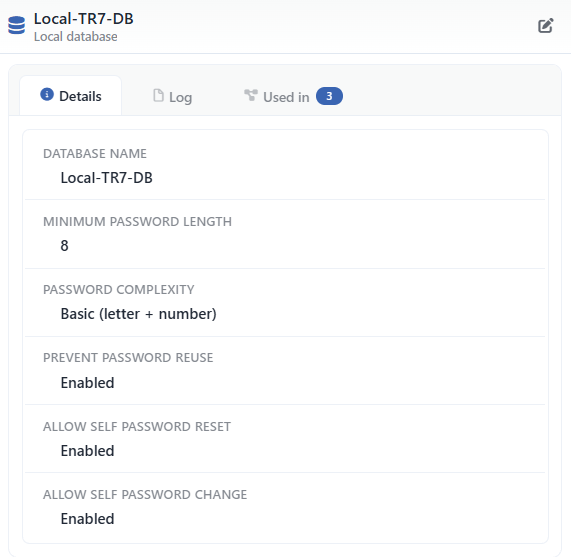 Preview of the Selected Profile
| Operation | What it does |
|---|---|
| Edit | Opens the editing form of the profile in the Edit tab. |
There are three tabs in the panel; Used in is displayed only if the database is used in at least one provider:
Details
Lists the settings of the profile row by row (the table below).
Log
Lists the user operations on the profile (adding, editing, deleting) as a timeline.
Used in
Lists the providers that use the database. The badge next to the tab name shows the usage count.
The rows in the Details tab are as follows, in order:
| Row | Description | Visibility condition |
|---|---|---|
| Database Name | The name of the database. | Always |
| Minimum Password Length | The minimum password length. | Always |
| Password Complexity | The password complexity level. | Always |
| Prevent Password Reuse | Enabled or Disabled. | Always |
| Allow Self Password Reset | Enabled or Disabled. | Always |
| Allow Self Password Change | Enabled or Disabled. | Always |
Profile Add Form
A new Local Databases profile is added on the TR7 device by following the AGS → Authentication → Local Databases → Add steps.
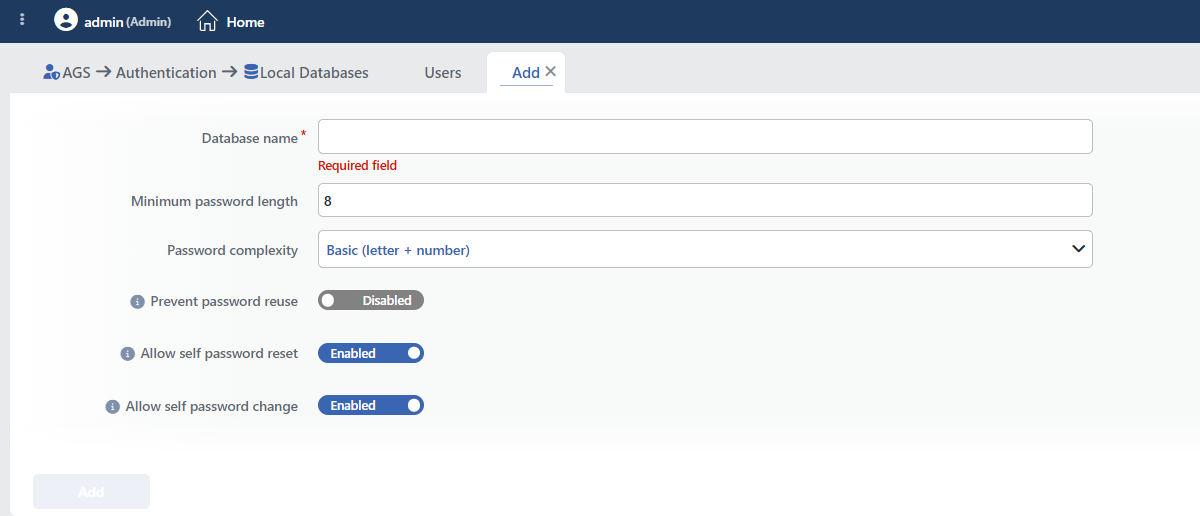 Local Databases Profile Add Form
INFO
Database Name Required
The name of the database; it identifies the profile in the selections in the provider and user forms and in the logs. The name must be unique on the device; a second profile with the same name is not saved and the Name is used warning is displayed. When it is left empty, the Required field warning is displayed.
INFO
Minimum Password Length Default: 8
The minimum number of characters of the passwords to be assigned; an integer between 4 and 128 is entered.
INFO
Password Complexity Default: Basic (letter + number)
The character types the password has to contain are selected:
| Option | Meaning |
|---|---|
| None | Only the length is checked. |
| Basic (letter + number) | The password has to contain at least one letter and one number. |
| Strong (upper + lower + number + symbol) | The password has to contain at least one uppercase letter, one lowercase letter, one number and one special character. |
INFO
Prevent Password Reuse Default: Disabled
While it is on, the new password cannot be the same as one of the last five passwords of the user (the current password included); otherwise the This password was used recently. Please choose a different password. warning is displayed.
INFO
Allow Self Password Reset Default: Enabled
While it is on, when the user forgets the password, they reset it from the access pages with an e-mail link. While it is off, the password is renewed only by the administrator from the Users tab.
INFO
Allow Self Password Change Default: Enabled
While it is on, the user sets a new password from the access pages by entering the current password. While it is off, the password is changed only by the administrator from the Users tab.
INFO
Add
The profile is added by clicking the Add button; the tab closes and the profile is displayed in the list.
Users Tab
The Users tab lists the user accounts in the selected database. The database selector in the toolbar determines the database to be listed; when the tab is opened the first database comes selected and the users of only one database are listed.
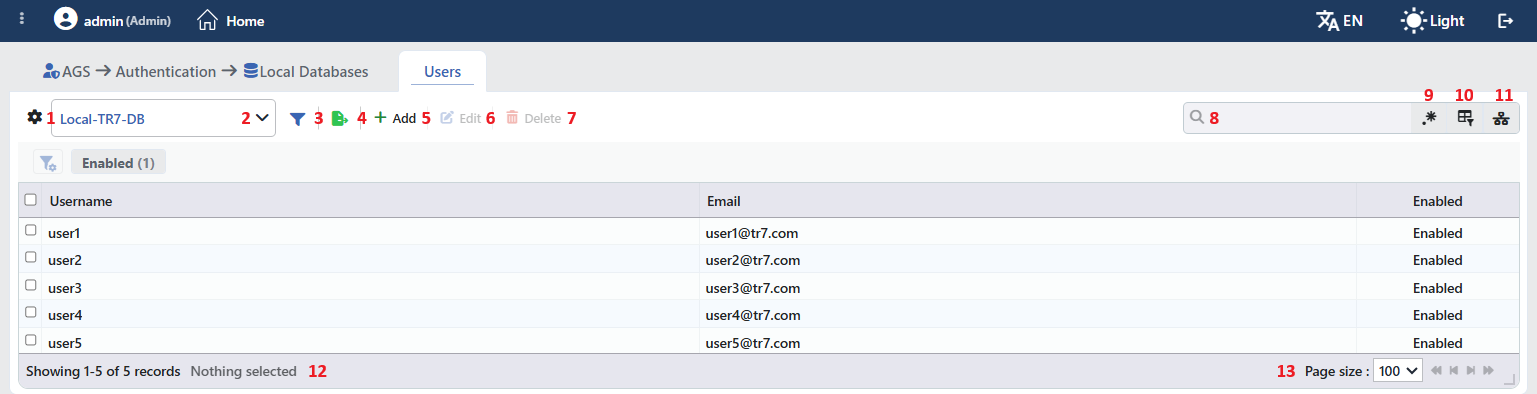 Users Tab
The table opens with the following columns by default:
| Column | Description |
|---|---|
| Username | The username used in the login form. |
| The e-mail address of the account. | |
| Enabled | The state of the account: Enabled or Disabled. |
The following columns are hidden by default and are turned on from the column selector. These columns depend on the fitting threshold of the table: as the number of visible columns increases, Company, Department, Job Title and Employee ID are hidden again after eight columns, First Name, Last Name and Groups after ten columns and Picture after twelve columns. For this reason a column that is checked in the column selector may not appear in the table:
| Column | Description |
|---|---|
| Display Name | The full name shown on the access pages. |
| First Name | The first name of the user. |
| Last Name | The last name of the user. |
| Phone | The phone number. |
| Picture | The account picture. |
| Company | The company name. |
| Department | The department. |
| Job Title | The job title. |
| Employee ID | The employee number. |
| Groups | The groups the account is a member of. |
The items in the toolbar are arranged from left to right in the following order; the last two items (Page Information and Page Size) are located in the information strip below the table.
Columns
Which columns are shown in the table is selected; the columns are reordered by dragging and the alignment is selected per column; the row height is fitted to the page with the Fit rows to the page button and the column layout is returned to the default with the Reset button. When the width badge next to a manually widened column is clicked, the column returns to the automatic width.
Select Database
The database to be listed is selected; the table shows only the users in the selected database.
Filter
The Filter button is used to filter the users shown in the list. There is a single card in the filter strip:
| Card | What it filters |
|---|---|
| Enabled | By the account state (Enabled / Disabled). |
Export
The table is exported as Excel, CSV or PDF by clicking the Export button.
Add
A new user form is opened on the Add tab by clicking the Add button; the Database field comes filled with the selected database.
Edit
The edit form of the selected user is opened on the Edit tab by clicking the Edit button. The button is enabled only when a single user is selected. The Database field is locked. The Username input is in a writable state in the form, but a changed username is not accepted on saving. The password is renewed only when Assign New Password is turned on and a New Password is entered.
Delete
When one or more users are selected and the Delete button is clicked, the "Are you sure?" confirmation is asked for and the confirmed accounts are deleted. The TOTP records of the deleted account are not deleted; if necessary they are reset with Reset TOTP from the TOTP tab on the screen of the vService with AGS enabled.
Search
Used to search in all the information in the table.
RegExp Search
Used to search in all the information in the table with a regular expression (RegExp).
Column Based Search
Used to perform a column-based search on the information in the table.
Usage Filter
Used for filtering by the usage location. Since the local users are not included in the usage hierarchy, filtering produces no result on this tab; when the icon is clicked, the list empties.
Page Information
The number of listed users and the number of selected users are located here: Showing N-M of T records and N selected or Nothing selected.
Page Size
The maximum number of users to be displayed on the page is selected; the default is 100.
Preview of the Selected User
When a user in the list is clicked, the preview opens on the right of the screen. The header contains the user icon, the Username value of the user and the Local User subtitle, and the Edit icon is at the top right. The Details and Log tabs are in the panel.
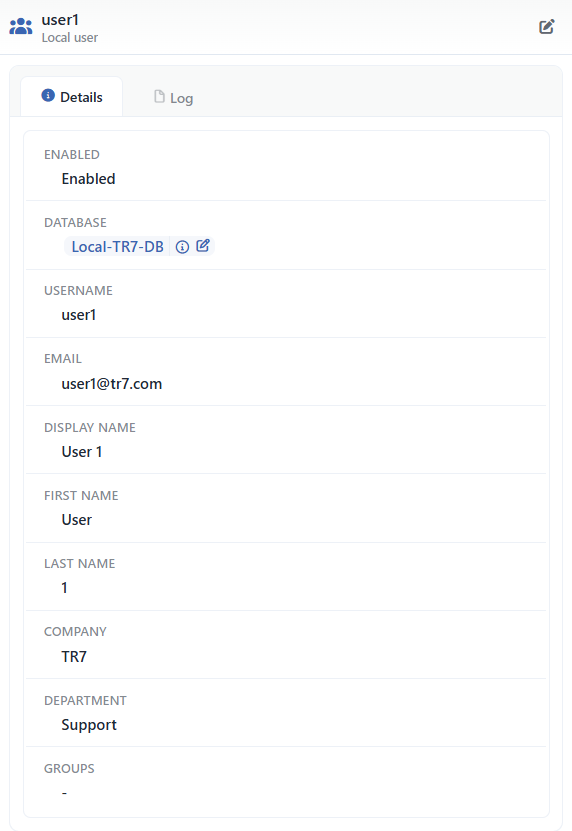 Preview of the Selected User
On the Details tab Enabled, Database (a link to the database profile; the summary of the profile and the edit form are opened with the icons next to it), Username and then the filled Email, Display Name, First Name, Last Name, Phone, Company, Department, Job Title, Employee ID and Custom Attributes (the name: value rows) are listed, in order. The Groups row is always displayed even if it is empty and writes - while it is empty; the picture and the password information are not shown.
Local User Add Form
The Add button on the Users tab opens the user form on the Add tab. The fields are collected in sections with headings: Core Information, Name, Contact, Profile, Organization, Authorization, Security and, in the last section without a heading, Custom Attributes.
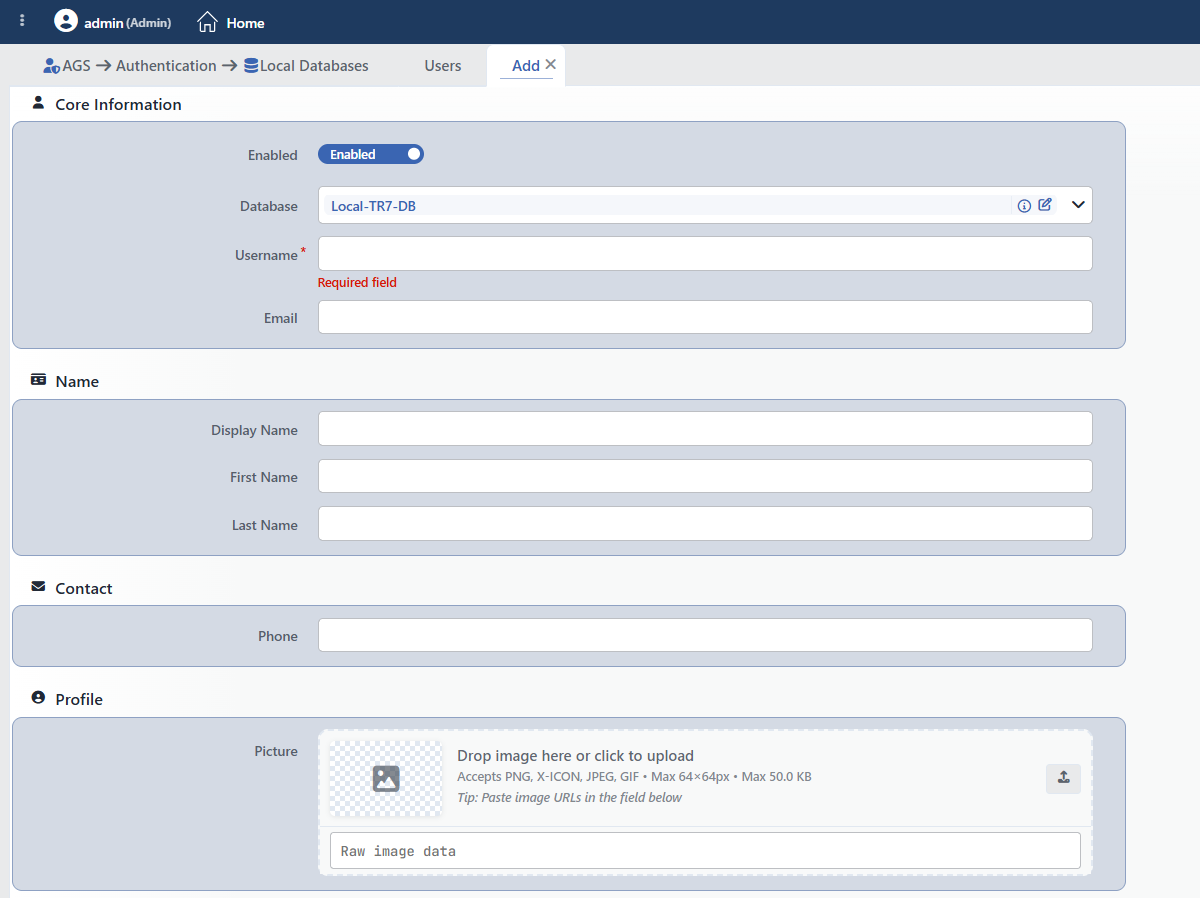 Local User Add Form
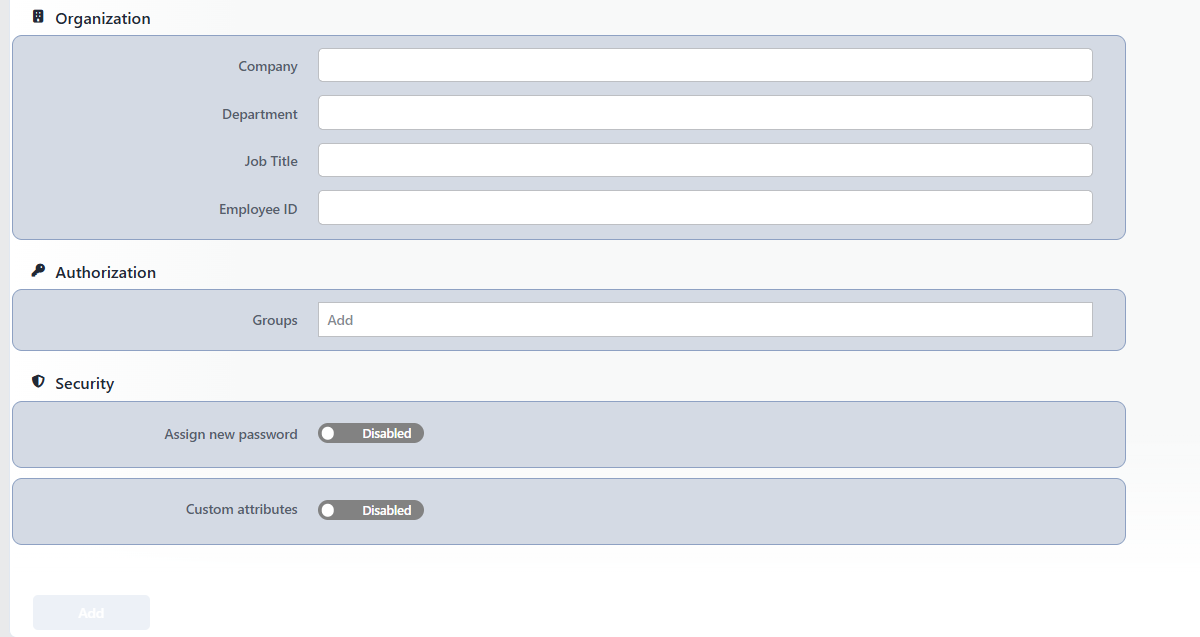 Local User Add Form (Continuation)
Core Information
INFO
Enabled Default: Enabled
Whether the account is enabled; the accounts that are off are considered disabled in the access flow.
INFO
Database Required
The database the account is bound to; it comes filled with the database selected on the tab. The summary of the profile and the edit form are opened with the icons next to the selected database. It is not changed in the edit form.
INFO
Username Required
The username to be used in the login form; it must be unique within the same database, the same name is used in different databases. It is not changed after the record is created. When it is left empty, the Required field warning is displayed.
INFO
Email
The e-mail address of the account (the user@domain form); this address is expected to be used in the self-service password reset and e-mail OTP flows.
Name
Contact
INFO
Phone
The phone number (such as +90 (212) 555 00 00 x123); digits, spaces, parentheses, dots, hyphens and an extension suffix are accepted. The number can start with an optional +; the part outside the + is between 3 and 31 characters and its first character has to be a digit or an opening parenthesis. This number is expected to be used in the MFA flows over SMS.
Profile
INFO
Picture
The account picture. The Accepts PNG, X-ICON, JPEG, GIF • Max 64×64px • Max 50.0 KB row is shown in the field:
- The picture is added by dragging and dropping it onto the field, by clicking the field and selecting a file, or by pasting an address or base64 data into the Raw Image Data box below (Drop image here or click to upload, Tip: Paste image URLs in the field below).
- The picture is reduced to the 64×64 pixel limit and compressed below 50 KB.
- When the picture is added, a small preview, its size and its pixel measurement are displayed; with the buttons on the right the picture is removed or replaced or the base64 data is copied.
Organization
Authorization
INFO
Groups
The groups the account is a member of; every value written into the box is added as a separate tag. It is defined as the group attribute in the default mapping of the Local Database provider.
Security
INFO
Assign New Password Default: Disabled
When it is turned on, the New Password field is displayed. While the switch is off, the password of the saved account does not change; on a new account the password is left unassigned.
New Password Required
Displayed only while Assign New Password is on. The entered password is checked according to the policy of the database and is stored hashed one-way. The check is performed not in the form but during saving: no instant warning appears under the field, the Minimum Password Length value of the selected database is not shown in the form and a policy violation is reported only after the Add or the Edit button is clicked, with one of the following messages:
| Warning | Its reason |
|---|---|
| Password must be at least N characters | The password is shorter than the Minimum Password Length value. |
| Password must contain at least one letter | The complexity rule requires a letter. |
| Password must contain at least one number | The complexity rule requires a number. |
| Password must contain at least one uppercase letter | The Strong rule requires an uppercase letter. |
| Password must contain at least one lowercase letter | The Strong rule requires a lowercase letter. |
| Password must contain at least one special character | The Strong rule requires a special character. |
| This password was used recently. Please choose a different password. | Prevent Password Reuse is on and the password is among the last five passwords. |
INFO
Custom Attributes Default: Disabled
When the switch is turned on, the table consisting of Name and Value pairs is displayed; both cells are filled in on each row. The custom attributes are stored in the account record.
INFO
Add
The user is added by clicking the Add button; the tab closes and the Users tab is returned to.
Operating Mechanism
INFO
- Distribution. The database and user records are transferred to the access engines of the vServices with AGS enabled; after a change the configuration is applied again.
- Password storage. When a password is assigned, the database policy is checked, the password is hashed one-way with argon2id and the hashes of the last five passwords (the current one included) are kept in the history; Prevent Password Reuse only turns on the history check, the history is stored in every case.
- Verification. The login verification is performed in the access engine: the Local Database provider is expected to find the username in the login form in the selected database and to compare the password with the hash; an account that has no password hash cannot be verified. The writing of the account fields to the session attributes is defined in the default mapping of the provider.
- Self-service. The password reset and change requests on the access pages are accepted according to the Allow Self Password Reset and Allow Self Password Change settings of the database; on a change the current password is verified and the new password passes the policy and history checks. The operation is reflected to the cluster devices immediately and is written to the user operation record with the reset or the change method.
- Cluster. Records are synchronized between devices together with the LB configuration.
- Logs. Adding, editing and deleting are monitored on the User Logs screen as the local database and local user objects; the user records appear in the log with their ids prefixed with
user-.
Scope and Limits
INFO
- License. The screen depends on the AGS license; for the details the Products & Licensing page must be consulted.
- Permission. The AGS screens depend on the Load Balancer permission area; for a user who does not have the permission the You don't have access to this page card is displayed instead of the page.
- The name is unique. A second database carrying the same name is not saved; the username is unique within the database.
- There is no built-in record.
- The users are listed on a single database basis. There is no view that lists all the databases together.
- The password reset requires an e-mail. For a self-service reset the account must have an e-mail address and there must be an e-mail sending channel.
- The password policy is not applied in the form. The length, complexity and reuse checks run only during saving.
- The local users are not found in the quick search. Since the unresolved placeholder text is in the search index instead of the username, a quick search made with the username gives no result.
- Deleting does not perform a reference check; deleting a database deletes its users as well.
Usage Locations
| Usage location | Field | Purpose |
|---|---|---|
| Authentication Providers | User Database (the Local Database type) | The verification of the username and the password in the login form in this database |
| A vService with AGS enabled → the access pages | Password reset and change | The password operations offered to the user according to the self-service permissions of the database |
| A vService with AGS enabled → TOTP | The user id | The display and the reset of the TOTP records of the account |
