
Smarter by Design.Simpler for Business
Set Path
What Is the Set Path Action?
The Set Path action changes the URL path part of the incoming HTTP request. This action rewrites the path before forwarding the request to the Backend Service, so the Backend Service receives a request for a different resource.
This action works only at the request stage and changes only the path part of the URL (the query string is preserved).
The URL Structure and the Path
Understanding the components of the URL is important for choosing the correct action:
http://www.example.com:80/path/to/myfile.html?key1=value1&key2=value2#SomewhereInTheDocument
▢ Scheme▢ Domain▢ Port▣ Path: this action changes this▢ Parameters (preserved)▢ Anchor
| Component | Example | Description |
|---|---|---|
| Scheme | http:// | The protocol |
| Domain Name | www.example.com | The server address |
| Port | :80 | The port number |
| Path | /path/to/myfile.html | The resource path |
| Parameters | ?key1=value1&key2=value2 | The query string |
| Anchor | #SomewhereInTheDocument | The in-page reference |
Set Path vs Set Path + Query
- Set Path: Changes only the path, the query string is preserved.
- Set Path + Query: Changes both the path and the query string.
The Importance of the Set Path Action
URL rewriting is one of the basic components of modern web architectures. It makes it possible to manage the URL structure without changing the backend applications.
The Set Path action;
- converts SEO-friendly URLs into Backend Service paths,
- uses legacy Backend Service applications with modern URL structures,
- performs API versioning and routing,
- provides internal routing and path normalization,
- directs to different Backend Service paths for A/B testing.
For this reason, the Set Path action is a critical component for flexible URL management.
Supported vService Types
HTTP
L7 TCP
Network
Execution Timing
On Request
On Response
How to Add?
A new Set Path Action can be added through the TR7 web management interface by following the steps below:
- The Configuration Menu is opened by clicking the TR7 logo at the bottom left.
- The Load Balancer → Actions → Add steps are followed.
- A unique and descriptive name is entered for the action.
- Set Path is selected as Action Type.
- The related configurations of the action are made.
- In the Conditions tab, the condition/conditions under which the action takes effect are determined.
- The action is added by clicking the
Addbutton.
Set Path Action Add Form
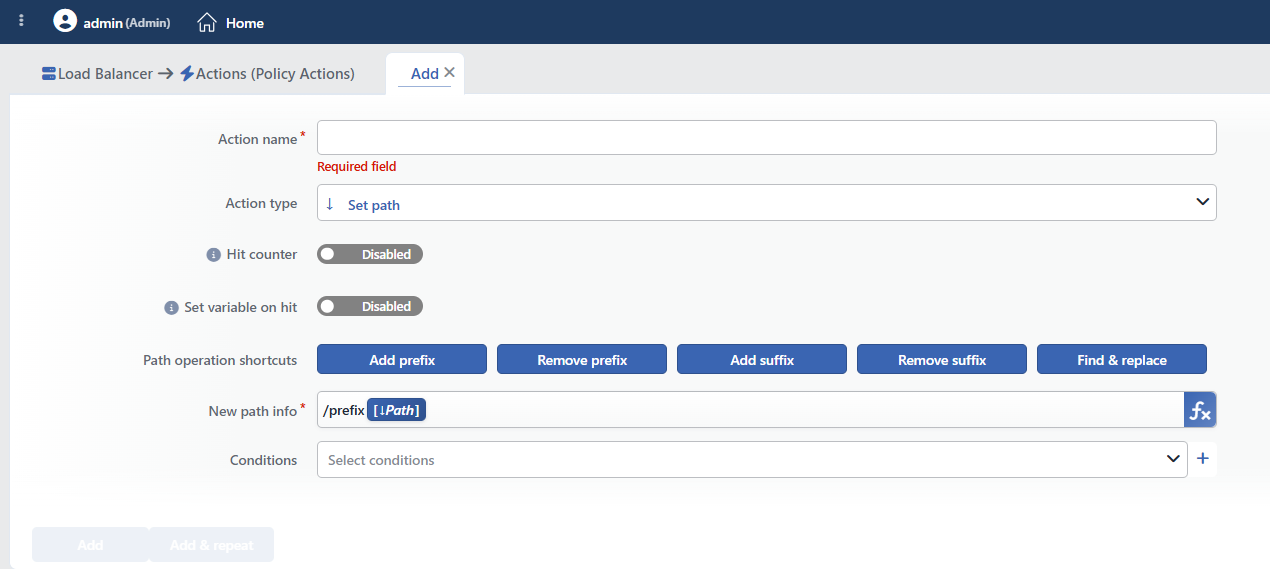 Set Path Action Add Form
INFO
Hit Counter Default: Off
Hit Counter counts every run of the action (it is evaluated together with the action's own condition; the count is not lost even in terminating actions such as Deny). Action-based rates and totals are displayed in the Action Hits tab of the vService dashboard and on the live statistics screen; they do not appear as a separate column in the lists. The counter is cumulative; there is no interface for resetting it manually: it starts from zero when the set of counted actions changes or when the vService is reloaded, while the history is preserved on the dashboard as a rate (hit/s).
INFO
Set Variable on Hit
A variable name whose value is assigned each time the action runs can be entered (optional; empty by default). The name can consist of letters, digits and underscores (at most 32 characters). When the action is triggered, the variable is set to 1, and chained behaviors can be built by reading it with the %TR7VAR(name) smart variable in other conditions and actions on the same vService.
INFO
Path Operation Shortcuts
It offers shortcut buttons for the frequently used path editing operations. When a button is clicked, the necessary value is entered in the form that opens and the New Path Info field is filled automatically.
| Shortcut | Description | Popup Form | Result (New Path Info) |
|---|---|---|---|
| Add prefix | Adds a prefix to the beginning of the path | The prefix to be added (e.g. /api) | /api [↓Path] |
| Remove prefix | Removes the prefix at the beginning of the path | The prefix to be deleted (e.g. /api) | [↓Path⇒>REPLACE.first(^/api->)] |
| Add suffix | Adds a suffix to the end of the path | The suffix to be added (e.g. .html) | [↓Path] .html |
| Remove suffix | Removes the suffix at the end of the path | The suffix to be deleted (e.g. .html) | [↓Path⇒>REPLACE.first(\.html$->)] |
| Find & replace | Finds the text within the path and replaces it | The text to be found and the text to be written instead | [↓Path⇒REPLACE.all(/old->/new)] |
Shortcut Usage
The shortcuts fill the New Path Info field automatically by using Variables and converters. The produced value is displayed in the New Path Info field and can be edited manually if desired.
INFO
New Path Info Required
The new path value to be sent to the Backend Service is entered. It must start with /.
TIP
This field supports Smart Variables. Existing variables can be accessed with the fx button and dynamic content can be created.
Sample variables: the request path (Path/page of the request [URI]) and all the parameters (Request query). They can be used together with fixed text values.
Detailed information is on the Variables page.
Important notes:
- The path must start with
/(the form does not check this) - The query string is not included in this value: it is preserved automatically
- A dynamic path can be created with Smart Variables
Sample Values
| Incoming Request | New Path Info | Sent to the Backend |
|---|---|---|
/products/123?color=red | /api/items/123 | /api/items/123?color=red |
/old-page | /new-page | /new-page |
/category/electronics | /cat/elec | /cat/elec |
INFO
Conditions
In this field, it is defined under which condition or conditions the related action takes effect.
By adding one or more conditions, the behavior can be applied in a targeted and controlled way with the and/or structure.
Detailed information about conditions is on the Conditions page.
WARNING
If no condition is defined in this field, the related action runs unconditionally (Always). In this case, the action is applied to all traffic coming to the related vService.
In live environments, using an action without defining a condition can lead to unexpected situations (service outages). For this reason, it is recommended that at least one condition always be defined when an action is created.
INFO
Form Buttons
Add
The action adding process is completed by clicking the Add button.
Add & Repeat
With the Add & Repeat button, the action adding process is completed, and another new action can be added with different configurations without leaving the related window.
 Action Added
Set Path vs Set Path + Query
The critical difference between the two actions:
| Feature | Set Path | Set Path + Query |
|---|---|---|
| Does the path change? | Yes | Yes |
| Does the query string change? | No (it is preserved) | Yes (it changes) |
| The original parameters | Preserved | Lost |
Comparison Example
The incoming request: /search?q=laptop&page=2
Set Path (with the /api/search value):
- The result:
/api/search?q=laptop&page=2 - The query string was preserved
Set Path + Query (with the /api/search?format=json value):
- The result:
/api/search?format=json - The original query string was lost
Which One Should Be Used?
- If only the path will be changed and the parameters will be preserved → Set Path
- If the parameters will also be changed or cleared → Set Path + Query
INFO
Rewriting, Not Redirection
This action does not send a redirection response to the client. The request is rewritten on TR7 and forwarded to the Backend Service; the address does not change in the client browser and no additional round trip occurs.
The action does not terminate the request; if the condition is not met, nothing is done and the request continues its usual flow. More than one path editing action can be added to the same vService; in this case the definition that comes later in the list changes the value written by the previous one.
Operational and Safe Usage Recommendations
- Always Start with
/. The path value must definitely start with/. Otherwise an invalid URL is created and the request can fail. - It must not be forgotten that the query string is preserved. The Set Path action preserves the query string; if the query string also needs to be changed, the Set Path + Query action is used.
- Targeted application with conditions. An unconditional path change affects all the requests; a condition is defined for certain paths or patterns.
- A dynamic path with Smart Variables. Smart Variables are used in order to preserve the parts of the original path; for example, the original path is taken with the Path/page of the request [URI] variable.
- The Backend Service compatibility is tested. It is verified that the new path has a corresponding endpoint on the Backend Service side.
Common Usage Scenarios in Live Environments
The examples below show how the related action is applied in the most frequently encountered use cases in real systems. These scenarios are based on practices that are widely preferred in live environments and rest on experience gained in the field.
Scenario 1: Converting SEO-Friendly URLs to a Legacy PHP Backend
Problem: The e-commerce site uses modern SEO-friendly URLs (/urunler/laptop-dell-xps-15), but the legacy PHP application in the background expects the old format (/product.php?id=123). A URL conversion is needed without changing the Backend Service code.
Solution: With the Set Path action, the SEO URLs are converted to the PHP path expected by the Backend Service while the query string is preserved so that the product parameters are forwarded.
Configuration:
- New Path Info:
/product.php - Conditions:
- Path starts with
/urunler/
- Path starts with
Result:
- ✅
/urunler/laptop-dell-xps-15?color=silver&stock=true→ It is forwarded to the Backend Service as/product.php?color=silver&stock=true, the query string is preserved. - ✅ The user sees the SEO-friendly URL, the Backend Service gets the legacy format, no code change is needed.
Scenario 2: API Versioning: Transition from v1 to v2
Problem: API v1 has been deprecated, but there are still customers using v1. These customers need to be directed to v2 automatically, but it is important that the query parameters are not lost.
Solution: With Set Path, the v1 paths are converted to v2 while the original query string (API key, pagination, filters) is preserved.
Configuration:
- New Path Info:
/api/v2/users - Conditions:
- Path equals
/api/v1/users
- Path equals
Result:
- ✅
/api/v1/users?limit=50&offset=100&apikey=xyz→ It is forwarded to the Backend Service as/api/v2/users?limit=50&offset=100&apikey=xyz. - ✅ The customer is migrated to v2 automatically while the API key and the parameters are preserved.
Scenario 3: Using a Legacy CGI Application with a Modern URL
Problem: The search engine uses a legacy CGI script (/cgi-bin/search.cgi). A modern URL (/search) needs to be shown to the users, but the Backend Service expects the old CGI path.
Solution: With Set Path, the modern /search path is converted to the legacy CGI path while the search parameters (q, page, sort) are preserved.
Configuration:
- New Path Info:
/cgi-bin/search.cgi - Conditions:
- Path equals
/search
- Path equals
Result:
- ✅
/search?q=laptop&page=2&sort=price→ It is forwarded to the Backend Service as/cgi-bin/search.cgi?q=laptop&page=2&sort=price. - ✅ The user sees the modern URL, the legacy CGI works smoothly in the background, the search parameters are preserved.
Scenario 4: Microservices: Service Routing with a Path Prefix
Problem: Different microservices work with different path prefixes (/user-service/, /order-service/). The frontend, on the other hand, uses simple paths (/users/, /orders/). A path conversion is needed.
Solution: With Set Path, the original path is combined with the microservice prefix and directed to the correct service.
Configuration:
- New Path Info:
/user-service[Path/page of the request [URI]] - Conditions:
- Path starts with
/users/
- Path starts with
Result:
- ✅
/users/123/profile?view=full→ It is forwarded to the Backend Service as/user-service/users/123/profile?view=full. - ✅ The microservice architecture is hidden from the frontend, the query parameters are preserved, the dynamic path is carried over.
Scenario 5: A/B Testing: A New Version for Certain Users
Problem: A new homepage (v2) is being tested. The users that have the ab_test=variant_b cookie should see the new version, the others should see the old version. The query parameters (utm tracking, referrer) must be preserved.
Solution: With Set Path, the users are directed to the new homepage path according to the cookie value while the analytics parameters are preserved.
Configuration:
- New Path Info:
/v2/homepage - Conditions:
- Path equals
/ ANDUser Cookieab_testequalsvariant_b
- Path equals
Result:
- ✅ The user whose cookie is
ab_test=variant_b→/?utm_source=google&ref=ad→ It is forwarded to the Backend Service as/v2/homepage?utm_source=google&ref=ad. - ❌ The user whose cookie is different or absent → They are directed to the old homepage, the A/B test is not affected.
Scenario 6: Mobile Platform: Directing iOS/Android Users to the Mobile Backend
Problem: The mobile application users (iOS, Android) should be directed to the mobile-optimized backend path. The desktop users should use the normal backend. The API parameters must be preserved.
Solution: With Set Path, mobile platform detection is done and the traffic is directed to the mobile-specific path.
Configuration:
- New Path Info:
/mobile-api[Path/page of the request [URI]] - Conditions:
- Mobile Platform is in
iOS, Android
- Mobile Platform is in
Result:
- ✅ An iOS/Android user →
/api/products?category=electronics→ It is forwarded to the Backend Service as/mobile-api/api/products?category=electronics. - ❌ A desktop user → The normal
/api/productspath is used, it does not go to the mobile backend.
Scenario 7: Path Normalization: Combining Different Homepage URLs
Problem: More than one URL is used for the homepage (/, /home, /index, /index.html). For caching and analytics, all of them must be normalized to a single canonical path.
Solution: With Set Path, all the homepage variations are directed to the /index.html path.
Configuration:
Result:
- ✅
/→ It is forwarded to the Backend Service as/index.html. - ✅
/home?ref=newsletter→ It is forwarded to the Backend Service as/index.html?ref=newsletter, the query is preserved. - ✅
/index?utm_source=social→ It is forwarded to the Backend Service as/index.html?utm_source=social, the canonical form is used.
Scenario 8: Language-Based Routing: Automatic Path Adding with the Accept-Language Header
Problem: On a multilingual site, the user must be directed automatically to the correct language path according to the browser language setting (/tr/, /en/). The query parameters (search, filters) must be preserved.
Solution: With Set Path, a language prefix is added according to the Accept-Language header and the traffic is directed to the correct Backend Service path.
Configuration:
- New Path Info:
/tr[Path/page of the request [URI]] - Conditions:
- HTTP Header
Accept-Languagecontainstr
- HTTP Header
Result:
- ✅ The Accept-Language
tr-TRheader →/products?category=laptop→ It is forwarded to the Backend Service as/tr/products?category=laptop. - ✅ The user is directed to the Turkish content automatically, the search/filter parameters are preserved.
Scenario 9: Deprecated Endpoint Migration: Directing the Old API to the New Path
Problem: The /api/old-search endpoint has been deprecated, the new endpoint /api/v3/search must be used. The existing customers must be migrated automatically, the query parameters (filters, pagination) must be preserved.
Solution: With Set Path, the deprecated path is directed to the new endpoint while all the API parameters are preserved.
Configuration:
- New Path Info:
/api/v3/search - Conditions:
- Path equals
/api/old-search
- Path equals
Result:
- ✅
/api/old-search?q=laptop&limit=20&offset=0→ It is forwarded to the Backend Service as/api/v3/search?q=laptop&limit=20&offset=0. - ✅ The deprecated API is migrated transparently to the new version, the customer does not make a code change, the parameters are preserved.
