
Smarter by Design.Simpler for Business
Certificate Authorities (CA)
What Is a Certificate Authority (CA) Record?
A Certificate Authority (CA) record keeps a CA certificate and, if there is one, the private key of that CA on TR7. This screen manages two types of record together:
- A trusted CA certificate: the record in which there is only certificate content. It is used as an intermediate/root certificate in the certificate chains and as a source of trust in the client certificate validation (mTLS) and in the Backend Service and health check validation.
- An internal CA (internal PKI): the record whose private key is on TR7 and that can sign certificates. A two-level hierarchy that consists of a root CA and the issuing CAs under it is set up; the issuing CAs produce a server certificate on the SSL/TLS Certificates screen and a client certificate on the Client Certificates screen. An issuing CA can also be enrolled under the external root CA of the organization (enrollment), or an existing CA certificate/key pair can be imported.
The CA records are listed in CA Certificate Files on the TLS Security Profiles screen, in Verification CA Profile on the Backend Services screen, in Verification CA Profile in the health checks and in the Use Profiles option in the certificate forms.
5
Adding operations
Adding a trusted CA, a root CA, an issuing CA, enrollment under an external CA, importing an existing CA
2 levels
Internal hierarchy
The root CA signs only issuing CAs; the issuing CA produces a server or a client certificate
Usage
Area of use
The issuing CA is defined for Server Certificates or Client Certificates
Chain
In the certificates
The intermediate and root links of the certificate chain are offered with a reference to the CA records
mTLS
Validation source
The trust bundle in the vService client validation and in the Backend Service and health check validation
30 days
Expiry health
The Valid until column becomes orange 30 days before the end and red when it has expired
How does it work?
- The record is created according to the Operation selection in the adding form: a trusted CA certificate is pasted, a root or an issuing CA is produced on TR7, a key and a CSR are produced in order to enroll under an external CA, or an existing CA certificate is imported with its key.
- The issuing CAs are selected as the Issuing CA in the certificate production; the chain of the produced certificate is set up with a reference to the signing CA and its parent CAs.
- The certificate content of the records that are selected as a source of trust is written to the related place when the configuration is applied: to the certificate chain, to the client validation bundle of the vService, and to the Backend Service and health check validation.
- A CA that is waiting for enrollment under an external CA stays in the Enrollment Pending status until its signed certificate is uploaded and it cannot produce a certificate.
Record Types
The Kind column in the list shows the type of the record:
| Kind | Meaning | How it is created |
|---|---|---|
| Trust Anchor | The trusted CA record that contains only a certificate; it cannot sign. | The Add a trusted CA certificate operation; the parent CA records that are created by themselves from the chain pasted while the enrollment under an external CA is being completed. |
| Internal Root CA | The CA whose key is on TR7 and that is considered the top of the hierarchy; it signs only issuing CAs. The ones produced on the device sign themselves, and the imported ones can be an intermediate CA certificate as well; in this case the CA Role column shows Intermediate. | Create root CA; Import existing CA (the imported CA is saved as a root). |
| Internal Issuing CA | The CA whose key is on TR7 and that produces a server or a client certificate. | Create issuing CA (under an internal root CA); Enroll under an external CA (when the enrollment is completed). |
| Enrollment Pending | The CA whose key and CSR have been produced and whose signed certificate has not been uploaded yet. | Enroll under an external CA; when the certificate is uploaded, it becomes an Internal Issuing CA. |
| Internal CA | The record that has a key but whose type is not defined as a root or an issuing one. | It can be created neither from the interface nor from the API; because the type and key fields are read-only, this value is a fallback value that can be seen only in a corrupted record. |
The device CA that is used when logging in to the management interface with a certificate is also seen in this list as an Internal Root CA with the name Legacy Admin CA (Legacy Admin CA (node N) on the devices that have a cluster identity); this record is kept by the device, it cannot be deleted from the interface and it is not offered directly as an Issuing CA (it is seen only in the Parent CA list; opening an issuing CA under it is not recommended).
Operational Best Practices
- The root and issuing separation. The certificates are produced not directly with the root CA but with the issuing CA under the root; separate issuing CAs (Usage: Server Certificates / Client Certificates) must be defined for the server and client certificates.
- The distribution of the root CA. The certificate of the internal root CA (by being copied from the CA Certificate Chain (PEM) field in the editing form) must be added to the trust stores of the clients and of the Backend Services; otherwise the certificates the internal PKI produces are not trusted.
- Period planning. The CA certificates are not renewed by themselves and no period notification is produced; the Valid until column must be tracked and a new CA must be set up and the certificates must be produced with the new CA before it expires. Production with a CA that has expired is not blocked; the produced certificates give a trust error in the clients.
- Checking the usage before deleting. The deletion confirmation does not show the usage locations and the Used in tab in the preview lists only the certificates that use this CA in their chain; the TLS profiles, the Backend Services, the health checks and the sub-CAs must be checked manually before deleting.
- A trusted CA record for the intermediate certificates. The intermediate and root certificates of the external CAs must be added as separate records; the chain must be updated from a single point by these records being selected with Use Profiles in the certificate forms.
How to Add?
A new Certificate Authority (CA) record is added over the TR7 web management interface with the following steps:
- The Configuration Menu is opened by clicking the TR7 logo at the bottom left.
- The Certificates & PKI → Certificate Authorities (CA) → Add steps are followed; the form opens as a closable Add tab inside the list screen.
- A name is entered for the record; the operation to be done is selected in the Operation field and the fields that are seen according to the operation are filled in (for the details of the fields see the Add Form section).
- The record is created by clicking the
Addbutton.
TIP
Reaching the page via quick search
Instead of navigating the menu step by step, the related page is reached directly by using the search bar in the bottom left corner of the screen. The search bar opens with the Alt + T shortcut on Windows and Opt + T on macOS; typing the name of the feature being searched for is then sufficient.
The CA records can also be added without leaving the page with the adding icon next to the Issuing CA and chain fields in the certificate form.
The Certificate Authorities Listing Screen
The list of all the CA records that are added on the TR7 device is reached by following the Certificates & PKI → Certificate Authorities (CA) path. The record adding, editing and deleting operations and the completion of the pending records are done through this screen.
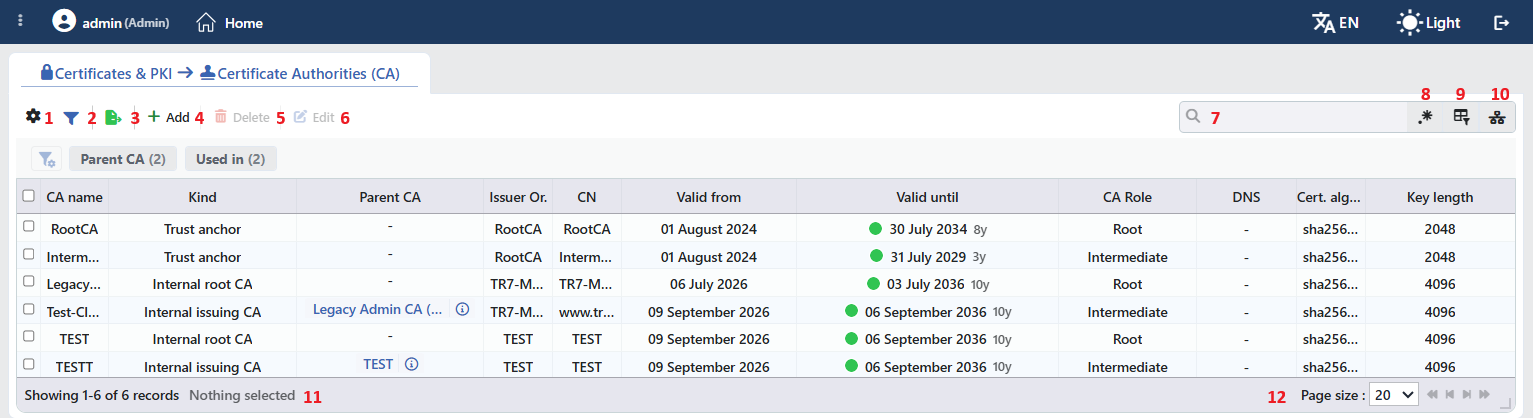 The Certificate Authorities (CA) Listing Form
The table opens with the following columns by default:
| Column | Description |
|---|---|
| CA Name | The name of the record. |
| Kind | The record type: Trust Anchor, Internal Root CA, Internal Issuing CA, Enrollment Pending, Internal CA (see Record Types). |
| Parent CA | The link of the record to its parent CA record: the root CA in the issuing CAs, and one upper link in the trusted CA records that are created from the enrollment chain; if there is no parent CA, -. |
| Issuer Or. | The name of the authority that signs the CA certificate: the CN value in the Issuer field of the certificate, or the O value if there is no CN. The full value is seen when it is hovered over; if there is no value, -. |
| CN | The Common Name field of the CA certificate. |
| Valid from | The beginning of the validity (DD Month YYYY); in the records that do not have a certificate, -. |
| Valid until | The end of the validity; at the beginning a colored circle that shows the period status and that gives the status text when it is hovered over (green Valid, orange Expiring Soon, red Expired), and at the end the abbreviation of the remaining period (12d, 8mo, 3y; Expired in the ones that have expired). In the records that have not expired, the number of days remaining is seen when the abbreviation is hovered over. In the records that do not have a certificate (that are waiting for enrollment), -. |
| CA Role | The role of the certificate in the chain: Root (the self-signed one) or Intermediate; if there is more than one certificate in the content, the +N suffix that gives the number of the ones after the first certificate is added. In the records that do not have a certificate, -. |
| DNS | The number of domain names (SAN) in the certificate Total of N; when it is hovered over, the list, and if there are none, None. In the CA certificates generally -. |
| Cert. Algorithm | The signature algorithm of the certificate. |
| Key Length | The key length (bits). |
The period status is determined according to the number of days remaining until the end: more than 30 days Valid, 0–30 days Expiring Soon, and if it has expired Expired.
There is no column hidden by default; these eleven columns take place in the column selector. The key content is not shown in any column. The table is not sorted when it is opened; when a column header is clicked, first a descending and then an ascending sorting is applied, and at the third click the sorting is removed.
The items in the toolbar are arranged from left to right in the following order; the last two items (Page Information and Page Size) are located in the information strip below the table.
Columns
Which columns will be shown in the table is selected; all eleven columns are on by default. In the same panel the columns are reordered by dragging and the alignment is selected per column; with the Fit rows to the page button the row height is fitted to the page and with the Reset button the column layout is returned to the default. When the width badge next to a column that has been widened manually is clicked, the column returns to the automatic width. The layout is stored per user.
Filter
The Filter button is used in order to filter the records shown in the list according to certain criteria; the button shows the number of active filters with a badge. In the strip there are at most two cards: Parent CA (it is seen while there is at least one internal root CA with a key in the list; it filters according to the parent CA names) and Used in. In the cards the values seen in the list are listed with their row counts and more than one value can be selected together; the selections are displayed above the strip as closable labels. The cards can be reordered by dragging; the card layout is stored per user.
The Used in card counts only the vService usage; because the CA records are not assigned to the vServices directly, the card lists the records that are not used in a chain under Unused Entries. The TLS profile, Backend Service, health check, sub-CA and client certificate chain usages are not seen in this card.
Export
The table is exported as Excel, CSV or PDF by clicking the Export button. In the window that opens, the Filename, Format and Data Source, together with the Columns to be exported, are determined; the remaining fields are displayed according to the format: CSV Separator for CSV, Excel Sheet Name for Excel, and Page Orientation and Page Size for PDF.
There is no certificate and key content in the exported table.
Add
By clicking the Add button, the form for creating a new CA record opens in the Add tab.
Delete
When one or more records are selected and the Delete button is clicked, the related records are deleted. Before the deletion the "Are you sure that you want to delete certificate authority (ca) object?" (in a multiple selection "Are you sure you want to delete N certificate authority (ca) objects?") confirmation is asked.
If the management CA of the device (Legacy Admin CA) is in the selection, no record is deleted; together with the names of the blocked records the "<name>" cannot be deleted. warning and then the reason for the block are displayed. This record depends on the copy on the disk that the management interface reads; it is kept in the list so that it stays within the scope of the backup and the cluster synchronization, and even if it is deleted it is imported again at the next configuration check.
WARNING
A record that is in use can also be deleted and the confirmation window does not show the usage locations; before the deletion the Used in tab in the preview panel must be checked.
The certificates that use the record in their chain do not offer this link, the chain is left incomplete and the clients can get a trust error. If it is selected in the CA Certificate Files list of the TLS security profiles, it leaves the client validation bundle and the client certificates this CA has signed are no longer accepted. If it is selected in the Verification CA Profile field of the Backend Service, it is connected to the Backend Service without its certificate being validated, and the health checks lose their validation CA. The issuing CAs under the deleted root CA and the certificates produced with this hierarchy are not deleted; the issuing CA continues to work but the root link is left missing in the produced chains. If the deleted record is an issuing CA, the automatic renewal of the certificates produced with this CA fails. The deletion operation is written to the user operation record.
Edit
By clicking the Edit button, the edit form of the selected record opens in the Edit tab. The button becomes enabled only when a single record is selected.
The editing form opens in three forms according to the type of the record:
- Trust Anchor: there are the Name and Content fields; the CA certificate content can be changed (a dragged file is at most 32 KB). Content is compulsory, it cannot be emptied and saved. When it is saved, the chains and the validation bundles that use this record and the configuration are applied again.
- An internal CA (with a key): only CA Name can be changed. The information box with the lock icon states that the CA has a key of its own and that the chain is read-only; the CA Certificate Chain (PEM) field below it shows the CA certificate, together with its chain if there is one, to be copied. The root certificate that will be added to the client trust stores is taken from here.
- Enrollment Pending: there are only the CA Name field and the information box that states that the record is waiting for its signed certificate.
The change is saved without confirmation being asked. The certificate of the internal CAs is not renewed and their key is not changed from this screen.
Search
Used to search all information in the table.
RegExp Search
Used to search all information in the table with a regular expression (RegExp).
Column Based Search
It is used in order to search the information in the table based on the column; next to every box there are the Negate switch that inverts the result and its own RegExp option.
Usage Filter
It is used in order to filter which vServices the records are bound to. Because the records in this collection are not bound to the vServices directly, in the selector there is only the Unused Entries option and it is selected by itself; the list is limited to the records that are not used in the chain of any certificate. Because the TLS profile, Backend Service, health check and parent CA connections do not enter this count, a CA that is used in these places stays in the list as well. While the filter is active, the selector takes the place of the search box; when the icon is clicked again, the search box returns.
Page Information
Contains information about the total number of defined records and the number of records displayed in the list: Showing N-M of T records and the number of selected records (N selected, or Nothing selected when there is no selection). If a selection has been made in the filter strip, the number of applied filters and the shown/total row information are added to the same line.
Page Size
The maximum number of records to be displayed on the page is selected. The default is 20; the options are 5, 10, 20, 50, 100, 200, 500 and All.
Right-Click Menu
When a row is right-clicked, a menu with the record's name in its title opens. The operations in the menu apply only to the right-clicked record; a selection made in the list does not affect the menu.
| Operation | What it does |
|---|---|
| Edit | Opens the editing form of the record in the Edit tab; it is the same as the form opened by the Edit button in the toolbar. |
| Delete | Deletes the right-clicked record; the same confirmation question as the deletion in the toolbar is displayed. In the management CA of the device this operation does not take place in the menu. |
The completion of a pending record is done not from the right-click menu but from the operation icon in the preview panel. An operation that renews the CA certificate or that changes its key is not offered on this screen either.
Preview of the Selected Record
When a row in the list is clicked, the preview of the record opens on the right of the screen; when the selected row is clicked again, the panel closes. In the header there are the CA icon, the name of the record and the Certificate authority (CA) subheading, and at the top right there are one or two operations according to the type of the record.
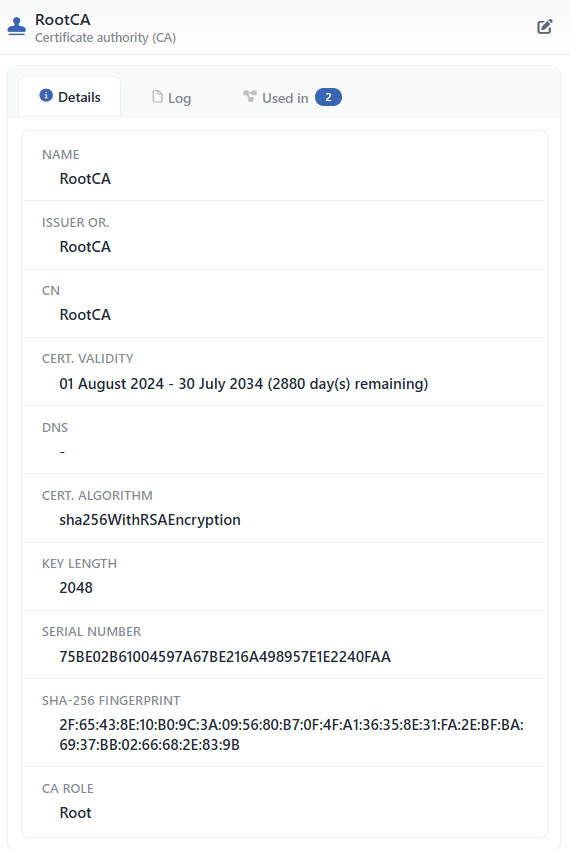 Preview of the Selected Record
| Operation | What it does | When it is present |
|---|---|---|
| Upload the signed CA certificate | Opens the window for uploading the CA certificate the external CA has signed (see Completing the Enrollment Under an External CA). | Only in the Enrollment Pending records |
| Edit | Opens the editing form of the record in the Edit tab. | Always |
In the panel there are at most three tabs; the last one is displayed only if there is a definition that uses the record:
Details
Lists the identity and validity information of the CA certificate (the table below).
Log
Lists the user operations on the record as a timeline.
Used in
Lists the definitions that use this CA record in their chain. The badge next to the tab name shows the number of usages; if there is no definition that uses the record, the tab is not displayed at all.
The rows in the Details tab are as follows in order; the rows that do not have a value are not shown. In the records whose certificate has not been uploaded yet (Enrollment Pending) there is only the Name row. The record type and the parent CA are not listed in the preview; these are tracked from the Kind and Parent CA columns in the table. The area of use (Usage) of the issuing CA, on the other hand, is not shown anywhere on this screen; which CA is defined for which use is understood only from the Issuing CA lists in the certificate forms.
| Row | Description |
|---|---|
| Name | The name of the record. |
| Issuer Or. | The name of the signing authority: the CN in the Issuer field, or the O value if there is none. |
| CN | Common Name. |
| Cert. Validity | <start> - <end> (<N> day(s) remaining). |
| DNS | The domain names in the certificate; if there are none, -. |
| Cert. Algorithm | The signature algorithm of the certificate. |
| Key Length | The key length (bits). |
| Details | The additional key details read from the certificate (ASN1 OID, NIST CURVE, Signature Algorithm), separated with commas. |
| Serial Number | The serial number of the certificate. |
| SHA-256 Fingerprint | The SHA-256 fingerprint of the certificate. |
| Extended Key Usage (EKU) | The extended key usage values (they are generally not present in the CA certificates). |
| CA Role | The role of the certificate in the chain: Root in the self-signed ones and Intermediate in the others; if there is more than one certificate in the content, the +N suffix that gives the number of the ones after the first certificate is added. In the records whose role information could not be resolved the row is not shown. |
CA Record Add Form
A new CA record is added onto the TR7 device by following the Certificates & PKI → Certificate Authorities (CA) → Add steps.
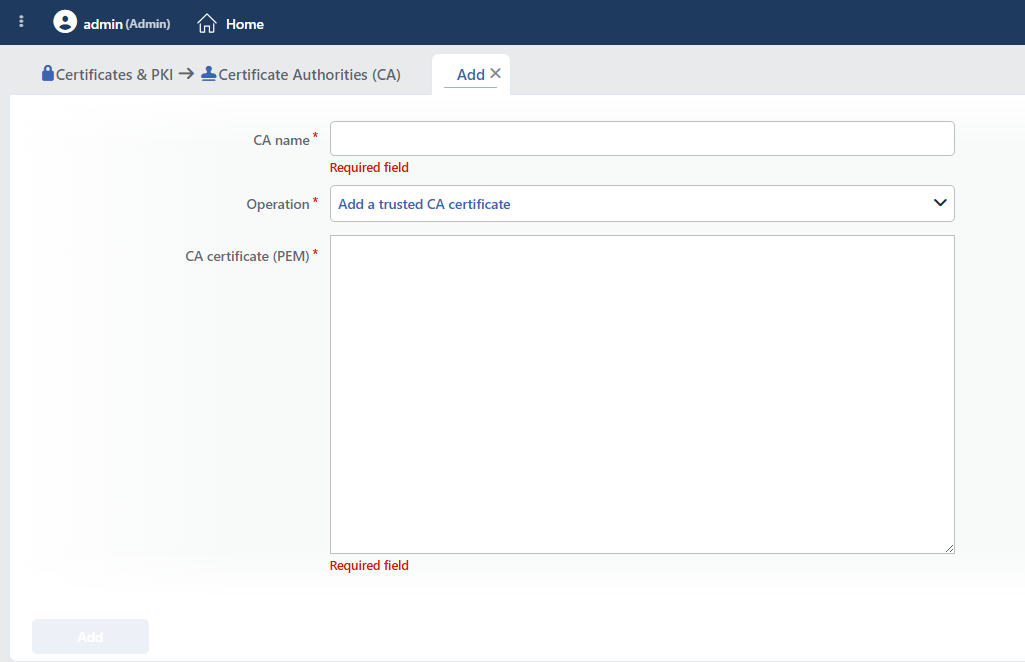 The Certificate Authorities (CA) Record Add Form
The CA Name and Operation fields are present in every operation; the fields below them change according to the selected operation.
INFO
CA Name Required
The name of the record is entered. The name identifies the record in the list, in the CA selections in the certificate and profile forms and in the logs, and it must be unique on the device; when the same name is entered, the form gives the Name is used warning.
INFO
Operation Default: Add a trusted CA certificate
The operation to be done is selected; according to the selection one of the field sets below is seen:
- Add a trusted CA certificate: a trusted CA certificate is pasted.
- Create root CA: a self-signed root CA is produced on TR7.
- Create issuing CA: an issuing CA is produced under an internal root CA.
- Enroll under an external CA: a key and a CSR are produced for the issuing CA; the certificate is taken from the external (corporate) root CA.
- Import existing CA: an existing CA certificate and private key are imported.
Add a trusted CA certificate
INFO
CA Certificate (PEM) Required
The content of the CA certificate is pasted or a file is dragged (a dragged file is at most 32 KB); the PEM, PKCS#7 and DER formats are accepted and it is stored as PEM. There can be more than one certificate in the content; in this case the CA Role column shows +N.
Create root CA
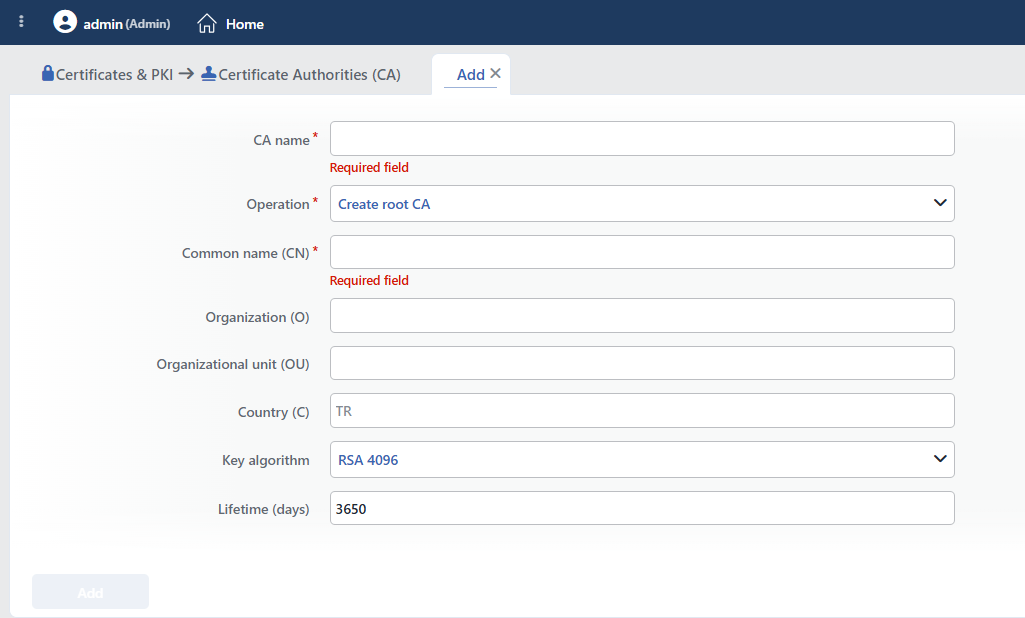 The Fields in the Create Root CA Selection
INFO
Common Name (CN) Required
The subject name of the root CA certificate; at most 128 characters. Letters, digits, a space and the . - _ ( ) ' characters can be used; when another character is entered, the form gives the Contains characters that are not allowed in a certificate subject warning.
INFO
Organization (O)
The organization name in the subject; at most 128 characters, the same character rule as Common Name (CN) applies. It is optional.
INFO
Organizational Unit (OU)
The unit name in the subject; at most 128 characters, the same character rule as Common Name (CN) applies. It is optional.
INFO
Country (C)
The two-letter country code in the subject; the placeholder of the field shows the TR value. When a value other than two letters is entered, the form gives the Country must be a 2-letter code (e.g. TR) warning. It is optional.
INFO
Key Algorithm Default: RSA 4096
The algorithm of the CA key: RSA 2048, RSA 3072, RSA 4096, ECDSA P-256 or ECDSA P-384.
INFO
Lifetime (days) Default: 3650
The validity period of the CA certificate (days); an integer between 1 and 36500.
The field is not compulsory; when it is left empty, the period falls to the default on the server side, and this value is 3650 days in a root CA and 1825 days in an issuing CA.
The root CA signs itself; the CA marker and the path length that allows at most one level of sub-CA are written to its certificate. The root CA does not produce a server or a client certificate directly; an issuing CA must be created under it.
Create issuing CA
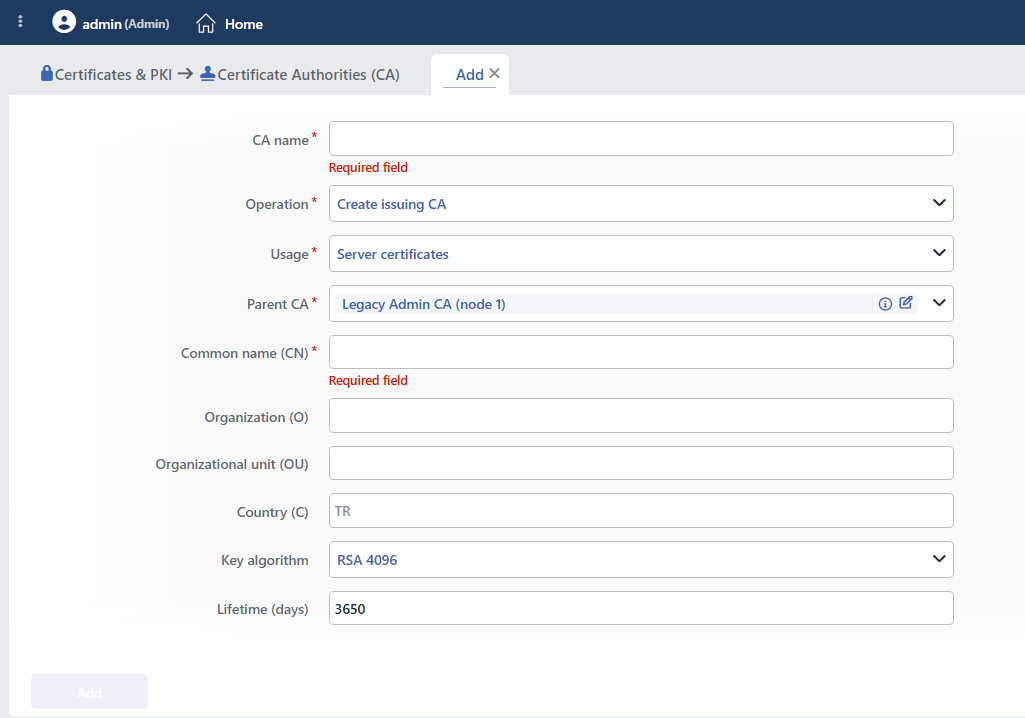 The Fields in the Create Issuing CA Selection
INFO
Usage Default: Server Certificates
The area of use of the issuing CA: Server Certificates (the vService certificates; in the Issuing CA list on the SSL/TLS Certificates screen) or Client Certificates (the client identities; in the Issuing CA list on the Client Certificates screen). A CA produces a certificate only with the profiles in its own area of use.
INFO
Parent CA Required
The root CA that will sign the issuing CA; only the internal root CA records that have a key and a certificate are listed. If the list is empty, a root CA must first be created with Create root CA. A selection can be made only from the list.
INFO
Common Name (CN), Organization (O), Organizational Unit (OU), Country (C), Key Algorithm, Lifetime (days)
They are the same as the fields in the root CA form (CN is compulsory; the Key Algorithm default is RSA 4096; the Lifetime default is 3650).
The issuing CA is signed by the selected root CA and it is cut in such a way that it cannot produce a sub-CA (the path length is 0); the hierarchy is two-level.
Enroll under an external CA
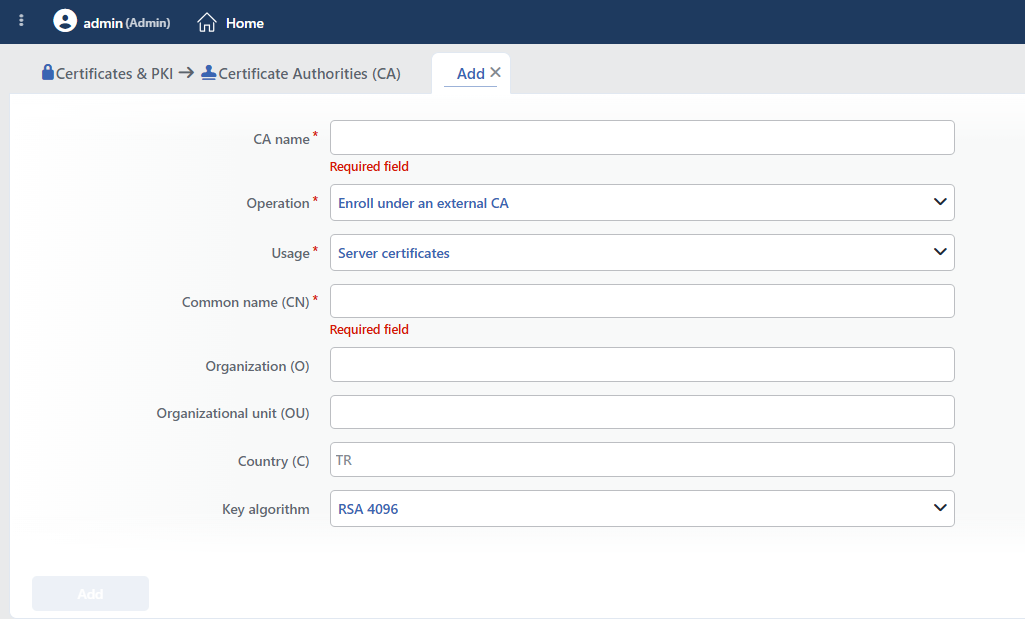 The Fields in the Enroll under an External CA Selection
INFO
Usage Default: Server Certificates
The area of use of the CA when the enrollment is completed (Server Certificates / Client Certificates).
INFO
Common Name (CN), Organization (O), Organizational Unit (OU), Country (C), Key Algorithm
They are the same as the fields in the root CA form. The validity period is not entered in this operation; the external CA that signs determines the period.
With Add a key and a CA certificate signing request (CSR) are produced; the record is seen in the list as Enrollment Pending and it cannot produce a certificate until the certificate the external CA has signed is uploaded (see Completing the Enrollment Under an External CA).
Import existing CA
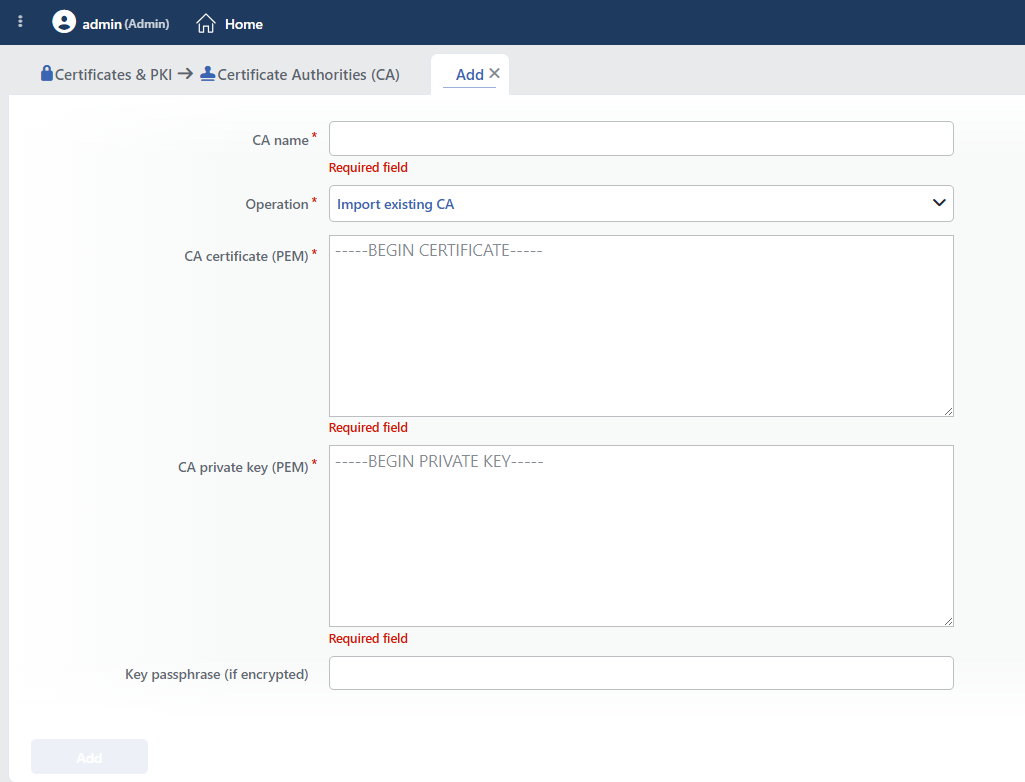 The Fields in the Import Existing CA Selection
INFO
CA Certificate (PEM) Required
The PEM content of the CA certificate that will be imported (-----BEGIN CERTIFICATE-----). The certificate must carry a CA marker; otherwise the importing is rejected.
INFO
CA Private Key (PEM) Required
The PEM content of the private key of the CA (-----BEGIN PRIVATE KEY-----). The key must match the certificate.
INFO
Key Passphrase (if encrypted)
If the private key is password protected, its password is entered. The field is masked.
The imported CA is saved as an Internal Root CA without an area of use being stated: it can be selected as the Parent CA for new issuing CAs, but it is not listed as an Issuing CA in direct certificate production.
INFO
Add
The CA record adding operation is completed by clicking the Add button. As long as there is a field that has not been validated in the form, the button stays passive.
Completing the Enrollment Under an External CA
1
Step 1 The record is created
With the Enroll under an external CA operation a key and a CSR are produced; the record is listed as Enrollment Pending. In the editing form of the pending record there are the name field and an information box that states that the record is waiting for its signed certificate.
2
Step 2 The CSR is given to the external CA
The CSR is had signed as a CA certificate by the external (corporate) root CA. The CSR content is not shown in the interface in this version; it is taken from the /api/lb/pki/caCsrContent/<record identity> endpoint in the REST API of the device.
3
Step 3 The signed certificate is uploaded
The record is clicked in the list and the Upload the signed CA certificate icon in the preview header is selected. In the window that opens, the CA certificate the external CA has returned is pasted into the Signed certificate (PEM) field, together with its chain if there is one, or a file is dragged (a dragged file is at most 64 KB). The first certificate must carry a CA marker and must match the key in the record; for the parent CA certificates in the chain Trust Anchor records are created automatically (with the name <CA name> — <CN>; if there is no CN, root or chain N, and if the name conflicts, a short identity suffix; if the same certificate is present, the existing record is used) and the record is bound to them with Parent CA. A successful upload is notified with the "<name>" is now enrolled: … message. In the pasted content the blocks that remain outside the path that extends from the signed certificate to the root are ignored silently; the chain signatures are not validated separately, only the issuer match is looked at.
4
Step 4 The CA comes into use
The record becomes an Internal Issuing CA and it is listed as the Issuing CA in the certificate production in the selected area of use. The chain of the produced certificates is set up up to the external root over the created trusted CA records.
Operating Mechanism
INFO
- The certificate chain. The certificate content of the CA records that are selected with Use Profiles in the certificate forms is combined as the intermediate/root links of the certificate when the configuration is applied; in the certificates produced with the internal PKI the chain is set up by itself with a reference to the signing CA and its parent CAs. When the CA record is updated, all the chains take the new content.
- The client validation (mTLS). The content of the CA records selected in the TLS security profile is combined in a single trust bundle and it is bound to the vService; the client certificates are validated with this bundle.
- The Backend Service and health check validation. The Verification CA Profile field is present only while SSL Service is on in the Backend Service and the certificate validation Required is selected; in this case the content of the selected record is used in the validation of the Backend Service certificate and the health check inherits the same CA if it does not have a selection of its own.
- The internal PKI. The root CA signs itself and allows only one level of sub-CA; the issuing CA is signed by the root and it cannot produce a sub-CA. In the certificate production the type (issuing), the key, the certificate and the area of use of the CA are checked; production with a CA whose enrollment is pending is rejected.
- Key storage. The internal CA keys are kept encrypted inside the record and they are synchronized between the cluster devices together with the record.
- The management CA. The device CA that is used when logging in to the management interface with a certificate is kept in the list on every device with the name Legacy Admin CA (Legacy Admin CA (node N) in a cluster); if it is not present at the configuration check, it is imported again.
- The period. The CA certificates are not renewed by themselves and no period notification is produced; the only indicator is the Valid until column in the list.
- The logs. Adding, editing, completing the enrollment and deleting are tracked as the certificate authority (CA) object on the User Logs screen.
Scope and Limits
INFO
- The permission. The screen is bound to the certificate permission area; in a user who does not have the permission the You don't have access to this page card is displayed instead of the page.
- The name is unique. A second record that carries the same name is not saved.
- A two-level hierarchy. The issuing CA is produced under an internal root CA or it is enrolled under an external CA; a CA cannot be opened under an issuing CA.
- An internal CA cannot be edited. In the records with a key only the name changes; certificate renewal and key changing are not offered on this screen. When a new CA is needed, a new record is created.
- An imported CA is considered a root. Because an area of use is not stated, it is not listed in direct certificate production; an issuing CA is created under it.
- The CSR is not shown in the interface. The CSR that is produced for the enrollment under an external CA takes place neither in the editing form nor in the preview; its content is taken only from the REST API of the device.
- The usage count is limited. Used in lists only the certificates that use this record in their chain; the confirmation window does not show the usage locations before the deletion.
- There is no period notification. Automatic renewal and a notification are not produced for the CA certificates.
- The value ranges. The subject fields are at most 128 characters and the validity is 1–36500 days; a dragged file is at most 32 KB (adding/editing) and 64 KB (completing the enrollment); in the importing fields there is no file dragging.
Usage Locations
| Usage location | Field | Purpose |
|---|---|---|
| SSL/TLS Certificates | Root Cert. Content / Intermediate Cert. Content → Use Profiles | The root and intermediate links of the certificate chain being offered from the CA records. |
| SSL/TLS Certificates | Issuing CA (Type: Internal CA) | The server certificate being produced with the internal issuing CA (Usage: Server Certificates). |
| Client Certificates | Issuing CA | The client certificate being produced with the internal issuing CA (Usage: Client Certificates). |
| TLS Security Profiles | CA Certificate Files | The CAs against which the certificates of the clients that connect to the vService will be validated. |
| Backend Services | Verification CA Profile | The CA against which the Backend Service server certificate will be validated. |
| The health checks | Verification CA Profile | The CA against which the server certificate will be validated in the check connection; if it is empty, that of the Backend Service is inherited. |
| The Client Certificates editing form | Intermediate Cert. CA Profile / Root Cert. CA Profile | The chain that will be offered together with the client certificate. |
