
Smarter by Design.Simpler for Business
Browser
What Is the Browser Condition?
Browser is a condition type that detects the user's browser by analyzing the User-Agent header of the HTTP request, and is used to make traffic routing and manipulation decisions according to this information.
The User-Agent header contains the browser information:
User-Agent
Mozilla/5.0 (Windows NT 10.0; Win64; x64) AppleWebKit/537.36
(KHTML, like Gecko) Chrome/120.0.0.0 Safari/537.36
(KHTML, like Gecko) Chrome/120.0.0.0 Safari/537.36
Chrome Browser
With this condition, TR7 can recognize 323 different browser types by comparing the User-Agent header with known browser signatures (pattern matching). For a manual browser type check within the User-Agent HTTP header, the HTTP Header condition can be used.
The Importance of the Browser Condition
Browser detection is critically important for optimizing the user experience and solving compatibility issues.
With the Browser condition:
- Compatibility pages can be shown to old browsers,
- Browser-specific CSS/JS files can be served,
- Workarounds can be applied for issues experienced in specific browsers,
- Browser-based usage statistics can be collected,
- Old browsers with security vulnerabilities can be detected.
Browser vs Mobile Platform vs Bot Type:
| Condition | What It Detects | Example |
|---|---|---|
| Browser | Browser application | Chrome, Firefox, Safari |
| Mobile Platform | Operating system | Android, iOS |
| Bot Type | Automation software | Googlebot, Bingbot |
Supported vService Types
HTTP
L7 TCP
Network
The condition can be used at both the request (At Request) and response (At Response) stages; the browser information is detected at the time of the request and is evaluated over the same value at the response stage as well.
How to Add?
A new Browser Condition can be added through the TR7 web management interface by following the steps below:
- The Configuration Menu is opened by clicking the TR7 logo at the bottom left.
- The Load Balancer → Conditions → Add steps are followed.
- Browser is selected as Criteria.
- The related configurations of the condition are made.
- The condition is added by clicking the
Addbutton.
Browser Condition Add Form
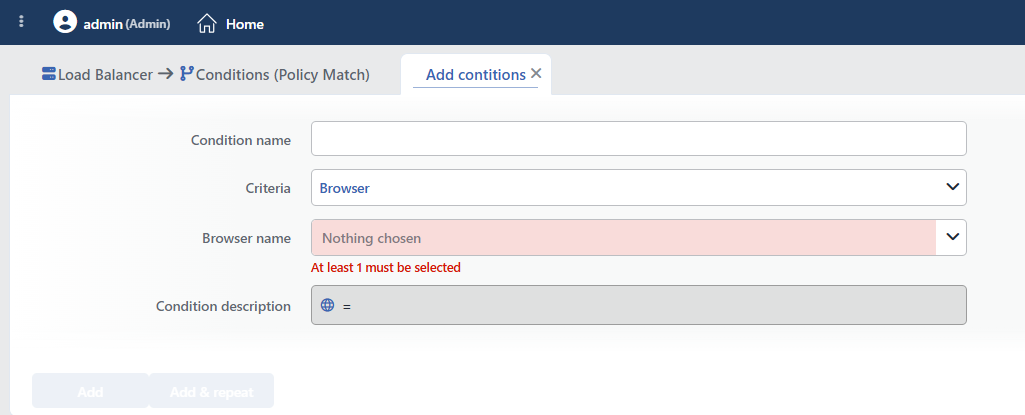 Browser Condition Add Form
INFO
Condition Name
An optional name can be entered for the condition to be created.
This field is especially important in the following scenarios:
- When many conditions are defined under the same vService,
- When conditions with similar criteria need to be distinguished,
- When it is necessary to quickly understand which business rule the condition represents.
When this field is left empty, TR7 analyzes the content of the related condition and creates an automatic, descriptive name in the Condition Description field. This generated description is used as the name in condition lists.
INFO
Criteria Required
The field that determines the type of the condition; Browser is selected from the searchable dropdown list. This selection determines the fields displayed in the form. The criterion cannot be changed after the condition is saved: if a different criterion is needed, a new condition is defined. For all criteria in the list and their scopes, the criteria catalog on the Conditions page can be referred to.
INFO
Browser Name Required
The browsers to be detected are selected from the searchable list; selecting at least one browser is required (the form opens empty). TR7 can recognize 323 different browser types.
More than one browser can be selected. It works with OR logic, and if any of the selected browsers matches, the condition is met.
Matching is done with substring logic: the condition is met when the selected name occurs within the detected browser name. For example, selecting Chrome also covers all derivatives such as Chrome Mobile, Chrome WebView and Chromium.
Common Browser Categories:
| Category | Examples |
|---|---|
| Desktop | Chrome, Firefox, Safari, Edge, Opera |
| Mobile | Mobile Safari, Opera Mini, Samsung Browser |
| Legacy | IE, IEMobile |
| Alternative | Vivaldi, Yandex, UCBrowser |
TIP
Since the browser list is long, the desired browser can be found quickly by using the search box.
TIP
If only a check of "whether the client comes from a browser" is wanted without distinguishing between browsers, the If the client is from a browser condition, which is offered ready-made in the condition selection lists, can be used; there is no need to define a separate condition for this.
WARNING
The Browser condition is not a bot filter: automation browsers such as HeadlessChrome are also recognized as browsers. For bot distinction, the Bot Type condition is used. In addition, the detected browser name can be used in actions with the Client browser name smart variable (e.g. as the value of an HTTP header or a log field).
INFO
Condition Description
It is created automatically by TR7 in line with the entered criteria and values.
This description:
- which value the condition applies to,
- which criterion it works on,
- the quick understanding of the condition on listing screens
is produced dynamically by the system so as to provide these.
INFO
Form Buttons
Add
The condition adding process is completed by clicking the Add button.
Add & Repeat
With the Add & Repeat button, the condition adding process is completed, and another new condition can be added with different configurations without leaving the related window.
 Condition Added
Operational Usage Recommendations
- Old Browsers Should Be Detected. Old browsers such as IE should be detected, and a compatibility warning or alternative content should be shown.
- User-Agent Spoofing Should Be Watched For. The User-Agent can be changed easily; browser detection alone should not be relied on for security decisions.
- Grouping Should Be Done. Thanks to substring matching, a single Chrome selection covers all Chrome variants; different families (Chrome, Firefox, Edge…) should be grouped in a single condition with multiple selections.
- Periodic Update. Conditions should be reviewed as new browser versions are released.
Common Usage Scenarios in Live Environments
The examples below show how the related condition is applied in the most frequently encountered use cases in real systems. These scenarios are based on practices that are widely preferred in live environments and rest on experience gained in the field.
Scenario 1: Internet Explorer Compatibility Warning
Purpose: To detect old IE users, encourage the use of modern browsers and prevent compatibility issues.
Configuration: Browser name → IE (substring matching also covers IEMobile)
Action Recommendations:
- ✅ Show Content → A browser update warning page is shown.
- ✅ Add HTTP Header → The
X-UA-Compatible: IE=edgeheader is added, and the newest rendering engine is used. - ✅ Advanced Traffic Inspection → IE usage statistics are collected and reported.
Scenario 2: Mobile Chrome Optimization
Purpose: To detect mobile Chrome users and provide optimized content and path redirection.
Configuration: Browser name → Chrome: for the mobile distinction, it is used together with the Mobile Platform condition (Android/iOS) in the same rule
Action Recommendations:
- ✅ Add HTTP Header → The
X-Mobile-Chrome: trueheader is added, and the Backend Service performs mobile Chrome detection. - ✅ Set Path → The home page is redirected to the
/mobilepath, and mobile-optimized content is served. - ✅ Advanced Traffic Inspection → Mobile Chrome usage distribution and statistics are reported.
Scenario 3: Safari-Specific CSS/JS Loading
Purpose: To detect the Safari browser and serve Safari-specific style and script files.
Configuration: Browser name → Safari (substring matching also covers Mobile Safari)
Action Recommendations:
- ✅ Add HTTP Header → The
X-Safari-Detected: trueandX-Load-Safari-CSS: trueheaders are added, and the Backend Service loads Safari-specific resources. - ✅ Advanced Traffic Inspection → Safari usage distribution and version analysis are reported.
Scenario 4: Modern Browser Check
Purpose: To detect supported modern browsers, collect usage statistics and add a marker.
Configuration: Browser name → Chrome, Firefox, Edge, Safari (substring matching also covers all derivatives of these families)
Action Recommendations:
- ✅ Add HTTP Header → The
X-Modern-Browser: trueheader is added, and the Backend Service can use modern browser features. - ✅ Advanced Traffic Inspection → Modern browser usage rates and distribution analysis are reported.
Scenario 5: Alternative Browser Detection
Purpose: To detect and analyze alternative browsers such as Vivaldi, Yandex and UCBrowser.
Configuration: Browser name → Vivaldi, Yandex, UCBrowser
Action Recommendations:
- ✅ Add HTTP Header → The
X-Alt-Browser: trueheader is added, and the Backend Service performs alternative browser detection. - ✅ Advanced Traffic Inspection → Alternative browser usage distribution analysis is reported.
