
Smarter by Design.Simpler for Business
WAF Mode
What Is WAF Mode?
WAF Mode determines the operating mode of WAF on a vService: will the traffic only be learned, will the attacks only be monitored, or will they actually be blocked? The mode is the top level switch of the WAF protection and is shown on the colored mode strip at the very top of the WAF Management screen.
The mode is assigned not to the whole of the vService but to the host group. On a vService that works with a single (default) host group, this is in practice the mode of the vService; when Virtual Host Groups are defined, on the other hand, every domain name group can work in its own mode: for example, while api.site.com is in the Blocking mode, beta.site.com can stay in the Learning mode. Like the mode, the learned page types are also specific to the group: every host group keeps its own WAF Rules (Page Types) list and learning setup separately.
Learning Mode
"Learning mode — rules are not enforced yet"
The rules are not enforced yet. All the traffic is inspected and written to the learning journal; the site structure (the page types) is learned from these records. No request is blocked.
Monitor Mode
"Attacks are only monitored, not blocked"
The rule set works at full capacity: the requests are inspected, scored and the attacks are reported, but they are not blocked. It is the rehearsal of the rules on real traffic before moving to blocking.
Blocking Mode
"Attacks are blocked"
Full protection: the requests whose attack score exceeds the threshold are blocked and the blocking page is returned to the client. The detected attacks are logged and reported.
When the WAF protection is enabled for the first time, the vService starts in the Learning mode; the recommended progression is to move from learning to the rehearsal and from the rehearsal to the protection (see Recommended Life Cycle).
The Mode Strip on WAF Management
At the very top of the WAF Management screen, a mode card for every host group is located. The color and the icon of the card reflect the mode of the group (Learning blue, Monitor orange, Blocking red); next to the title, the sentence that summarizes the mode is shown. While there is a single host group, the card describes the mode directly; while there is more than one group, every group gets a separate card with its own name and its own color, and the default group appears at the end of the list as Default Host Group.
 The WAF Mode Strip - Default
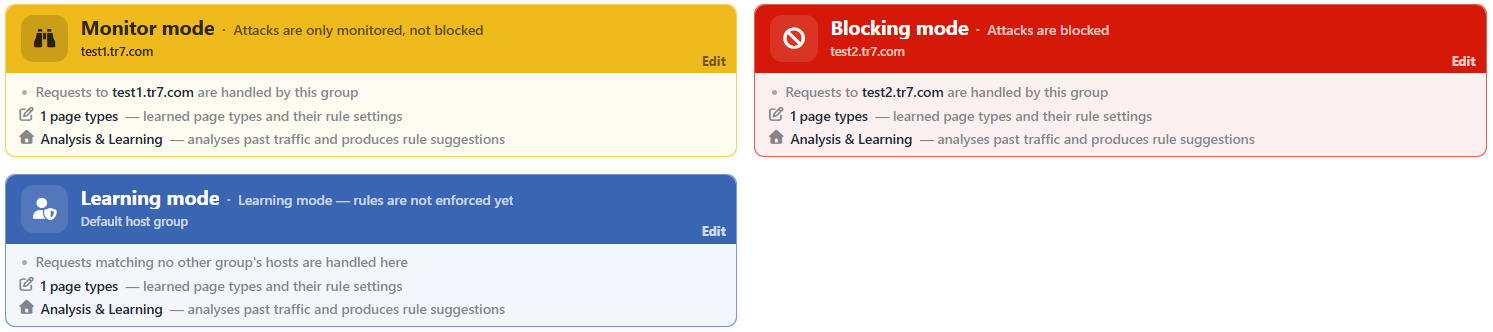 The WAF Mode Strip - Multiple Virtual Host Groups
Below the mode card there are two rows that open to the learning state of that host group:
| Row | Meaning |
|---|---|
| N Page Types: learned page types and their rule settings | Shows the number of learned page types (rules) of the group; when the pencil icon next to the row is clicked, the Page Types view of the group opens. |
| Analysis & Learning: analyses past traffic and produces rule suggestions | Starts the Analysis & Learning flow that analyzes the past traffic and produces rule suggestions; the house icon at the beginning opens the list of the existing analyses. If there is an analysis that is completed but not applied yet, the New badge appears in the row, and if it has been applied, the Applied badge. |
Mixed modes
If the host groups work in different modes, a single combined strip is not shown; every group carries its own card. The Virtual Host Groups box at the bottom of the screen, on the other hand, summarizes the distribution: such as "Requests are evaluated in N host groups, each with its own WAF mode — 2 Blocking, 1 Learning". The same summary is also used in the WAF Mode column in the vService lists.
The WAF Mode Edit Screen
- The WAF Management tab is opened.
- The Edit button at the top right of the mode card is clicked; the host group editing screen opens.
- The new mode is selected from the WAF Mode field and it is confirmed with the
Editbutton.
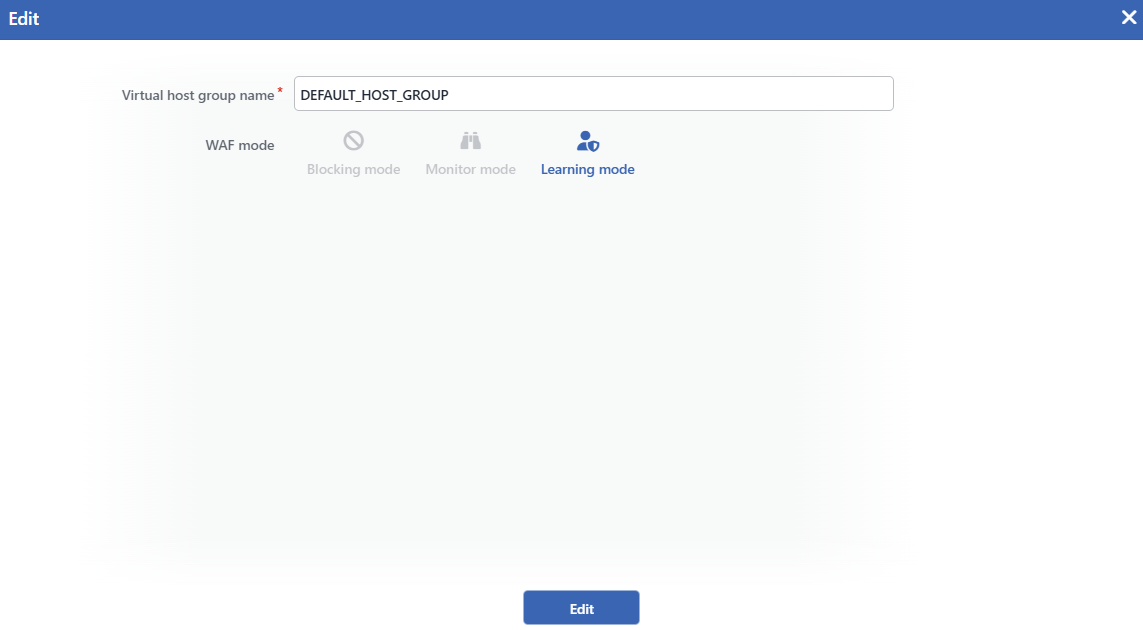 The WAF Mode Editing Screen
The screen above is the editing screen of the default host group; only two fields are located in this group. While a Virtual Host Group is being added or an existing group is being edited, the Virtual Host Patterns field is also added to the form. The groups are managed from the Virtual Host Groups screen.
INFO
Virtual Host Group Name
The name of the host group is entered (a required field). The default group, whatever its name is, is always shown in the interface as Default Host Group.
INFO
WAF Mode
The operating mode of the host group is determined with one of the three icon selections:
- Blocking Mode: the attacks are blocked; the full protection mode.
- Monitor Mode: the attacks are only monitored and reported, they are not blocked.
- Learning Mode: the rules are not enforced; all the traffic is written to the learning journal.
While a new host group is being added, the default mode of the vService comes preselected. For the runtime behaviors of the modes see Runtime Behavior of the Modes.
INFO
Virtual Host Patterns
It is displayed in the form while a Virtual Host Group is being added or an existing group is being edited; it is not located on the editing screen of the default host group.
The domain name patterns that the group will meet are entered; at least one pattern is required and the * wildcard character is supported (e.g. *.site.com). The requests are matched with the patterns according to the Host header; the requests that do not comply with any pattern and the requests that do not carry a Host header fall to the default group.
No pattern is defined for the default group
Since the default host group meets all the requests that do not match the other groups, it does not need a matching pattern. For this reason, the Virtual Host Patterns field is not located on the editing screen.
INFO
Edit
The changes in the form are saved by clicking the Edit button. There is no additional confirmation window or deployment (deploy) step; the WAF configuration is produced again and applied automatically.
Before moving to the mode
Moving to the Blocking mode starts to apply the current rule set to the real traffic. Moving to the Blocking mode without verifying that the site has been learned enough (Learning Coverage is high) and that no false positive is produced in the Monitor mode is not recommended.
Runtime Behavior of the Modes
What the three modes do to a request, side by side:
| Behavior | Learning | Monitor | Blocking |
|---|---|---|---|
| The signature scans work | ✓ (unconditionally) | ✓ | ✓ |
| The structural / argument inspections | - | ✓ | ✓ |
| The attack score is calculated | - | ✓ | ✓ |
| The request that exceeds the threshold is blocked | - | - | ✓ |
| If the inspection times out, the request is blocked | ✓ | ✓ | ✓ |
| An attack record (Event Log / SIEM) is produced | - | ✓ | ✓ |
| It is written to the learning journal | ✓ (every request is a candidate) | - | - |
| The Dashboard series | Learning | Monitor / Clean | Blocked / Clean |
Learning Mode
The requests are inspected (the signature scans work) but the score is not accumulated and no request is blocked. Every request is written to the learning journal together with the path, the method, the query, the headers, the body and the signatures that matched during the scan. Analysis & Learning processes this journal and produces the page types and the rule suggestions of the site. The learning journal is written with smart sampling: although every request is a candidate, when a certain number of the same request shape is exceeded, the excess requests are not written to the journal, they are sampled by being thinned out. The sampling rate is monitored from the Learning Log Sampling panel on the Dashboard. The traffic in this mode is counted in the Learning series on the Dashboard even if it contains an attack.
In the Learning mode the signature scanning works more broadly than in the other two modes: the field-based OWASP switches and the defined OWASP exceptions are not applied, all the signatures are tried unconditionally. The purpose of this is that the learning journal is complete; on the other hand, the records of the signatures that would never match in the Monitor or Blocking mode can also be located in the journal.
Monitor Mode
WAF makes exactly the same inspection as in the Blocking mode: the signature scans, the structural/argument inspections and the scoring are complete; the blocking decision is also calculated, but it is not applied. The requests that exceed the threshold are passed, and instead an attack record with the full attack detail is produced (Event Logs, the SIEM and the signature counters are fed) and the request falls to the Monitor series on the Dashboard. This is the riskless rehearsal of the rule set on live traffic.
Not all of the records produced in the Monitor mode are the requests that would be blocked in the Blocking mode. Two separate record types are collected in the same series: the requests that really exceed the blocking threshold and the requests that a signature taken to the Monitor state on the OWASP Rules screen matched and whose score stays below the threshold. The latter are not blocked in the Blocking mode either. On the Event Logs screen this distinction is written explicitly: the former are displayed as Not blocked — Monitor mode and the latter as Not blocked — Below the blocking threshold.
Blocking Mode
It is the full protection mode. The requests whose attack score reaches the blocking threshold determined with the OWASP Protection Level are blocked; the content and the status code (the default 418) in the Blocking Page settings are returned to the client. The blocked requests are monitored in the Blocked series on the Dashboard.
The safe side: if the inspection cannot be completed, the mode is not listened to
If the WAF inspection of a request times out (e.g. on an excessively large or complex request) and cannot be completed, the request is blocked by staying on the safe side (fail-closed).
This blocking is independent of the mode. The decision is made by looking at whether the scan has produced a result; the host group being in the Learning or Monitor mode does not save this request. That is, a blocking response can return to a real client on a host group that has been taken to the Monitor mode only for the rehearsal, and on a group that is in the learning stage as well.
These requests are counted in a separate timeouted class and do not enter the Dashboard panels. No Event Logs record is produced either: since the scan is cut off halfway, the stage that writes the WAF record is never reached. The request appears only in the Debug Logs line and in the data sent to the SIEM.
The ones that stay outside the scope of the mode
Since the requests on the whitelist side of the Whitelist & Blacklist screen (the static content and the whitelist condition) do not enter the WAF inspection at all, the mode does not affect them. The blacklist, on the other hand, does not skip the inspection: a request coming from a source on the blacklist passes through the WAF inspection, the blacklist match is added to the attack score and the result is subject to the mode; a request that is caught by the blacklist on a host group in the Learning mode is not blocked either. The Teacher traffic under Learning Methods is not blocked whatever the mode is (the requests that would be blocked are reported in the Teacher series); the requests that comply with the Conditional Learning conditions are also evaluated within the learning scope independently of the mode.
The Difference Between WAF Mode and the Learning Methods
WAF Mode and Learning Methods are often confused; the two are different layers:
- Learning Mode is an operating mode: the whole of the host group is in the learning state, the rules are not enforced and all the traffic is learned.
- The learning methods (Conditional Learning, Teacher, AI Learning), on the other hand, are request-based learning channels: whatever mode the vService is in, the requests that comply with the defined condition/identity are taken into the learning scope. The workings of the two channels are different from each other:
- The Teacher traffic is not written to the learning journal. The request that comes with the teacher identity is not blocked and it feeds the false positive cleanup over the attack records that are caught.
- The requests that comply with the Conditional Learning condition, on the other hand, are processed exactly as in the Learning mode whatever the mode is: the inspection results are not applied and the request is written to the learning journal. For this reason, the Learning series can also fill up on the panel of a vService that is in the Blocking mode.
In addition, the mode is independent of the signature states (Active / Monitor / Disabled) on the OWASP Rules screen: the Monitor state on a signature basis determines the behavior of a single signature, while WAF Mode determines the whole of the host group.
Recommended Life Cycle
01 · LearningThe site is learnedThe traffic is written to the learning journal; the page types and the rule suggestions are formed. It is waited until Learning Coverage approaches 100%.
02 · MonitorThe rules are rehearsedThe rule set works on real traffic without blocking; the false positives are sorted out with the Monitor series and Event Logs.
03 · BlockingThe protection is in effectThe attacks are blocked; the monitoring continues with the Dashboard panels and the WAF Report.
- Learning: When WAF is enabled, the vService starts in this mode. While the traffic is being learned, the progress is monitored from the Learning panels on the Dashboard; the rule suggestions are produced and applied with Analysis & Learning.
- Monitor: When the rules are ready, this mode is moved to; the behavior of the rules on real traffic is verified without blocking. During this process Event Logs is followed; the records that produce a false positive are examined from here and the related requests are taught to WAF.
- Blocking: If the rehearsal is clean, the protection is turned on. When new sections/applications are added, by keeping a Virtual Host Group that covers only the related domain name in the Learning mode, the cycle can be repeated without affecting the whole of the site.
A newly opened group learns from scratch
When a new Virtual Host Group is added, the learned page types and rules of the default group are not copied to this group; the group is born with an empty rule set and goes through its own learning process from the beginning. For this reason, the time the new group will spend in the Learning mode may not be shorter than the first learning time of the site.
Scope and Limits
INFO
- Changing the mode requires the change authorization in the WAF area. A user who does not have the authorization sees the mode cards and the distribution but cannot use the editing entry.
- The change is applied within a few seconds. The saved mode is reflected to the traffic engine with an uninterrupted (hitless) reload; the open connections are not dropped and there is no separate confirmation or restart step.
- The mode lives only at the host group level. There is no separate operating mode across the vService; the value at the vService level that appears on the screens is the starting value of the groups that will be newly opened.
- The group name has to be unique within the vService. A second group that carries the same name cannot be saved.
