
Smarter by Design.Simpler for Business
Device DNS
What Is Device DNS?
Device DNS is the screen where the DNS servers and the static host records that TR7 will use while resolving domain names to IP addresses are defined. In TR7, this configuration is kept per route table: since every route table carries its own name resolution settings, the DNS servers and the Virtual Host records entered apply only to the selected route table.
Route Table
Configuration scope
The route table the settings will apply to
DNS Servers
Name resolution
Multiple DNS server IPs
Virtual Hosts
Static records
Fixed domain → IP mappings
Cluster Behavior
In the TR7 installations running as a cluster (two devices), when the DNS settings are changed on one device, they are automatically synchronized with the other TR7 device; there is no need to set them separately.
What Is It For?
Many functions of TR7 define the targets by domain name; for these names to be resolvable to an IP, valid DNS servers must be defined. A correctly configured Device DNS provides the following:
- the Backend Service targets to be defined by domain name instead of IP,
- reaching external servers such as Notification (SMTP) and Log / File Forwarding (Syslog / FTP / SCP) by domain name,
- access to the license and update servers,
- routing specific domain names to a fixed IP with Virtual Hosts; the static records are tried before the defined DNS servers.
Since the configuration is kept per route table, every component uses the DNS settings of the route table it runs within during name resolution. The device's own management traffic (notification, log/file forwarding, license and update access) is resolved over the default route table; for this reason the DNS servers that concern the management side are defined on the default route table.
How to Edit?
The DNS settings are edited via the TR7 web management interface with the steps below:
- The Configuration Menu is opened by clicking the TR7 logo at the bottom left.
- The steps Settings → General Settings → Device DNS are followed.
- From the Route Table selector at the top left, the route table the settings will apply to is selected.
- By clicking the Edit button, a separate editing tab is opened for the selected route table.
- The related fields are updated according to the requirements.
- The changes are saved by clicking the
Editbutton.
TIP
Reaching the page via quick search
Instead of navigating the menu step by step, the related page is reached directly by using the search bar in the bottom left corner of the screen. The search bar opens with the Alt + T shortcut on Windows and Opt + T on macOS; typing the name of the feature being searched for is then sufficient.
The Device DNS Screen
By following the path Settings → General Settings → Device DNS, the DNS information belonging to the TR7 device is displayed. The screen is read-only: at the top left there is the Route Table selector and next to it the Edit entry; below, the DNS servers list of the selected route table is listed numbered, and the Virtual hosts records are listed in a table with IP and Domain columns. While there is no defined record, No records to show is written in the table.
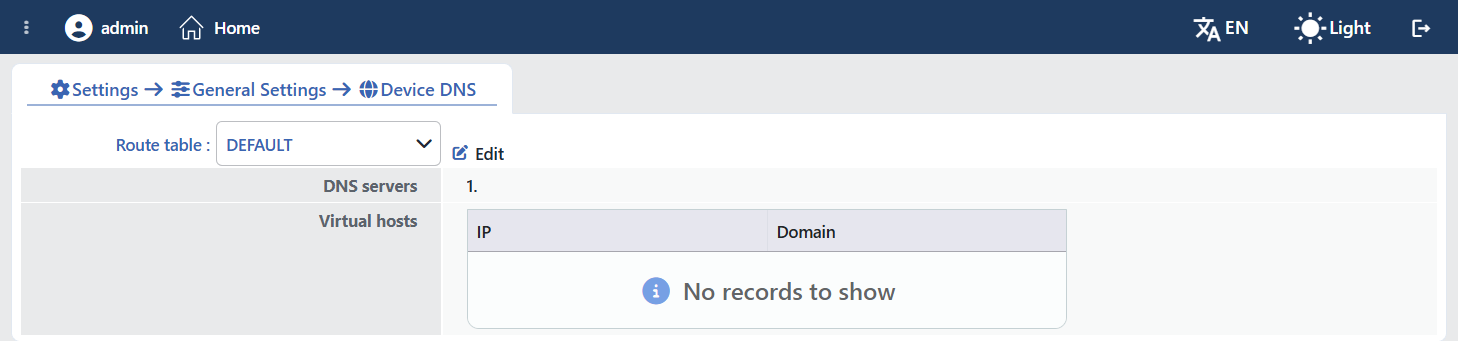 The Device DNS Screen
INFO
Route Table Configuration scope
Which route table the DNS settings will be made on is selected. In TR7, every route table carries its own DNS resolver configuration; for this reason the DNS servers and the Virtual Host records are specific to the selected route table. For details about the route tables, the Route Tables page can be looked at.
In the selector, the route tables defined on the device are listed; the default table appears with the name DEFAULT. Every route table carries its own DNS server list and Virtual Hosts records; these lists are not inherited from the default table. If no DNS server has been defined for a route table, name resolution cannot be done within that table.
The DNS Editing Form
By clicking the Edit button, a closable editing tab in which the DNS servers and the Virtual Hosts configuration are edited for the selected route table is opened. The tab carries the name of the route table: <route table name> edit DNS (e.g. DEFAULT edit DNS). The editing tabs of different route tables can be kept open at the same time.
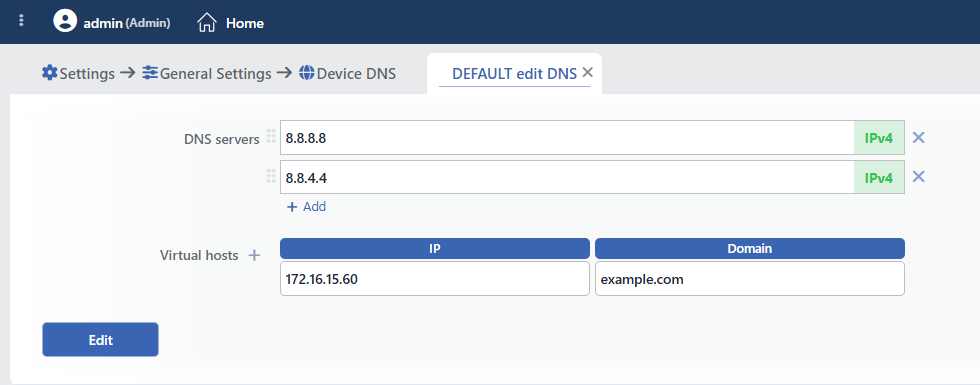 The DNS Editing Tab
INFO
DNS Servers Multiple IPs
The IP addresses of the DNS servers that the selected route table will use in name resolution are entered. The list is unlimited in length: every row is a separate server address and a new row is added with the + Add entry under the list. On the right of every row there is an IPv4 / IPv6 badge showing the family of the address and the × icon that removes the row, and on its left there is the handle that serves to change the order by dragging the row. The order matters: name resolution is tried starting from the first server in the list.
The entered values must be valid IP addresses (IPv4 or IPv6); a network mask (CIDR) is not accepted. While saving, empty rows are ignored. If all the servers in the list are deleted and saved, the route table remains without a DNS server and domain names cannot be resolved within that table.
INFO
Virtual Hosts IP + Domain
They are the static records that provide specific domain names to be resolved to a fixed IP address without the need for a DNS query. The records are kept in a table with IP and Domain columns; a new row is added by clicking the + icon next to the title.
The two columns expect values of different types and cannot be interchanged:
| Column | Expected value |
|---|---|
| IP | The IP address the domain name will be resolved to (IPv4 or IPv6); a network mask is not accepted |
| Domain | The domain name to be fixed; an IP address cannot be entered in this field |
The rows in which the IP or the Domain field is left blank are ignored while saving. A wildcard domain name is not supported.
Warning
A Virtual Host record takes precedence over the DNS result for that domain name within the related route table: the domain is always resolved to the IP defined here. It is useful for routing internal service names to a fixed IP; however, if the target IP changes, the record must be updated manually.
The static record list is regenerated from scratch at every save and it also contains the fixed names that TR7 itself uses (the local machine name, the name of the peer device in the cluster). Virtual Host definitions that conflict with these names must be avoided; moreover, since the list is managed by the system, the changes made manually on the device are lost at the next save.
Verifying the DNS Change
Whether the DNS servers have been applied correctly can be verified via the Web CLI with a sys-cmd ping test. The command performs the name resolution in the context of the active route table: the active route table is displayed and changed with the sys-cmd route-table command (show / set); by default the default route table is active.
INFO
Before the DNS Servers Are Added
When a domain name is pinged while no DNS server is defined, the name cannot be resolved and the command gives an error:
bash
sys-cmd ping example.com
# ping: example.com: Name or service not known
INFO
After the DNS Servers Are Added
After a valid DNS server has been added and saved, when the same command is run again, the name is resolved and the ping receives a response:
bash
sys-cmd ping example.com
# 64 bytes from 93.184.216.34: icmp_seq=1 ttl=56 time=11.2 ms